tencent cloud

Cloud File Storage

Releases Notes and Announcements
Release Notes
Announcements
Product Introduction
Overview
Strengths
Storage Classes and Performance
Use Cases
Recommended Regions
Use Limits
Service Regions and Service Providers
Purchase Guide
Billing Overview
Pricing Overview
General Series Billing
Turbo Series Billing
High-Throughput CFS Billing
Billing Mode
IA ‍Storage Billing
Storage Resource Units
Resource Purchase
Viewing Bills
Arrears Reminder
Getting Started
Creating File Systems and Mount Targets
Using CFS File Systems on Linux Clients
Using CFS File Systems on Windows Clients
Using CFS Turbo on Linux Clients
Using the CFS Client Assistant to Mount File Systems
Operation Guide
Access Management
Managing File Systems
Permission Management
Using Tags
Snapshot Management
Guide for Cross-AZ and Cross-Network Access
Automatically Mounting File Systems
Data Migration Service
User Permission Management
User Quotas
Data Encryption
Data Lifecycle Management
Upgrading Standard File Systems
Practical Tutorial
Selecting Kernels for NFS Clients
Managing Turbo CFS Directories
Terminating Compute Instances
Using CFS on TKE
Using CFS on SCF
Using CFS Turbo on TKE
Using CFS Turbo on TKE Serverless Cluster
Selecting a Network for Turbo CFS
Copying Data
CFS Storage Performance Testing
API Documentation
History
Introduction
API Category
Snapshot APIs
File system APIs
Lifecycle APIs
Other APIs
Data Flow APIs
Making API Requests
Permission Group APIs
Service APIs
Scaling APIs
Data Migration APIs
Data Types
Error Codes
Troubleshooting
Client Use Bottleneck due to Large Number of Small Files or Parallel Requests
FAQs
CFS Service Level Agreement
Contact Us
Glossary

Using Tags

PDF
フォーカスモード
フォントサイズ
最終更新日: 2024-01-22 22:15:47

Overview

A tag is a key-value pair provided by Tencent Cloud to identify a resource in the cloud. You can use tags to categorize and manage cloud resources. Tencent Cloud will not use your tags. They are only used by you to manage your Tencent Cloud resources. This document describes how to edit CFS tags.

Use limits

Note the following limits when editing tags:
Quantity: Each file system allows up to 50 tags.
Tag key: A tag key can only contain digits, letters, and +=.@-. It cannot exceed 255 characters.
Tag value: A tag value can only contain empty strings or digits, letters, and +=.@-. It cannot exceed 127 characters.

Use cases and directions

Use case: An organization has purchased six file systems, of which the business group, scope, and owners are as follows:
File System ID
Business Group
Business Scope
Owner
cfs-abcdef1
E-commerce
Marketing campaigns
John Smith
cfs-abcdef2
E-commerce
Marketing campaigns
Chris
cfs-abcdef3
Gaming
Game A
Jane Smith
cfs-abcdef4
Gaming
Game B
Chris
cfs-abcdef5
Entertainment
Post-production
Chris
cfs-abcdef6
Entertainment
Post-production
John Smith
Taking cfs-abcdef1 as an example, we can add the following three sets of tags to the file system:
Tag Key
Tag Value
dept
ecommerce
business
mkt
owner
John Smith
Similarly, you can add tag key-value pairs to other file systems based on the business group, scope, and owners.

Directions

Tagging a new file system

Prerequisites

Make sure you have a tag that you can use before creating a file system. If you do not have any tags, go to the Tag console and create one.
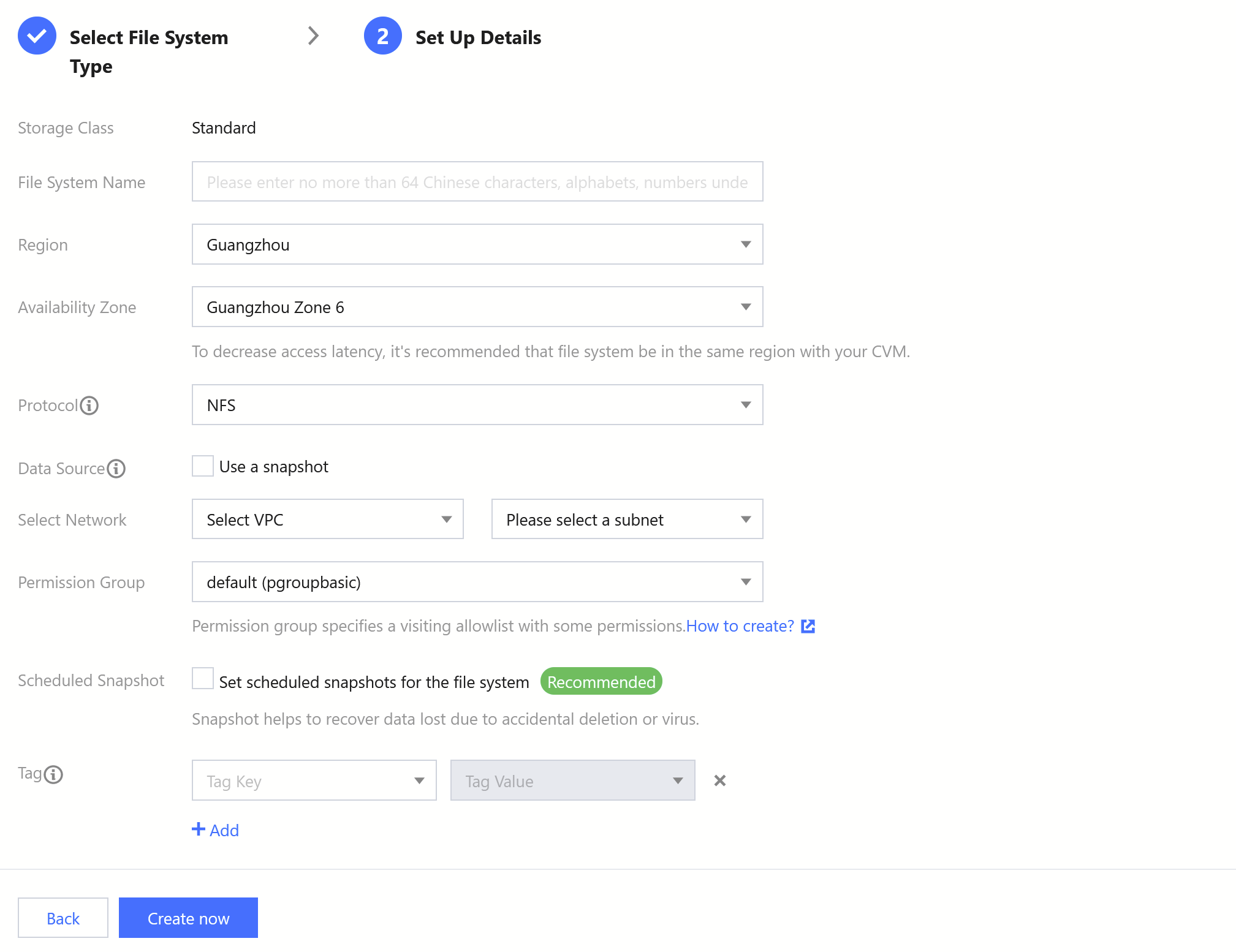
1. Log in to the CFS console.
2. On the file system list page, click Create.
3. In the pop-up window, find Tag down below, and click Add to add a tag to the file system. Only existing tags can be added in this step.


4. Click Submit, and the tag will be bound to the created file system.
Note:
For more information on creating file systems, see Creating File Systems and Mount Targets.

Adding, modifying, or deleting a tag on an existing file system

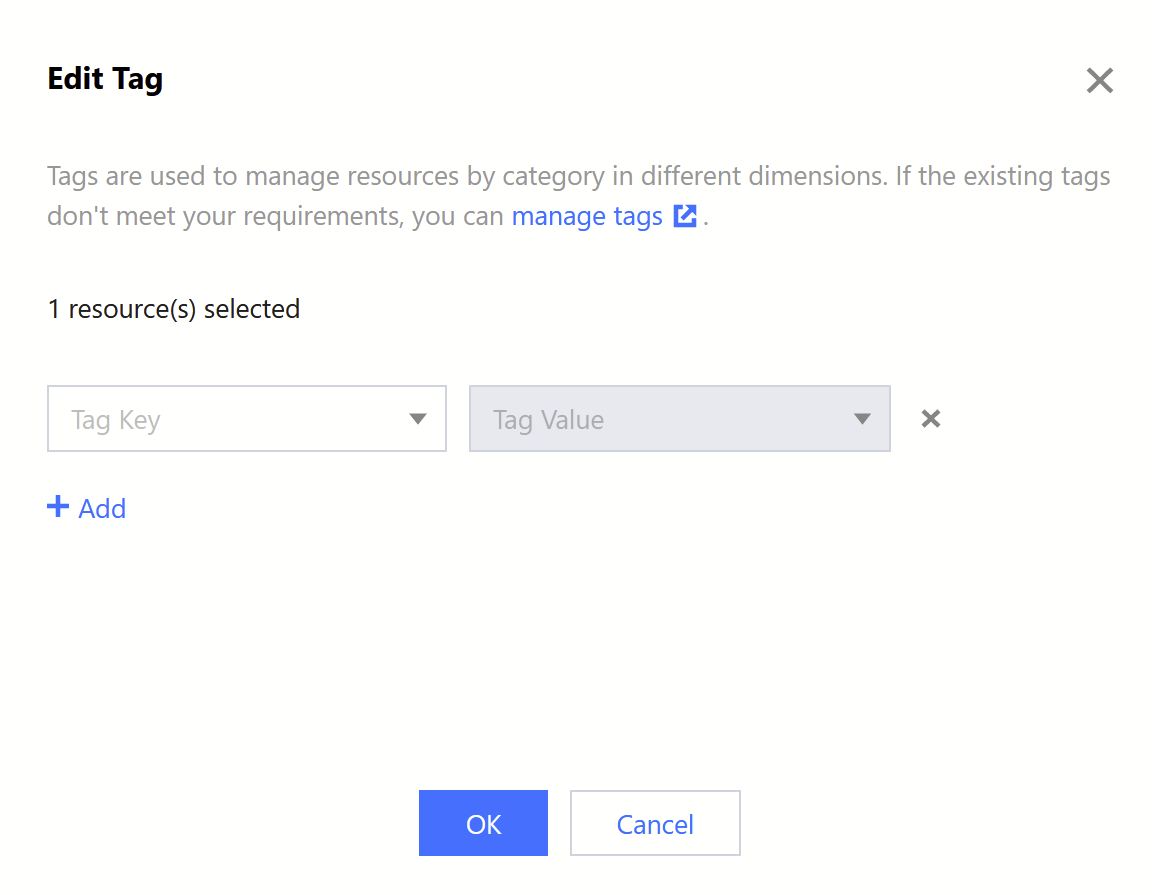
1. On the file system list page, locate the file system and click Edit Tag in the Operation column.


2. Add, modify, or delete a tag as needed in the pop-up window.


3. Click OK.

Filtering file systems by tag

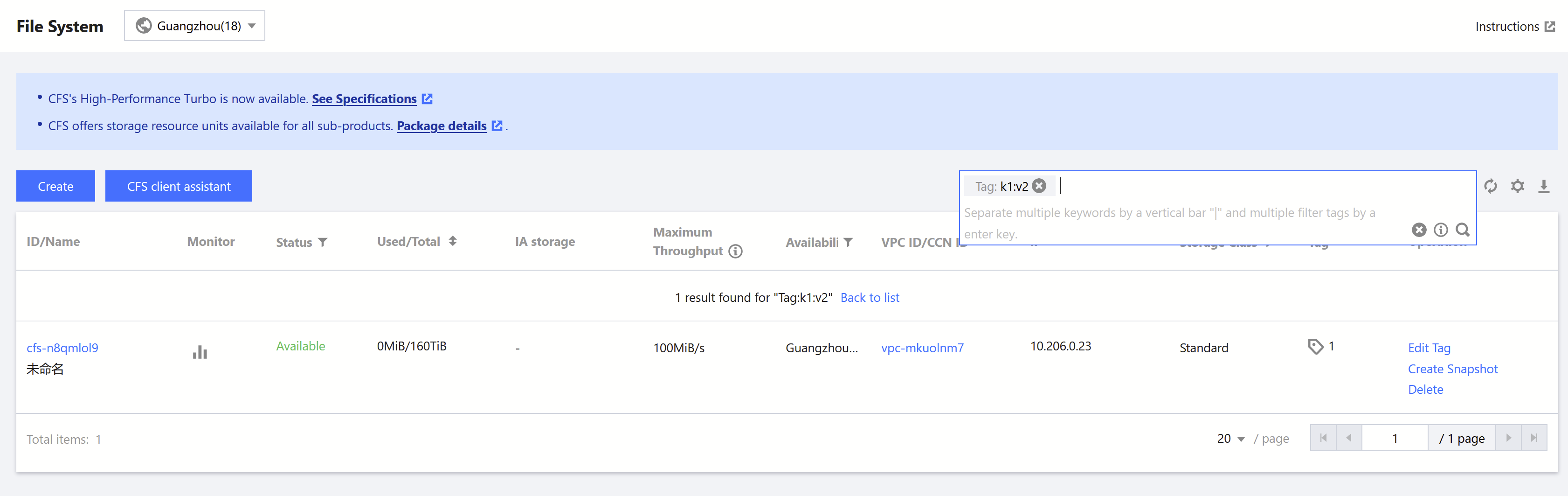
To filter file systems by tag, follow the steps below:
1. Click the search box and select Tag from the drop-down menu.
2. Enter tag key and tag value, and click

, or press Enter to search. For example, if you want to find file systems tagged with a k1 tag key and v2 tag value, do a search for Tag:k1:v2.


ヘルプとサポート

この記事はお役に立ちましたか?

フィードバック