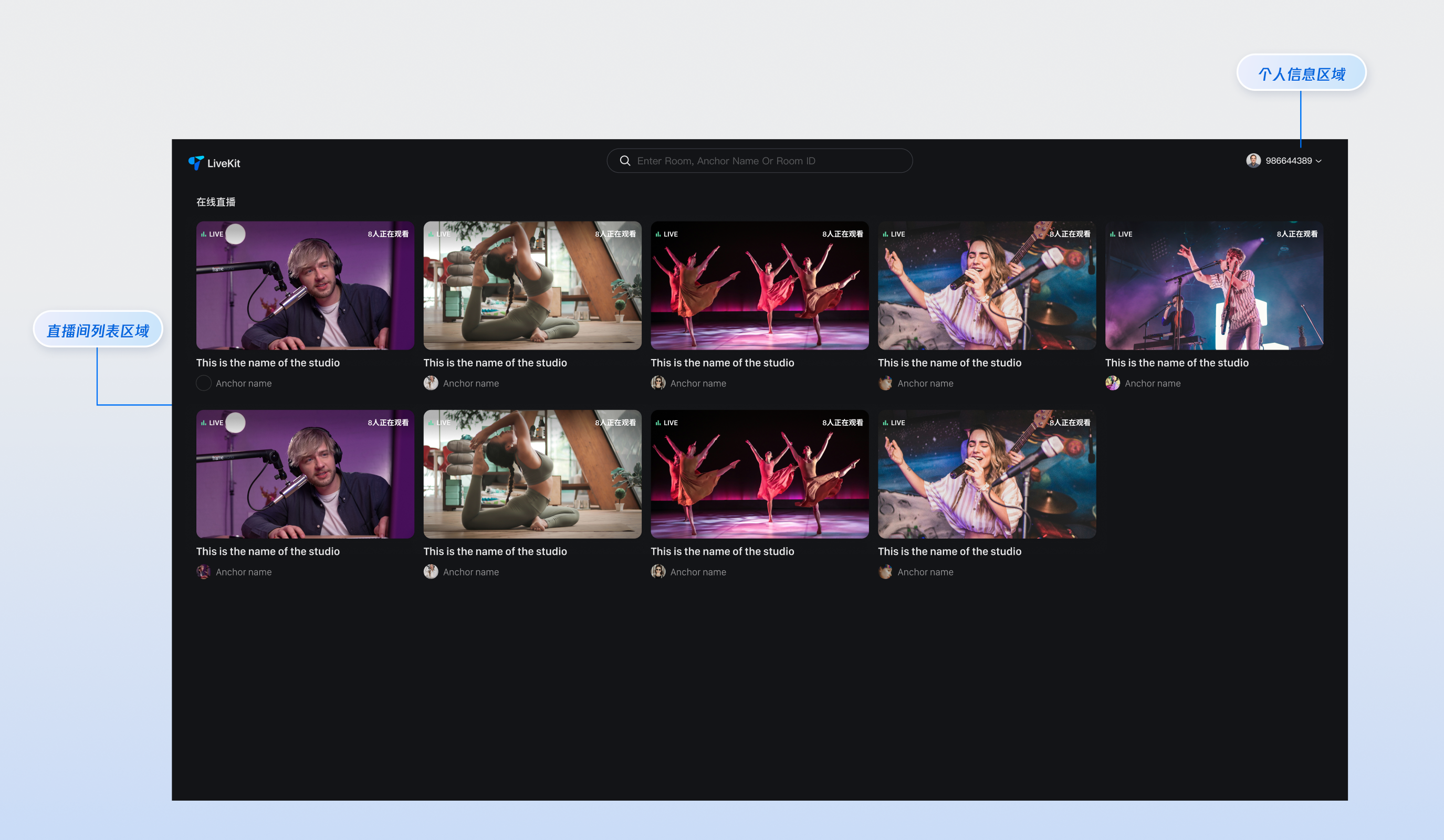
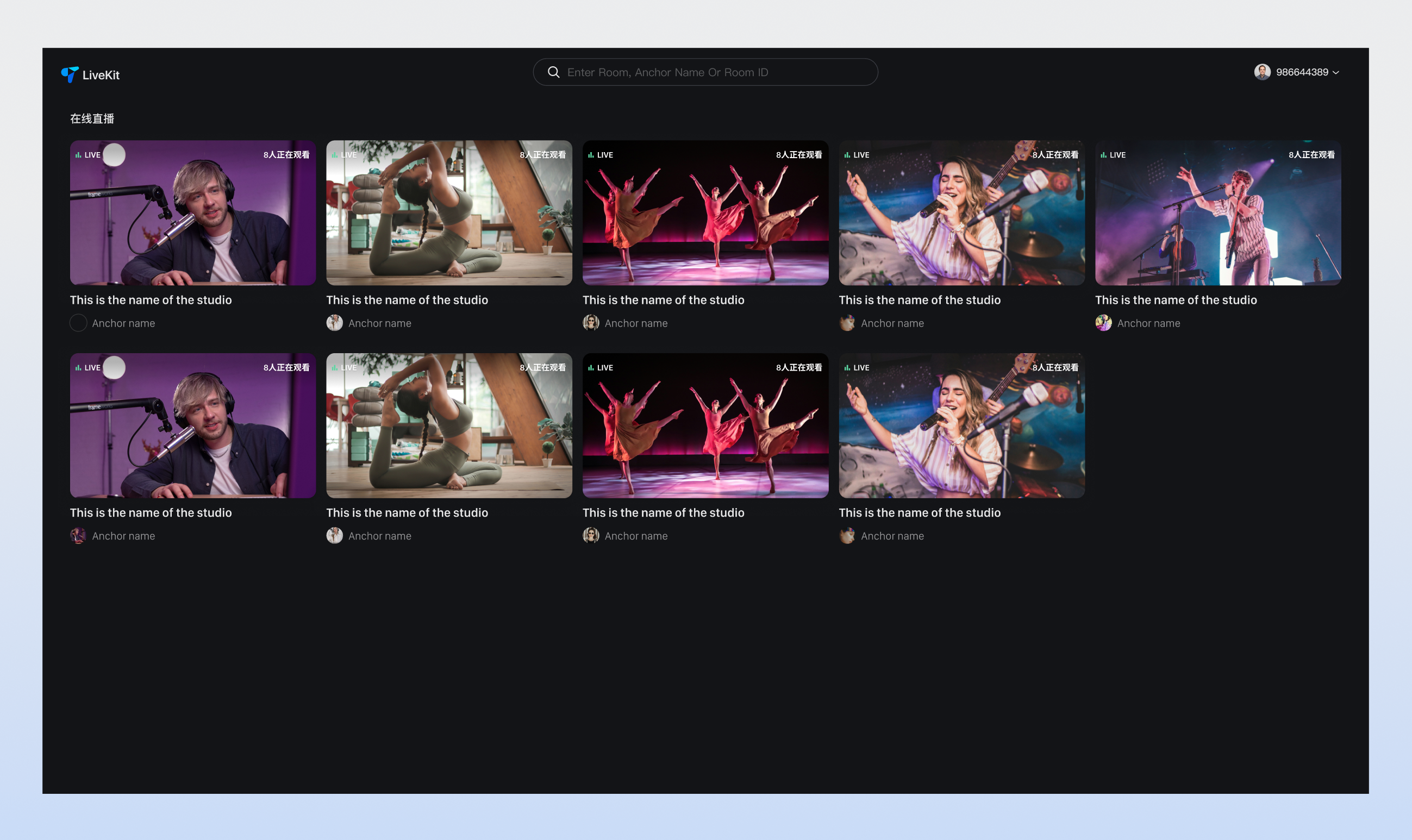
This guide introduces the Live Stream List page in the TUILiveKit Demo. Use this documentation to quickly integrate our ready-made Live Stream List page into your project, or customize its appearance, layout, and features to fit your needs.
To enable navigation from the Live Stream List to a specific live room, see the Specify Live Room section below.
Start the Project
Launch Live Stream List Page
After running the following command, open your browser and visit your local address to access the Live Stream List page.
Tip:
Once the command completes, enter your local address in the browser (for example, http://localhost:5173/live-list; your port number may differ based on your project setup) to view the Live Stream List page.
npm run dev
Specify Live Room
To enable navigation from the Live Stream List (or homepage) to the viewing page, set up Vue Router. Create a router folder inside your project's src directory and add an index.ts file. Then, import and register the router in your main file (such as main.ts or index.ts). For reference, see the GitHub code example.
Step 1: Configure Page Routing
Set up Vue Router to map live-list.vue to the Live Stream List page.
Note:
If your project already has a src/router/index.ts file, merge the following code into your existing file.
If you haven't set up routing, create a new src/router/index.ts file and add the configuration below.
Customize buttons, icons, and other controls as needed. For example, in live-list.vue, you can add, remove, or modify Button and Icon components. Beyond layout, you have full control over colors, fonts, border radius, input fields, and pop-ups to match your UI design.
Category
Feature
Description
Asset Management
Customize asset management display area
Supports adjusting icon size, color, or replacing icons.
Live Tools
Customize live tool info display
Supports adjusting icon size, color, or replacing icons.
Online Audience
Customize audience info display
Supports: - Show/hide audience level. - Customize audience info font, color, and UI settings. - Replace with your preferred icon style.
Message List
Customize live comments display area
Supports: - Show/hide chat input area. - Customize chat bubble style, audience level, and more.
Set Nickname and Avatar
To customize the nickname or avatar, use setSelfInfo as shown in the sample code below:
import{ useLoginState }from'tuikit-atomicx-vue3';
const{ setSelfInfo }=useLoginState();
// Set user personal info
awaitsetSelfInfo({
userName:'Zhang San',
avatarUrl:'https://example.com/avatar.png',
});
Next Steps
You’ve now integrated the Live Stream List page. Next, you can add the Host Streaming Page, Audience Viewing Page, and further UI Customization features. See the table below for links to each integration guide:
Feature
Description
Integration Guide
Audience Viewing
Allow audience to join the host’s live room and watch the stream, with features like guest co-hosting, live room info, online audience, and live comments.