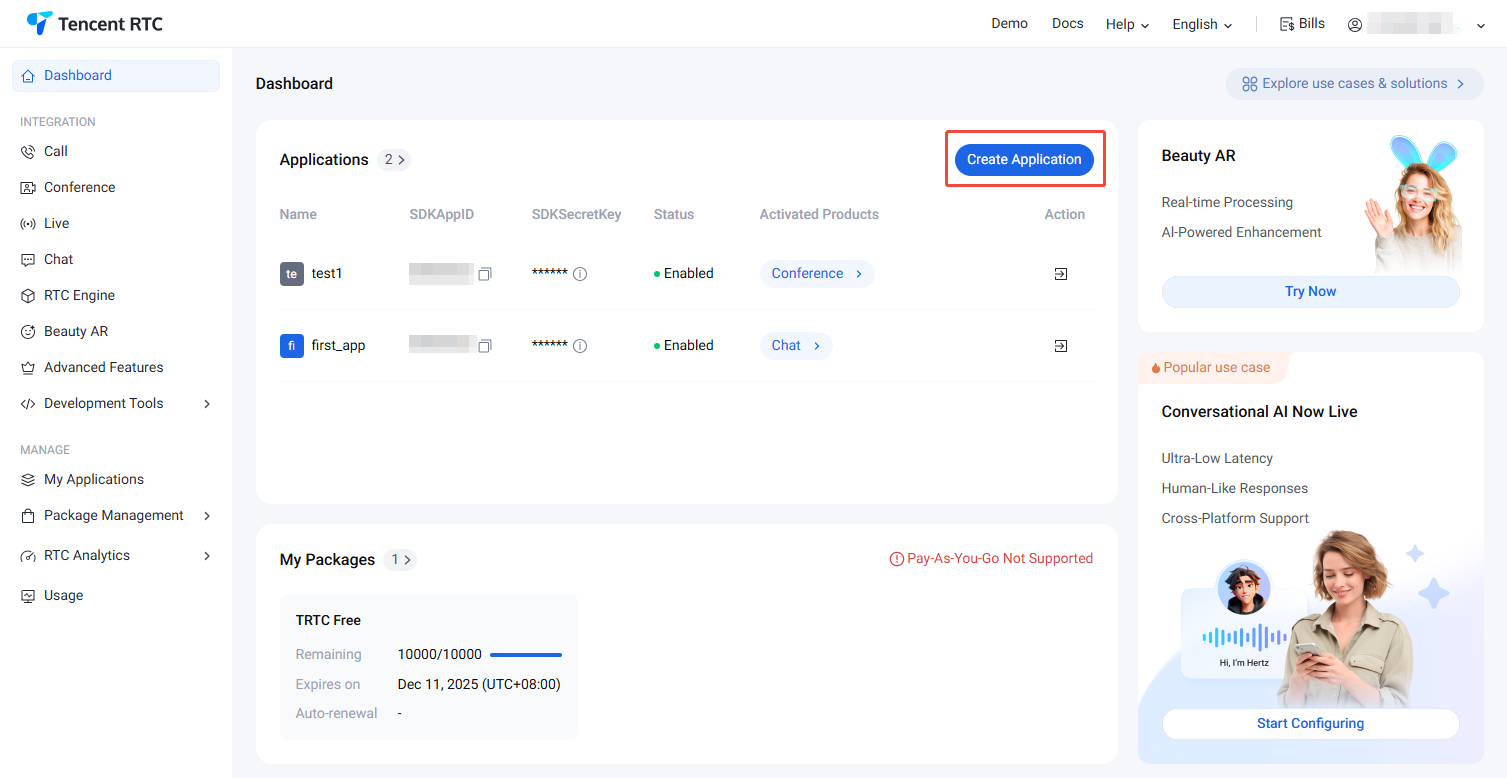
To help you better experience the features of TRTC Live, we provide a 14-day trial version for each SDKAppID (the trial version does not include complimentary call duration). Each SDKAppID can try it for free twice, with each trial valid for 14 days. Meanwhile, the total experience times for all SDKAppIDs under one account are limited to 10.
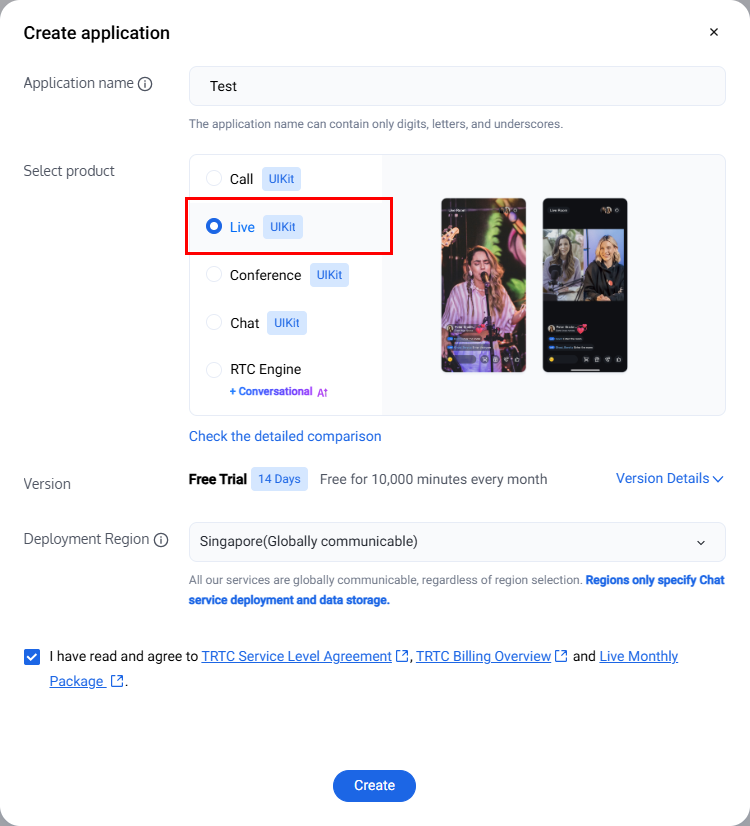
2. In the popup, enter an application name, select Live, and choose the appropriate deployment region. Then click Create. This will create a TRTC application bound to the trial edition of TRTC Live.
Note:
Live currently only supports Singapore and Silicon Valley deployment region. If you need other deployment region, please contact us.
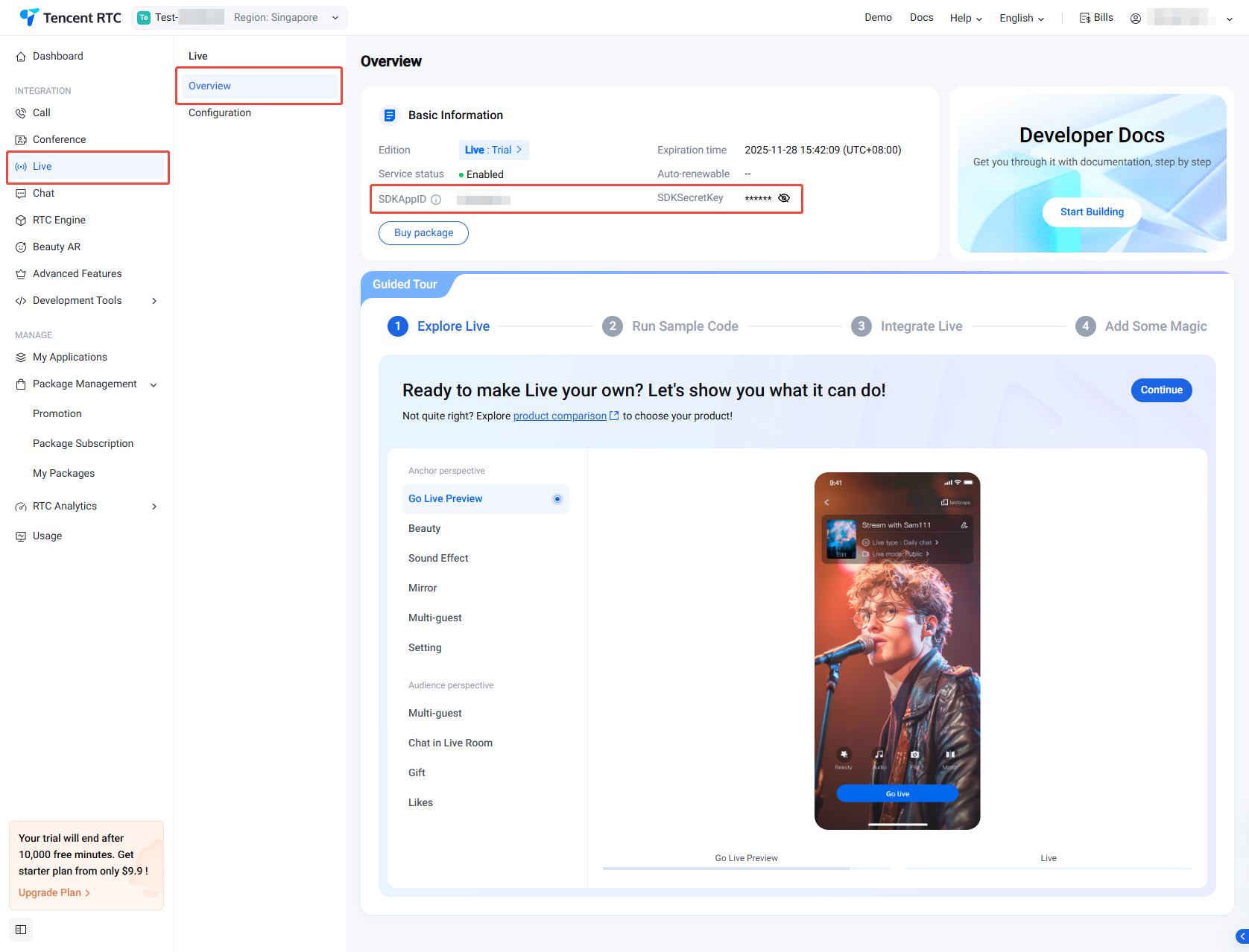
3. After completing application creation, you will automatically be taken to the Live product details page. At this point, you have quickly created an application and successfully received the TRTC Live (TUILiveKit) trial version. You can view information in the current Live Product Details Page or My Applications. Here, the SDKAppID and SDKSecretKey will be used in the integration guide.
Purchasing the Official Editions
You need to purchase the Live monthly package to use TUILiveKit. For details on the price and feature comparison of the Live monthly package, see Live Monthly Subscription Package Billing Explanation. To purchase, follow the steps below:
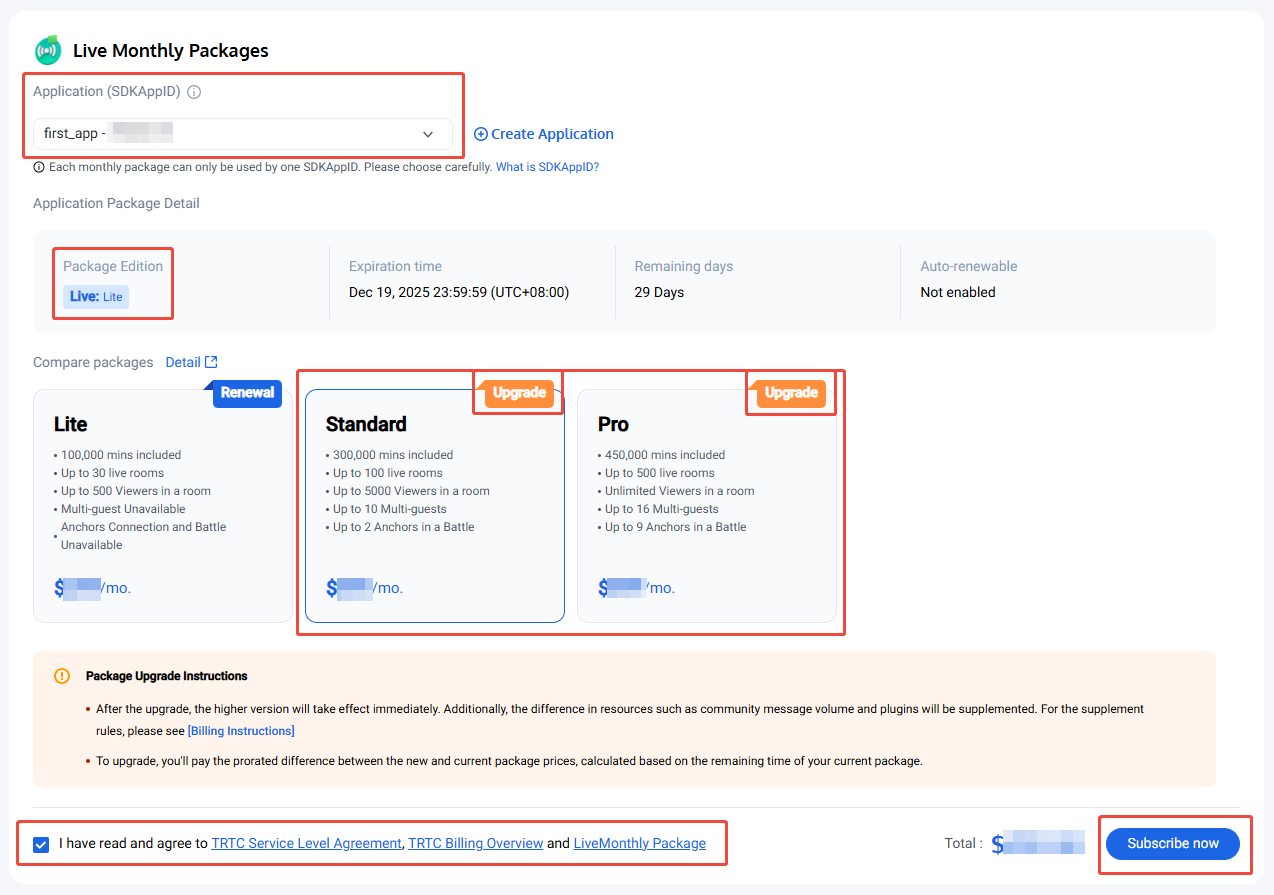
1. Visit the Live purchase page, select the application (SDKAppID) and version you wish to purchase, and it is recommended to enable auto-renewal to avoid impacting business usage. After confirming purchase information and agreeing to the relevant agreement, click Subscribe now.
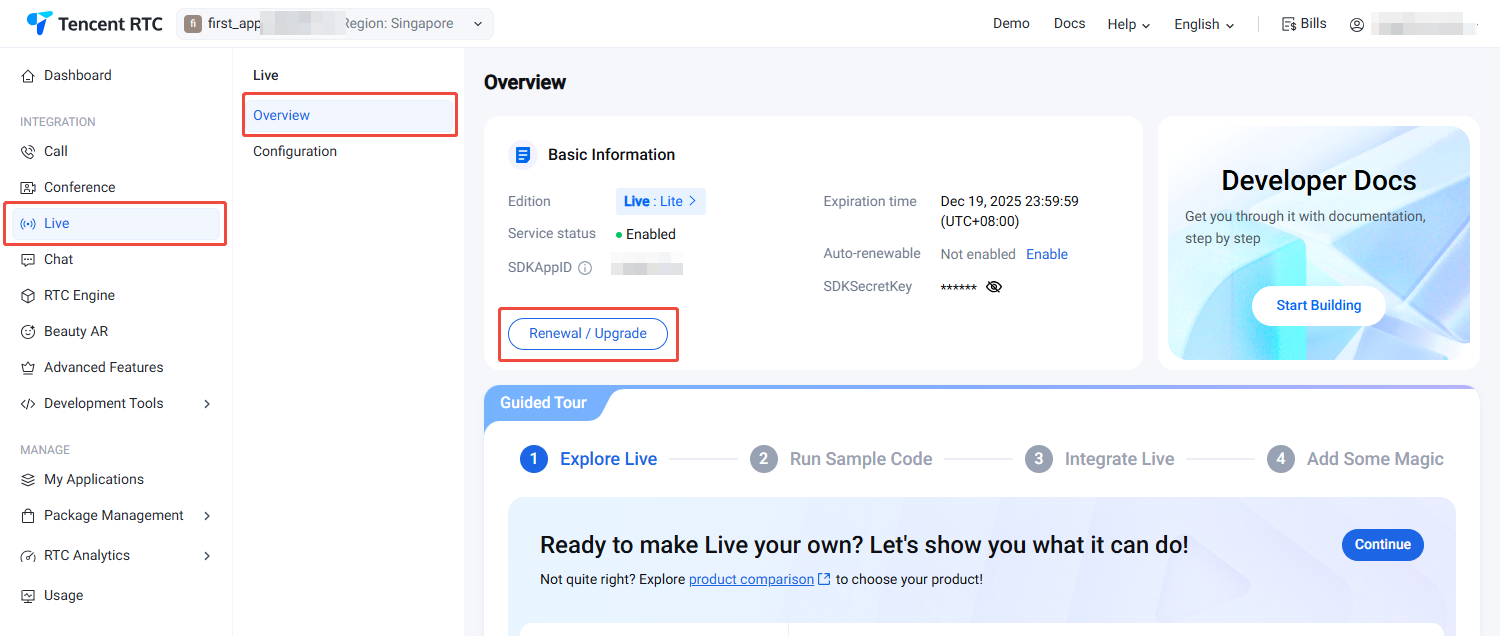
2. Proceed to the payment page to complete payment. After purchase completion, you can go to Live Product Details Page or My Applications to view application version info.
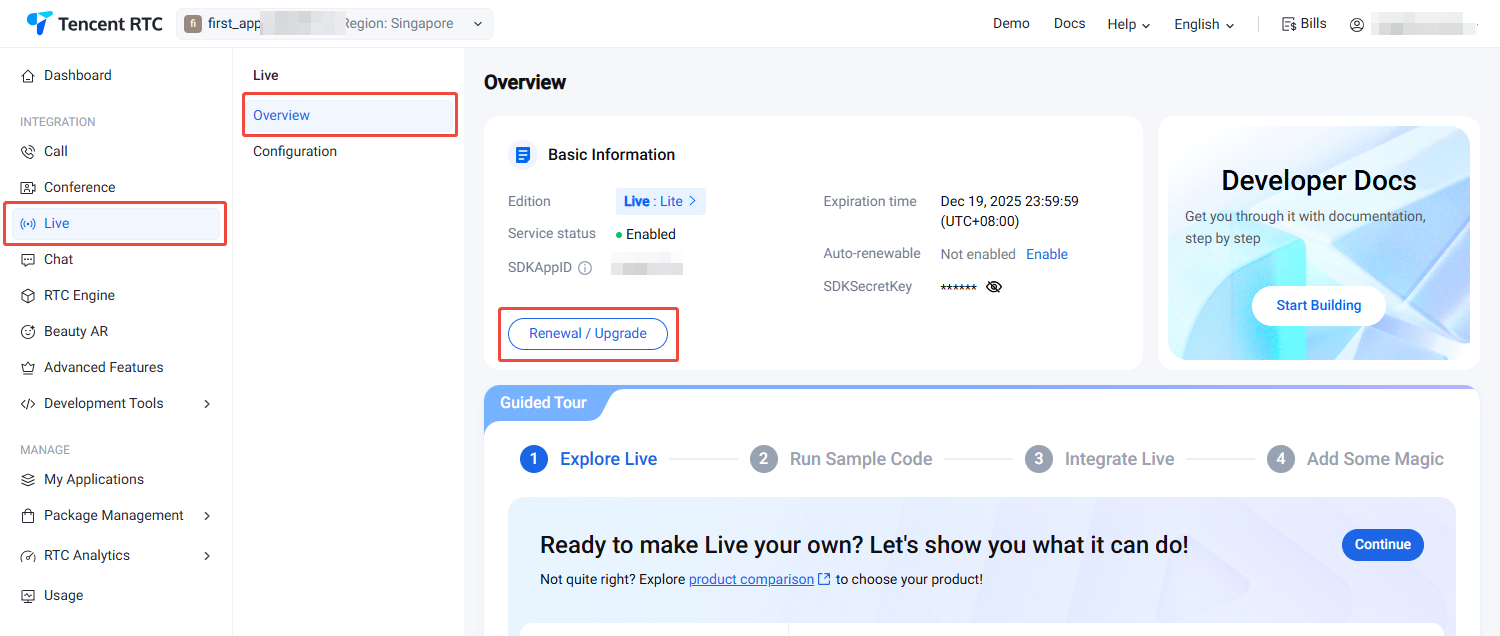
2. Visit the Live purchase page, confirm the application (SDKAppID) to purchase, select the version of the same application package, and it is recommended to enable auto-renewal to avoid affecting business usage. Once enabled, the account will automatically renew monthly after expiration when the balance is sufficient. After confirming the purchase information and agreeing to the relevant agreement, click Subscribe now.
3. Proceed to the payment page to complete payment. After purchase completion, you can go to Live Product Details Page or My Applications to view application version info.
2. Visit the Live purchase page, confirm the application (SDKAppID) to purchase, select the version of the same application package, and it is recommended to enable auto-renewal to avoid affecting business usage. Once enabled, the account will automatically renew monthly after expiration when the balance is sufficient. After confirming the purchase information and agreeing to the relevant agreement, click Subscribe now.
3. Proceed to the payment page to complete payment. After purchase completion, you can go to Live Product Details Page or My Applications to view application version info.
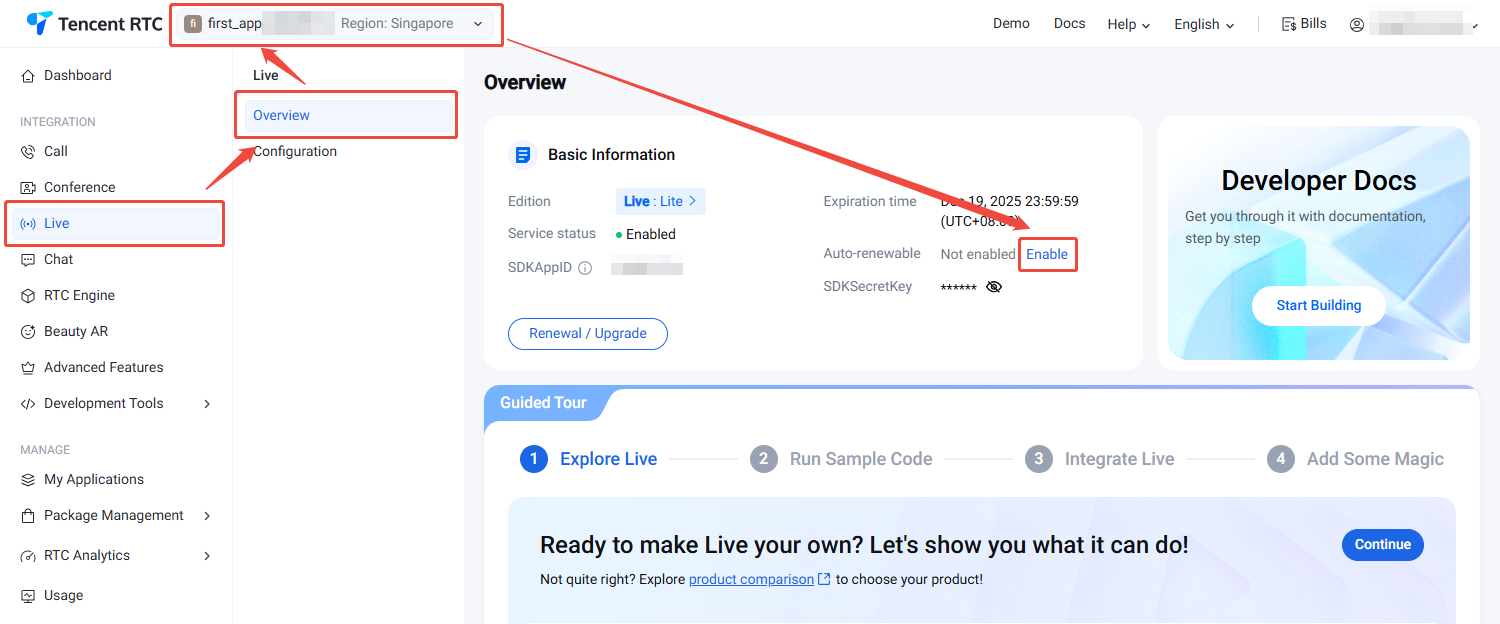
Automatic Renewal
The specific steps to enable auto-renewal in the console are as follows: