Virtual Private Cloud Mode
Download
포커스 모드
폰트 크기
Step 1: Creating an Instance in Custom Routing Mode
Refer to Inter-VPC Firewall Toggle - New Inter-VPC Firewall to create the target instance, and select the routing mode as Custom Route.
Step 2: Configuring a Traffic Steering Route
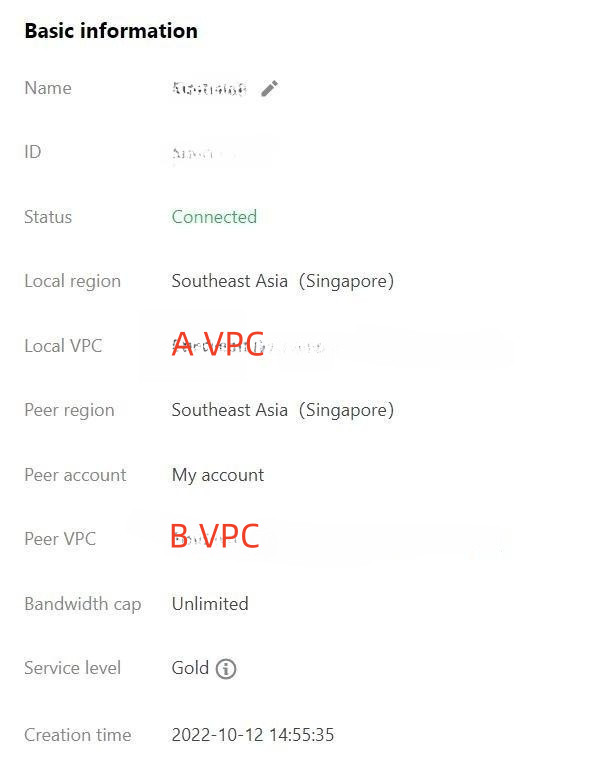
1. Check the VPCs at both ends of the peering connection, which are VPC A and VPC B.
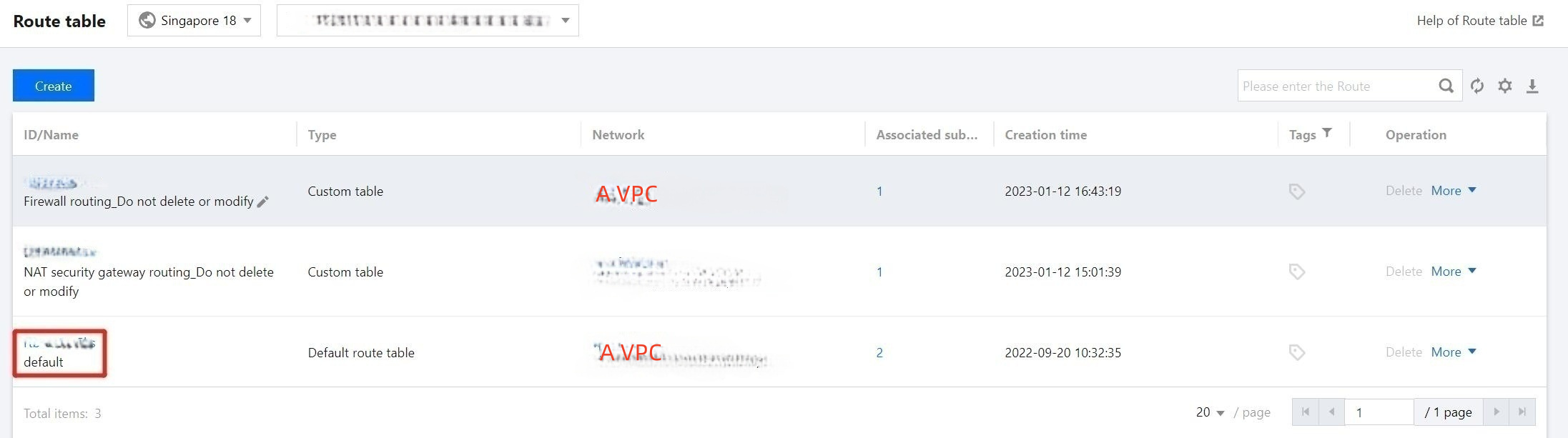
2. On the Route Table page, locate the route table for VPC A and click its ID. Select the default route table.
3. On the details page, click Add Routing Policy.
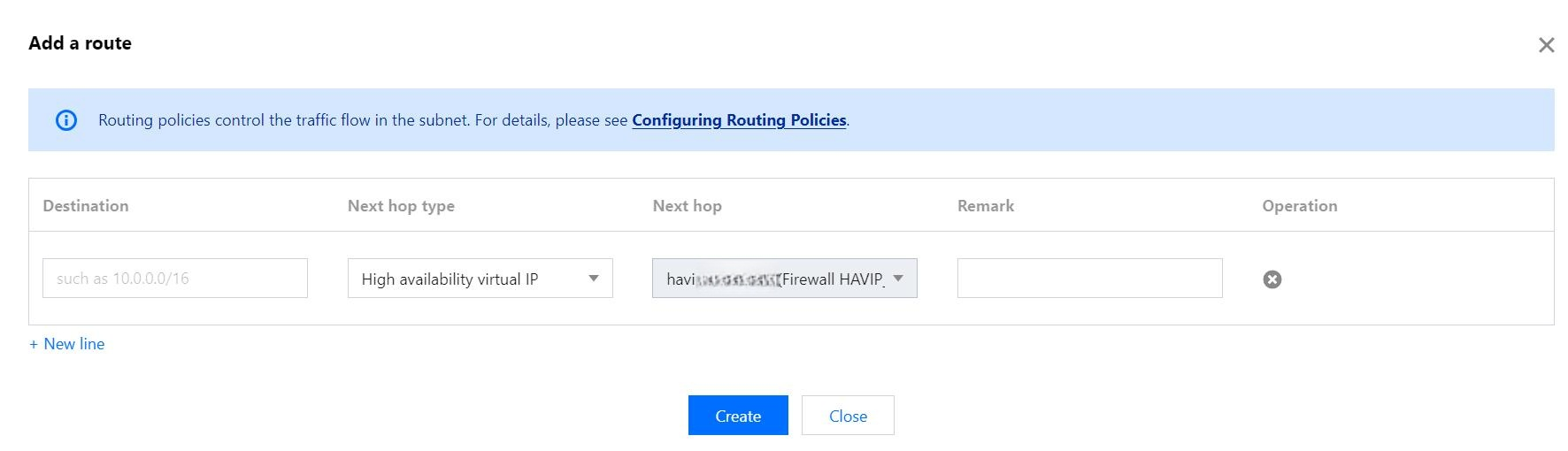
4. In the Add Route dialog box, add a routing policy with the destination set to the CIDR block of VPC B and the next hop set to the High Availability Virtual IP address. Then click Create.
5. On the details page, disable the routing toggle for the original peering connection and immediately enable the route you just configured.
Note:
Changing a route may cause a momentary disconnection in the network. It is recommended to perform this operation during off-peak workload hours.
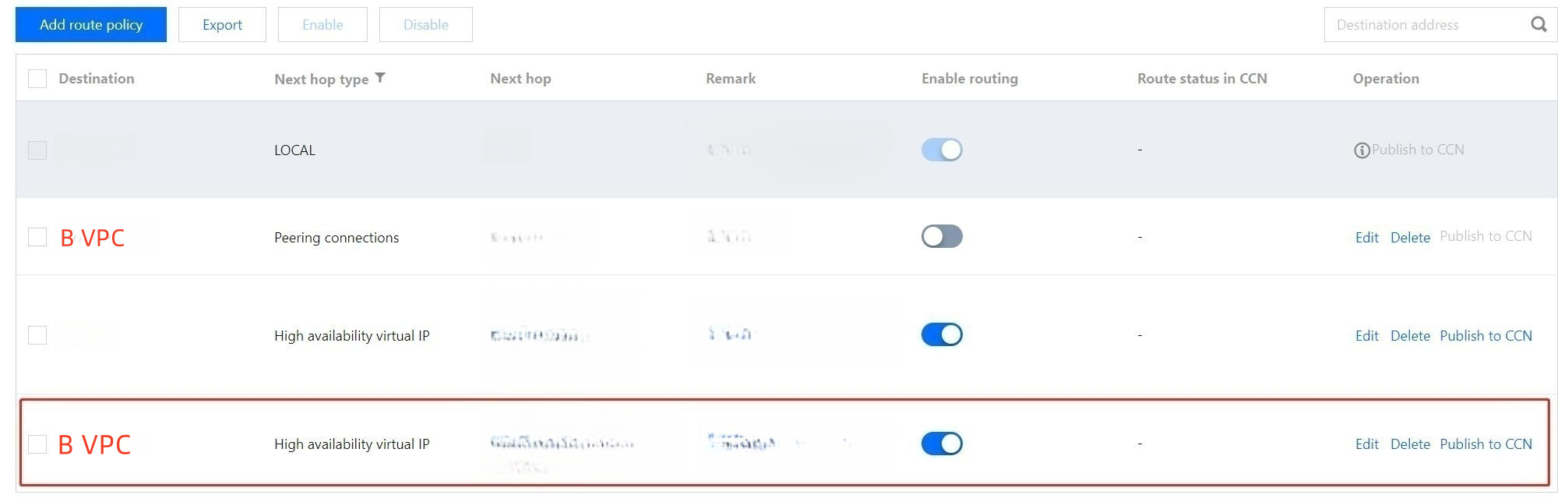
6. On the Route Table page, find the route table of VPC B and select the default route table.
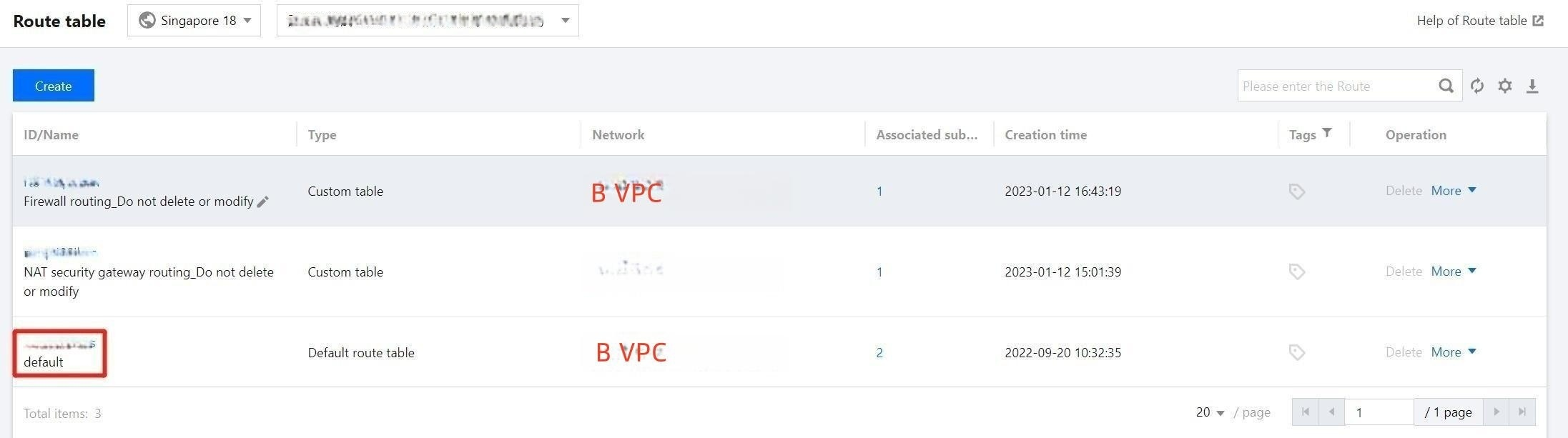
7. Repeat the previous steps to add a firewall route entry.
Step 3: Verifying Whether the Firewall Is Working Properly
1. Refer to Log Auditing to check whether there are traffic logs.
2. Refer to Log Auditing to check whether Intrusion Defense is normal.
3. Configure inter-VPC rules and check whether they are hit normally.
The firewall is now functioning properly. If your network architecture is complex or involves dedicated line scenarios, please submit a ticket to consult on detailed routing configuration solutions. If you have further questions, feel free to submit a ticket to contact us.
피드백