After purchasing International Site Products, you can apply for an invoice through the Tencent Cloud self-service invoicing system.
Invoice Request Guide
How to Apply for Invoice
Real-name authentication: Please first complete account real-name authentication before applying for invoicing. Go to verify identity.
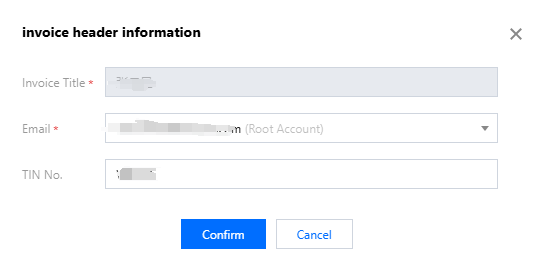
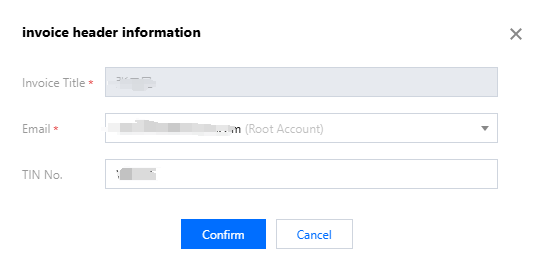
Invoice Title: Set the receiving email, tax number, and related information via the Expense Center > Billing Statement > Invoice> Header Information > Edit feature in the Console.
Note:
The tax ID will display on your invoice. Incorrect tax ID may affect your tax return. Please fill in correctly.
Invoicing Method
The bill for the invoiceable amount of the previous month starts on the 6th of each month. Invoicing is only available upon completion of billing.
Note:
You can only apply for invoicing when the invoiceable amount is greater than 0.
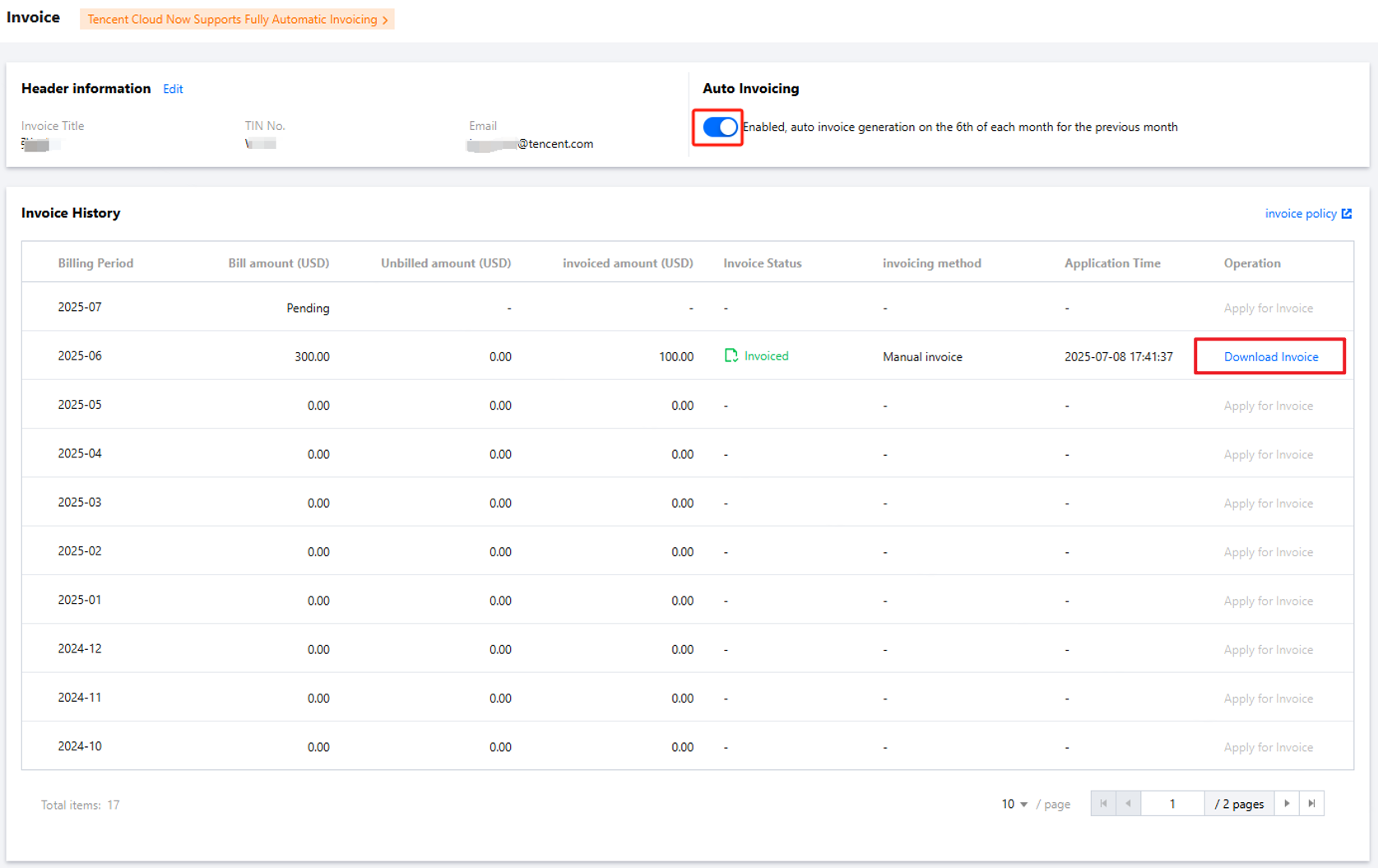
System Automatic Invoicing: If you are a user with automatic invoicing or monthly automatic invoicing, the system will automatically issue the invoice and send it to your receiving email within 1-3 business days.
Manual application for invoicing: You can also manually apply for invoicing. Historical bills from January 2024 so far are eligible for monthly average invoicing.
Receiving/Downloading Invoices
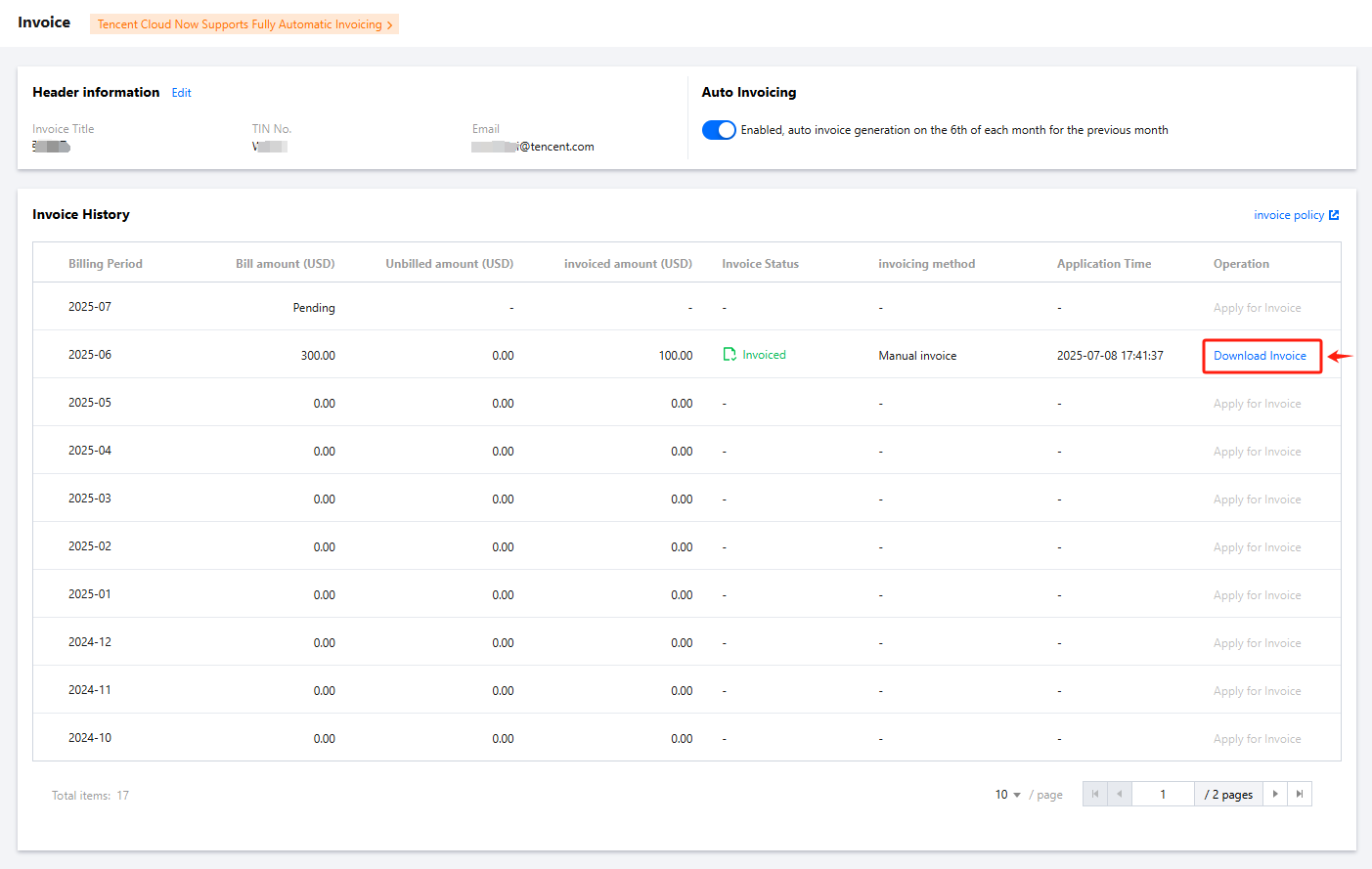
After invoicing is successful, the invoice will be sent to the receiving email you have set. You may download it directly from your mailbox or log in to the Billing Console to query and download the invoice.
FAQs
How to Set Up Monthly Automatic Invoicing
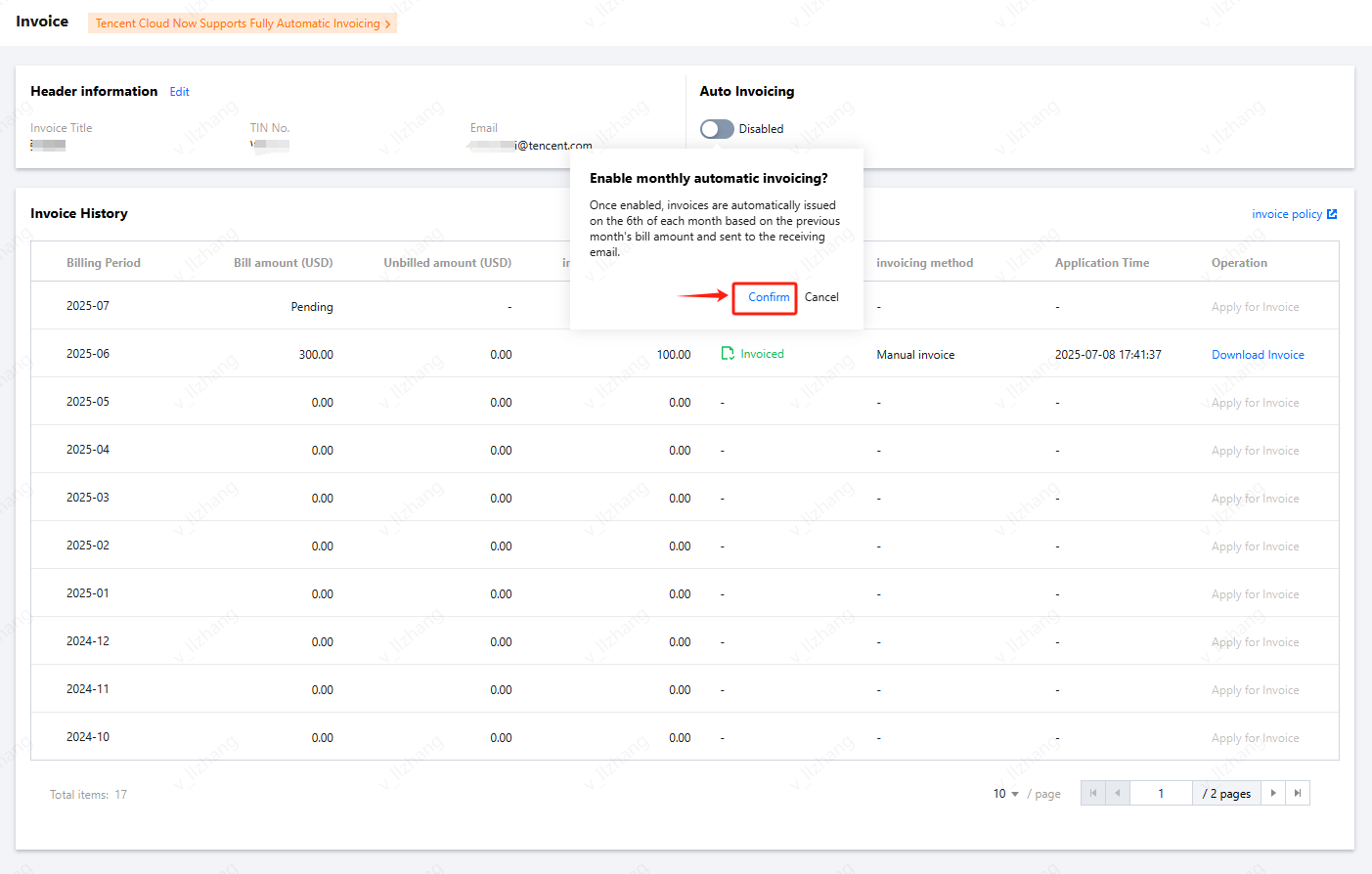
If you are a manual invoicing user, you need to manually enable the monthly automatic invoicing switch. Once enabled, the system will automatically generate the invoice for the previous month on the 6th of each month.
How to Reissue Invoices for Historical Months
Bills from January 2024 to this day can be selected by the corresponding billing month on the invoice record page via Console. Click Apply for Invoicing. After invoicing is successful, the invoice will be sent to the receiving email you have set. You can download it directly from your mailbox or log in to the Billing Console to query and download the invoice.
How to Modify the Receiving Email for Invoices
You can modify the invoice receiving email via the Expense Center > Billing Statement > Invoice > Header Information > Edit feature in the Console.
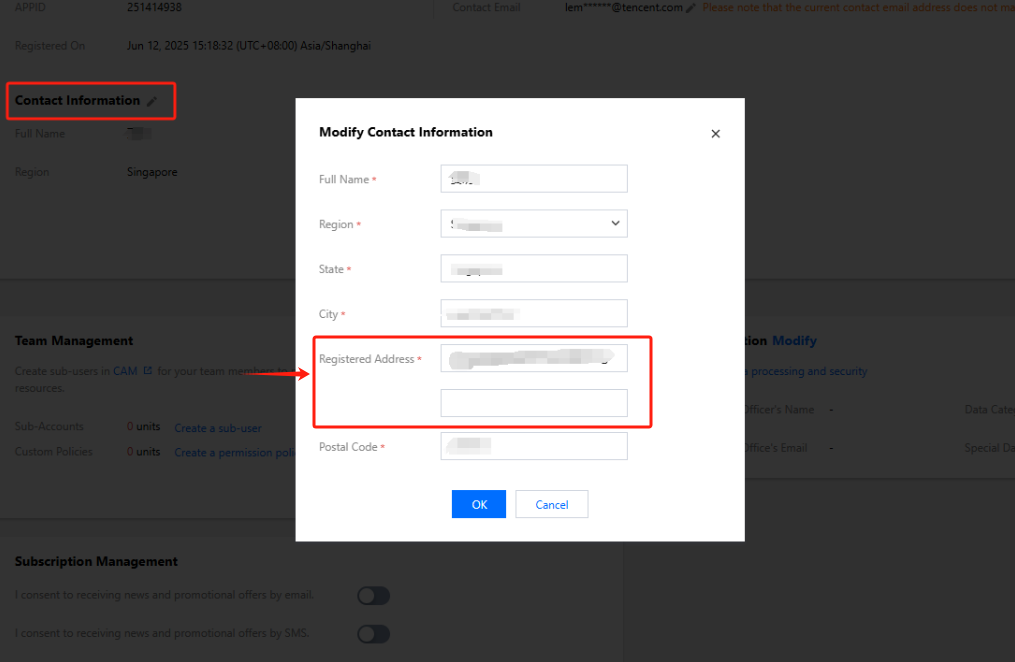
How to Modify the Invoice Address
You can modify the registered address by clicking Edit in Expense Center > Account Information > Contact Information.
What Is the Currency Displayed on the International Site Invoice
Invoices issued on the international site are settled and displayed in USD.
What Is the Tax Rate for International Site Invoices
The tax rate for invoices issued on the international site varies depending on the product, the location of the account registration entity, and the channel. Currently, the main tax rates are 0%, 6%, 7%, 10%, 11%, 20%, and 21%. The tax rate on the invoice is subject to the actual tax rate shown on the invoice.
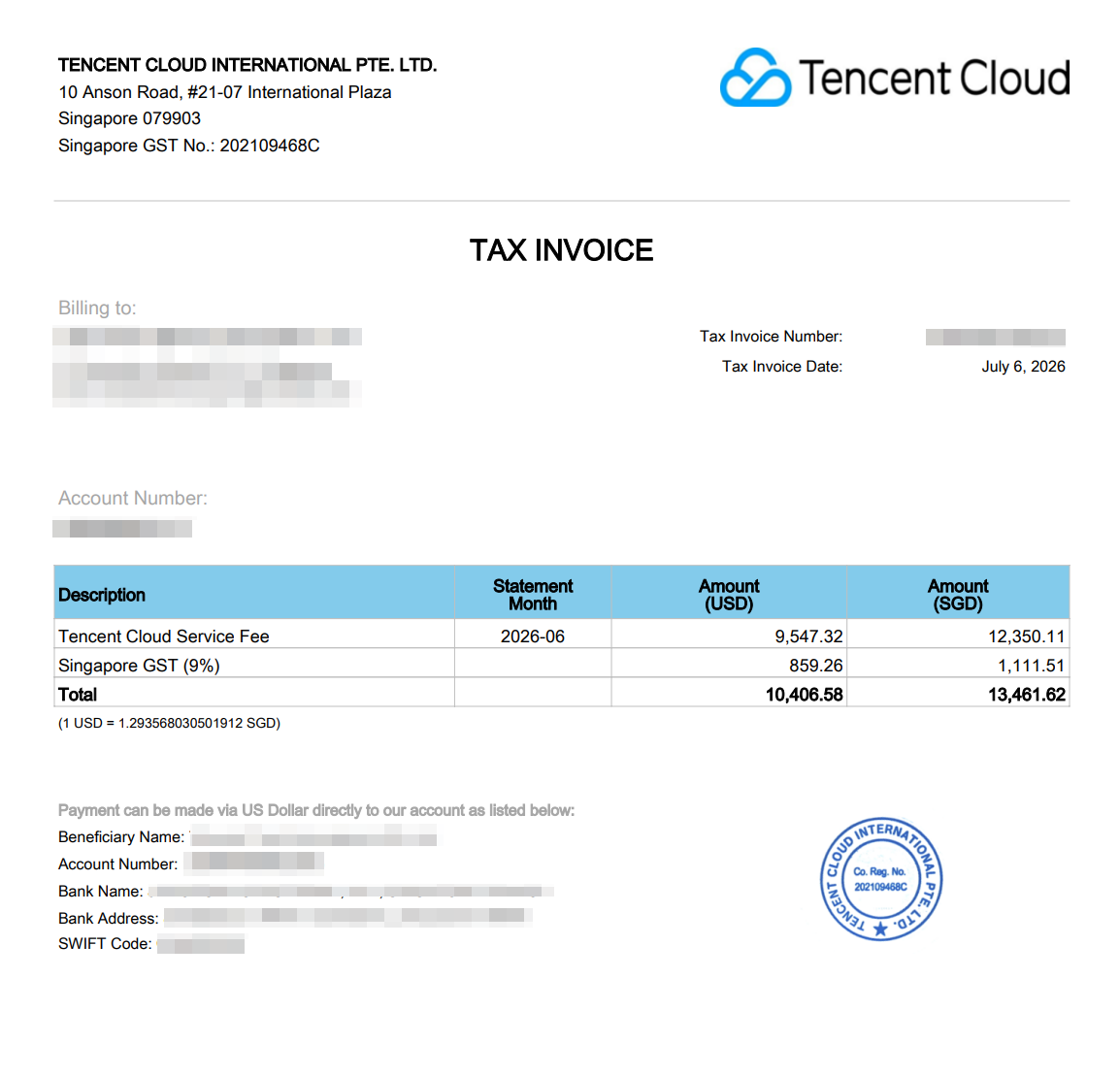
What Is the Format of International Site Invoices
The following is for reference only. There may be slight differences in different countries and regions. The actual invoice issued shall prevail.