Bills
다운로드
포커스 모드
폰트 크기
What Are the Purposes and Differences of the Four Levels of Bills?
Billing Level | Positioning | Function |
L0-Bill Overview | Account-Level Reconciliation Bill | Meets account-level cost verification: provides a clear view of the total monthly spend at a glance, suitable for finance and management teams to perform overall budget control and total cost verification. |
L1-Bill Summary | Product, Project, and Billing Mode Level Reconciliation Bill | Meets cost aggregation and summary reconciliation: breaks down costs by dimensions such as product, project, and billing mode, enabling department/business line cost allocation and product line cost structure analysis. |
L2-Bill by Instance | Resource-Level Reconciliation Bill Recommended: If you focus on resource-level costs, use this level of bills, which have a smaller volume and relatively concise fields. | Meets resource-level cost verification: locates costs to each resource instance (such as a specific CVM or CBS), enabling item-by-item reconciliation with resource lists and identification of high-spend resources. |
L3-Bill Details | Component Transaction Detail Level Reconciliation Bill | Meets refined reconciliation and auditing: records each component-level deduction transaction, supports item-by-item verification against income and expense details, and is used for bill exception troubleshooting, billing accuracy auditing, and pay-as-you-go usage restoration by hour or by usage, serving as the most granular data source for all upper-level bill amounts. |
When Are Bills Generated?
Historical Monthly Bills
The final bill for the previous month is generated at 19:00 on the 1st of each month.
Current Month Bill
Bills at the L0-L2 levels are issued on T+1. Bills at the L3 level are updated in near real time and issued within half an hour after fees are deducted.
Note:
Bills are finalized at 19:00 on the 1st of the following month. Bill amounts generated before the finalization are not final and are for reference only.
What Are the Ways to Obtain Bills?
Console Download
You can log in to the console > Billing Center > Bills > View bills to filter, view, and download bills on the page.
You can log in to the console > Billing Center > Bills > Bill Export Center to download bills for multiple accounts (if you have enabled the organization account feature) and multiple months at a time. For detailed instructions, see Bill Export Center Guide.
Subscribe Bills to a COS Bucket
You can enable the Saving Bills to COS feature. After it is enabled, Tencent Cloud periodically stores bill data as files in your specified COS bucket. You can then use the COS API to read the files into your company's internal systems for processing and analysis. This subscription method is recommended when your bill volume is large, for example, when the monthly bill details exceed 200,000 entries.
Call the API
TencentCloud APIs are available for bill-related operations. The main bill API documentation is as follows:
API | API Feature |
Obtain bill detail data. | |
Obtain bill resource summary data. | |
Obtain multi-dimensional summarized bill costs. |
What Are the Differences Between Bills, Consumption Bill, and Cost Allocation Bill?
Category | Description |
The default official billing standard of Tencent Cloud, reflecting your actual monthly consumption amount and transaction details on Tencent Cloud, and serving as the official reconciliation credential between Tencent Cloud and you. | |
Amortize prepaid fees reasonably to reflect the actual monthly consumed cost of cloud resources. For example, if you purchase a one-year server, the fee bill records the entire cost in the purchase month, while the consumption bill amortizes the cost daily over the next 12 months. Note: It is for cost estimation reference only and cannot be used for official reconciliation with Tencent Cloud. | |
A fine-grained internal management bill generated by aggregating or allocating bill costs based on cost allocation units and other logic according to your internal management requirements. Note: It is for your cost allocation only and cannot be used for official reconciliation with Tencent Cloud. |
How to Analyze Unexpected Cost Spikes?
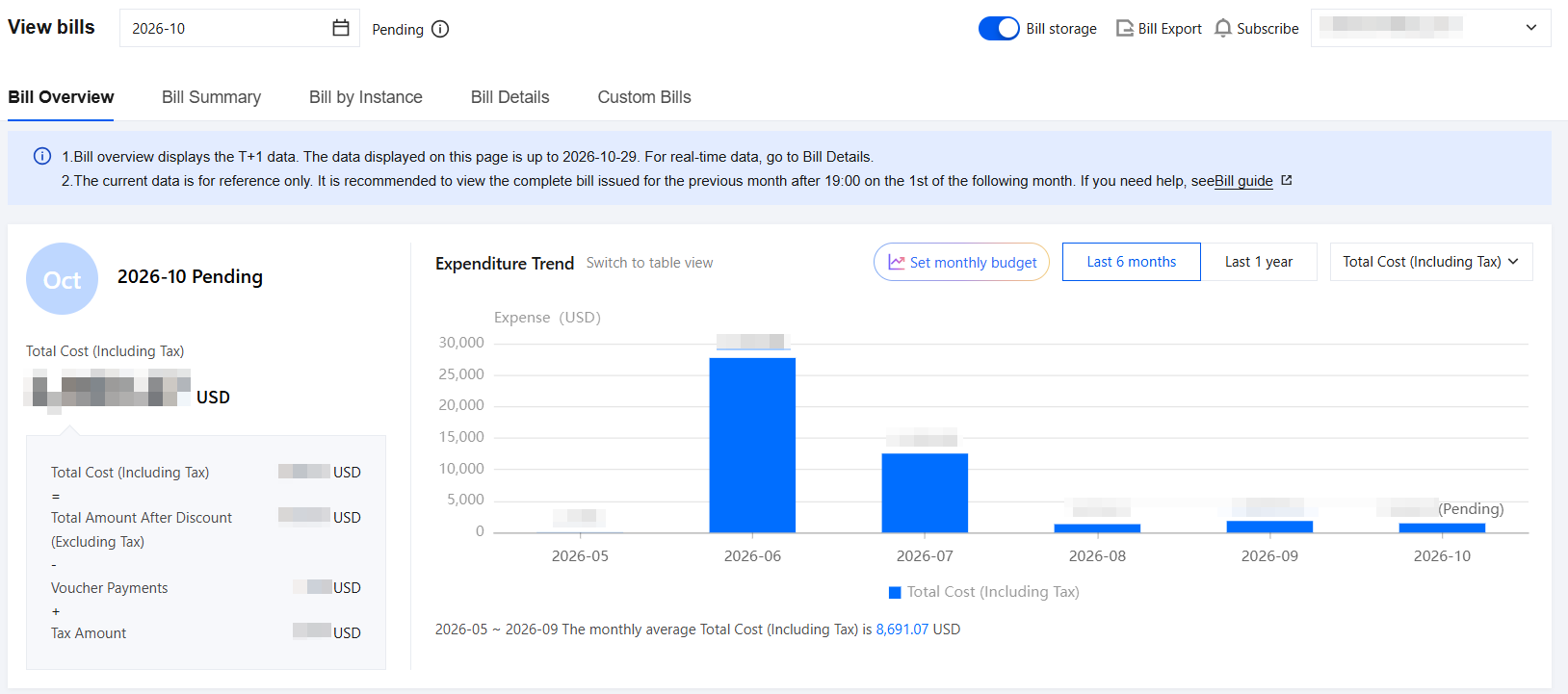
1. Bill Overview: View the month-over-month spending trend for the entire account
View the month-over-month spending trend through View bills > Bill Overview to check whether there is a sudden increase in monthly bill spending.
2. View the month-over-month spending trend at the product level through multi-dimensional summarized bills
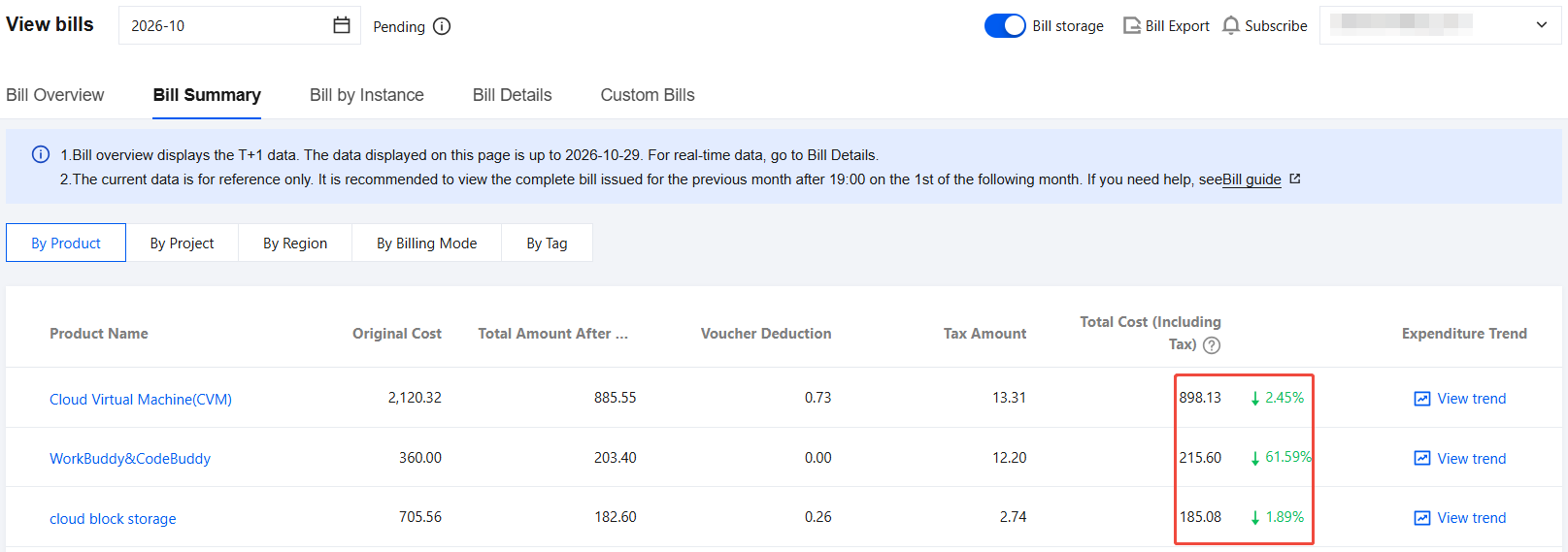
View the product-level month-over-month trend on the View bills > Bill Summary bill page. This page sorts products in descending order by total price after discounts. You can check the month-over-month value to the right of the cash payment (tax included) amount to identify products with a sudden spending increase.
3. View New Resource IDs Through Resource Bills
On the Bill Summary page mentioned in the previous step, click a product name to go to View bills > Bill by instance and view the resource details of that product. A sudden spending increase may be caused by newly purchased/newly activated resources, so pay special attention to whether new resources exist.
Note:
The operator UIN represents the purchaser/activator of the resource. You can verify the resource subscription with the purchaser/activator.
4. View the usage and discounts of each resource through detailed bills
If the sudden spending increase is not caused by new resources, it comes from existing resources. You can view detailed deduction data on the View bills > Bill Details page. Pay special attention to whether the usage and discount information of resources meets expectations.
What to Do When L3 Bill Fields Are Needed but the L3 Detail Volume Is Too Large?
The L3 bill is a component-level transaction statement with many fields, and its data granularity records each deduction transaction at the component level. Suppose you purchase a pay-as-you-go CVM instance that consists of two components and is billed hourly. If a month has 30 days, the number of detailed bill records generated for that month is: 30 days × 24 hours × 2 components = 1,440 records. Therefore, when you activate many pay-as-you-go resources, the L3 bill volume may become large.
If you need L3 bill fields, you can download the L3 (monthly aggregated) file in Bill Export Center . This file has the same fields as the L3 bill but is aggregated by key dimensions, which can significantly reduce the volume of L3 bill details.
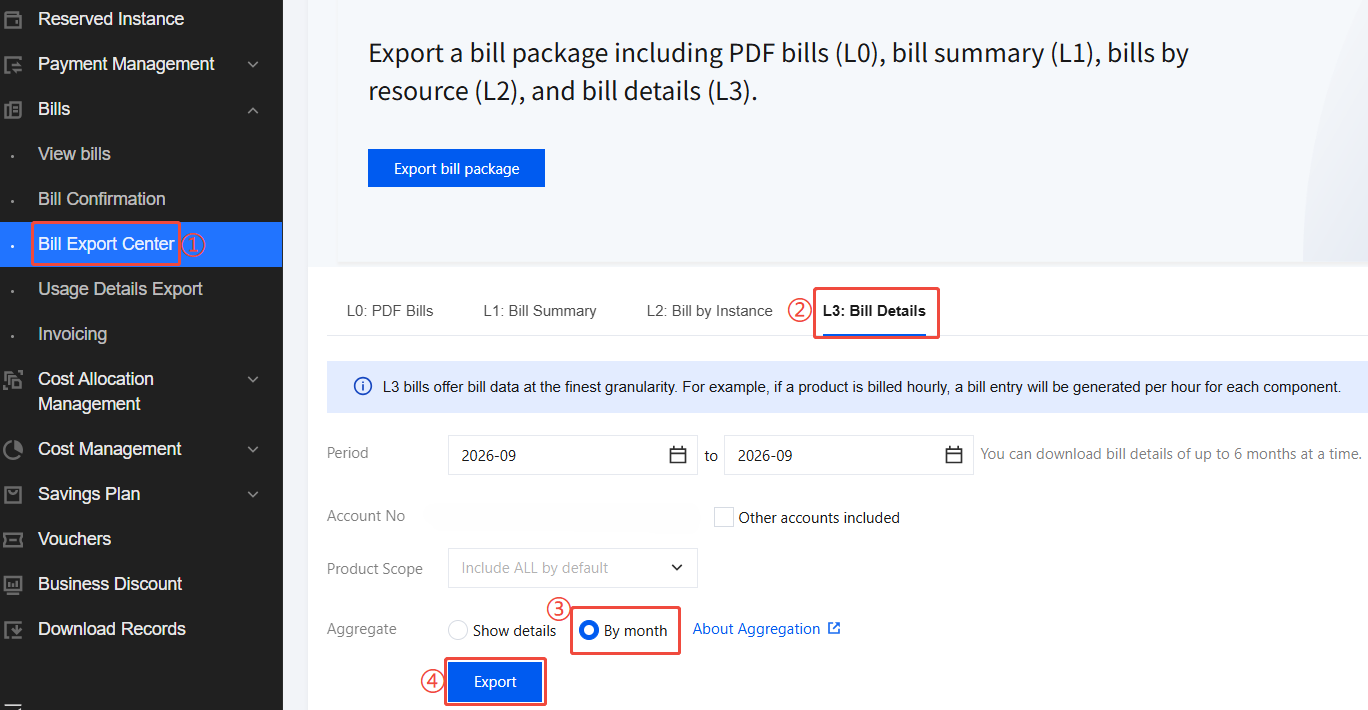
If you only need key information at the resource level, you can download the L2 resource bill on the View bills > Bill by Instance page or in Bill Export Center.The L2 bill has a smaller volume and relatively concise fields.
How to View the Full Year's Costs for the Past Year?
Method 1: On the View bills page, click Switch to table view to view or download cost data for the last six months/last year in table format. To view the full-year costs of a specific year, switch the end month in the upper-left corner.
Method 2: Perform more flexible filtering and pivot analysis on the Cost Explorer page.
How to View Current Deduction Items?
If you are concerned about product usage, you can view product-level consumption on the View bills > Bill summary >By Product Name page. This page sorts products in descending order by total price after discounts.
If you are concerned about resource usage, you can view resource costs on the View bills > Bill by Instance page. This page sorts resources in descending order by total price after resource-level discounts. The L2 bill has a smaller volume and relatively concise fields.
Explanation of Bill Number, Bill Date, and Due Date in PDF Bills?
Bill Number: The ID of a bill, which is composed of bill year, bill month, and a 10-digit random number.
Bill Date: The 10th day of the month in which the PDF bill file is generated. If the bill is regenerated (for example, due to a billing adjustment), it is the time when the file is regenerated.
Due Date: The 10th day of the next month following the Bill Date. The due date may be postponed as otherwise specified.
Why Do Negative Deductions Appear in Bills?
Transaction types that correspond to negative amounts in bills are typically: yearly/monthly subscription refunds, configuration changes, and billing adjustments. They are used to reduce your bill amount, so they are represented as negative numbers.
How Are Bill Costs Calculated After a New Project Is Created or a Project Name Is Changed?
After a project is created, you need to assign resources to it. Fees incurred after the assignment are billed to the new project, while fees incurred before the project was created remain billed to the old project.
After a project is renamed, fees incurred after the change are billed to the project under its new name, while fees incurred before the change remain billed to the project under its old name.
Why Is the Instance Name Column Empty in Detailed Bills?
The instance name is a name manually set by the customer. If no name is set, it will not be displayed. In addition, some products do not support setting instance names.
피드백