Audience Viewing (Flutter)
다운로드
포커스 모드
폰트 크기
TUILiveKit’s audience viewing page offers a comprehensive suite of live streaming and interactive features designed for seamless integration into your application. With TUILiveKit, you can quickly deliver a rich live experience tailored to your audience’s needs.
Feature Overview
Live streaming: Clear and smooth viewing of the host's real-time live stream.
Interactive co-guest: Apply for mic connection to interact with the host via audio and video.
Live information: View the live streaming room title, description, and audience list, etc.
Live interactive: Send a gift (with animation effects and host notification), like (with animation and real-time statistics), and interact via bullet screen.
Live Streaming | Interactive co-guest | Live Information | Live Interactive |
 |
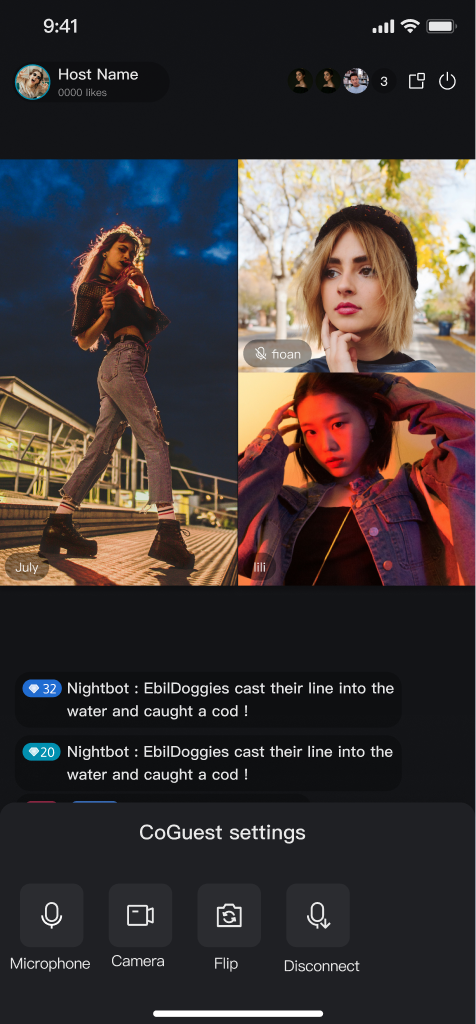 | 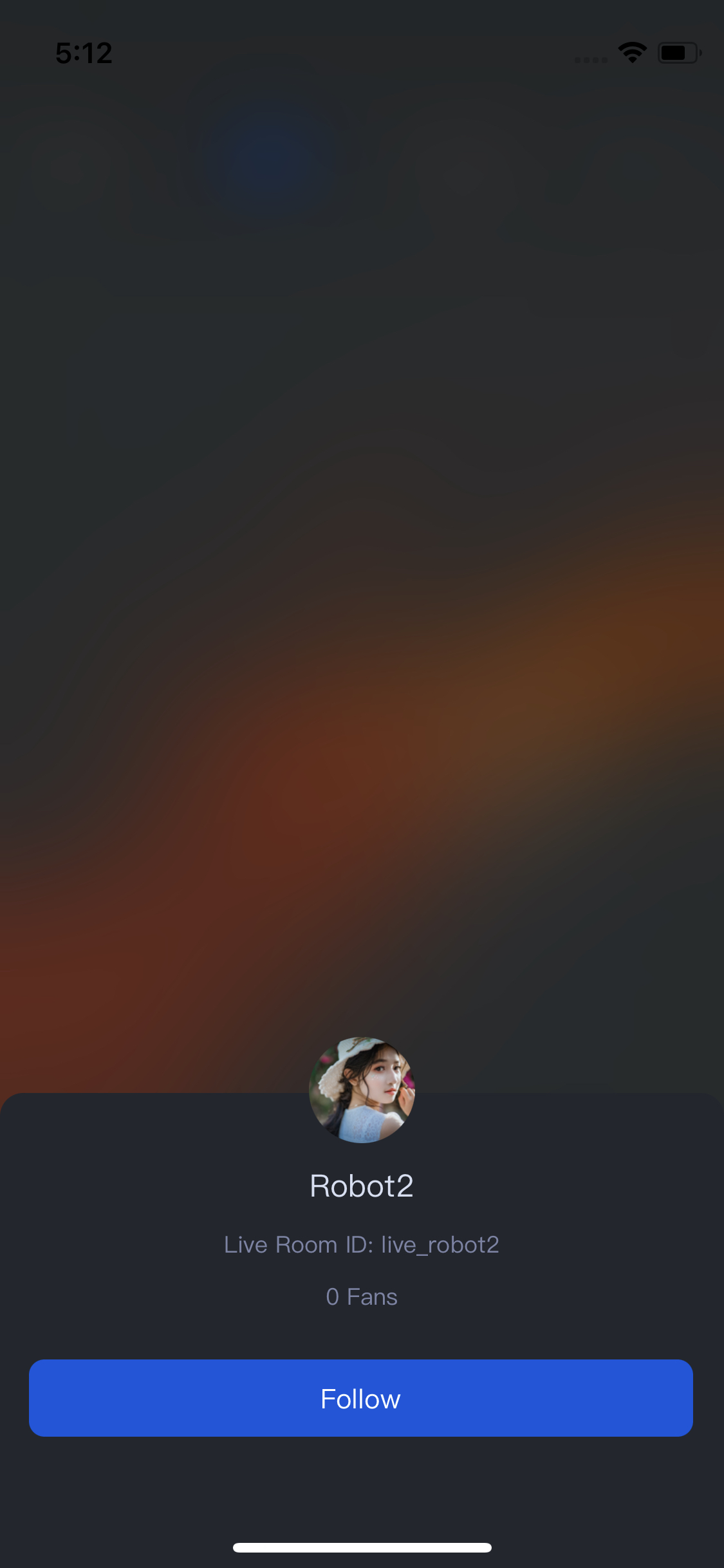 |  |
Quick Start
Step 1. Activate the Service
Refer to the Activate Service document to enable the trial version or activate the Pro Edition package.
Step 2. Install TUILiveKit
Step 3. Add Audience Viewing Page
TUILiveRoomAudienceOverlay provides a complete audience-side UI and business logic for live streaming, supporting floating window mode. While watching a live stream, viewers can switch between two floating window modes: in-app and out-of-app (Picture-in-Picture). TUILiveRoomAudienceOverlay is built using the Flutter official API Overlay and native Picture-in-Picture. Integration steps are as follows:
1. Enable System Picture-in-Picture Feature in Your App Project
2. Navigate to the Floating Window Viewing Page
At the entry point where your audience will access the live room (determined by your business logic), use the following code to navigate to the viewing page:
import 'package:tencent_live_uikit/tencent_live_uikit.dart';import 'package:atomic_x_core/atomicxcore.dart';// Navigate to the viewing pageNavigator.push(context, MaterialPageRoute(builder: (BuildContext context) {final roomId = "test_live_room_id";return TUILiveRoomAudienceOverlay(roomId: roomId, liveInfo: LiveInfo(liveID: roomId));}));
Note:
TUILiveRoomAudienceOverlay cannot be embedded as a child widget in container widgets (such as Container, Stack, etc.); it must be navigated to as a standalone page. This is because Overlay is used internally, and LiveKit needs to control the entire Overlay page to switch floating window modes.On iOS, only regular audience members can enter out-of-app floating window mode.
Floating Window Mode Effect
Click the floating window button at the top right of the page to enter floating window mode, as shown below:
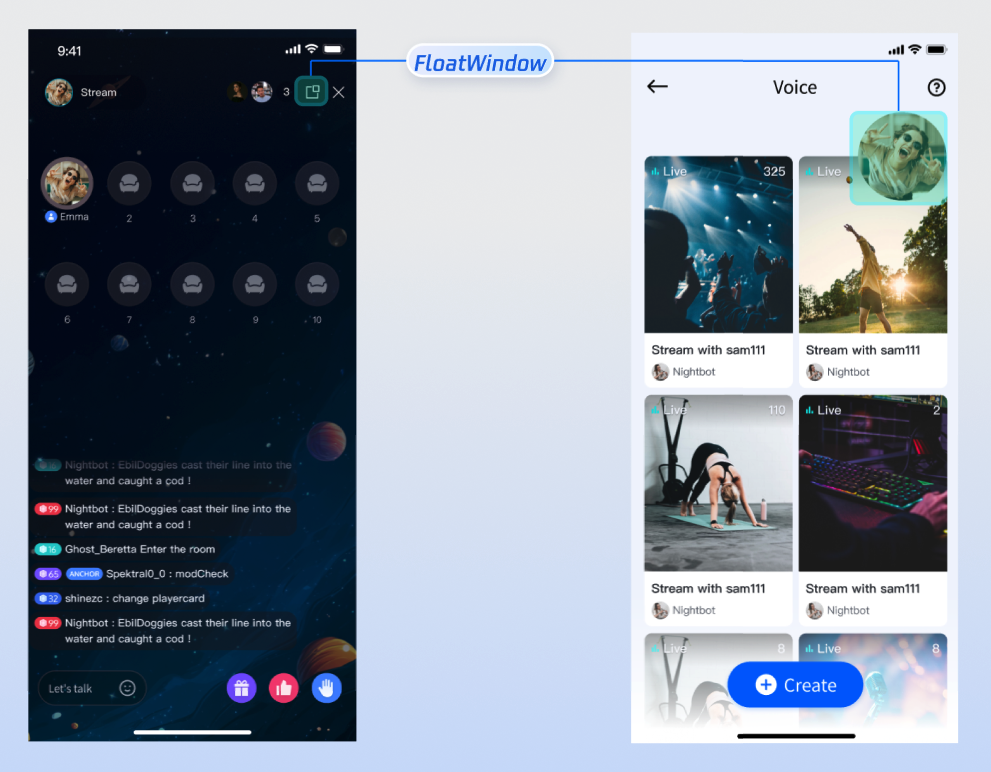
Out-of-App Floating Window Effect
Tap More > PIP at the bottom of the viewing page to enable Picture-in-Picture. When your app moves to the background, it will automatically enter system Picture-in-Picture mode:
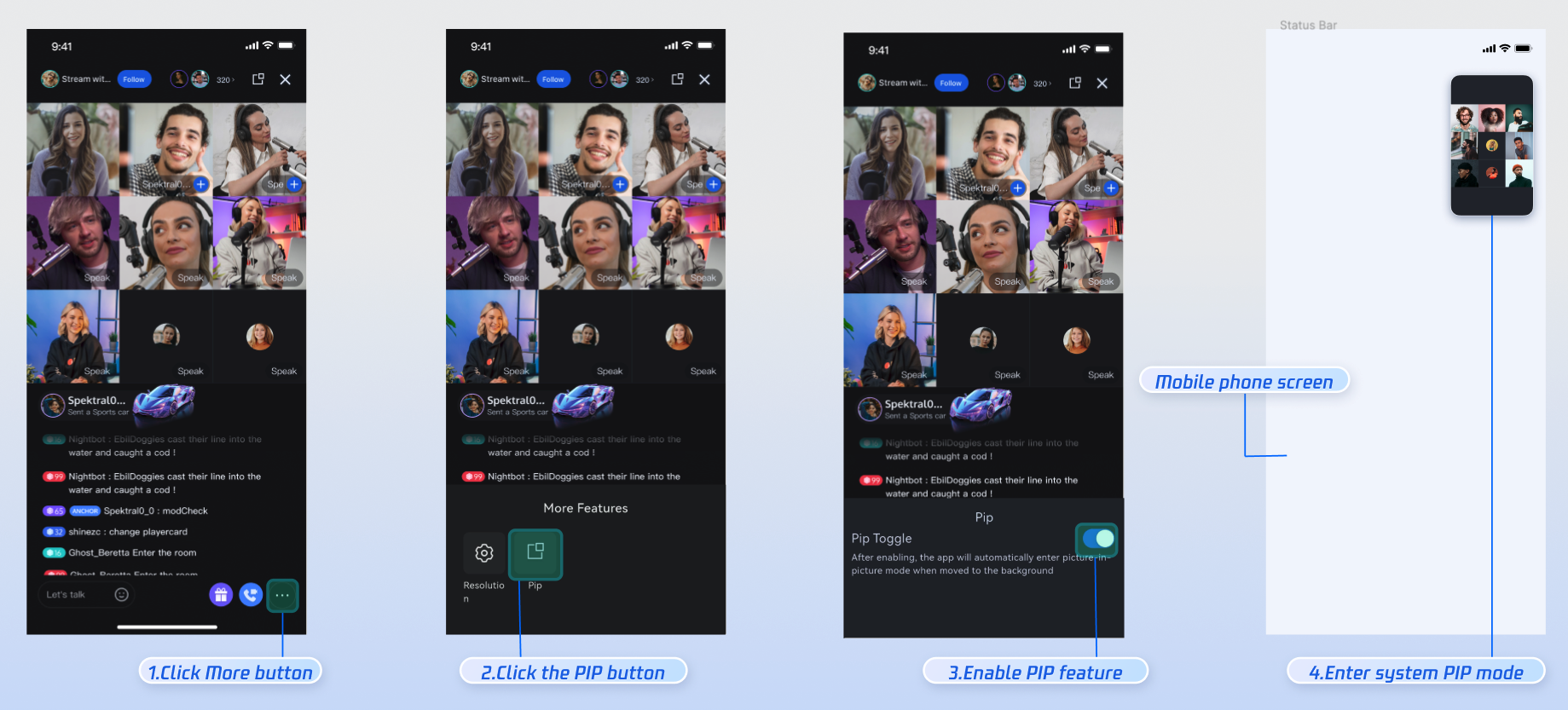
Customize UI Layout
Text Customization (ARB)
TUILiveKit uses ARB files and the Flutter standard internationalization (i18n) solution to manage the UI text display. You can directly edit the ARB files in the
livekit/lib/common/language/i10n/ directory to modify the text: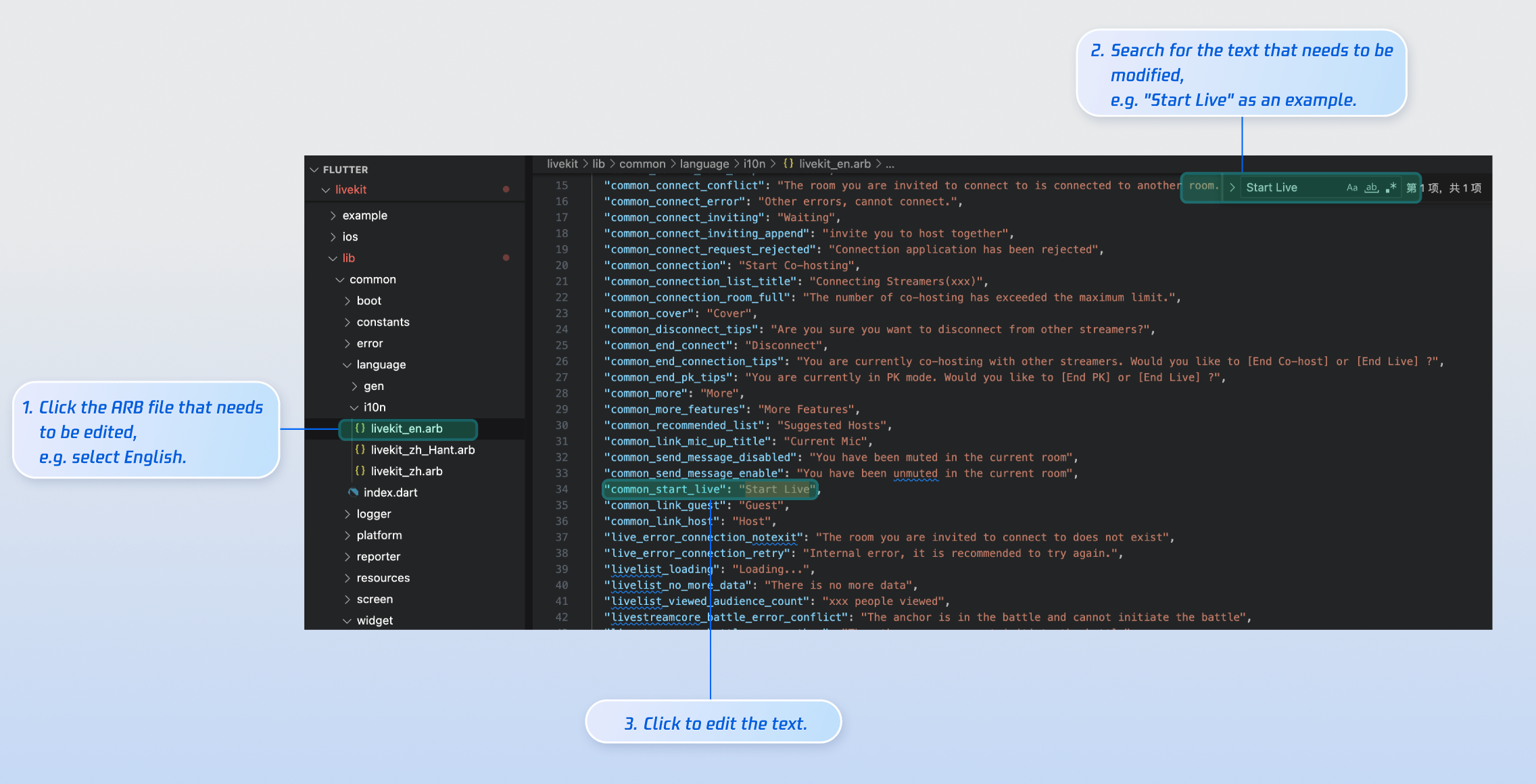
livekit_en.arb: English Text.livekit_zh.arb: Simplified Chinese Text.livekit_zh_Hant.arb: Traditional Chinese Text.After editing, run
flutter gen-l10n in your terminal to regenerate localization code. Icon Customization
TUILiveKit’s UI image assets are stored in the
livekit/assets/images/ directory. To update icons, simply replace the PNG files in this folder.
Rebuild and run the application, and you will see the updated icon.
Next Steps
Congratulations! You have successfully integrated Audience Viewing. Next, you can implement features such as Host Streaming, and Live Stream List. Please refer to the table below:
Feature | Description | Integration Guide |
Host Streaming | The complete workflow for a host to start a stream, including pre-stream setup and various in-stream interactions. | |
Live Stream List | Display the live stream list interface and features, including the live stream list and room information display. |
FAQs
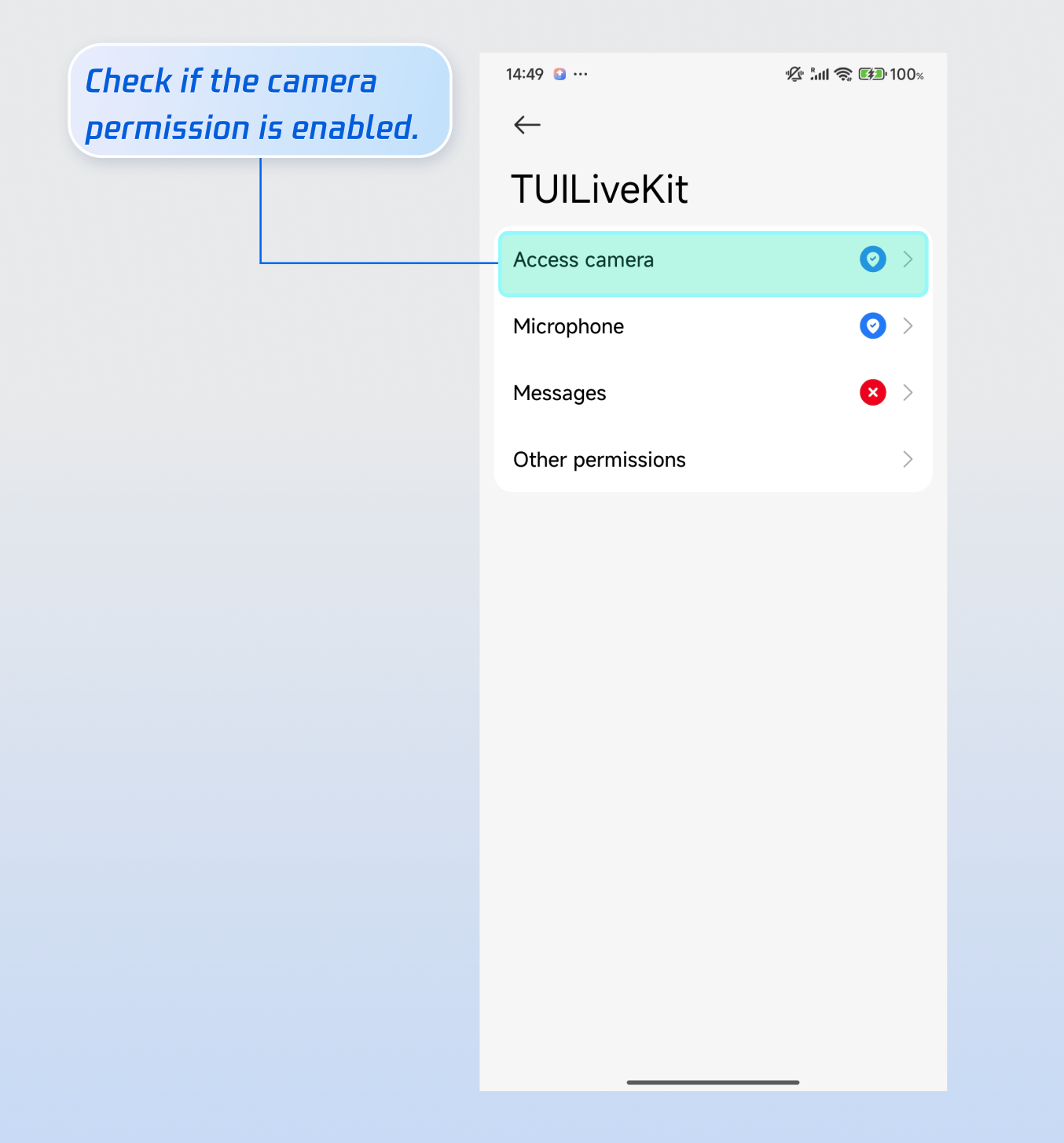
Why does the video screen go black after the audience chooses video interaction?
Go to Phone Settings > App > Camera and check whether camera permission is enabled. Refer to the image below:
iOS | Android |
 |  |
Why can’t other audience members see live comments sent by an audience member?
Reason 1: First check the network connection to ensure the viewer's device network is online and stable.
Reason 2: The viewer has been muted (banned) by the host and cannot send live comments.
Reason 3: The live comment may contain blocked keywords. Make sure comments comply with live room rules.
Why can’t the app enter out-of-app floating window (Picture-in-Picture) mode when in the background?
Refer to Entering Out-Of-App Floating Window. After entering the live room, enable the Picture-in-Picture switch.
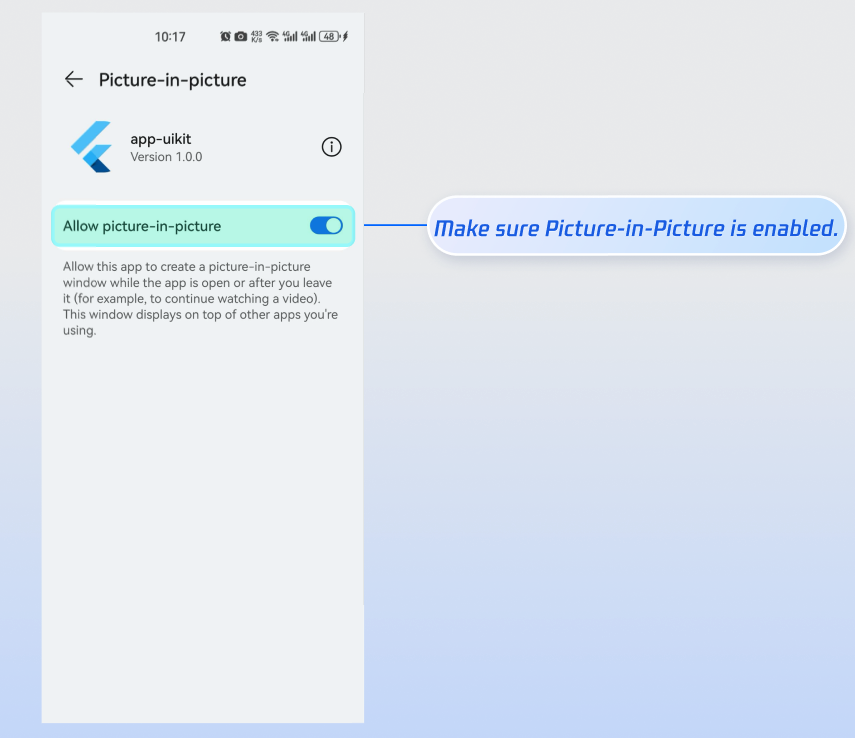
On Android, after enabling Picture-in-Picture, the app will automatically check the system setting. If Picture-in-Picture is not enabled, the app will prompt you to allow this mode in system settings:
피드백