Live Stream List (Flutter)
다운로드
포커스 모드
폰트 크기
Feature Overview
This guide introduces the Live Stream List page in TUILiveKit. You can use this documentation to quickly integrate our pre-built Live Stream List page into your project, or customize the page’s appearance, layout, and features to fit your needs.
Double-column waterfall layout: By default, displays previews of two live stream rooms side by side.
Single-column waterfall layout: By default, displays a preview of one live stream room at a time.
Double-Column Waterfall Flow | Single-Column Waterfall Flow |
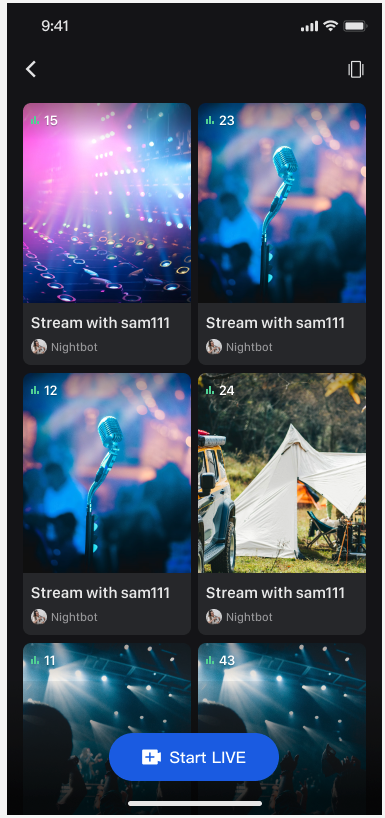 |
 |
Note:
When previewing live room screens, the preview duration is counted into the viewer's audio/video duration. For detailed billing information, please refer to Pricing.
Quick Integration
Step 1. Activate the Service
Follow the Activate the service guide to obtain the TUILiveKit trial version or activate the paid version.
Step 2. Integrate the Code
Step 3. Add Live Stream List Waterfall View
At the entry point in your app where you want to display the Live Stream List page (based on your business logic), use one of the following methods to launch the Live Stream List page or embed it in your Widget tree:
// Navigate to the Live Stream List pageNavigator.push(context, MaterialPageRoute(builder: (context) {return LiveListWidget(style: LiveListViewStyle.doubleColumn); // Initial layout style: supports doubleColumn and singleColumn)}));
// --- Choose one of the following integration methods based on your Widget tree structure ---// [Option 1] As the only child Widget (single subtree)// Suitable for containers like Container, Padding, etc. that typically have a single childContainer(child:// Insert the Live Stream List page hereLiveListWidget(style: LiveListViewStyle.doubleColumn) // Initial layout style: supports doubleColumn and singleColumn)// [Option 2] As one of multiple child Widgets (multi-subtree)// Suitable for layouts like Column, Row, Stack, etc. that support multiple childrenStack(children: [YourOtherWidget(), // Your other child Widget// Insert the Live Stream List page hereLiveListWidget(style: LiveListViewStyle.doubleColumn), // Initial layout style: supports doubleColumn and singleColumnYourOtherWidget(), // Your other child Widget])
Next Steps
You have now successfully integrated the Live Stream List feature. Next, you can add features such as host streaming and audience viewing. See the table below for details:
Feature | Description | Integration Guide |
Host Streaming | Implements the complete host streaming workflow, including pre-stream setup and post-live interactions | |
Audience Viewing | Allows the audience to enter the host's live stream room and watch the stream, supporting audience co-hosting, live stream room information, online audience list, live comments, and more |
FAQs
Why are no live streams displayed after integrating the Live Stream List feature?
If you see a blank page, make sure you have completed the login step. For testing, use two devices: one for host streaming, and another on the Live Stream List page to join the live stream room that has started.
What is the difference between single-column and double-column waterfall layouts?
The single-column waterfall layout previews one live stream room at a time, while the double-column waterfall layout previews two live stream rooms at once. Choose the layout that best fits your design requirements.
Is there a charge for previewing live stream screens?
Yes. The time spent previewing live stream room screens is counted toward the audience's Audio/Video usage and is billable. For details, see the Billing Description.
피드백