Live Stream List (React Native)
다운로드
포커스 모드
폰트 크기
This guide shows you how to quickly integrate the Live Stream List page, enabling users to browse available live streams and preview live room details.
Feature Preview
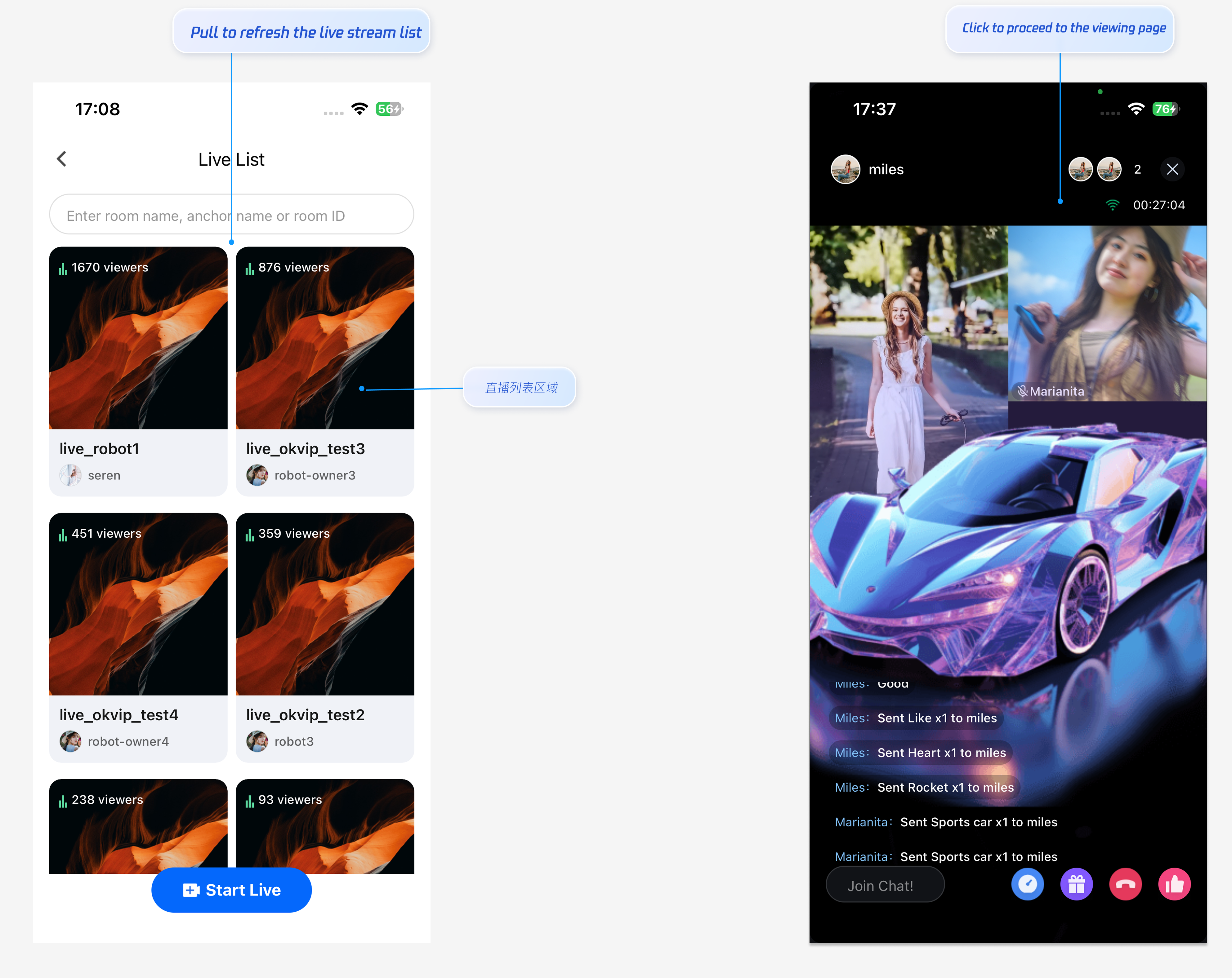
Quick Integration
Step 1: Activate the Service
Refer to the Activate Service document to enable the trial version or activate the Pro Edition package.
Step 2: Code Integration
Ensure that
react-native-safe-area-context is installed. If it is missing, install it with:yarn add react-native-safe-area-context
Step 3: Add the Live Stream List Page
TUILiveKit provides a ready-to-use UI and business logic for the Live Stream List in live streaming scenarios. Simply configure the entry point to call LiveListPage according to your business logic, then use the following steps to navigate to the Live Stream List page.
Note:
This example uses
useState to demonstrate simple page switching. For production apps, it is recommended to use navigation libraries like React Navigation for page management. To understand how to integrate navigation libraries, refer to React Navigation official documentation./*** Simple navigation example - using useState to manage page transitions*/import React, { useState } from 'react';import { View, Button, StyleSheet } from 'react-native';import { SafeAreaProvider } from 'react-native-safe-area-context';import { LiveListPage } from 'react-native-tuikit-live';type PageType = 'home' | 'liveList' | 'liveEnd' | 'liveAudience';function MyApp() {const [currentPage, setCurrentPage] = useState<PageType>('home');// Navigate to the Live Stream List pageconst handleJumpLiveList = async () => {setCurrentPage('liveList');};// Return from the Live Stream List pageconst handleBackFromLiveList = () => {setCurrentPage('home');};return (<SafeAreaProvider>{currentPage === 'home' && (<View style={styles.container}><Button title="Go to Live Stream List" onPress={handleJumpLiveList} /></View>)}{currentPage === 'liveList' && (<LiveListPageonBack={handleBackFromLiveList}/>)}{currentPage === 'liveEnd' && (<View style={styles.container}><Button title="Back to Home" onPress={() => setCurrentPage('home')} /></View>)}</SafeAreaProvider>);}const styles = StyleSheet.create({container: {flex: 1,justifyContent: 'center',alignItems: 'center',},});export default MyApp;
Customize UI Layout
TUILiveKit supports flexible customization of the Live Stream List page’s features and appearance, allowing you to tailor the layout to your business requirements.Adjust the Number of Live Rooms Per Row
You can set how many live rooms appear in each row by modifying the element count in the
tuikit-atomic-x/src/components/LiveList.tsx file. The default configuration is as follows:const CARD_WIDTH = (SCREEN_WIDTH - CONTAINER_PADDING * 2 - CARD_GAP) / 2; // two per line// Group the live stream list with two elements per lineconst groupedLiveList = useMemo(() => {const groups: LiveInfoParam[][] = [];for (let i = 0; i < filteredLiveList.length; i += 2) {groups.push(filteredLiveList.slice(i, i + 2));}return groups;}, [filteredLiveList]);
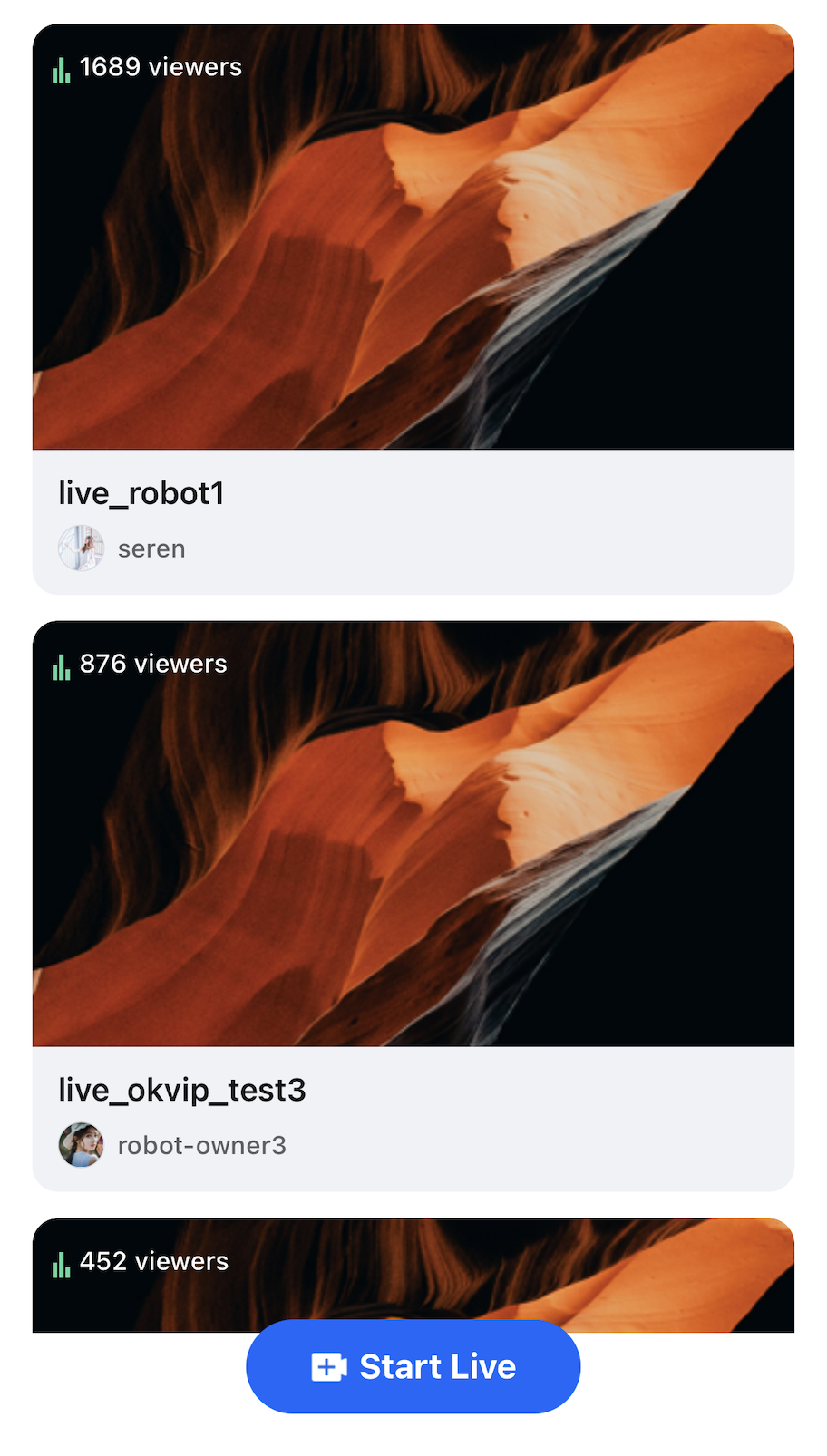
To show one live room per row, update the logic as follows:
const CARD_WIDTH = (SCREEN_WIDTH - CONTAINER_PADDING * 2); // one per lineconst groupedLiveList = useMemo(() => {const groups: LiveInfoParam[][] = [];for (let i = 0; i < filteredLiveList.length; i += 1) { // change 2 to 1groups.push(filteredLiveList.slice(i, i + 1)); // change 2 to 1}return groups;}, [filteredLiveList]);
Resulting UI is as follows:
Next
You’ve now integrated the Live Stream List feature. To continue, add host streaming and audience viewing capabilities. See the table below for details:
Feature | Description | Integration Guide |
Host Streaming | Implements the complete host streaming workflow, including pre-stream setup and interactive features after going live. | |
Audience Viewing | Enables audience members to enter the host’s live room and watch the stream, supporting guest co-hosting, live room details, online audience list, and live comments. |
FAQs
Why is the Live Stream List page empty after integration?
If the Live Stream List page is blank, verify that you have completed the login steps. For testing, use two devices: start a live stream on one device as the host, and use the other device to open the Live Stream List page and view available live rooms.
피드백