Claude Code
Baixar
Modo Foco
Tamanho da Fonte
Claude Code is an AI coding assistant that supports integration with the Anthropic API, helping developers quickly write, debug, and manage code.
The models in the Token Plan Enterprise Edition support an Anthropic API-compatible interface, which can be invoked via Claude Code.
Prerequisites
Before you start the configuration, ensure that you have completed the following preparations:
2. Obtain the model configuration: models available for the Pro Plan and models available for the Lite Plan.
Installing Claude Code
Attention:
Claude Code is installed via npm, which requires Node.js (version 18 or later recommended) to be installed first. If Node.js is not installed, visit the Node.js official website to download the LTS version.
Run the following command to install Claude Code. For more operations, refer to the Claude Code Installation Guide.
npm install -g @anthropic-ai/claude-code
After the installation is complete, run the following command to check the installation result. If the version number is displayed, the installation is successful.
claude --version
Configuring Token Plan Enterprise Edition
1. To edit or create the settings.json file, modify or add the following configuration information:
<USER_API_KEY>: Replace it with your own API Key.
<Model_ID>: Select the corresponding Model ID based on the plan you have purchased. For the complete model list, see models available for the Pro Plan and models available for the Lite Plan.
Attention:
The configuration file path varies depending on the system. The details are as follows:
MacOS / Linux:
~/.claude/settings.json.Windows:
C:\\Users\\<username>\\.claude\\settings.json.{"env": {"ANTHROPIC_AUTH_TOKEN": "<USER_API_KEY>","ANTHROPIC_BASE_URL": "https://tokenhub.tencentcloudmaas.com/plan/anthropic","ANTHROPIC_MODEL": "<Model_ID>"}}
{"env": {"ANTHROPIC_AUTH_TOKEN": "<USER_API_KEY>","ANTHROPIC_BASE_URL": "https://tokenhub-intl.tencentcloudmaas.com/plan/anthropic","ANTHROPIC_MODEL": "<Model_ID>"}}
2. Edit or create the .claude.json file to modify or add the hasCompletedOnboarding field with a value of
true.Attention:
The configuration file path varies depending on the system. The details are as follows:
MacOS / Linux:
~/.claude.jsonWindows:
C:\\Users\\<username>\\.claude.json{"hasCompletedOnboarding": true}
3. After saving the configuration file, run the subsequent commands in a new terminal window.
Using Claude Code in the Command Line
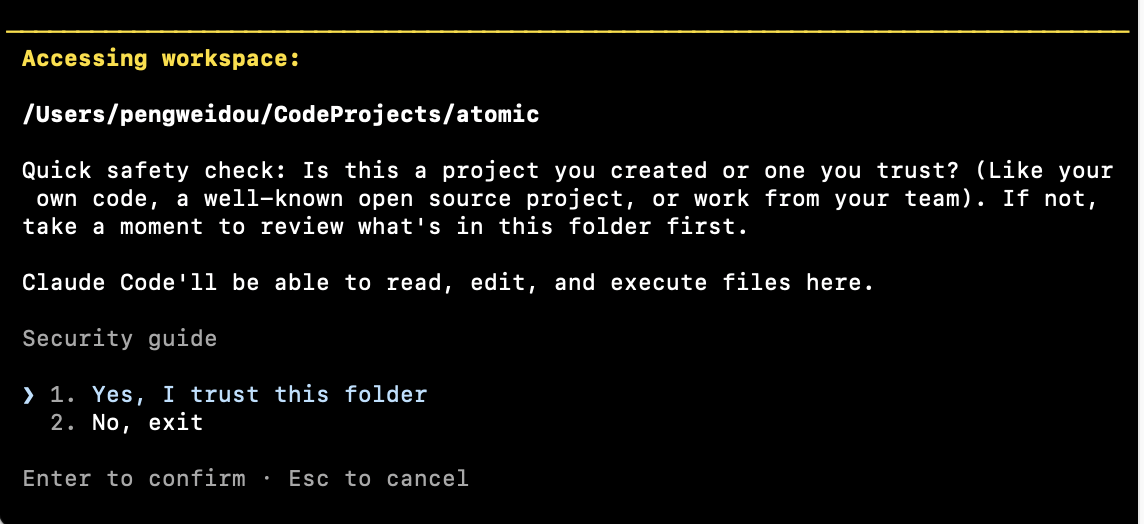
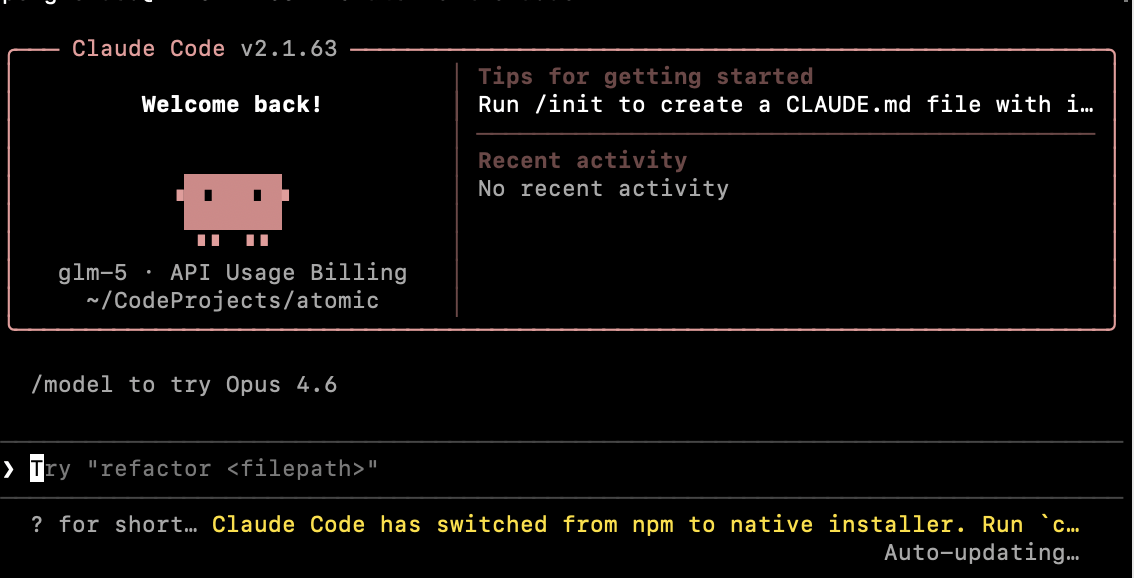
Go to the project directory via the command line, run the
claude command to start Claude Code, and you can begin using it.cd my-projectclaude
Select Yes, I trust this folder to trust the current directory.
Using Claude Code in the IDE
Attention:
The Claude Code IDE plugin depends on the Claude Code CLI tool. You must first install and configure Claude Code.
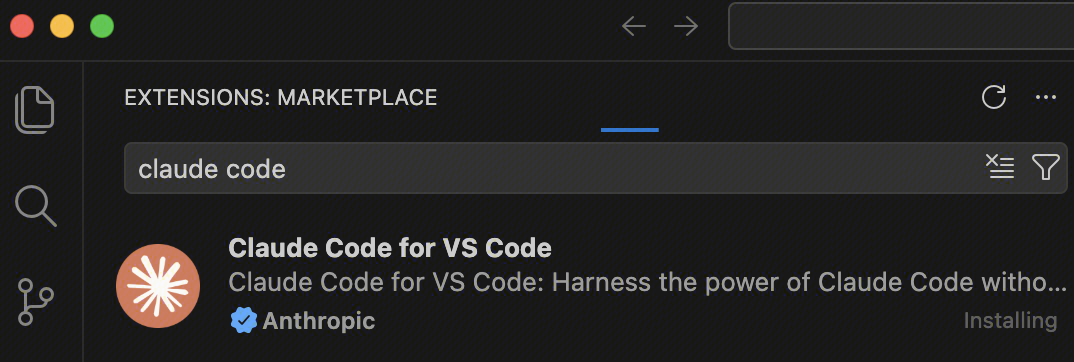
1. Search for Claude Code in the extension marketplace and install it.
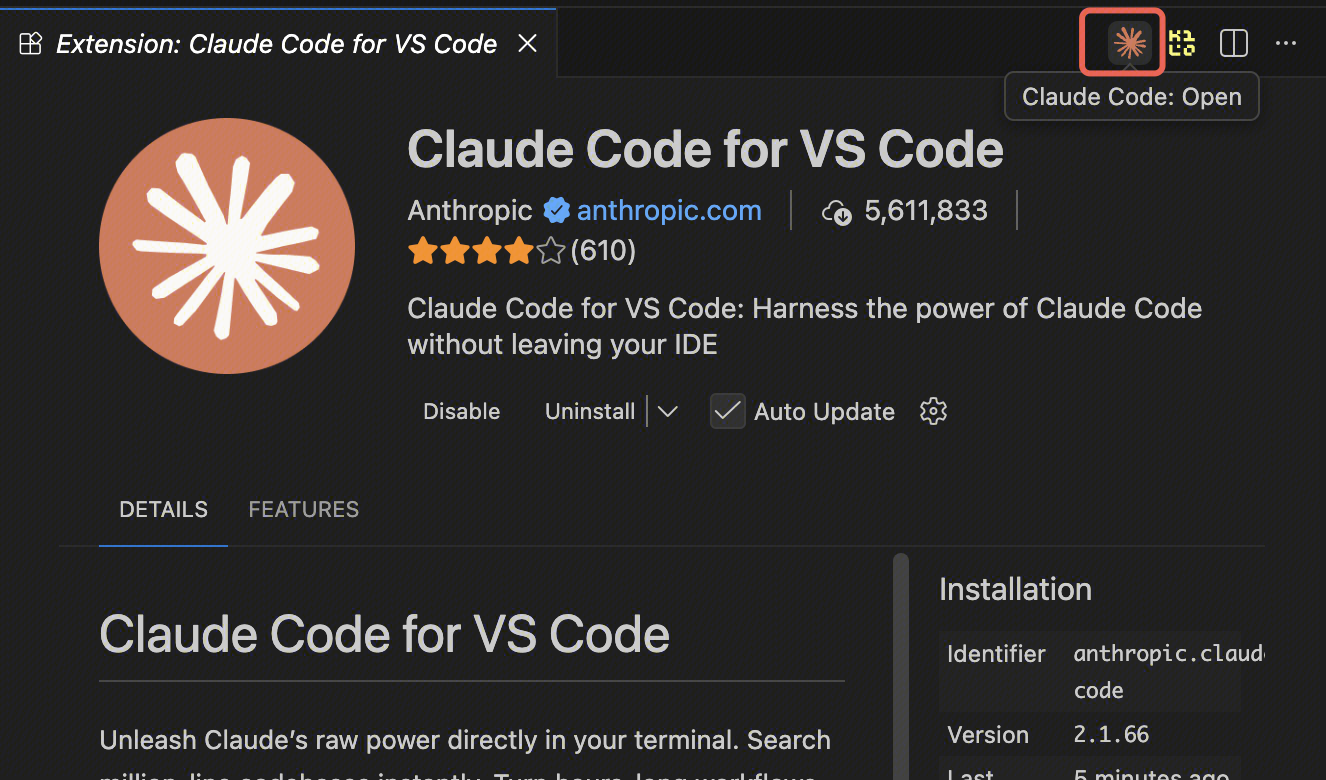
2. After the installation is complete, click the Claude Code icon in the upper-right corner of VS Code to go to the Claude Code page.
3. To switch models: Type
/ in the dialog box, select General config to go to the settings page, choose a supported model from Selected Model, and then start a conversation in a new window.1. Search for Claude Code in the extension marketplace and install it.
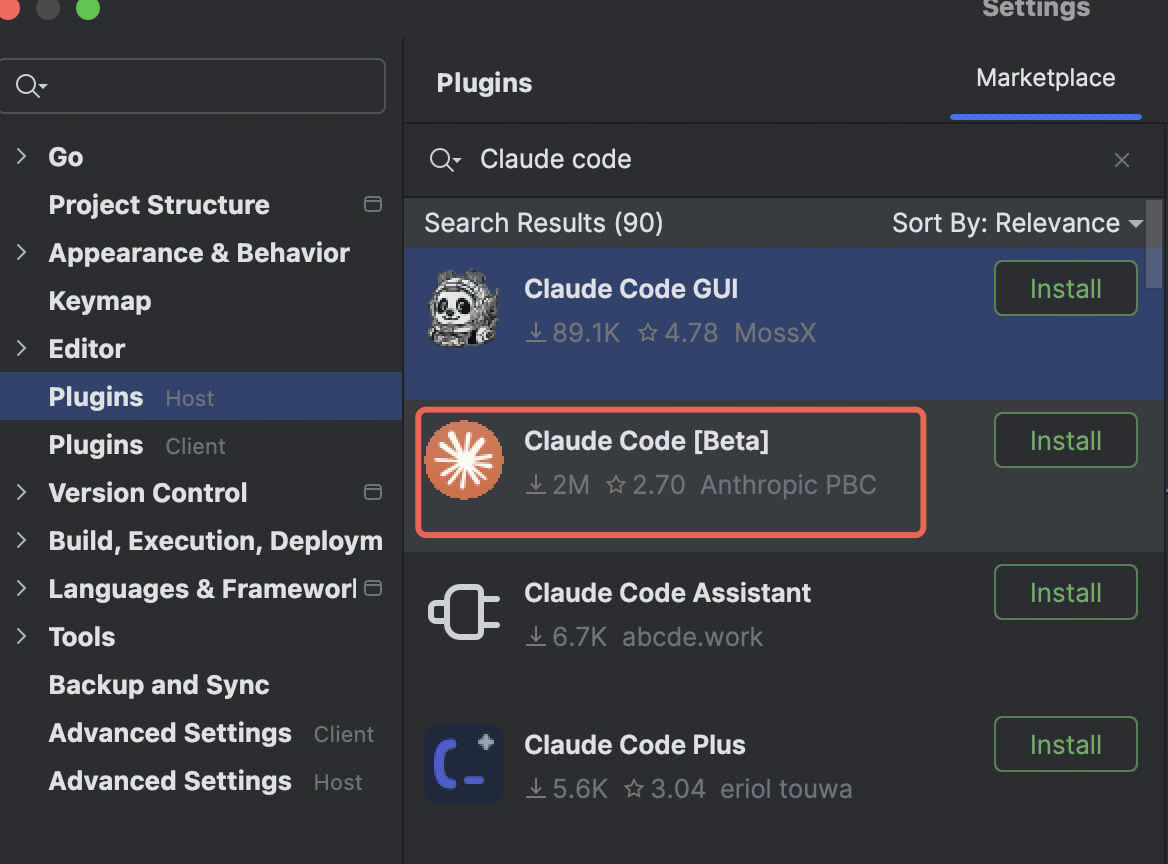
2. Restart the IDE after installation. Click the icon in the upper-right corner to start using it. You can switch models by using the
/model <model name> command.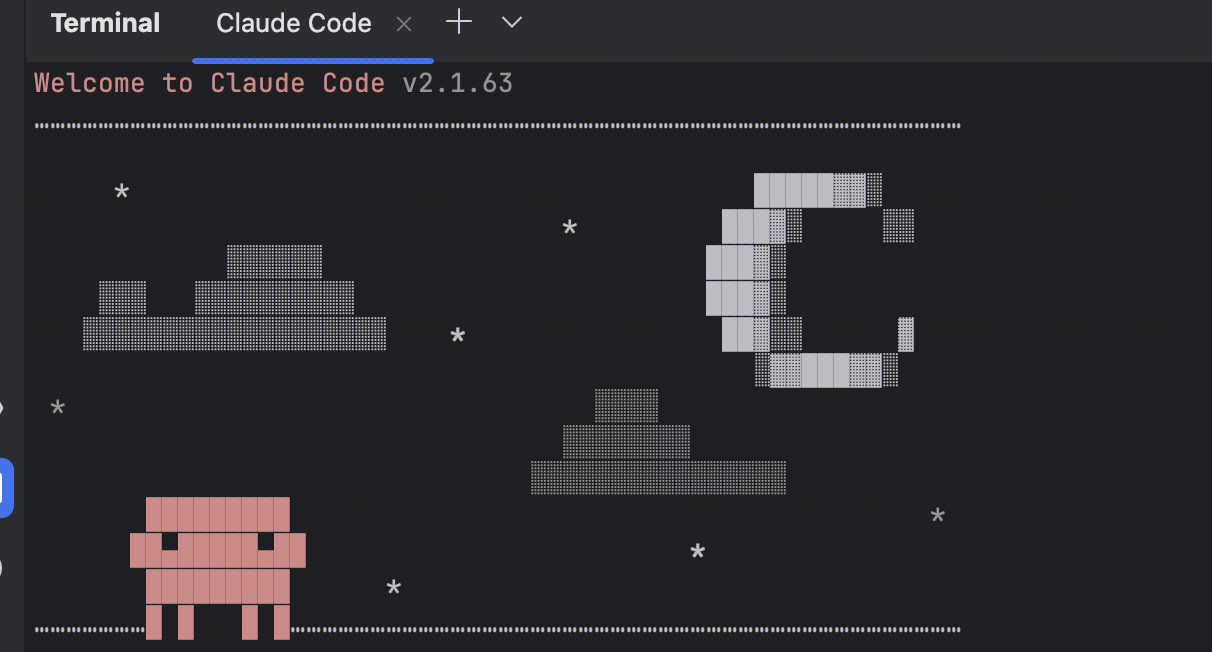
More Information
Ajuda e Suporte
Esta página foi útil?
Você também pode entrar em contato com a Equipe de vendas ou Enviar um tíquete em caso de ajuda.
comentários