iOS Customization Capabilities
Download
Focus Mode
Font Size
This document mainly describes how to use custom multi-language and custom UI.
1. Customizing Multiple Languages
1.1 Modifying Multiple Languages
Opening the Demo Project
Objective-C version: Open
demo/TencentCloudDemo/TencentCloudDemo.xcodeproj.Swift version: Open
demo/OcrSwiftDemo/OcrSwiftDemo.xcodeproj.Locating Multilingual Source Files
Locate the
OcrSDK folder in the left directory tree, and expand Localizable.strings to view multiple language directories:en.lproj/ - Englishzh-Hans.lproj/ - Simplified Chinesezh-Hant.lproj/ - Traditional Chineseid.lproj/ - Indonesian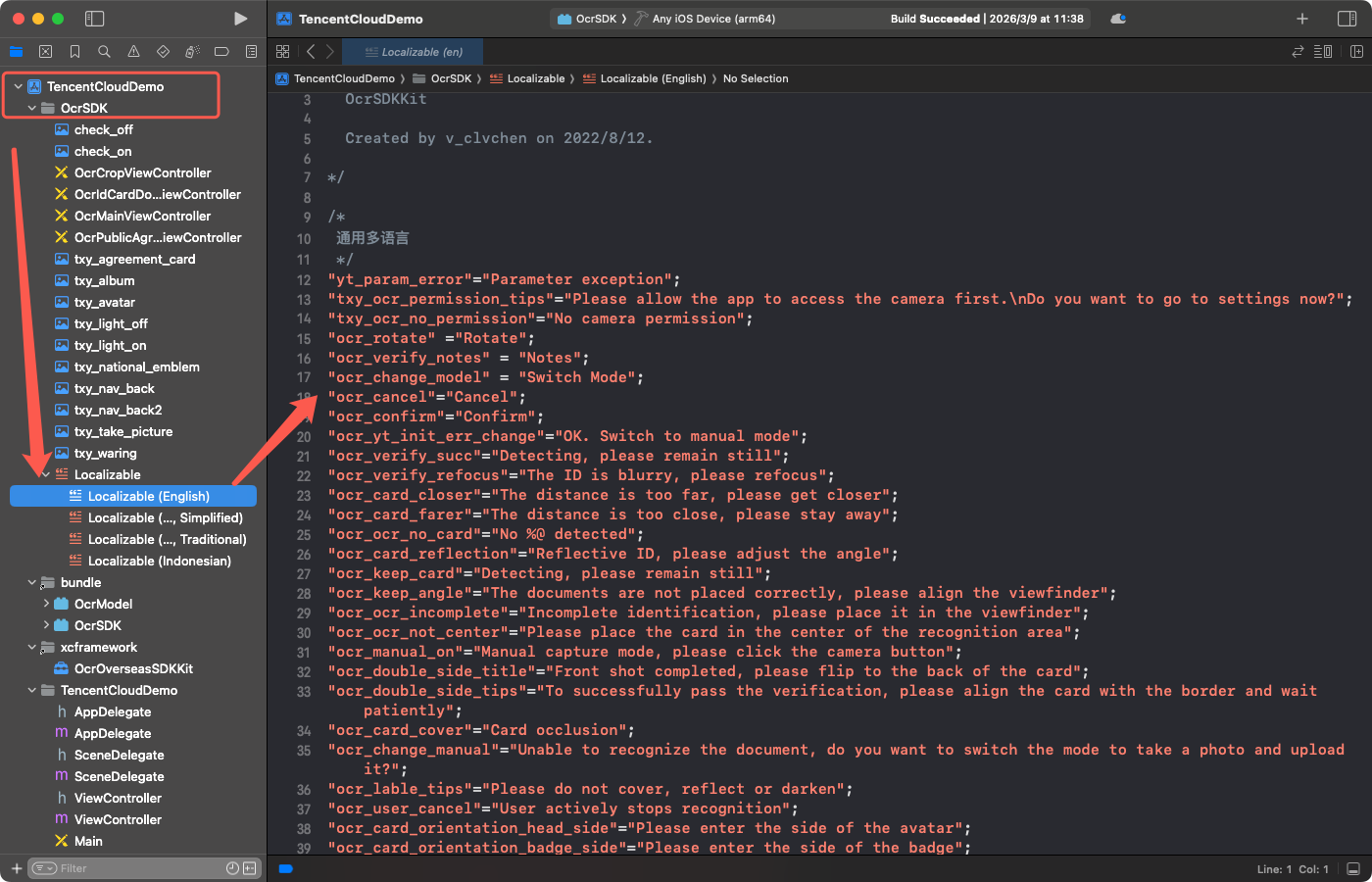
Modifying Translation Content
1. Expand the corresponding language directory and open the
Localizable.strings file.2. Find the key to modify, for example, to change the "Cancel" button text:
// Before modification"ocr_cancel"="Cancel";// Change to"ocr_cancel"="Close";
1.2 Adding New Languages
Adding a New Language to the Project
1. In Xcode, select the project root node on the left (such as
TencentCloudDemo).2. Choose PROJECT -> Info -> Localizations.
3. Click the + button to add the target language (such as Japanese ja, Korean ko, and so on).
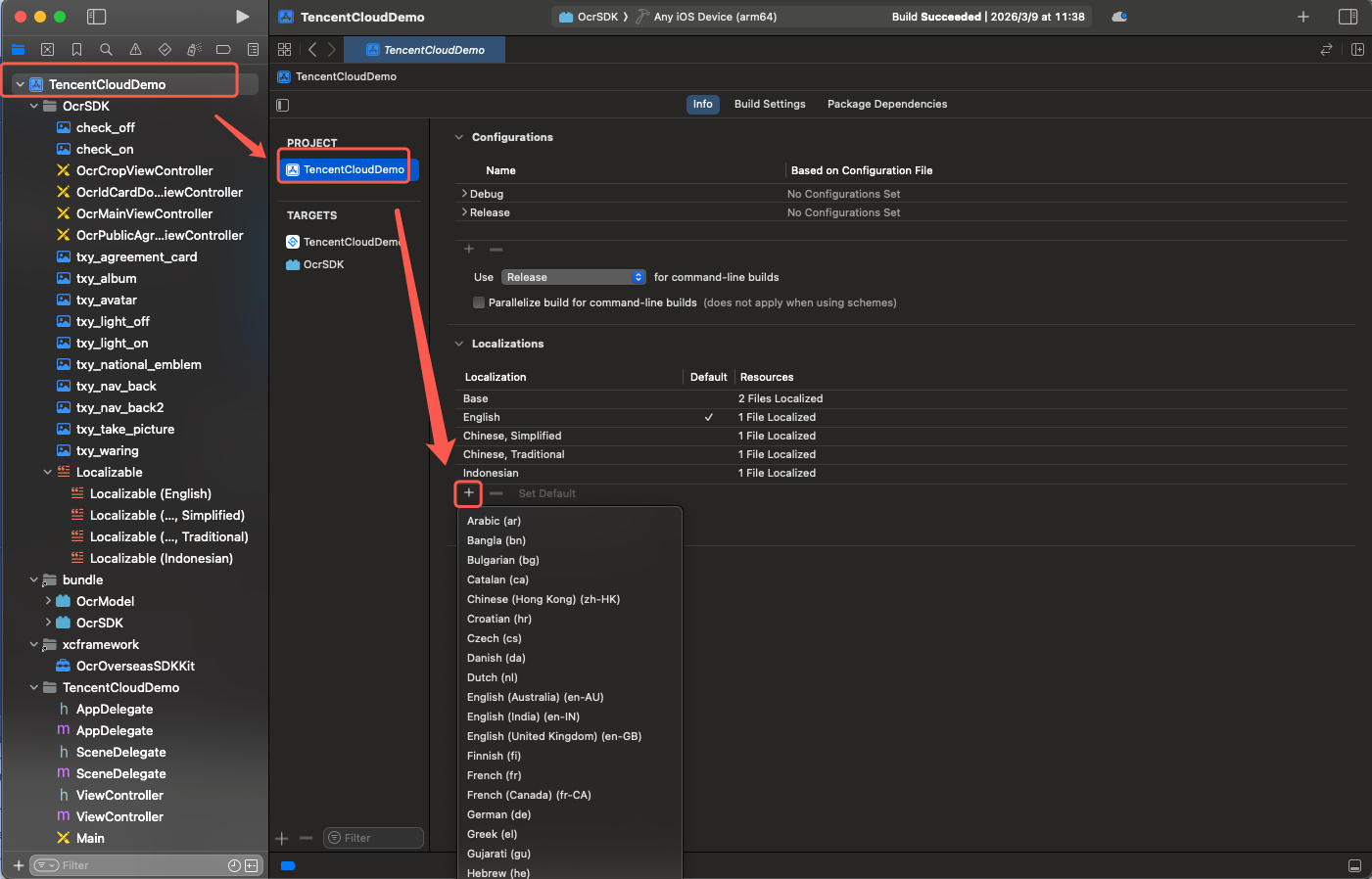
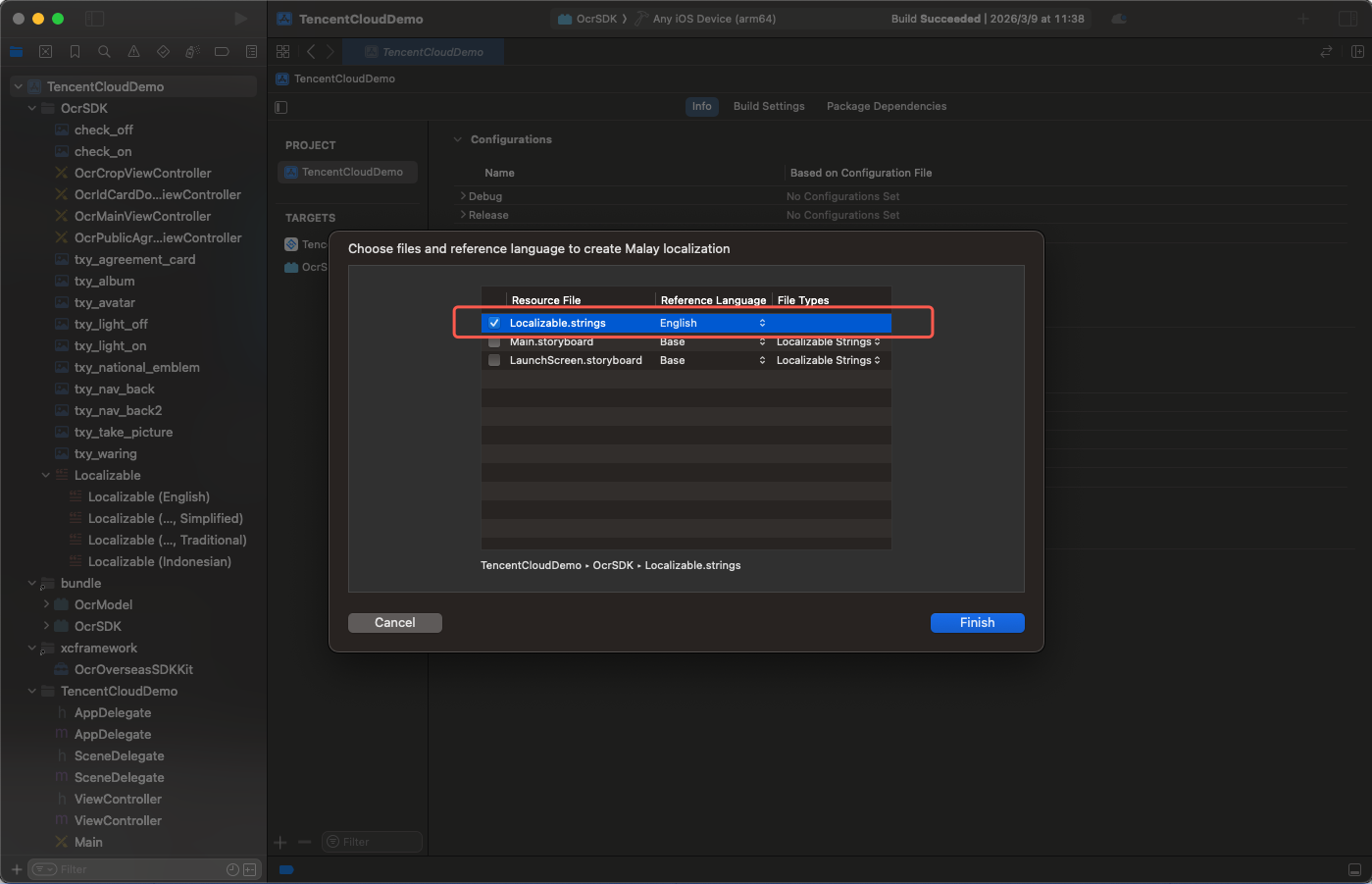
4. In the dialog box that appears, select the
Localizable.strings file under the OcrSDK folder.5. Click Finish to complete the addition.
Translating Text in a New Language
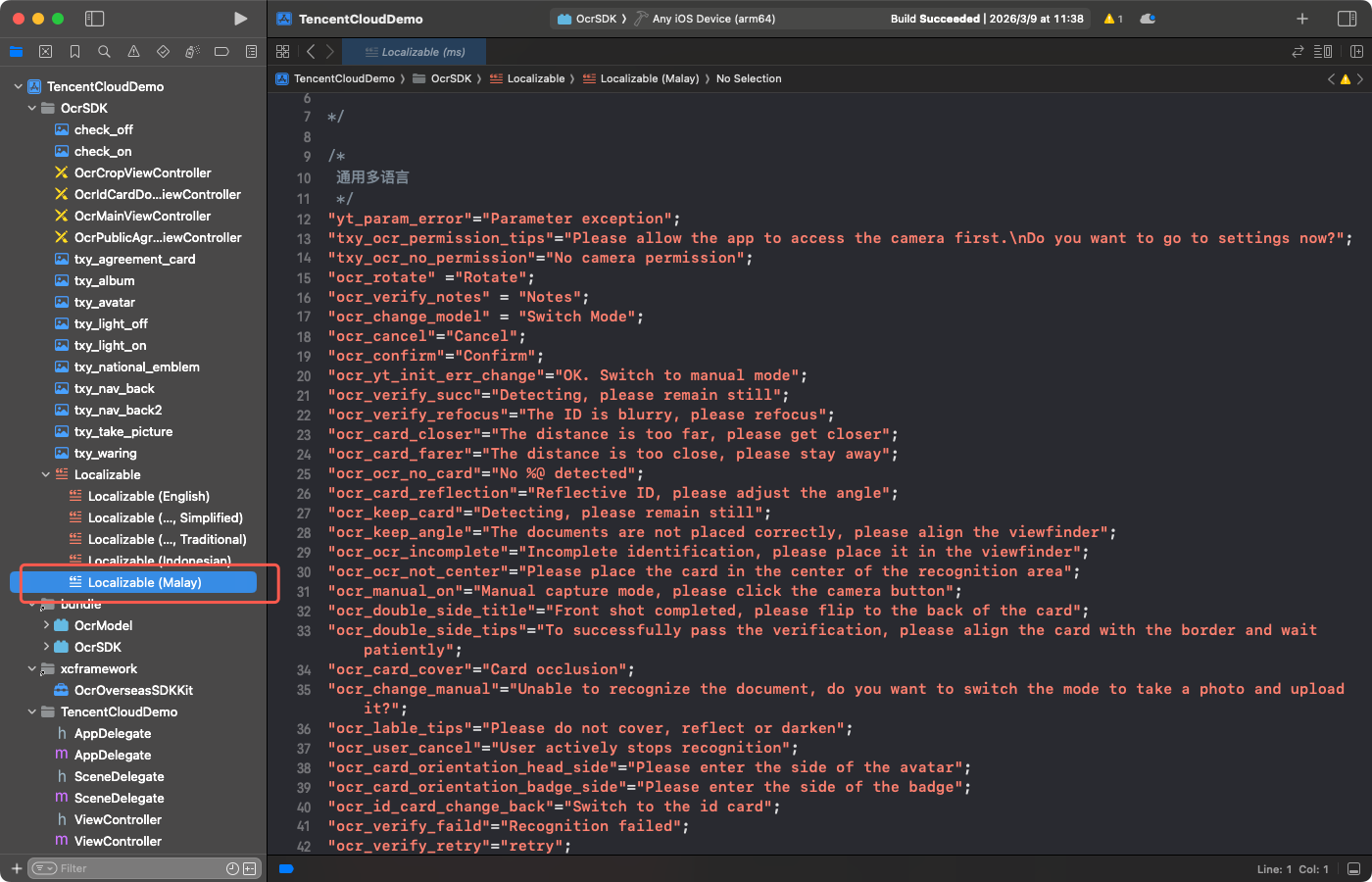
1. A new language directory (such as
ja.lproj/) is automatically generated under the OcrSDK directory.2. Open the newly generated
Localizable.strings file (the initial content is in English).3. Replace all English translations with the translations in the target language.
1.3 Compiling Multiple Languages
1. In the Demo project, switch the Scheme to
OcrSDK.2. Press Command + B to compile, and the output will be in the Products directory.
3. Replace the old OcrSDK.bundle file with the output in the Products directory.
4. If the newly built Bundle contains an
Info.plist file, delete it to avoid affecting App Store review.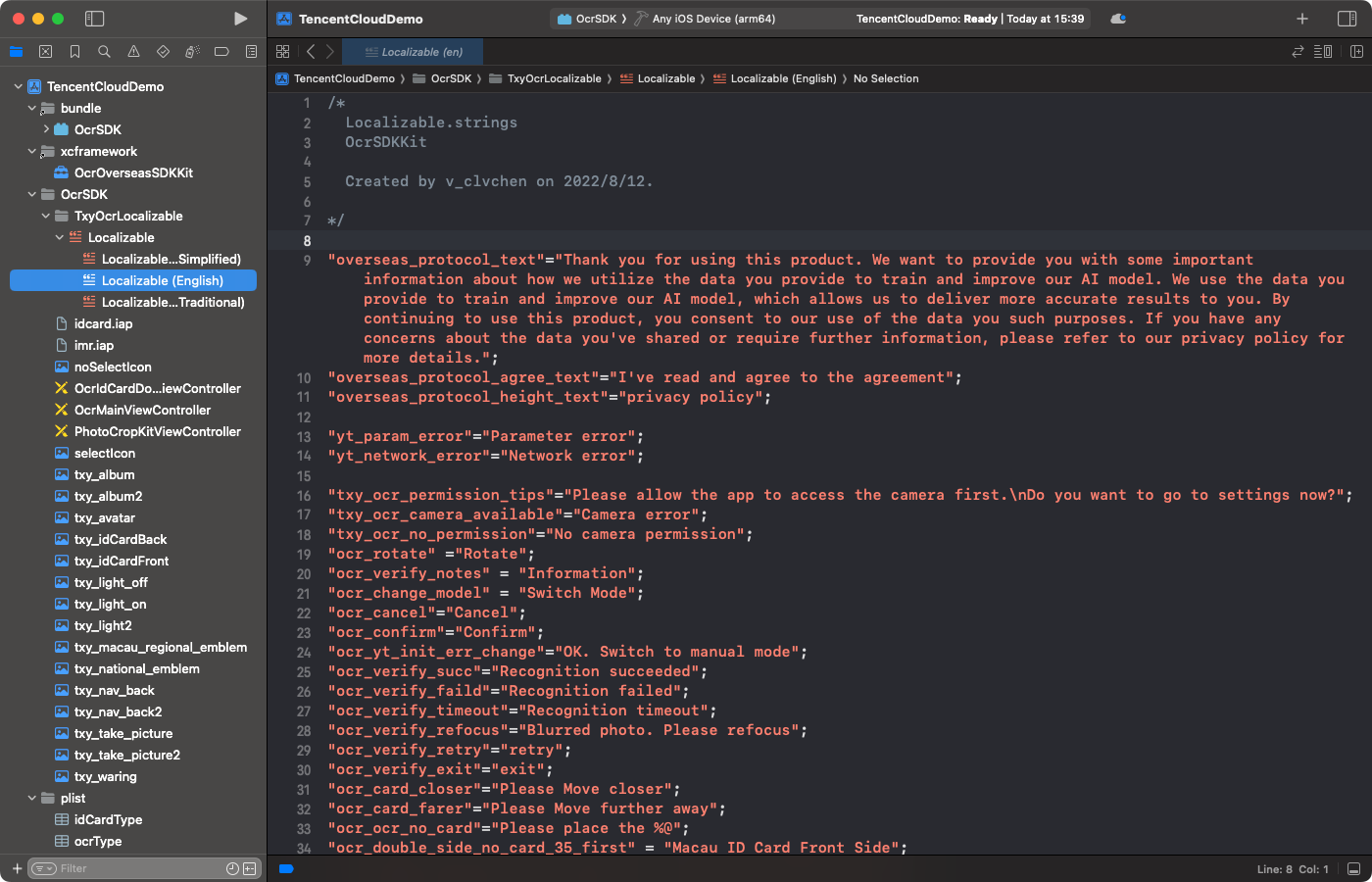
1.4 Integrating into a Project
1. Drag the newly compiled custom
.bundle file (such as OcrSDK.bundle) into your project.2. Make sure that Copy items if needed and the correct Target Membership are selected.
3. Configure through
CustomConfigUI when initializing the SDK:OC version:
CustomConfigUI *custom = [[CustomConfigUI alloc] init];// Set the path of the custom multilingual bundle.custom.custLanguageBundlePath = [[NSBundle mainBundle] pathForResource:@"CustomOcrSDK" ofType:@"bundle"];// Specify the language file to use.custom.custLanguageFile = @"zh-Hans.lproj";OcrCloudConfig *cloudConfig = [[OcrCloudConfig alloc] init];cloudConfig.customConfigUI = custom;
Swift version:
let custom = CustomConfigUI()// Set the path of the custom multilingual bundle.custom.custLanguageBundlePath = Bundle.main.path(forResource: "CustomOcrSDK", ofType: "bundle")// Specify the language file to use.custom.custLanguageFile = "en.lproj"let cloudConfig = OcrCloudConfig()cloudConfig.customConfigUI = custom
2. Customizing the UI
2.1 Customizing the Bundle (Replacing Icons and xib Layouts)
Opening the Demo Project
Objective-C version: Open
demo/TencentCloudDemo/TencentCloudDemo.xcodeproj.Swift version: Open
demo/OcrSwiftDemo/OcrSwiftDemo.xcodeproj.Build Steps
1. Locate the OcrSDK Bundle Target in the Targets list of Xcode, and press Command + B to build it.

2. After the build is complete, right-click the bundle, select Show Package Contents, and delete the entire Info.plist file. Otherwise, an error will occur when the IPA is uploaded to the App Store.
3. Replace the OcrSDK.bundle in the OcrSDK directory under the root directory with the build output. (Note: If the bundle content has not been modified, you can directly use the original bundle in this directory without replacement.)
Custom content
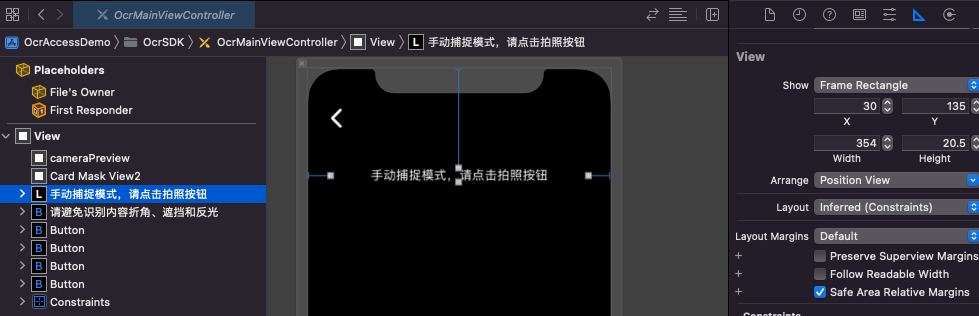
For example, on the OcrMainViewController.xib scanning page, you can modify the layout of some components in the xib file and add static components, but deleting components is not allowed. The page logic is implemented by the SDK's internal .m files, and only layout modifications and the addition of non-logic components (such as adding a background image) are supported.
Attention:
The frames of the cameraPreview and CardMaskView components are set internally by the SDK, and modifying the corresponding constraints is not recommended. If a non-full-screen camera display effect is required, you can achieve it by adding a View component as an overlay.
Integrating a Custom Bundle
After the build is complete, pass in the path through OcrOverseasCustomConfigUI when initializing the SDK:
Objective-C:
OcrOverseasCustomConfigUI *customUI = [[OcrOverseasCustomConfigUI alloc] init];// Set the path of the custom UI bundle.customUI.custBundlePath = [[NSBundle mainBundle] pathForResource:@"CustOCR" ofType:@"bundle"];OcrCloudConfig *cloudConfig = [[OcrCloudConfig alloc] init];cloudConfig.customConfigUI = customUI;
Swift:
let customUI = OcrOverseasCustomConfigUI()// Set the path of the custom UI bundle.customUI.custBundlePath = Bundle.main.path(forResource: "CustOCR", ofType: "bundle")let cloudConfig = OcrCloudConfig()cloudConfig.customConfigUI = customUI
2.2 Adding Business Components via Callbacks
OcrOverseasViewDelegate is the core protocol for UI interaction between the SDK and the business party. All methods are @optional, and the SDK uses default behavior when they are not implemented.Integration Mode
Objective-C:
OcrOverseasCustomConfigUI *customUI = [[OcrOverseasCustomConfigUI alloc] init];customUI.delegate = self; // self conforms to OcrOverseasViewDelegateOcrCloudConfig *cloudConfig = [[OcrCloudConfig alloc] init];cloudConfig.customConfigUI = customUI;
Swift:
let customUI = OcrOverseasCustomConfigUI()customUI.delegate = self // self conforms to OcrOverseasViewDelegatelet cloudConfig = OcrCloudConfig()cloudConfig.customConfigUI = customUI
onMainViewCreate — Page Initialization Callback
Triggered after the SDK recognition page is initialized.
authView is the root View of the current recognition page. You can add custom business components (such as a brand Logo or a notification banner) to authView at this point.- (void)onMainViewCreate:(UIView *)authView;
Example:
- (void)onMainViewCreate:(UIView *)authView {// Overlay a Logo in the upper right corner of the recognition page.UIImageView *logo = [[UIImageView alloc] initWithImage:[UIImage imageNamed:@"brand_logo"]];logo.translatesAutoresizingMaskIntoConstraints = NO;[authView addSubview:logo];[NSLayoutConstraint activateConstraints:@[[logo.topAnchor constraintEqualToAnchor:authView.safeAreaLayoutGuide.topAnchor constant:12],[logo.trailingAnchor constraintEqualToAnchor:authView.trailingAnchor constant:-16],[logo.widthAnchor constraintEqualToConstant:80],[logo.heightAnchor constraintEqualToConstant:30],]];}
onMainViewDestroy — Page Recycling Callback
Triggered when the SDK recognition page is about to be recycled. You can clean up the business components added in
onMainViewCreate or release related resources here.- (void)onMainViewDestroy;
Example:
- (void)onMainViewDestroy {NSLog(@"OCR page closed");// Clean up custom component references and release resources.}
onEventParamMap — Key Parameter Callback
During recognition, the SDK uses this callback to pass key runtime parameters in real time, allowing the business party to update custom UI states.
- (void)onEventParamMap:(NSDictionary *)paramMap;
Keys contained in paramMap:
Key Constant | Type | Description |
TXYOcrSdkEventParamMapCenterMarkRect | NSString (string format of CGRect) | Position and size of the current viewfinder on the screen (CGRect), which can be used to align custom components. |
TXYOcrSdkEventTimeoutStatus | NSString | Countdown status: "start" (countdown starts), "stop" (countdown paused), "end" (timed out) |
TXYOcrSdkEventSwitchToManualMode | Any non-nil value | Switched to manual capture mode. |
Example:
- (void)onEventParamMap:(NSDictionary *)paramMap {// Obtain the viewfinder position to align custom prompt components.NSString *rectStr = paramMap[TXYOcrSdkEventParamMapCenterMarkRect];if (rectStr) {CGRect markRect = CGRectFromString(rectStr);// Position the custom component directly below the viewfinder.self.hintLabel.frame = CGRectMake(markRect.origin.x,CGRectGetMaxY(markRect) + 12,markRect.size.width,30);}// Listen for the countdown status.NSString *timeoutStatus = paramMap[TXYOcrSdkEventTimeoutStatus];if ([timeoutStatus isEqualToString:@"start"]) {NSLog(@"Countdown started");} else if ([timeoutStatus isEqualToString:@"end"]) {NSLog(@"Countdown timed out");}}
onShowBestFrameConfirmDialog — Custom Best Frame Confirmation Dialog
After the automatic mode identifies the optimal frame, the SDK calls this method. If
YES is returned, the SDK does not display the default confirmation dialog, and the business party implements it on their own.- (BOOL)onShowBestFrameConfirmDialog:(NSDictionary *)infoimageView:(UIImageView *)imageViewparentView:(UIView *)parentViewconfirmBlock:(void(^)(void))confirmBlockcancelBlock:(void(^)(void))cancelBlock;
Attention:
You must set
OcrOverseasCustomConfigUI.showBestImgConfirmDialog = YES for this callback to be triggered.
Parameter description:
Parameter | Description |
info[OcrDialogInfoKeyTitle] | Popup title text (localized according to language settings) |
info[OcrDialogInfoKeyMessage] | Popup description text |
imageView | UIImageView containing the best frame image, which can be directly added to a custom popup for display. |
parentView | Root View of the current recognition page. Add the custom popup to this View. |
confirmBlock | Must be called after user confirmation, and the SDK will continue the upload process. |
cancelBlock | Must be called after user cancellation, and the SDK will restart capture. |
Example:
- (BOOL)onShowBestFrameConfirmDialog:(NSDictionary *)infoimageView:(UIImageView *)imageViewparentView:(UIView *)parentViewconfirmBlock:(void(^)(void))confirmBlockcancelBlock:(void(^)(void))cancelBlock {// Build a custom dialog.UIAlertController *alert = [UIAlertControlleralertControllerWithTitle:info[OcrDialogInfoKeyTitle]message:info[OcrDialogInfoKeyMessage]preferredStyle:UIAlertControllerStyleAlert];[alert addAction:[UIAlertAction actionWithTitle:@"Use This Photo"style:UIAlertActionStyleDefaulthandler:^(UIAlertAction *_) {if (confirmBlock) confirmBlock(); // Must be called.}]];[alert addAction:[UIAlertAction actionWithTitle:@"Retake"style:UIAlertActionStyleCancelhandler:^(UIAlertAction *_) {if (cancelBlock) cancelBlock(); // Must be called.}]];// Find the current topmost ViewController to present.UIViewController *topVC = [self topViewController];[topVC presentViewController:alert animated:YES completion:nil];return YES; // Return YES to prevent the SDK from displaying the default dialog.}
onShowNextSideDialog — Custom Flip Prompt Dialog
After one side of the two-sided document is recognized, the SDK calls this method to prompt the user to flip the document. If
YES is returned, the business party displays a custom dialog.- (BOOL)onShowNextSideDialog:(NSDictionary *)infoparentView:(UIView *)parentViewconfirmBlock:(void(^)(void))confirmBlock;
Parameter description:
Parameter | Description |
info[OcrDialogInfoKeyTitle] | Popup title |
info[OcrDialogInfoKeyMessage] | Popup description |
parentView | Root View of the current recognition page |
confirmBlock | Must be called after the user clicks Confirm, and the SDK continues the side-switching recognition process. |
Example:
- (BOOL)onShowNextSideDialog:(NSDictionary *)infoparentView:(UIView *)parentViewconfirmBlock:(void(^)(void))confirmBlock {UIAlertController *alert = [UIAlertControlleralertControllerWithTitle:info[OcrDialogInfoKeyTitle]message:info[OcrDialogInfoKeyMessage]preferredStyle:UIAlertControllerStyleAlert];[alert addAction:[UIAlertAction actionWithTitle:@"OK"style:UIAlertActionStyleDefaulthandler:^(UIAlertAction *_) {if (confirmBlock) confirmBlock(); // Must be called.}]];[[self topViewController] presentViewController:alert animated:YES completion:nil];return YES;}
onShowChangeModeDialog — Custom Manual Mode Switch Dialog
After the countdown times out in automatic mode (
OCR_DETECT_AUTO_MANUAL), the SDK calls this method to ask the user whether to switch to manual capture mode. If YES is returned, the business party displays a custom dialog.- (BOOL)onShowChangeModeDialog:(NSDictionary *)infoparentView:(UIView *)parentViewconfirmBlock:(void(^)(void))confirmBlockcancelBlock:(void(^)(void))cancelBlock;
Parameter description:
Parameter | Description |
confirmBlock | Called after the user clicks "Switch to Manual". The SDK enters manual capture mode. |
cancelBlock | Called after the user clicks "Continue Waiting". The SDK restarts the countdown. |
Example:
- (BOOL)onShowChangeModeDialog:(NSDictionary *)infoparentView:(UIView *)parentViewconfirmBlock:(void(^)(void))confirmBlockcancelBlock:(void(^)(void))cancelBlock {UIAlertController *alert = [UIAlertControlleralertControllerWithTitle:info[OcrDialogInfoKeyTitle]message:info[OcrDialogInfoKeyMessage]preferredStyle:UIAlertControllerStyleAlert];[alert addAction:[UIAlertAction actionWithTitle:@"Switch to Manual"style:UIAlertActionStyleDefaulthandler:^(UIAlertAction *_) {if (confirmBlock) confirmBlock();}]];[alert addAction:[UIAlertAction actionWithTitle:@"Keep Waiting"style:UIAlertActionStyleCancelhandler:^(UIAlertAction *_) {if (cancelBlock) cancelBlock();}]];[[self topViewController] presentViewController:alert animated:YES completion:nil];return YES;}
onShowCloudErrorDialog — Custom Recognition Failure Dialog
When cloud recognition fails, the SDK calls this method. If
YES is returned, the business party displays a custom error dialog.- (BOOL)onShowCloudErrorDialog:(NSDictionary *)infoparentView:(UIView *)parentViewretryBlock:(void(^_Nullable)(void))retryBlockexitBlock:(void(^)(void))exitBlock;
Parameter description:
Parameter | Description |
info[OcrDialogInfoKeyTitle] | Error dialog title |
info[OcrDialogInfoKeyMessage] | Error description (localized by error code) |
info[OcrDialogInfoKeyErrorCode] | Server error code (NSNumber, for example, @(400101)) |
retryBlock | Called after the user clicks "Retry". When the value is nil, it indicates that the error cannot be retried, and the retry button should not be displayed in the dialog box. |
exitBlock | Called after the user clicks "Exit". The SDK will trigger the failure callback, and one of them must be called. |
Example:
- (BOOL)onShowCloudErrorDialog:(NSDictionary *)infoparentView:(UIView *)parentViewretryBlock:(void(^_Nullable)(void))retryBlockexitBlock:(void(^)(void))exitBlock {NSString *title = info[OcrDialogInfoKeyTitle] ?: @"Recognition Failed";NSString *message = info[OcrDialogInfoKeyMessage] ?: @"Please try again.";UIAlertController *alert = [UIAlertControlleralertControllerWithTitle:titlemessage:messagepreferredStyle:UIAlertControllerStyleAlert];// Display the retry button only when retry is available.if (retryBlock) {[alert addAction:[UIAlertAction actionWithTitle:@"Retry"style:UIAlertActionStyleDefaulthandler:^(UIAlertAction *_) {retryBlock();}]];}[alert addAction:[UIAlertAction actionWithTitle:@"Exit"style:UIAlertActionStyleCancelhandler:^(UIAlertAction *_) {exitBlock(); // Must be called.}]];[[self topViewController] presentViewController:alert animated:YES completion:nil];return YES;}
onShowCameraPermissionDialog — Custom No Camera Permission Dialog
When the SDK detects that the camera permission is not granted, it calls this method. If
YES is returned, the business party displays a custom permission guide dialog.- (BOOL)onShowCameraPermissionDialog:(NSDictionary *)infoparentView:(UIView *)parentViewsettingsBlock:(void(^)(void))settingsBlockcancelBlock:(void(^)(void))cancelBlock;
Parameter description:
Parameter | Description |
settingsBlock | Called after the user clicks "Go to Settings". The SDK automatically redirects to the system settings page. |
cancelBlock | Called after the user clicks "Cancel/Deny". The SDK triggers the failure callback ( TXY_SDK_CAMERA_PERMISSION_ERROR_CODE). |
Example:
- (BOOL)onShowCameraPermissionDialog:(NSDictionary *)infoparentView:(UIView *)parentViewsettingsBlock:(void(^)(void))settingsBlockcancelBlock:(void(^)(void))cancelBlock {UIAlertController *alert = [UIAlertControlleralertControllerWithTitle:@"Camera Permission Required"message:@"Please allow camera access in Settings to continue."preferredStyle:UIAlertControllerStyleAlert];[alert addAction:[UIAlertAction actionWithTitle:@"Go to Settings"style:UIAlertActionStyleDefaulthandler:^(UIAlertAction *_) {settingsBlock(); // The SDK automatically redirects to Settings.}]];[alert addAction:[UIAlertAction actionWithTitle:@"Cancel"style:UIAlertActionStyleCancelhandler:^(UIAlertAction *_) {cancelBlock();}]];[[self topViewController] presentViewController:alert animated:YES completion:nil];return YES;}
onShowLoading / onHideLoading — Custom Loading
The SDK calls
onShowLoading when a recognition request is submitted or the album is opened, and calls onHideLoading after the request ends. If YES is returned, the SDK does not display the built-in Loading indicator, and the business party takes full control of the Loading UI.- (BOOL)onShowLoading:(NSDictionary *)info parentView:(UIView *)parentView;- (BOOL)onHideLoading:(UIView *)parentView;
Keys contained in info:
Key Constant | Value | Description |
OcrDialogInfoKeyLoadingType | OcrLoadingTypeOcrProcessing("loadingTypeOcrProcessing") | OCR recognition request in progress |
OcrDialogInfoKeyLoadingType | OcrLoadingTypeImagePicking("loadingTypeImagePicking") | Opening album and selecting image in progress |
Note: Pairing Principle:
onShowLoading and onHideLoading must be implemented in pairs. If onShowLoading returns YES but onHideLoading returns NO, the SDK's internal HUD hiding logic will not be executed, which may cause residual Loading.Example:
- (BOOL)onShowLoading:(NSDictionary *)info parentView:(UIView *)parentView {// Remove the old Loading indicator to prevent duplicate additions.[[parentView viewWithTag:9527] removeFromSuperview];UIView *container = [[UIView alloc] initWithFrame:parentView.bounds];container.tag = 9527;container.backgroundColor = [UIColor colorWithWhite:0 alpha:0.4];container.autoresizingMask = UIViewAutoresizingFlexibleWidth | UIViewAutoresizingFlexibleHeight;UIActivityIndicatorView *indicator;if (@available(iOS 13.0, *)) {indicator = [[UIActivityIndicatorView alloc] initWithActivityIndicatorStyle:UIActivityIndicatorViewStyleLarge];} else {indicator = [[UIActivityIndicatorView alloc] initWithActivityIndicatorStyle:UIActivityIndicatorViewStyleWhiteLarge];}indicator.center = container.center;indicator.autoresizingMask = UIViewAutoresizingFlexibleTopMargin | UIViewAutoresizingFlexibleBottomMargin| UIViewAutoresizingFlexibleLeftMargin | UIViewAutoresizingFlexibleRightMargin;[container addSubview:indicator];[indicator startAnimating];[parentView addSubview:container];return YES;}- (BOOL)onHideLoading:(UIView *)parentView {UIView *loading = [parentView viewWithTag:9527];[loading removeFromSuperview];return loading != nil; // Return YES only when Loading exists.}
2.3 Precautions
1. Blocks that must be called: After user interaction is completed, one of the following blocks must be called:
confirmBlock, cancelBlock, exitBlock, settingsBlock, and others. Otherwise, the SDK flow cannot continue, and the recognition page will be permanently stuck.2. Return value semantics:
Return
YES: The business party takes over the UI, and the SDK does not display the default implementation.Return
NO (or do not implement this method): The SDK uses the built-in default UI.3. UI operation thread: All callbacks are triggered on the main thread, so you can operate the UI directly without switching threads.
4. parentView lifecycle:
parentView is the View of the SDK recognition page. It is recycled immediately after onMainViewDestroy, so do not hold it for a long time outside the callback.
Help and Support
Was this page helpful?
You can also Contact sales or Submit a Ticket for help.
Help us improve! Rate your documentation experience in 5 mins.
Feedback