tencent cloud

Tencent Cloud TCHouse-D

Product Introduction
Overview
Concepts
Cluster Architecture
Strengths
Scenarios
Purchase Guide
Billing Overview
Renewal Instructions
Overdue Policy
Refund Instructions
Configuration Adjustment Billing Instructions
Getting Started
Using Tencent Cloud TCHouse-D Through the Console
Using Tencent Cloud TCHouse-D Through a Client
Operation Guide
Cluster Operation
Monitoring and Alarm Configuration
Account Privilege Management
Data Management
Query Management
Modify Configurations
Node Management
Log Analysis
SQL Studio
Enabling Resource Isolation
Development Guide
Design of Data Table
Importing Data
Exporting Data
Basic Feature
Query Optimization
Ecological Expansion Feature
API Documentation
History
Introduction
API Category
Making API Requests
Cluster Operation APIs
Database and Table APIs
Cluster Information Viewing APIs
Hot-Cold Data Layering APIs
Database and Operation Audit APIs
User and Permission APIs
Resource Group Management APIs
Data Types
Error Codes
Cloud Ecosystem
Granting CAM Policies to Sub-accounts
Query Acceleration for Tencent Cloud DLC
Practical Tutorial
Basic Feature Usage
Advanced Features Usage
Resource Specification Selection and Optimization Suggestions
Naming Specifications and Limits to the Database and Data Table
Table Design and Data Import
Query Optimization
Suggested Usage to Avoid
Accessing TCHouse-D via JDBC over the Public Network
Performance Testing
TPC-H Performance Testing
SSB Performance Testing
TPC-DS Performance Testing
FAQs
Common Operational Issues
Common Errors
Contact Us
Glossary
Product Policy
Service Level Agreement
Privacy Policy
Data Processing And Security Agreement

SQL Studio

PDF
Focus Mode
Font Size
Last updated: 2024-06-27 10:53:48
Through the SQL Studio, you can quickly connect to the cluster and carry out a series of operations using SQL commands.

Operation Guide

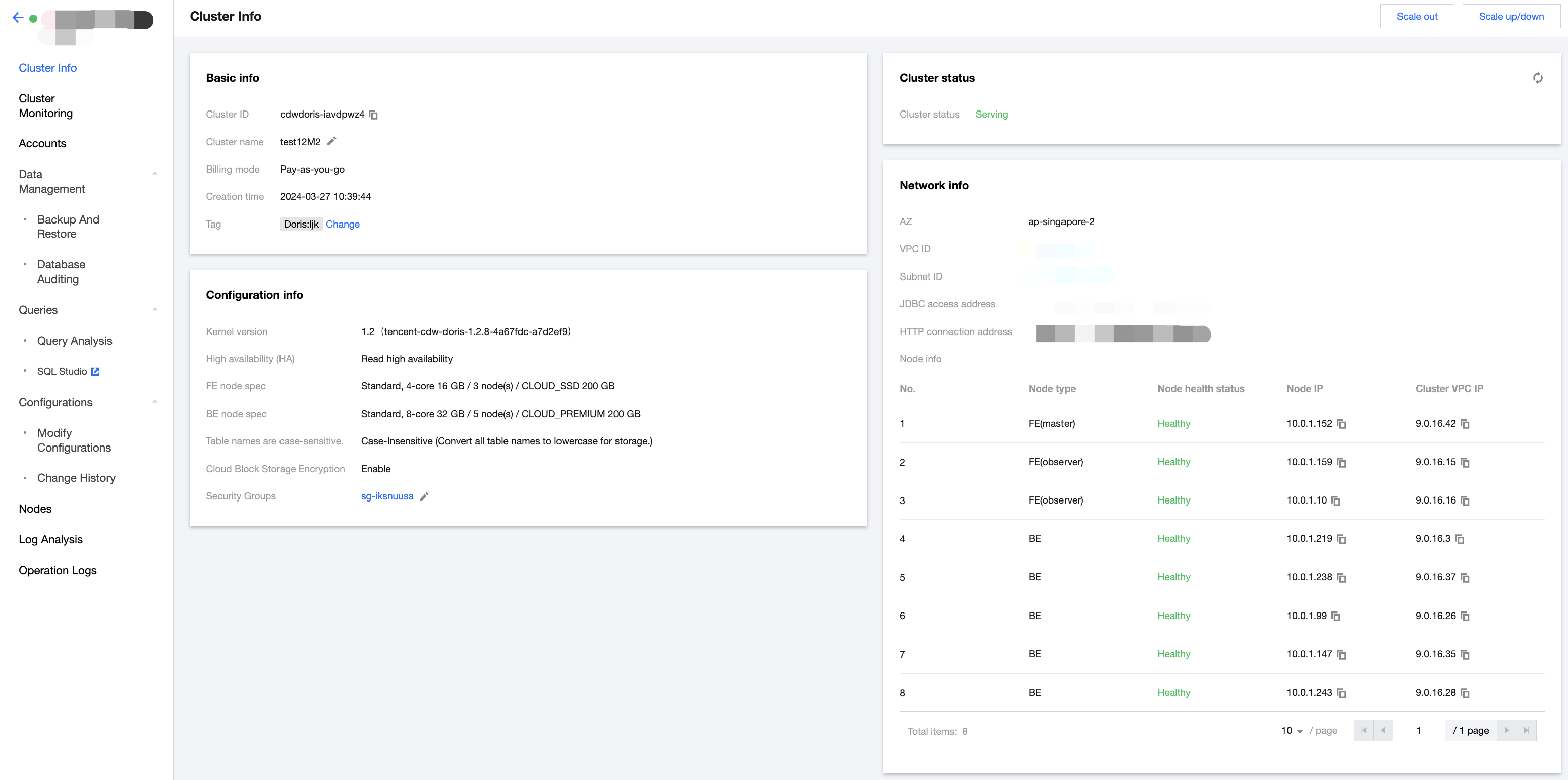
1. After logging in to Tencent Cloud TCHouse-D Console, you can access SQL Studio by clicking on the left list. Select the target Resource ID/Name in the cluster list. You can also find the entrance under Queries.
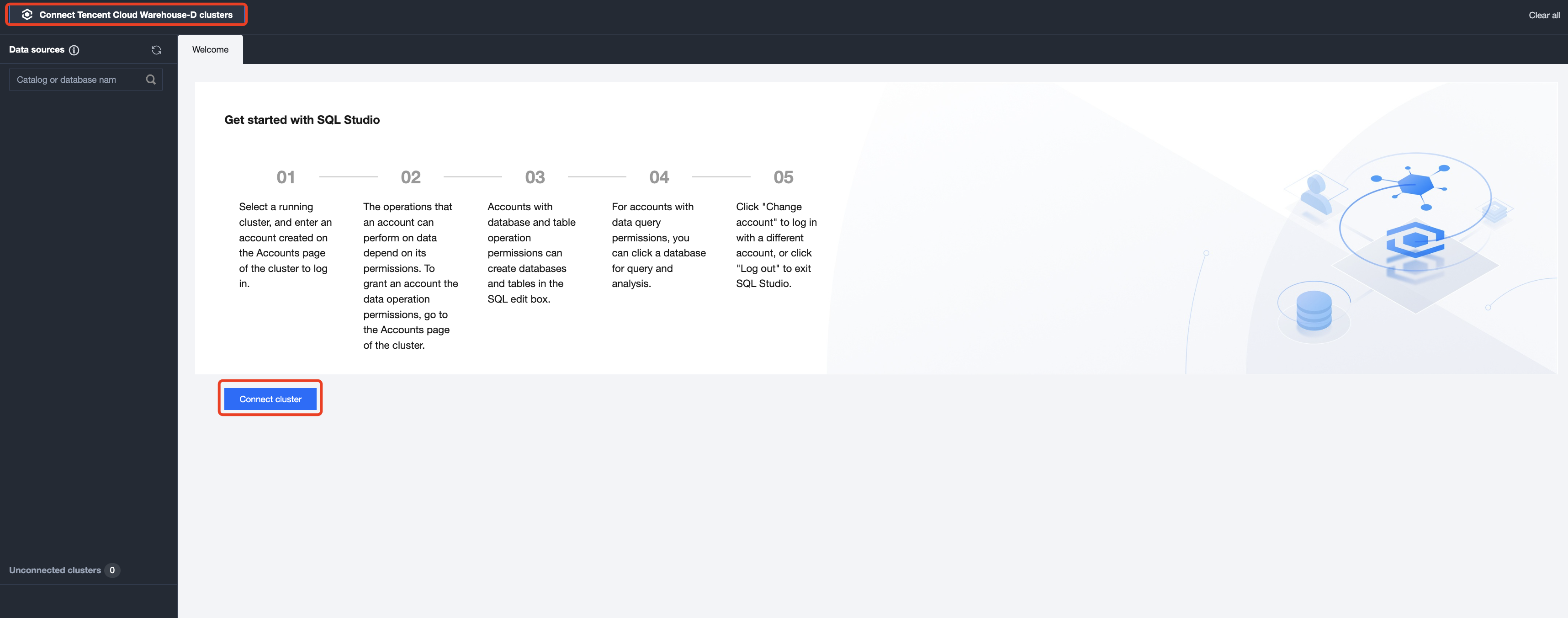
2. Once you enter the SQL Studio, you first need to connect to a cluster. Data operations depend on the data privileges of the logged in account, which can be granted in the Accounts of the corresponding cluster. See Privilege Management Through the Console for details.
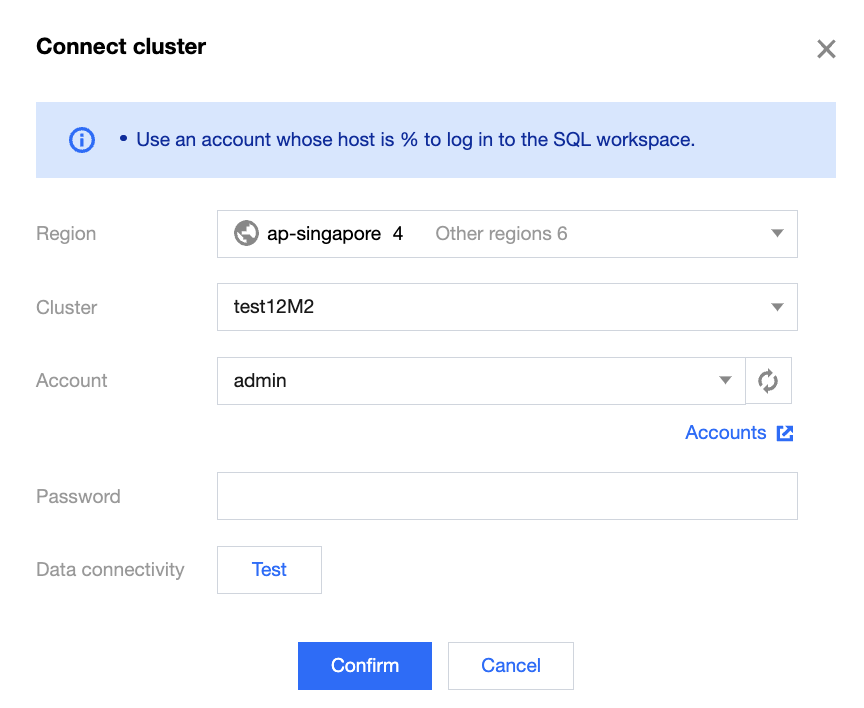
3. When connecting to a cluster, you need to select a region, cluster ID, and enter a valid account and password. Click Accounts to go to the console page for account operation.
Note:
Please use the account with host % to log in to SQL Studio.
4. In SQL Studio, you can view the SQL statement execution records. Search and filtering are supported.
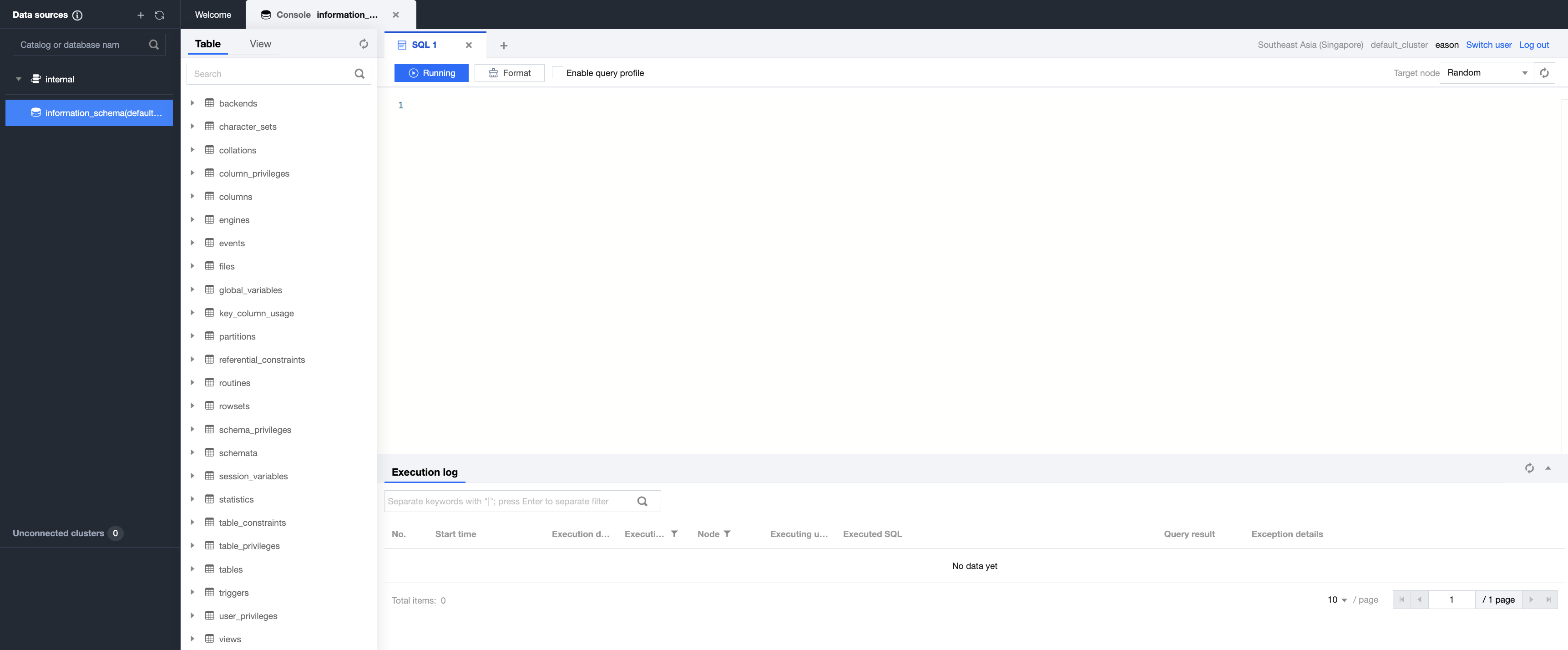
5. Clicking the button in the left list allows you to easily create external data sources.
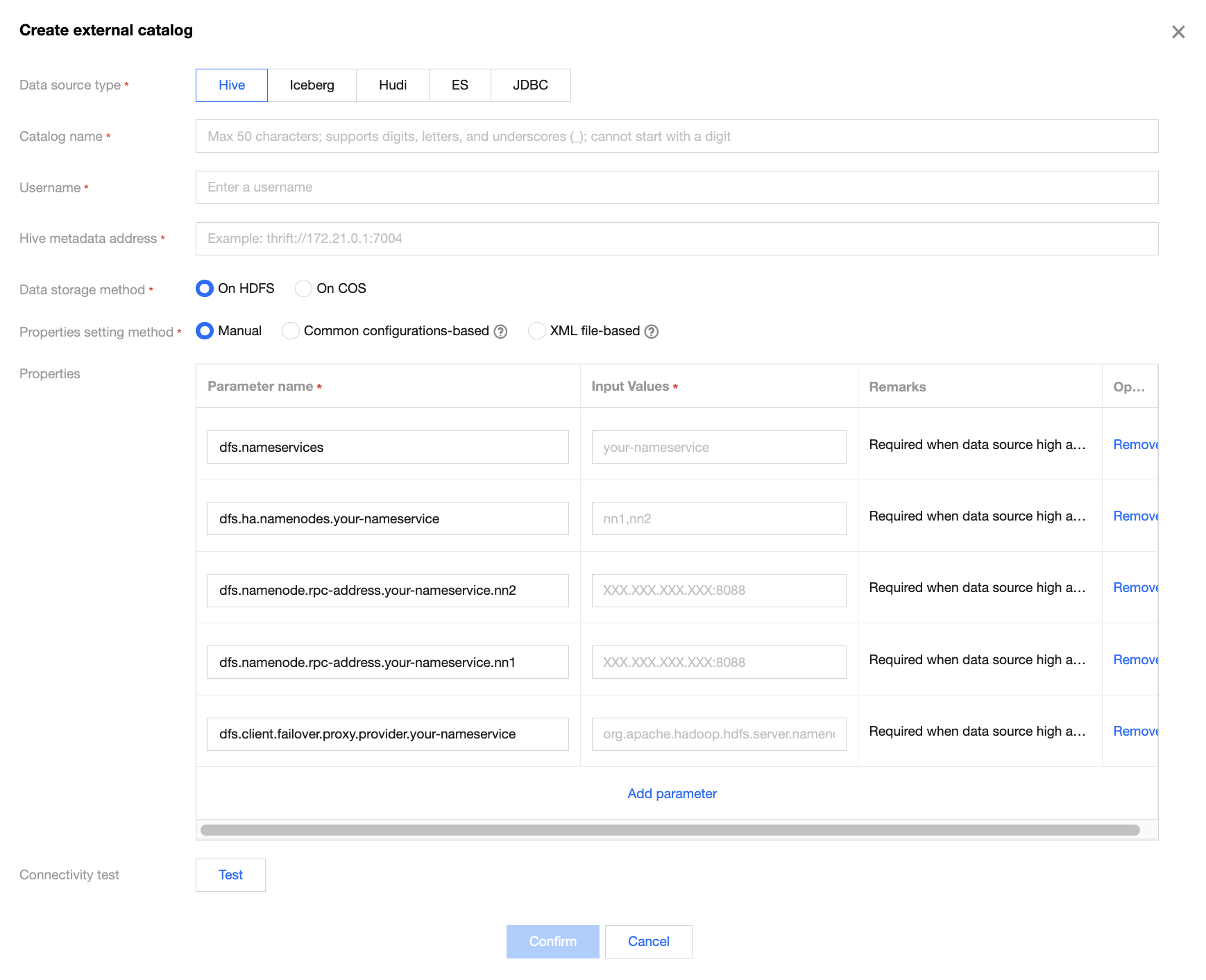
Note:
The tables of built-in data sources can be created through DDL statements in the SQL compilation box, and external data sources only support queries.
6. Click Switch User to switch accounts. After use, click Log Out to exit SQL Studio.

Help and Support

Was this page helpful?

Help us improve! Rate your documentation experience in 5 mins.

Feedback