Intra-Instance Multi-Region Image Replication
ダウンロード
フォーカスモード
フォントサイズ
Overview
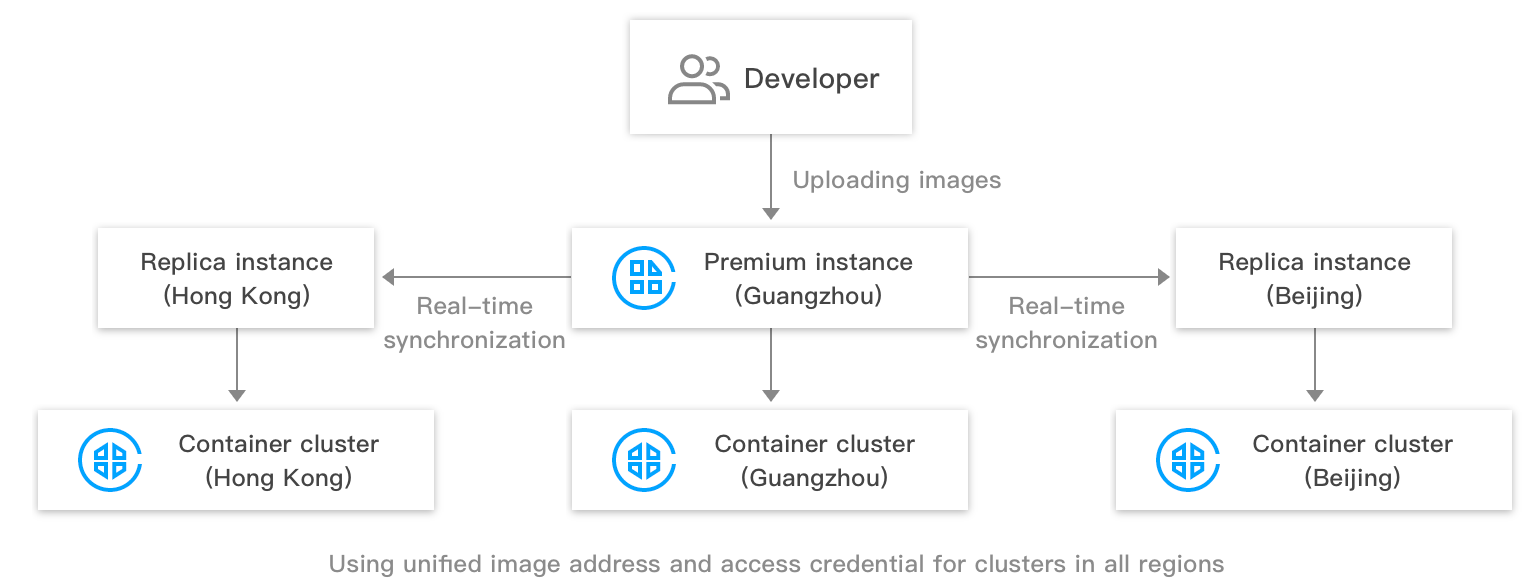
Tencent Container Registry (TCR) allows users to create replicas of a premium instance in multiple regions with the same access domain name and credential as the original premium instance. It realizes the single-region upload, multi-region high-speed real-time synchronization, and image pulling from the nearest region over the private network. Compared with the cross-instance synchronization, this feature can unify the publish configuration of multi-regional clusters, improve the cross-region synchronization speed of cloud native artifacts, and help users realize the global synchronization update of service applications.
The instance replication feature allows users to create replicas of a premium instance in multiple regions. The replica instances will synchronize data with the primary instance in real time. Users can use the domain name and access credentials of the primary instance to access the replica instances through the private network. By using the instance replication feature, users can uniformly manage the application images of the multi-regional services, and do not need to purchase multiple Enterprise Edition instances, which can reduce the usage cost, increase the speed of container image distribution, and simplify the deployment and configuration.
Prerequisites
Make sure that the following conditions are met before creating and managing the replica instances of a TCR Enterprise Edition instance:
You have purchased an Enterprise Edition instance with premium specification.
If you are using a sub-account, the sub-account must have obtained operation permissions on the corresponding instance. For more information, see TCR Enterprise Authorization Management.
Use Limits
1. You can pull images from, but not push images to, instances. To push and pull images across regions at the same time, use the cross-instance (account) image synchronization feature, which requires you to create an instance in each region and configure a synchronization rule.
2. The instance replication feature relies on the support of the underlying networks and is subject to security compliance requirements.
Cross-border instance replication is not supported. For example, if your primary instance is in the South China (Guangzhou) region, you cannot create a replica that belongs to an overseas region.
The instance replication feature is not supported in the Taiwan (China) region.
Directions
Creating and managing a replica instance
1. Log in to the TCR console and choose Synchronization and Replication > Replication in the left sidebar.
2. On the Replication page, select a region and an instance, and click Create.
3. In the Create Replica Instance window, complete the following configurations:
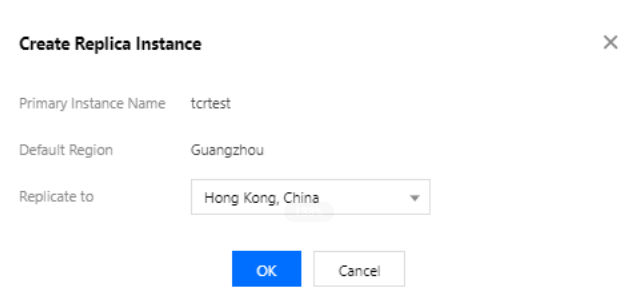
Primary Instance Name: Name of the currently selected premium instance.
Default Region: Region where the currently selected premium instance is located.
Replicate to: Region where the replica instance is located, which cannot be the same as the region of the current primary instance.
4. Click OK.

Note:
You can delete the replication instances that are no longer needed in the specified region. If you have configured replica instances for a premium instance and you want to delete the premium instance, you need to delete all the replica instances first before deleting the premium instance.
Viewing image replication logs
After configuring a replica instance, if you push an image to the primary instance, the image data will be automatically replicated to the replica instance.

Accessing the replica instance via the private network
1. To ensure that the container clusters or CVMs in the replication region can access the replica instance through the private network, you need to connect the VPC in the replication region to the instance. Please refer to Configuring Private Network Access Control and choose the VPC in the replication region.
2. After the above configuration is completed, the container clusters or CVMs in the replication region can access the instance through the private network. The image access address and access credentials are the same as those of the premium instance in the original region.
References
You can also use the
CreateReplicationInstance API to create a replica instance. For more information, see CreateReplicationInstance.フィードバック