Developing Python Jobs
Download
Focus Mode
Font Size
Prerequisites
A Stream Compute Service (SCS) job needs to run on a dedicated SCS cluster. If you do not have a cluster, see Creating a Private Cluster.
Creating a Job
In the SCS console, select Job Management > Create > Create Jobs, select the job type, job name, and running cluster in the pop-up window, then click OK to see the newly created job in the job list.
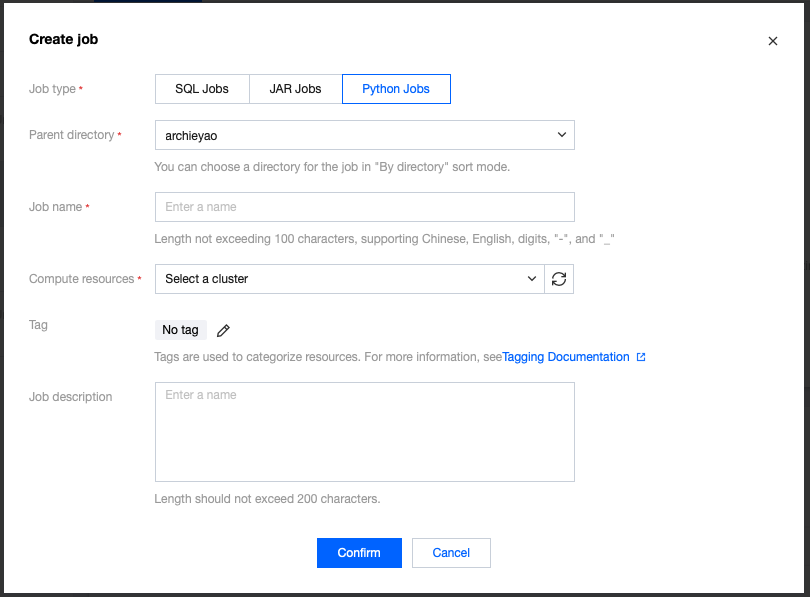
After creating a Python job, click the name of the job to develop in Job Management, then click Development and Debugging to perform job development in draft status.
Developing Python Jobs
The development page for the Python job is as shown below:
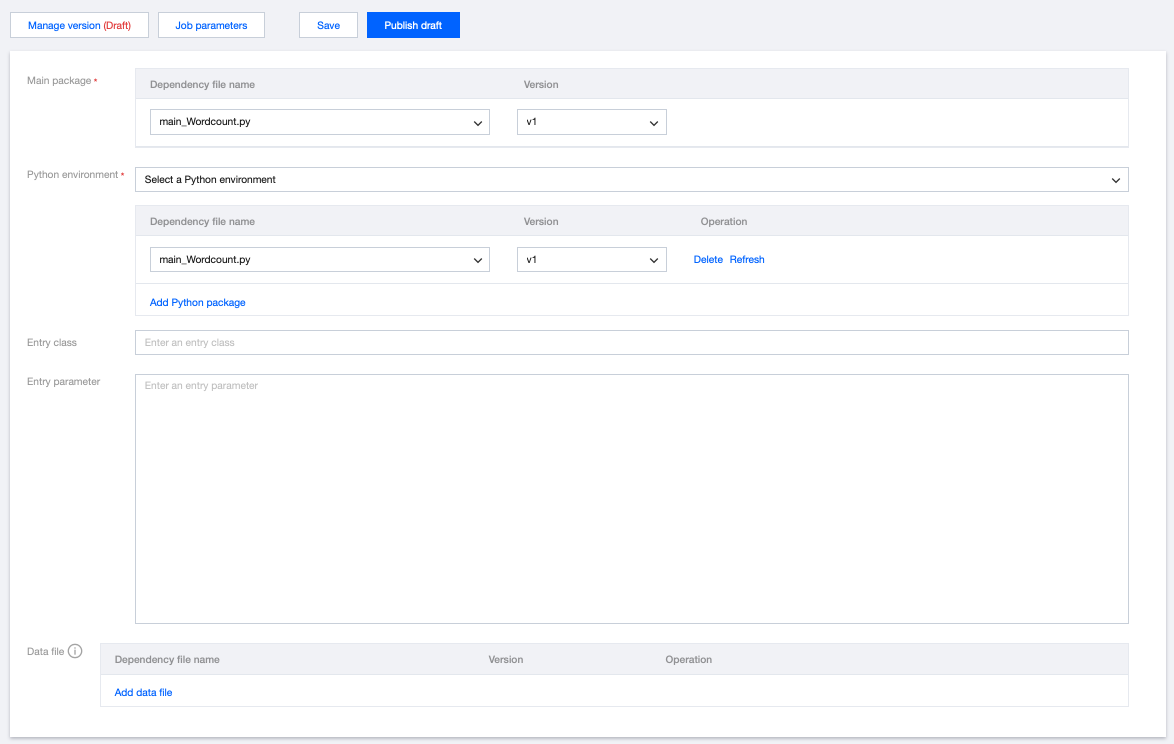
To develop a Python job, first write the Python file locally or package it as a ZIP program package. Upload it as a Python program package before configuring the Python job in the console (for Python package upload, see Managing Dependencies).
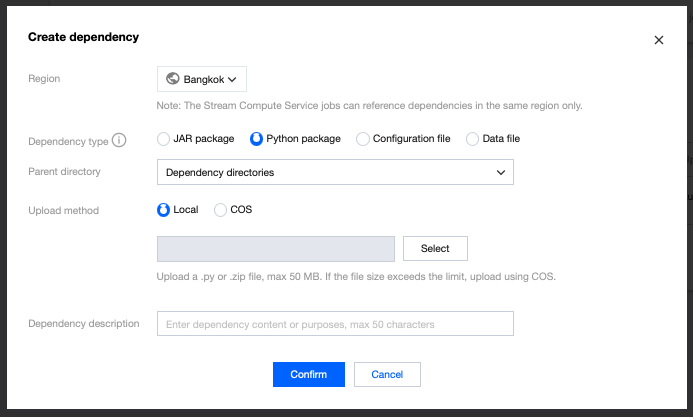
On the Development and Debugging page, select the main package and its version, enter the entry class and parameters, select the Python environment provided by the platform, click Job Parameters, set the parameter value in the pop-up parameter interface on the side, then click Save to save the job configurations and parameter information.
The main package can be a separate Python file or a ZIP program package. If the main package is a Python file, you do not need to enter the entry class. If the main package is a ZIP package, you need to specify its entry class.
Data files will be extracted to the working directory of the Python worker process. If the data file is located in an archive named archive.zip, you can write the following code in the Python custom function to access the archive.zip data file.
def my_udf():with open("archive.zip/mydata/data.txt") as f:...
Use Limits
SCS currently supports running Python jobs developed based on open-source Flink V1.13, with a pre-installed Python 3.7 environment. For business code development guidance, see the Flink community official documentation: Flink Python API Development Guide.
Job Parameters
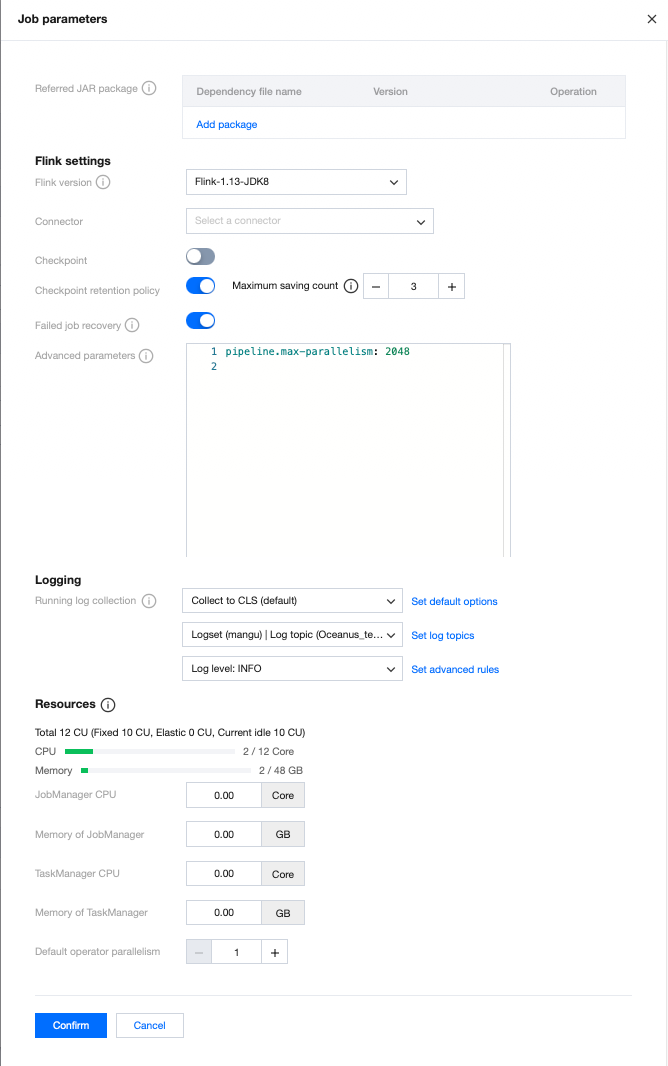
You can set the job parameters on the Development and Debugging page by clicking Job Parameters, then configuring values in the pop-up parameter interface on the side, and clicking OK to save the job parameter information. The following context provides more details on each parameter to help you better configure job parameters.
Built-in Connectors
The system provides Connectors for users to select. For example, if a Python job requires a data flow from CKafka, you must select the appropriate CKafka Connector here. For instructions on built-in Connectors, see Connectors.
Running Log Collection
Display the running log collection configurations of the current job, collecting to the default cluster-bound log service by default. The running logs of the job will be automatically collected into the logset and log topic bound to the cluster of the job, and can be viewed on the Logs page.
Advanced Parameters
Some Flink advanced parameters can be customized. You can configure them in YML syntax using the "key: value" format. For details, see Advanced Job Parameters.
Specifications Configuration
You can configure the speficication size of JobManager and TaskManager as needed to utilize resources flexibly. For details, see Configuring Job Resources.
Default Operator Parallelism
If the operator parallelism is not explicitly defined in code in the JAR package, the job will use the default operator parallelism specified by the user. The parallelism and TaskManager specification size together determine the computing resources occupied by the job. A parallelism of 1 consumes computing resources measured in CUs, where the amount of CU is defined based on one TaskManager's specification size (when the TaskManager specification size is 1, a parallelism of 1 consumes 1 CU of compute resources. When the TaskManager specification size is 0.5, a parallelism of 1 consumes 0.5 CU of compute resources).
Restoring Jobs from Snapshots
During job running, you can restore from a historical snapshot. When running a job, the prompt is as follows:
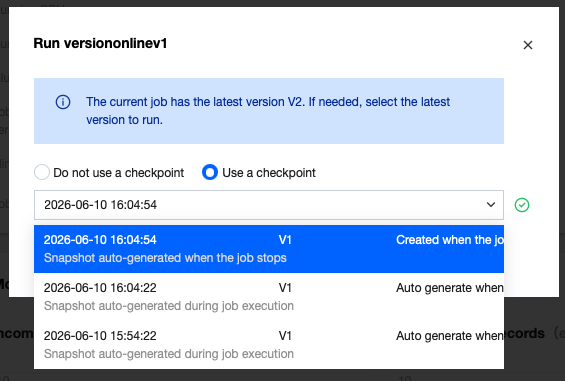
Jobs with no historical snapshots cannot run with historical snapshots.
Help and Support
Was this page helpful?
You can also Contact sales or Submit a Ticket for help.
Help us improve! Rate your documentation experience in 5 mins.
Feedback