This documentation introduction explains how to use Power BI Desktop and Power BI Service to connect Tencent Cloud Data Lake Compute (DLC) for data analysis, and how to pass Power BI Gateway to refresh reports on the Web.
Note:
The feature is an allowlist function. If you need to use it, submit a ticket. Prerequisites
Before starting configuration, please confirm you meet the following conditions:
1. Permission preparation:
Have a Tencent Cloud account and activated DLC service.
2. Software environment:
3. Connector file:
Download the dedicated connector file for Tencent Cloud DLC: DlcODBC.mez. Operation Process
Identity and Permission Configuration
Before connecting to DLC, you need to configure an authentication mechanism so that Power BI can access Tencent Cloud resources via the OIDC protocol.
Creating an Identity Provider (IdP)
2. Select Identity Provider > Role SSO from the left sidebar, and click Create Provider.
3. Configure the following information:
Provider Type: Select OIDC.
Name: Enter custom name (follow-up configuration required).
IdP URL, client ID, and public key: Obtain from the OIDC configuration of your Microsoft Entra (Azure AD) or Power BI. Click to view specific steps. Creating an IAM Role
1. Create a role in the CAM console, select the just created OIDC IdP as the trust entity. Click to view specific steps. 2. Record the Role ID.
Note: Obtain oidc:aud (corresponding to Issue Address) and oidc:sub (corresponding to Client ID) from the Power BI OpenID Connect Metadata document to complete the trust policy configuration.
Power BI Desktop Settings
Installing the DLC ODBC Connector
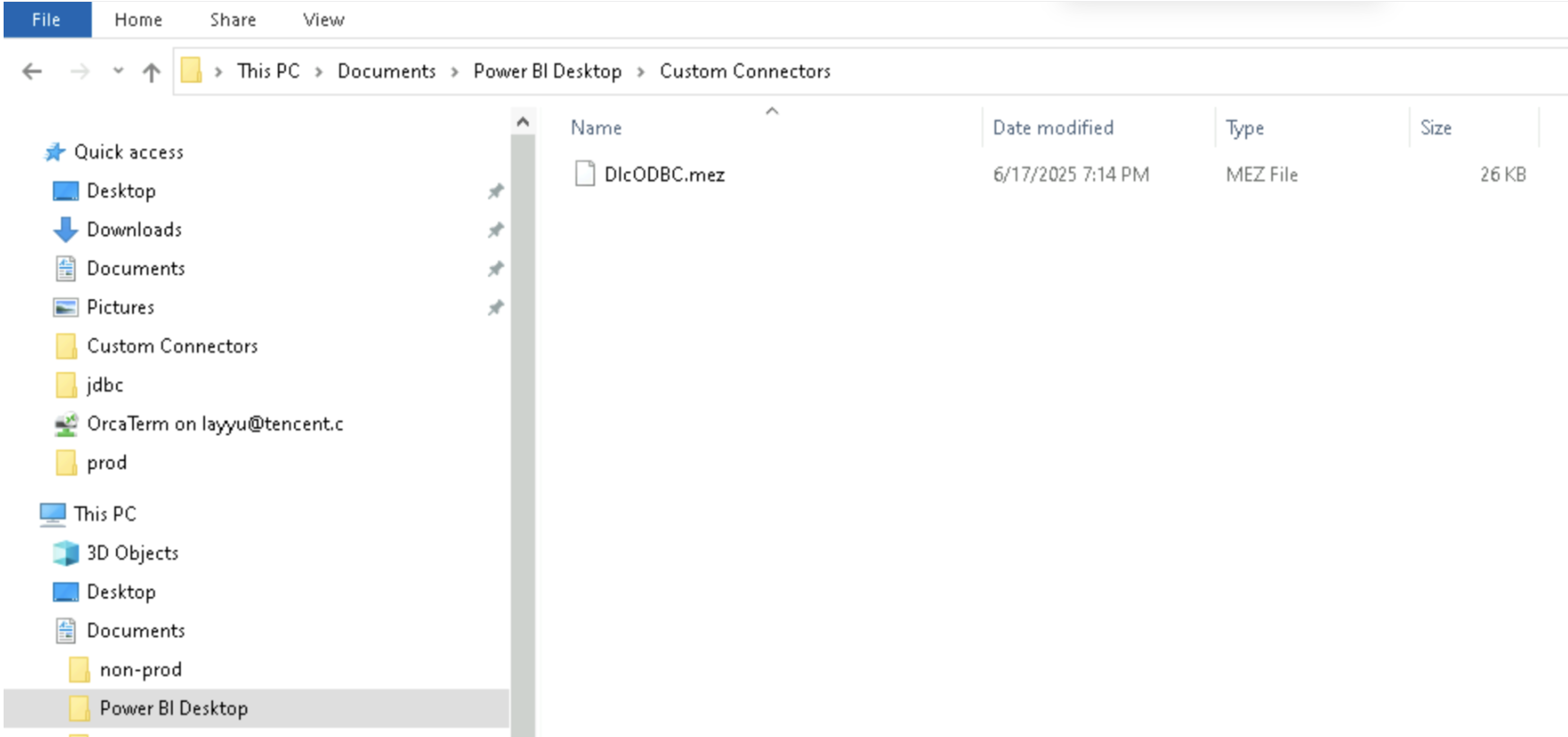
1. Find the downloaded DlcODBC.mez file.
2. Copy it to the local path: C:\\Users\\{userName}\\Documents\\Power BI Desktop\\Custom Connectors\\.
If the Custom Connectors folder does not exist, please create manually.
Adjusting Security Settings
Since a customized connector is used, the Power BI security policy can be adjusted.
1. Open Power BI Desktop.
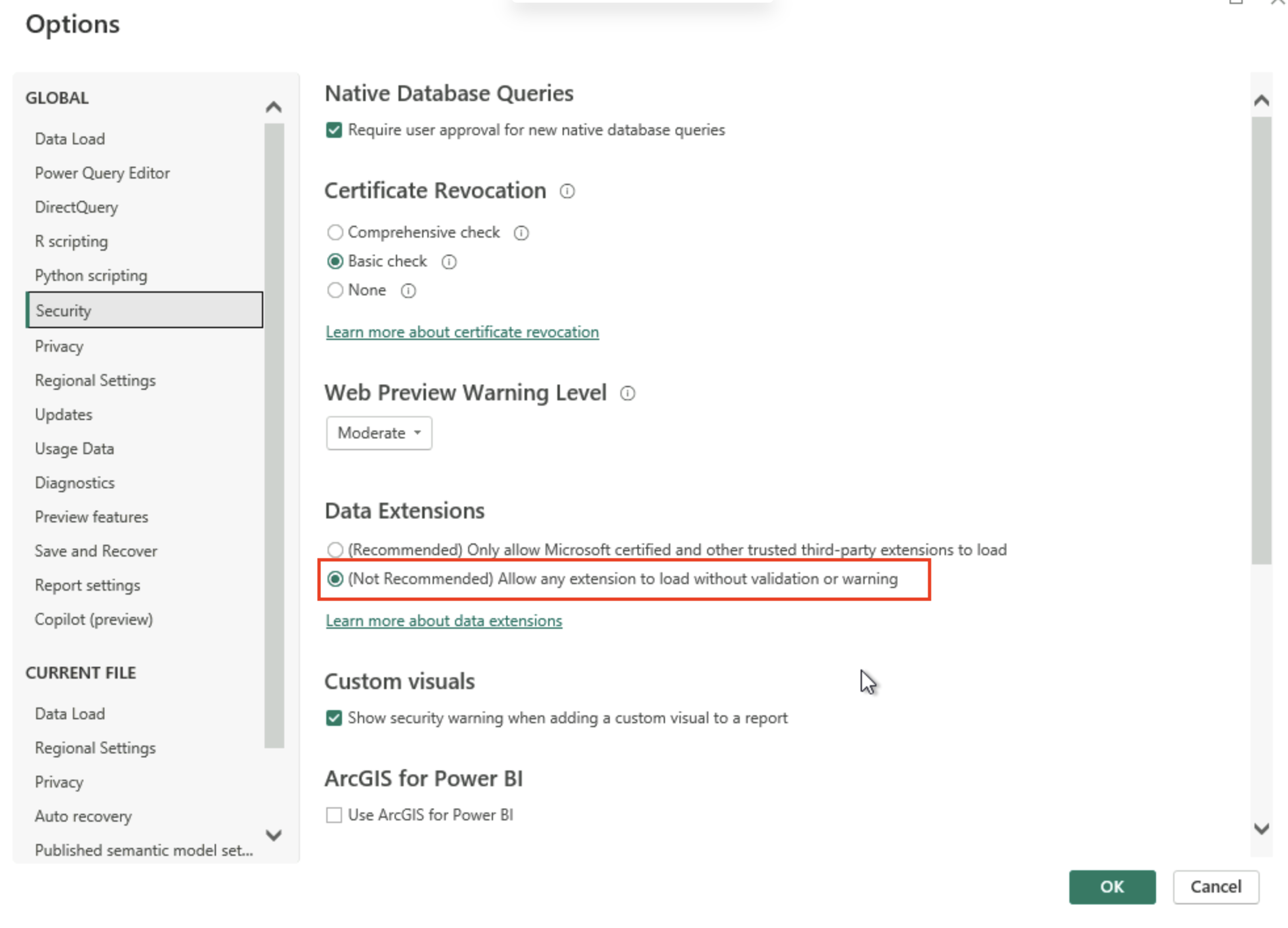
2. Click File > Options and settings > Options > Security.
3. In the Data Extensions section, select:
(Not Recommended) Allow any extension to load without validation or warning
Allow loading any extension without warning.
4. Click OK and restart Power BI Desktop.
Configuring an ODBC Data Source
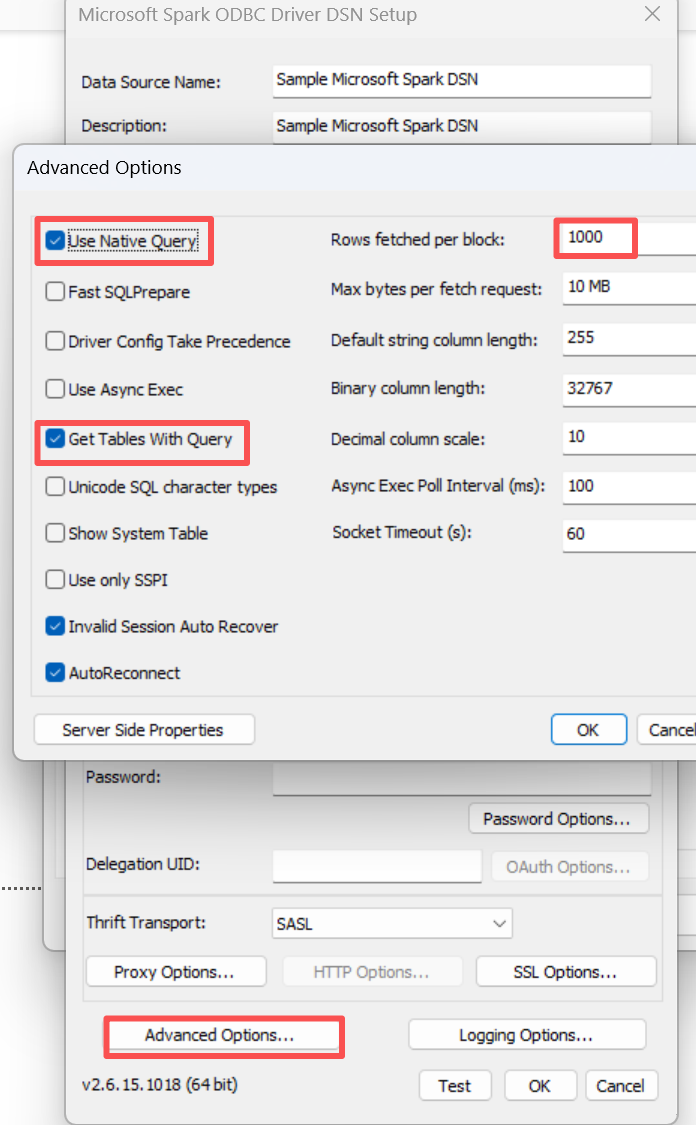
1. Open the ODBC Data Sources (64-bit) manager on Windows system.
2. Select the System DSN tag page, click Add.
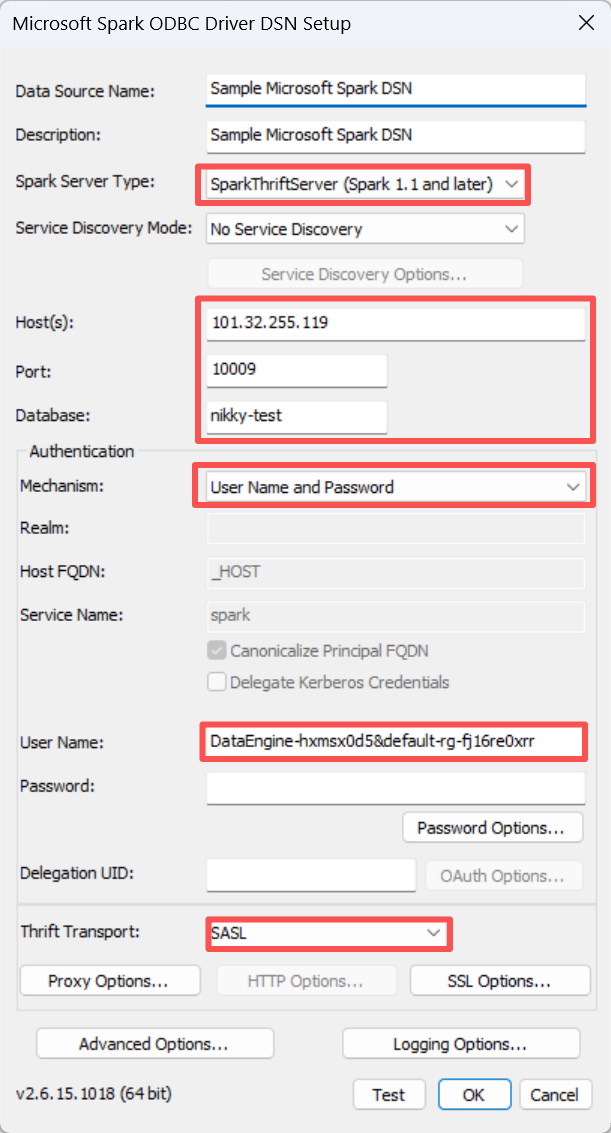
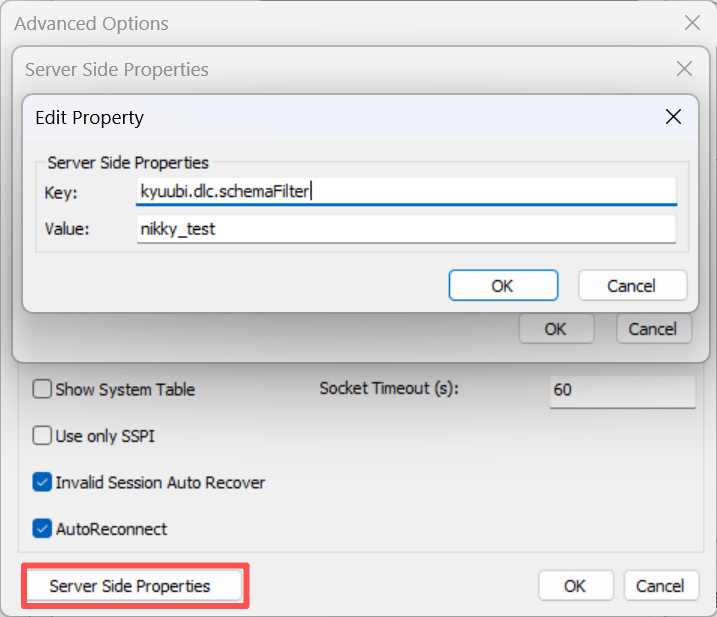
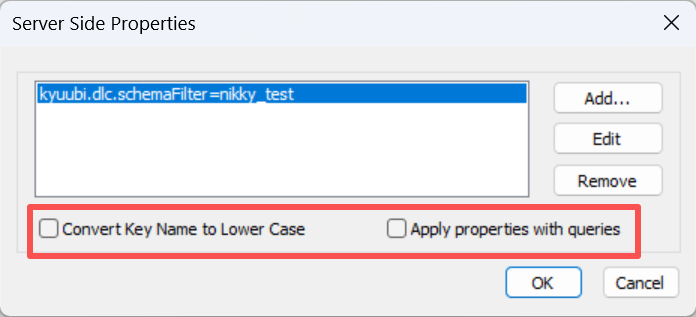
3. Select Simba Spark ODBC Driver, click Finish to enter the configuration interface.
Data Source Name: set a custom name (such as DLC_Spark).
Spark Server Type: Select SparkThriftServer (Spark 1.1 and later).
Host: Input the Access Address IP of the DLC engine. Select one way below to get the IP based on your network environment:
Intranet access (recommended): If the gateway/server is located in Tencent Cloud VPC, first create a [Private Link] for the engine in the DLC console, and fill in the generated private VIP.
Public network access: If the local computer directly accesses via the Internet, first enable public network access for the engine in the DLC console, and fill in the generated public IP.
Port: Enter the port number (typically 10009).
Authentication Mechanism: Select User Name and Password.
Thrift Transport: Select SASL.
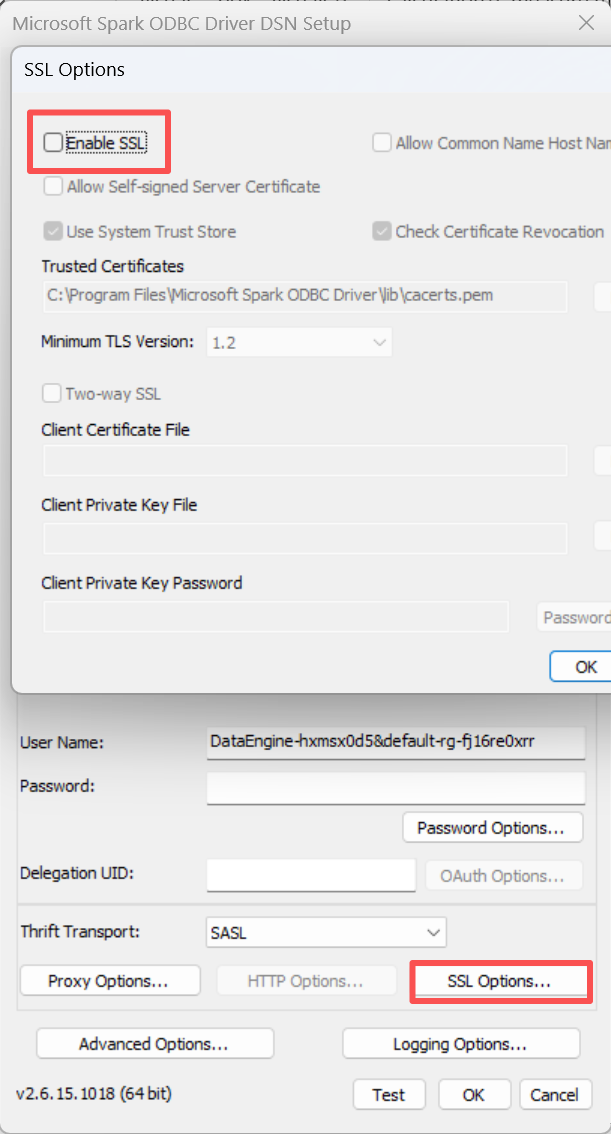
4. Click the SSL Options button:
Uncheck Enable SSL (based on the actual private network environment configuration of DLC, normally disable for private network/VPC access, enable for public network access, refer to the actual allowlist description for details).
5. Click OK to save configuration.
Obtaining data
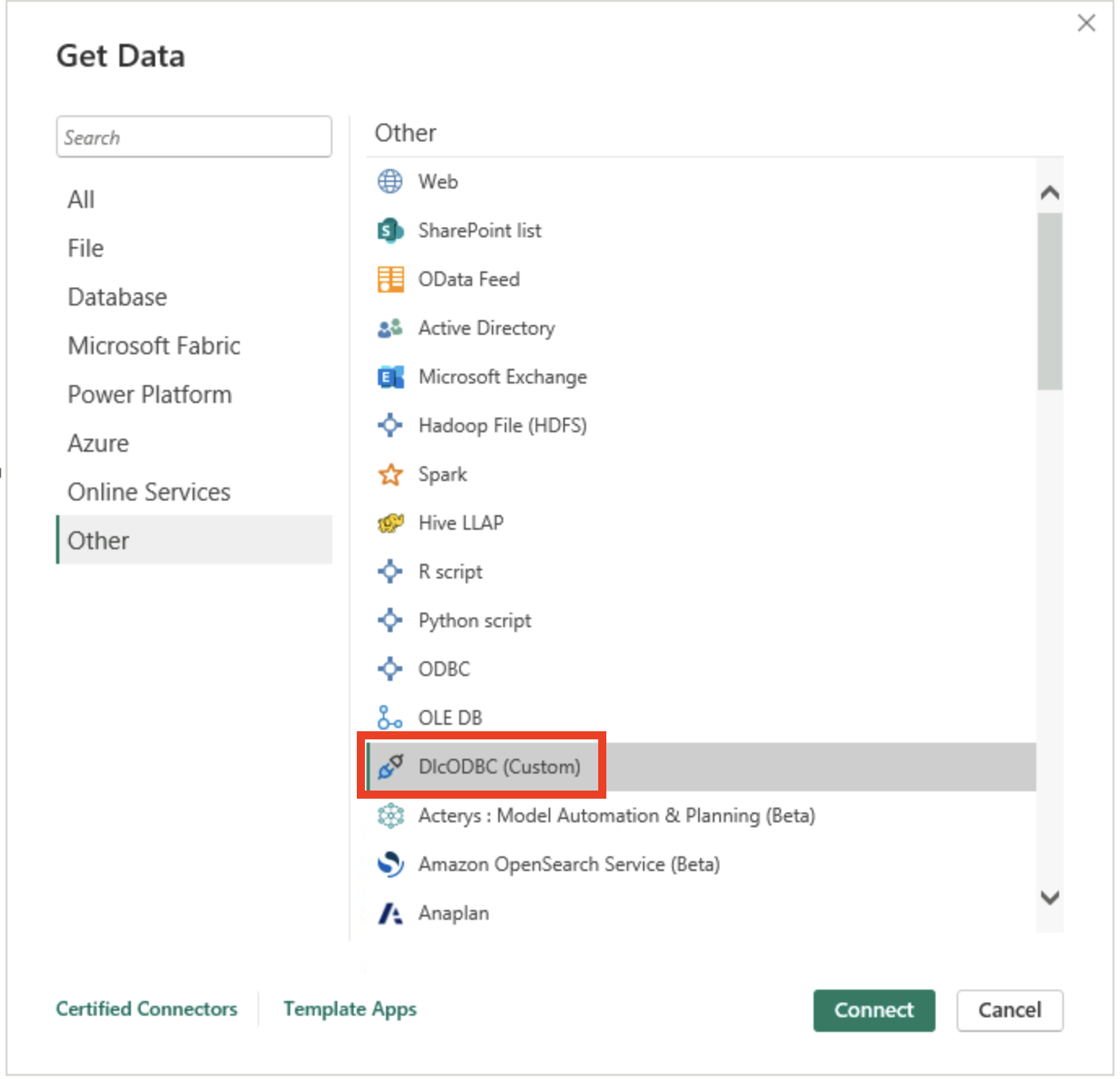
1. On the Power BI Desktop home page, click Get Data.
2. Search for DLC, select DlcODBC (Custom), and click Connect.
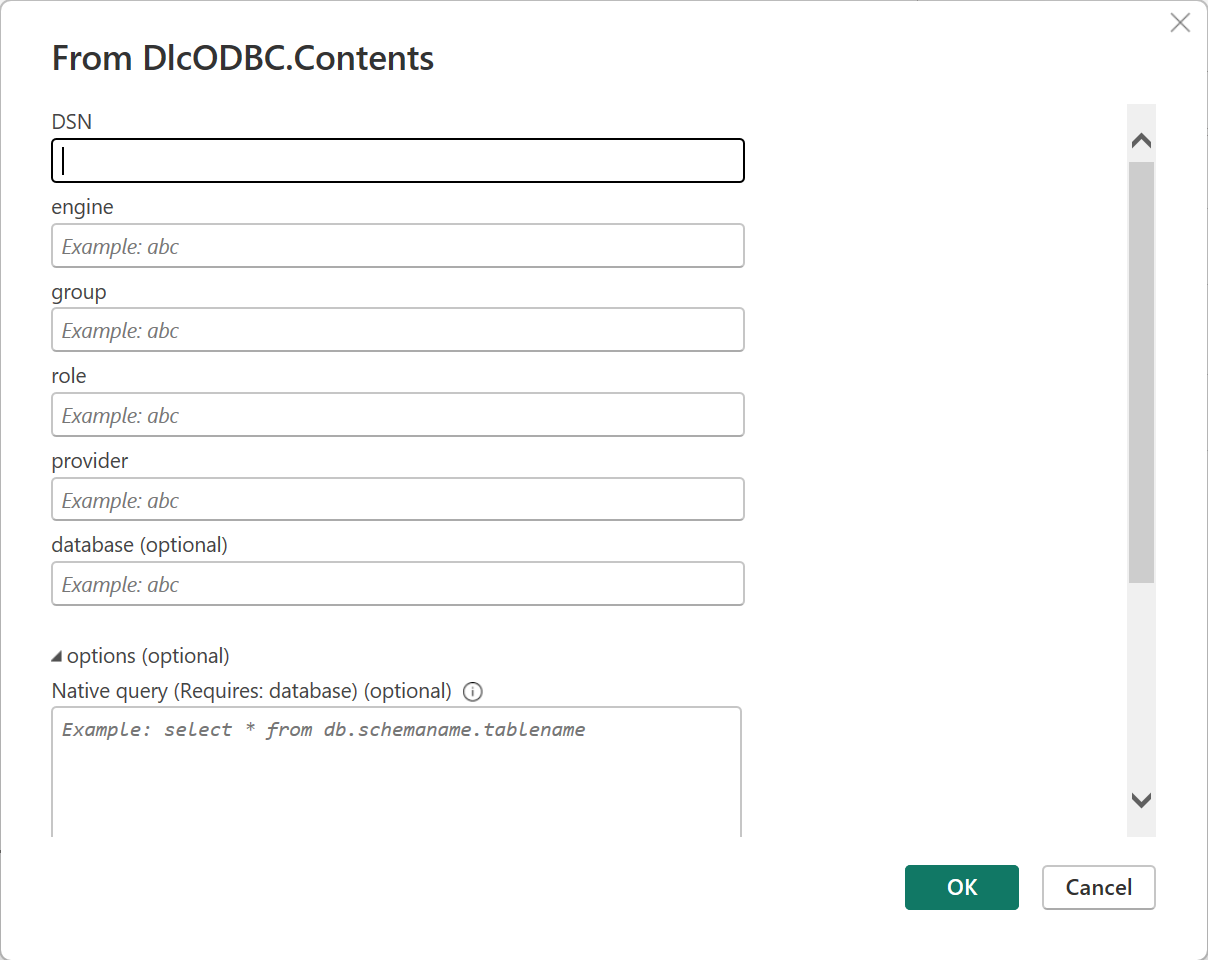
3. Fill in parameters in the pop-up configuration window:
DSN Name: the name configured in procedure 3 (for example, test).
Engine Name: DLC computing engine name.
Resource Group: resource group name.
Tencent Cloud Role ID: the role ID obtained in procedure 2.
Identity Provider Name: the provider name created in procedure 2.
Data Catalog Name: data directory name.
4. Select the data transfer mode (Import or DirectQuery) and click OK.
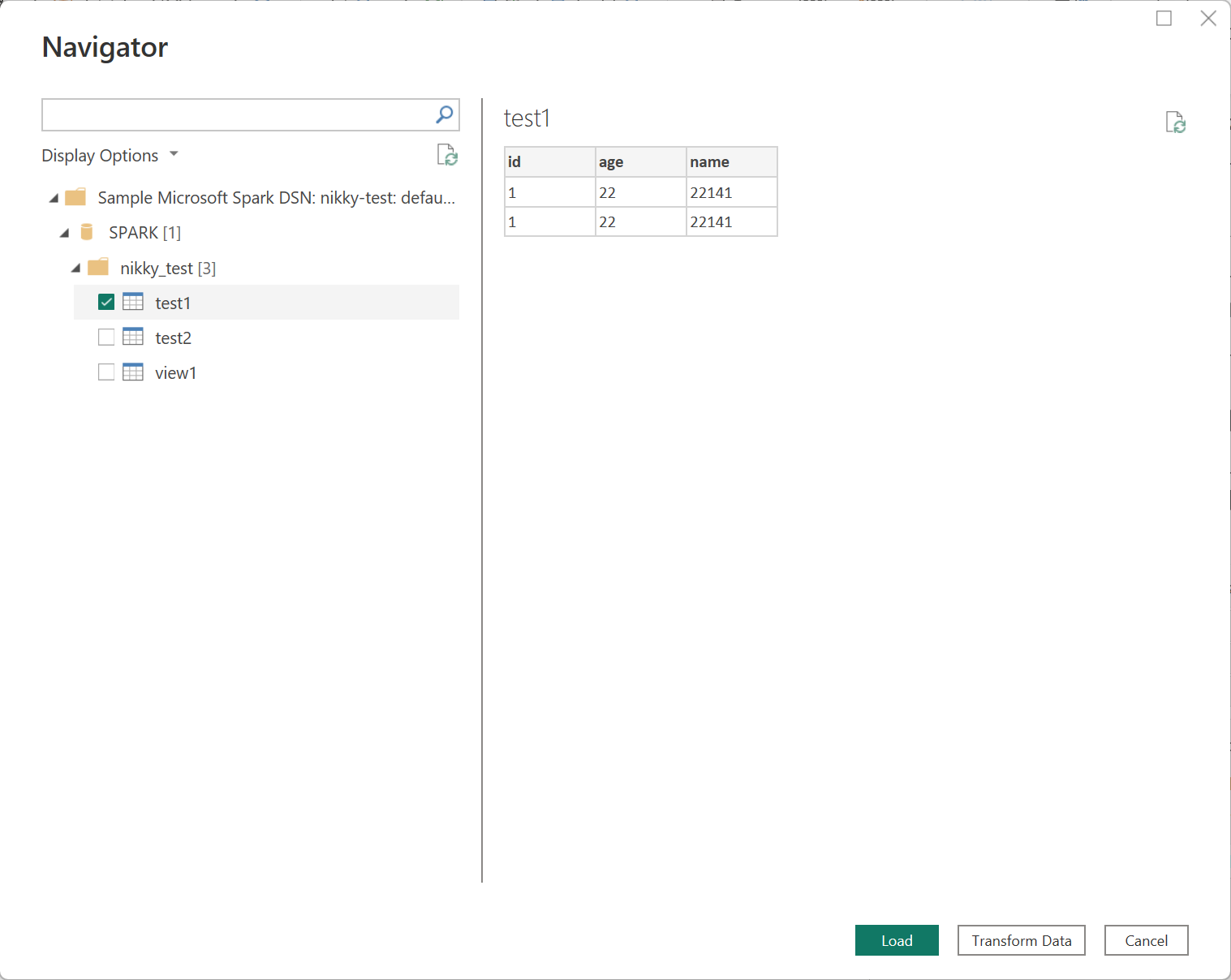
5. Preview the data table in the Navigator, check it, and click Load.
Report Publishing and Gateway Configuration (Live Production Environment)
If you need to publish the report to Power BI Service (Web) and set automatically refresh, you need to configure On-premises data gateway.
Installing a Gateway Server Environment
Please execute the following operations on the server with Gateway installed.
1. Install the connector:
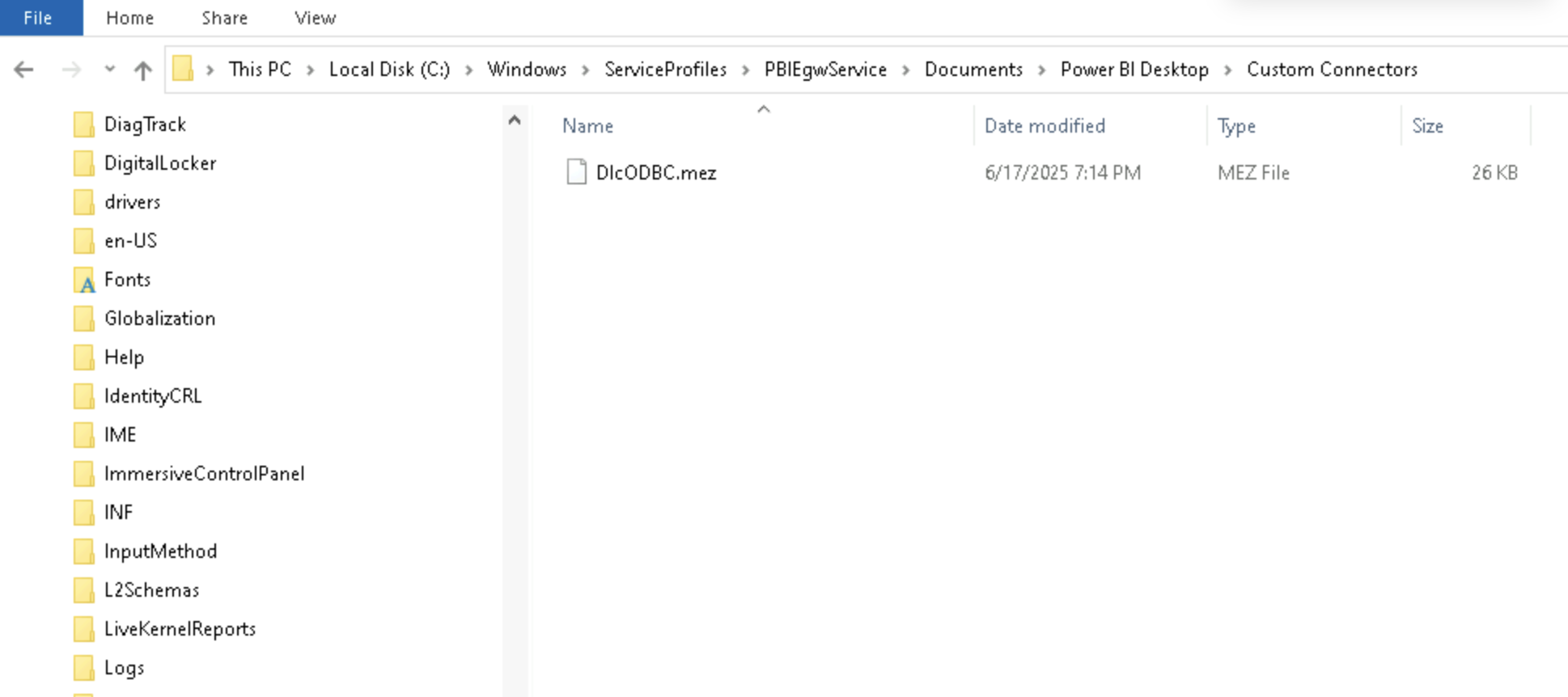
Copy the DlcODBC.mez file to the system path of the gateway service.
C:\\Windows\\ServiceProfiles\\PBIEgwService\\Documents\\Power BI Desktop\\Custom Connectors\\
If the folder does not exist, please create manually.
2. Configure Gateway:
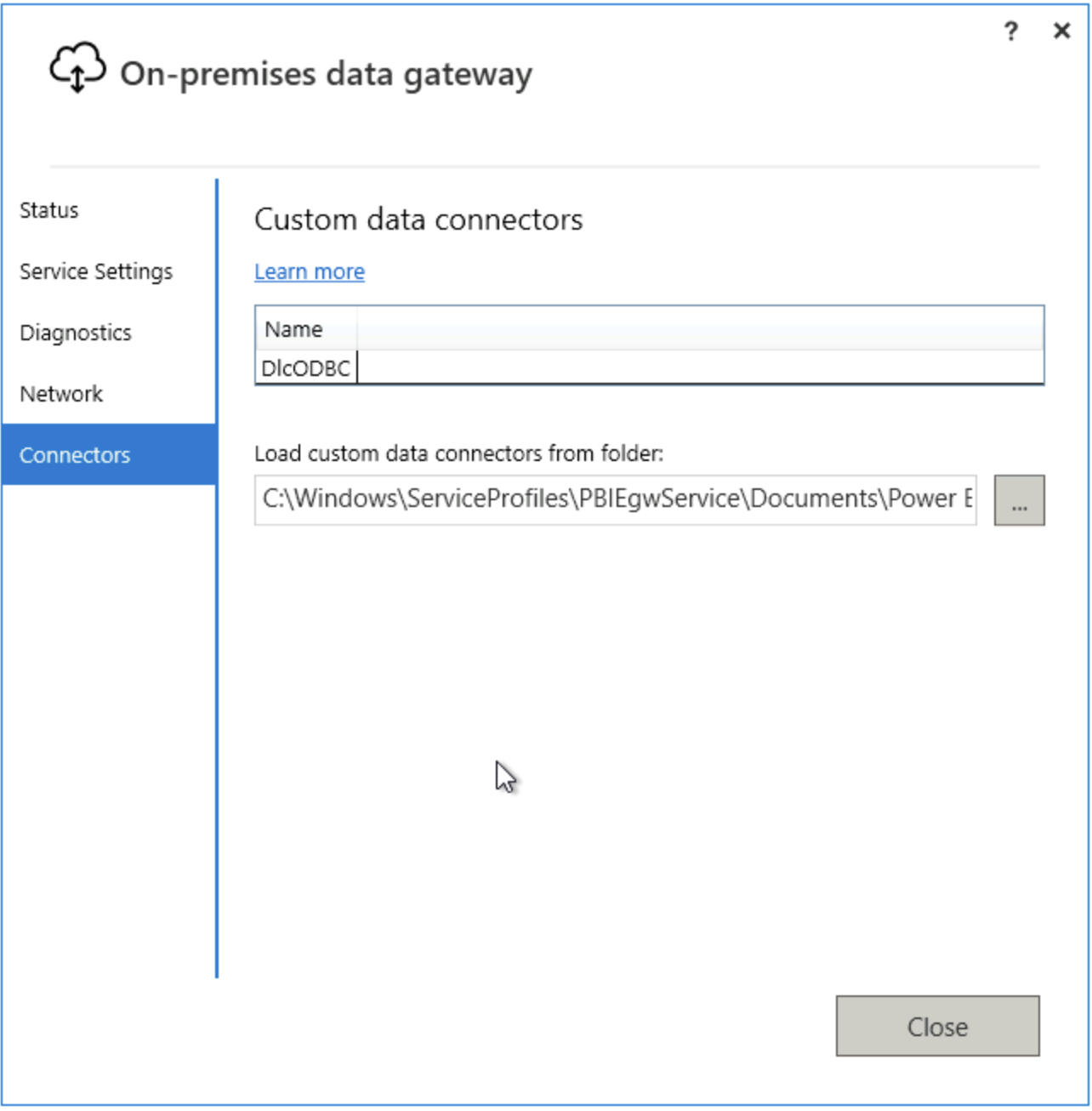
Turn on the On-premises data gateway app.
Click Connectors, set the load path to the folder path in the above steps.
Restart the Gateway service.
3. Configure ODBC:
Repeat the operation of [Power BI Desktop configuration - procedure 3] on servers, and add the same System DSN.
Power BI Service Settings
1. Log in to the Power BI web version.
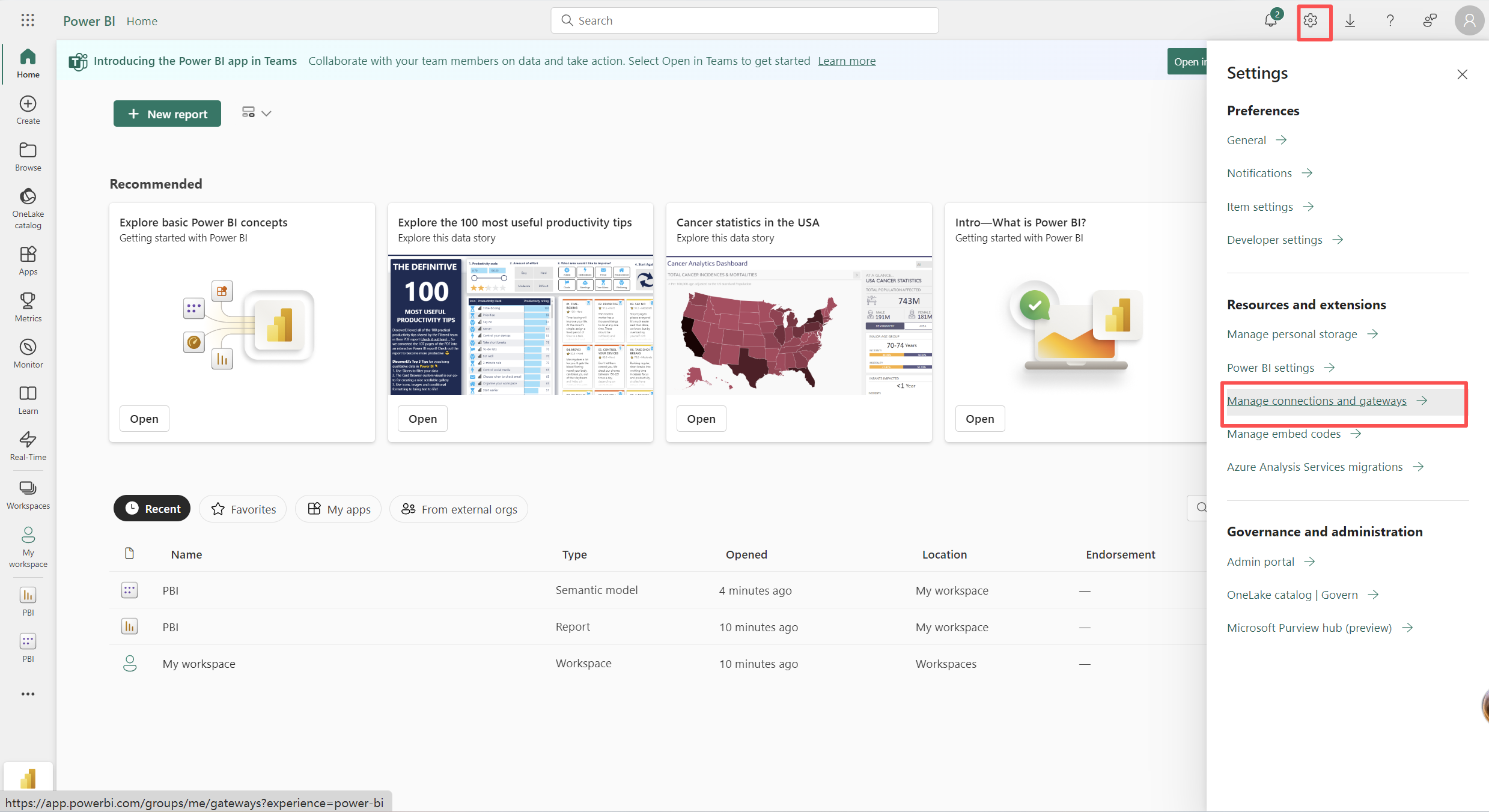
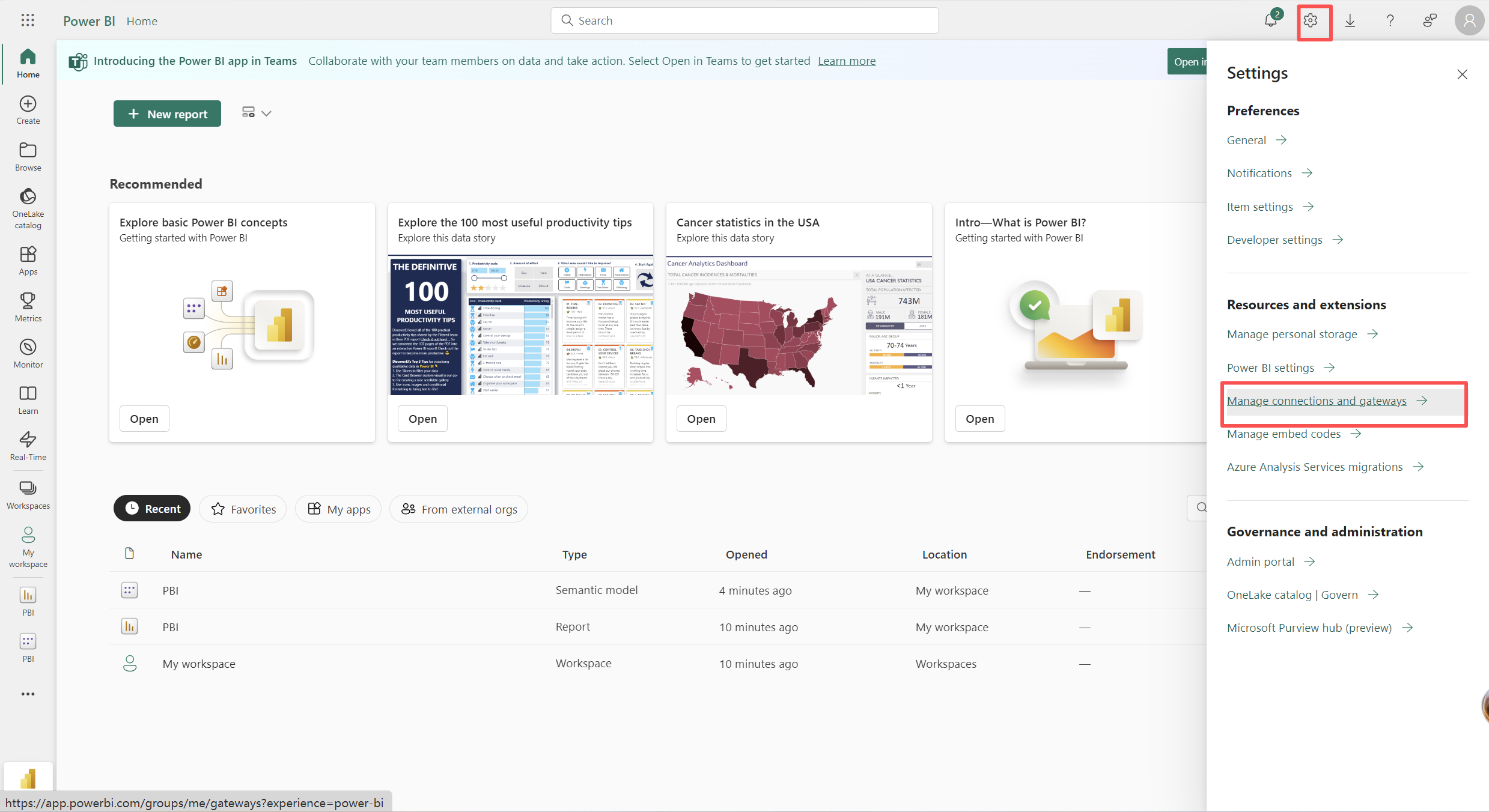
2. Click in the upper right corner gear icon, select Manage connections and gateways.
3. Configure gateway permission:
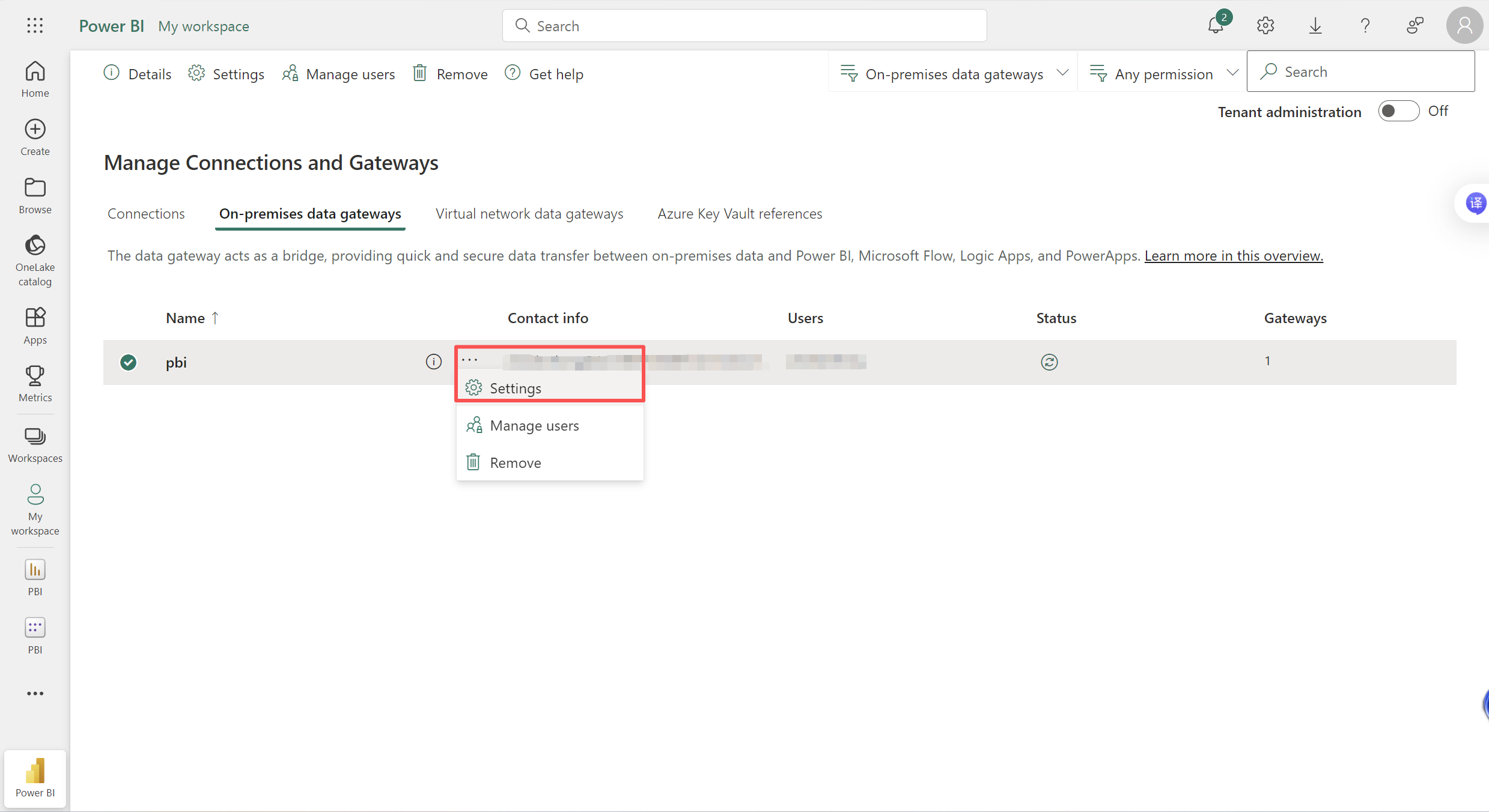
Switch to the On-premises data gateways tag page.
Click the ... next to the target gateway > Settings.
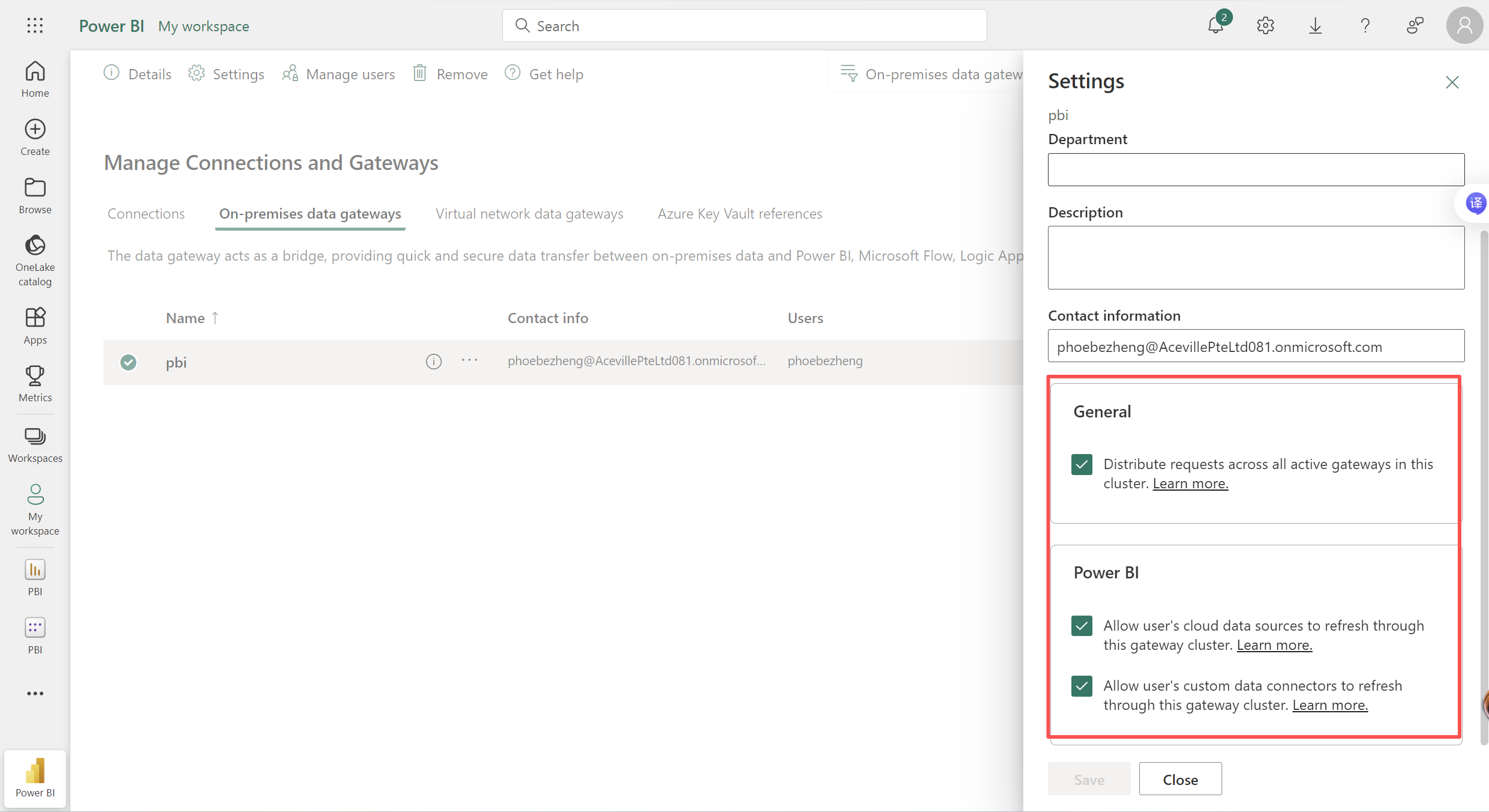
Check the following options to allow customized connectors:
Allow user's custom data connectors to refresh through this gateway cluster.
4. Create a data source connection:
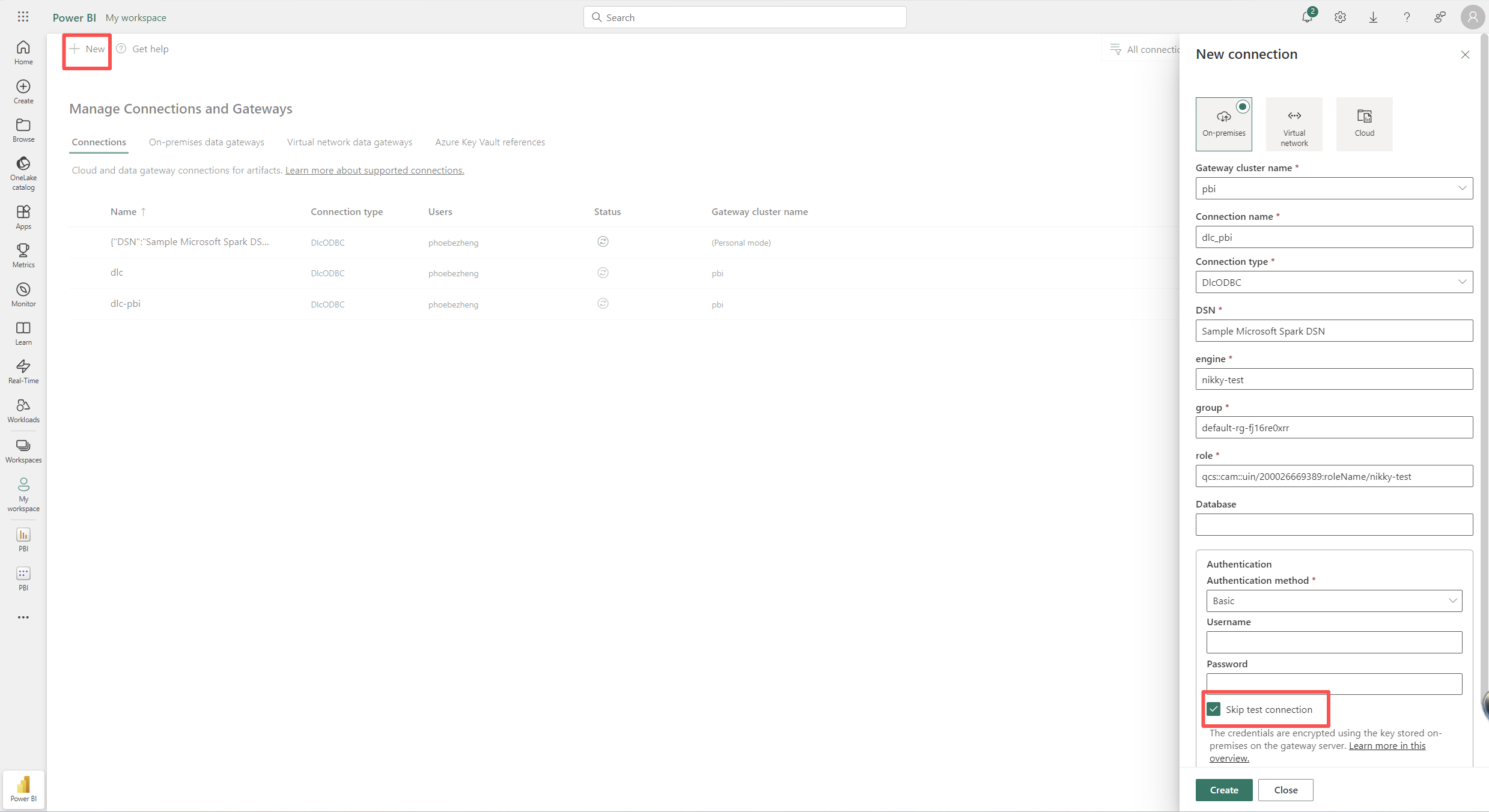
Click New in the top-left corner.
Gateway cluster name: Select your gateway.
Connection type: Select DlcODBC.
Authentication method: Select Basic.
Parameter configuration: Fill in the DSN, engine name, resource group, role ID, etc. that match the Desktop version.
Click Create (recommend choose "skip test connection" to avoid timeout).
Bind Report and Refresh
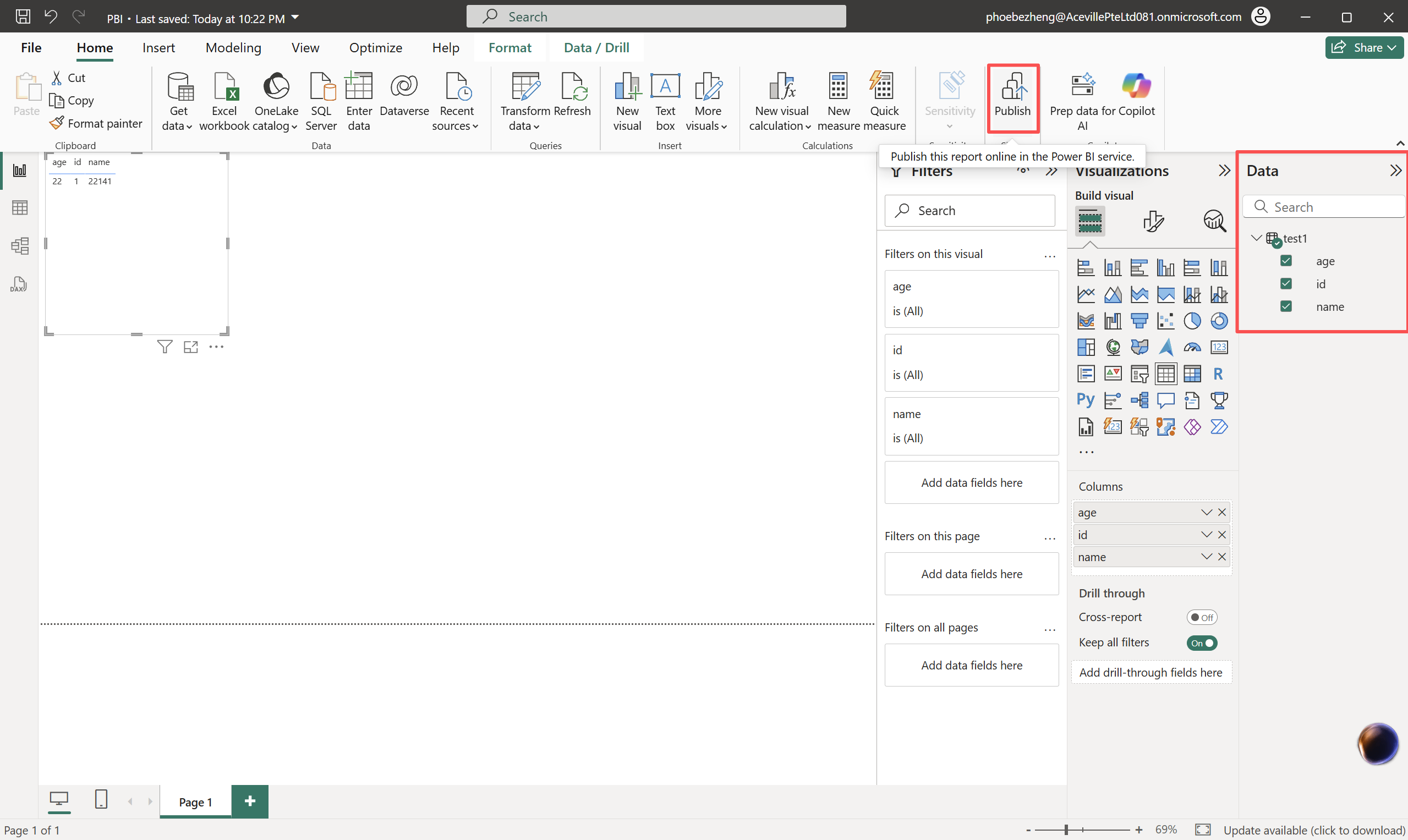
1. Publish report: Click Publish in Power BI Desktop.
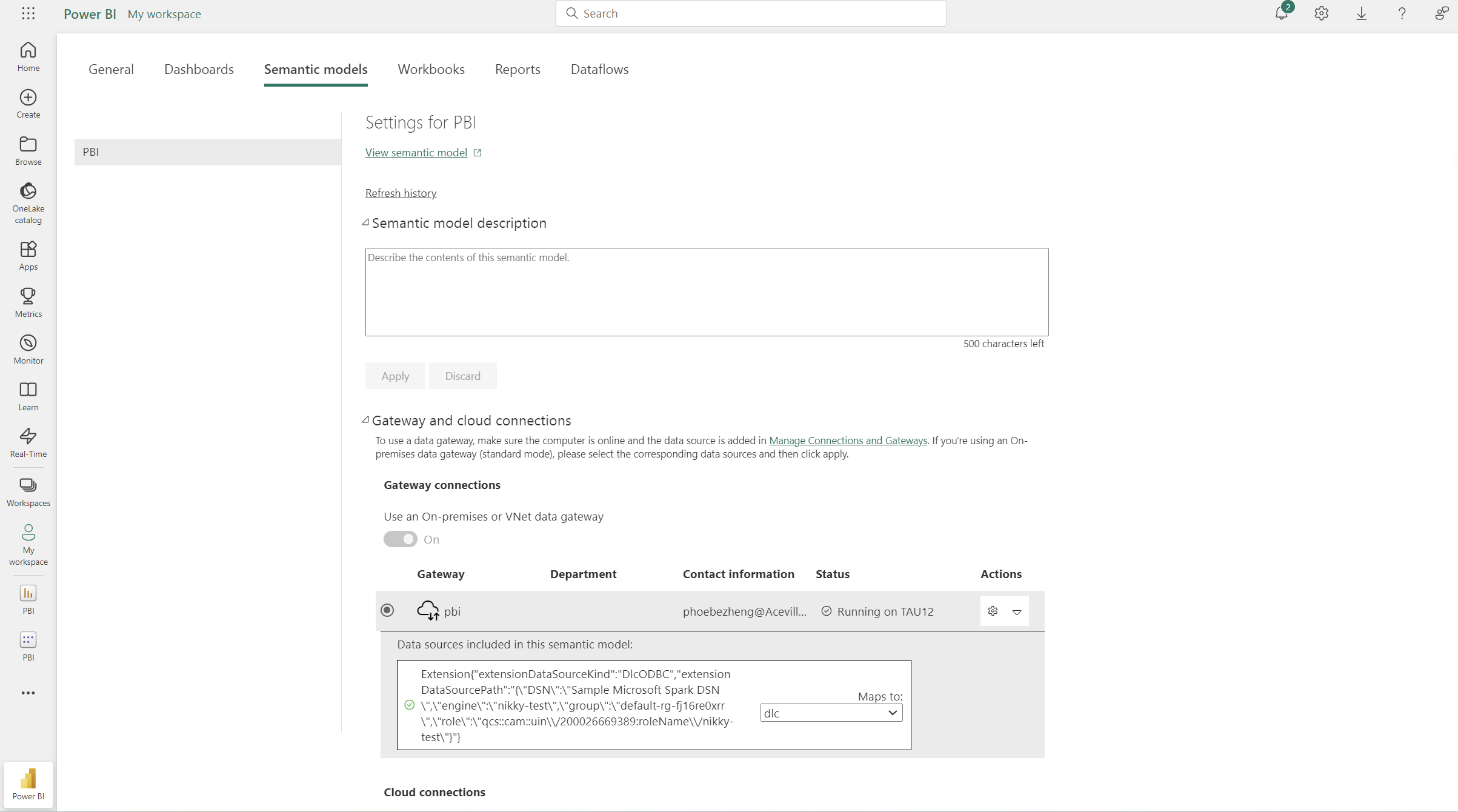
2. Locate the Semantic model of the report in Power BI Service.
3. Enter Settings > Gateway and cloud connections.
4. In the Maps to option, map the cloud data to the just created gateway data source.
5. Click Apply to manually or scheduled refresh the report.
Common Issues (FAQ)
Q: Cannot find the Custom Connectors folder?
A: The folder does not exist by default. You need to manually create it under Documents\\Power BI Desktop\\. Note that the path is case-sensitive between the current user path (for Desktop) and the system service path (for Gateway).
Q: Connectivity test failed?
A: Please check whether the Host and Port in the ODBC configuration are connected from the current network. Check whether the CAM role has access to the corresponding DLC engine.