Shutting Down, Restarting, and Renaming a CVD Instance
Download
Focus Mode
Font Size
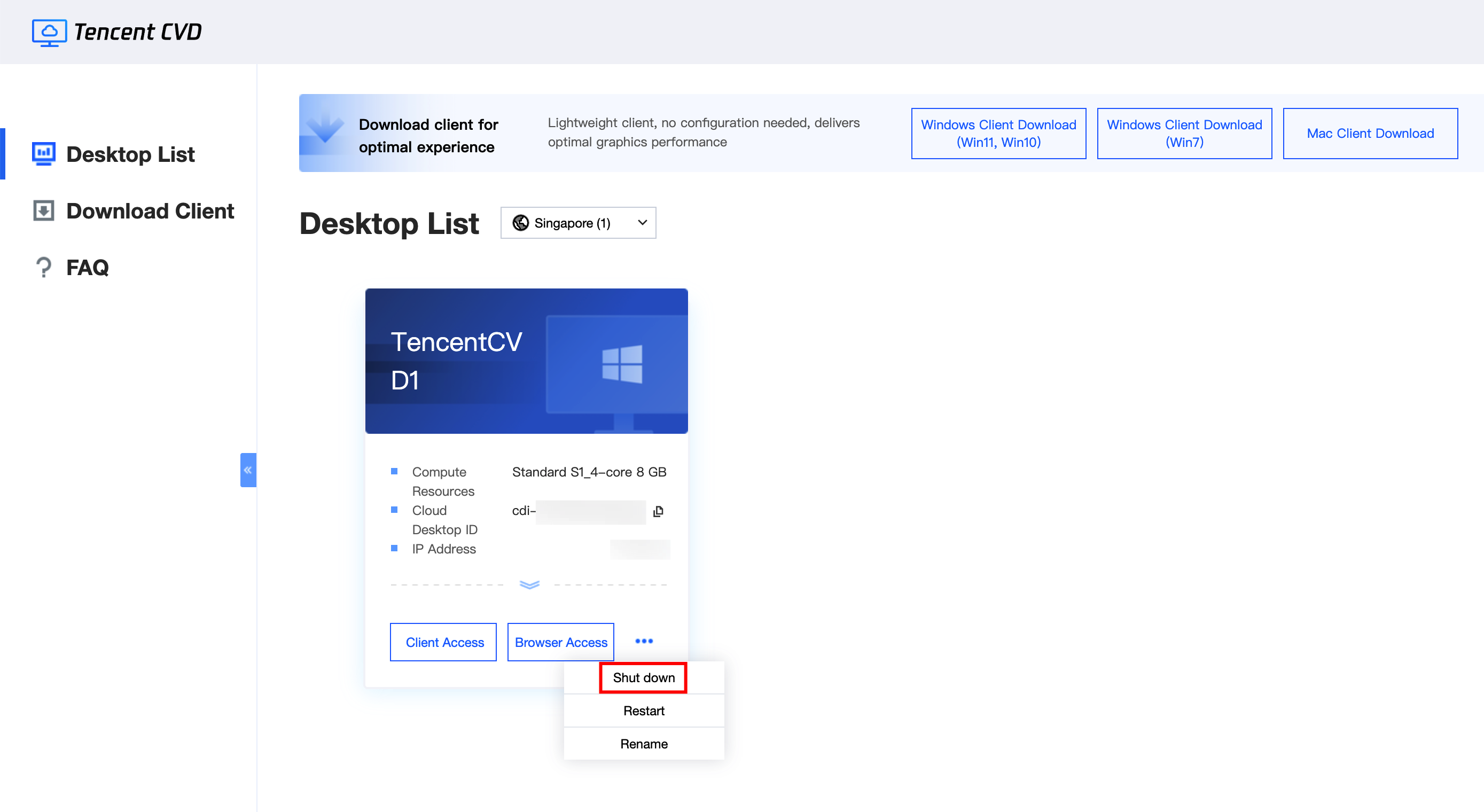
Shutting Down a CVD Instance
Perform the shutdown operation in the Cloud Virtual Desktop (CVD) portal. Click 
Note:
Shutting down may cause data loss for any unsaved work on the CVD instance. Ensure that all data within the CVD instance is saved.
Restarting a CVD Instance
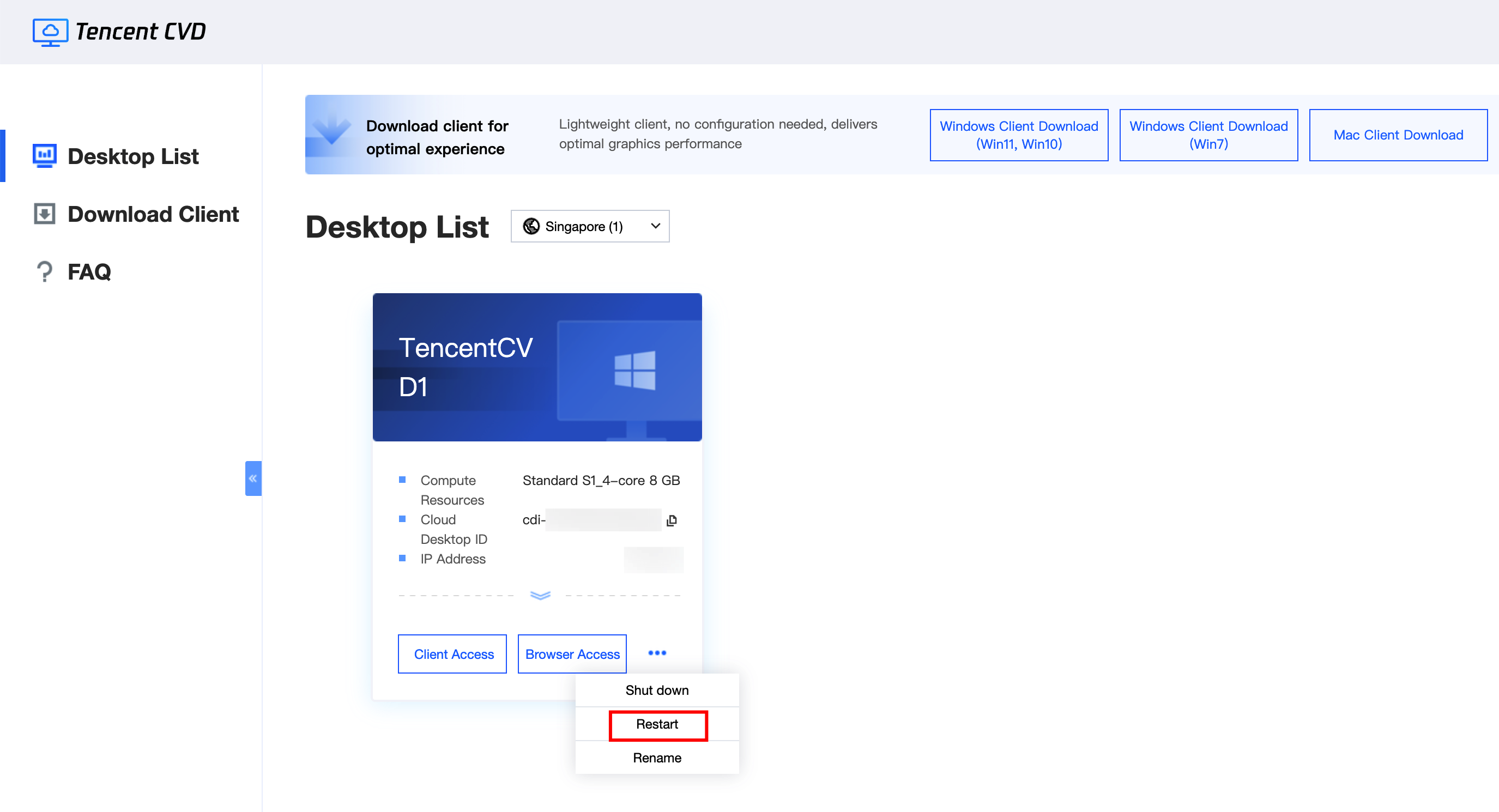
Perform the restart operation in the CVD portal. Click 
Note:
Restarting may cause data loss for any unsaved work on the CVD instance. Ensure that all data within the CVD instance is saved.
Renaming a CVD Instance
Perform the rename operation in the CVD portal. Click 
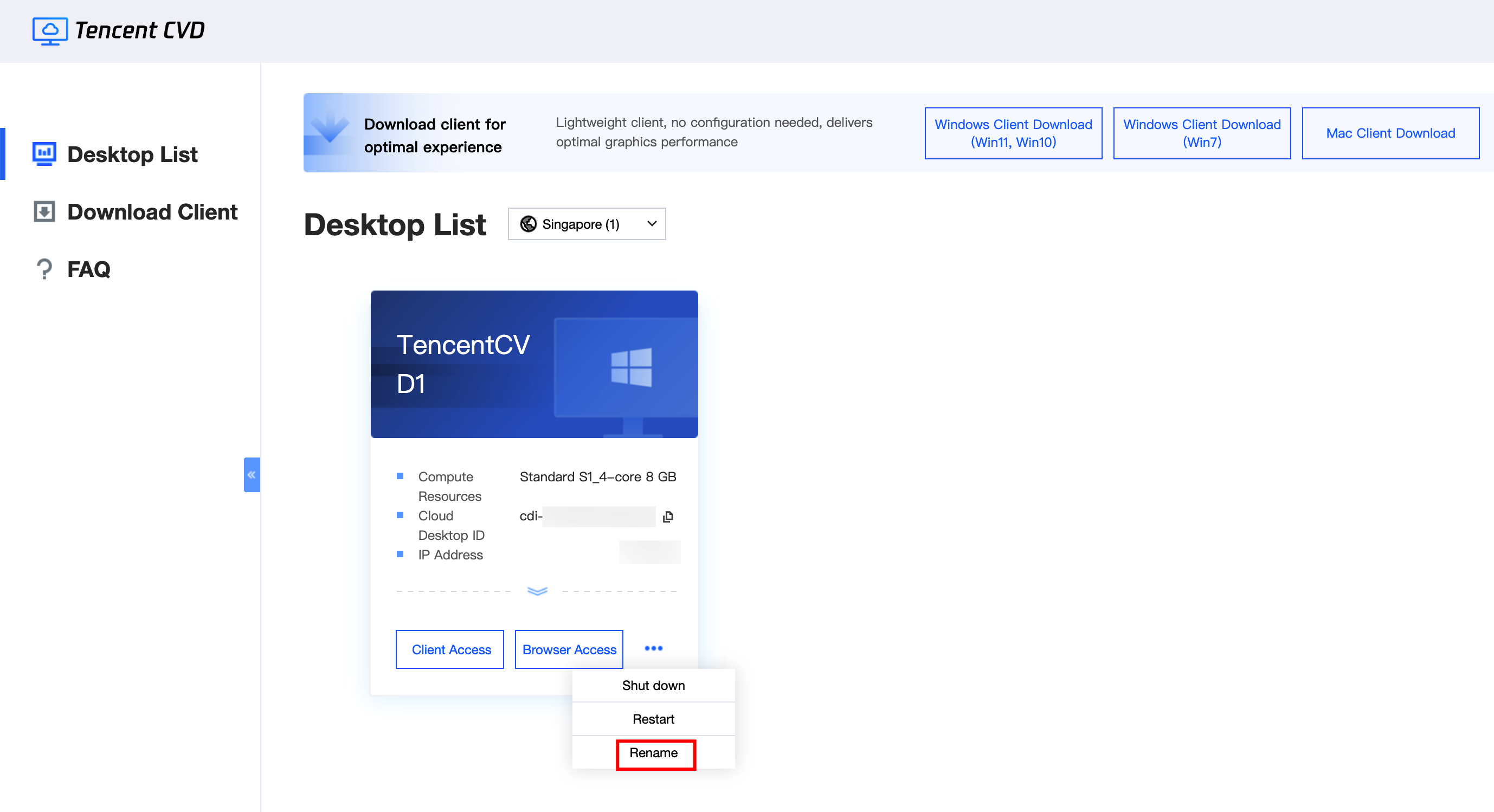
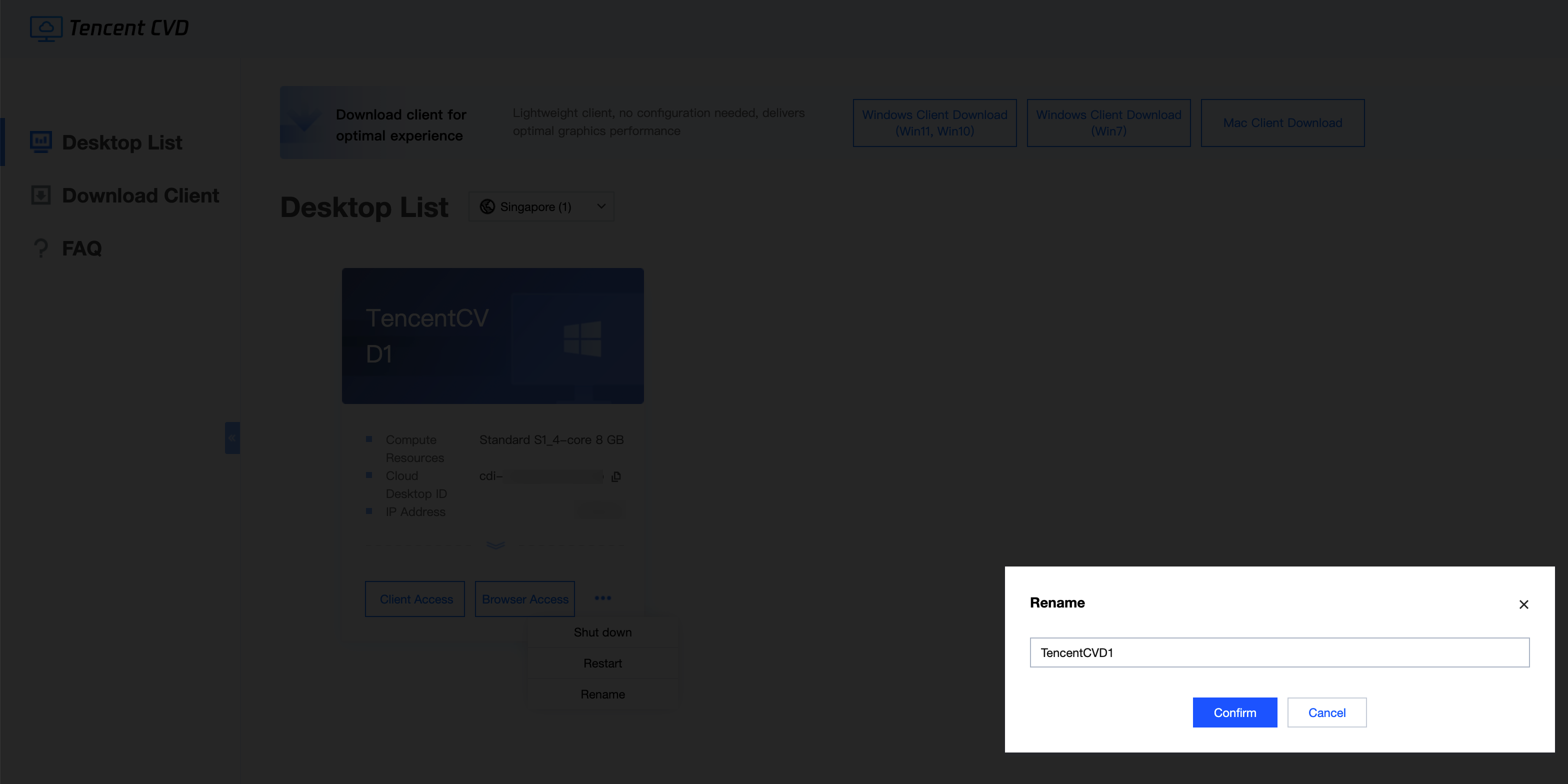
In the Rename pop-up window, enter the new CVD instance name and click OK to complete the renaming.
Help and Support
Was this page helpful?
You can also Contact sales or Submit a Ticket for help.
Help us improve! Rate your documentation experience in 5 mins.
Feedback