Login and Account Recovery
Unduh
Mode fokus
Ukuran font
This section primarily introduces the steps for logging into the system and the procedure for recovering forgotten account credentials.
Logging In to the System
If you have not registered a Tencent eSign account, see the Account Registration document for steps to register. If you already have a Tencent eSign account, you can log in directly using your existing account by clicking here. The system supports two login methods: email and password, and Google account quick login.
Method 1: Logging In with Email and Password
1. Go to the Tencent eSign login page.
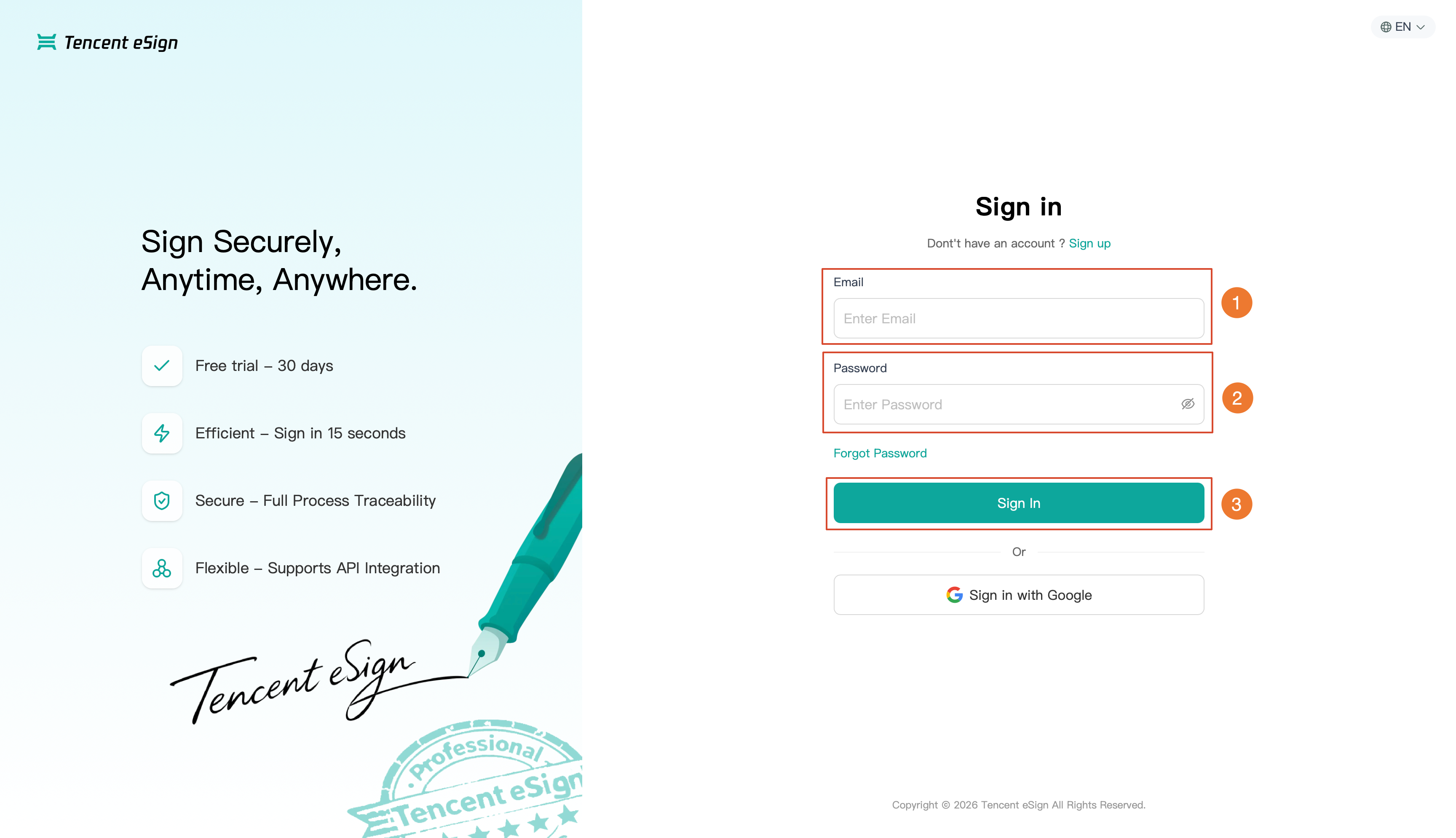
2. Enter the email address used during registration in the Email Input Box, then enter your login password in the Password Input Box, and finally click Sign in.
3. After a successful login, the system automatically redirects you to the Home page. For detailed information, see Home Overview.
Method 2: Logging In with a Google Account
1. On the login page, click Sign in with Google.
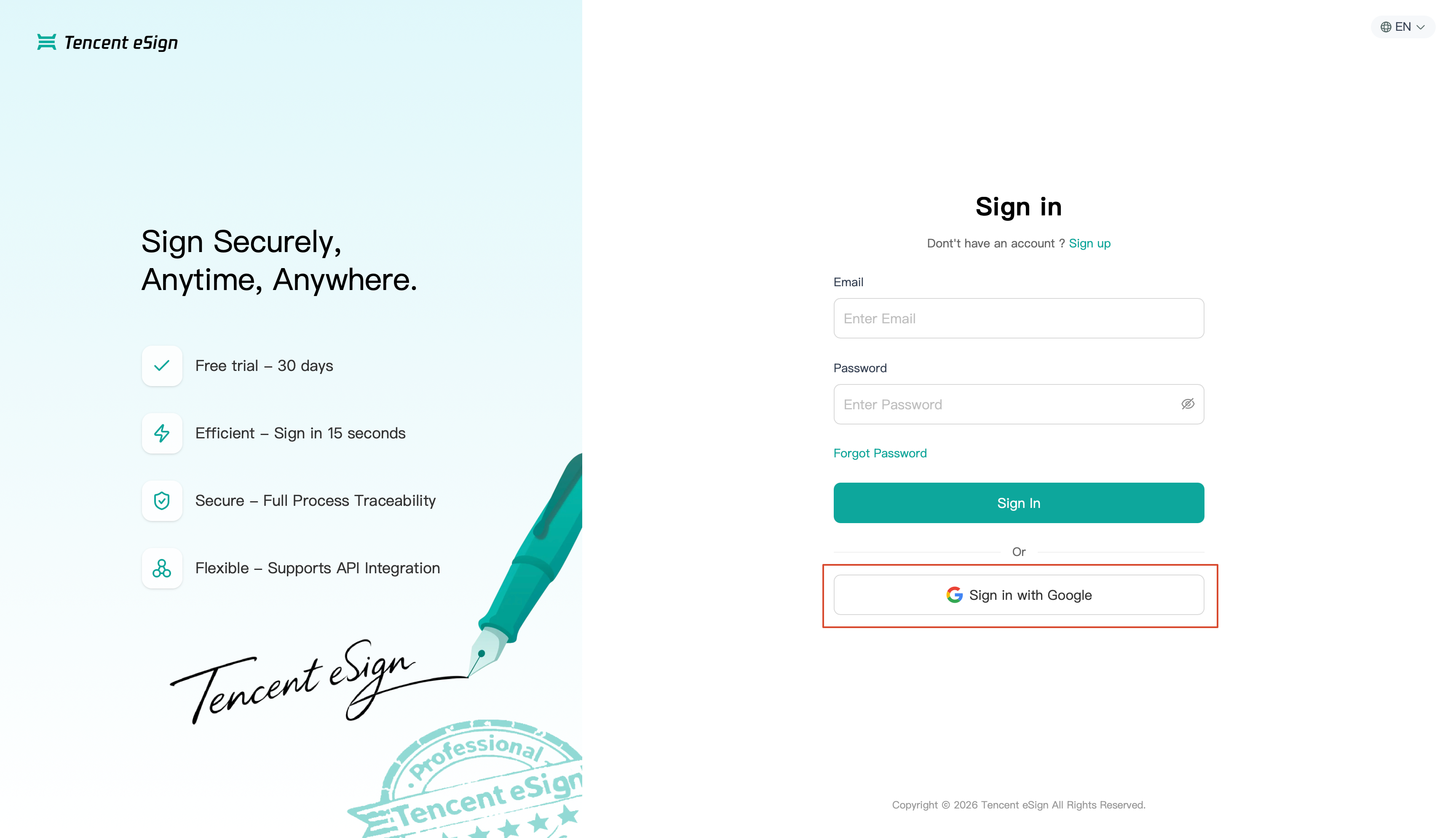
2. In the pop-up Google authorization page, create or sign in to your Google account.
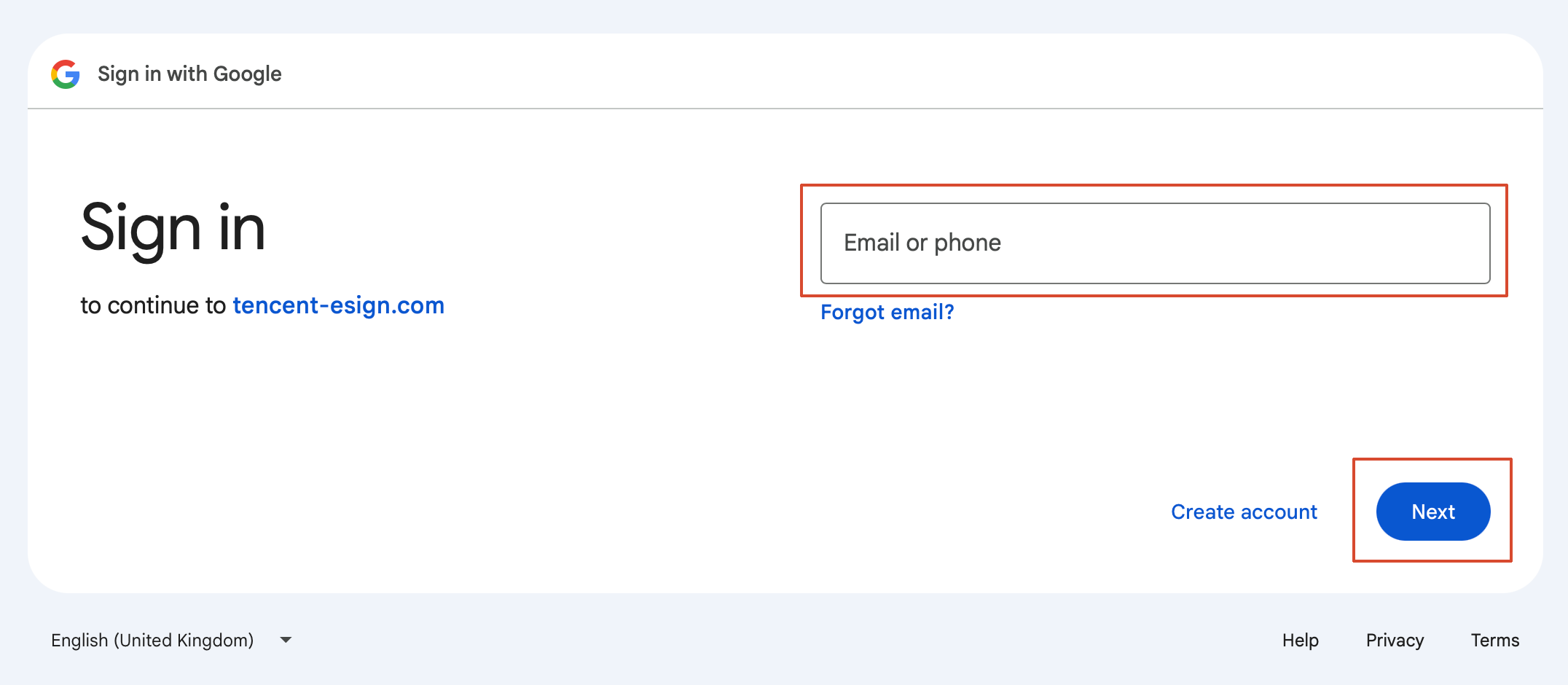
3. After Google authorization is completed, the system automatically returns and redirects you to the Home page. For detailed information, see Home Overview.
Recovering an Account
If you have forgotten your login password, you can reset it by following the procedure below to regain access to your account.
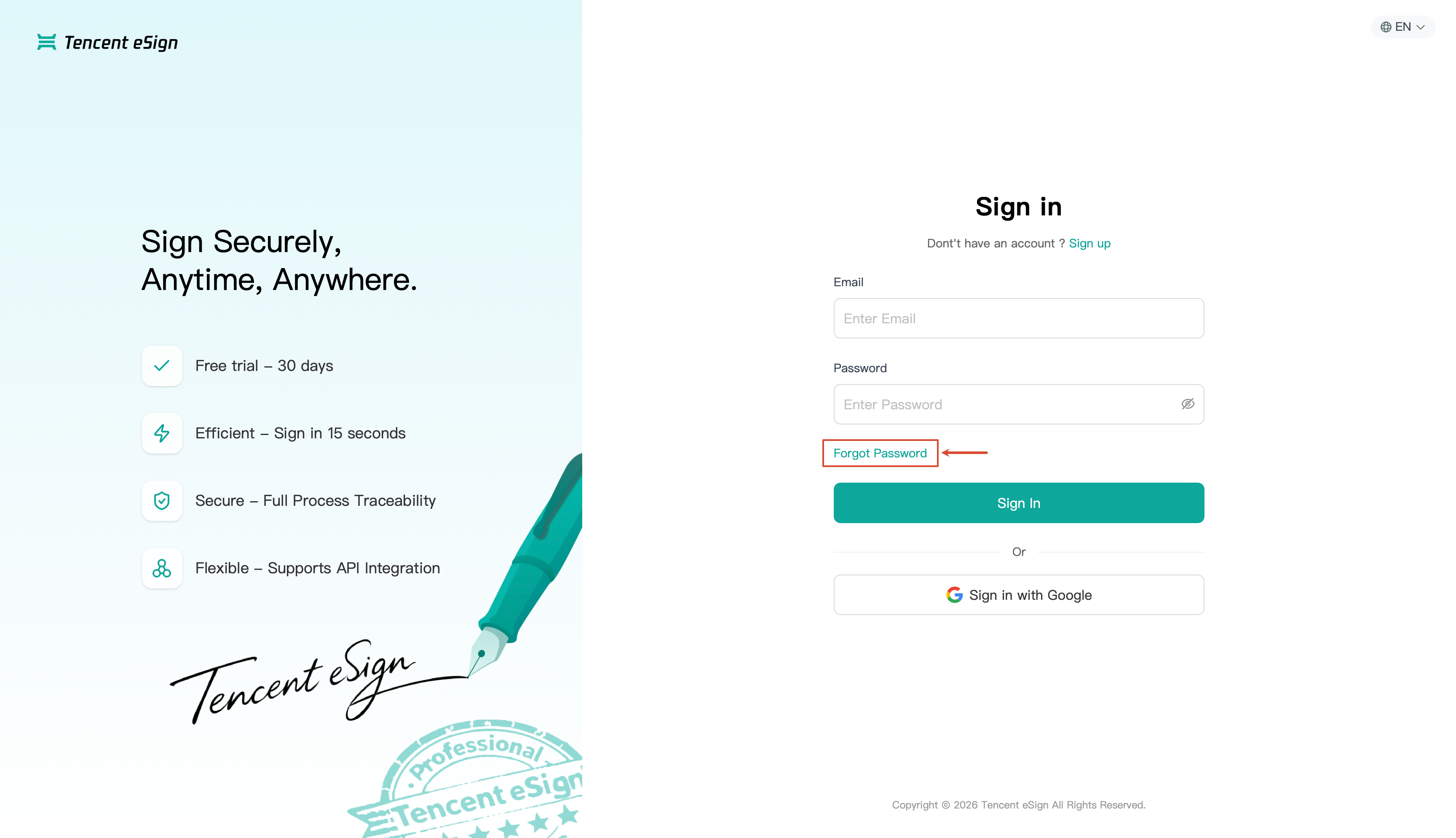
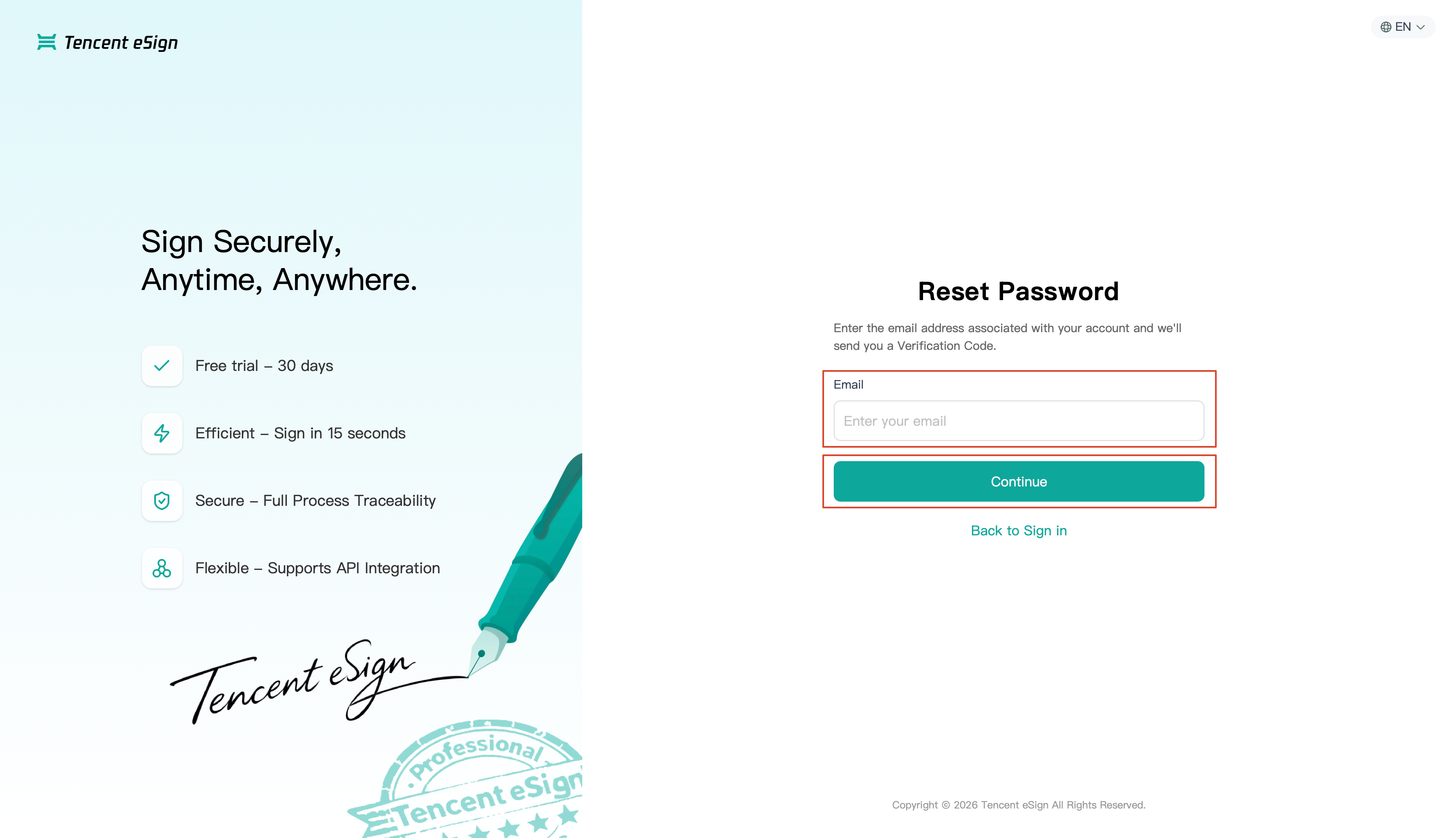
1. On the login page, click Forgot Password. The system then redirects you to the Reset Password page.
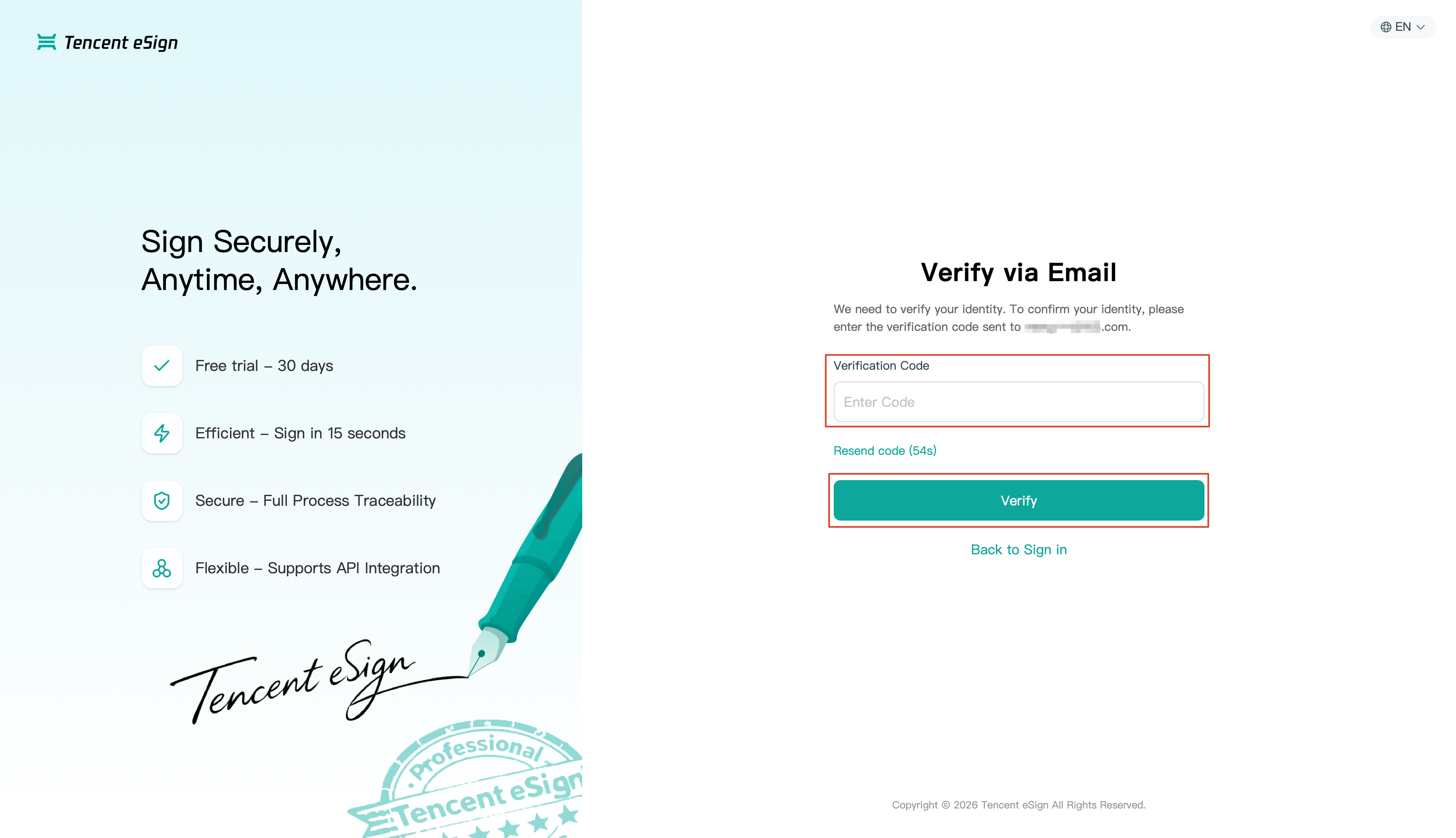
2. Enter the email address used during registration in the Email input box, and click Continue. The system then sends a verification code to that email and redirects you to the Email Verification page.
3. Enter the received code in the Verification Code input box, and click Verify. The system then redirects you to the Set New Password page.
4. Enter the new password you want to set in the Enter Password input box, re-enter the new password in the Confirm Password input box, and then click Save.
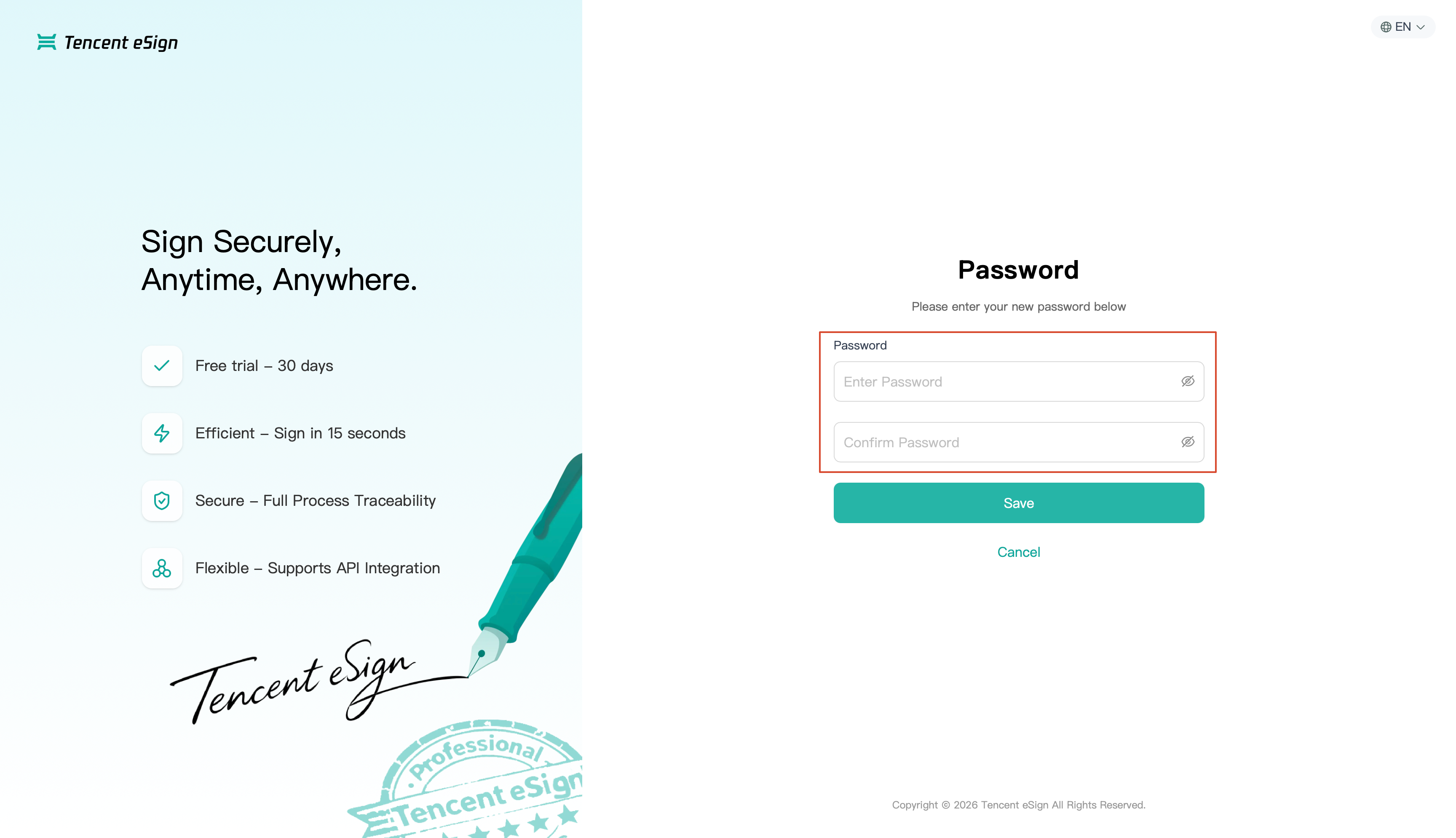
5. After Save is clicked, the system automatically returns to the login page. You must then log in to the system using your new password.
Bantuan dan Dukungan
Apakah halaman ini membantu?
Anda juga dapat Menghubungi Penjualan atau Mengirimkan Tiket untuk meminta bantuan.
masukan