ImageProperties
Download
Focus Mode
Font Size
Edge Functions allow you to customize Image Processing behavior via the ImageProperties parameter in RequestInitEoProperties when initiating a Fetch request or initializing a Request object. ImageProperties is defined as a non-standard Web APIs option. Its usage is described below.
addEventListener('fetch', (event) => {const response = fetch(event.request, { eo: { image: { format: "avif" } } });event.respondWith(response);});
async function handleRequest() {const request = new Request("https://www.example.com/test.jpg", { eo: { image: { format: "avif" } } });const response = await fetch(request);return response;}addEventListener('fetch', (event) => {event.respondWith(handleRequest());});
Edge Functions support multiple Image Processing capabilities, such as image format conversion, image quality adjustment, image scaling, and image cropping, by configuring different ImageProperties parameters. The specific configurations are described below.
Format Conversion
Convert the original image to a specified format by setting the
format parameter.Parameter Name | Type | Required | Description |
format | string | No | Converts the original image to a specified format, supporting jpg, gif, png, bmp, webp, avif, jp2, jxr, and heif. |
avoidSizeIncrease | boolean | No | Returns the original image without processing if the processed image size is larger than the original when this parameter is configured. |
Example:
// Convert the original image to avif formateo: { image: { format: "avif" } }
Quality Transformation
Adjust the image quality by setting parameters such as
quality.Parameter Name | Type | Required | Description |
quality | string | number | No | The absolute quality of the image, ranging from 0 - 100. The minimum value between the original image quality and the specified quality is used. Adding "!" after quality indicates that the specified value is enforced, for example: "90!". |
rquality | string | number | No | The relative quality of the image, ranging from 0 - 100. The value is based on the original image quality. For example, if the original image quality is 80 and rquality is set to 80, the quality of the processed image is 64 (80x80%). |
lquality | string | number | No | The minimum quality of the image, ranging from 0 - 100. Sets the minimum value for the quality parameter of the resulting image. For example, if the original image quality is 85, the processed image retains a quality of 85 after lquality is set to 80. For example, if the original image quality is 60, the processed image quality is increased to 80 after lquality is set to 80. |
avoidSizeIncrease | boolean | No | Returns the original image without processing if the processed image size is larger than the original when this parameter is configured. |
Note:
The quality adjustment parameters have an order of precedence. By default,
lquality > quality > rquality. If multiple parameters are configured simultaneously, only the one with the highest priority takes effect.Example:
// Set the absolute quality of the image to 80eo: { image: { quality: 80 } }// Set the relative quality of the image to 80eo: { image: { rquality: 80 } }// Set the minimum quality of the image to 80eo: { image: { lquality: 80 } }
Image Scaling
Image scaling is controlled by the
fit parameter. By setting different fit parameters, you can achieve different types of scaling operations.Parameter Name | Type | Required | Description |
fit | string | No | Sets different image scaling and cropping modes. Supported fit parameter values are: contain: (Default) Scales the image while preserving its aspect ratio. cover: Scales the image by pixel values without preserving the aspect ratio. percent: Scales the image by percentage without preserving the aspect ratio. |
Note:
The behaviors corresponding to different
fit parameters are described in detail below.Scaling Proportionally
When the
fit parameter is not set or the fit parameter is set to contain, the image is scaled while preserving its aspect ratio.Parameter Name | Type | Required | Description |
width | string | number | No | Scales the width of the target image to width pixels. When only the width parameter is set, the height is scaled proportionally. |
height | string | number | No | Scales the height of the target image to height pixels. When only the height parameter is set, the width is scaled proportionally. |
long | string | number | No | Scales the long side of the target image to long pixels. The short side is scaled proportionally. |
short | string | number | No | Scales the short side of the target image to short pixels. The long side is scaled proportionally. |
Note:
The above parameters have an order of precedence:
long > short > (width | height). If multiple parameters are configured simultaneously, only the one with the highest priority takes effect.If both the
width and height parameters are configured, the maximum values for the thumbnail's width and height are limited to width and height respectively, and the image is scaled proportionally.In addition to the features mentioned above, it also supports proportional scaling based on pixel quantity.
Parameter Name | Type | Required | Description |
area | string | number | No | Scales the image proportionally. The total number of pixels in the scaled image must not exceed area. |
Example:
// Set proportional scaling based on the long side, resulting in a long side length of 100px after scaling.eo: { image: { long: 100 } }// Set proportional scaling based on the short side, resulting in a short side length of 100px after scaling.eo: { image: { short: 100 } }// Set proportional scaling based on width, resulting in a width of 100px after scaling.eo: { image: { width: 100 } }// Set proportional scaling based on height, resulting in a height of 100px after scaling.eo: { image: { height: 100 } }// Set proportional scaling based on height and width, resulting in a maximum width of 100px and a maximum height of 100px after scaling.eo: { image: { width: 100, height: 100 } }// Set proportional scaling based on total pixel count, resulting in a total pixel value not exceeding 10000px after scaling.eo: { image: { area: 10000 } }
Scaling Non-Proportionally
When the
fit parameter is set to cover, the image is scaled by pixel values without preserving the aspect ratio.Parameter Name | Type | Required | Description |
width | string | number | No | Scales the width of the target image to width pixels. |
height | string | number | No | Scales the height of the target image to height pixels. |
Note:
In this mode, both the
width and height parameters must be set. If only one of them is configured, the image will be processed to widthxwidth or heightxheight.Example:
// Set non-proportional scaling by pixel values, resulting in a width of 100px and a height of 100px after scaling, without preserving the aspect ratio.eo: { image: { fit: 'cover', width: 100, height: 100 } }
When the
fit parameter is set to percent, the image is scaled by percentage without preserving the aspect ratio.Parameter Name | Type | Required | Description |
width | string | number | No | Scales the width of the target image to width%, with a valid range of 0 - 100. When only the width parameter is set, the height remains unchanged. |
height | string | number | No | Scales the height of the target image to height%, with a valid range of 0 - 100. When only the height parameter is set, the width remains unchanged. |
Note:
In this mode, the
width and height parameters are independent of each other. If both width and height are configured, the image will be processed to width%xheight%.Example:
// Set non-proportional scaling by width percentage, resulting in a width of 50% of the original image after scaling.eo: { image: { fit: 'percent', width: 50 } }// Set non-proportional scaling by height percentage, resulting in a height of 50% of the original image after scaling.eo: { image: { fit: 'percent', height: 50 } }// Set non-proportional scaling by width and height percentages, resulting in a width of 50% and a height of -50% of the original image after scaling.eo: { image: { fit: 'percent', width: 50, height: 50 } }
Image Cropping
Image cropping is controlled by the
fit parameter. By setting different fit parameters, you can achieve different types of cropping operations.Parameter Name | Type | Required | Description |
fit | string | No | Sets different image scaling and cropping modes. Supported fit parameter values are: cut: Performs a raw crop on the image. crop: Scales and crops the image. |
Note:
The behaviors corresponding to different
fit parameters are described in detail below.Cropping the Original Image
When the
fit parameter is set to cut, the image is cropped based on its original dimensions.Parameter Name | Type | Required | Description |
width | string | number | No | Crops the width of the target image to width pixels. When only the width parameter is set, the height remains unchanged. |
height | string | number | No | Crops the height of the target image to height pixels. When only the height parameter is set, the width remains unchanged. |
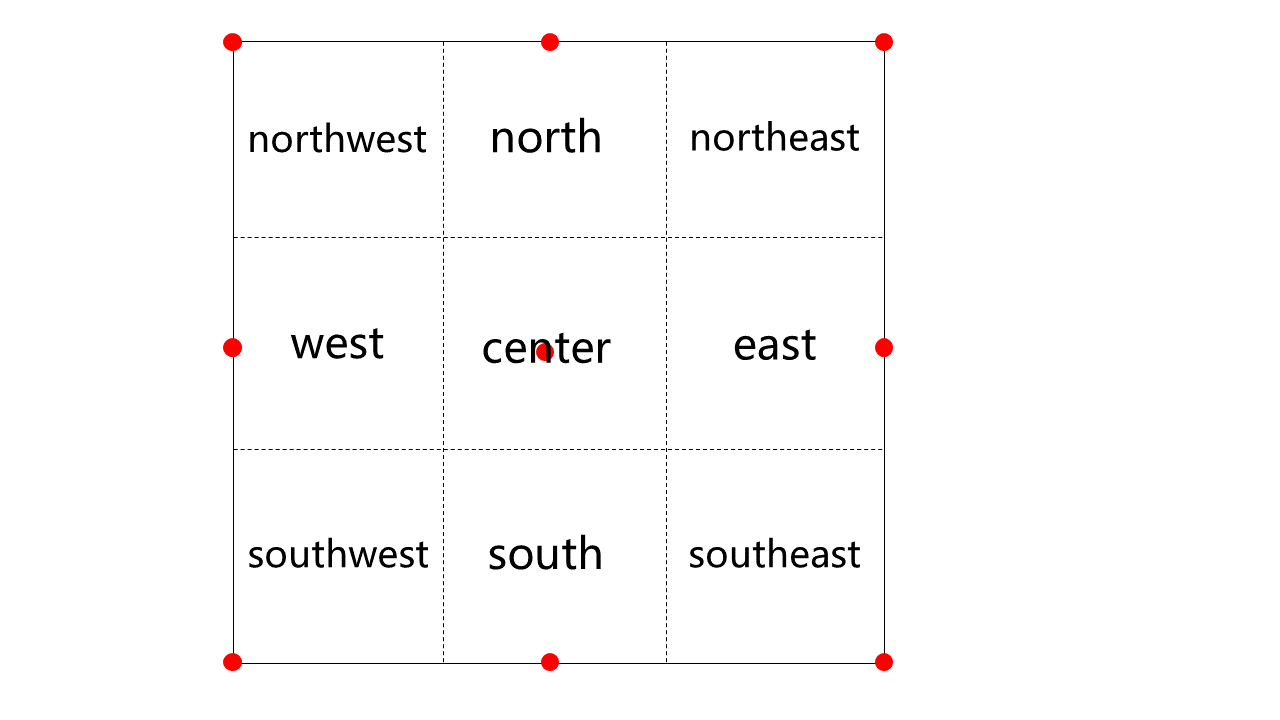
gravity | string | { [key: string]: number | string } | No | Anchor point position for image cropping. Can be set to a nine-grid orientation value or a coordinate object: Refer to the Nine-Square Grid Orientation Diagram to obtain the nine-square grid orientation values. The coordinate object takes the form { x: 100, y: 100 }, where x represents a horizontal offset of x pixels to the right from the top-left corner of the image, and y represents a vertical offset of y pixels downward from the top-left corner of the image. |
Note:
If the
gravity parameter is not set, cropping is performed at the top-left vertex (northwest) by default.Example:
// Perform a raw crop based on width, resulting in a width of 100px after cropping.eo: { image: { fit: 'cut', width: 100 } }// Perform a raw crop based on height, resulting in a height of 100px after cropping.eo: { image: { fit: 'cut', height: 100 } }// Perform a raw crop based on width and height, resulting in a width of 100px and a height of 100px after cropping.eo: { image: { fit: 'cut', width: 100, height: 100 } }// Perform a raw crop based on width and height, specifying the anchor point position (nine-square grid), resulting in a width of 100px and a height of 100px after cropping.eo: { image: { fit: 'cut', width: 100, height: 100,gravity:'center'} }// Perform a raw crop based on width and height, specifying the anchor point position (coordinates), resulting in a width of 100px and a height of 100px after cropping.eo: { image: { fit: 'cut', width: 100, height: 100,gravity:{x:100,y:100} }
Scaling and Cropping
When the
fit parameter is set to crop, the image is scaled and cropped.Parameter Name | Type | Required | Description |
width | string | number | No | Crops the width of the target image to width pixels. When only the width parameter is set, the height remains unchanged. |
height | string | number | No | Crops the height of the target image to height pixels. When only the height parameter is set, the width remains unchanged. |
gravity | string | No | Anchor point position for image cropping. Can be set to a nine-grid orientation value. Refer to the Nine-Grid Orientation Diagram for the value. |
Note:
In this mode, the
gravity parameter can only be set to a nine-square grid orientation value. If the gravity parameter is not set, cropping is performed at the center point (center) by default.Example:
// Perform a scale-and-crop based on width, resulting in a width of 100px after cropping.eo: { image: { fit: 'crop', width: 100 } }// Perform a scale-and-crop based on height, resulting in a height of 100px after cropping.eo: { image: { fit: 'crop', height: 100 } }// Perform a scale-and-crop based on width and height, resulting in a width of 100px and a height of 100px after cropping.eo: { image: { fit: 'crop', width: 100, height: 100 } }// Perform a scale-and-crop based on width and height, specifying the anchor point position (nine-square grid), resulting in a width of 100px and a height of 100px after cropping.eo: { image: { fit: 'crop', width: 100, height: 100,gravity:'northwest'} }
Sudoku Orientation Diagram
The nine-square grid orientation diagram provides positional reference for various image operations. The red dot serves as the origin for each region's position (after a region is selected via the gravity parameter, displacement operations use the corresponding origin as the reference point).
Auto Rotation
When the
fit parameter is set to auto-orient, the image is automatically rotated to its correct orientation based on its original EXIF information.
Example:
// Enable auto-rotationeo: { image: { fit: 'auto-orient' } }
Removing Metadata
By specifying the
stripExif parameter, you can remove image metadata, including EXIF information.Parameter Name | Type | Required | Description |
stripExif | boolean | No | Removes image metadata, including EXIF information, when this parameter is configured. |
Note:
When the
stripExif parameter is configured alongside other Image Processing parameters, the system first performs the other Image Processing operations and finally executes the operation to remove image metadata.Example:
// Remove image metadataeo: { image: { stripExif: true } }
Help and Support
Was this page helpful?
You can also Contact sales or Submit a Ticket for help.
Help us improve! Rate your documentation experience in 5 mins.
Feedback