Connectors and Tools nodes are information processing nodes. They allow users to reference officially provided connectors/tools or self-created connectors/tools. For details, see Introduction to Connectors and Tools.
In the Agent Development Platform, a Tool refers to an API used to fulfill specific scenario requirements or tasks. A connector may contain one or more tools.
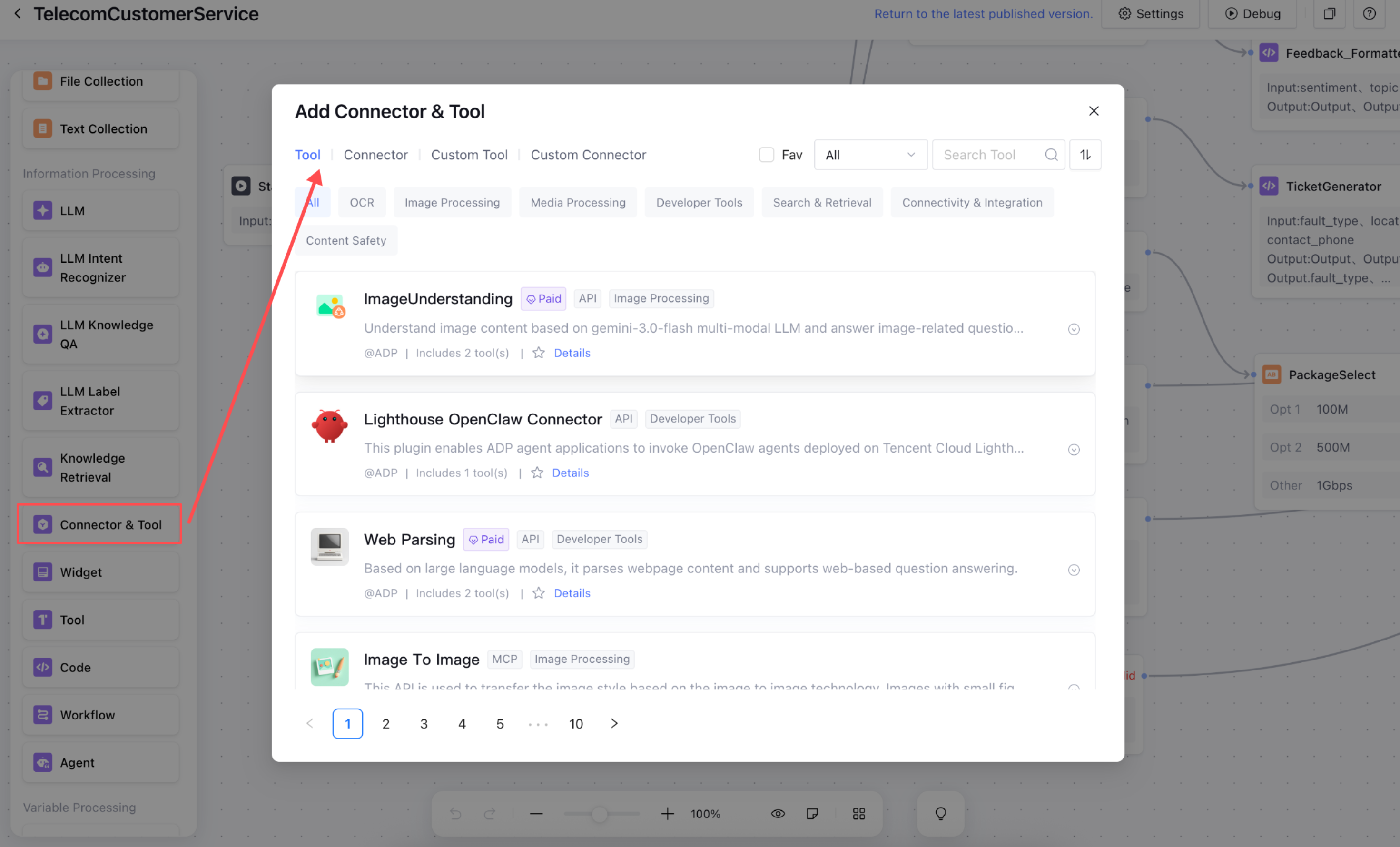
When you create a Connectors and Tools node on the canvas, the system automatically displays a Connectors and Tools selection dialog. You can select the required tool from this dialog. After selection, you can use this node on the canvas.
Directions
Input parameters
These parameters are used when the connector/tool is called. They support two methods: reference to ancestor node output variables and input of fixed values. User customization is not supported.
Configuration
Description
header
Used to pass metadata, typically related to the request itself rather than business data, and often used for authentication.
query
Passes parameters via the URL, commonly used for operations such as filtering, sorting, or pagination.
body
Transmits actual data content.
Output Variable
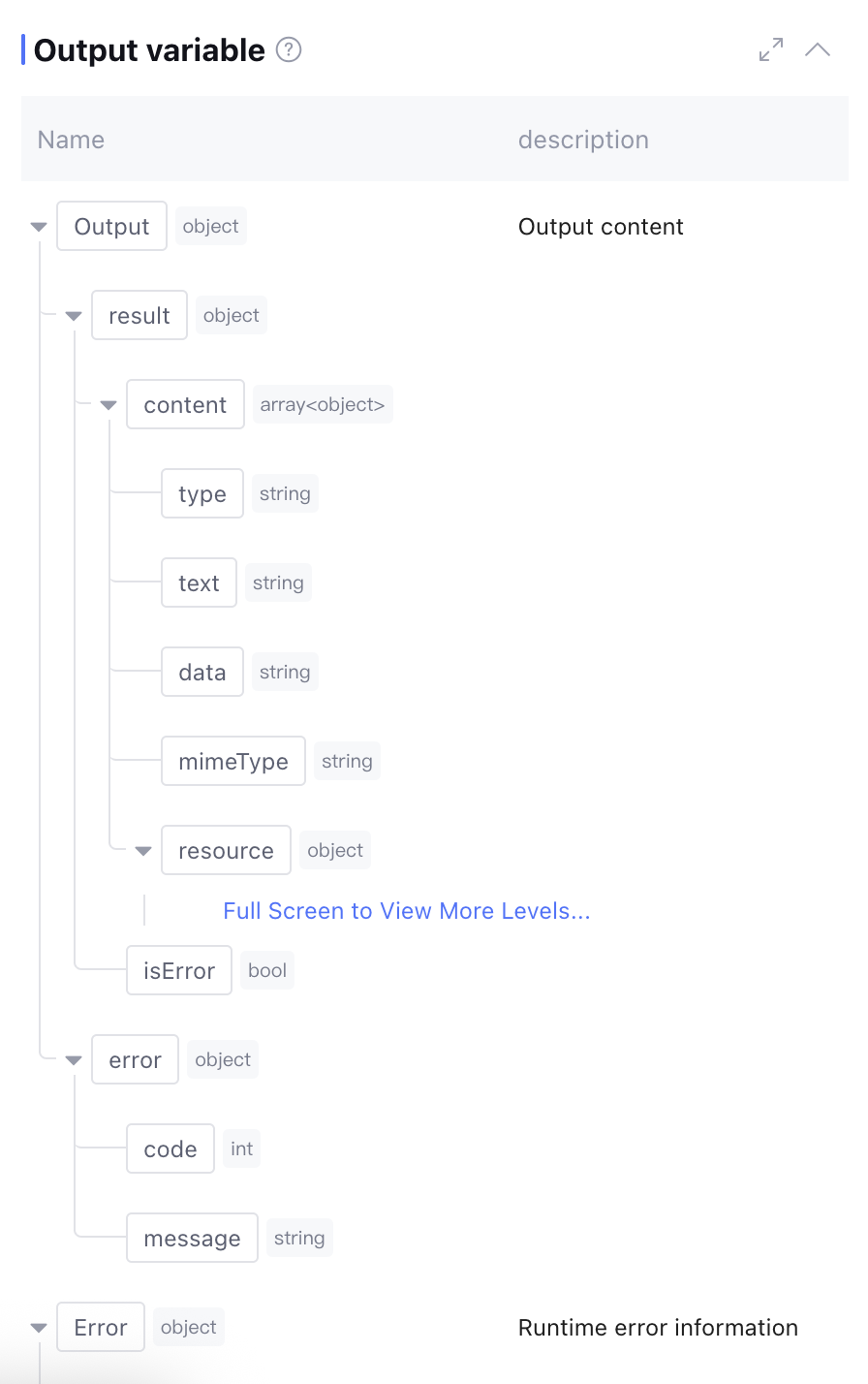
The output variable processed by this node includes the result of calling the tool as well as runtime Error info (data type: object, this field is empty during normal operation). Manual addition is not supported.
Handling error
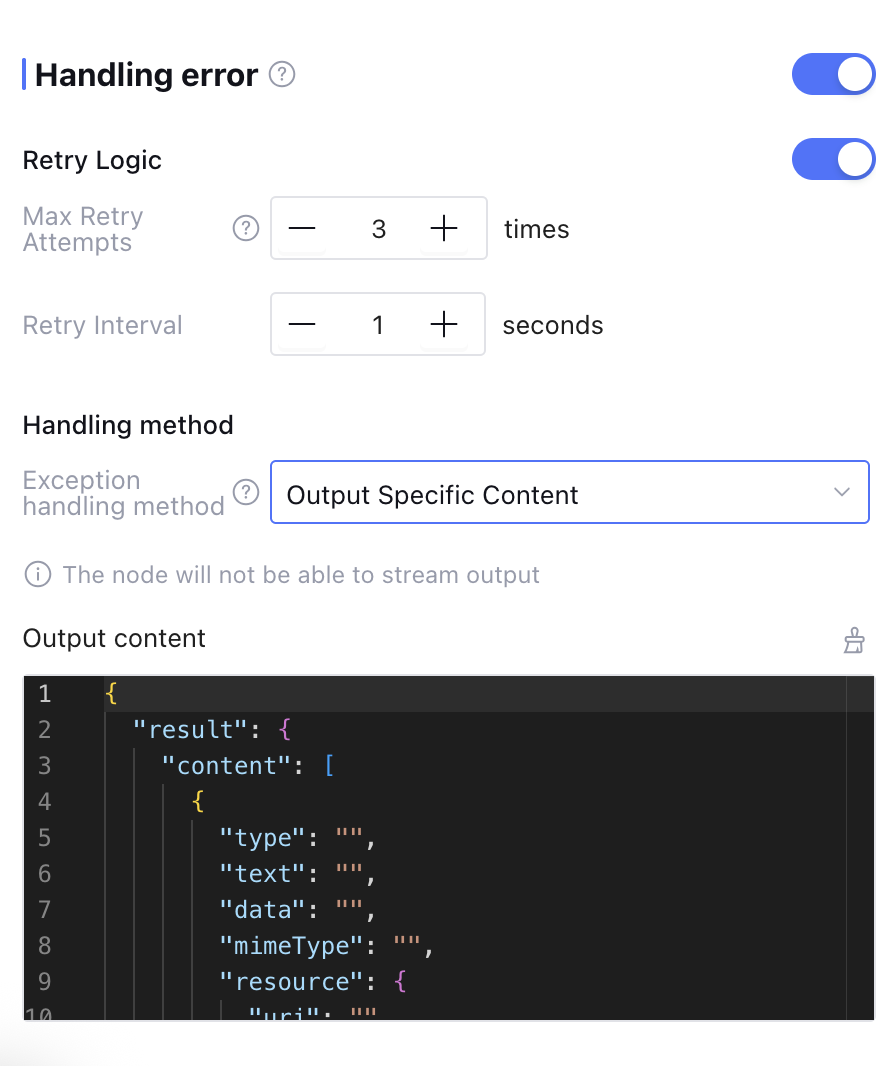
You can manually enable exception handling (which is disabled by default). It supports configuration of exception retry and exception handling methods. The configuration details are as follows:
Configuration
Description
Max Retry Attempts
Maximum number of retries when a node runs abnormally. If retries exceed the set number, the node invocation is considered failed, and the exception handling method below is executed. Default is 3 times.
Retry Interval
Interval between each rerun, default is 1 second.
Handling Method
Support three types: "Output Specific Content", "Execution Exception Flow", and "Interrupt Flow".
Output Variable
Select the exception handling method as "Output Specific Content". The output variable returned when retries exceed the maximum number.
When the exception handling method is set to "Output Specific Content", the workflow will not be interrupted after an exception occurs. The node returns the output variable and variable value set by the user in the output content directly after retry.
Select the exception handling method as "Execution Exception Flow". When an exception occurs, the workflow will not be interrupted. After node exception retry, it executes the exception handling process customized by users.
When the exception handling method is set to "Interrupt Flow", there are no more settings. The workflow execution will be interrupted after an exception occurs (interrupting the process may cause workflow data loss. Back up before the next operation).
Application Example
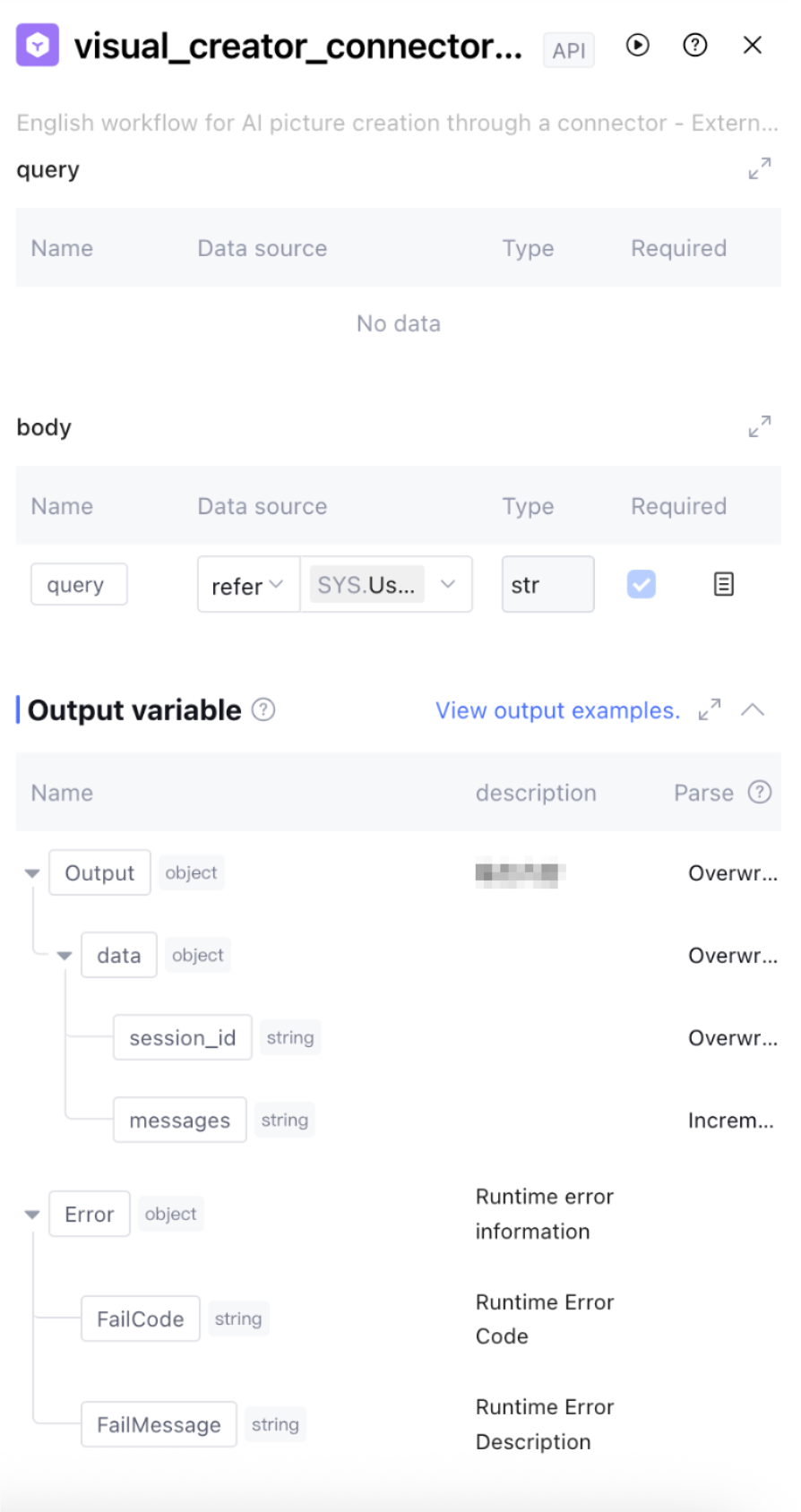
Write an article and generate a cover image based on the article topic and style input by the user, using an image generation tool.
The image generation tool is configured as follows:
FAQs
1. What is the difference between MCP Tools and API Tools?
MCP (Model Context Protocol) is an open protocol designed for Large Language Model (LLM) applications. It aims to standardize the interaction between LLMs and external data sources or tools, such as databases, APIs, and computing services. It provides a unified API specification, enabling developers to quickly integrate various features like search, calculation, and API calls into LLM applications without needing to adapt each tool individually. API Tools are components that extend system functionality by directly calling specific API interfaces. They typically require separate adaptation logic to be developed for different protocols (such as REST and WebSocket) and authentication methods (such as OAuth and API key).
2. How to Create a Tool?
In the Connectors & Tools Marketplace, click Create Connector or Create Tool. You can then choose to create a new one based on an API, code, MCP, or a published application.
Based on API: Go to the API Tool creation page. You can create an API tool by filling in the basic information, adding the tool (API), and validating the tool (API).
Based on Code: Go to the Code Tool creation page. You can create a tool by filling in the basic information and adding the tool (API).
Based on MCP: Go to the MCP Connector/Tool creation page. It supports manual configuration and JSON addition.
Based on a Published Application: Select a published application. You can then create a tool by filling in the basic information and adding the tool (API).