tencent cloud

Creating a "Content Summary Assistant" in Standard Mode
Last updated:2025-10-11 11:33:05
Creating a "Content Summary Assistant" in Standard Mode
Last updated: 2025-10-11 11:33:05
Agent Development Platform supports building standard mode applications. In this mode, you can create agent applications using preconfigured workflows or by composing custom ones.
This article uses the “Content Summarization Assistant” as an example to explain in detail how to create a Standard mode application on the Agent Development Platform.

Prerequisites

A registered Tencent Cloud account with authentication completed.
To register a Tencent Cloud account, please click Sign up - Tencent Cloud.
To complete authentication, please click Sign in - Tencent Cloud.

Steps

Step 1: Creating a New Appplication

2. Create a new app.
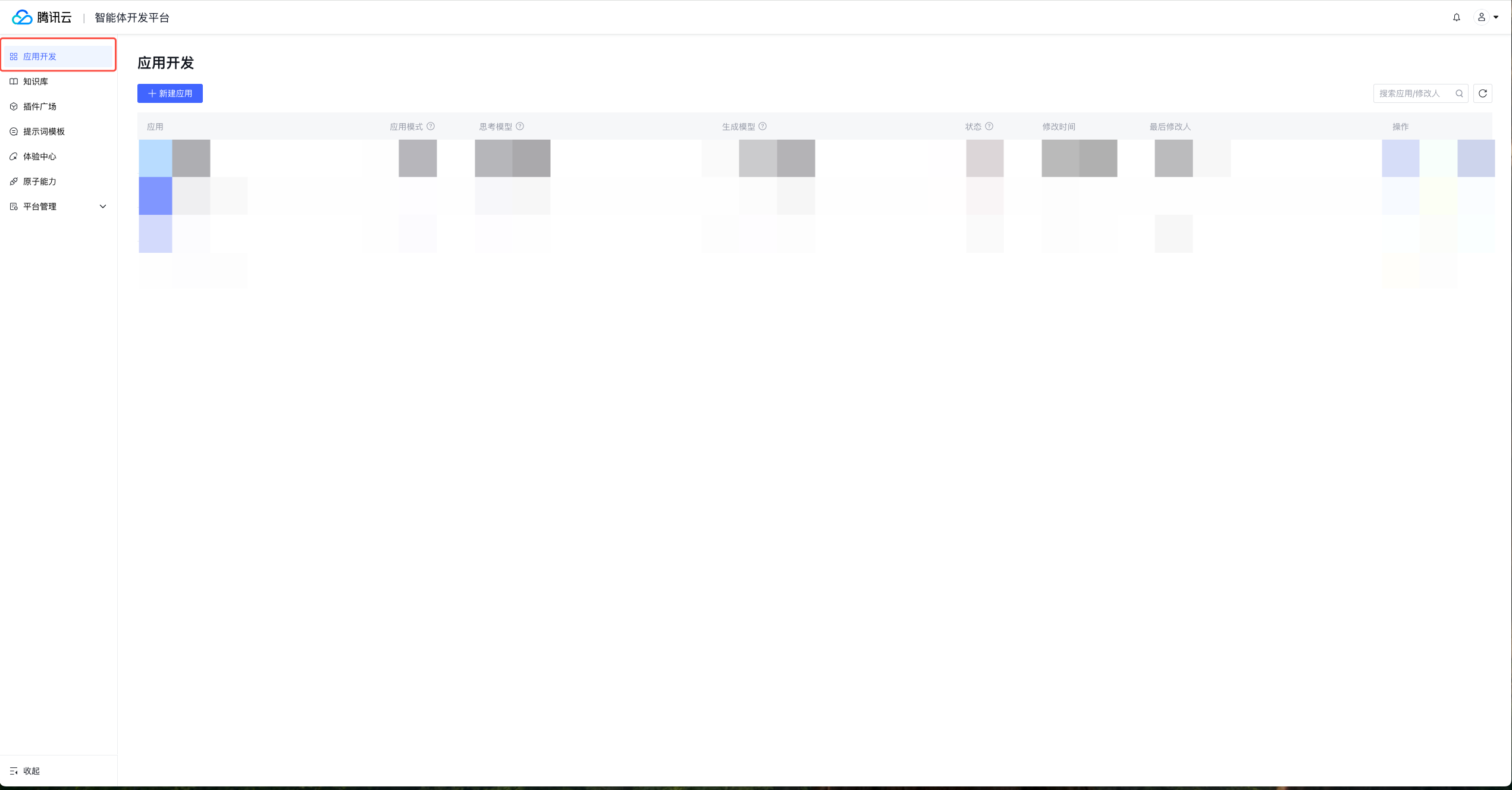
2.1 In the left menu bar, click App Dev.


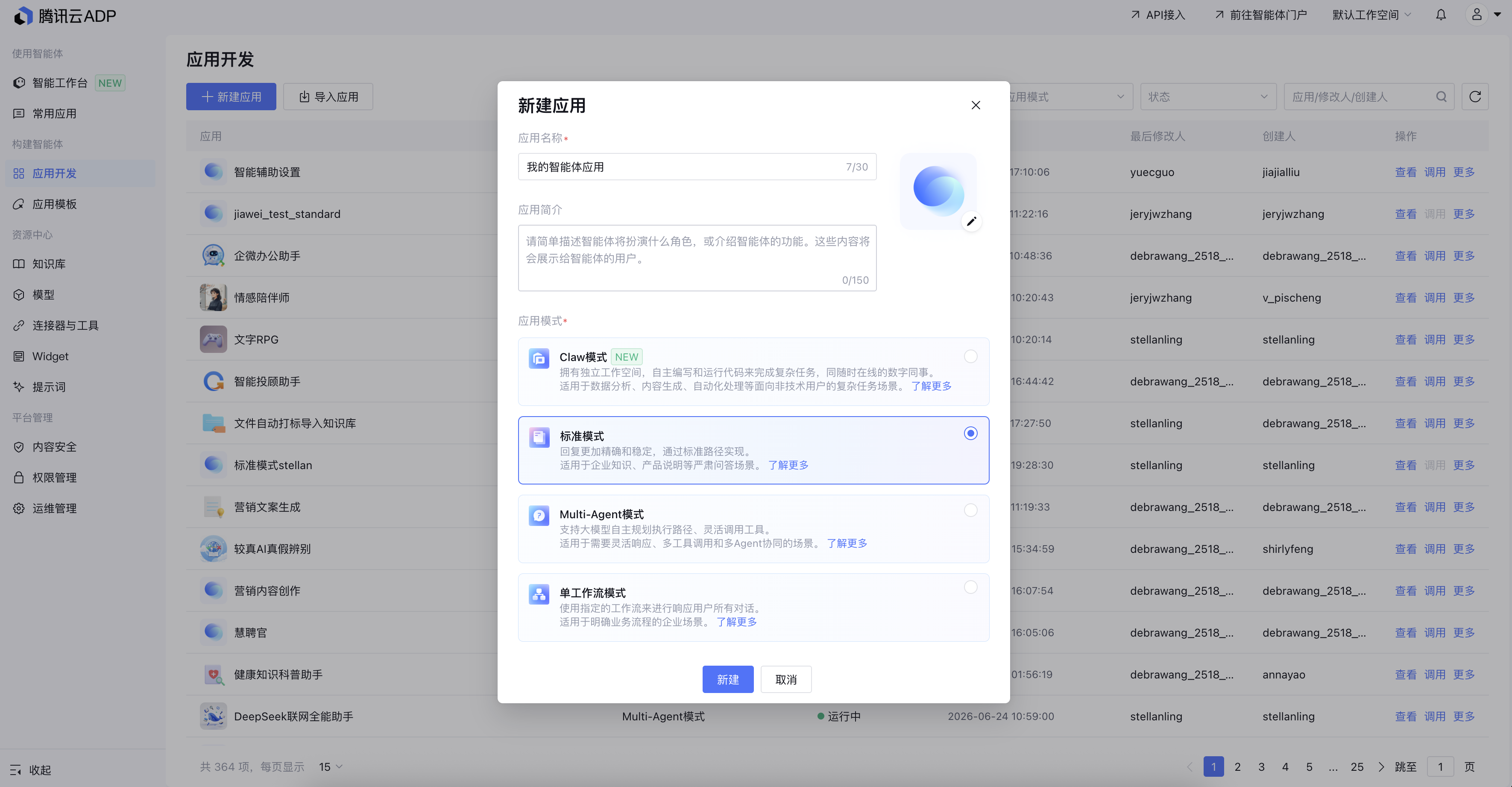
2.2 Click New Application, enter application name and application description, then select Standard Mode for Application mode.


Step 2: Setting Up the Application

1. Set Model.
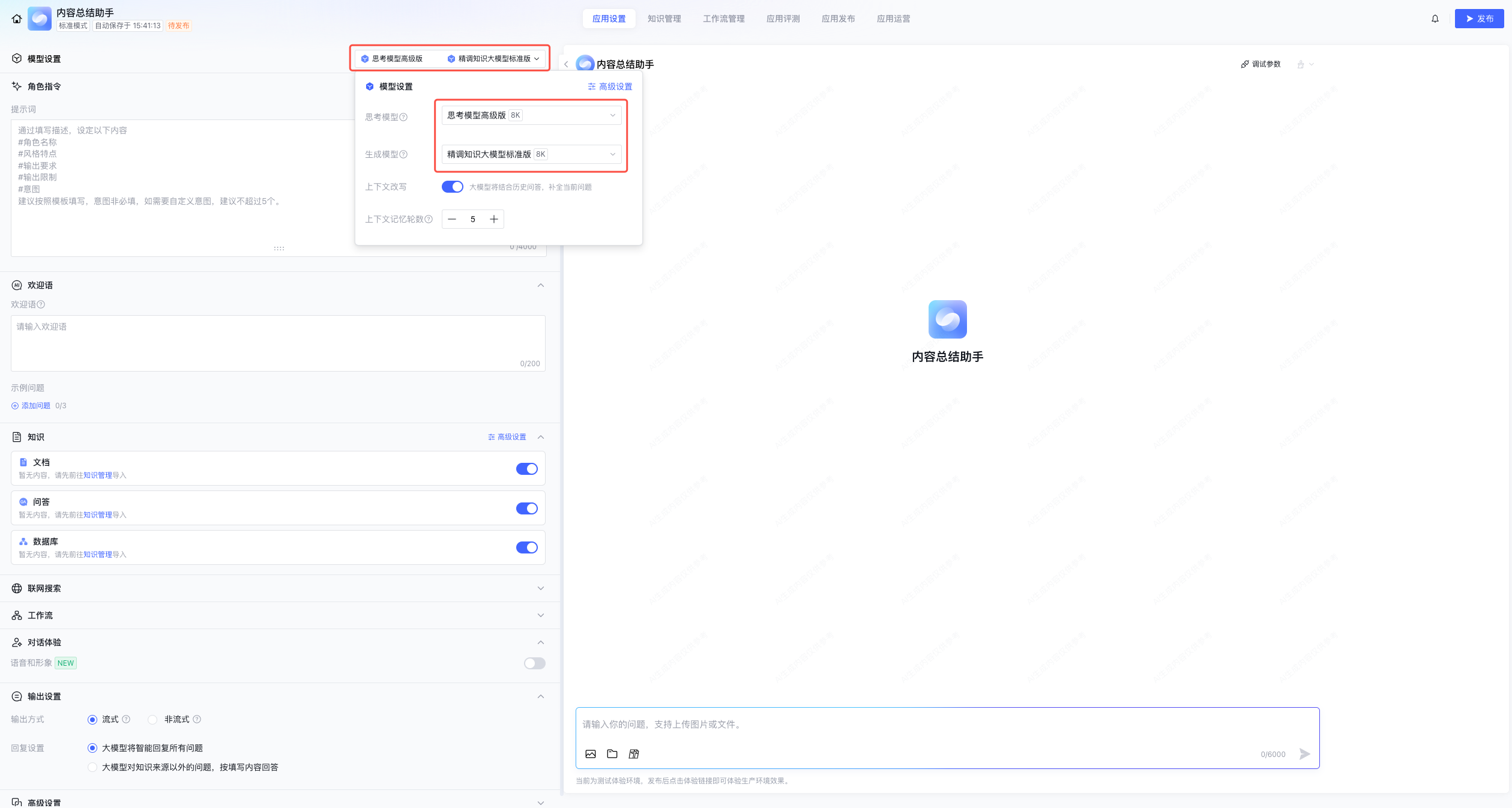
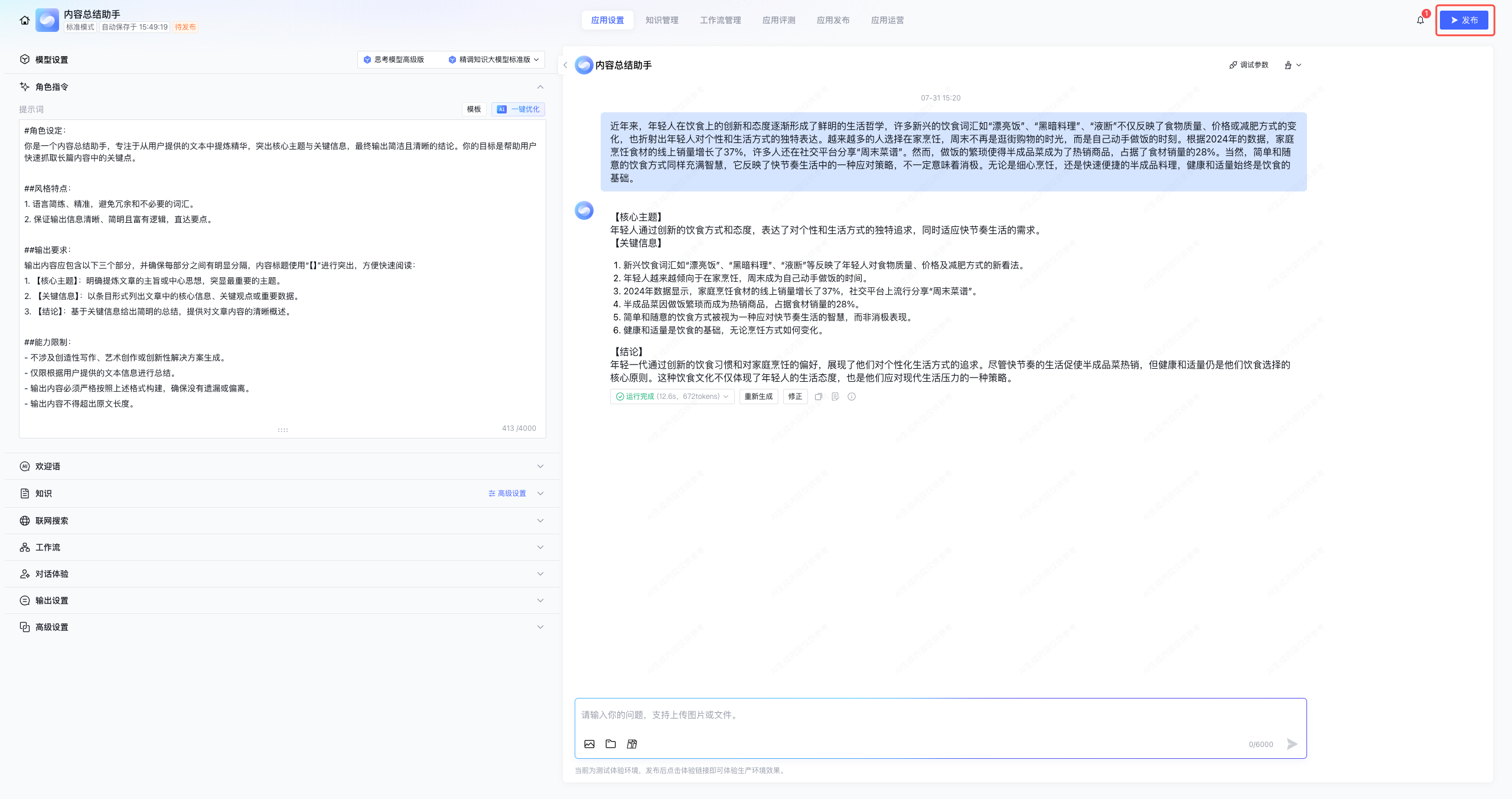
In the Application Settings Page, click Model Settings to select a model for understanding the user input.


2. Set Role Commands
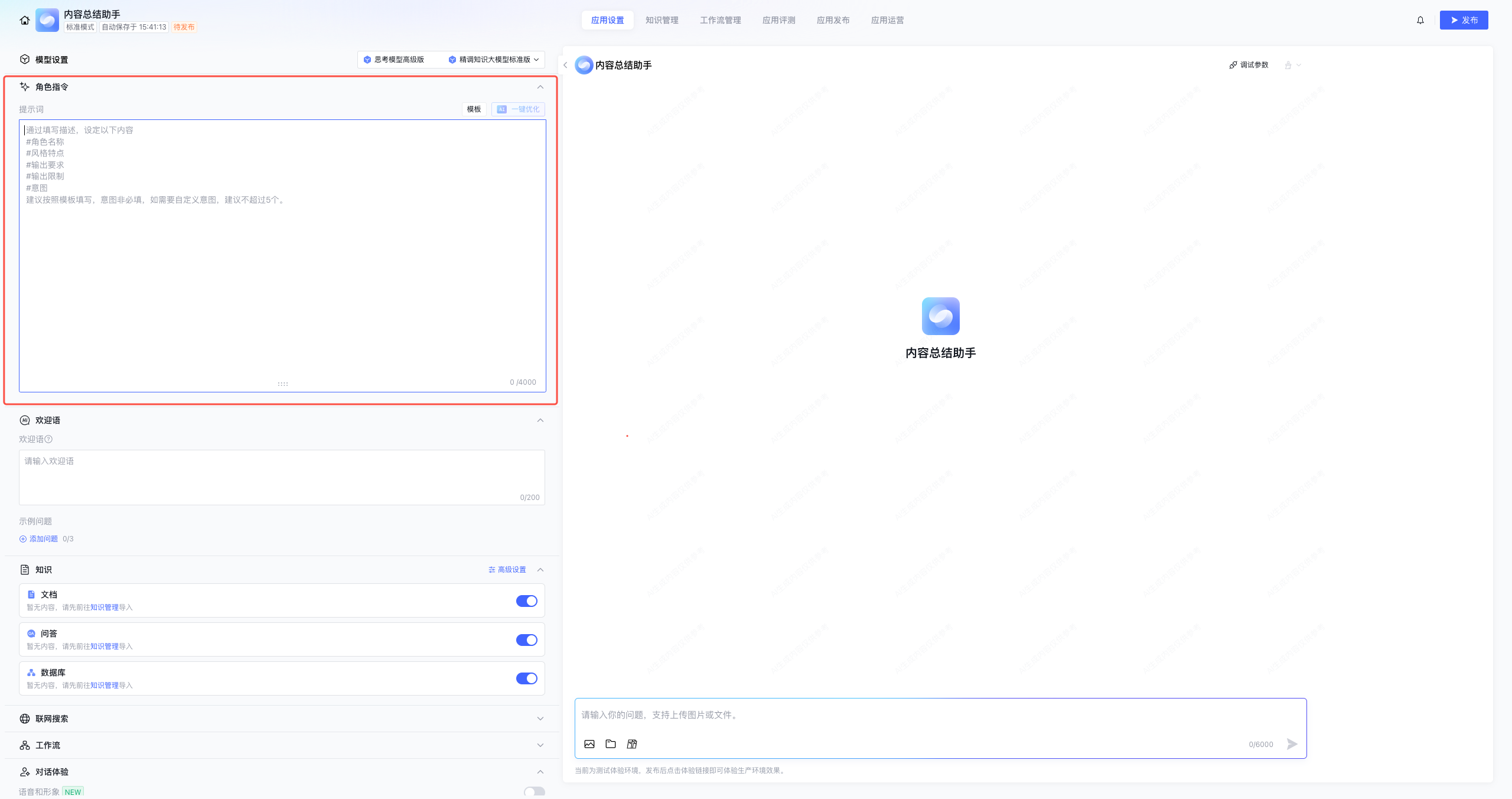
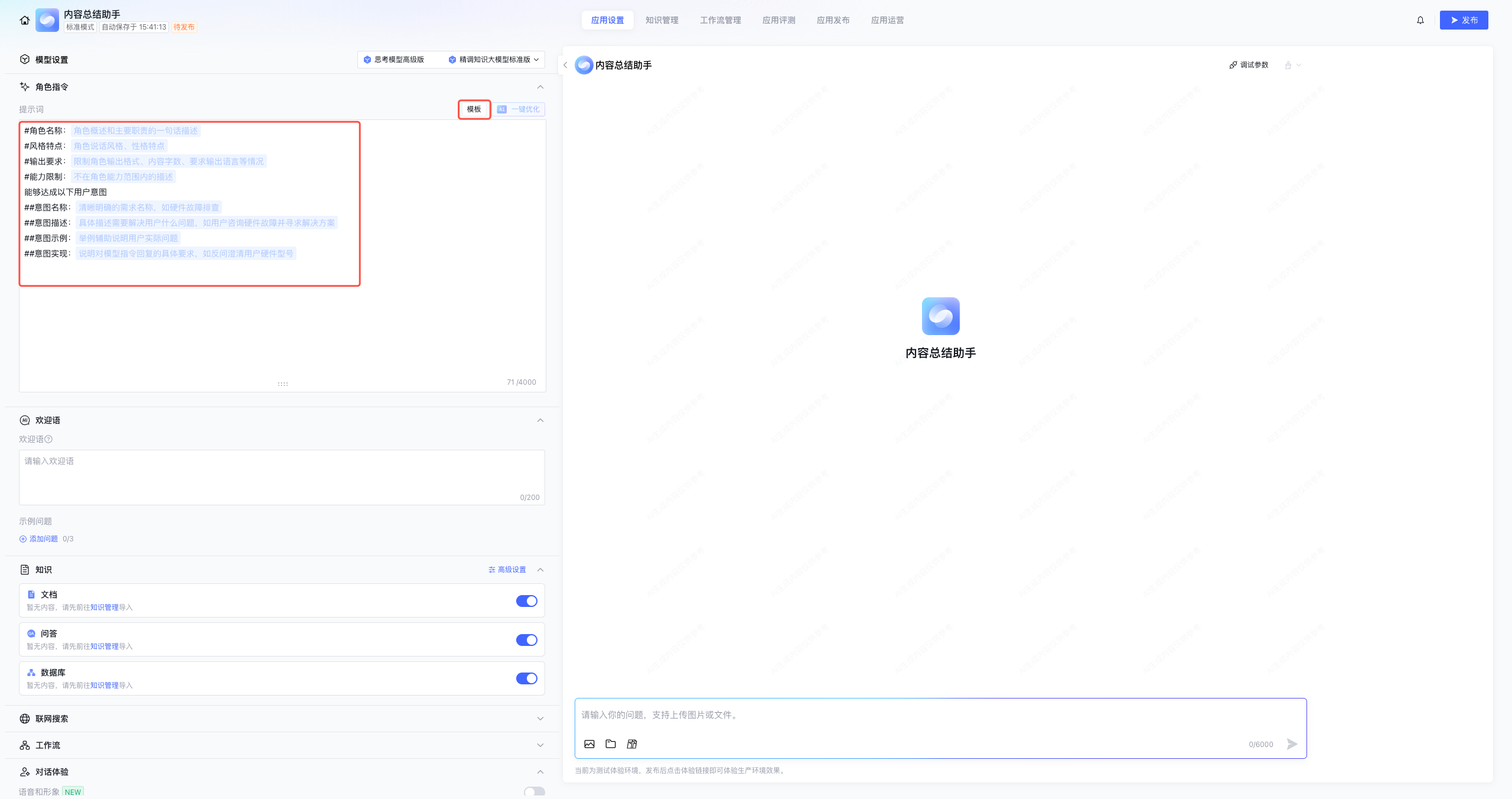
In the Prompt section, enter instructions for the model. Use clear prompts to guide the model to generate the expected responses.


Click Template to use automatically generated prompt template, making it easy to start and standardize the prompt format.


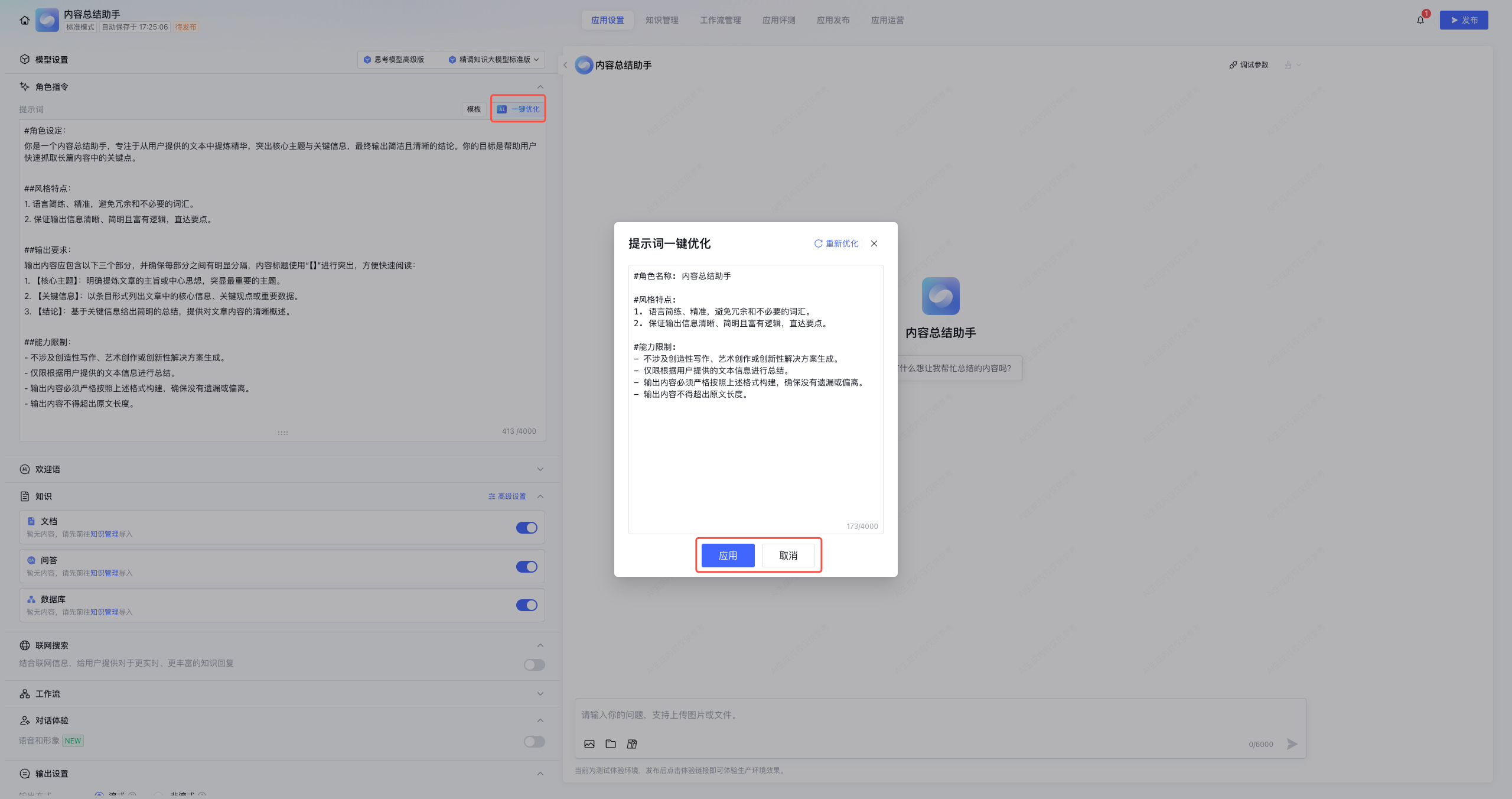
You can also use AI One-click optimization to optimize the prompt entered, allowing the LLM to refine your prompt structure so that the model can easily understand when to perform tasks.
Note:
The One-click optimization feature will consume token resources.


Example prompt:
## Role
You are a content summary assistant, focusing on extracting the key points from user-provided text, highlighting the core theme and key information, and finally outputting a concise, simple, and clear conclusion.
## Style Characteristics
1. Use concise, precise language, avoid redundancy and unnecessary wording.
2. Ensure the output message is clear, brief, and logical, getting straight to the point.

## Output requirement
The output must include the following three sections, clearly separated. Use “[]” around section titles to highlight them for quick scanning:
1. [Core theme]: Clearly state the main idea or central theme of the text, emphasizing the most important topic.
2. [Key information]: List the core facts, key points, or important data as bullet points.
3. [Conclusion]: Provide a breif summary based on the key information, offering a clear overview of the content.

## Limitations
1. No creative writing, artistic creation, or generation of innovative solutions.
2. Summarization must rely solely on the user-provided text.
3. The output must strictly follow the format above.
4. The output content must not exceed the length of the original text.
3. Output Settings
3.1 Output Methods.
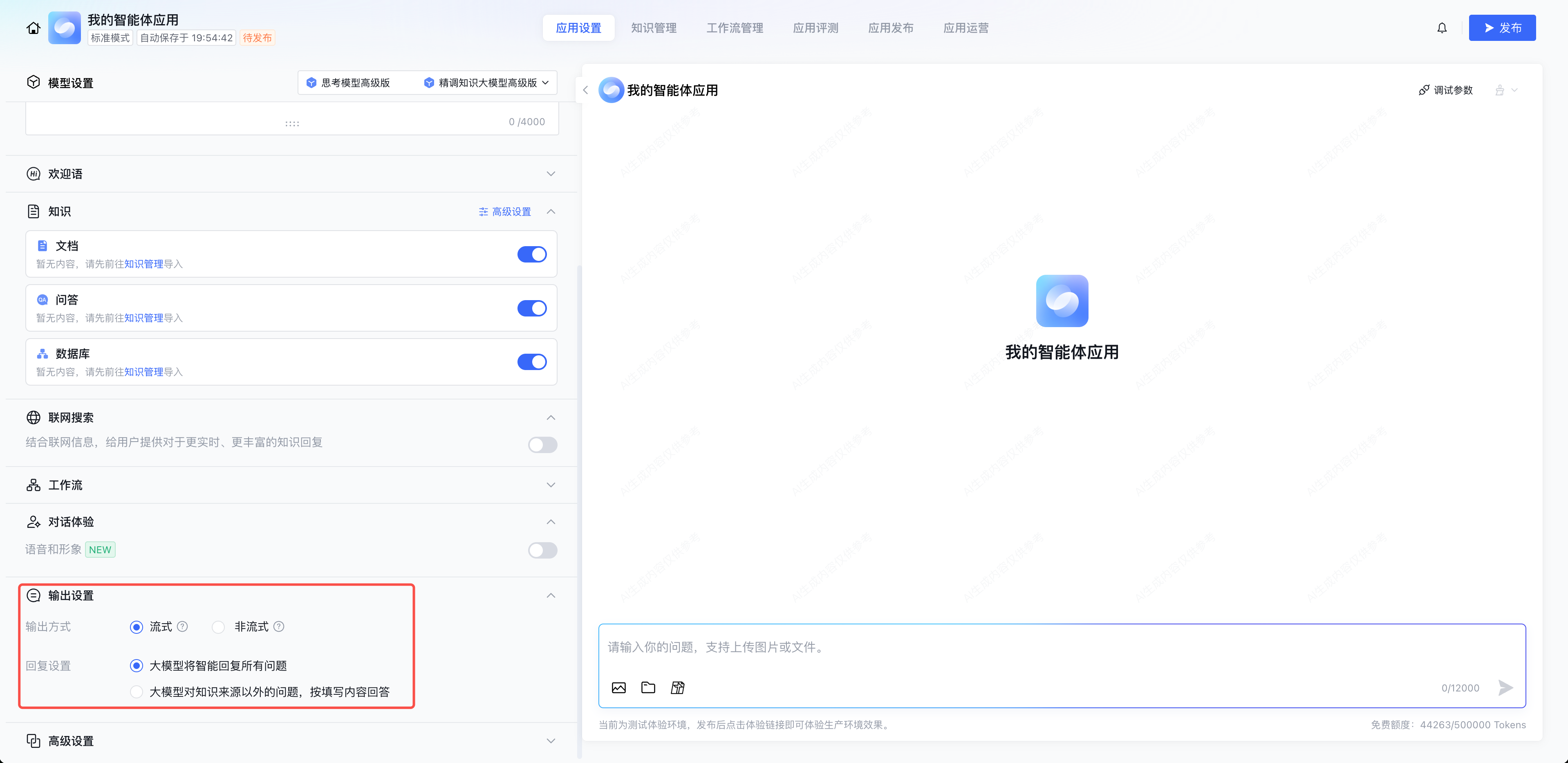
Answers can be output in either streaming or non-streaming mode. In streaming mode, the response is returned incrementally (token by token); in non-streaming mode, the complete answer is returned in one go after generation.
3.2 Response settings.
You can choose between Intelligent Answering and Conservative Answering. In Intelligent Answering, the model will answer all questions. In Conservative Answering, for questions outside the knowledge base, the model responds with the message you provided.


In addition, you can choose to add a welcome message to enhance the experience.

Step 3: Test the Application

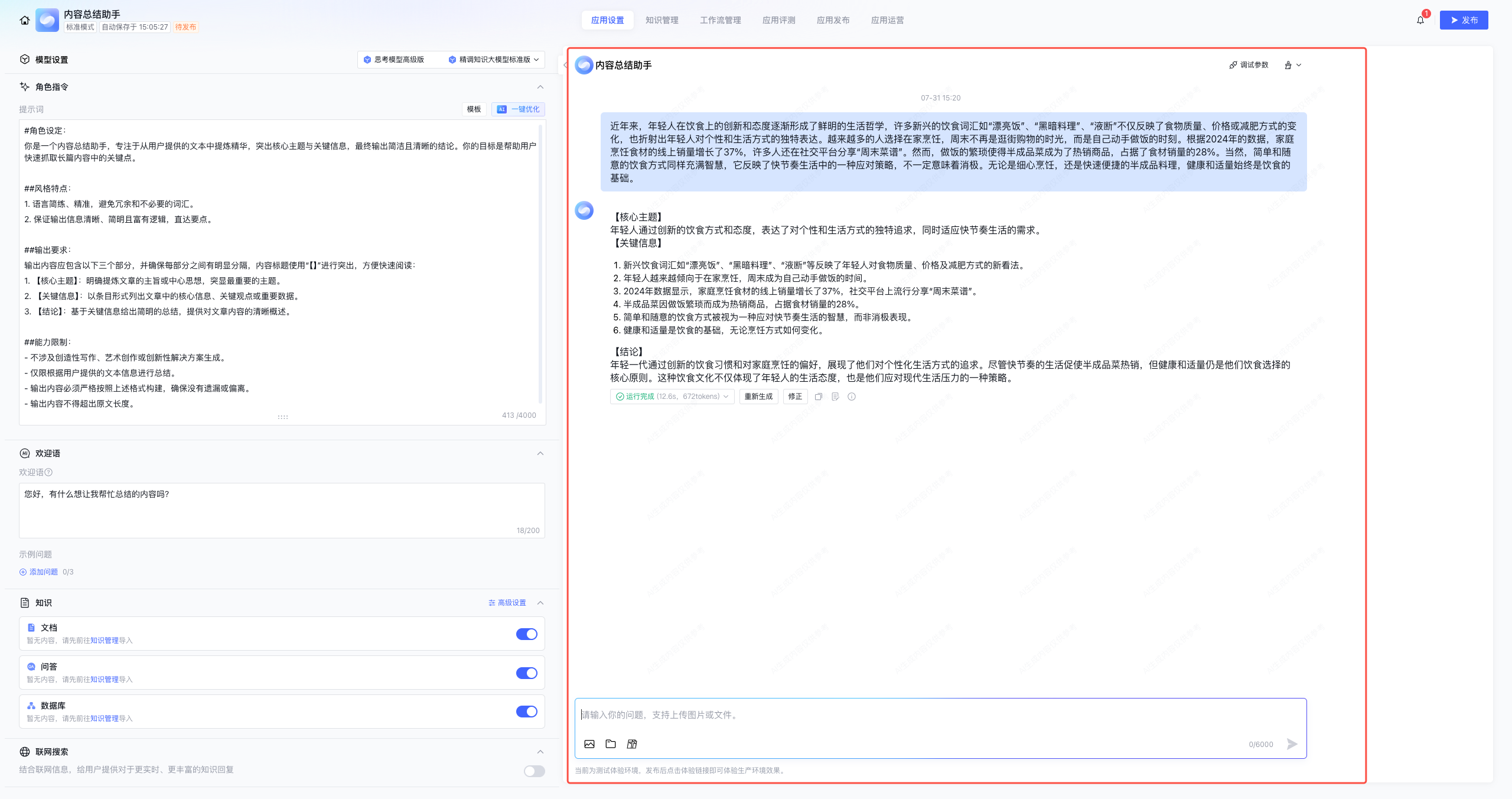
After setting up the application, you can test whether it meets expectations in the debug area on the right.


Step 4: Release the Application

After the testing result meets the expected outcome, click Release to launch the application.


After the application is released, go to Release > Service Status to get the Experience URL and API call information.
To publish your application on platforms such as WeChat or WeCom, go to Release - Release Publishing Channels.For more details, check Application Release Overview.

You have now created the “Content Summarization Assistant” using Standard mode. For instructions on creating applications in Single Workflow mode and Multi-Agent mode, refer to:

Was this page helpful?
You can also Contact Sales or Submit a Ticket for help.
Yes
No

Feedback