Deploying/Updating SSL Certificate for A Domain Name
Download
Focus Mode
Font Size
Last updated: 2026-11-03 15:02:28
This document describes how to deploy/update a self-owned certificate to an EdgeOne domain from the EdgeOne console and the SSL Certificates console respectively.
Note:
1. You can select up to one ECC, one RSA, and one SM2 certificate to deploy to the same domain.
2. The SAN length of the selected certificate cannot exceed 4096 bytes.
Deploying Certificate
Prerequisite
You have purchased an SSL certificate in the SSL Certificates console, or you have uploaded a self-owned certificate to SSL for hosting. For how to upload a hosted certificate, see Uploading SSL Certificates.
Scenario 1: Configuring A Self-Owned Certificate via the EdgeOne Console
You can manage and use a self-owned certificate via the EdgeOne console as instructed below.
1. Log in to the Tencent Cloud EdgeOne console, enter Service Overview in the left menu bar, and click the site to be configured under Website Security Acceleration.
2. In the left sidebar, click Domain Name Service >Domain Management.
3. In the domain name list that appears, find the domain name for which the managed SSL certificate is to be configured and click Edit in the HTTPS column of the domain name.
4. Locate the Edge HTTPS configuration card and click Configure.
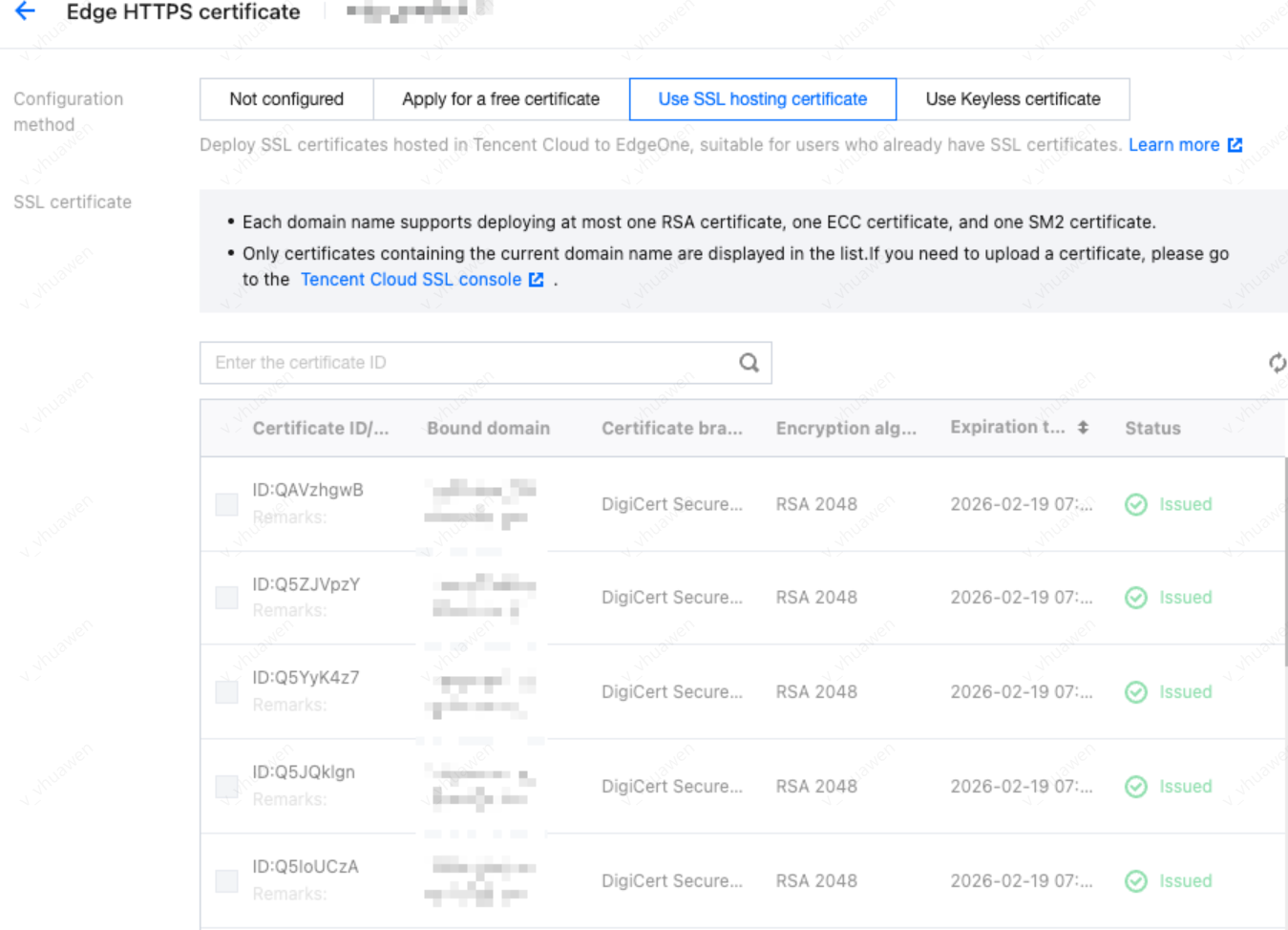
5. In the setting method, select managed SSL certificate, which will automatically display the current deployable certificate list for that domain name. Select the certificate ID to be associated, click Confirm, and the certificate configuration will be deployed.
6. In the domain name list, hover over the icon before Configured in the record of the target domain name, and you can see the information of the deployed certificate.
Scenario 2: Batch Certificate Configuration through EdgeOne console
If your certificate is a multi-domain or wildcard domain name certificate, and you expect to select multiple domain names in EdgeOne and deploy the same certificate to reduce the operation of configuring the same certificate for multiple different domain names, then batch configuration of certificates is suitable for this scenario. The specific operation steps are as follows:
1. Log in to the Tencent Cloud EdgeOne console, enter Service Overview in the left menu bar, and click the site to be configured under Website Security Acceleration.
2. In the left navigation bar, click Domain Name Service > Domain Management.
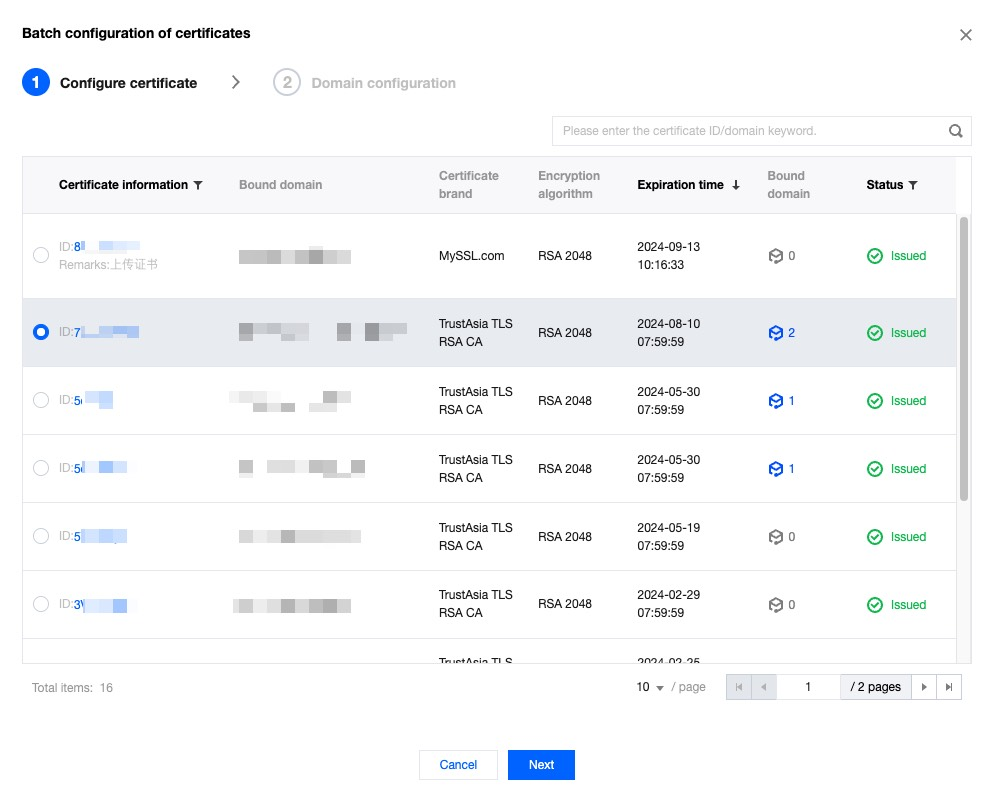
3. On the Domain Management page, click Batch Configuration of Certificate, and in the steps of batch configuration certificate, select the certificate to be configured.
4. Click Next to enter the domain name configuration step. Select the domain names to be deployed in batches, and click Complete to issue the certificate deployment.
Note:
1. Up to 100 domain names can be selected at once. If the certificate needs to be deployed to more than 100 domain names, please operate in batches.
2. If you need to quickly filter out domain names that have already deployed this certificate, please check: Show only domain names that have not deployed this certificate.
Updating the Certificate
Note:
If your certificate is self-owned and uploaded to SSL certificate hosting, when it needs to be updated, you need to re-upload the new certificate content to the SSL Certificate Service console. You can also refer to Certificate deployment for redeployment to update.
If you have purchased an SSL certificate in the SSL Certificates console, we recommend that you enable certificate hosting to implement automatic renewal and update of the certificate. For more information, see Certificate Hosting.
To update a certificate in the EdgeOne console, for example: the current domain has a configured RSA certificate and an ECC Certificate, and the RSA certificate needs to be updated, see the following procedure:
1. Log in to the Tencent Cloud EdgeOne console, enter Service Overview in the left menu bar, and click the site to be configured under Website Security Acceleration.
2. In the left navigation bar, click Domain Name Service > Domain Management.
3. On the domain management list webpage, select the domain name for managed SSL certificate configuration, then click Edit in the HTTPS column to pop up the HTTPS certificate configuration.
4. Locate the Edge HTTPS configuration card and click Configure.
5. In the setting method, select managed SSL certificate, which will automatically display the current deployable certificate list for that domain name. When updating the certificate, since only one cert per algorithm can be deployed, you need to first deselect the old certificate, and then select the new certificate. Select it, then click Confirm, and the certificate configuration will be deployed.