Unbinding an EIP
Download
フォーカスモード
フォントサイズ
You can unbind an Elastic IP (EIP) from a cloud resource at any time. After unbinding the EIP, you can rebind it to other cloud resources. If you no longer need to use the EIP, release it promptly to avoid incurring unnecessary IP resource fees.
Fee Instructions
After an EIP is unbound from cloud resources, the fee instructions for different account types are shown below:
Account Type | Billing Mode | Description |
Traditional Account Type | - | |
Standard Account Type | By traffic | |
| Monthly bandwidth subscription | After you return the EIP, your fees will be returned to you based on the usage proportion of resource packs. For the specific procedure, see Returning a Monthly Bandwidth Subscription EIP. For the refund principles, see General BGP IP Address Refund Instructions. |
| By hourly bandwidth | |
Scenarios
If the CVM instance bound to the EIP fails and needs to be quickly restored, you can unbind it and then rebind it to a healthy CVM instance.
If you no longer need EIP to provide public network communication services for cloud resources, you can unbind the cloud resources from EIP.
You can unbind an EIP blocked by Anti-DDoS from cloud resources, but cannot release it.
Directions
1. Log in to the public IP address console.
2. At the top of the public IP page, select the region of the EIP to be unbound from the cloud resource. In the operation column in the row of the corresponding EIP, click More > Unbind.
3. In the pop-up Unbind EIP window, confirm the unbinding information and click OK.
Note:
A NAT gateway must be bound to at least one EIP. Therefore, if the cloud resource that is to be unbound from an EIP is a NAT gateway and the EIP is the only EIP bound to the NAT gateway, unbinding cannot be performed.
For the traditional account type, you can check Free Allocation of a Regular Public IP Address upon Unbinding when unbinding an EIP.
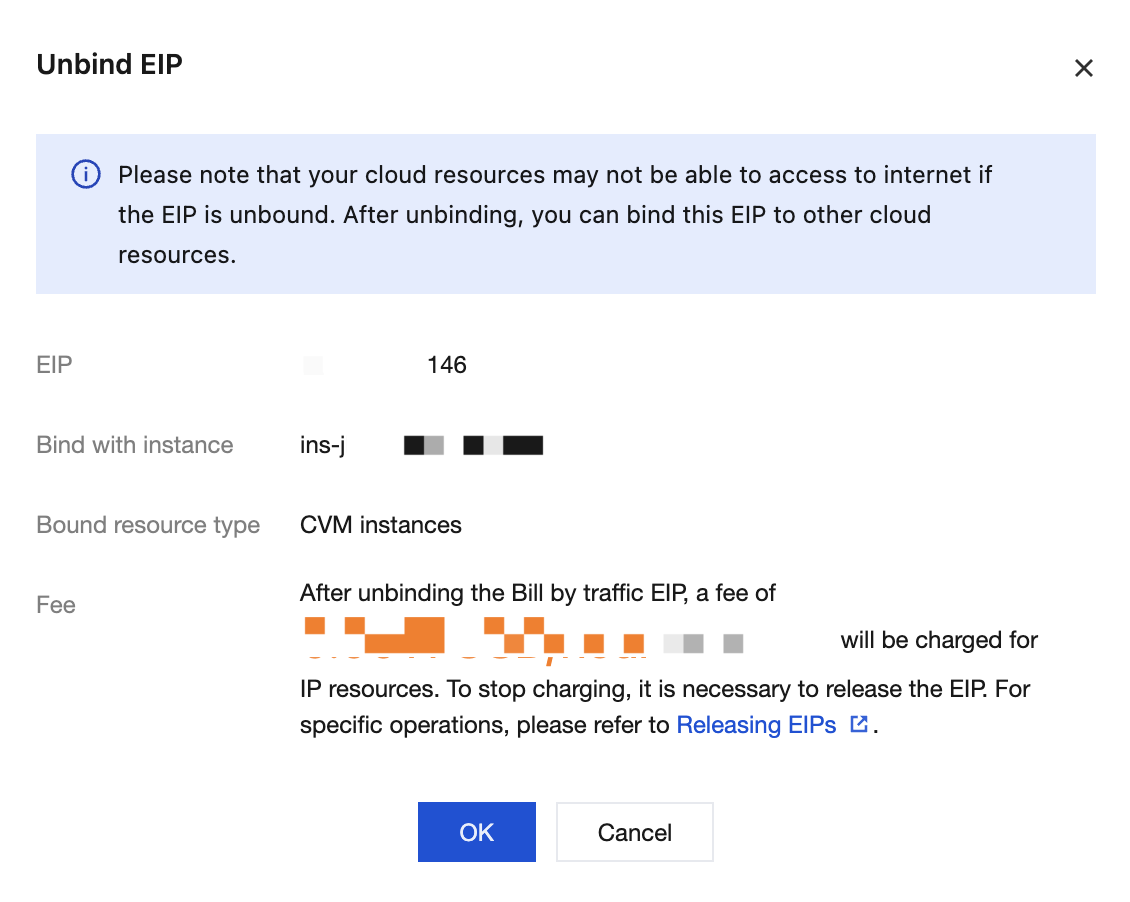
4. In the pop-up prompt box, confirm the information on the IP address to be unbound, and then click OK to complete the unbinding of the EIP from the cloud resource.
Following Steps
If you need to rebound an EIP that has been unbound from a cloud resource to another cloud resource, see Binding EIP to Cloud Resources.
If you need to release an EIP that is in an idle (unbound) state, see Releasing EIPs.
フィードバック