Setting Event Alarms
ダウンロード
フォーカスモード
フォントサイズ
When using a database, it is recommended that you set event alarms for database instances, so that you can be informed of the dynamics of Ops events and other events in a timely manner. After the event alarm setting is completed, if the system detects a corresponding abnormal event, it will send alarm notifications to recipients through multiple optional methods. This document introduces how to set event alarms.
Prerequisites
Through EventBridge of Tencent Cloud Observability Platform (TCOP), you can set event alarms. When you use EventBridge for the first time, you need to enable the EventBridge service.
Alarm-Supported Events
The currently supported event alarm metrics are as follows.
Event Chinese Name | Event English Name | Event Type | Subordinate Dimension | Whether Recovery Concept Exists | Event Description | Handling Method and Suggestions |
Primary-secondary switch | HASwitch | Abnormal event | TencentDB for SQL Server instance dimension | Yes | A switch occurs between the primary and secondary instances. | This event may be triggered by a physical server failure, causing service access disconnection and temporary unavailability. Pay attention to whether the business has an automatic reconnection mechanism to ensure rapid business recovery. |
Operation Steps
Note:
All event alarms generated by TencentDB for SQL Server will be shipped to the cloud service event set. The shipment is performed by default and cannot be changed or edited.
After the Tencent Cloud EventBridge service is enabled, a default cloud service event set will be automatically created in the Guangzhou region. Event alarms generated by TencentDB for SQL Server will be automatically shipped to this event set.
1. Log in to TCOP and choose Event Rules.
2. Set the region to Guangzhou and set the event set to default at the top.
3. Click Create.

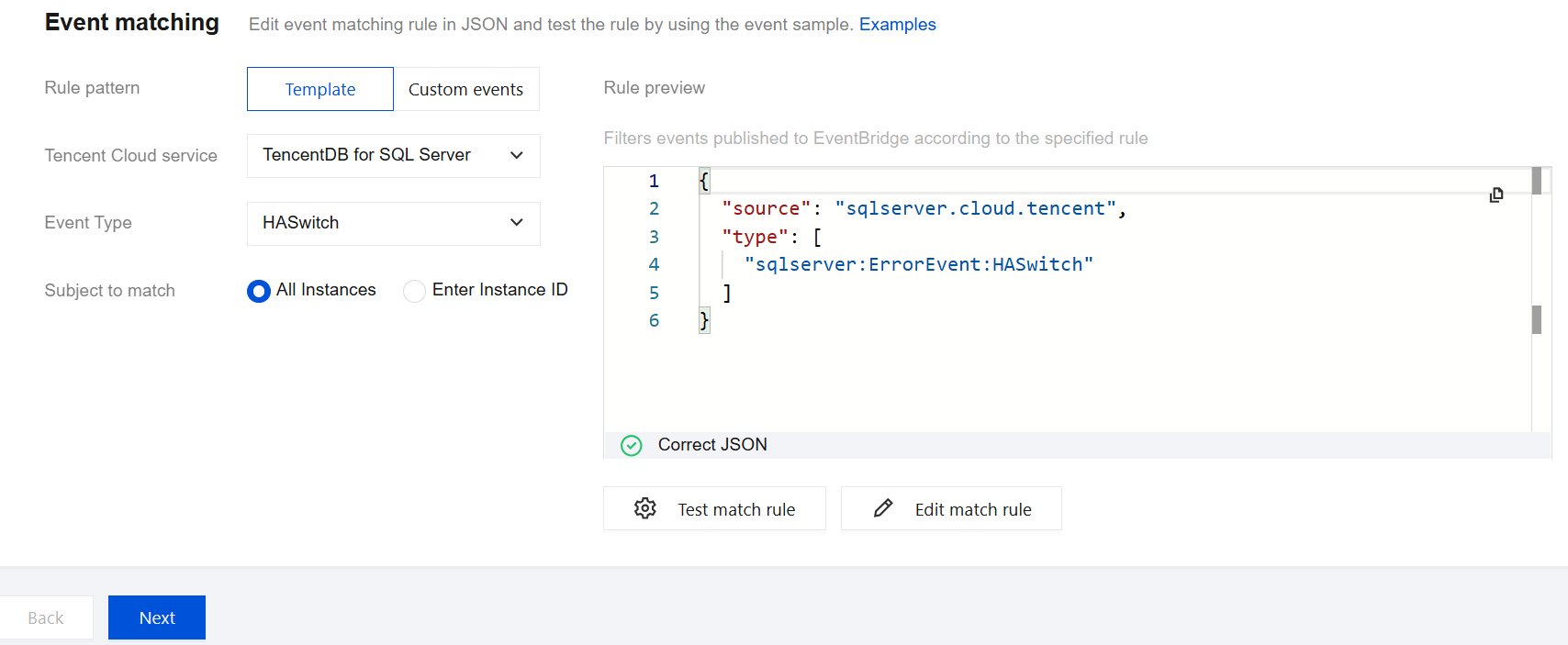
4. Complete the following configurations on the redirected page and click Next.
Parameter | Description |
Rule Name | Fill in the rule name, which can only contain letters, digits, underscores, and hyphens. It should start with a letter and end with a letter or digit. The length should be 2 to 60 characters. |
Rule Description | Fill in the rule description, which can only contain digits, Chinese characters, English letters, and common punctuation marks. The length should be no more than 200 characters. |
Tag | Customize whether to enable tags. If enabled, you can add tags to this event rule. |
Data Conversion | Event data conversion can help you easily process the event content. For example, you can extract and parse fields within the event, perform mapping and reorganization, and then ship the event to the event target. |
Event Sample | The event structure example is provided for reference to configure event matching rules. You can find the target template under Select Event Sample for reference. Set the cloud service type to TencentDB for SQL Server. |
Rule pattern | Form template and custom events are supported. Here, it is recommended to use the form template for more convenience. |
Tencent Cloud service | Select TencentDB for SQL Server. |
Event Type | Select the alarm event type as needed. You can select all types. Currently supported event type: HASwitch. |
Subject to match | Select the matching object for event alarms. You can select All Instances or Enter Instance ID. |
5. On the redirected page, set the event target as needed, check Enable event rules now, and click Complete. (Various trigger methods are available. You can choose as needed. The figure below shows an example with the trigger method set to "Message push". The set contacts will be pushed through channel push, and the recipient user should be set separately in the recipient area. The notification period should be negotiated and confirmed with the corresponding account user. Receiving channels include email, SMS, phone and message center.)
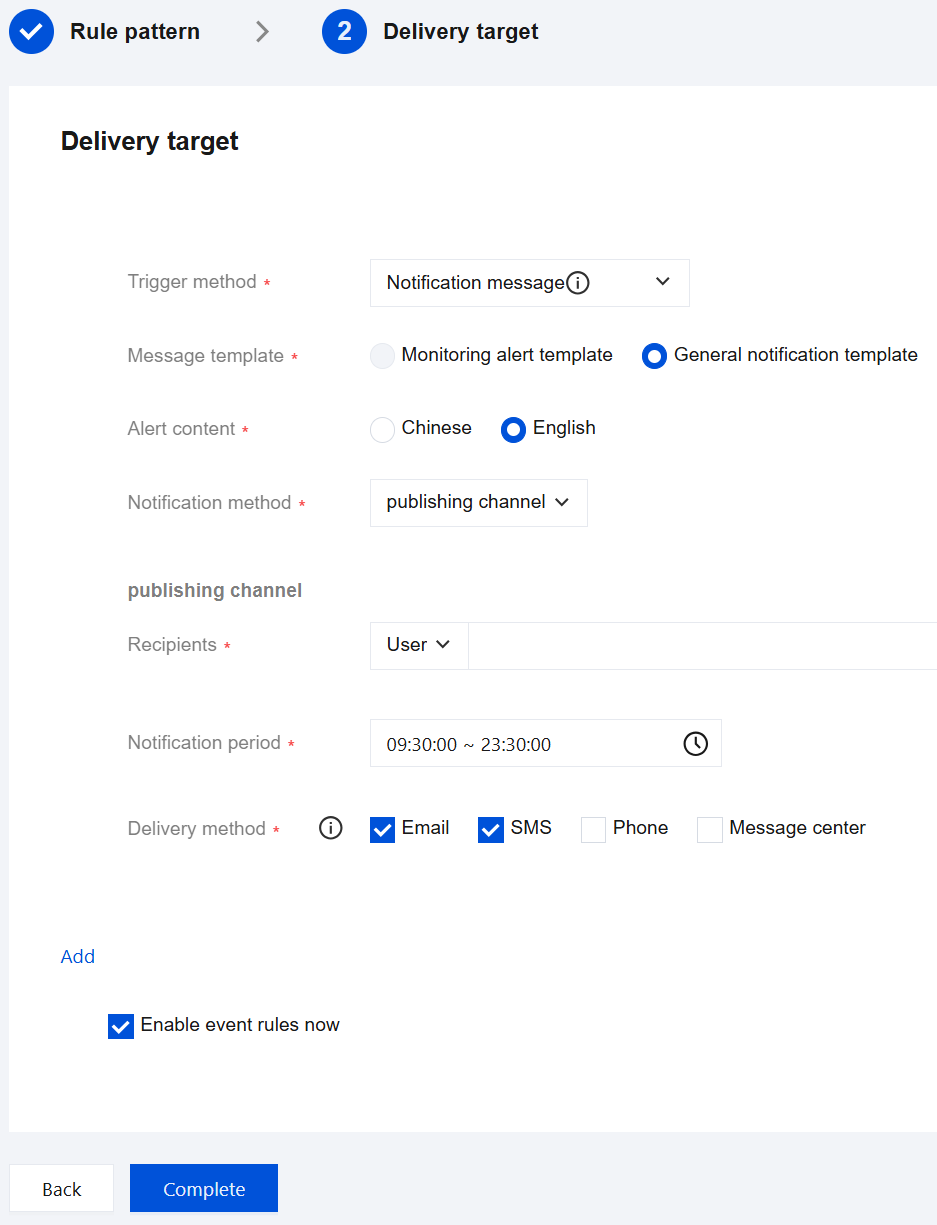
6. After all the above settings are completed, if the corresponding event is triggered, the system will notify the recipient via the receiving channels you have set.
フィードバック