tencent cloud

Tencent Real-Time Communication

お知らせ・リリースノート
製品アップデート情報
Tencent Cloudオーディオビデオ端末SDKの再生アップグレードおよび承認チェック追加に関するお知らせ
TRTCアプリケーションのサブスクリプションパッケージサービスのリリースに関する説明について
製品の説明
製品概要
基礎概念
製品の機能
製品の強み
ユースケース
性能データ
購入ガイド
Billing Overview
無料時間の説明
Monthly subscription
Pay-as-you-go
TRTC Overdue and Suspension Policy
課金に関するよくあるご質問
Refund Instructions
初心者ガイド
Demo体験
Call
コンポーネントの説明(TUICallKit)
Activate the Service
Run Demo
クイック導入
オフライン通知
Conversational Chat
クラウドレコーディング(TUICallKit)
AI Noise Reduction
インターフェースのカスタマイズ
Calls integration to Chat
Additional Features
No UI Integration
Server APIs
Client APIs
Solution
ErrorCode
公開ログ
よくある質問
ライブ配信
Billing of Video Live Component
Overview
Activating the Service (TUILiveKit)
Demo のクイックスタート
No UI Integration
UI Customization
Live Broadcast Monitoring
Video Live Streaming
Voice Chat Room
Advanced Features
Client APIs
Server APIs
Error Codes
Release Notes
FAQs
RTC Engine
Activate Service
SDKのダウンロード
APIコードサンプル
Usage Guidelines
クライアント側 API
高度な機能
RTC RESTFUL API
History
Introduction
API Category
Room Management APIs
Stream mixing and relay APIs
On-cloud recording APIs
Data Monitoring APIs
Pull stream Relay Related interface
Web Record APIs
AI Service APIs
Cloud Slicing APIs
Cloud Moderation APIs
Making API Requests
Call Quality Monitoring APIs
Usage Statistics APIs
Data Types
Appendix
Error Codes
コンソールガイド
アプリケーション管理
使用統計
監視ダッシュボード
開発支援
Solution
Real-Time Chorus
よくあるご質問
課金関連問題
機能関連
UserSig関連
ファイアウォールの制限の対応関連
インストールパッケージの圧縮に関するご質問
AndriodおよびiOS関連
Web端末関連
Flutter関連
Electron関連
TRTCCalling Web関連
オーディオビデオ品質関連
その他のご質問
旧バージョンのドキュメント
TUIRoom(Web)の統合
TUIRoom (Android)の統合
TUIRoom (iOS)の統合
TUIRoom (Flutter)の統合
TUIRoom (Electron)の統合
TUIRoom APIのクエリー
クラウドレコーディングと再生の実現(旧)
Protocols and Policies
セキュリティコンプライアンス認証
セキュリティホワイトペーパー
情報セキュリティの説明
Service Level Agreement
Apple Privacy Policy: PrivacyInfo.xcprivacy
TRTC ポリシー
プライバシーポリシー
データ処理とセキュリティ契約
用語集

Activate the Service

PDF
フォーカスモード
フォントサイズ
最終更新日: 2026-01-16 21:41:25


Activate Trial Service

To better experience the features of TRTC Call, we provide a 7-day free trial. Each SDKAppID can try TRTC Call twice for free, each time for 7 days. Each account can try TRTC Call 10 times in total.
You can refer to the following guidelines to activate the trial edition of Call.
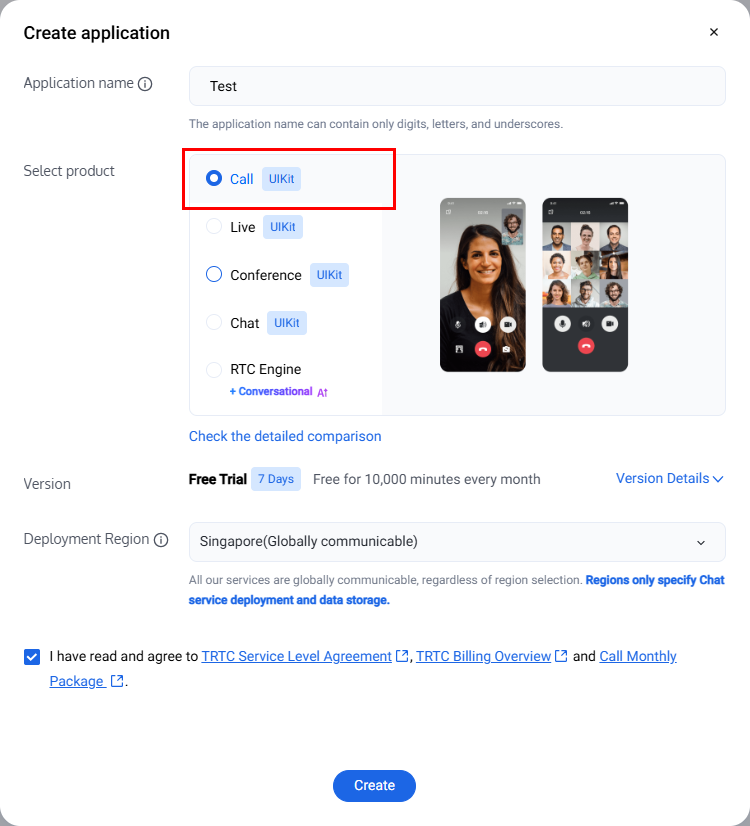
1. Log in to the Tencent RTC Console, and click on Create Application.


2. In the popup, enter an application name, select Call, and choose the appropriate deployment region. Then click Create. This will create a TRTC application bound to the trial edition of TRTC Call.


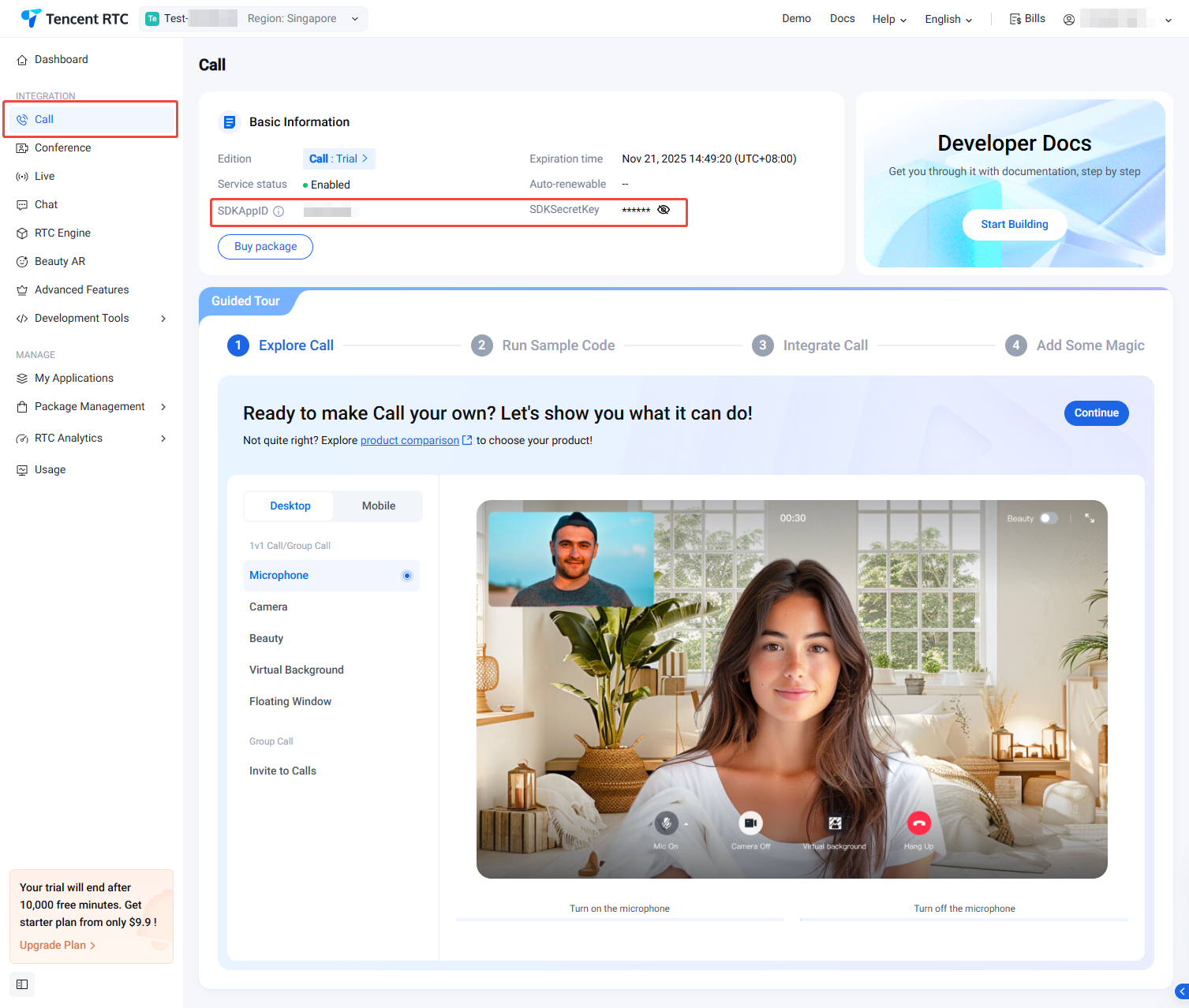
3. After the application has been created, you will automatically be taken to the Call product details page. At this point, you have quickly created an application and successfully received the TRTC Call (TUICallKit) trial version. You can view information on the current Call Product Details Page or My Applications, and refer to the Integration Guide for integration. The SDKAppID and SDKSecretKey will be used in the Integration Guide.


Purchasing the Official Edition

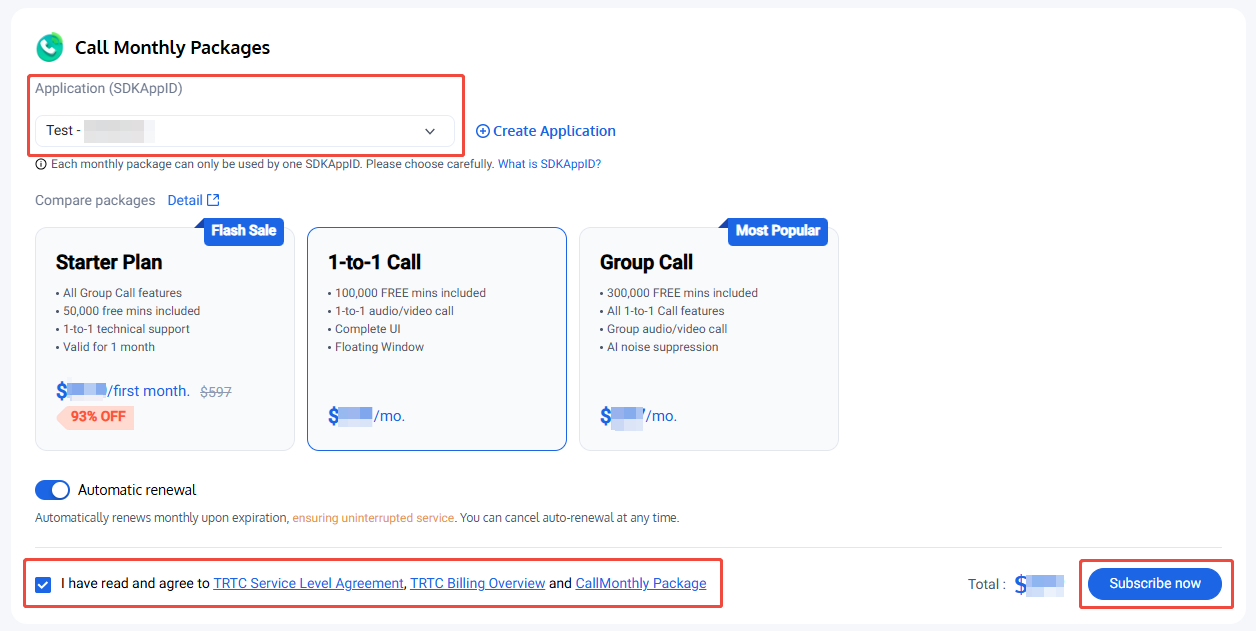
You need to purchase call monthly subscription to use TUICallKit. For the price and feature comparison details of the Call monthly subscription package, please refer to Call Monthly Packages Billing Instructions. To purchase, please follow the steps below:
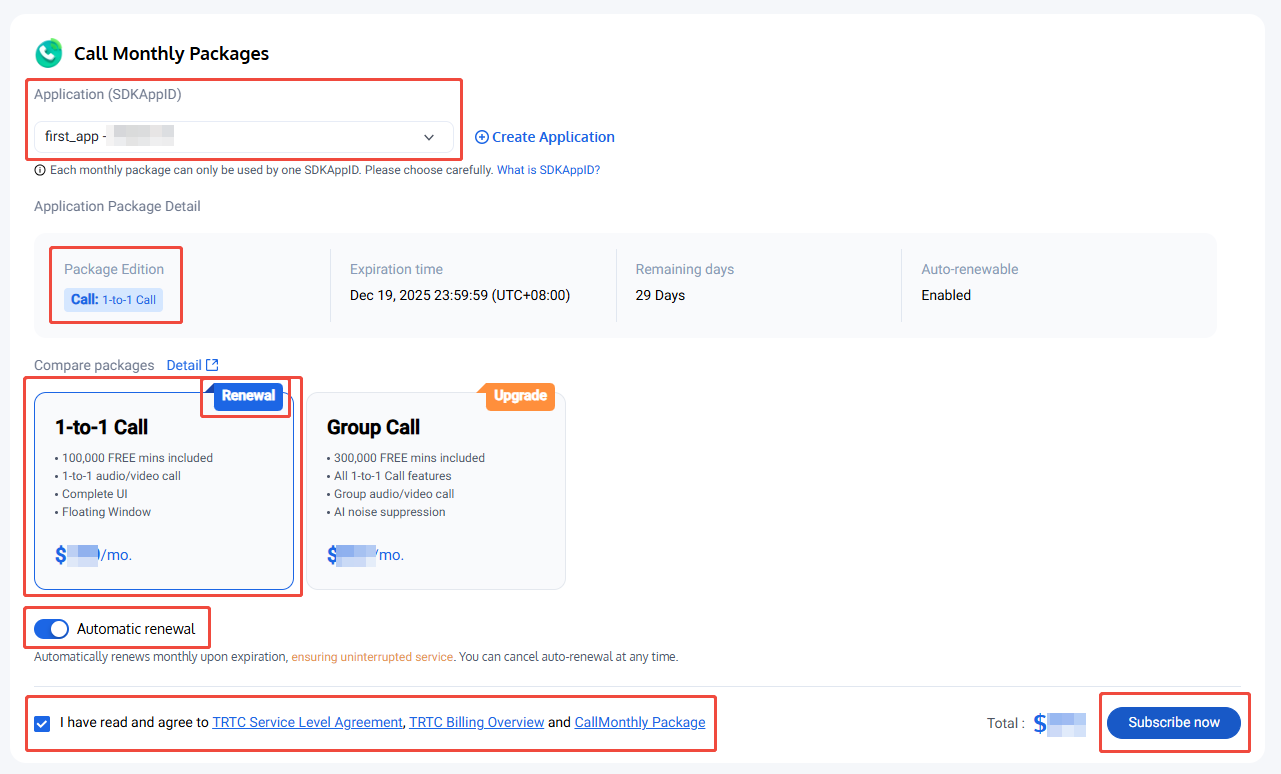
1. Visit the Call Purchase Page, select the application (SDKAppID) and package type you want to purchase, and it is recommended to enable auto-renewal to avoid impacting business usage. After confirming the purchase information and agreeing to the relevant agreement, click Subscribe now.


2. Proceed to payment page to complete payment. After purchase completion, you can go to Call Product Details Page or My Applications to view application version information. See Integration Guide to integrate.

Renew the Official Edition

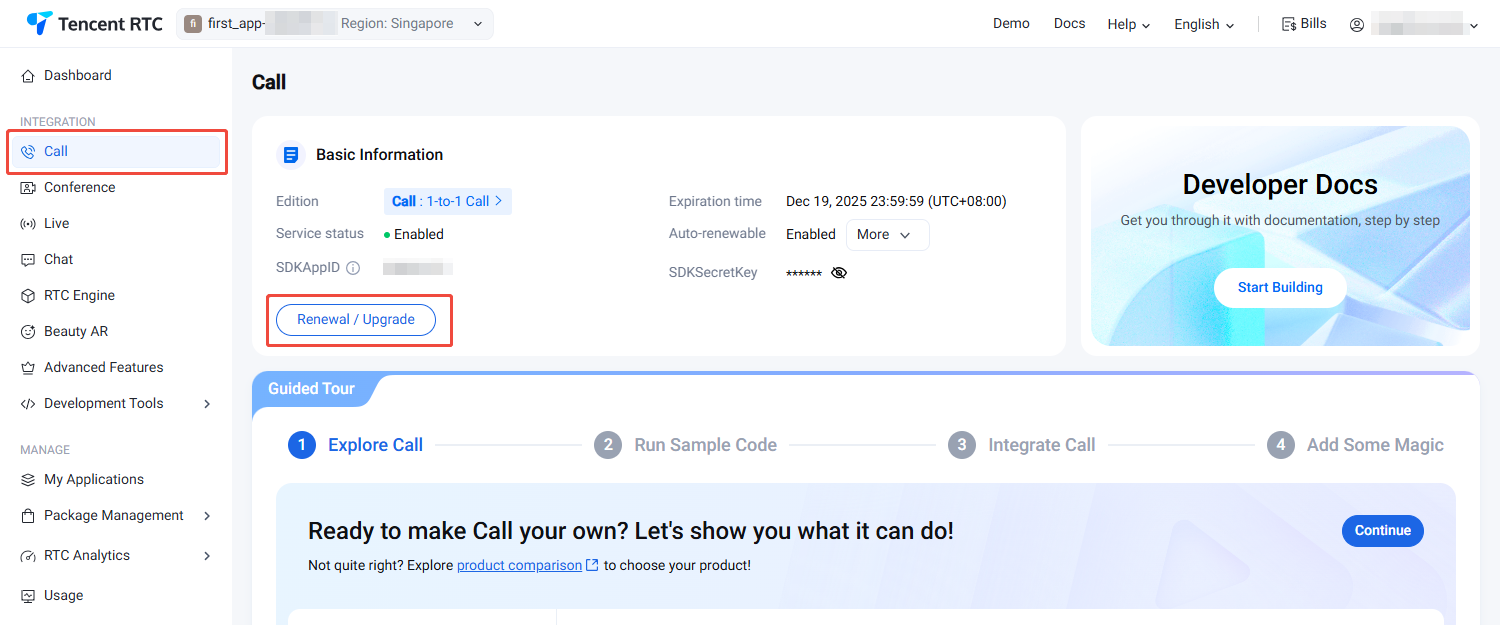
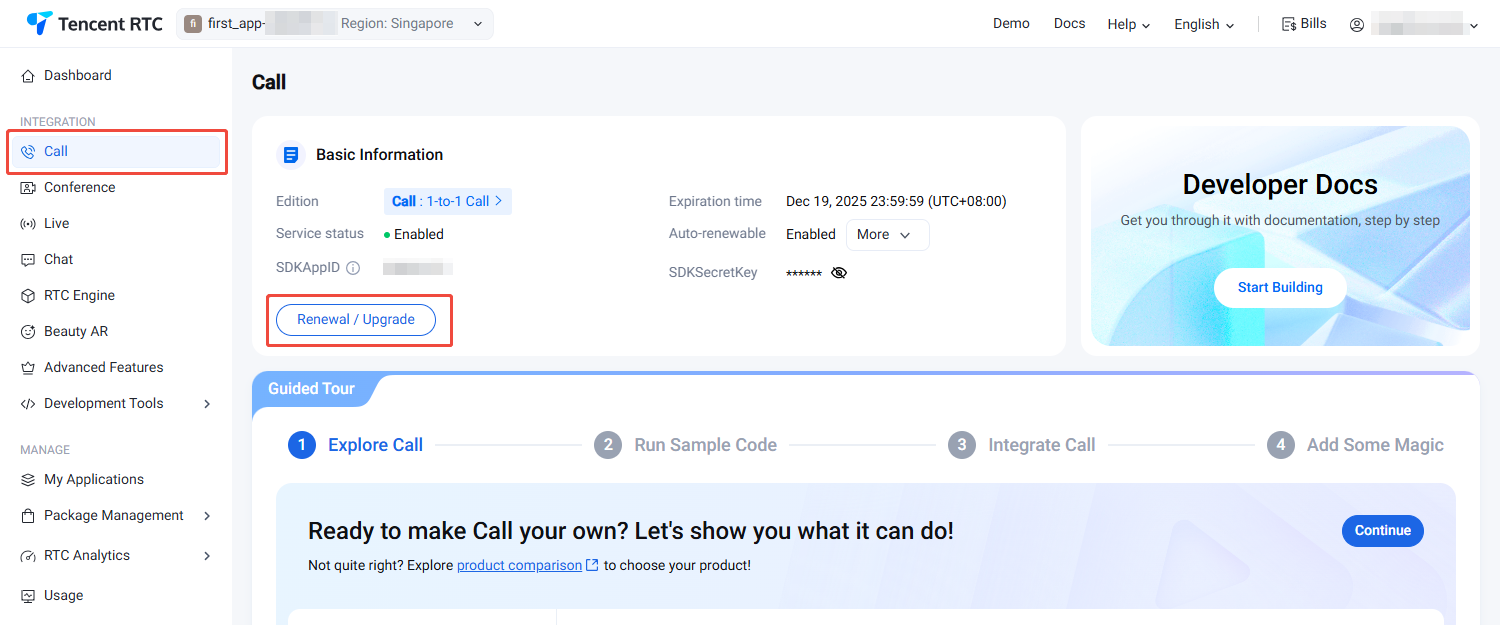
1. Visit Call Product Details Page, click Renewal / Upgrade.


2. Visit Call Purchase Page, confirm the application (SDKAppID) to purchase, select the version of the same application package, and it is recommended to enable auto-renewal to avoid affecting business usage. When enabled, the system will automatically renew monthly after expiration when the account balance is sufficient. After confirming purchase information and agreeing to the relevant agreement, click Subscribe now.


3. Proceed to payment page to complete payment. After purchase completion, you can go to Call Product Details Page or My Applications to view application version information. See Integration Guide to integrate.

Upgrading the Official Edition

1. Visit Call Product Details Page, click Renewal / Upgrade.


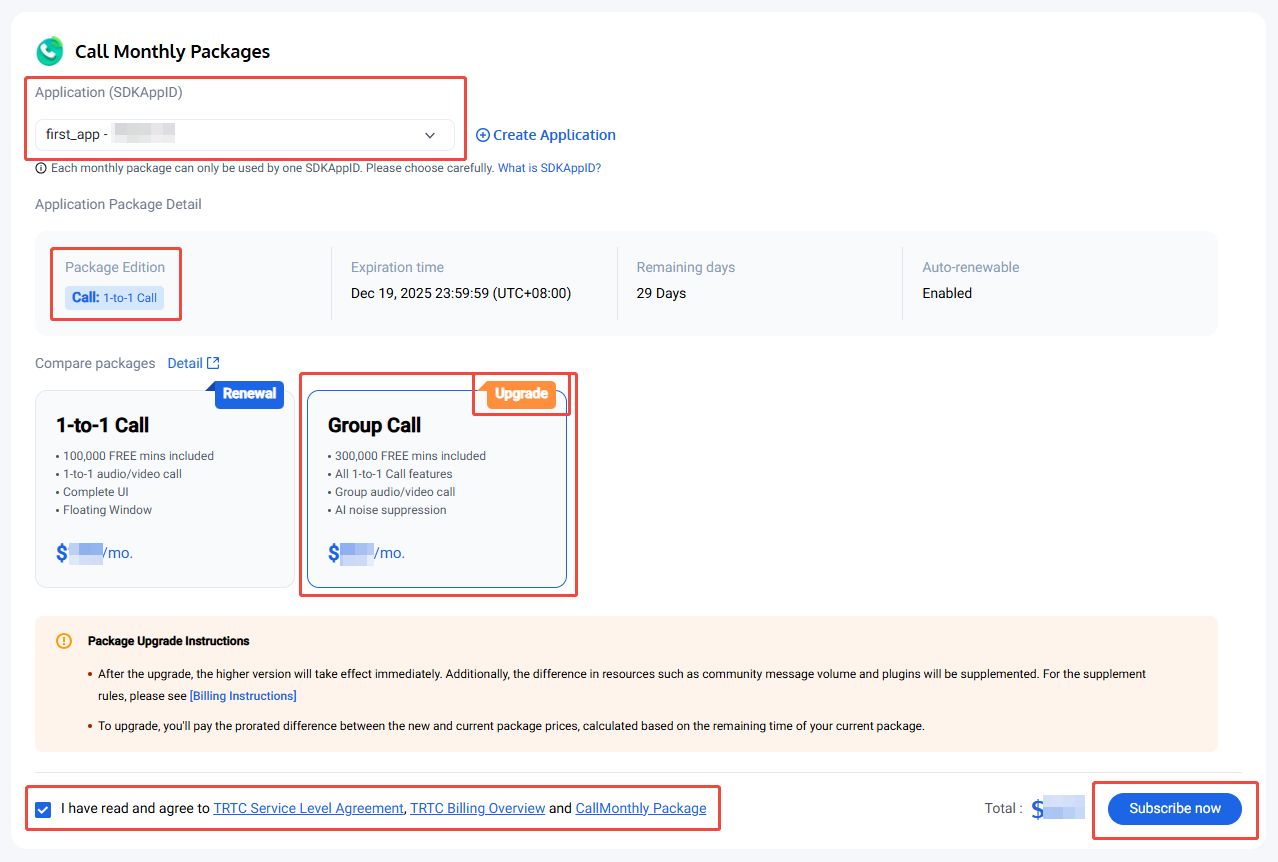
2. Visit Call Purchase Page, confirm the application (SDKAppID) that requires upgrading, select a more advanced version than the current application package, then click Subscribe now after confirming purchase information and agreeing to the relevant agreement.


3. Proceed to the payment page to complete payment. After purchase completion, you can go to Call Product Details Page or My Applications to view application version info.

Automatic Renewal

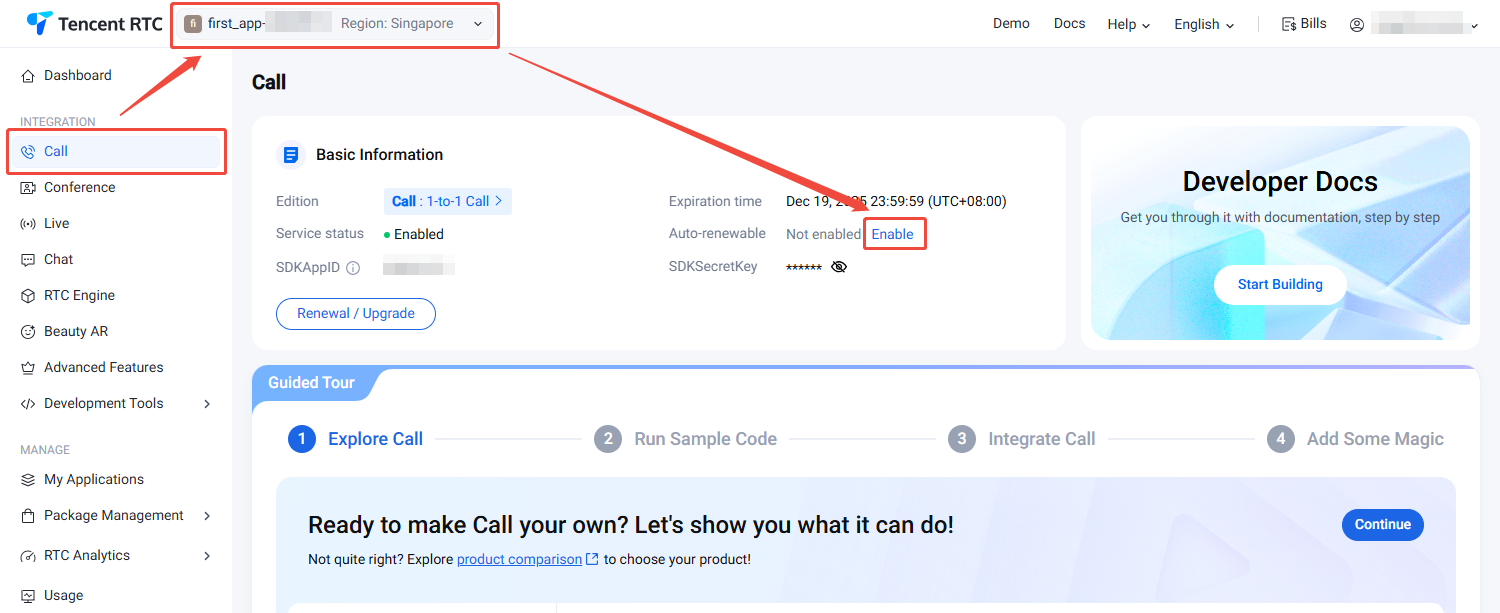
The specific steps to enable auto-renewal in the console are as follows:
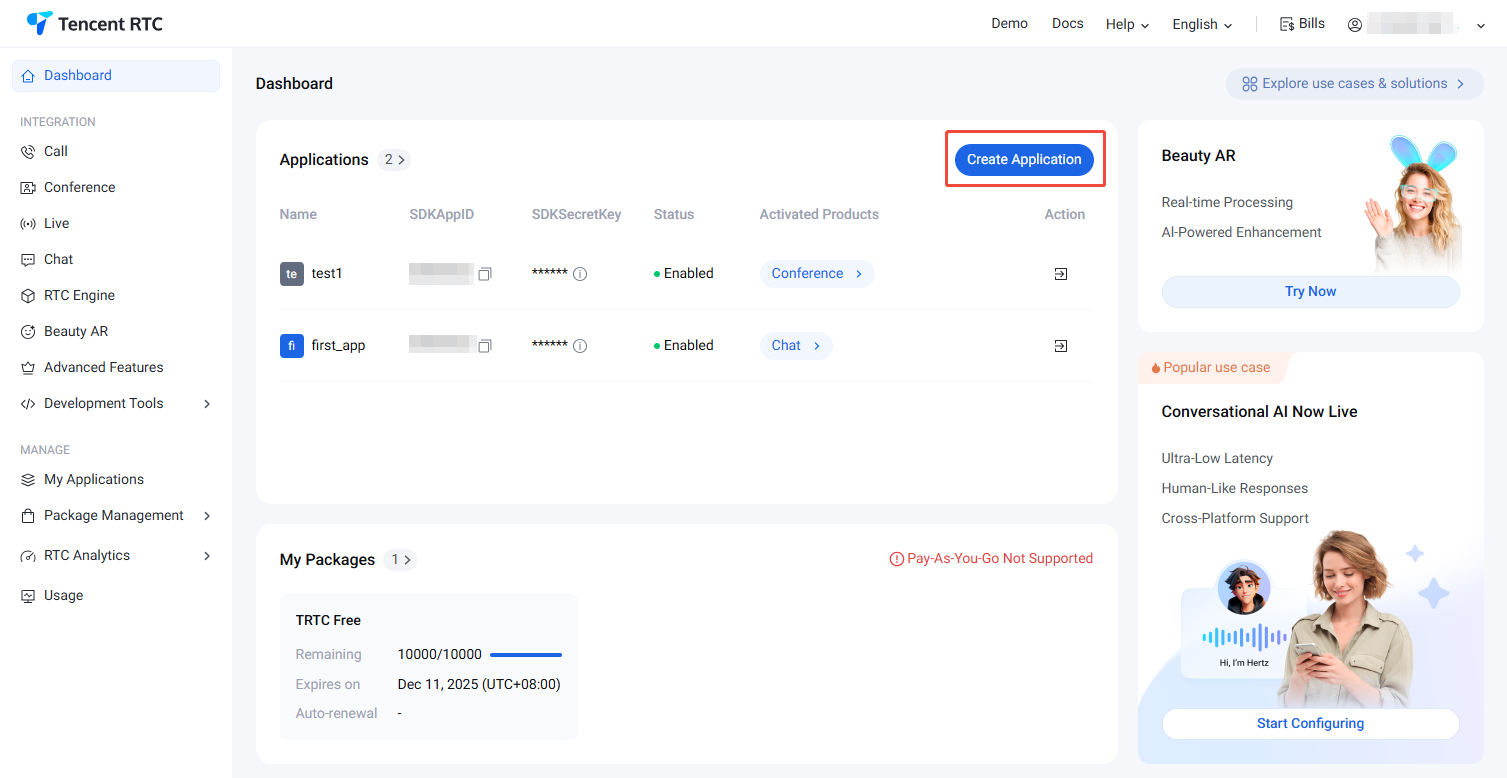
2. Select the application for which you want to enable auto-renewal.
3. In the Call product information, click the Auto-renewable Enable button. A confirmation pop-up will appear. Click Enable.


ヘルプとサポート

この記事はお役に立ちましたか?

フィードバック