tencent cloud

Tencent Real-Time Communication

お知らせ・リリースノート
製品アップデート情報
Tencent Cloudオーディオビデオ端末SDKの再生アップグレードおよび承認チェック追加に関するお知らせ
TRTCアプリケーションのサブスクリプションパッケージサービスのリリースに関する説明について
製品の説明
製品概要
基礎概念
製品の機能
製品の強み
ユースケース
性能データ
購入ガイド
Billing Overview
無料時間の説明
Monthly subscription
Pay-as-you-go
TRTC Overdue and Suspension Policy
課金に関するよくあるご質問
Refund Instructions
初心者ガイド
Demo体験
Call
コンポーネントの説明(TUICallKit)
Activate the Service
Run Demo
クイック導入
オフライン通知
Conversational Chat
クラウドレコーディング(TUICallKit)
AI Noise Reduction
インターフェースのカスタマイズ
Calls integration to Chat
Additional Features
No UI Integration
Server APIs
Client APIs
Solution
ErrorCode
公開ログ
よくある質問
ライブ配信
Billing of Video Live Component
Overview
Activating the Service (TUILiveKit)
Demo のクイックスタート
No UI Integration
UI Customization
Live Broadcast Monitoring
Video Live Streaming
Voice Chat Room
Advanced Features
Client APIs
Server APIs
Error Codes
Release Notes
FAQs
RTC Engine
Activate Service
SDKのダウンロード
APIコードサンプル
Usage Guidelines
クライアント側 API
高度な機能
RTC RESTFUL API
History
Introduction
API Category
Room Management APIs
Stream mixing and relay APIs
On-cloud recording APIs
Data Monitoring APIs
Pull stream Relay Related interface
Web Record APIs
AI Service APIs
Cloud Slicing APIs
Cloud Moderation APIs
Making API Requests
Call Quality Monitoring APIs
Usage Statistics APIs
Data Types
Appendix
Error Codes
コンソールガイド
アプリケーション管理
使用統計
監視ダッシュボード
開発支援
Solution
Real-Time Chorus
よくあるご質問
課金関連問題
機能関連
UserSig関連
ファイアウォールの制限の対応関連
インストールパッケージの圧縮に関するご質問
AndriodおよびiOS関連
Web端末関連
Flutter関連
Electron関連
TRTCCalling Web関連
オーディオビデオ品質関連
その他のご質問
旧バージョンのドキュメント
TUIRoom(Web)の統合
TUIRoom (Android)の統合
TUIRoom (iOS)の統合
TUIRoom (Flutter)の統合
TUIRoom (Electron)の統合
TUIRoom APIのクエリー
クラウドレコーディングと再生の実現(旧)
Protocols and Policies
セキュリティコンプライアンス認証
セキュリティホワイトペーパー
情報セキュリティの説明
Service Level Agreement
Apple Privacy Policy: PrivacyInfo.xcprivacy
TRTC ポリシー
プライバシーポリシー
データ処理とセキュリティ契約
用語集

Host Live Streaming(Android)

PDF
フォーカスモード
フォントサイズ
最終更新日: 2026-02-24 17:12:32
The TUILiveKit Host Live Streaming Page provides a full-featured UI for live streaming scenarios. It supports the rapid deployment of core host capabilities, allowing you to efficiently integrate the live streaming workflow without worrying about complex UI and logic implementation.

Feature Overview

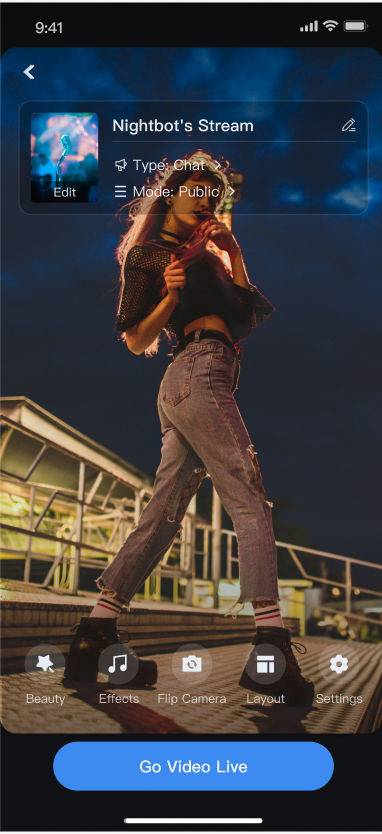
Pre-stream Setup: Supports various personalized configurations before the host goes live, including room name, background, video preview, beauty filters (beauty effects) debugging, audio effects debugging, and layout templates.
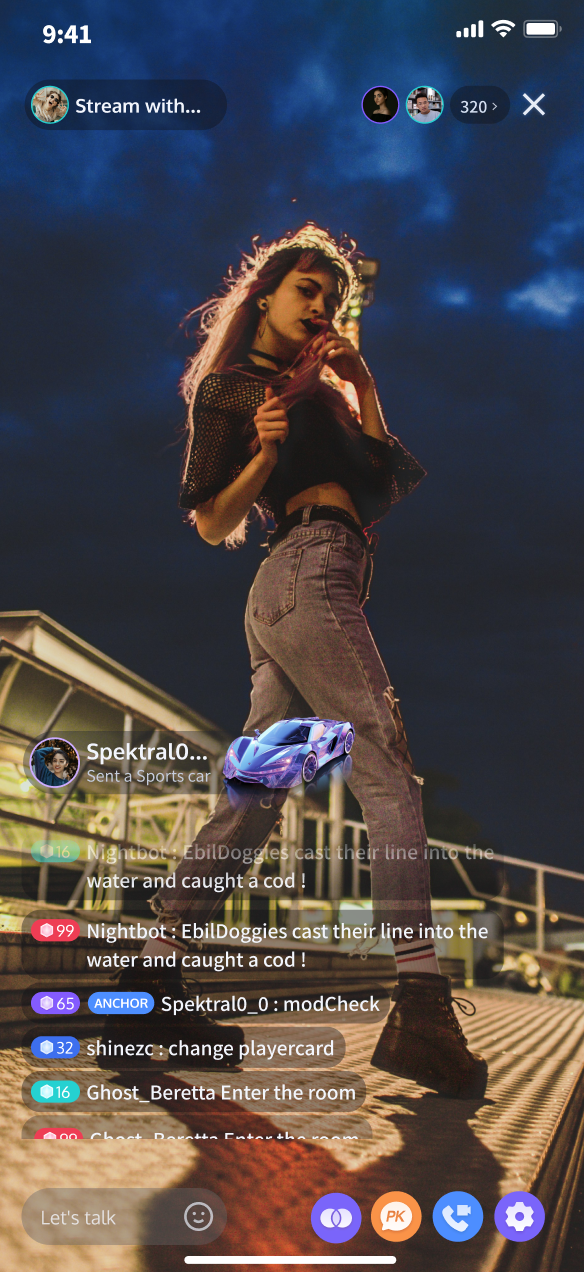
Co-Host Interaction: Supports real-time interaction (co-hosting) with viewers or other hosts during the live stream.
Audience Interaction: Supports rich interaction forms such as barrage (bullet screen) and gifts.
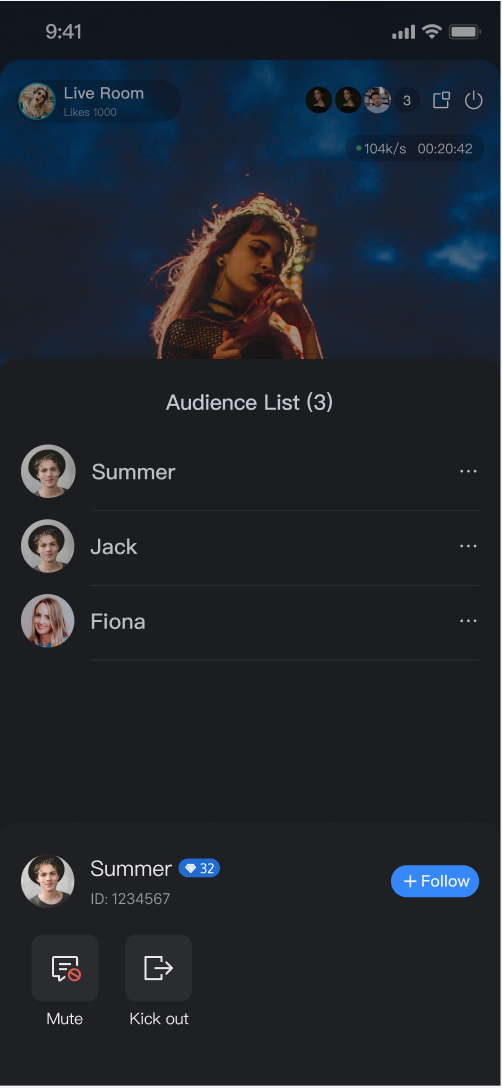
Live Room Management: Supports displaying the online user list and various management operations within the room, such as muting (banning) and kicking users.
Pre-stream Setup
Co-Host Interaction
Audience Interaction
Live Room Management


Quick Start

Step 1. Activate the Service

Refer to the Activate Service document to enable the free trial or paid edition.

Step 2. Code Integration

Refer to Preparations guide to integrate the TUILiveKit SDK.

Step 3. Add the Pre-stream Setup view

The AnchorPrepareView component already has built-in features for camera preview, audio effects settings, layout settings, and other functional configurations. You need to create and load AnchorPrepareView. The specific example code is as follows:
Kotlin
Java
import android.os.Bundle
import androidx.appcompat.app.AppCompatActivity
import com.trtc.uikit.livekit.features.anchorprepare.AnchorPrepareView

class AnchorActivity : AppCompatActivity() {
lateinit var anchorPrepareView: AnchorPrepareView
override fun onCreate(savedInstanceState: Bundle?) {
super.onCreate(savedInstanceState)
// 1. Create and initialize AnchorPrepareView
anchorPrepareView = AnchorPrepareView(this)
anchorPrepareView.init("live_1235858", null)

// 2. Add AnchorPrepareView to the UI
setContentView(anchorPrepareView)
}
}
import android.os.Bundle;
import androidx.appcompat.app.AppCompatActivity;
import com.trtc.uikit.livekit.features.anchorprepare.AnchorPrepareView;

public class AnchorActivity extends AppCompatActivity {
private AnchorPrepareView anchorPrepareView;

@Override
protected void onCreate(Bundle savedInstanceState) {
super.onCreate(savedInstanceState);

// 1. Create and initialize AnchorPrepareView
anchorPrepareView = new AnchorPrepareView(this);
anchorPrepareView.init("live_1235858", null);

// 2. Add AnchorPrepareView to the interface
setContentView(anchorPrepareView);
}
}

Step 4. Add the Host Streaming view

The AnchorView component has built-in features for audio/video pushing (streaming), viewer co-hosting, live interaction, and live room management. You only need to create and load AnchorView. The specific example code is as follows:
Kotlin
Java
import android.os.Bundle
import androidx.appcompat.app.AppCompatActivity
import com.trtc.uikit.livekit.features.anchorboardcast.AnchorView
import com.trtc.uikit.livekit.features.anchorboardcast.RoomBehavior
import com.trtc.uikit.livekit.features.anchorprepare.AnchorPrepareView
import com.trtc.uikit.livekit.features.anchorprepare.LiveStreamPrivacyStatus
import io.trtc.tuikit.atomicxcore.api.live.LiveInfo

class AnchorActivity : AppCompatActivity() {

lateinit var anchorPrepareView: AnchorPrepareView
override fun onCreate(savedInstanceState: Bundle?) {
super.onCreate(savedInstanceState)
// 1. Create and initialize AnchorPrepareView
anchorPrepareView = AnchorPrepareView(this)
anchorPrepareView.init("live_1235858", null)

// 2. Add AnchorPrepareView to the interface
setContentView(anchorPrepareView)
}

fun initAnchorView() {
// 1. Create AnchorView
val anchorView = AnchorView(this)

// 2. Initialize AnchorView, where liveInfo is the live stream information and anchorPrepareView is your preparation page before starting your broadcast.
val liveInfo = LiveInfo()
liveInfo.liveID = "live_1236666"
liveInfo.liveName = anchorPrepareView.getState()?.roomName?.getValue() ?: ""
liveInfo.isPublicVisible = anchorPrepareView.getState()?.liveMode?.getValue() == LiveStreamPrivacyStatus.PUBLIC
liveInfo.coverURL = anchorPrepareView.getState()?.coverURL?.getValue() ?: ""
liveInfo.seatTemplate = SeatLayoutTemplate.VideoDynamicGrid9Seats
// Entering the room:
// RoomBehavior.CREATE_ROOM: The host creates the room
// RoomBehavior.ENTER_ROOM: Viewers enter the room
anchorView.init(liveInfo, anchorPrepareView.getCoreView(), RoomBehavior.CREATE_ROOM, null)

// 3. Add AnchorView to the interface
setContentView(anchorView)
}
}
import android.os.Bundle;
import androidx.appcompat.app.AppCompatActivity;
import com.trtc.uikit.livekit.features.anchorboardcast.AnchorView;
import com.trtc.uikit.livekit.features.anchorboardcast.RoomBehavior;
import com.trtc.uikit.livekit.features.anchorprepare.AnchorPrepareView;
import com.trtc.uikit.livekit.features.anchorprepare.LiveStreamPrivacyStatus;
import io.trtc.tuikit.atomicxcore.api.live.LiveInfo;

public class AnchorActivity extends AppCompatActivity {

private AnchorPrepareView anchorPrepareView;

@Override
protected void onCreate(Bundle savedInstanceState) {
super.onCreate(savedInstanceState);

// 1. Create and initialize AnchorPrepareView
anchorPrepareView = new AnchorPrepareView(this);
anchorPrepareView.init("live_1235858", null);

// 2.Add AnchorPrepareView to the interface
setContentView(anchorPrepareView);
}

private void initAnchorView() {
// 1.Create AnchorView
AnchorView anchorView = new AnchorView(this);

// 2.Initialize AnchorView
LiveInfo liveInfo = new LiveInfo();
liveInfo.setLiveID("live_1236666");
liveInfo.setLiveName(anchorPrepareView.getState().roomName.getValue());
liveInfo.setPublicVisible(anchorPrepareView.getState().liveMode.getValue() == LiveStreamPrivacyStatus.PUBLIC);
liveInfo.setCoverURL(anchorPrepareView.getState().coverURL.getValue());
liveInfo.setSeatTemplate(SeatLayoutTemplate.VideoDynamicGrid9Seats);

// Entering the room:
// RoomBehavior.CREATE_ROOM: The host creates the room
// RoomBehavior.ENTER_ROOM: Viewers enter the room
anchorView.init(liveInfo, anchorPrepareView.getCoreView(), RoomBehavior.CREATE_ROOM, null);

// 3.Add AnchorView to the interface
setContentView(anchorView);
}

Step 5. Transition from Pre-stream Setup to Host Streaming

Combine this with Step 3 to implement the delegate events of the AnchorPrepareView component, completing the transition to the host streaming page. The specific example code is as follows:
Kotlin
Java
import android.os.Bundle
import androidx.appcompat.app.AppCompatActivity
import com.trtc.uikit.livekit.features.anchorprepare.AnchorPrepareView
import com.trtc.uikit.livekit.features.anchorprepare.AnchorPrepareViewListener

class AnchorActivity : AppCompatActivity() {
lateinit var anchorPrepareView: AnchorPrepareView
lateinit var anchorPrepareViewListener: AnchorPrepareViewListener
override fun onCreate(savedInstanceState: Bundle?) {
super.onCreate(savedInstanceState)
// 1. Create and initialize AnchorPrepareView
anchorPrepareView = AnchorPrepareView(this)
anchorPrepareView.init("live_1235858", null)

// 2. Add AnchorPrepareView to the interface
setContentView(anchorPrepareView)

anchorPrepareViewListener = object : AnchorPrepareViewListener {
override fun onClickStartButton() {
initAnchorView()
}
override fun onClickBackButton() {
finish()
}
}
// 3. Set the callback for AnchorPrepareView
anchorPrepareView.addAnchorPrepareViewListener(anchorPrepareViewListener)
}
}
import android.os.Bundle;
import androidx.appcompat.app.AppCompatActivity;
import com.trtc.uikit.livekit.features.anchorprepare.AnchorPrepareView;
import com.trtc.uikit.livekit.features.anchorprepare.AnchorPrepareViewListener;

public class AnchorActivity extends AppCompatActivity {
private AnchorPrepareView anchorPrepareView;
private AnchorPrepareViewListener anchorPrepareViewListener;
@Override
protected void onCreate(Bundle savedInstanceState) {
super.onCreate(savedInstanceState);

// 1. Create and initialize AnchorPrepareView
anchorPrepareView = new AnchorPrepareView(this);
anchorPrepareView.init("live_1235858", null);

// 2. Add AnchorPrepareView to the interface
setContentView(anchorPrepareView);

anchorPrepareViewListener = new AnchorPrepareViewListener() {
@Override
public void onClickStartButton() {
initAnchorView();
}

@Override
public void onClickBackButton() {
finish();
}
};

// 3. Set the callback for AnchorPrepareView
anchorPrepareView.addAnchorPrepareViewListener(anchorPrepareViewListener);
}
}

Customize Your UI Layout

TUILiveKit supports flexible customization of the host setup and live pages, allowing you to adjust the layout and hide/show functional modules based on your business requirements.

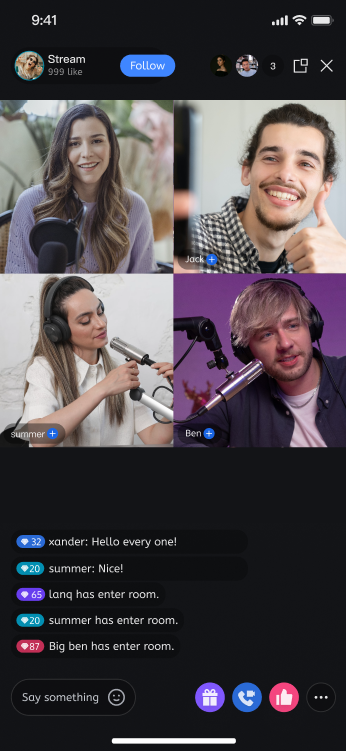
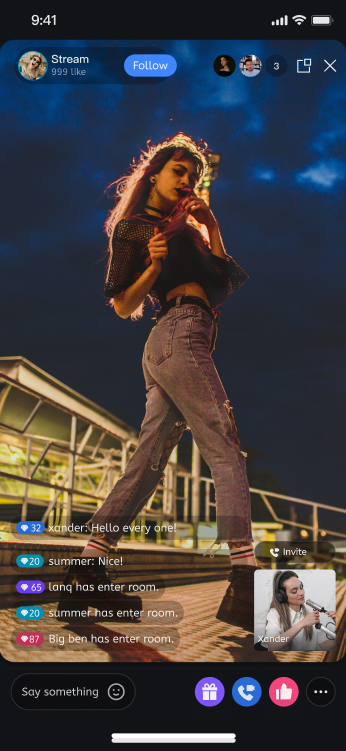
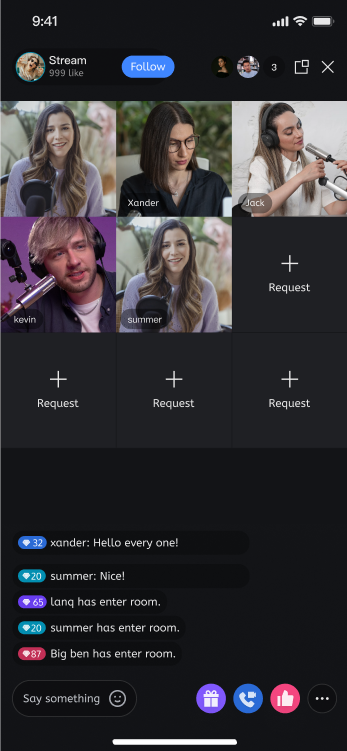
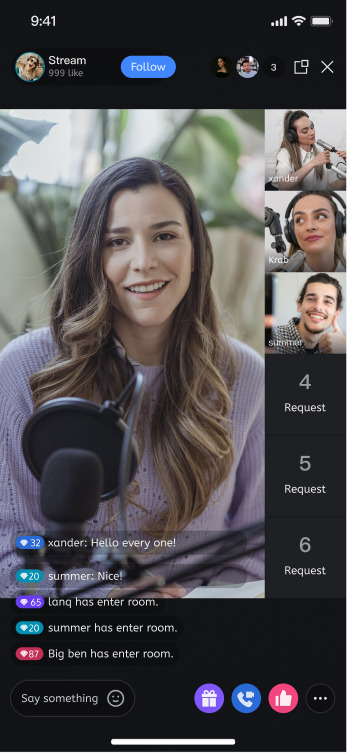
Live Layout Template Selection

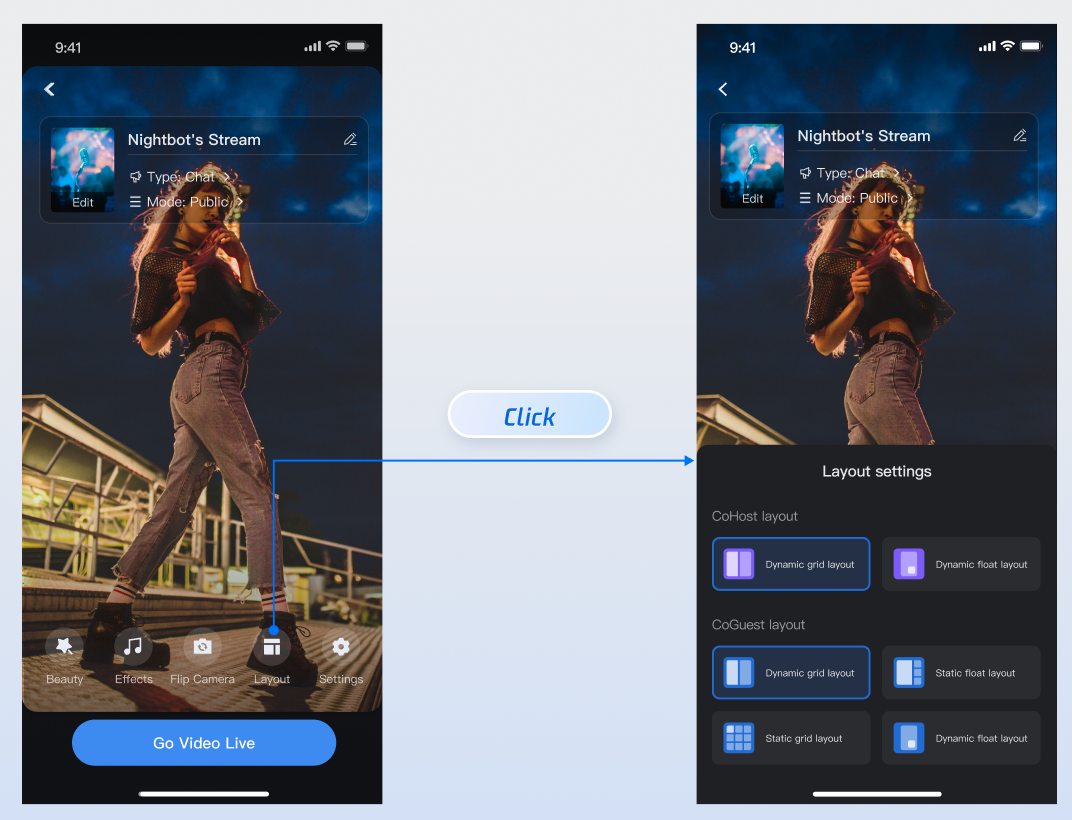
TUILiveKit provides 4 live layout templates. You can select the appropriate style in the "Layout" UI interaction entry on the host setup page:


Layout Template Overview

Name
dynamic grid layout
dynamic float layout
static grid layout
static float layout
Template ID
VideoDynamicGrid9Seats
VideoDynamicFloat7Seats
VideoFixedGrid9Seats
VideoFixedFloat7Seats
Description
The default layout; grid size adjusts dynamically based on the number of co-hosts.
Co-hosts are displayed in floating small windows.
The number of co-hosts is fixed, and each co-host occupies a fixed grid cell.
The number of co-hosts is fixed, and co-hosts are displayed in fixed small windows.
Preview


Customize AnchorPrepareView Feature Area

By calling the API of prepareView created in Step 3, you can customize and hide the operation area or specific features on the host setup page:
Kotlin
Java
import android.os.Bundle
import androidx.appcompat.app.AppCompatActivity
import com.trtc.uikit.livekit.features.anchorprepare.AnchorPrepareView

class AnchorActivity : AppCompatActivity() {

lateinit var anchorPrepareView: AnchorPrepareView
override fun onCreate(savedInstanceState: Bundle?) {
super.onCreate(savedInstanceState)
anchorPrepareView = AnchorPrepareView(this)
anchorPrepareView.init("live_1235858", null)

// 1. Customize the ribbon - Example: Hide the entire ribbon
anchorPrepareView.disableFeatureMenu(true)
setContentView(anchorPrepareView)
}
}
import android.os.Bundle;
import androidx.appcompat.app.AppCompatActivity;
import com.trtc.uikit.livekit.features.anchorprepare.AnchorPrepareView;

public class AnchorActivity extends AppCompatActivity {
private AnchorPrepareView anchorPrepareView;

@Override
protected void onCreate(Bundle savedInstanceState) {
super.onCreate(savedInstanceState);

// 1. Customize the ribbon - Example: Hide the entire ribbon
anchorPrepareView = new AnchorPrepareView(this);
anchorPrepareView.init("live_1235858", null);
anchorPrepareView.disableFeatureMenu(true);
setContentView(anchorPrepareView);
}
}
API
Description
disableFeatureMenu(true)
Hide Entire Feature Area
disableMenuBeautyButton(true)
Hide Beauty Effect Button
disableMenuAudioEffectButton(true)
Hide Sound Effect Button
disableMenuSwitchCameraButton(true)
Hide Camera Toggle Button

Customize AnchorView Feature Area

By calling the API of anchorView created in Step 4, you can customize and hide the operation area or specific features on the host live page:
Kotlin
Java
import android.os.Bundle
import androidx.appcompat.app.AppCompatActivity
import com.trtc.uikit.livekit.features.anchorboardcast.AnchorView
import com.trtc.uikit.livekit.features.anchorboardcast.RoomBehavior
import com.trtc.uikit.livekit.features.anchorprepare.AnchorPrepareView
import com.trtc.uikit.livekit.features.anchorprepare.AnchorPrepareViewListener
import com.trtc.uikit.livekit.features.anchorprepare.LiveStreamPrivacyStatus
import io.trtc.tuikit.atomicxcore.api.live.LiveInfo

class AnchorActivity : AppCompatActivity() {
...
fun initAnchorView() {
val anchorView = AnchorView(this)
val liveInfo = LiveInfo()
liveInfo.liveID = "live_1236666"
liveInfo.liveName = anchorPrepareView.getState()?.roomName?.getValue() ?: ""
liveInfo.isPublicVisible = anchorPrepareView.getState()?.liveMode?.getValue() == LiveStreamPrivacyStatus.PUBLIC
liveInfo.coverURL = anchorPrepareView.getState()?.coverURL?.getValue() ?: ""
liveInfo.seatLayoutTemplateID = anchorPrepareView.getState()?.coGuestTemplateId?.getValue() ?: 600
anchorView.init(liveInfo, anchorPrepareView.getCoreView(), RoomBehavior.CREATE_ROOM, null)

// 1. Customize the ribbon - Example: Hide the streamer connection function
anchorView.disableFooterCoHost(true)

setContentView(anchorView)
}
}
import android.os.Bundle;
import androidx.appcompat.app.AppCompatActivity;
import com.trtc.uikit.livekit.features.anchorboardcast.AnchorView;
import com.trtc.uikit.livekit.features.anchorboardcast.RoomBehavior;
import com.trtc.uikit.livekit.features.anchorprepare.AnchorPrepareView;
import com.trtc.uikit.livekit.features.anchorprepare.AnchorPrepareViewListener;
import com.trtc.uikit.livekit.features.anchorprepare.LiveStreamPrivacyStatus;
import io.trtc.tuikit.atomicxcore.api.live.LiveInfo;

public class AnchorActivity extends AppCompatActivity {
...
private void initAnchorView() {
AnchorView anchorView = new AnchorView(this);
LiveInfo liveInfo = new LiveInfo();
liveInfo.setLiveID("live_1236666");
liveInfo.setLiveName(anchorPrepareView.getState().roomName.getValue());
liveInfo.setPublicVisible(anchorPrepareView.getState().liveMode.getValue() == LiveStreamPrivacyStatus.PUBLIC);
liveInfo.setCoverURL(anchorPrepareView.getState().coverURL.getValue());
liveInfo.setSeatLayoutTemplateID(anchorPrepareView.getState().seatTemplate.getValue());
anchorView.init(liveInfo, anchorPrepareView.getCoreView(), RoomBehavior.CREATE_ROOM, null);

// 1. Customize the ribbon - Example: Hide the streamer connection function
anchorView.disableFooterCoHost(true);

setContentView(anchorView);
}
API
Description
disableHeaderVisitorCnt(true)
Hide Top Audience List Feature
disableFooterCoGuest(true)
Hide Bottom Audience Mic Connection Feature
disableFooterCoHost(true)
Hide Bottom Anchor Connection Feature
disableFooterBattle(true)
Hide Bottom Anchor PK Function

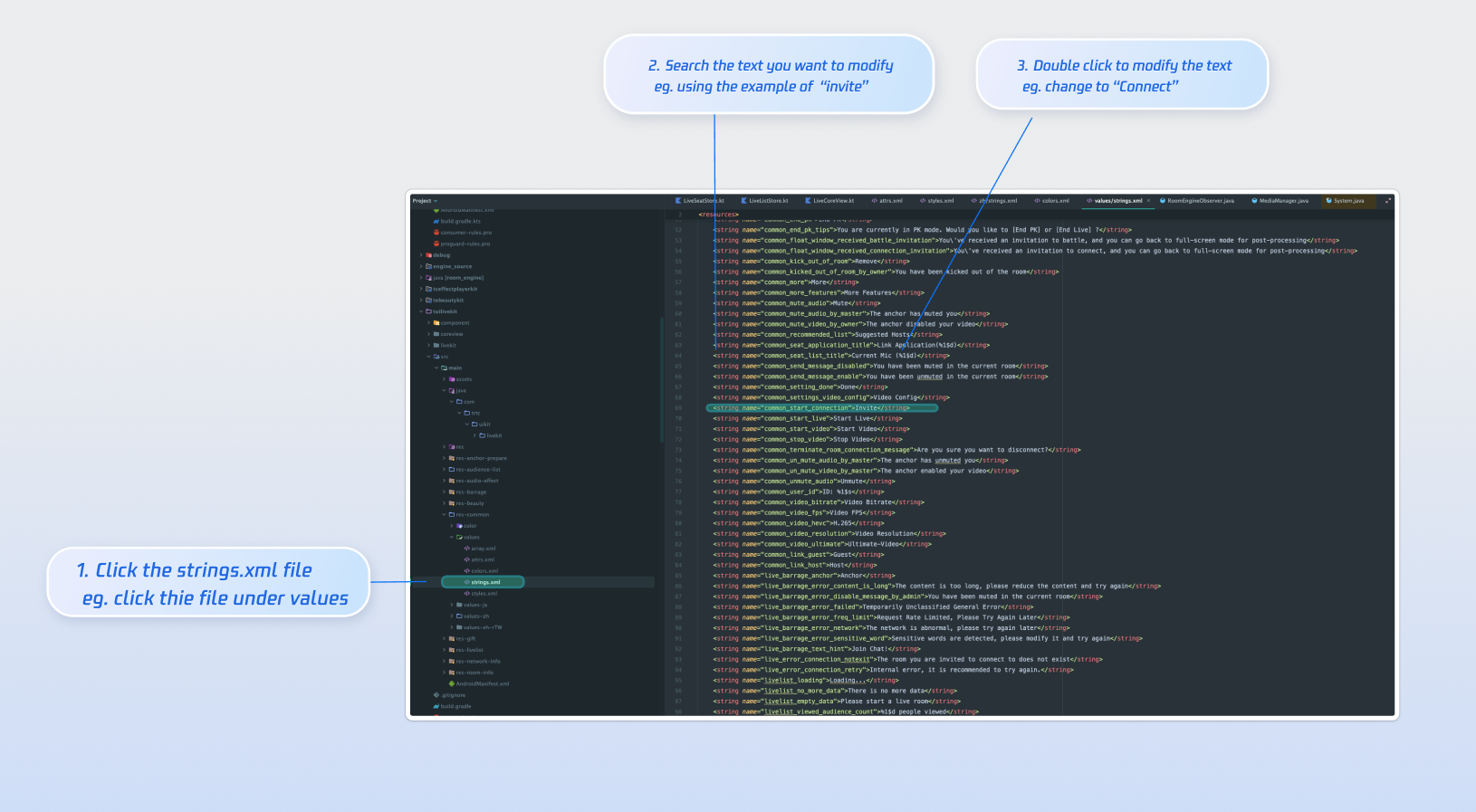
Text Customization (String Resources)

TUILiveKit uses standard Android XML resource files to manage the text displayed in the UI. You can directly modify the strings that need adjustment via the XML file:


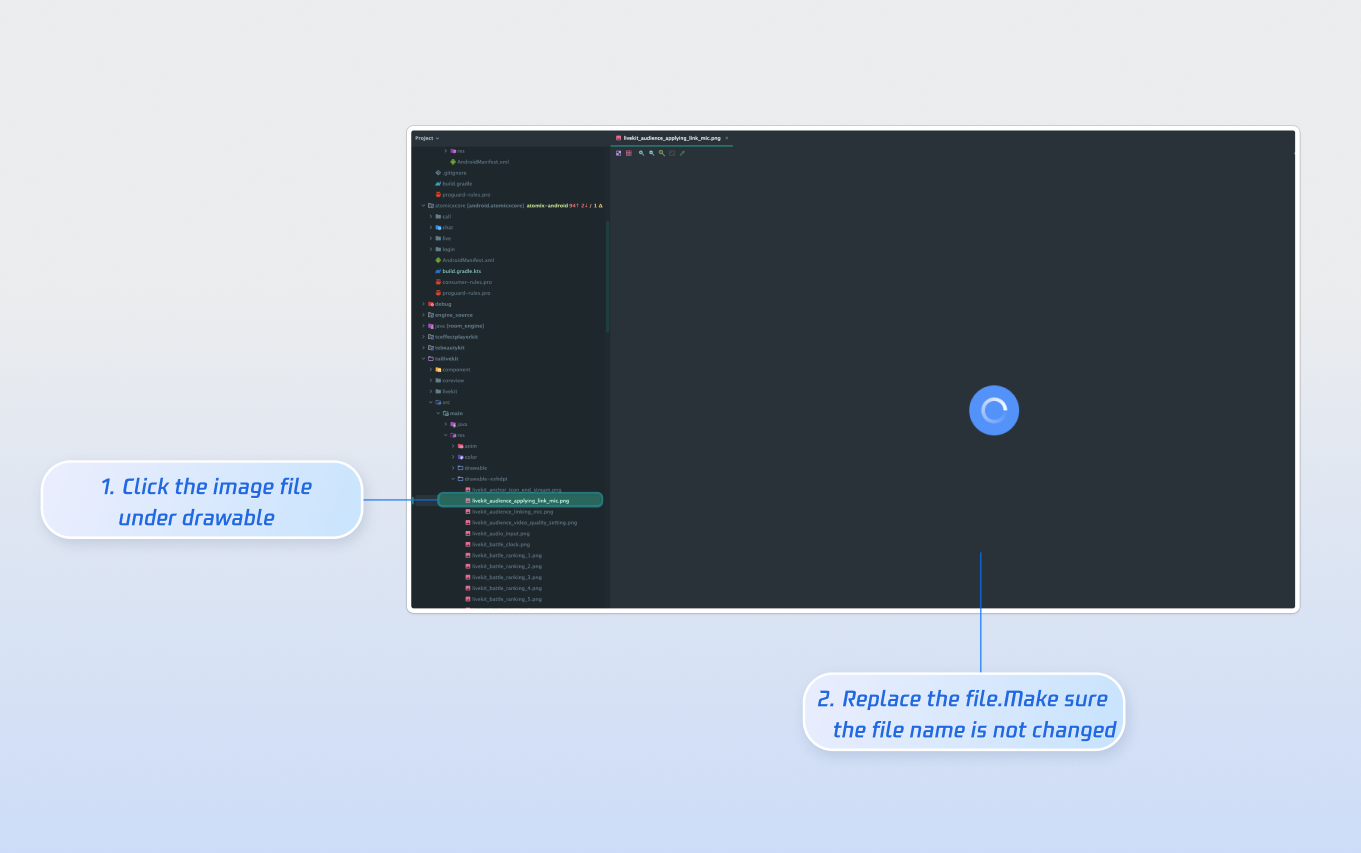
Icon Customization (Drawable Resources)

TUILiveKit uses the standard Android drawable resource folder to manage the image resources for the UI. You can quickly change the custom icons by replacing the resource files. When replacing, ensure that the new file names are consistent with the original file names.


Next Steps

Congratulations! You have successfully integrated the Host Live Streaming component. Next, you can implement features such as audience viewing, live stream list and gift system. Please refer to the table below:
Feature
Description
Integration Guide
Audience Viewing
Audience can watch live streaming after entering the anchor's live streaming room, with features like audience mic connection, live room information, online audience, and bullet screen display.
Live Stream List
Display the live stream list interface and features, including the live stream list and room information display.
Gift System
Support custom gift asset configuration, billing system integration, and gift-sending in PK scenarios.

FAQs

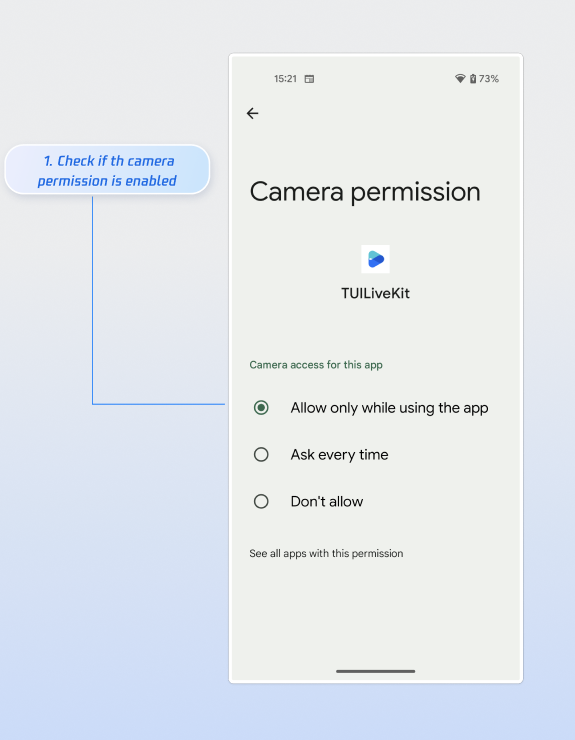
Why is there no video feed after starting the stream?

Please go to App Info > Permissions > Camera and check if the camera permission is enabled. Refer to the image below:


Why does clicking the "Start Stream" button fail with a "Not Logged In" prompt?

Refer to Complete Login to confirm that you have completed the login feature integration.


ヘルプとサポート

この記事はお役に立ちましたか?

フィードバック