Live Stream List(iOS)
Download
フォーカスモード
フォントサイズ
Feature Preview
This document provides a detailed introduction to the Live Stream List Page in TUILiveKit. You can directly integrate our pre-built live stream list page into your existing project, or deeply customize the page style, layout, and features according to your specific needs.
Double-Column Waterfall Flow: Default view, simultaneously displaying previews for 2 live rooms.
Single-Column Waterfall Flow: Default view, simultaneously displaying a preview for 1 live room.
Double-Column Waterfall Flow | Single-Column Waterfall Flow |
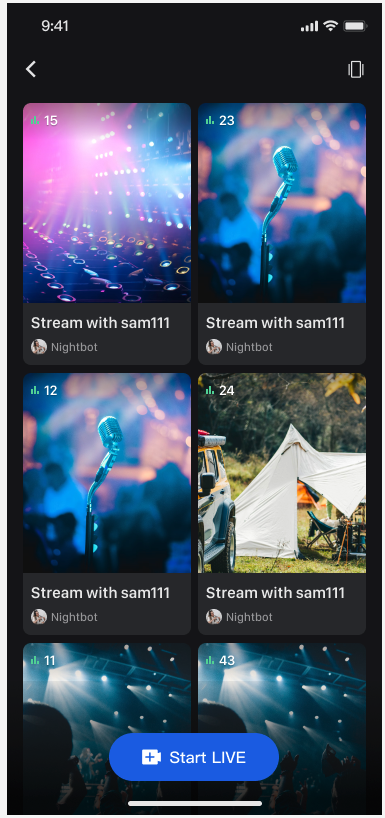 |
 |
Note:
When previewing live room screens, the preview duration is counted into the viewer's audio/video duration. For detailed billing information, please refer to Pricing.
Quick Start
Step 1. Activate the Service
Step 2. Code Integration
Step 3. Add the Live Stream List Page
The LiveListView component is a dedicated view for displaying the live stream list. It automatically pulls the live room list, supports different display styles (single-column and double-column).
// Example: YourLiveListViewController is the view controller representing your live stream list waterfall layoutclass YourLiveListViewController: UIViewController {// 1. Declare liveListView as a member variable// - style: .doubleColumn // Two-column waterfall layout// - style: .singleColumn // Single-column waterfall layout// Example shows a two-column waterfall layout, if needed input .singleColumn justprivate let liveListView=LiveListView(style: .doubleColumn)public override func viewDidLoad() {super.viewDidLoad()// 2. Add liveListView to viewview.addSubview(liveListView)liveListView.snp.makeConstraints { make inmake.edges.equalToSuperview()}// 3. Set the click event delegate for the listliveListView.itemClickDelegate = self}}
Step 4. Navigate to the Audience Viewing Page
You can customize the page navigation by setting a click listener. For audience viewing page implementation, see Audience Viewing:

Example Code:
// Implement OnItemClickDelegate in your live stream list view controller, for example: YourLiveListViewControllerextension YourLiveListViewController: OnItemClickDelegate {func onItemClick(liveInfo: LiveInfo, frame: CGRect) {// 1. Instantiate your audience view controllerlet audienceVC =YourAudienceViewController(roomId: liveInfo.roomId)audienceVC.modalPresentationStyle = .fullScreen// 2. Navigate to your audience view controllerpresent(audienceVC, animated: false)}}
Step 5. Optimizing Page Transitions for LiveListView Interaction
To ensure a more complete and smooth experience during page transitions, the
LiveListView component, combined with iOS page routing system attributes, provides the refreshLiveList and onRouteToNextPage methods. With just one line of code, you can optimize live list display and video stream playback. The optimization method is as follows:// Implement in your live stream list view controller, for example: YourLiveListViewControllerclass YourLiveListViewController: UIViewController {override func viewDidAppear(_ animated: Bool) {super.viewDidAppear(animated)// refreshLiveList: Call this method in viewDidAppear to ensure getting the latest list every time returning to current pageliveListView.refreshLiveList()}override func viewWillDisappear(_ animated: Bool) {super.viewWillDisappear(animated)// onRouteToNextPage: Call this method in viewWillDisappear to stop the video stream playback on current live list page when entering another pageliveListView.onRouteToNextPage()}}
Customize Your UI Layout
TUILiveKit provides flexible interfaces to customize the live list waterfall component. You can customize the data source and list item styles according to your business needs.
Customize Data Source
If your backend has a separate live list data, you can customize the data source by implementing the
LiveListDataSource interface instead of using the component's default list data.// Example: YourLiveListViewController is the view controller representing your live stream list waterfall layoutclass YourLiveListViewController: UIViewController {private let liveListView: LiveListView=LiveListView(style: .doubleColumn)public override func viewDidLoad() {super.viewDidLoad()view.addSubview(liveListView)liveListView.snp.makeConstraints { make inmake.edges.equalToSuperview()}liveListView.itemClickDelegate = self// 1. Set custom data source agentliveListView.dataSource = self}}// 2. Implement custom data source agent: LiveListDataSourceextension YourLiveListViewController: LiveListDataSource {public func fetchLiveList(cursor: String, onSuccess: @escaping LiveListBlock, onError: @escaping TUIErrorBlock) {// 3. Connect to your own backend business and return data to the UI component in the following formatvar liveInfoList: [LiveInfo] = []var liveInfo = LiveInfo()liveInfo.roomId = "live_123456"liveInfo.name = "live_123456"liveInfoList.append(liveInfo)let cursor = "aabbccdd"onSuccess(cursor, liveInfoList)}}
Custom View
The bottom of the waterfall list items displays the video stream or live cover by default. If you need to customize the UI elements at the top of the list items (such as the host's avatar, live title, etc.), you can do so by implementing the
LiveListViewAdapter interface.// Example:YourLiveListViewControlleris the view controller representing your live stream list waterfall layoutclass YourLiveListViewController: UIViewController {private let liveListView: LiveListView=LiveListView(style: .doubleColumn)public override func viewDidLoad() {super.viewDidLoad()view.addSubview(liveListView)liveListView.snp.makeConstraints { make inmake.edges.equalToSuperview()}liveListView.itemClickDelegate = selfliveListView.dataSource = self// 1. Set adapterliveListView.adapter = self}}// 2. Implement custom widget agentextension YourLiveListViewController: LiveListViewAdapter {public func createLiveInfoView(info: LiveInfo) -> UIView {// Custom viewreturn YourCustomView(liveInfo: info)}public func updateLiveInfoView(view: UIView, info: LiveInfo) {if let infoView = view as? YourCustomView {// Custom view update datainfoView.updateView(liveInfo: info)}}}
Custom Transition Animation
Double-Column Waterfall Flow and Single-Column Waterfall Flow to navigate to the audience viewing page, custom transition animation is often needed for better transition effects.
TUILiveKit has open-sourced the live stream transition animation LiveTransitioningDelegate in the GitHub repository. You just need to set audienceVC.transitioningDelegate to achieve the same transition animation as TUILiveKit.// Implement OnItemClickDelegate in your live stream waterfall layout list view controller, for example: YourLiveListViewControllerextension YourLiveListViewController: OnItemClickDelegate {func onItemClick(liveInfo: LiveInfo, frame: CGRect) {let audienceVC =YourAudienceViewController(roomId: liveInfo.roomId)audienceVC.modalPresentationStyle = .fullScreen// Set the transition animation delegateaudienceVC.transitioningDelegate = LiveTransitioningDelegate(originFrame: frame)present(audienceVC, animated: false)}}
Double-Column Waterfall Transition Animation | Single-Column Waterfall Transition Animation |
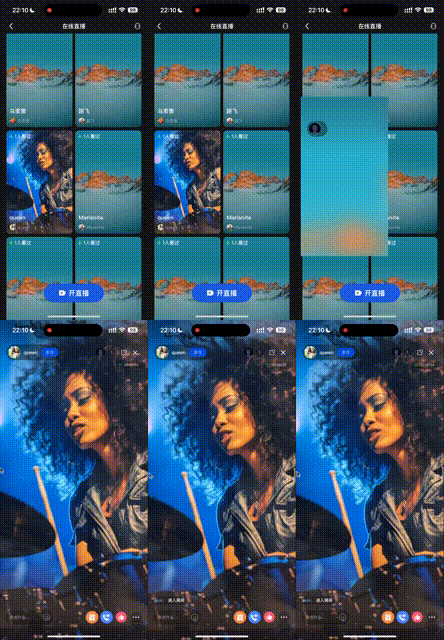 |  |
Next Steps
Congratulations! You have successfully integrated the Live Stream List feature. Next, you can implement features such as Host Live Streaming and Audience Viewing. Please refer to the table below:
Feature | Description | Integration Guide |
Host Streaming | The complete workflow for a host to start a stream, including pre-stream setup and various in-stream interactions. | |
Audience Viewing | Audience can watch live streaming after entering the anchor's live streaming room, with features like audience mic connection, live room information, online audience, and bullet screen display. |
FAQs
What should I do if the page shows no live streams after integrating the live list feature?
If you see a blank page, you need to check if you have completed the Complete Login. To test this feature, you can use two devices: one device to start a broadcast, and the other on the live list page to pull the list of ongoing live streams.
What is the difference between single-column and double-column waterfall flows?
A single-column waterfall flow previews one live room at a time, while a double-column waterfall flow previews two live rooms simultaneously. You can choose the appropriate layout based on your design requirements.
Is there a charge for previewing live streams?
Yes, the duration of previewing a live room is counted towards the audience's audio/video duration, which is a paid service. For detailed
フィードバック