Host Live Streaming(Web Vue3 Desktop Browser)
ダウンロード
フォーカスモード
フォントサイズ
This document provides a guide for integrating the Host Live Start Page from the TUILiveKit Demo. You'll learn how to embed our start page into your project and customize the style, layout, and features of the live streaming interface.
Feature Demo
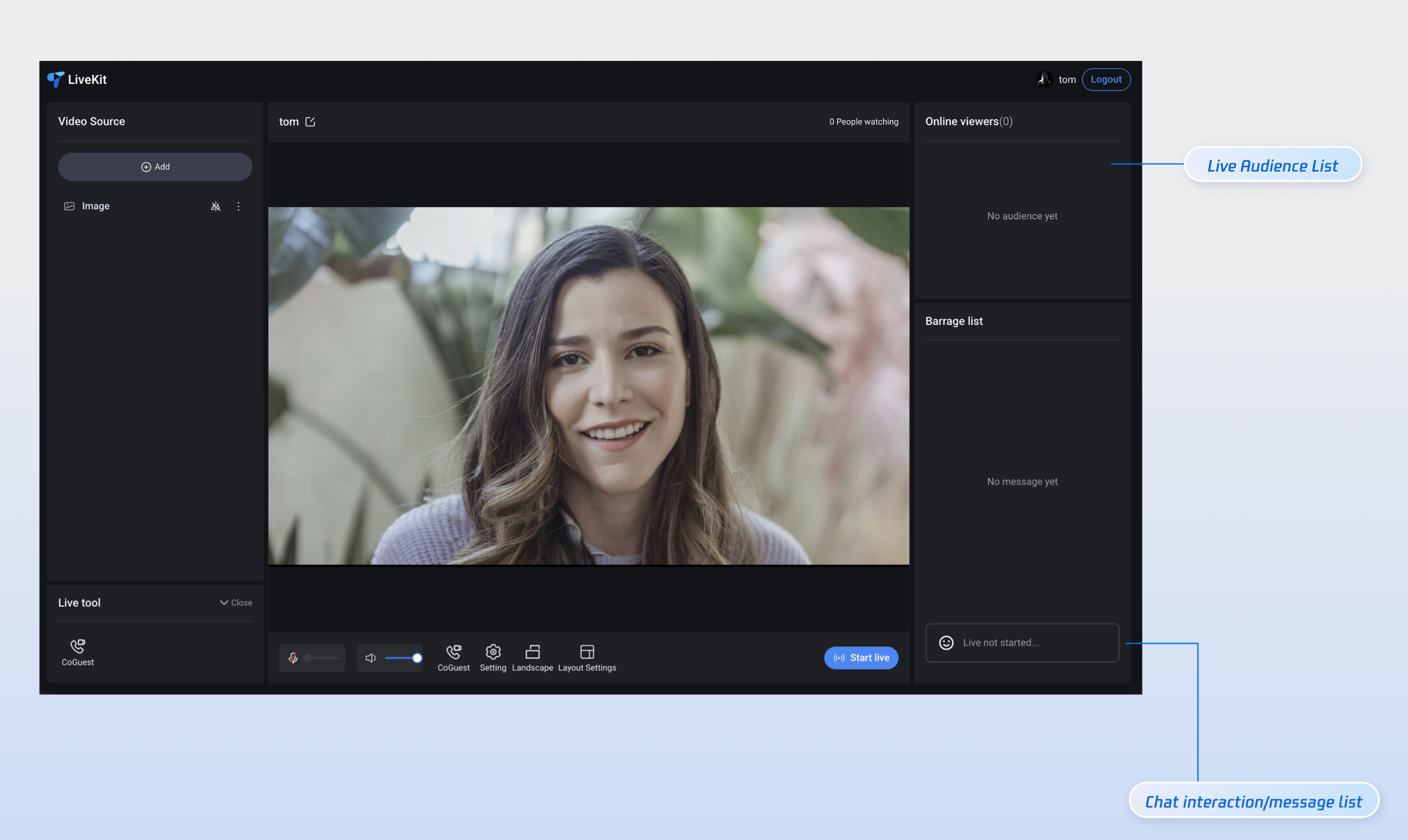
Landscape Go Live
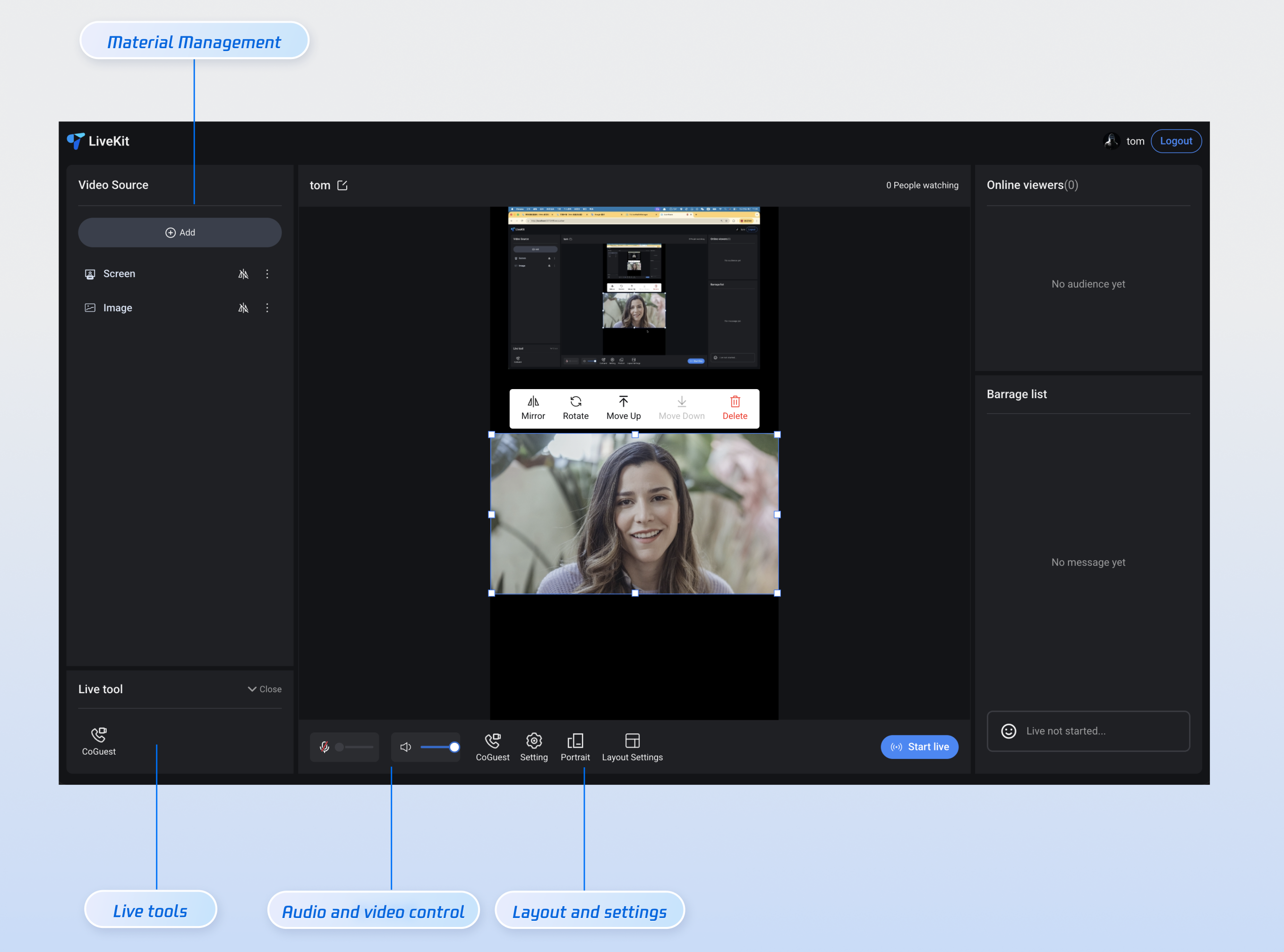
Portrait Go Live
Feature Overview
Scene Source Management: Add multiple cameras, share your screen or windows, and use local images as sources.
Live Stream Layout: Drag, zoom, and use quick menu actions for scene sources, including mirroring, rotation, and layer adjustments.
Audience Guest Feature: Enable audience guest connections within the live room, with several built-in guest layouts.
Host PK: Connect with other hosts across rooms for PK battles.
Interactive Chat: Send and receive text and emoji messages for real-time chat.
Audience Management: Mute or remove audience members from the live room.
Quick Integration
Step 1: Environment Setup and Service Activation
Step 2: Install Dependencies
npm install tuikit-atomicx-vue3 @tencentcloud/uikit-base-component-vue3 --save
pnpm add tuikit-atomicx-vue3 @tencentcloud/livekit-web-vue3 @tencentcloud/uikit-base-component-vue3
yarn add tuikit-atomicx-vue3 @tencentcloud/livekit-web-vue3 @tencentcloud/uikit-base-component-vue3
Step 3: Integrate Host Go Live Page
Create a
live-pusher.vue file in your project. Copy the code below into your new live-pusher.vue file to integrate the full Host Live Start Page.Note:
You can copy the code below directly into your project, or visit the Live Start Page for the full source code.
<template><UIKitProvider theme="dark"><div class="custom-live-pusher"><!-- Main Content Area --><div class="main-content"><!-- Left: Scene Sources and Tools --><div class="left-panel"><div class="scene-section"><div class="panel-title">Scene Source</div><LiveScenePanel /></div></div><!-- Center: Live Stream Area --><div class="center-panel"><div class="stream-section"><div class="stream-header"><div class="stream-title"><span>{{ liveName }}</span></div><div class="stream-audience">{{ audienceCount }} viewers</div></div><StreamMixer /></div><div class="live-controls"><div class="bottom-panel"><!-- <MediaDeviceSetting />// For media settings, refer to the Advanced Feature Integration section below<CoGuestButton /> // For audience guest feature, refer to the Advanced Feature Integration section below<OrientationSwitch /> // For layout settings, refer to the Advanced Feature Integration section below<LayoutSwitch /> // For landscape/portrait streaming, refer to the Advanced Feature Integration section below --></div><TUIButton type="primary" v-if="!currentLive?.liveId" @click="handleStartLive">Start Live</TUIButton><TUIButton color="red" v-else @click="handleStopLive">Stop Live</TUIButton></div></div><!-- Right: Audience Interaction --><div class="right-panel"><div class="audience-section"><div class="panel-title">Online Audience ({{ audienceCount }})</div><LiveAudienceList /></div><div class="message-section"><div class="panel-title">Message List</div><BarrageList /><BarrageInput /></div></div></div></div></UIKitProvider></template><script setup lang="ts">import { onMounted } from 'vue';import { UIKitProvider, TUIButton } from '@tencentcloud/uikit-base-component-vue3';import { LiveScenePanel, StreamMixer, LiveAudienceList, BarrageList, BarrageInput, useLiveListState, useLiveAudienceState, useLoginState } from 'tuikit-atomicx-vue3';const { login, setSelfInfo } = useLoginState();const { createLive, currentLive, endLive } = useLiveListState();const { audienceCount } = useLiveAudienceState();const liveName = 'My Live Room';const handleStartLive = async () => {// Create live roomawait createLive({liveId: 'my-live-room', // Live Room IDliveName: liveName, // Live Room NamecoverUrl: '', // Live Room Cover URLisPublicVisible: true, // Publicly VisibleseatLayoutTemplateId: 600, // Seat Layout Template ID});// Set personal infoawait setSelfInfo({userName: 'My Name/Nickname', // UsernameavatarUrl: '', // Avatar URL});};const handleStopLive = async () => {await endLive();};async function initLogin() {try {await login({sdkAppId: 0, // SDKAppID, refer to Step 1 for detailsuserId: '', // UserID, refer to Step 1 for detailsuserSig: '', // userSig, refer to Step 1 for details});} catch (error) {console.error('Login failed:', error);}}onMounted(async () => {await initLogin();});</script><style>html,body,#app{height:100%;width:100%;margin:0;padding:0}</style><style scoped>.custom-live-pusher,.left-panel{flex-direction:column;display:flex}.custom-live-pusher,.live-title{color:var(--text-color-primary)}.live-controls,.tools-section,.top-controls{backdrop-filter:blur(10px)}*{box-sizing:border-box;margin:0;padding:0}:global(::before){box-sizing:border-box;margin:0;padding:0}.layout-label,.template-options{margin-bottom:16px}:global(body){line-height:1.6;color:var(--text-color-primary);background:var(--bg-color-default)}.custom-live-pusher{height:100vh;width:100vw;background:linear-gradient(135deg,var(--bg-color-default) 0,var(--bg-color-function) 100%);overflow:hidden}.top-controls{display:flex;justify-content:space-between;align-items:center;padding:12px 20px;background:var(--bg-color-operate);border-bottom:1px solid var(--stroke-color-primary);z-index:100;min-height:60px}.live-title{font-size:18px;font-weight:600;text-shadow:0 2px 4px var(--shadow-color)}.audience-count{font-size:14px;color:var(--text-color-error);background:var(--uikit-color-red-1);padding:6px 12px;border-radius:20px;border:1px solid var(--uikit-color-red-3)}.live-controls,.tools-section{background:var(--bg-color-operate)}.main-content{display:flex;flex:1;height:calc(100vh - 60px);gap:16px;padding:16px;overflow:hidden}.left-panel{width:320px;gap:16px;flex-shrink:0}.panel-title{font-size:16px;font-weight:600;color:var(--text-color-primary);margin-bottom:12px;text-align:left}.audience-section,.message-section,.scene-section{display:flex;flex-direction:column;background:var(--bg-color-operate);border-radius:12px;border:1px solid var(--stroke-color-primary);padding:16px;overflow:hidden}.scene-section{flex:1;min-height:0}.message-section{flex:1;min-height:0}.message-section :deep(input),.message-section :deep(textarea){text-align:left}.tools-section{border-radius:12px;padding:16px;border:1px solid var(--stroke-color-primary)}.center-panel{display:flex;flex-direction:column;flex:1;gap:16px;min-width:0}.stream-section{display:flex;flex-direction:column;flex:1;min-height:0;background:var(--bg-color-operate);border-radius:12px;border:1px solid var(--stroke-color-primary);overflow:hidden}.stream-header{display:flex;justify-content:space-between;align-items:center;padding:22px;border-bottom:1px solid var(--stroke-color-primary)}.stream-title{display:flex;align-items:center;gap:8px;font-size:18px;font-weight:500;color:var(--text-color-primary)}.stream-audience{font-size:14px;color:var(--text-color-primary)}.live-controls{display:flex;justify-content:space-between;align-items:center;padding:16px;border-radius:12px;border:1px solid var(--stroke-color-primary);gap:16px}.live-controls button{padding:18px 20px}.right-panel{display:flex;flex-direction:column;width:320px;gap:16px;flex-shrink:0}.center-panel>.live-controls,.left-panel>*,.right-panel>*{background:var(--bg-color-operate);border-radius:12px;border:1px solid var(--stroke-color-primary);overflow:hidden}.left-panel>*{padding:16px}.left-panel>.panel-title,.scene-section>.panel-title,.audience-section>.panel-title,.message-section>.panel-title{padding:0;background:transparent;border:none;border-radius:0}.custom-icon-container,.device-setting{padding:8px 12px;background:var(--bg-color-function)}.stream-section :deep(>*:last-child){flex:1;min-height:300px}.bottom-panel,.device-setting{align-items:center;display:flex}.custom-icon-container:hover,.option-card:hover{border-color:var(--stroke-color-primary);background:var(--list-color-hover)}.bottom-panel{gap:16px;flex:1}.device-setting{gap:8px;border-radius:8px;border:1px solid var(--stroke-color-secondary)}.device-icon{cursor:pointer;color:var(--text-color-primary);transition:color .2s}.device-icon:hover{color:var(--text-color-link)}.device-slider{width:80px}.custom-icon-container{display:flex;align-items:center;gap:6px;border-radius:8px;border:1px solid var(--stroke-color-secondary);cursor:pointer;transition:.2s;position:relative}.custom-icon-container.disabled{opacity:.5;cursor:not-allowed}.custom-icon-container.disabled:hover{background:var(--bg-color-function);border-color:var(--stroke-color-secondary)}.custom-icon{width:16px;height:16px;display:inline-block;background-size:contain;background-repeat:no-repeat;background-position:center}.custom-text{font-size:12px;color:var(--text-color-secondary);white-space:nowrap}.unread-count{position:absolute;top:-4px;right:-4px;background:var(--text-color-error);color:var(--text-color-button);border-radius:10px;padding:2px 6px;font-size:10px;font-weight:600;min-width:16px;text-align:center;line-height:1}.layout-label,.option-info h4{color:var(--text-color-primary)}.layout-dialog{max-width:600px}.layout-label{font-size:16px;font-weight:600}.options-grid{display:grid;grid-template-columns:repeat(auto-fit,minmax(120px,1fr));gap:12px}.option-card{padding:16px;background:var(--bg-color-function);border:2px solid var(--stroke-color-secondary);border-radius:8px;cursor:pointer;transition:.2s;text-align:center}.option-card.active{border-color:var(--text-color-link);background:var(--bg-color-operate)}.option-info h4{margin:8px 0 0;font-size:12px}.option-icon{width:32px;height:32px;margin:0 auto;color:var(--text-color-secondary)}.co-guest-dialog{max-width:500px}.co-guest-panel{min-height:300px}</style>
Core API Parameter Descriptions
createLive
Creates a new live room and sets its basic information.
Parameter | Type | Required | Description |
liveId | String | Yes | Live Room ID, must be globally unique. |
liveName | String | Yes | Live Room Name, displayed on the UI. |
coverUrl | String | No | Live Room cover image URL. |
isPublicVisible | Boolean | No | Whether the room is publicly visible. Defaults to true. |
seatLayoutTemplateId | Number | No | Seat layout template ID. 600 represents portrait dynamic grid layout. For more template IDs, refer to the Advanced Features section. |
setSelfInfo
Sets user information.
Parameter | Type | Required | Description |
userName | String | Yes | User nickname, displayed in the live room and chat area. |
avatarUrl | String | No | User avatar image URL. |
Step 4: Start Live Streaming
Start your first live stream.
npm run dev
Note:
After running the above command, open your browser and enter the local address (for example,
http://localhost:5173/live-pusher; the port may vary by project) to view the live start page.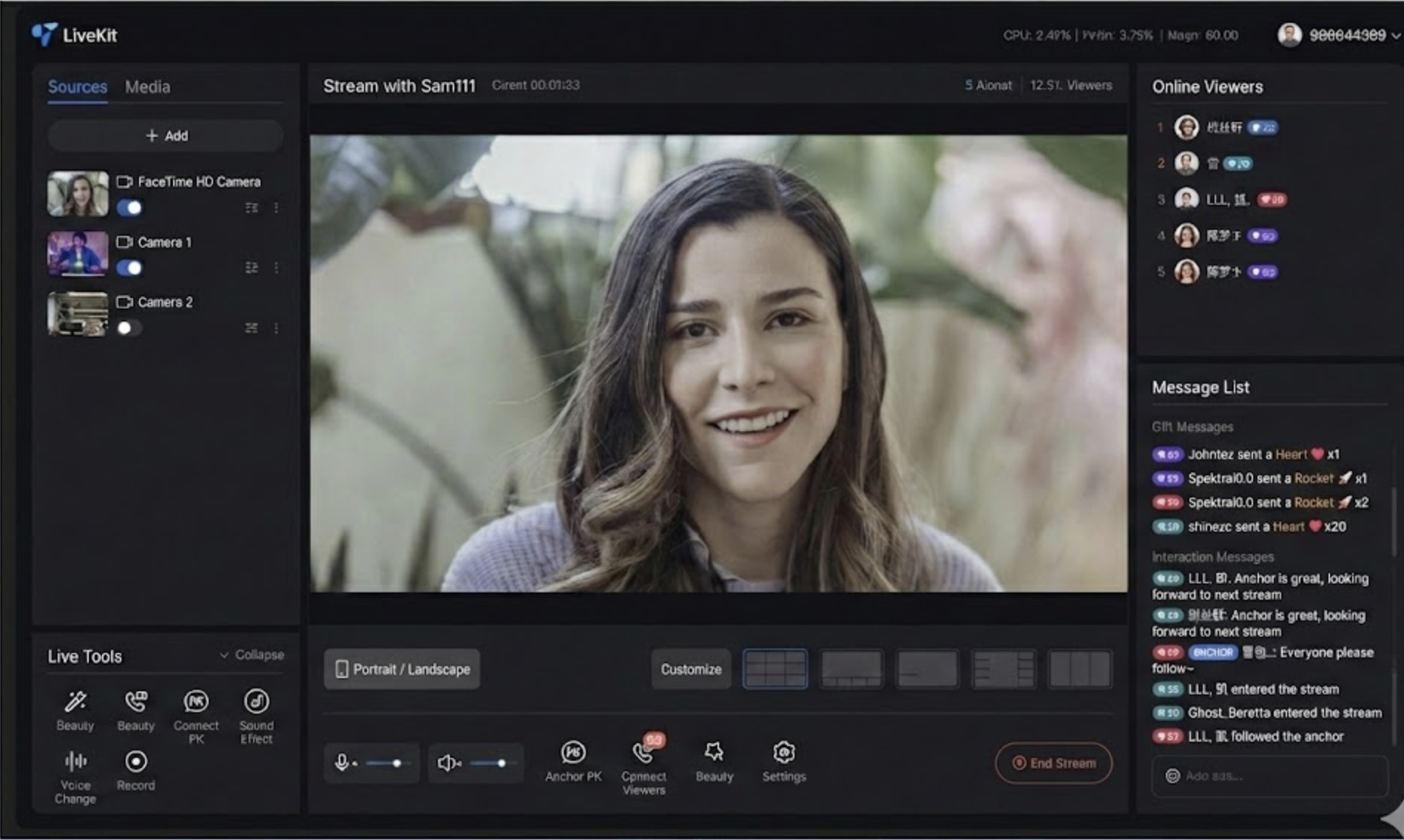
Step 5: Watch the Live Stream
Method 1 (Recommended):
Method 2:
Integrate our Audience Viewing (Web Desktop Browser) or Audience Viewing (H5 Mobile Browser) page to watch the live stream.
Important Tip::
Use different userID for streaming and viewing: The host and audience must use different userID. If the same userID is used, the second device to log in will force the first device offline.
Advanced Feature Integration
Note:
All advanced features below are extensions based on the
live-pusher.vue sample file created in Step 3. Depending on your requirements, add the following code snippets to the appropriate sections of
live-pusher.vue (either in the template or script) to enable each feature.To support media device settings, including adjusting speaker and microphone volume, copy the following code into your
live-pusher.vue file.<!-- LayoutSwitch Landscape/Portrait Streaming Settings --><template><divclass="custom-icon-container":class="{ disabled: currentLive?.liveId }"@click="handleOrientationSwitch"><IconHorizontalModev-if="currentOrientation === LiveOrientation.Landscape"class="custom-icon"/><IconPortraitv-elseclass="custom-icon"/><span class="custom-text co-guest-text">{{currentOrientation === LiveOrientation.Portrait ? t('Portrait') : t('Landscape')}}</span></div></template><script setup lang="ts">import { ref, watch } from 'vue';import { useUIKit, TUIToast, TOAST_TYPE, IconPortrait, IconHorizontalMode } from '@tencentcloud/uikit-base-component-vue3';import { useLiveListState, LiveOrientation } from 'tuikit-atomicx-vue3';const { t } = useUIKit();enum TUISeatLayoutTemplate {LandscapeDynamic_1v3 = 200,PortraitDynamic_Grid9 = 600,PortraitDynamic_1v6 = 601,PortraitFixed_Grid9 = 800,PortraitFixed_1v6 = 801,PortraitFixed_6v6 = 802,}const { currentLive, updateLiveInfo } = useLiveListState();const currentOrientation = ref(LiveOrientation.Portrait);watch(() => currentLive.value?.layoutTemplate,newVal => {if (newVal === TUISeatLayoutTemplate.LandscapeDynamic_1v3) {currentOrientation.value = LiveOrientation.Landscape;} else {currentOrientation.value = LiveOrientation.Portrait;}},{ immediate: true });const handleOrientationSwitch = () => {if (currentLive.value?.liveId) {TUIToast({message: t('Cannot switch orientation during live streaming'),type: TOAST_TYPE.ERROR,});return;}if (currentOrientation.value === LiveOrientation.Portrait) {updateLiveInfo({ layoutTemplate: TUISeatLayoutTemplate.LandscapeDynamic_1v3 });} else {updateLiveInfo({ layoutTemplate: TUISeatLayoutTemplate.PortraitDynamic_Grid9 });}};</script><style scoped>.custom-icon-container{display:flex;flex-direction:column;align-items:center;justify-content:center;gap:4px;width:56px;height:56px;cursor:pointer;color:var(--text-color-primary);border-radius:12px;position:relative}.custom-icon{width:24px;height:24px;background:transparent}.custom-text{font-size:12px}.custom-icon-container:not(.disabled):hover{box-shadow:0 0 10px 0 var(--bg-color-mask)}.custom-icon-container:not(.disabled):hover .custom-icon,.custom-icon-container:not(.disabled):hover .custom-text{color:var(--text-color-link)}.custom-icon-container.disabled{cursor:not-allowed;opacity:.5;color:var(--text-color-secondary)}.custom-icon-container.disabled .custom-icon,.custom-icon-container.disabled .custom-text{color:var(--text-color-secondary);cursor:not-allowed}</style>
To support switching between landscape and portrait streaming, copy the following code into your
live-pusher.vue file.<!-- LayoutSwitch: Portrait/Landscape Streaming Settings --><template><divclass="custom-icon-container":class="{ disabled: currentLive?.liveId }"@click="handleOrientationSwitch"><IconHorizontalModev-if="currentOrientation === LiveOrientation.Landscape"class="custom-icon"/><IconPortraitv-elseclass="custom-icon"/><span class="custom-text co-guest-text">{{currentOrientation === LiveOrientation.Portrait ? t('Portrait') : t('Landscape')}}</span></div></template><script setup lang="ts">import { ref, watch } from 'vue';import { useUIKit, TUIToast, TOAST_TYPE, IconPortrait, IconHorizontalMode } from '@tencentcloud/uikit-base-component-vue3';import { useLiveListState, LiveOrientation } from 'tuikit-atomicx-vue3';const { t } = useUIKit();enum TUISeatLayoutTemplate {LandscapeDynamic_1v3 = 200,PortraitDynamic_Grid9 = 600,PortraitDynamic_1v6 = 601,PortraitFixed_Grid9 = 800,PortraitFixed_1v6 = 801,PortraitFixed_6v6 = 802,}const { currentLive, updateLiveInfo } = useLiveListState();const currentOrientation = ref(LiveOrientation.Portrait);watch(() => currentLive.value?.layoutTemplate,newVal => {if (newVal === TUISeatLayoutTemplate.LandscapeDynamic_1v3) {currentOrientation.value = LiveOrientation.Landscape;} else {currentOrientation.value = LiveOrientation.Portrait;}},{ immediate: true });const handleOrientationSwitch = () => {if (currentLive.value?.liveId) {TUIToast({message: t('Cannot switch orientation during live streaming'),type: TOAST_TYPE.ERROR,});return;}if (currentOrientation.value === LiveOrientation.Portrait) {updateLiveInfo({ layoutTemplate: TUISeatLayoutTemplate.LandscapeDynamic_1v3 });} else {updateLiveInfo({ layoutTemplate: TUISeatLayoutTemplate.PortraitDynamic_Grid9 });}};</script><style scoped>.custom-icon-container{display:flex;flex-direction:column;align-items:center;justify-content:center;gap:4px;width:56px;height:56px;cursor:pointer;color:var(--text-color-primary);border-radius:12px;position:relative}.custom-icon{width:24px;height:24px;background:transparent}.custom-text{font-size:12px}.custom-icon-container:not(.disabled):hover{box-shadow:0 0 10px 0 var(--bg-color-mask)}.custom-icon-container:not(.disabled):hover .custom-icon,.custom-icon-container:not(.disabled):hover .custom-text{color:var(--text-color-link)}.custom-icon-container.disabled{cursor:not-allowed;opacity:.5;color:var(--text-color-secondary)}.custom-icon-container.disabled .custom-icon,.custom-icon-container.disabled .custom-text{color:var(--text-color-secondary);cursor:not-allowed}</style>
To support the audience guest feature, including guest requests and management, copy the following code into your
live-pusher.vue file.<!-- CoGuestButton Audience Guest Settings --><template><div class="custom-icon-container" :class="{ disabled: disabled }" @click="handleCoGuest"><span v-if="applicants.length > 0" class="unread-count">{{ applicants.length }}</span><IconCoGuest class="custom-icon" /><span class="custom-text co-guest-text">{{ t('CoGuest') }}</span></div><TUIDialog :title="t('CoGuest')" :visible="coGuestPanelVisible" :custom-classes="['co-guest-dialog']" @close="coGuestPanelVisible = false" @confirm="coGuestPanelVisible = false" @cancel="coGuestPanelVisible = false"><CoGuestPanel class="co-guest-panel" /><template #footer><div /></template></TUIDialog></template><script lang="ts" setup>import { computed, ref, watch } from 'vue';import { useUIKit, TUIDialog, TUIToast, TOAST_TYPE, IconCoGuest } from '@tencentcloud/uikit-base-component-vue3';import { CoGuestPanel, CoHostStatus, useCoGuestState, useCoHostState, useLiveListState } from 'tuikit-atomicx-vue3';const { t } = useUIKit();const { applicants } = useCoGuestState();const { currentLive } = useLiveListState();const { coHostStatus } = useCoHostState();const disabled = computed(() => !currentLive.value?.liveId || coHostStatus.value !== CoHostStatus.Disconnected);const coGuestPanelVisible = ref(false);const handleCoGuest = () => {if (disabled.value) {const message = !currentLive.value?.liveId? t('Cannot use co-guest before live starts'): t('Cannot enable audience co-hosting while co-hosting with other hosts');TUIToast({ type: TOAST_TYPE.ERROR, message });return;}coGuestPanelVisible.value = true;};watch(disabled, () => {if (disabled.value) {coGuestPanelVisible.value = false;}});</script><style scoped>.custom-icon-container{display:flex;flex-direction:column;align-items:center;justify-content:center;gap:4px;width:56px;height:56px;cursor:pointer;color:var(--text-color-primary);border-radius:12px;position:relative}.unread-count{position:absolute;top:0;right:0;background-color:var(--text-color-error);border-radius:50%;width:16px;height:16px;display:flex;align-items:center;justify-content:center;font-size:12px}.custom-icon{width:24px;height:24px;background:transparent}.custom-text{font-size:12px}.custom-icon-container:not(.disabled):hover{box-shadow:0 0 10px 0 var(--bg-color-mask)}.custom-icon-container:not(.disabled):hover .custom-icon,.custom-icon-container:not(.disabled):hover .custom-text{color:var(--text-color-link)}.custom-icon-container.disabled{cursor:not-allowed;opacity:.5;color:var(--text-color-secondary)}.custom-icon-container.disabled .custom-icon{cursor:not-allowed}.custom-icon-container.disabled .custom-text{color:var(--text-color-secondary)}.co-guest-panel{height:560px}:deep(.co-guest-dialog){width:520px}</style>
To support video stream layout switching, including dynamic grid layout, static grid layout, static small window layout, floating small window layout, copy the following code into your
live-pusher.vue file.<!-- OrientationSwitch Layout Settings --><template><divclass="custom-icon-container":class="{ 'disabled': disabled }"@click="handleSwitchLayout"><IconLayoutTemplate class="custom-icon" /><span class="custom-text setting-text">{{ t('Layout Settings') }}</span></div><TUIDialog:customClasses="['layout-dialog']":title="t('Layout Settings')":visible="layoutSwitchVisible"@close="handleCancel"@confirm="handleConfirm"@cancel="handleCancel"appendTo="body"><div class="layout-label">{{ t('Audience Layout') }}</div><div class="template-options"><div class="options-grid"><templatev-for="template in layoutOptions":key="template.id"><divclass="option-card":class="{ active: selectedTemplate === template.templateId }"@click="selectTemplate(template.templateId)"><div class="option-info"><component:is="template.icon"v-if="template.icon"class="option-icon"/><h4>{{ template.label }}</h4></div></div></template></div></div></TUIDialog></template><script lang="ts" setup>import { ref, computed, watch, h, defineComponent } from 'vue';import { TUIErrorCode } from '@tencentcloud/tuiroom-engine-js';import { useUIKit, TUIDialog, TUIToast, TOAST_TYPE, IconLayoutTemplate } from '@tencentcloud/uikit-base-component-vue3';import { useLiveListState, useCoHostState, CoHostStatus } from 'tuikit-atomicx-vue3';/*** Live Room Seat Layout Templates*/enum TUISeatLayoutTemplate {LandscapeDynamic_1v3 = 200,PortraitDynamic_Grid9 = 600,PortraitDynamic_1v6 = 601,PortraitFixed_Grid9 = 800,PortraitFixed_1v6 = 801,PortraitFixed_6v6 = 802,}const createSvgIcon = (pathD: string) => defineComponent({render: () => h('svg', { xmlns: 'http://www.w3.org/2000/svg', viewBox: '0 0 24 24', fill: 'currentColor', width: '24', height: '24' }, [h('path', { d: pathD })])});const Dynamic1v6 = createSvgIcon('M3 3h7v7H3V3zm11 0h7v4h-7V3zm0 6h7v4h-7V9zm0 6h7v6h-7v-6zM3 12h7v9H3v-9z');const DynamicGrid9 = createSvgIcon('M3 3h5v5H3V3zm7 0h4v5h-4V3zm6 0h5v5h-5V3zM3 10h5v4H3v-4zm7 0h4v4h-4v-4zm6 0h5v4h-5v-4zM3 16h5v5H3v-5zm7 0h4v5h-4v-5zm6 0h5v5h-5v-5z');const Fixed1v6 = createSvgIcon('M2 2h9v9H2V2zm11 0h9v4h-9V2zm0 5h9v4h-9V7zm0 5h9v4h-9v-4zm0 5h9v5h-9v-5zM2 13h9v9H2v-9z');const FixedGrid9 = createSvgIcon('M2 2h6v6H2V2zm7 0h6v6H9V2zm7 0h6v6h-6V2zM2 9h6v6H2V9zm7 0h6v6H9V9zm7 0h6v6h-6V9zM2 16h6v6H2v-6zm7 0h6v6H9v-6zm7 0h6v6h-6v-6z');const HorizontalFloat = createSvgIcon('M2 4h20v12H2V4zm3 14h4v2H5v-2zm6 0h4v2h-4v-2zm6 0h4v2h-4v-2z');const { t } = useUIKit();const { currentLive, updateLiveInfo } = useLiveListState();const { coHostStatus } = useCoHostState();const disabled = computed(() => coHostStatus.value === CoHostStatus.Connected);watch(() => currentLive.value?.liveId,(liveId) => {if (!liveId) {updateLiveInfo({ layoutTemplate: TUISeatLayoutTemplate.PortraitDynamic_Grid9 });}},{ immediate: true },);const layoutSwitchVisible = ref(false);const handleSwitchLayout = () => {if (disabled.value) {TUIToast({ type: TOAST_TYPE.ERROR, message: t('Layout switching is not available during co-hosting') });return;}layoutSwitchVisible.value = true;};const portraitLayoutOptions = computed(() => [{id: 'PortraitDynamic_Grid9',icon: DynamicGrid9,templateId: TUISeatLayoutTemplate.PortraitDynamic_Grid9,label: t('Dynamic Grid9 Layout'),},{id: 'PortraitFixed_1v6',icon: Fixed1v6,templateId: TUISeatLayoutTemplate.PortraitFixed_1v6,label: t('Fixed 1v6 Layout'),},{id: 'PortraitFixed_Grid9',icon: FixedGrid9,templateId: TUISeatLayoutTemplate.PortraitFixed_Grid9,label: t('Fixed Grid9 Layout'),},{id: 'PortraitDynamic_1v6',icon: Dynamic1v6,templateId: TUISeatLayoutTemplate.PortraitDynamic_1v6,label: t('Dynamic 1v6 Layout'),},]);const horizontalLayoutOptions = computed(() => [{id: 'LandscapeDynamic_1v3',icon: HorizontalFloat,templateId: TUISeatLayoutTemplate.LandscapeDynamic_1v3,label: t('Landscape Template'),},]);const layoutOptions = computed(() => {if (currentLive.value && currentLive.value?.layoutTemplate >= 200 && currentLive.value?.layoutTemplate <= 599) {return horizontalLayoutOptions.value;}return portraitLayoutOptions.value;});const selectedTemplate = ref<TUISeatLayoutTemplate | null>(currentLive.value?.layoutTemplate ?? null);function selectTemplate(template: TUISeatLayoutTemplate) {selectedTemplate.value = template;}watch(() => currentLive.value?.layoutTemplate, (newVal) => {if (newVal) {selectedTemplate.value = newVal;}});async function handleConfirm() {if (selectedTemplate.value) {try {await updateLiveInfo({ layoutTemplate: selectedTemplate.value });layoutSwitchVisible.value = false;} catch (error: any) {let errorMessage = t('Layout switch failed');if (error.code === TUIErrorCode.ERR_FREQ_LIMIT) {errorMessage = t('Operation too frequent, please try again later');}TUIToast({ type: TOAST_TYPE.ERROR, message: errorMessage });}} else {layoutSwitchVisible.value = false;}}function handleCancel() {selectedTemplate.value = currentLive.value?.layoutTemplate ?? null;layoutSwitchVisible.value = false;}</script><style scoped>.custom-icon-container { display: flex; flex-direction: column; align-items: center; justify-content: center; gap: 4px; width: 56px; height: 56px; cursor: pointer; color: var(--text-color-primary); border-radius: 12px; position: relative; } .custom-icon-container .custom-icon { display: inline-block; width: 24px; height: 24px; background: transparent; } .custom-icon-container .custom-text { font-size: 12px; font-weight: 400; } .custom-icon-container:not(.disabled):hover { box-shadow: 0 0 10px 0 var(--bg-color-mask); } .custom-icon-container:not(.disabled):hover .custom-icon { color: var(--text-color-link); } .custom-icon-container:not(.disabled):hover .custom-text { color: var(--text-color-link); } .custom-icon-container.disabled { cursor: not-allowed; opacity: 0.5; color: var(--text-color-tertiary); } .custom-icon-container.disabled .custom-icon { color: var(--text-color-tertiary); cursor: not-allowed; } .custom-icon-container.disabled .custom-text { color: var(--text-color-tertiary); } :deep(.layout-dialog) { padding: 24px; width: 480px; } :deep(.layout-dialog) .dialog-body { flex-wrap: wrap; } :deep(.layout-dialog) .dialog-footer { padding-top: 32px; } .layout-label { font-size: 14px; font-weight: 400; color: var(--text-color-primary, #ffffff); margin: 4px 0px 16px 0px; } .template-options { width: 100%; height: 100%; overflow: auto; } .template-options .options-grid { display: flex; flex-wrap: wrap; gap: 16px; justify-content: flex-start; } .template-options .options-grid .option-card { box-sizing: border-box; padding: 12px 13px; width: 208px; background: #3a3a3a; border: 2px solid transparent; border-radius: 12px; cursor: pointer; transition: all 0.2s ease; text-align: center; } .template-options .options-grid .option-card:hover { background: #4a4a4a; border-color: #5a5a5a; } .template-options .options-grid .option-card.active { border: 2px solid var(--text-color-link-hover, #2B6AD6); background: var(--list-color-focused, #243047); } .template-options .options-grid .option-card.active .option-info h4 { color: #ffffff; } .template-options .options-grid .option-card .option-info { display: flex; align-items: center; justify-content: flex-start; gap: 8px; } .template-options .options-grid .option-card .option-info .option-icon { width: 24px; height: 24px; } .template-options .options-grid .option-card .option-info h4 { margin: 0; font-size: 14px; font-weight: 600; color: #ffffff; transition: color 0.2s ease; }</style>
Customize Layout
TUILiveKit offers flexible customization for both the start page and live room features and styles. You can adjust the layout and show or hide feature modules to fit your business needs.Landscape/Portrait Streaming Settings
TUILiveKit supports both landscape and portrait streaming modes. Choose the streaming direction that best fits your scenario:Streaming Mode | Applicable Scenarios | Description |
Portrait Streaming | Showroom Live, E-commerce, Chat Interaction | Default mode, optimized for mobile viewing, aspect ratio 9:16. |
Landscape Streaming | Game Streaming, Online Education, Conference Streaming | Optimized for desktop viewing, aspect ratio 16:9. |
Note:
You must set the streaming direction before starting the live stream; you cannot switch directions during a live session.
Switch via UI
On the host live start page's bottom control bar, click the Landscape/Portrait button to change the streaming direction:
Portrait indicates portrait streaming mode.
Landscape indicates landscape streaming mode.
Switch via Code
You can also set the streaming direction in code by calling
updateLiveInfo:import { useLiveListState } from 'tuikit-atomicx-vue3';const { updateLiveInfo } = useLiveListState();// Switch to landscape mode (template ID: 200)updateLiveInfo({ layoutTemplate: 200 });// Switch to portrait mode (template ID: 600)updateLiveInfo({ layoutTemplate: 600 });
Note:
Landscape mode uses template IDs 200-599, with 200 (landscape floating layout) as the default.
Portrait mode uses template IDs 600-899, with 600 (dynamic grid layout) as the default.
When switching between landscape and portrait, the system automatically applies the default template for that direction.
Live Stream Layout Template Selection
TUILiveKit provides multiple layout templates to control how host and guest video feeds are arranged. Select your preferred style in the host live start page's Layout Settings: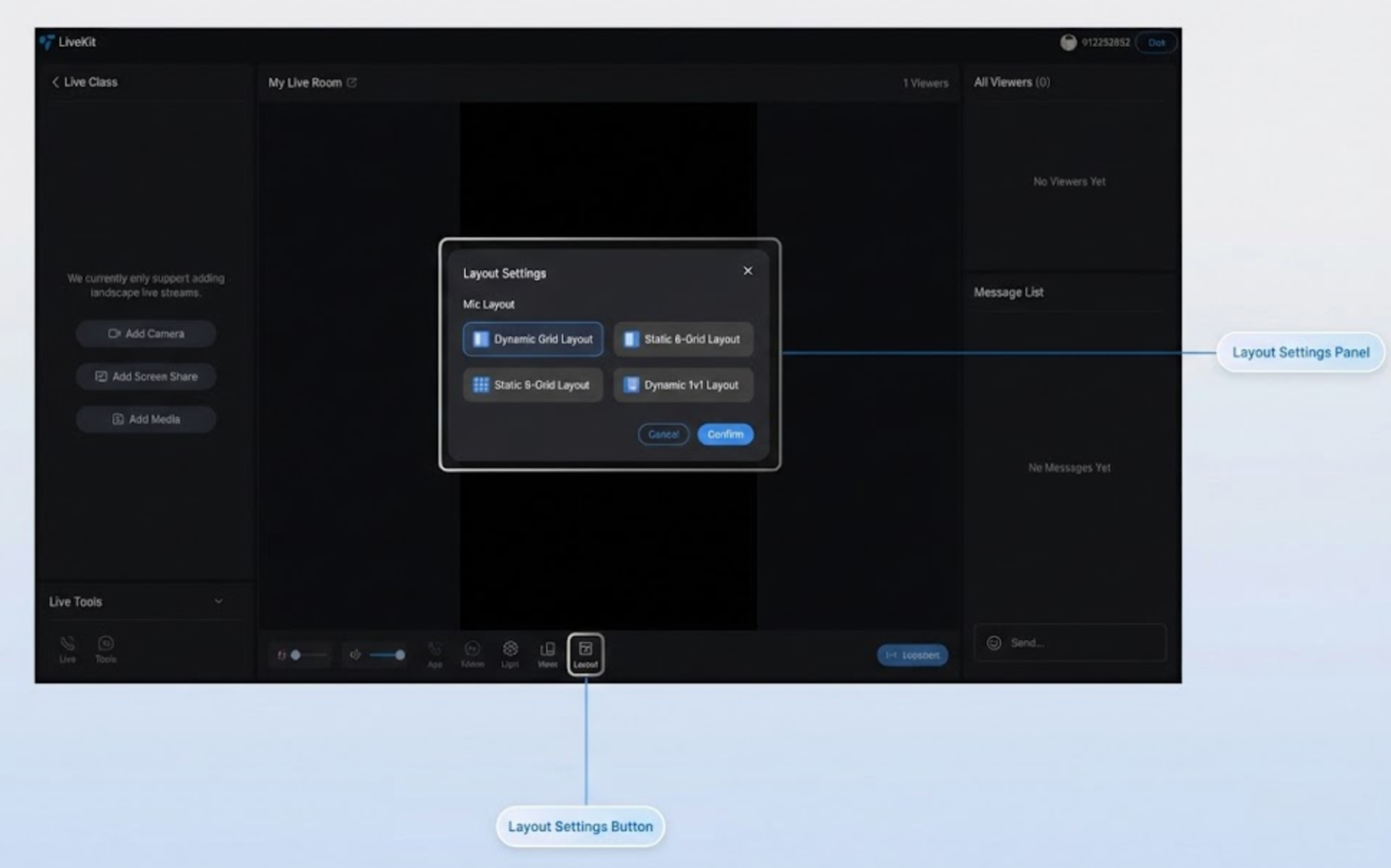
Portrait Mode Layout Templates
Portrait mode offers 4 layout templates, ideal for showroom live, e-commerce, and similar scenarios:
Name | Dynamic Grid Layout | Dynamic 1V6 Layout | Static Grid Layout | Static Small Window Layout |
Template ID | 600 | 601 | 800 | 801 |
Description | Default layout; grid size adjusts dynamically based on guest count, auto-filling the screen. | Host is centered in a large window, guests appear as floating small windows around the host. | Fixed 9-grid layout; each guest occupies a fixed-size grid slot. | Host is full screen, guests are shown as fixed small windows at the screen edges. |
Applicable Scenarios | General scenarios with variable guest count. | Host-centric, guest-assisted interaction scenarios. | Multi-guest, Voice Chat Room, or fixed participant scenarios. | Host full-screen display, guest auxiliary scenarios. |
Landscape Mode Layout Template
Landscape mode provides 1 layout template, suitable for game streaming, online education, and more:
Name | Landscape Floating Layout |
Template ID | 200 |
Description | Host is full screen, guests are shown as floating small windows at the bottom of the screen. |
Applicable Scenarios | Game streaming, screen sharing, online education, and other landscape scenarios. |
Set Layout Template via Code
Set the layout template in code by calling
updateLiveInfo:import { useLiveListState } from 'tuikit-atomicx-vue3';const { updateLiveInfo } = useLiveListState();// Set portrait dynamic grid layoutupdateLiveInfo({ layoutTemplate: 600 });// Set portrait dynamic 1v6 layoutupdateLiveInfo({ layoutTemplate: 601 });// Set portrait static grid layoutupdateLiveInfo({ layoutTemplate: 800 });// Set portrait static 1v6 layoutupdateLiveInfo({ layoutTemplate: 801 });// Set landscape floating layoutupdateLiveInfo({ layoutTemplate: 200 });
Note:
You can switch layout templates before starting the live stream and during the session.
During host PK, layout templates cannot be switched.
When switching streaming direction, the layout template automatically changes to the default for that direction.
Free Customization
Color Theme and Language
Change the default theme and language by configuring
UIKitProvider parameters in App.vue.UIKitProvider Parameter | Options | Default |
theme | "light" | "dark" | "light" |
language | "zh-CN" | "en-US" | - |
<UIKitProvider theme="light"><router-view /></UIKitProvider><script setup lang="ts">import { UIKitProvider } from '@tencentcloud/uikit-base-component-vue3';
Buttons and Icons
To add or replace Button or Icon controls for further UI customization, follow the example below. In the
live-player.vue file, you can refer to the diagram to locate the source code for each button or icon, then add, remove, or replace UI controls as needed.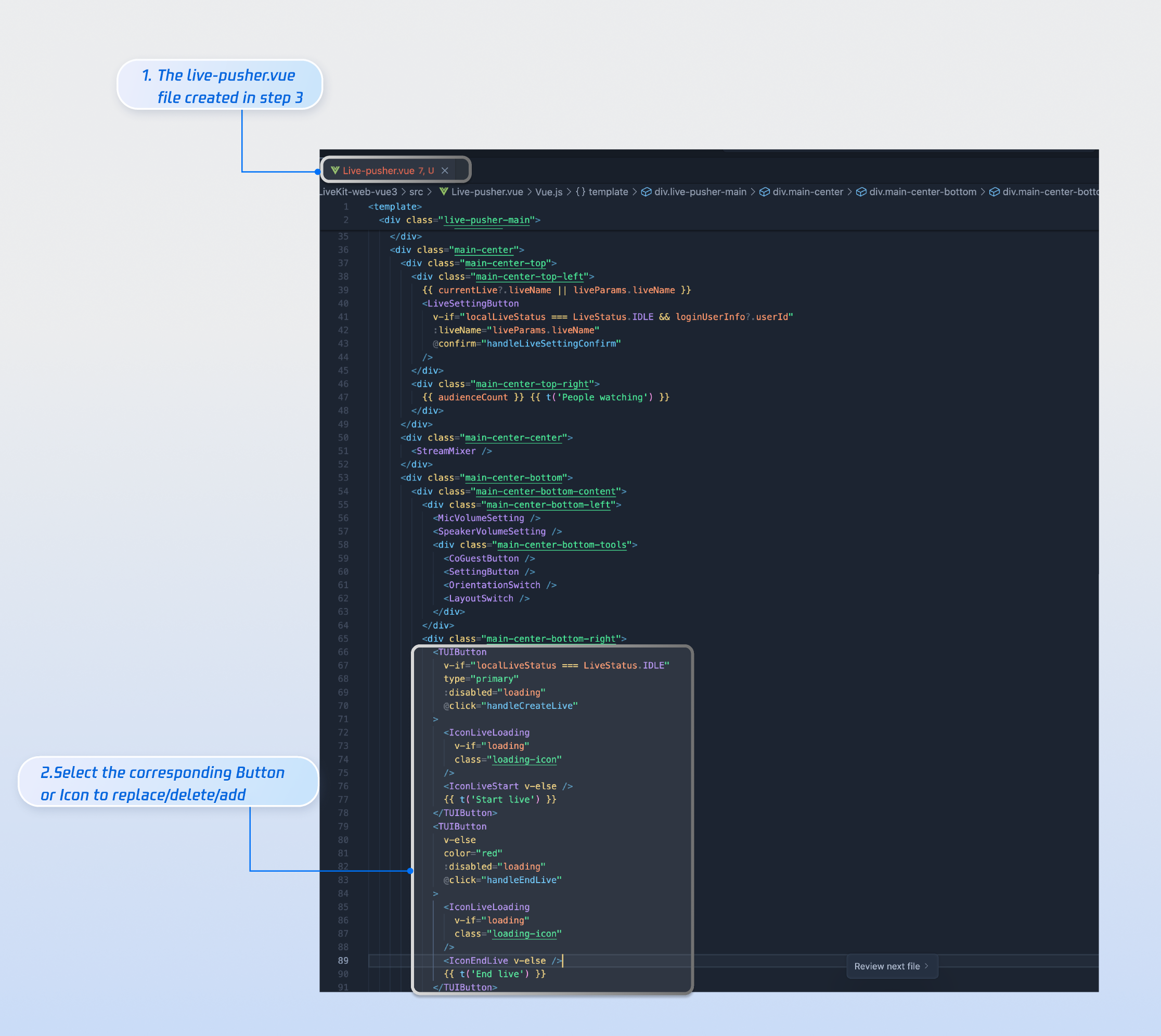
You can also customize the audience viewing page UI as needed. In addition to layout adjustments, you can freely add, remove, or modify color themes, fonts, border radius, buttons, icons, input boxes, dialogs, and more to meet your UI requirements.
Category | Feature | Description | Component Customization Guide |
Online Audience | Customize audience info display | Supports: - Show/hide audience level. - Customize font and color of audience info. - Replace icon style as needed. | |
Message List | Customize live comments area display | Supports: - Show/hide chat input area. - Customize chat bubble style, audience level, etc. |
Next Steps
Congratulations! You've successfully integrated the Host Live Start Page. Next, you can implement the Audience Viewing Page, Live Stream List Page, and further UI customization. See the table below:
Feature | Description | Integration Guide |
Audience Viewing | Enable audience to enter the host's live room and watch the stream, including audience guest, live room info, online audience, live comments, and more. | |
Live Stream List | Display the live stream list interface and features, including live stream list and room info display. |
フィードバック