Whiteboard and Annotation
ダウンロード
フォーカスモード
フォントサイズ
TUIRoomKit provides integrated whiteboard and screen sharing annotation tools. After integrating TUIRoomKit, users can access these features in meetings without any additional coding:
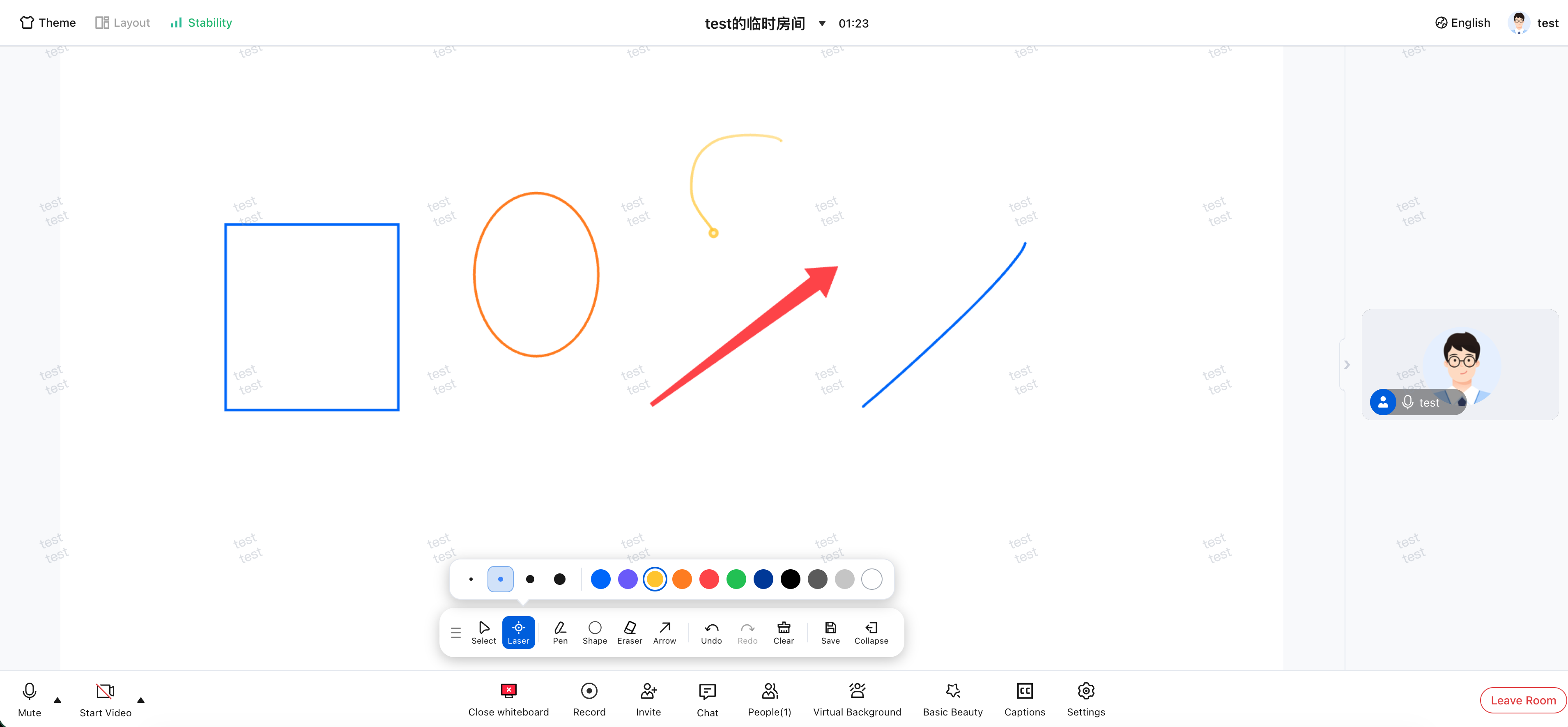
Whiteboard: Open a collaborative canvas for note-taking, explanations, and brainstorming.
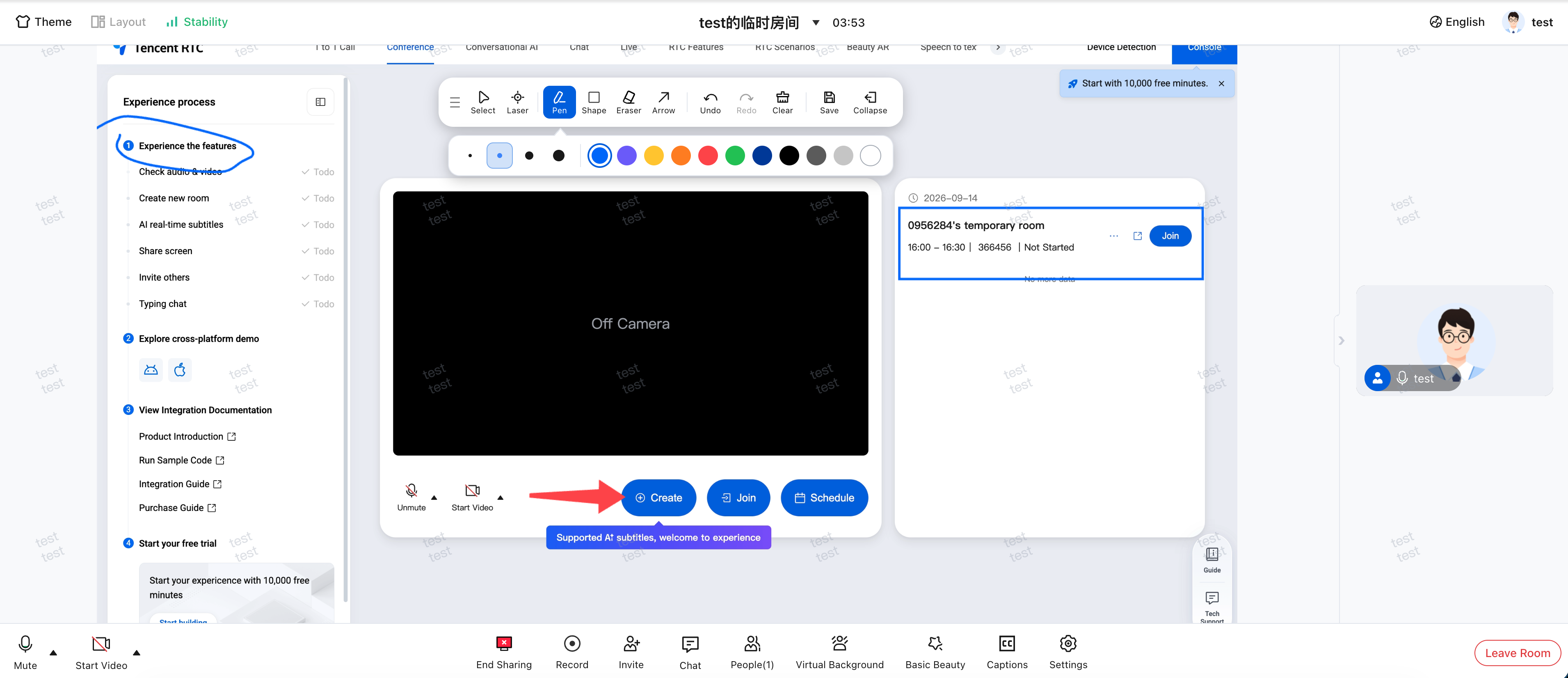
Screen Sharing Annotation: Highlight, mark, or draw directly on the shared screen to emphasize key points or identify issues.
Online Demo
Try the TUIRoomKit Online Demo to see the whiteboard and screen sharing annotation features in action during a conference.
Getting Started
To begin, follow the Quick Integration Guide to integrate
@tencentcloud/roomkit-web-vue3, and ensure you are using version 6.1.0 or later.Use the Whiteboard
1. Join a multi-party conference.
2. Click Screen Sharing in the bottom toolbar.
3. In the expanded menu, select Whiteboard.
4. The whiteboard will be shared instantly with everyone in the room. The initiator has access to tools including pen, laser pointer, shapes, arrows, eraser, undo, redo, clear, and screenshot.
Use Screen Sharing Annotation
1. Start screen sharing.
2. Click the Annotate button on the shared screen.
3. Use the pen, shapes, or arrows to highlight important areas on the shared content.
4. Annotations will automatically close when you end screen sharing.
Permission Control
Whiteboard access uses the same permissions as screen sharing:
Host and administrators can manage screen sharing permissions for regular participants.
Regular participants without screen sharing permission cannot start screen sharing or use the whiteboard.
Screen sharing annotation is available only to the participant currently sharing their screen. Other users can view the shared screen and annotations, but cannot draw.
If a participant cannot see the whiteboard option, confirm that their screen sharing permission is enabled.
Disable Whiteboard and Annotation
If you do not need the whiteboard or annotation features in your app, you can hide their entry points:
import {BuiltinWidget,conference,} from '@tencentcloud/roomkit-web-vue3';conference.setWidgetVisible({[BuiltinWidget.WhiteboardWidget]: false,[BuiltinWidget.AnnotationWidget]: false,});
Supported Platforms
Supports the latest stable releases of Chrome and Edge on Windows and macOS desktops.
Not currently supported on mobile browsers or webinar rooms.
Only the initiator can draw; other participants view updates in real time. Multi-user simultaneous drawing is not supported.
Whiteboard and standard screen sharing cannot be enabled at the same time. To use annotation, start screen sharing first, then activate annotation on the shared screen.
FAQs
Why can’t I see the whiteboard option in the conference?
Check the following:
1.
@tencentcloud/roomkit-web-vue3 is upgraded to 6.1.0 or later.2. You are in a multi-party conference, not a webinar room.
3. The current user has screen sharing permission.
4. You are using a desktop version of Chrome or Edge that supports screen sharing.
Do I need to manually close the whiteboard or annotation before exiting the conference?
No. When you exit the room, the component automatically stops the whiteboard and releases related resources. Screen sharing annotation will also stop automatically when sharing ends.
フィードバック