Domain Acceleration Configuration
Download
Focus Mode
Font Size
Why Perform Acceleration Configuration?
Performance improvement: Enhance the recipient's access tracking link and image loading speed.
Security assurance: Enforce the use of HTTPS to guarantee data transmission security.
HTTP images are intercepted: Tracking pixels in the mail cannot be loaded, resulting in failed tracking.
Link security warning: The browser will display a "not secure" warning when clicking an HTTP link.
Tracking data loss: Unable to accurately measure email open rate and click rate.
Data accuracy: Underwrite the accuracy of key metrics such as open rate and click rate, and avoid tracking data loss caused by protocol issues.
How to configure acceleration settings?
Select the acceleration product Tencent Cloud EdgeOne (referred to as EdgeOne in the following context). Of course, you can also choose other acceleration products. This document uses EdgeOne as an example to introduce the configuration procedure.
Step 1: Add Acceleration Domain Name
1. Log in to the Tencent Cloud EdgeOne console, refer to the quick access guide, Click Domain Name Service > Domain Management to go to the Domain Management Details page, and click Add domain name to add a new acceleration domain name.
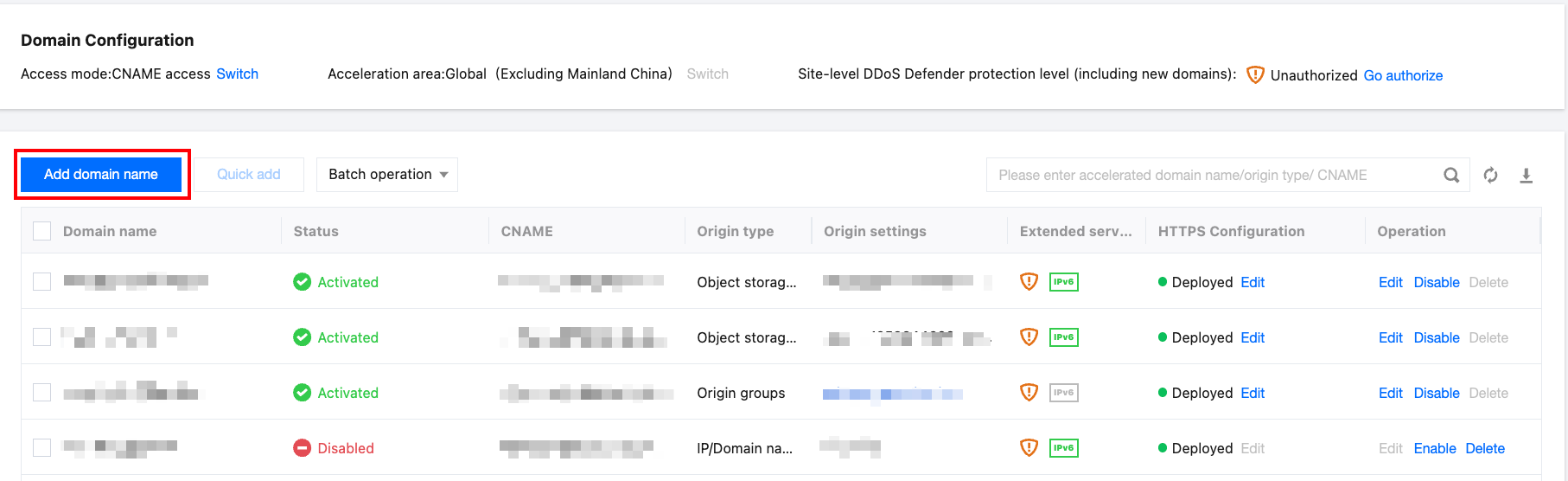
2. Fill in the acceleration domain name to be added and corresponding origin server information, then click Next after completing the configuration.
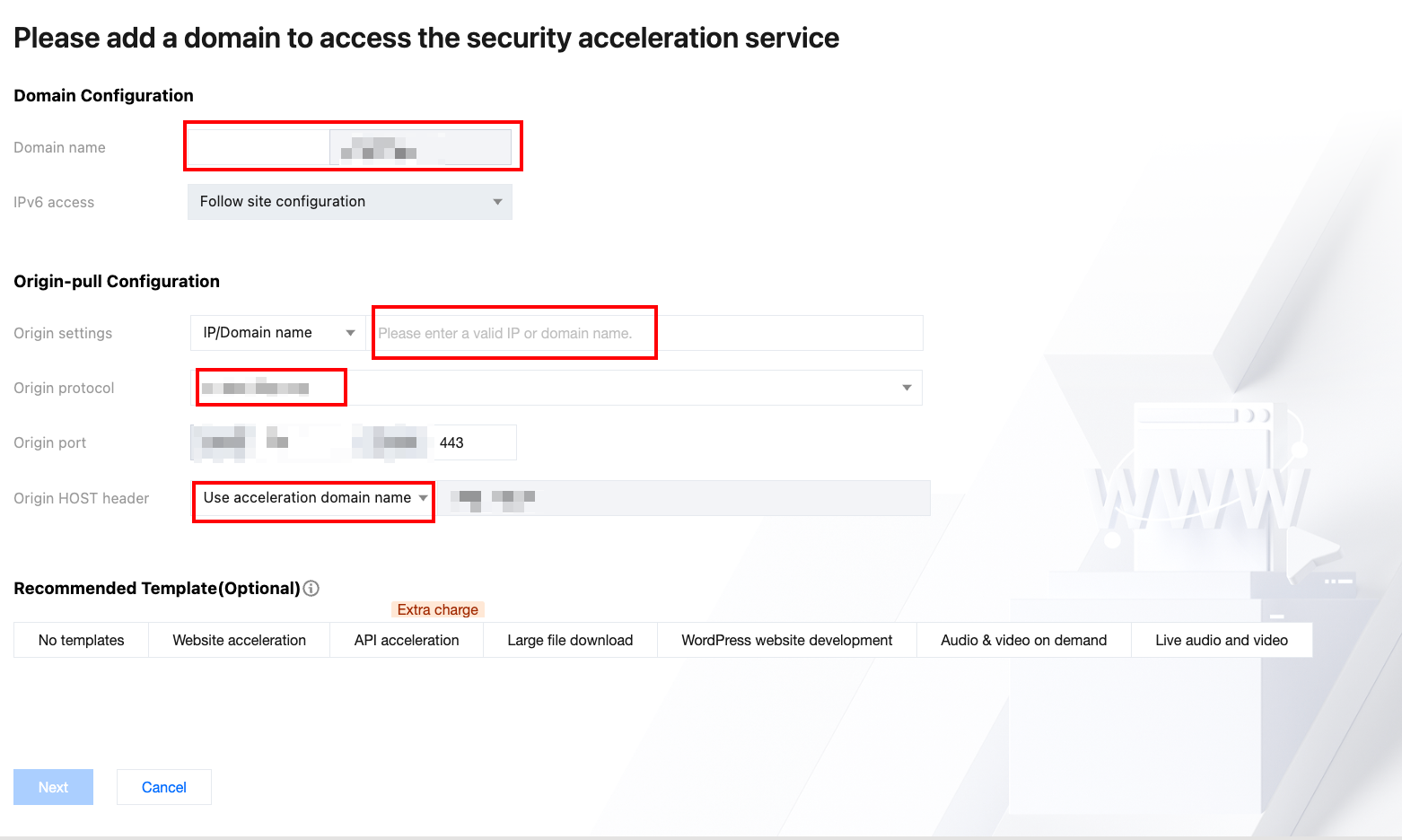
Configuration Item | Description |
domain name | Fill in the trace domain name to be accelerated |
IPv6 access | Follows site configuration by default |
Origin settings | Hong Kong (China): hk-source.callback.cloudses.com Guangzhou: gz-source.callback.cloudses.com Singapore: sg-source.callback.cloudses.com |
Origin protocol | Select "HTTPS", do not select other options. |
Origin port | HTTPS origin uses port 443 |
Origin Host header | Select "Use origin server domain name" and use the origin-pull domain name as the Origin-Pull Host header. |
Step 2: Configure HTTPS Certificate
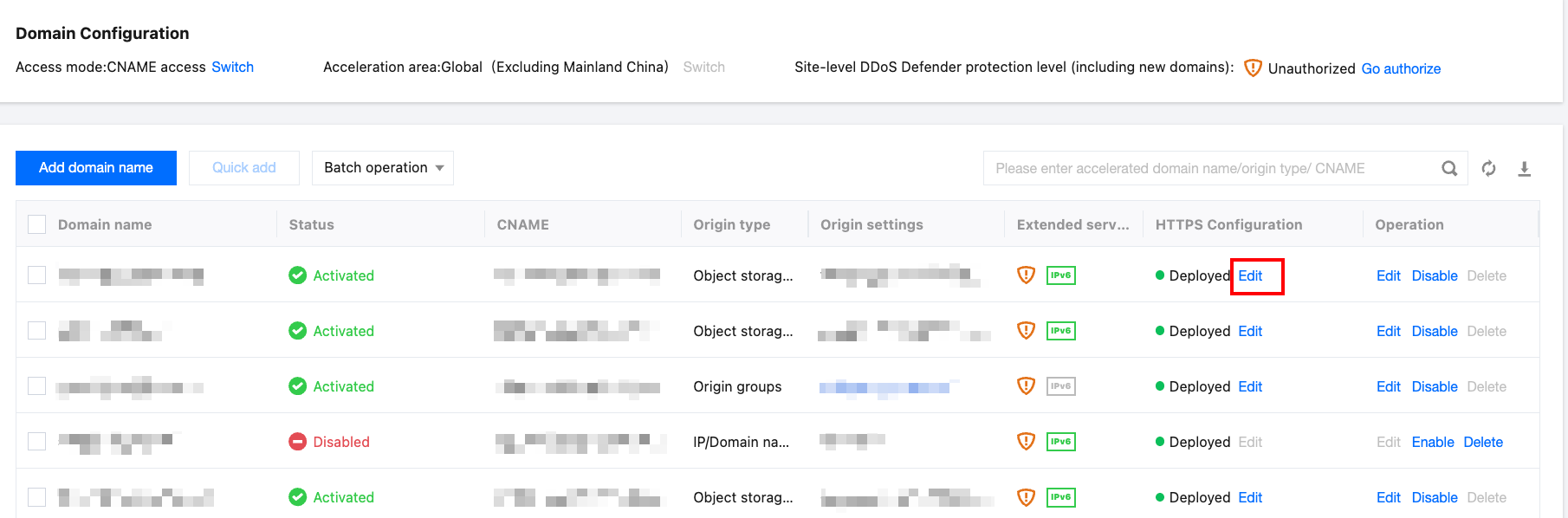
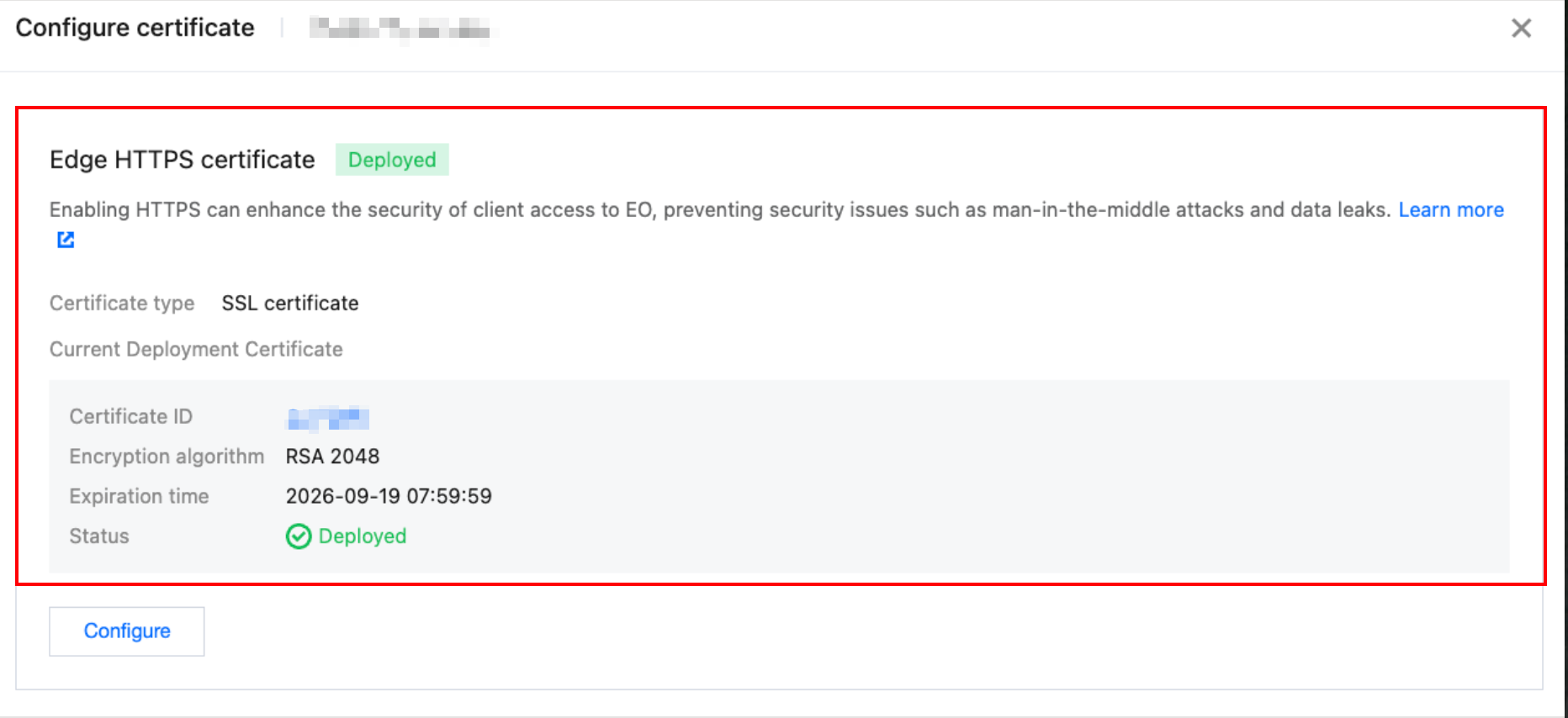
1. On the Domain name management list page, click Edit in the HTTPS configuration column. A certificate configuration webpage pops up. Find the edge HTTPS certificate card and click Configure.
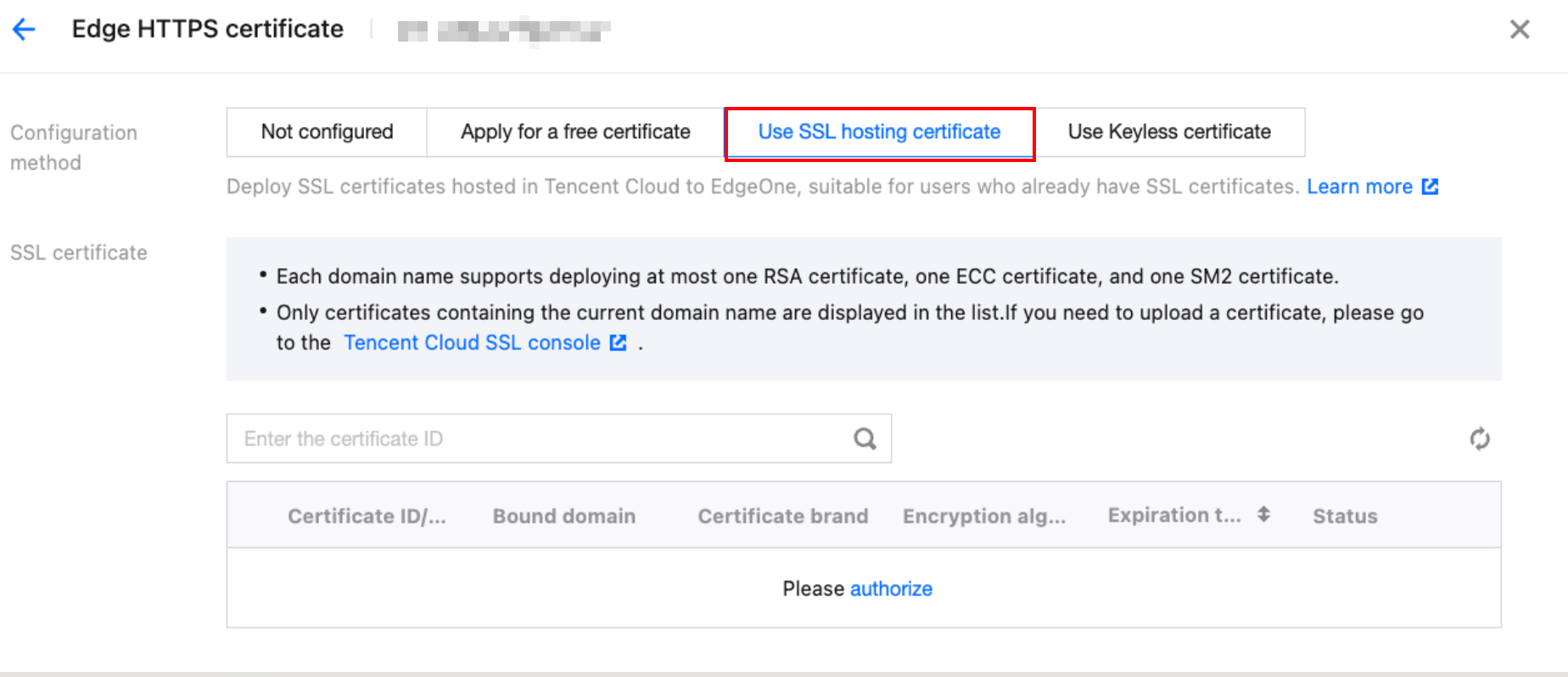
2. In the setting method, select Use SSL hosting certificate. The deployable certificate list of the domain will be automatically displayed. Select the associated certificate ID, click OK, and the certificate configuration will be deployed. For details, refer to Deploy/Update Managed SSL Certificate to EdgeOne Domain Name.
Step 3: CNAME Verification
After the domain name is created, EdgeOne will assign a CNAME address to that domain name. You need to configure CNAME for the security acceleration to take effect. For the setting method, refer to: Modify CNAME Resolution.
Note:
Before adding a CNAME, you can also refer to Verify Business Access to check whether the current domain configuration is correct.
Step 4: Verify the Trace Domain Name in the SES Console
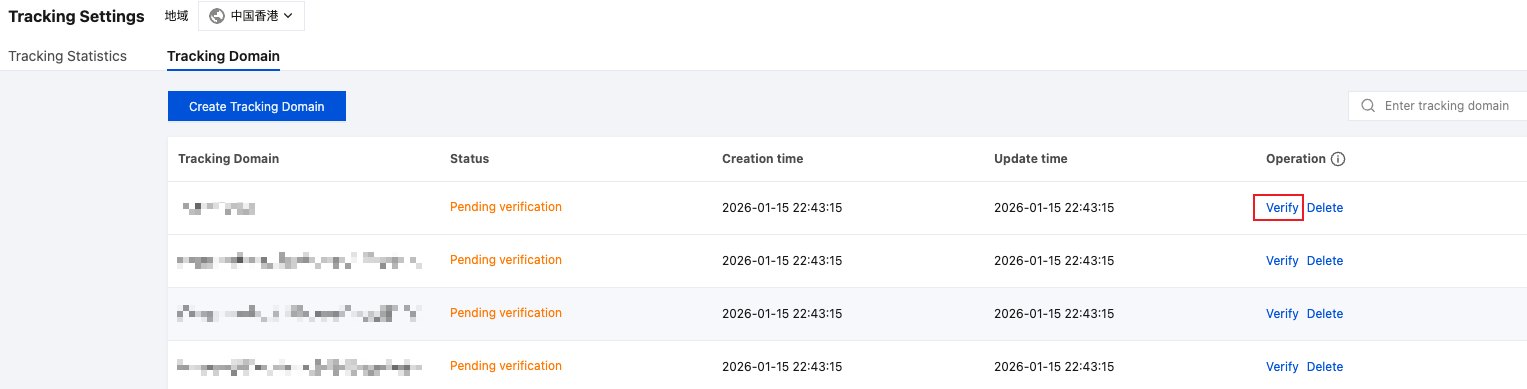
1. On the Email Configuration > Tracking Settings > Tracking Domain Name webpage, find the corresponding tracking domain name and click Verify in the operation list.
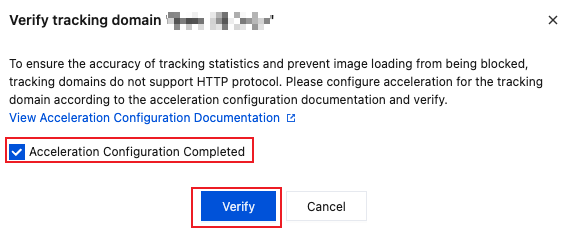
2. Check Acceleration configuration completed, then click Verify.
Status | Description | Operation |
verified | The domain name can be used normally. | Enable trace for open/click events |
Verification failed | Configuration error | Check the configuration: Whether DNS resolution is correct Whether the HTTPS certificate is valid Whether the origin-pull configuration is normal |
Why Does Verification Keep Failing?
Check the following configuration in sequence:
1. DNS resolution check: See How to Verify Whether CNAME Resolution Takes Effect.
2. HTTPS access check: See Verify the workloads.
3. Origin-pull configuration check
Confirm the origin server address is correct
Confirm the origin-pull Host is configured correctly
Confirm the origin port is 443
4. Certificate check
Assuming your tracking domain is named track.example.com, access " https://track.example.com" in the browser and check whether there is a certificate error notification.
How Long Does DNS Resolution Take Effect?
It usually takes effect within 10-30 minutes.
It may take up to 24 hours (due to different DNS cache settings).
Recommend using an online tool to detect global resolution status.
Can Use HTTP?
Not allowed. Based on the following reasons, we have mandatory requirements for using HTTPS:
Google, Edge, Safari and other mainstream browsers block HTTP image resources by default.
Mixed content can cause browser security alarms. If you set up a custom domain name using HTTP protocol and send an email containing URLs using HTTPS, customers may see a warning message when they click the link in the email.
HTTP cannot guarantee data transmission security.
Except EdgeOne Can Other Acceleration Products Be Used?
Any Other Must-Knows?
Renew in time before certificate expiration.
After the DNS record change, tracing the domain name requires re-verification.
Periodically check the domain name verification status.
Help and Support
Was this page helpful?
You can also Contact sales or Submit a Ticket for help.
Help us improve! Rate your documentation experience in 5 mins.
Feedback