tencent cloud

Simple Email Service

News and Announcements
Release Notes
Announcement on a Newly Added Independent IP Value-Added Service
Product Introduction
Overview
Features
Strengths
Use Cases
Specifications
Purchase Guide
Pricing
Getting Started
Email Configuration
Email Sending
Reputation Level
Console Guide
Configuration
Email Sending
Statistics
Delivery Response
API Documentation
History
Introduction
API Category
Making API Requests
Domain Verification APIs
Mail APIs
Template APIs
Statistics APIs
Sender Address APIs
Blocklist APIs
Sending Status Query APIs
Batch Task APIs
Custom Blocklist APIs
Data Types
Error Codes
SMTP Documentation
SMTP Email Sending Guide
SMTP Service Address
Sample Call for Java
Sample Call for Go
Sample Call for PHP
Sample Call for Python
Sample Call for C#
Sending Email with Attachment
Error Code
Webhook Documentation
Email Event Notification
Email Sending Restrictions
Attachment Types
FAQs
Getting Started
Billing
Sending Limits
Sending Feature
Domain
Template
Identity Verification and Configuration
Independent IP Related Questions
Delivery
API Use
Callback
Spam Folder
Security
Domain Acceleration Configuration
Important Notes
Others
Contact Us

Statistics

PDF
Focus Mode
Font Size
Last updated: 2024-09-05 09:47:39

Statistics

Email Sending Data

Overview

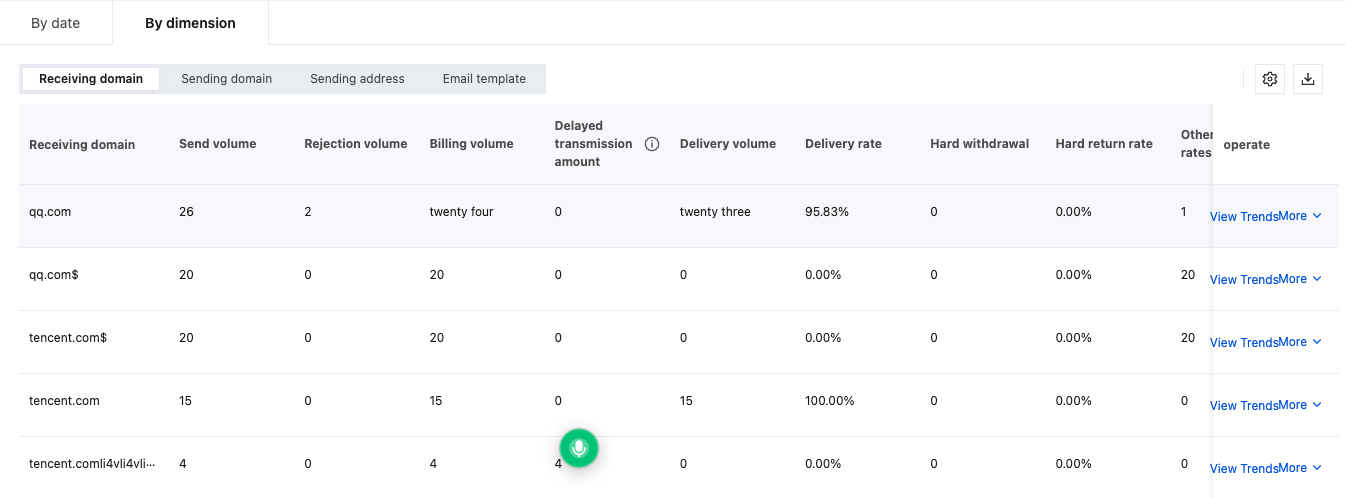
Log in to the Console > Statistics > Email Sending Data, which supports viewing and downloading email sending data from dimensions such as the sender domain, recipient domain, and template.

Directions

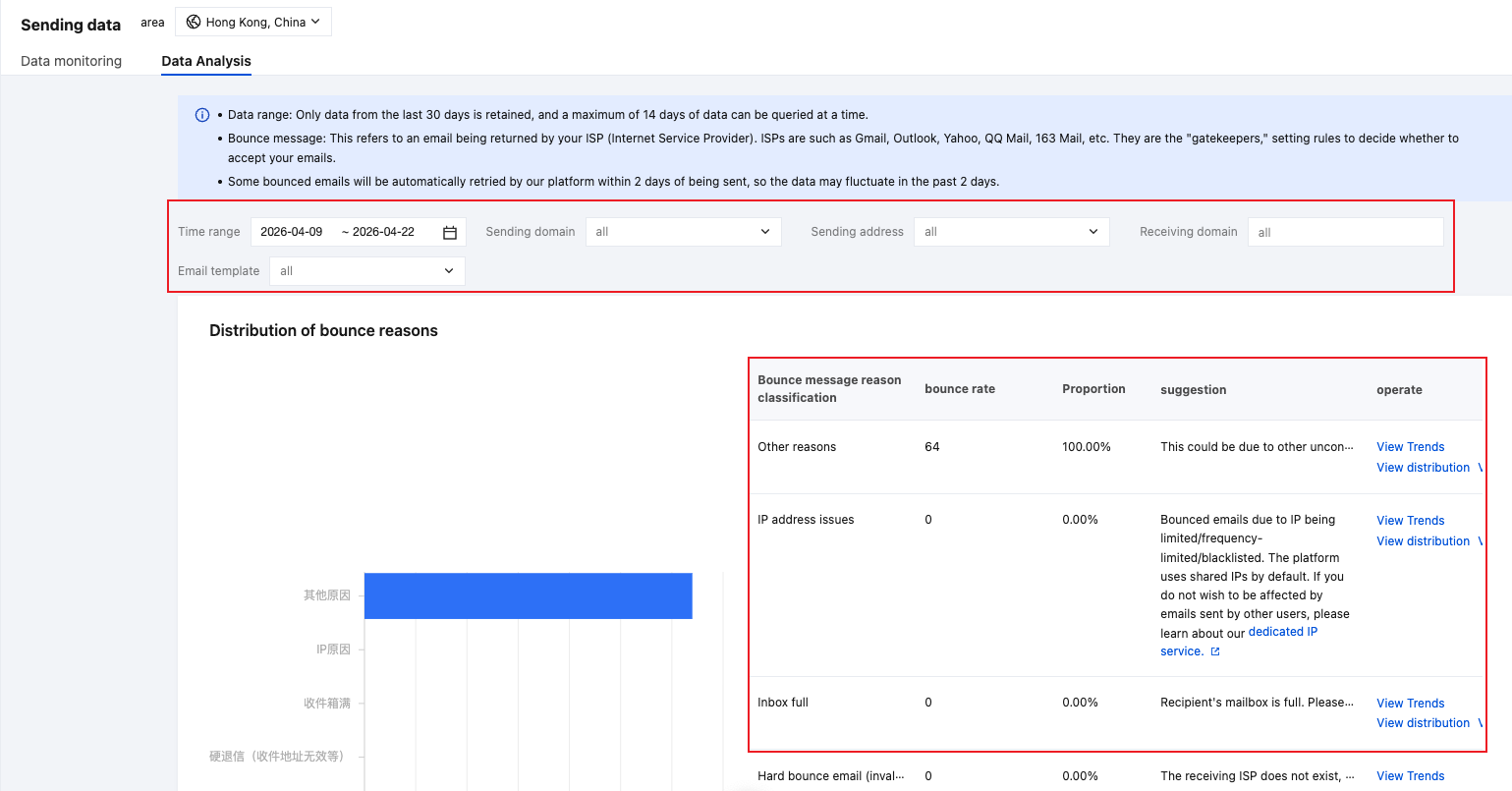
On the Email Sending Data page, you can specify the sender domain, recipient domain, or template to accurately filter and view or download the email sending details for a specific time period.


Note:
There is a certain delay in statistics. The data displayed in the console is for reference only.

Email tracking data

Overview

Log in to the Console > Statistics > Email tracking data, which supports viewing the number of users who opened the email, clicked on links, unsubscribed, and reported spam data from dimensions such as the sender domain, recipient domain, and template.

Directions

Log in to the Console > Email tracking data page, specify the sender domain, recipient domain or template to accurately filter and view the number of users who opened the email, clicked on links, unsubscribed, and reported spam data for a specific time period.
Note:
The number of users who opened the email and clicked on links requires you to configure it in advance in Statistics Settings.


Statistics Settings

Overview

Log in to the Console > Statistics > Statistics Settings, which supports setting whether to enable the Email Opens Count and Link Clicks Count from both the account level and sender domain level dimensions.

Directions

Account-level tracking data count settings

1. Log in to the Console > Data Statistics > Statistics Settings > Account-level tracking data count settings.


2. Click the switch for Email Opens Count, and confirm the operation a second time. After clicking "Confirm", you can enable or disable the "number of email opens" statistical capability for all sender domains under the account.


3. Click the switch for Sender domain level tracking data count settings, and confirm the operation a second time. After clicking "Confirm", you can enable or disable the "number of link clicks" statistical capability for all sender domains under the account.


Sender domain level tracking data count settings

1. Log in to the Console > Statistics > Statistics Settings > Sender domain level tracking data count settings.


2. Select the sender domain you want to set, and configure the "Email Opens Count" and "Link Clicks Count" statistical capabilities for single or multiple sender domains.


Help and Support

Was this page helpful?

Help us improve! Rate your documentation experience in 5 mins.

Feedback