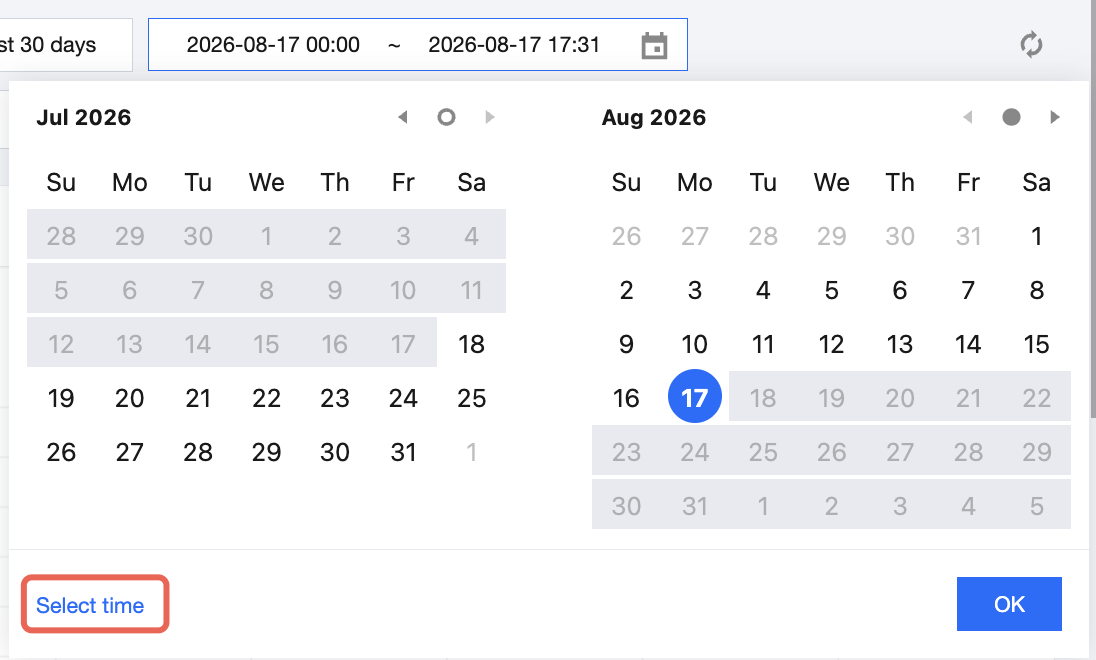
The EdgeOne log analysis page supports user customization of time range filter criteria. The following context mainly introduces two methods for filtering the time range.
Note:
To improve query efficiency, data granularity for different time ranges is as follows:
Time range ≤ 2 hr: 5 min.
2 hr < time range ≤ 48 hr: -30 min.
48 hr < time range ≤ 7 days: 4 hr.
Time range > 7 days: 1 day.
Method 1: Set Query Time Range through Filtering
Quick query: Quickly query data for the corresponding time range by clicking buttons such as Today, Yesterday, Last 7 Days, Last 30 Days.
Custom query: You can also select a specific date and time range to query data.
Note:
Max Time per request: 31 days.
Method 2: Select Query Time Range on Time Trend Chart
To view a specific time period in the bar trend chart, as shown in the following figure, click and drag over the desired area of the chart. The time range corresponding to the selected area will be automatically populated in the filter bar at the top and applied to the log details.