Remote Commands
Download
Focus Mode
Font Size
Scenarios
In Ops management of Cloud Virtual Desktop (CVD), you can use the remote command feature to conveniently run commands on single or multiple CVD instances. PowerShell or Bat commands are supported. This feature enables rapid and centralized command distribution, significantly improves the efficiency of batch task execution, and effectively reduces Ops time and labor costs.
Operation Limits
The target CVD instance must be in the Running or In Use status.
Remote command records are retained for 30 days and are automatically deleted upon expiration.
Operation Steps
1. Log in to the CVD console and go to the Remote Commands page.
2. Click Send Remote Command.

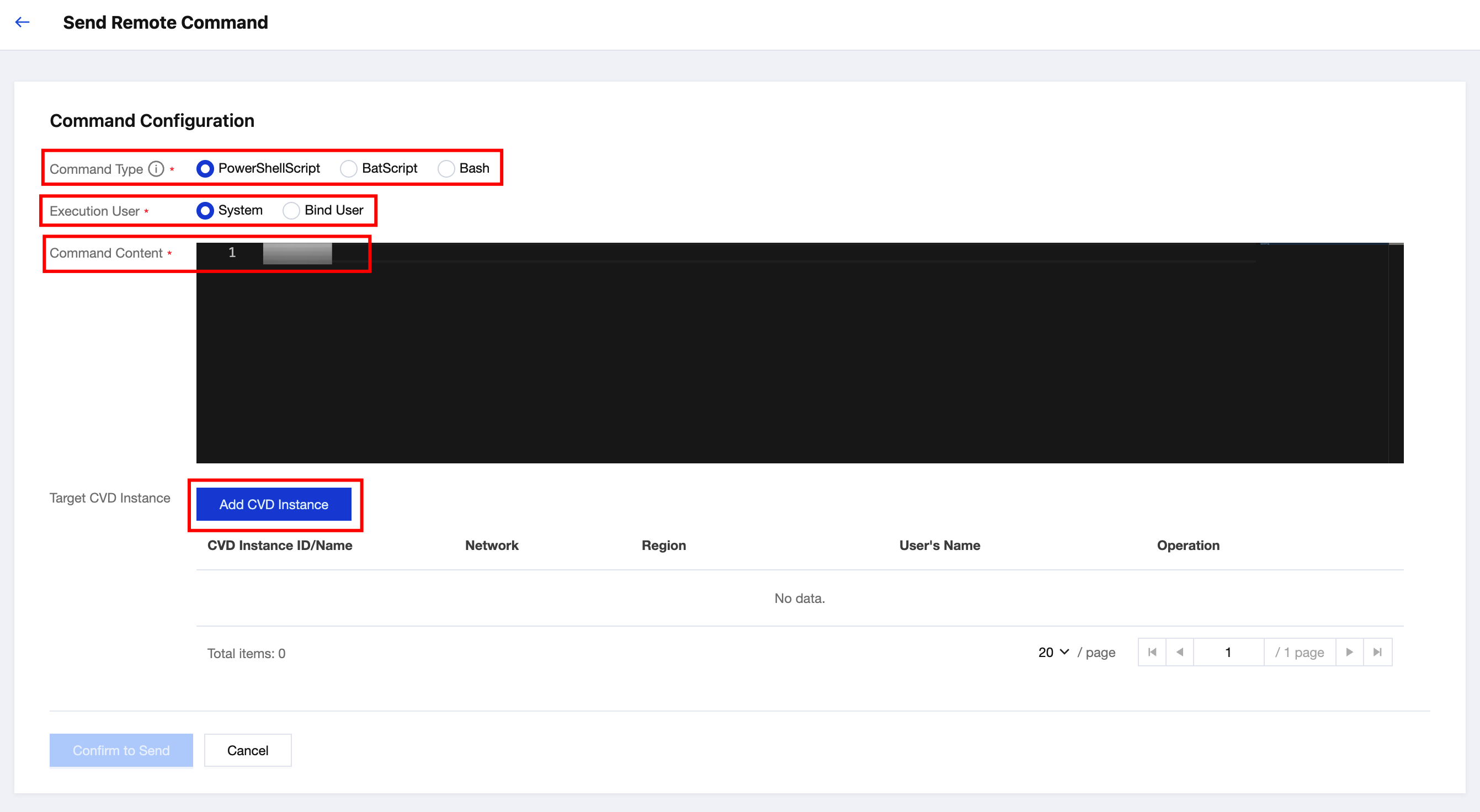
3. On the command configuration page, select the Command Type and Execution User, enter the Command Content, and then click Add CVD Instance to select the target CVD instances.
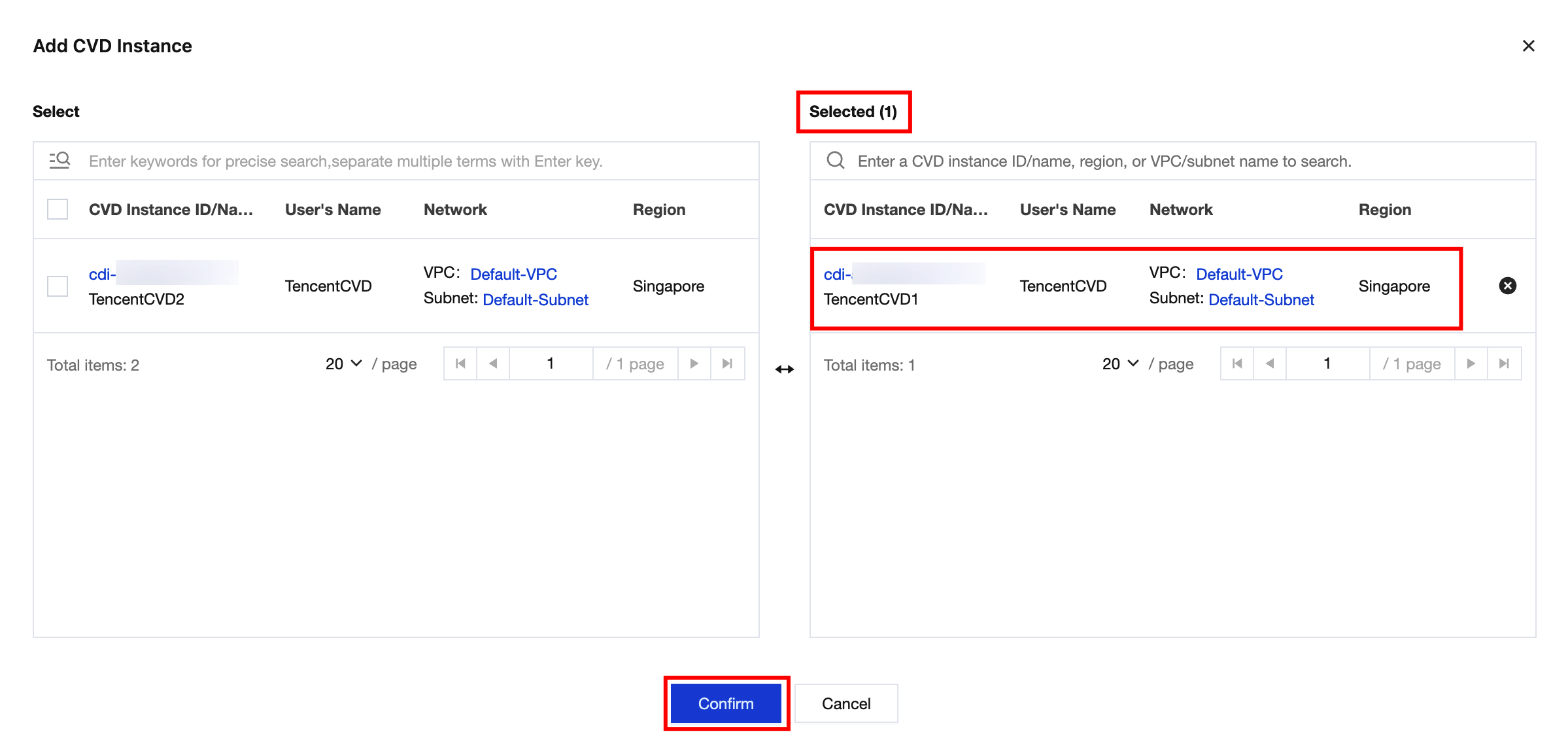
4. Search for or manually add one or more CVD instances, and then click Confirm.
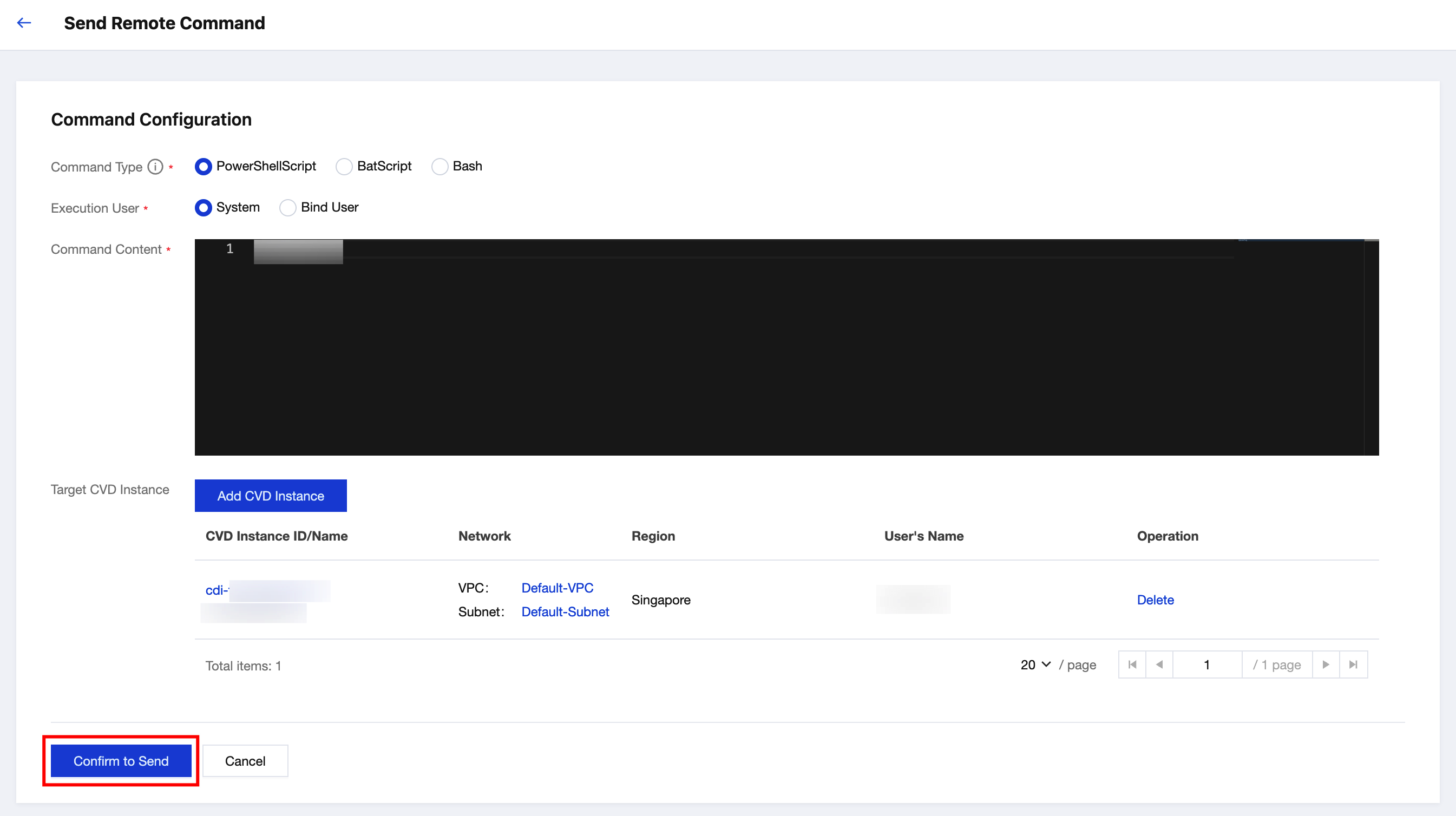
5. After you select the CVD instances to be added and confirm that the relevant information is correct, click Confirm Send.
6. The prompt "Created successfully" appears upon success. The execution status shows In Progress. Click View in the operation column to view the execution progress. If you select Terminate or Delete for a running process, a confirmation pop-up window will appear.
Note:
You can terminate only remote commands with the execution status being In Progress.
After a running remote command is terminated or deleted, any target CVD instances that have not executed this command will no longer execute it.

7. After the execution status shows Completed, click View in the operation column to view the execution result.
Note:
To delete a remote command record, click Delete in the operation column. Deleted records cannot be recovered. Proceed with caution.

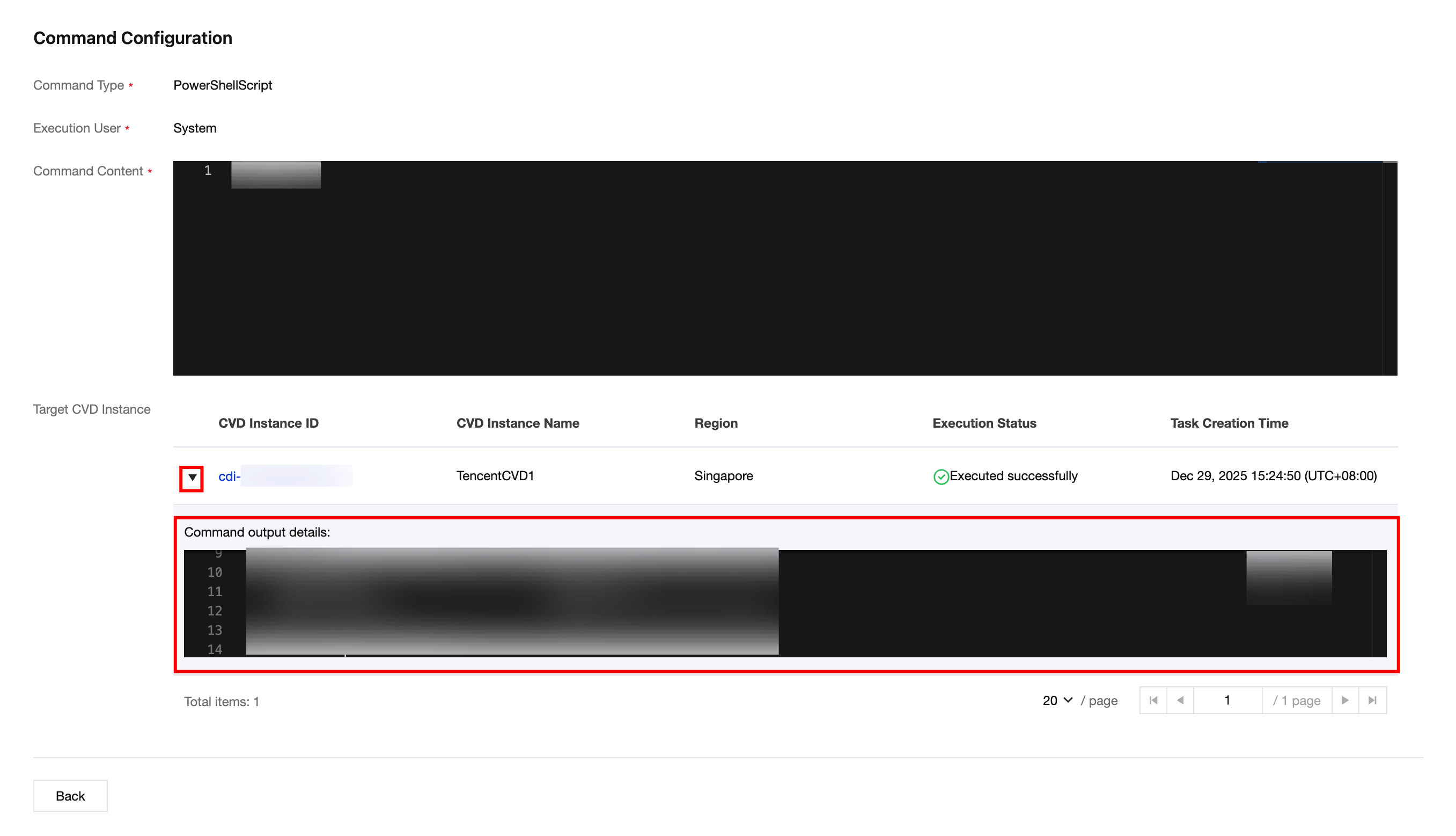
8. For a single CVD instance, you can expand to view detailed command output. For a CVD instance with an execution failure, you can expand to view the failure information.
Help and Support
Was this page helpful?
You can also Contact sales or Submit a Ticket for help.
Help us improve! Rate your documentation experience in 5 mins.
Feedback