Credential management centrally manages the authorization information required by connectors, tools, and models (in planning). You can save information such as API keys, Tencent Cloud CAM authorizations, and OAuth authorizations as credentials, and directly reference them in scenarios such as applications, workflows, and the intelligent workbench, eliminating the need to repeatedly enter keys or re-authorize across multiple applications.
With credential management, you can:
Unified management: Centrally create, view, and maintain authorization credentials for connectors, tools, and models.
Quick reference: In configurations such as applications and workflows, directly select existing credentials to complete service calls without re-entering them.
Centralized control: When credentials change, expire, or are deleted, centrally view the affected application scope to reduce batch maintenance costs.
2. Basic Concepts
Concept
Description
Credential
A saved authorization entry used to call services such as connectors, tools, and models.
Authorization Method
Authorization types supported by connectors/tools, such as APIKey, Tencent Cloud CAM, and OAuth 2.0.
Authorization Instance
Specific authorization details filled in according to a certain authorization method. For example, the APIKey method corresponds to an APIKey value; the Tencent Cloud CAM method corresponds to SecretId and SecretKey; the OAuth 2.0 method corresponds to an OAuth Token.
Create Credential
Select an authorization method for a connector or tool, and complete the key entry or authorization operation.
Reference Credential
In application, workflow, and other configurations, select an existing credential to complete service calls.
3. Credential Types
Credentials are divided into two types based on their visibility and reference scope:
Credential Type
Description
Custom Credential
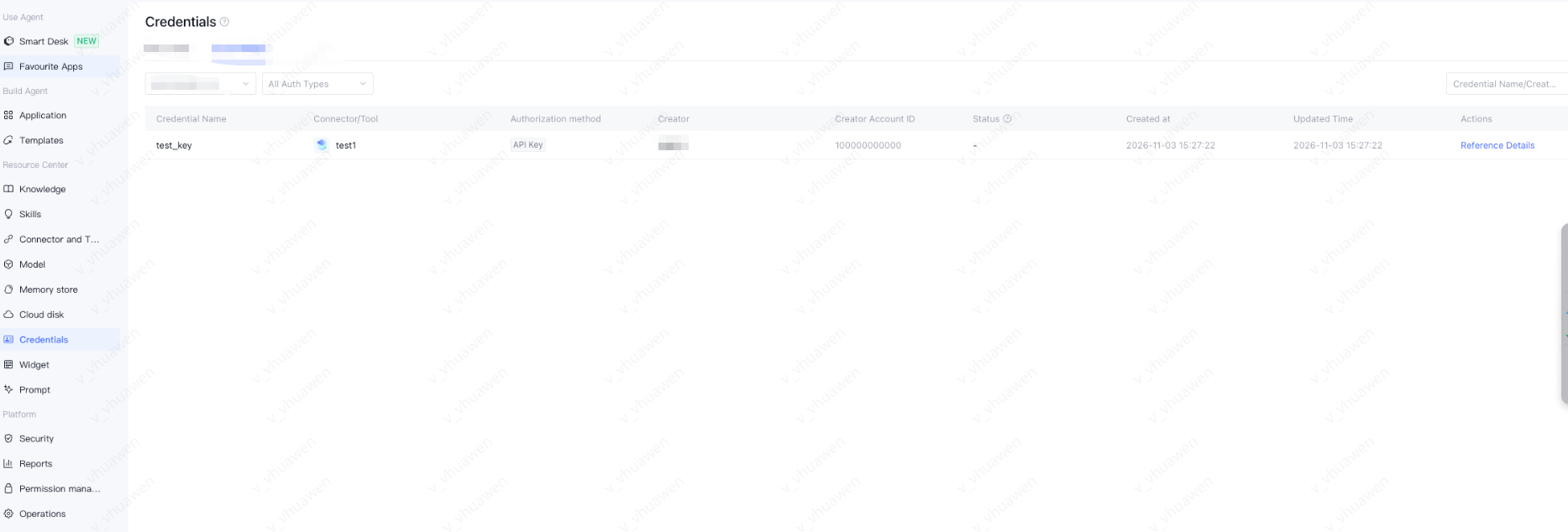
A custom credential is visible, editable, and referenceable only by its creator by default. Other regular users in the space cannot view or reference it. Administrators cannot reference it but can delete the credential for security control.
Enterprise Shared Credential
A credential shared to the current space by other users. Users in the space can view and reference it but cannot edit or delete it.
4. Entry Description
You can access credential management through the following entry points:
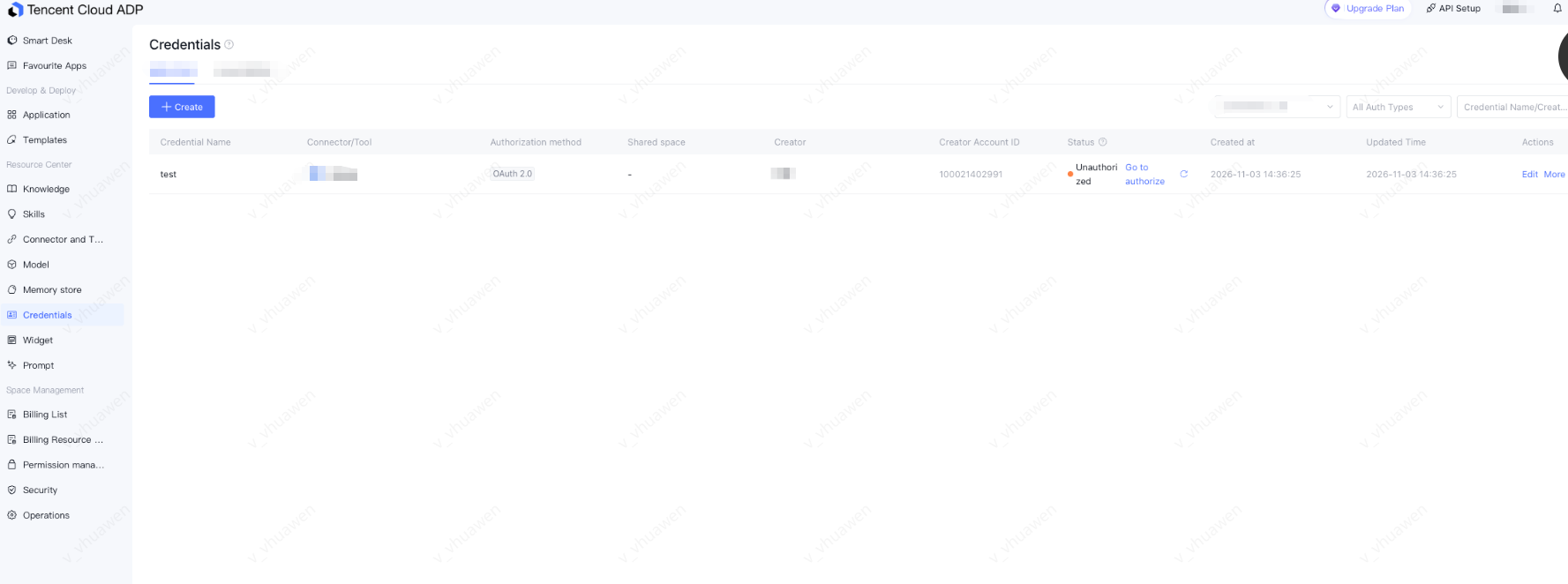
1. Click Credentials in the left sidebar, click Create to create a new authorization credential, or view existing credentials in the credential list.
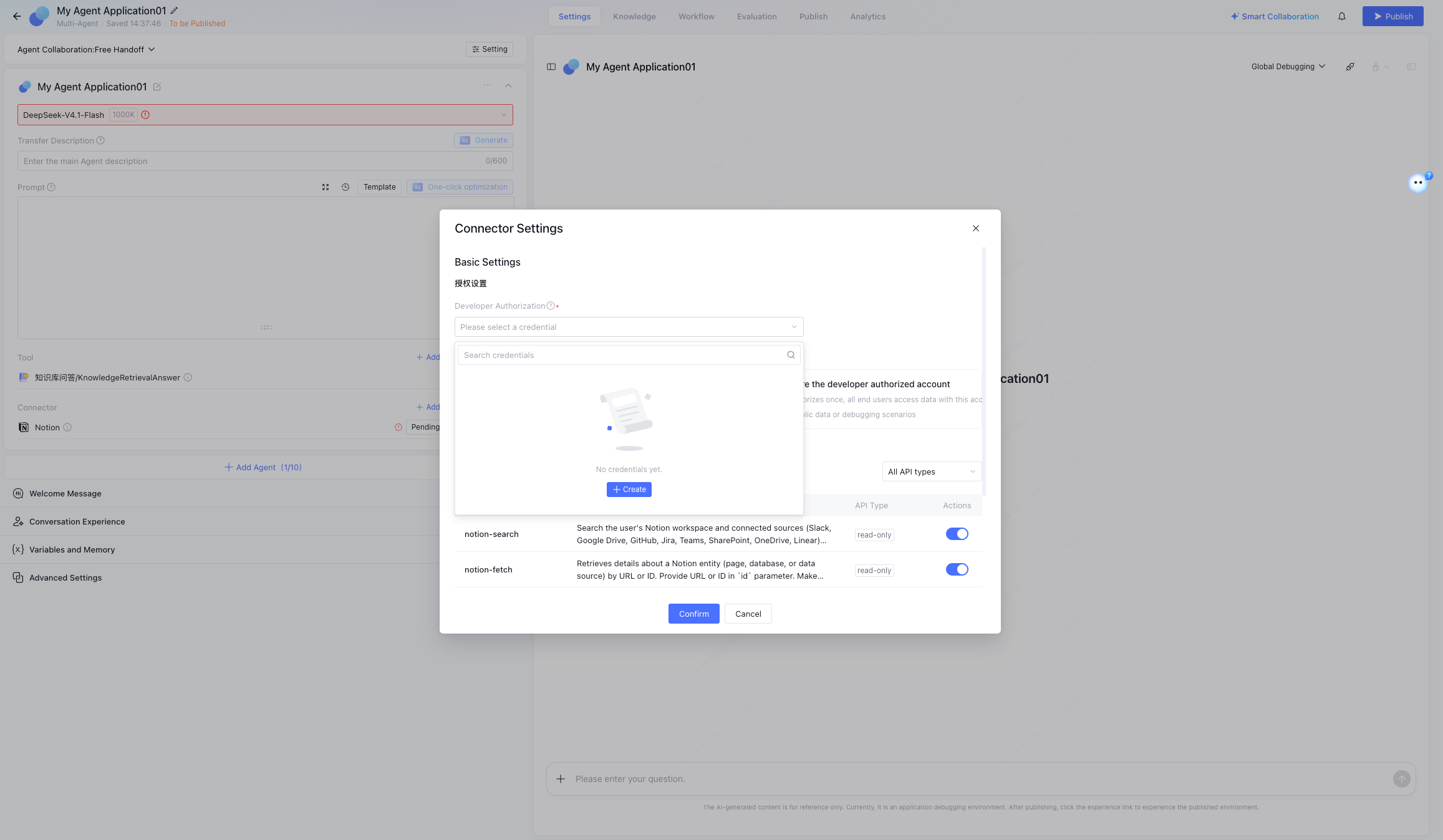
2. When configuring tools in applications, workflows, or the intelligent workbench, you can also quickly create a credential by selecting Create in the authorization configuration section.
5. Credential Management
5.1 Custom Credentials
5.1.1 Create a Credential
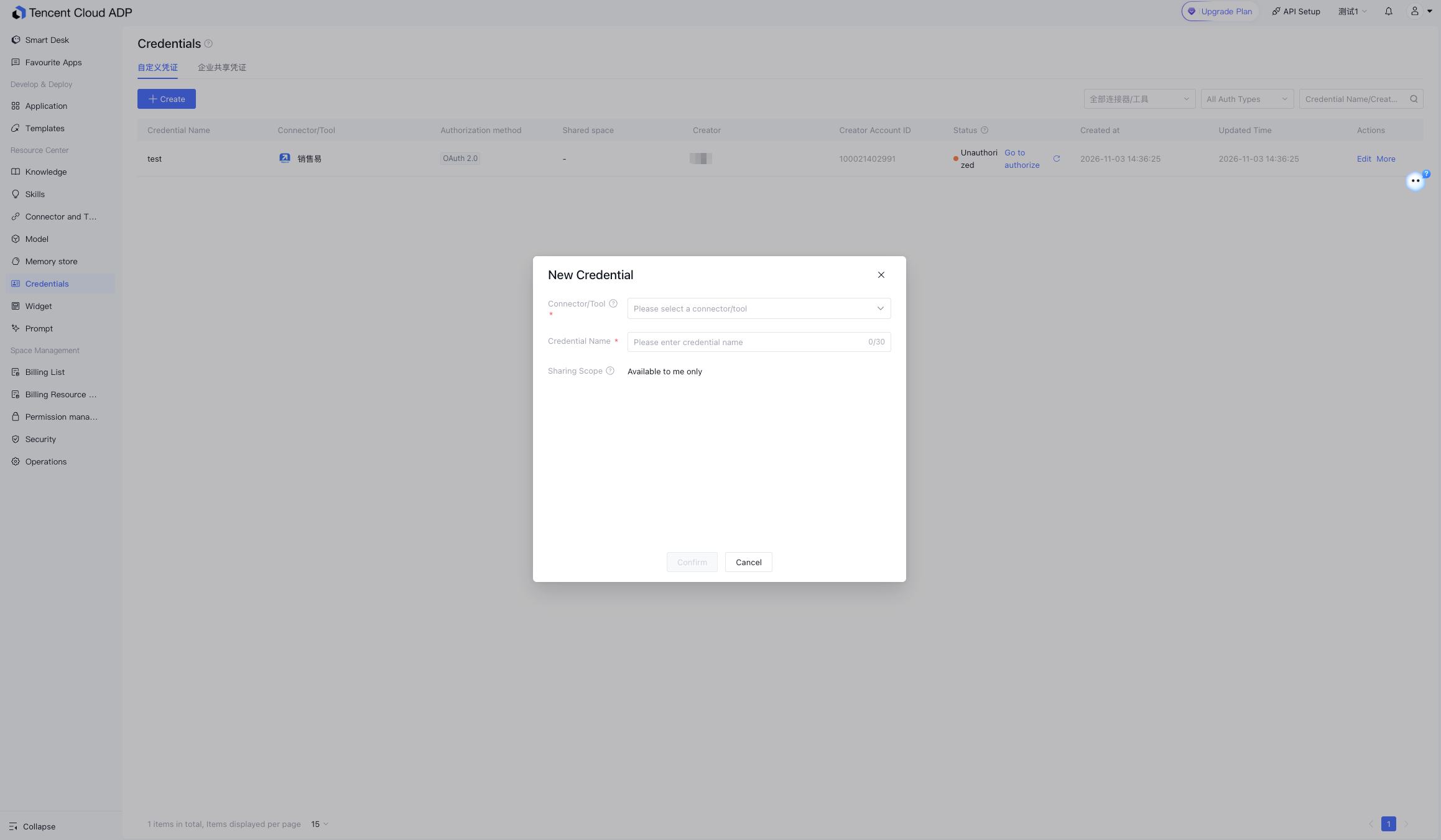
Select a connector/tool, and enter the credential name and authorized instance.
Field
Required
Description
Connector/Tool
Required
Select the connector/tool that this credential will authorize. After selection, the authorization method below will be automatically matched to the authorization types supported by that object.
Credential Name
Required
Customize the credential name with a maximum of 30 characters. It is recommended to reflect the associated object and purpose for easier identification in later references.
Authorization Method
-
Automatically populated based on the selected connector/tool, such as OAuth 2.0, APIKey, and Tencent Cloud CAM.
The authorized instances vary slightly depending on the authorization method:
APIKey Authorization: Enter the corresponding APIKey field.
Tencent Cloud CAM Authorization: Supports both Tencent Cloud CAM and manual entry. When Tencent Cloud CAM is selected, click Authorize and follow the on-page instructions to complete authorization. When manual entry is selected, enter the corresponding SecretId, SecretKey, and other fields.
OAuth 2.0 Authorization: Create a credential first, then click Authorize to be redirected to the corresponding service to complete account authorization.
5.1.2 Credential List
In the credential list, you can view credential information and perform related operations.
List Field
Field
Description
Credential Name
Name entered when the credential is created.
Associated Object
Connector/tool/model that this credential belongs to.
Authorization Method
Authorization type used by this credential, such as APIKey, Tencent Cloud CAM, and OAuth 2.0.
Shared Space
Space scope to which this credential has been shared.
Creator
Sub-user who created this credential.
Creation Time
Time when the credential was first created.
Update Time
Time when the credential was last edited or refreshed.
Available Actions
Operation
Description
Editing an alarm policy
Modify the credential name and authorized instance. After saving, all applications that are referencing this credential will be affected.
Reference details
View details of applications, workflows, and other resources that reference this credential.
Refreshing
Perform connection verification on the OAuth 2.0 credential to confirm whether the current authorization is still valid.
Deleting an alarm policy
After deletion, all applications that reference this credential will no longer be able to use this authorization. Before deletion, check whether the credential is still depended on by applications through "Reference Details".
5.2 Enterprise Shared Credentials
Available credentials shared by other users to the current space under enterprise shared credentials. You can directly select these credentials when configuring tools or connectors, but you cannot view their credential information or perform management operations such as editing or deleting them.
6. Referencing Credentials
6.1 Referencing in Smart Workbench
1. Add connectors/tools in the intelligent workbench.
2. Configure authorization when you click Connect or Add:
Select existing credentials: Only credentials that the user has permission to reference under the current connector/tool are displayed.
Create credential: Create a new credential under the current connector/tool.
3. After the configuration is saved, the application will use the selected credential to complete authorization when calling the tool.
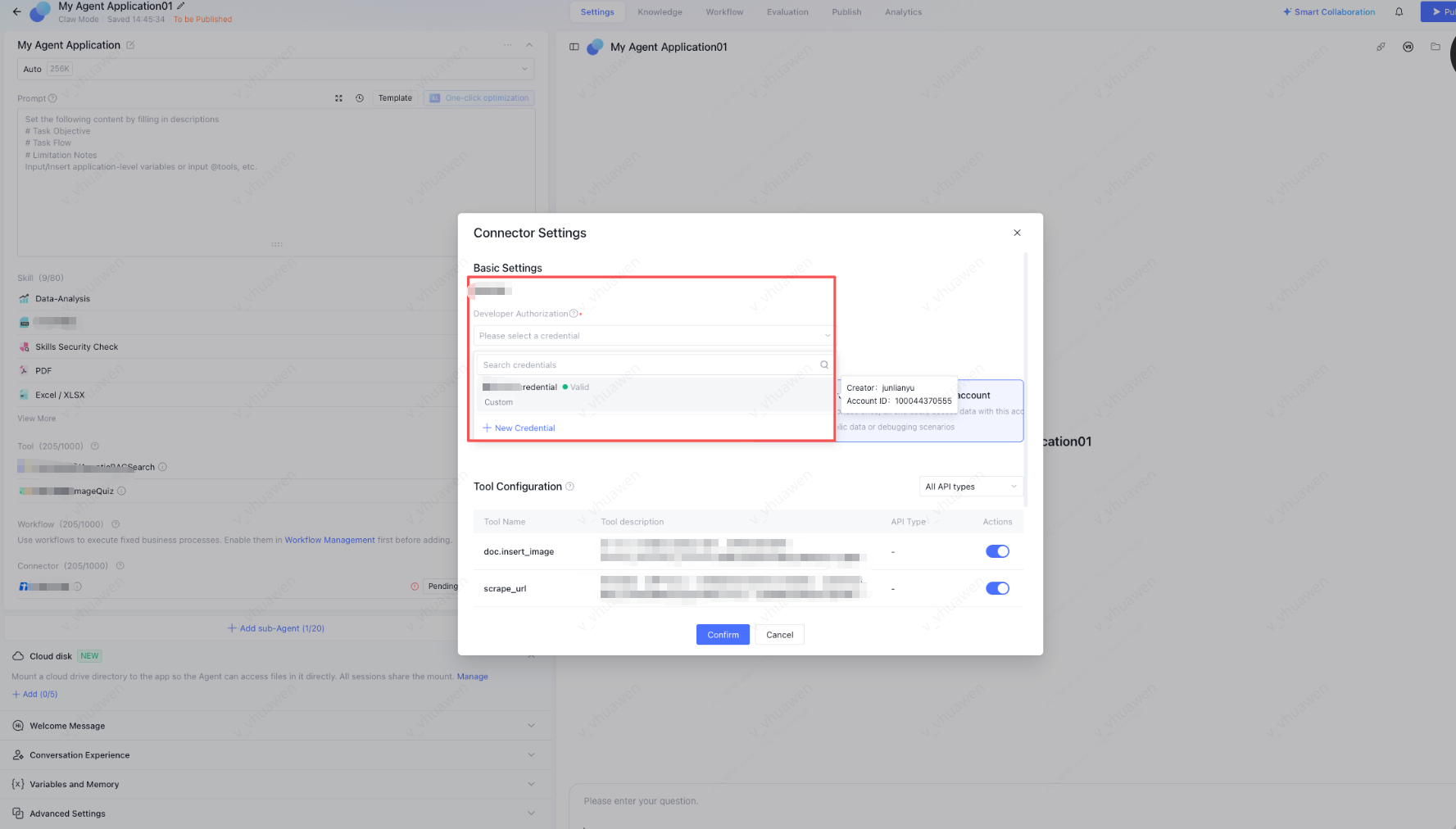
6.2 Referencing in Application Settings (Multi-Agent/Claw Mode)
1. Add connectors/tools in the application.
2. Click To Be Configured or go to connector/tool settings.
3. Select a credential in the authorization configuration:
Select existing credentials: Only credentials that the user has permission to reference under the current connector/tool are displayed.
Create credential: Create a new credential under the current connector/tool.
For the APIKey type, you can switch to reference variables to obtain the key value from system, environment, or application variables. This is suitable for scenarios where variables already exist.
4. After the configuration is saved, the application will use the selected credential to complete authorization when calling the tool.
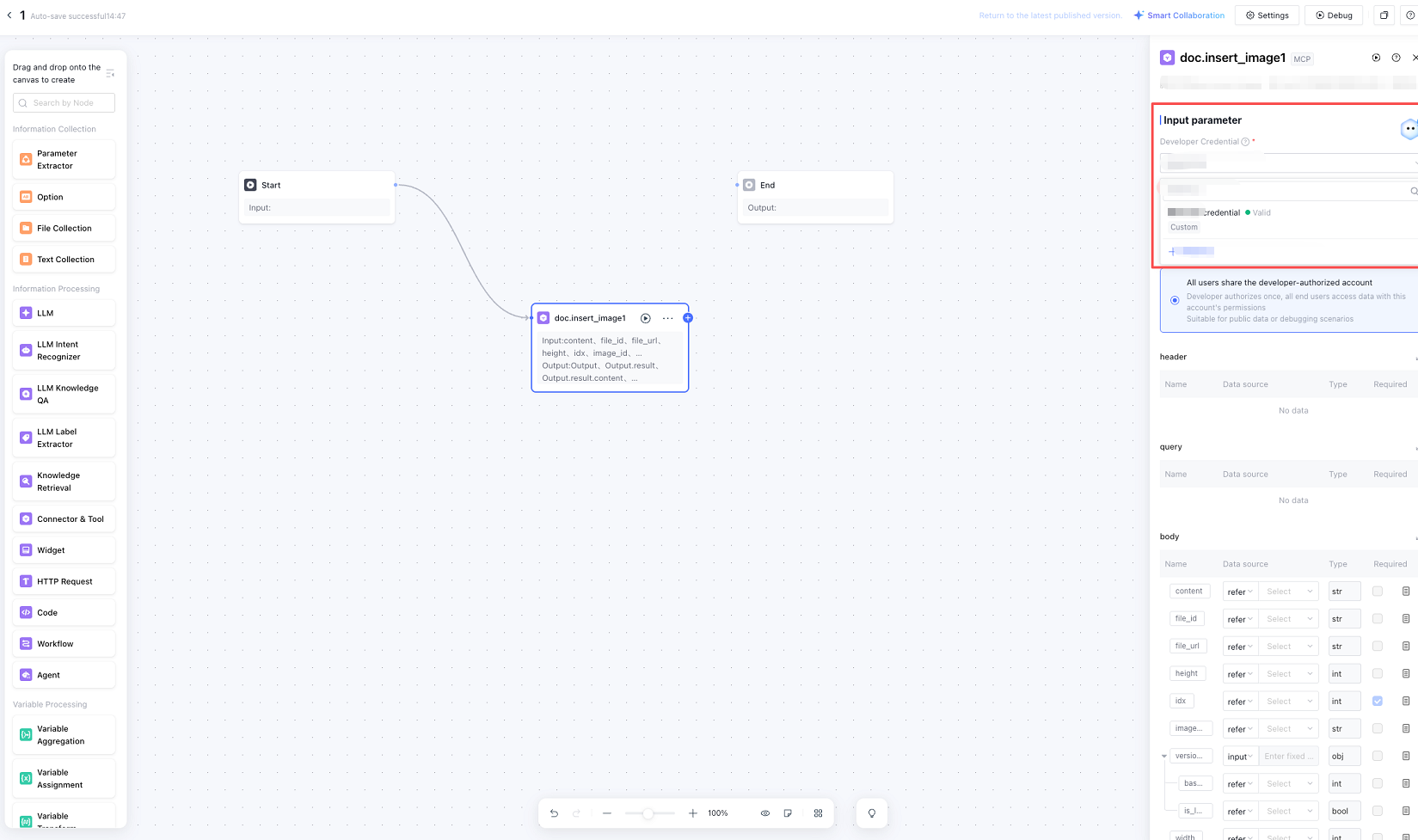
6.3 Referencing in Workflows
1. Add connector and tool nodes in the workflow.
2. Select a credential in the node authorization configuration. After you select an existing credential, the relevant authorization fields are automatically populated with the credential information, so you do not need to fill them in again.
3. Other non-authorization parameters still need to be configured according to the node requirements, such as business parameters like Header, Query, and Body.
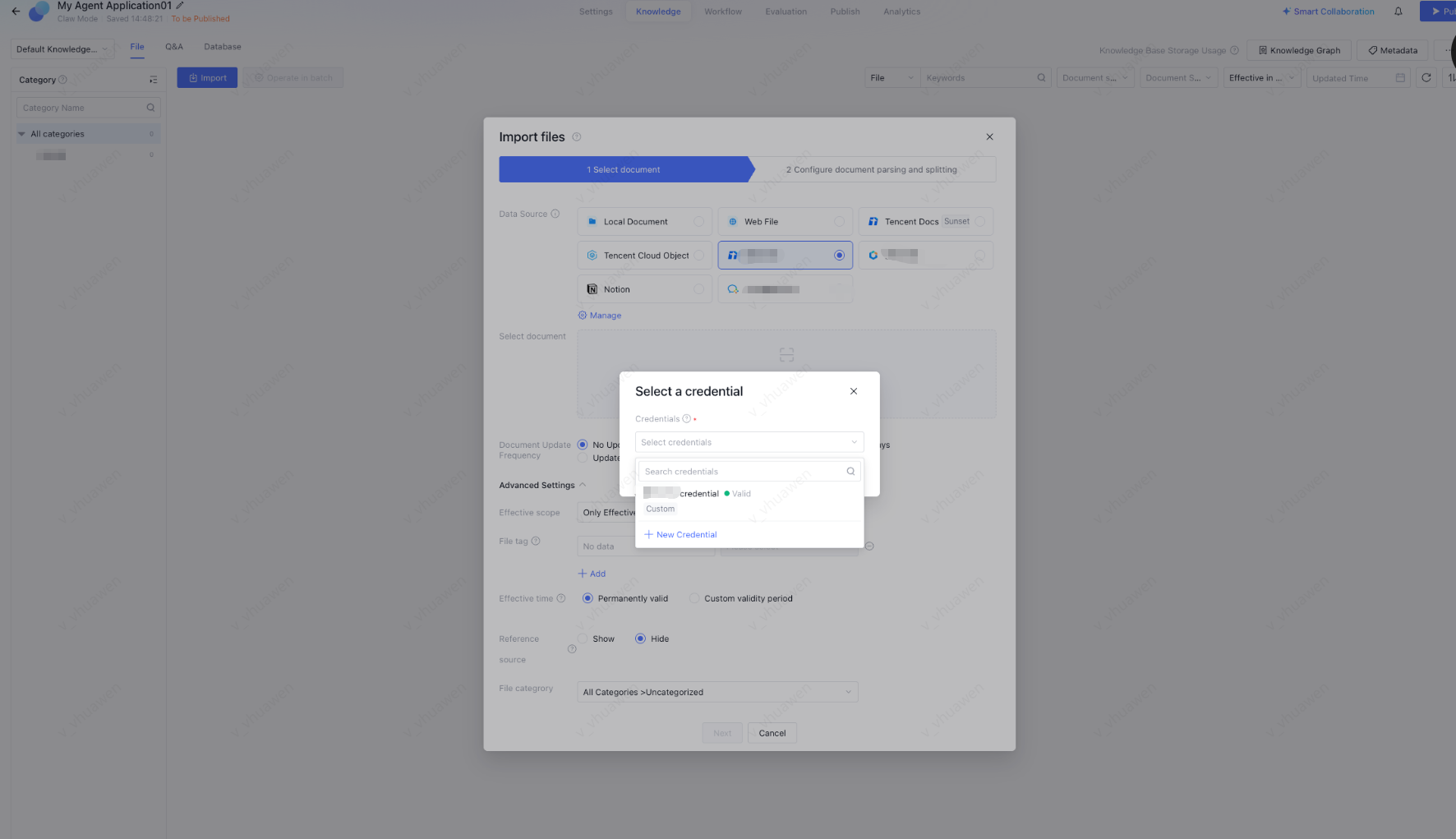
6.4 Referencing in Knowledge Base
1. In Knowledge Base - Data Sources, click Connect to configure authorization:
Select existing credentials: Only credentials that the user has permission to reference under the current connector are displayed.
Create credential: Create a new credential under the current connector.
2. After the configuration is saved, the knowledge base will use the selected credential to complete authorization when calling the knowledge API through this connector.
7. Credential Sharing
Credential sharing is used to share authorization credentials of connectors/tools with space members, so that members can use them directly without configuring the credentials themselves. Depending on the source of the connector/tool, there are two sharing entry points: custom connectors/tools are shared by their creators on the tool details page, while built-in connectors/tools are enabled by enterprise administrators in enterprise management.
7.1 Sharing Credentials for Custom Connectors/Tools
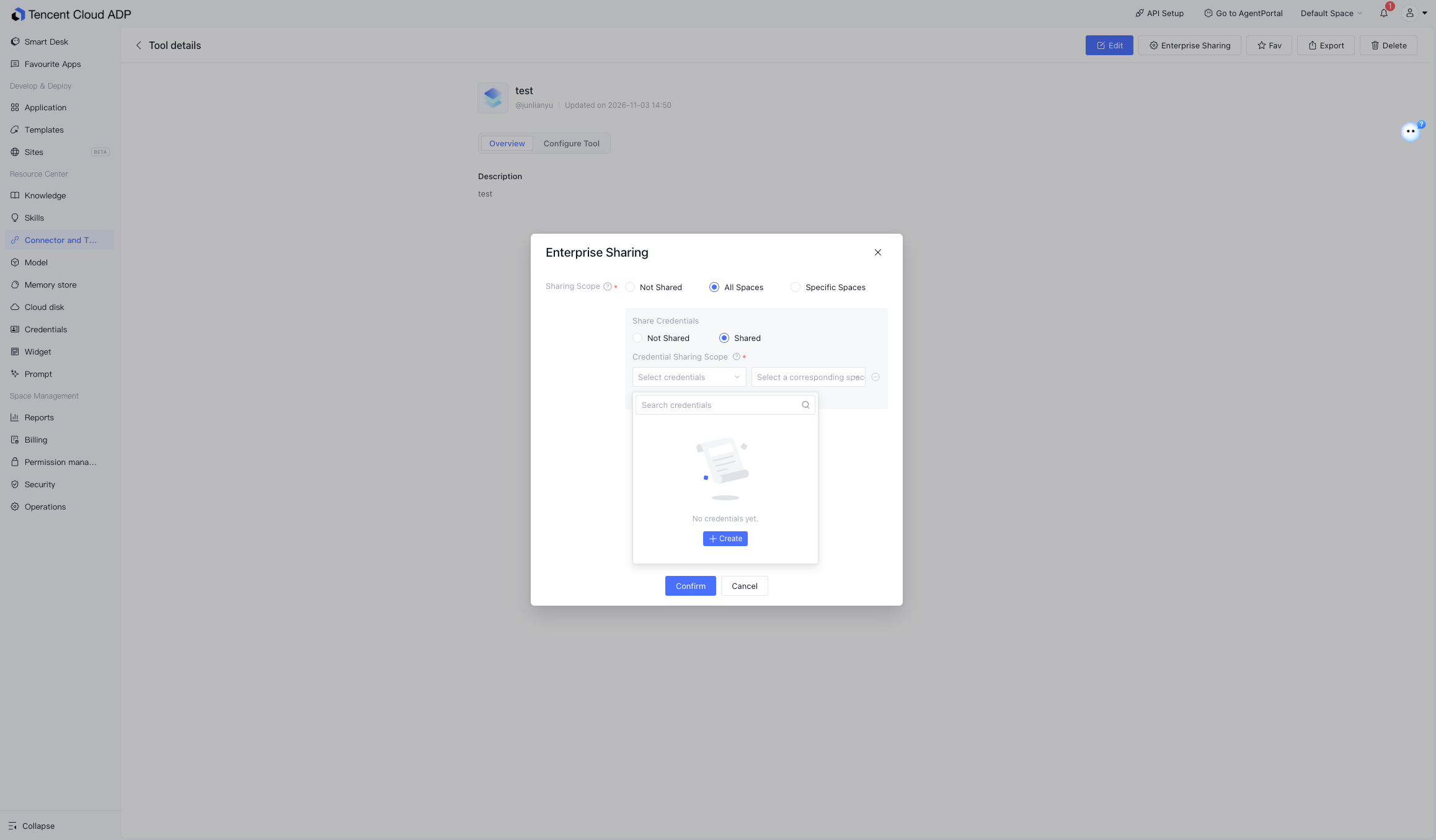
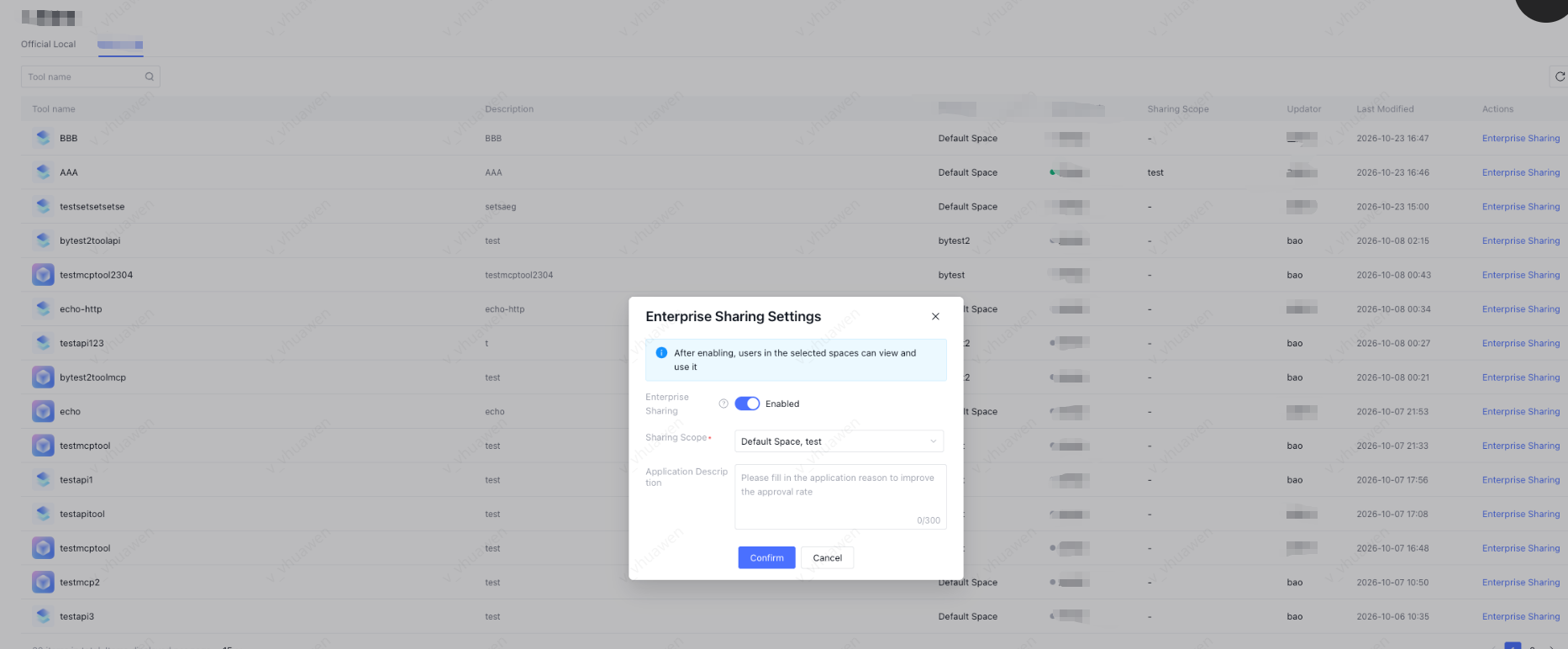
Because credentials cannot be used independently of connectors/tools, you can choose whether to share the associated credentials when sharing a connector/tool. Go to the details page of the target tool in Connectors & Tools, click Enterprise Sharing, and in the dialog box:
1. Set sharing scope: Not shared / All spaces / Specific spaces.
2. Set whether to share credentials: After selecting "Share", specify the credential sharing scope and select specific credentials.
After credentials are shared, space members can directly use the credentials when selecting the connector/tool, without configuring them themselves.
7.2 Sharing Credentials for Built-in Connectors/Tools
Credential sharing for built-in connectors/tools is centrally controlled by enterprise administrators. After an administrator goes to "Enterprise Management → Connectors/Tools → Built-in Connectors/Tools" and enables credential sharing, space members can select shared credentials to use them directly without configuring the credentials themselves.
Operation Steps
1. Log in as an enterprise administrator.
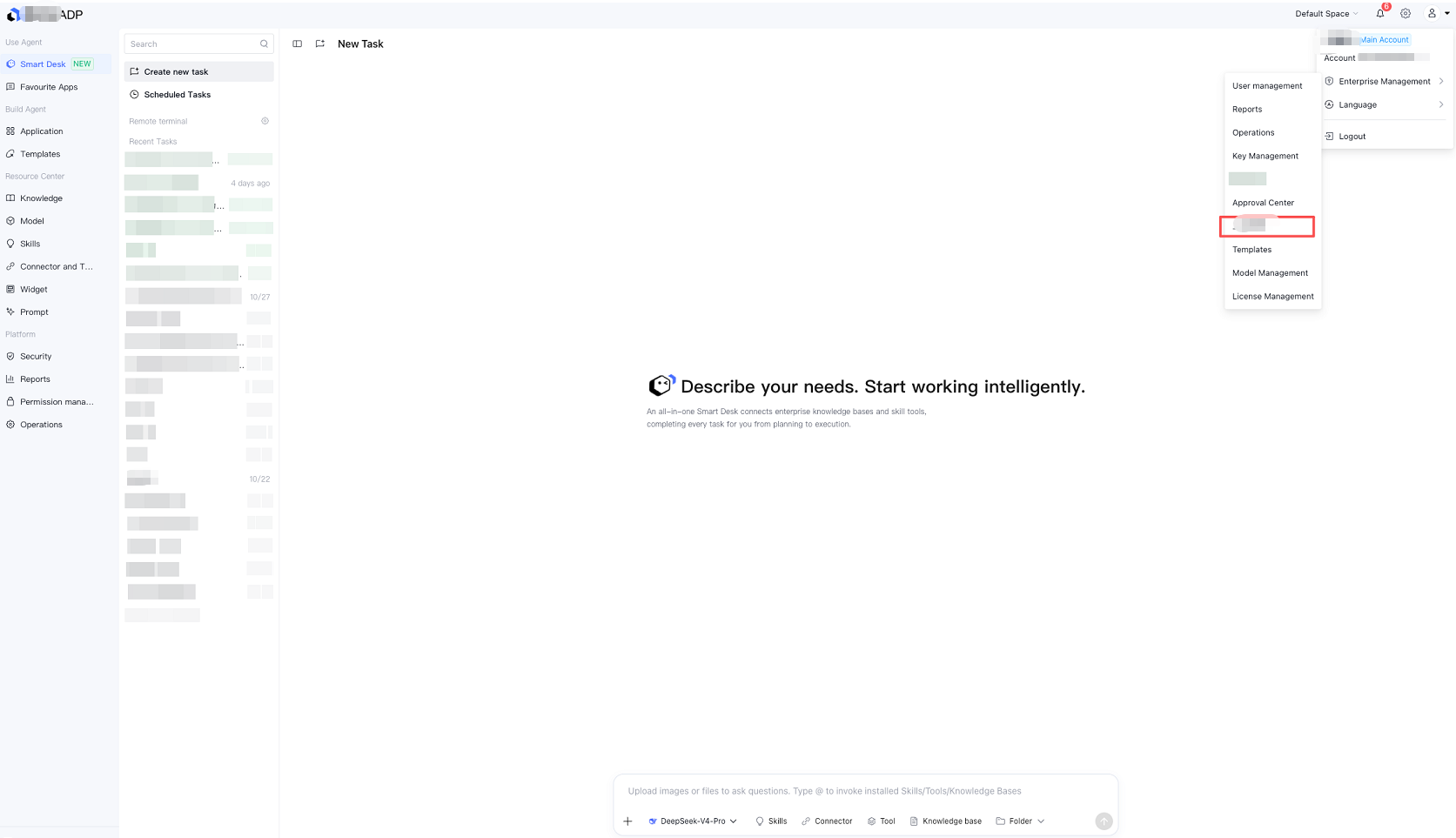
2. Click the avatar in the upper-right corner and select Enterprise Management from the drop-down menu.
3. Select Connectors & Tools Management from the feature menu of Enterprise Management.
4. Locate the target connector/tool in the list and click Credential Sharing Settings in its Operation column.
When the value of a shared credential is updated, the recipient is automatically updated.
When the owner deletes a credential, the recipient automatically loses the right to use that credential.
Note:
Only connectors/tools that require authorization display the Credential Sharing Settings entry. Connectors/tools that do not require authorization do not display this operation.
8. Permissions and Security Notes
To protect the security of authorization information, note the following:
1. Standardized Naming: It is recommended to use clear and identifiable names for production environment credentials to avoid mixing them with test credentials.
2. Confirm References Before Making Changes: Before deleting or editing a credential, check the "Reference Details" to confirm whether any application is using it, so as to avoid impacting online business.
3. Timely Handling of Expired Credentials: If a credential expires, refresh, re-authorize, or replace it promptly to ensure that services relying on the credential continue to run normally.
4. No Plaintext Display of Secrets: The platform does not display saved sensitive secrets in plaintext in common reference scenarios, reducing the risk of leakage.
9. FAQ
Q1: Why Can't I See a Credential in the App?
Possible causes include:
This connector/tool has historical data. You need to manually click Switch to switch to the new credential. After the switch, historical authorizations will automatically expire and cannot be restored. You can then configure the new credential.
This credential does not belong to the current connector/tool.
You are not within the permission scope of this credential.
This credential is visible only in other spaces.
This credential has expired or has been deleted.
Q2: Will Editing a Credential Affect Published Apps?
Yes. A credential is unified authorization information referenced by applications. Editing it will affect all applications that are using the credential. Proceed with caution.
Q3: What Happens After a Credential Is Deleted?
After deletion, all applications that reference this credential will no longer be able to use the corresponding authorization, and related tool calls may fail. Confirm the references before deletion.
Q4: Can Multiple Credentials Be Created for a Tool?
Yes. Multiple credentials can be created for the same connector or tool based on different accounts, environments, or usage scopes, such as "test account", "production account", and "department shared account".