Super administrator
Download
Focus Mode
Font Size
CodeBuddy allows you to assign the Super Administrator role to members in the management console. Newly added administrators can then log in to the management console to perform operations. This facilitates better management of team edition resources and permissions, thereby enhancing the team's administrative flexibility.
Adding a CodeBuddy Administrator Role
Note:
The Team Edition has integrated "Tencent Unified Identity" for enterprise member management. To manage members within the enterprise, you need to add Tencent Unified Identity administrator permissions in addition to CodeBuddy administrator permissions.
1. Enterprise administrators log in to the Enterprise Management Console.
Note:
2. In the Member Authorization section under the left sidebar, locate the Administrator Role and click Add Super Administrator.
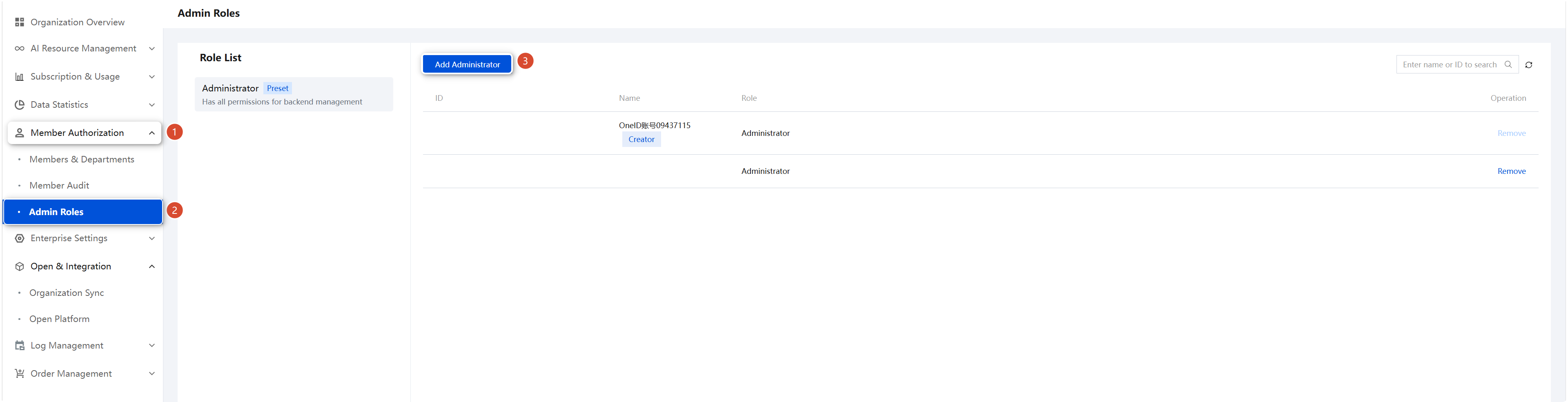
3. Select the member(s) you want to add as an administrator, and then click OK to complete the addition.
Note:
If there are no members to be added as administrators here, please add members first by following the Quick Start guide.
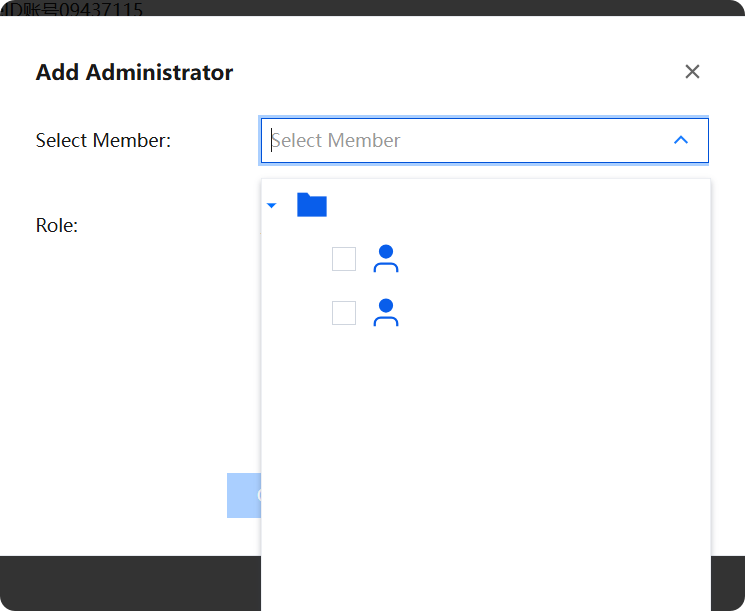
After successful addition, the administrator gains all permissions for enterprise backend management.
Adding a "Tencent Unified Identity" Administrator Role
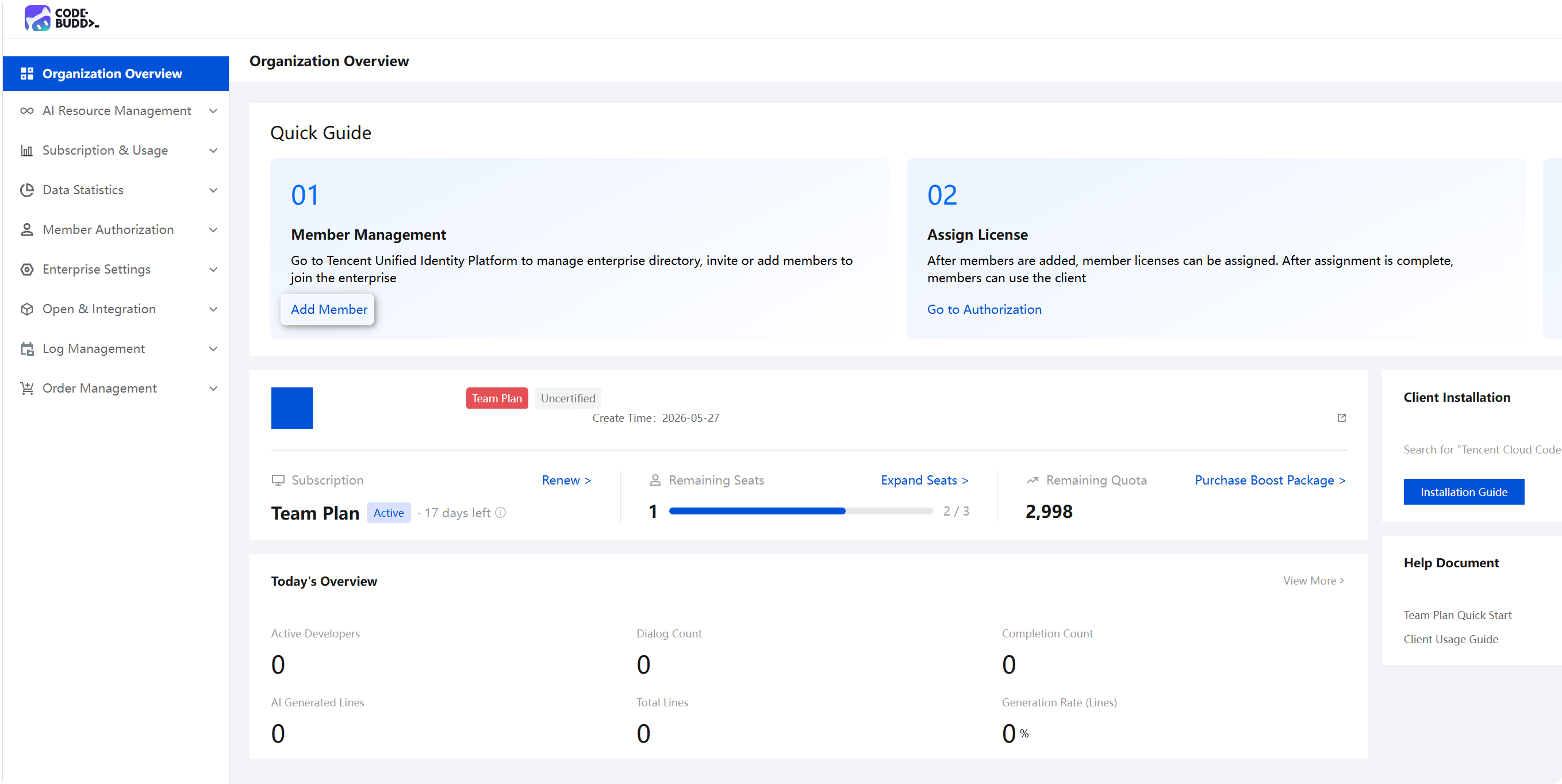
1. The enterprise Creator logs in to the Enterprise Management Console, clicks Add Member, and is redirected to the Tencent Unified Identity console without requiring a separate login.
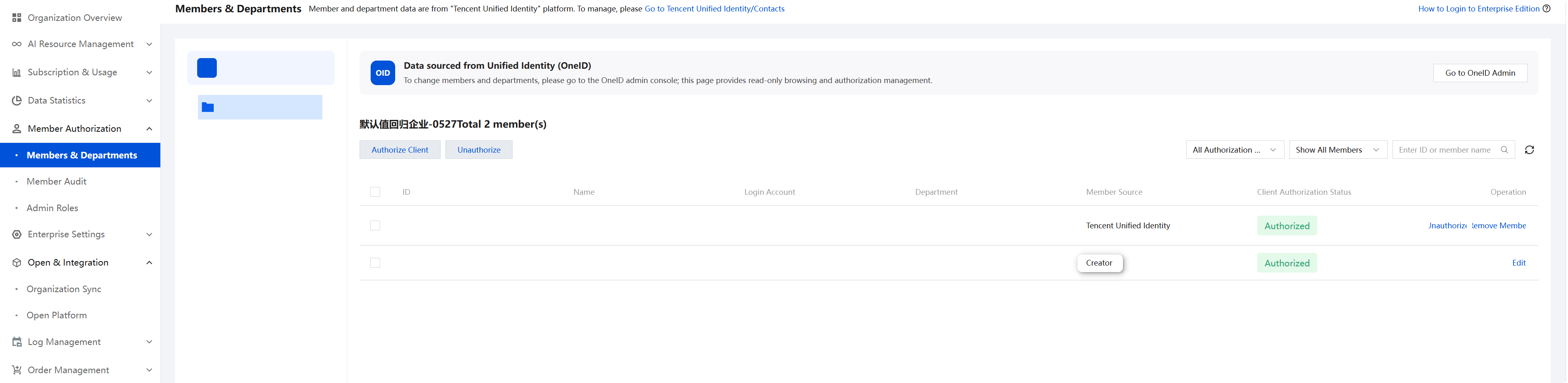
If you do not know who the enterprise creator is, you can go to Member Authorization > Members & Departments to check:
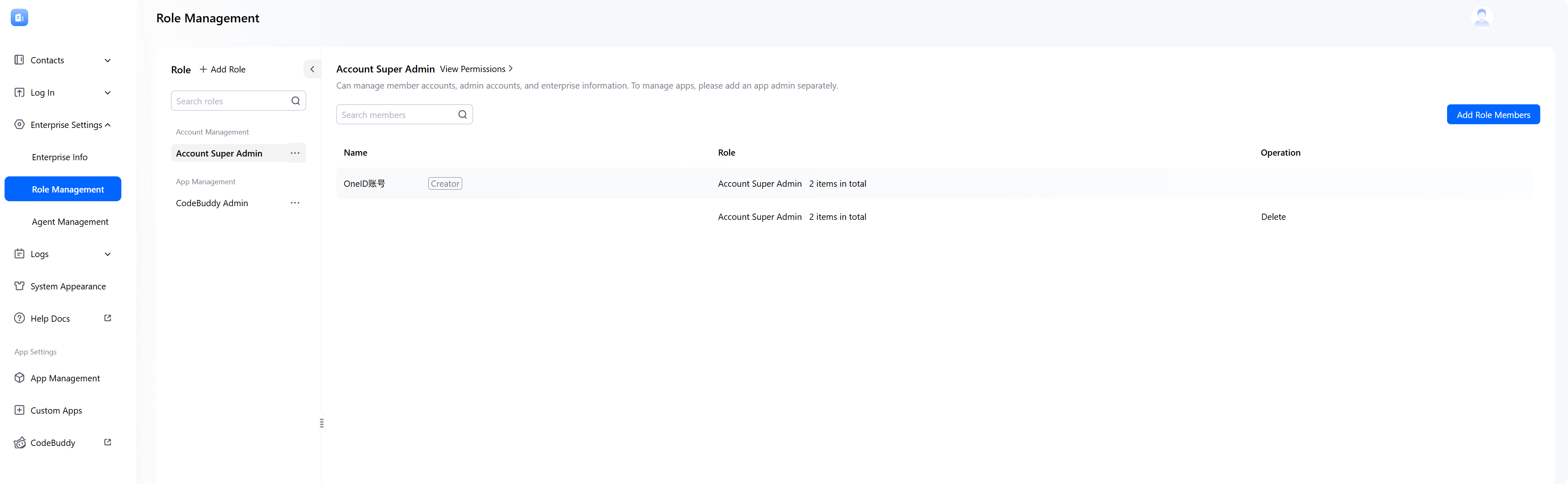
2. In the Tencent Unified Identity console, choose Enterprise Settings > Role Management. Then, under both the Account Super Administrator and CodeBuddy Administrator roles, add the members who need to manage the enterprise address book.
Note:
Both the Account Super Administrator and CodeBuddy Administrator roles must be added. Incomplete addition may result in the inability to perform complete enterprise address book management.
Administrator Login to the Backend
Note:
Added administrators can log in to the management console to perform operations. For the login method, refer to Login.
1. Go to the official website and log in with your administrator account.
2. Select Enterprise Login and log in using the login method supported by your enterprise, such as SMS verification code login, email login, or SSO login (WeCom and other third-party integrated identity providers).
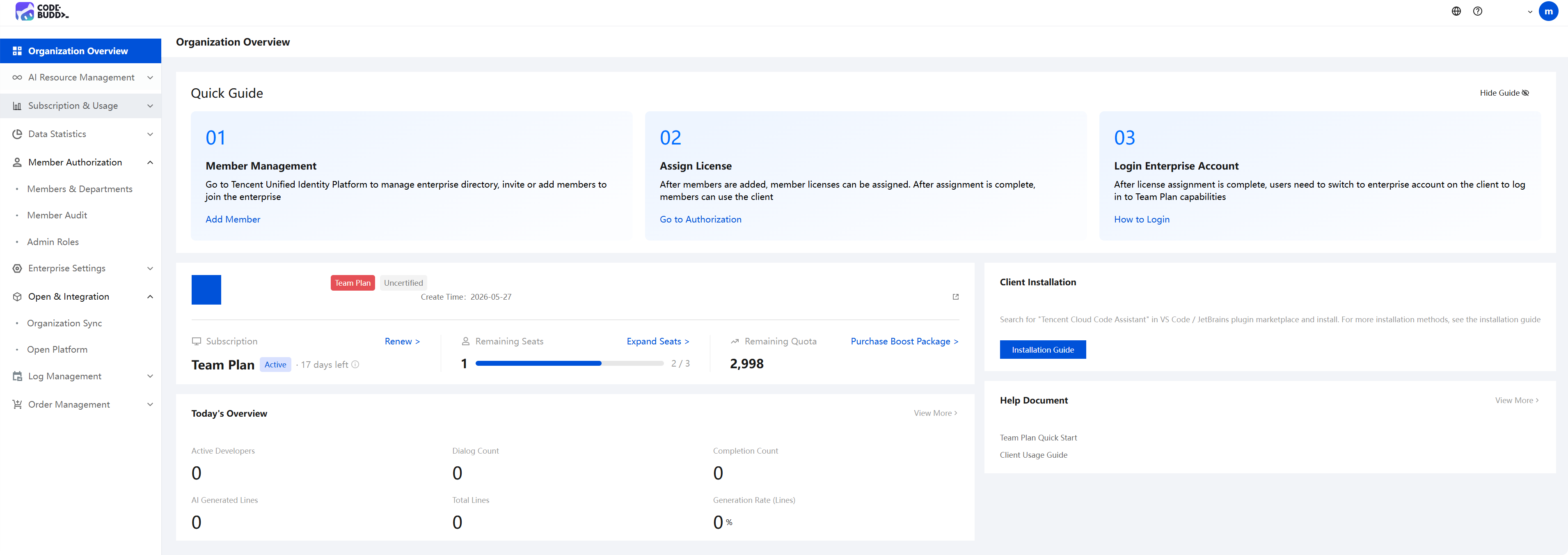
3. After a successful login, go to the Admin Console by clicking the avatar icon in the upper-right corner of the official website.
Administrator Role Management
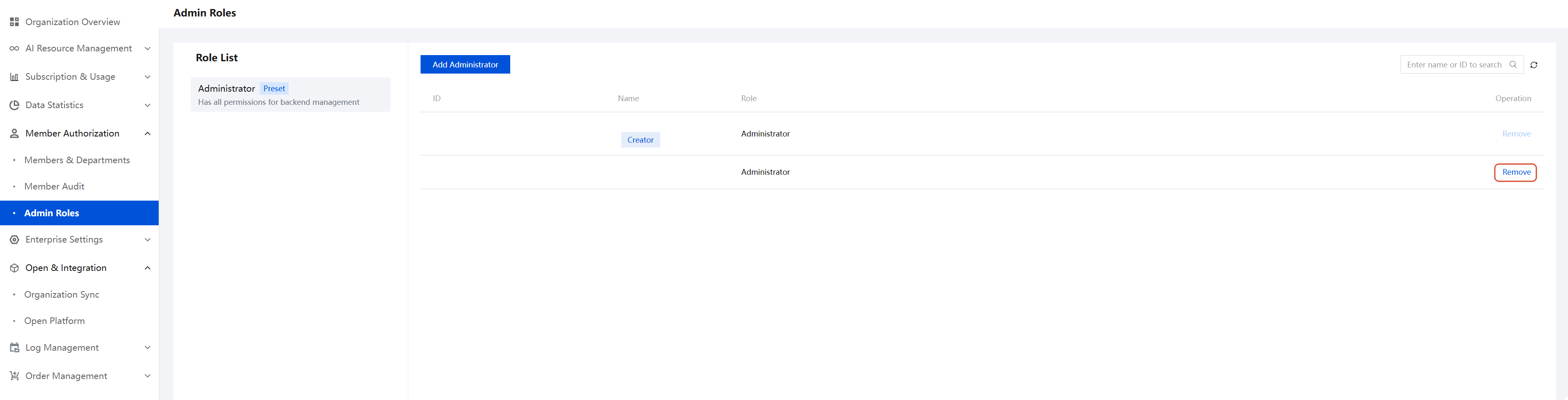
After logging in to the Enterprise Management Console, you can not only add administrator roles but also remove administrators (the creator cannot be removed), as shown in the figure below.
Help and Support
Was this page helpful?
You can also Contact sales or Submit a Ticket for help.
Help us improve! Rate your documentation experience in 5 mins.
Feedback