Domain Sharing
Download
Focus Mode
Font Size
Overview
What is domain sharing?
Domain sharing means that multiple DNSPod accounts jointly manage the same domain name.
When will domain sharing be used?
1. If a company has account A with domain names a, b, and c, and only a needs to be managed by multiple accounts, then the domain sharing feature can be used to share a with other accounts.
2. If a company has a VIP membership domain name a in organizational account A and domain names b and c in individual account B, for the convenience of management, a can be shared to account B for unified management.
Directions
1. Log in to DNSPod console.
2. On Authoritative Resolution page, select the target domain and click the domain name to go to the Record Management page.

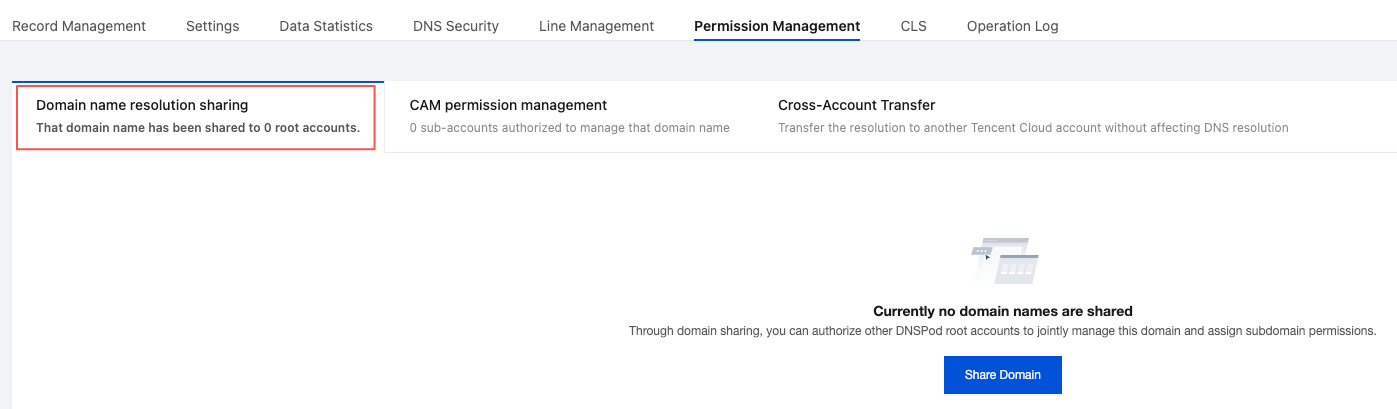
3. On the Permission Management tab, select Domain name resolution sharing > Share Domain. As shown in the figure below:
4. In the Share Domain pop-up window, enter the Account ID you want to share with and select the resource permissions as needed. As shown in the figure below:
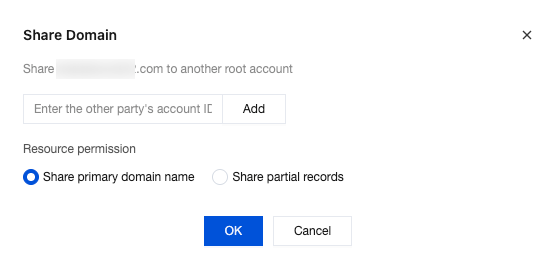
Account ID: enter the account ID of the other party (which can be viewed in Account Center).
Share primary domain: this means granting full admin access to the domain name.
Share partial records: this means that the other party will only have the access to manage the shared records.
Note:
Select the subdomains that need to be shared. The sharer can only add lower-level domains under the shared subdomains but cannot operate on other subdomains.
5. Click OK. Then, your domain name will appear in the user's account, and the user can manage it in their account.
Note:
The invitee must be a DNSPod user; otherwise, the invitee will receive an invitation email, and after successful account registration, the domain name will be automatically shared to the invitee's account.
Help and Support
Was this page helpful?
You can also Contact sales or Submit a Ticket for help.
Help us improve! Rate your documentation experience in 5 mins.
Feedback