OpenCode
Download
Focus Mode
Font Size
OpenCode is an open-source AI programming agent. It can integrate with various large models for use in terminals, desktop clients, or IDE extensions, assisting developers with tasks such as code analysis and intelligent coding. This article demonstrates how to integrate a model for use with OpenCode, using DeepSeek V4 Pro as an example.
Installing OpenCode
Install OpenCode. For details, see OpenCode Installation Guide. You can choose to download the desktop application Beta version. If OpenCode is already installed, you can skip this step.
Obtaining an API Key
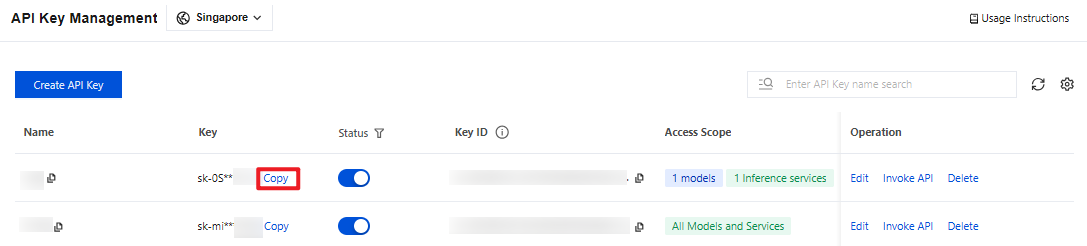
1. Go to the API Key Management page and click Create API Key. For operational details, see Create API Key.
Note:
When setting the Access Scope, if you select "Range", ensure that DeepSeek V4 Pro is selected.
2. After creation, be sure to copy and securely store the API Key. This information will be used in the subsequent process of configuring the tool.
Configuring OpenCode
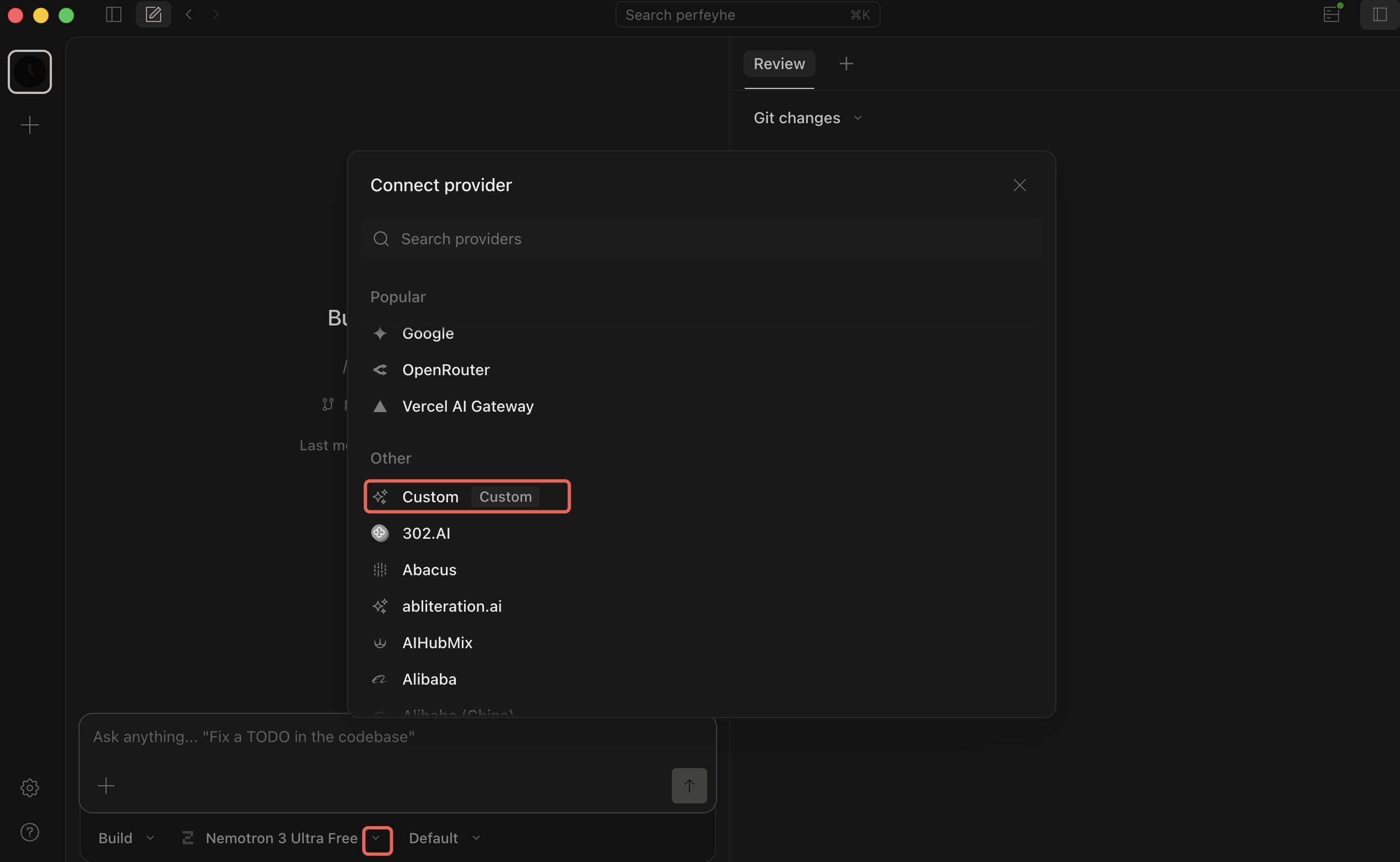
Open OpenCode. In the conversation interface, expand the model list and click the "+" in the upper-right corner to open the model settings page. In the pop-up window that opens, click "Show more providers" and select "Custom".
In the pop-up window that opens, click to fill in the information:
Provider ID:
tencentDisplay Name:
TencentBase URL:
https://tokenhub-intl.tencentcloudmaas.com/v1API Key: Enter your API Key.
Model ID: Enter
deepseek-v4-proModel Display Name: Enter
DeepSeek V4 Pro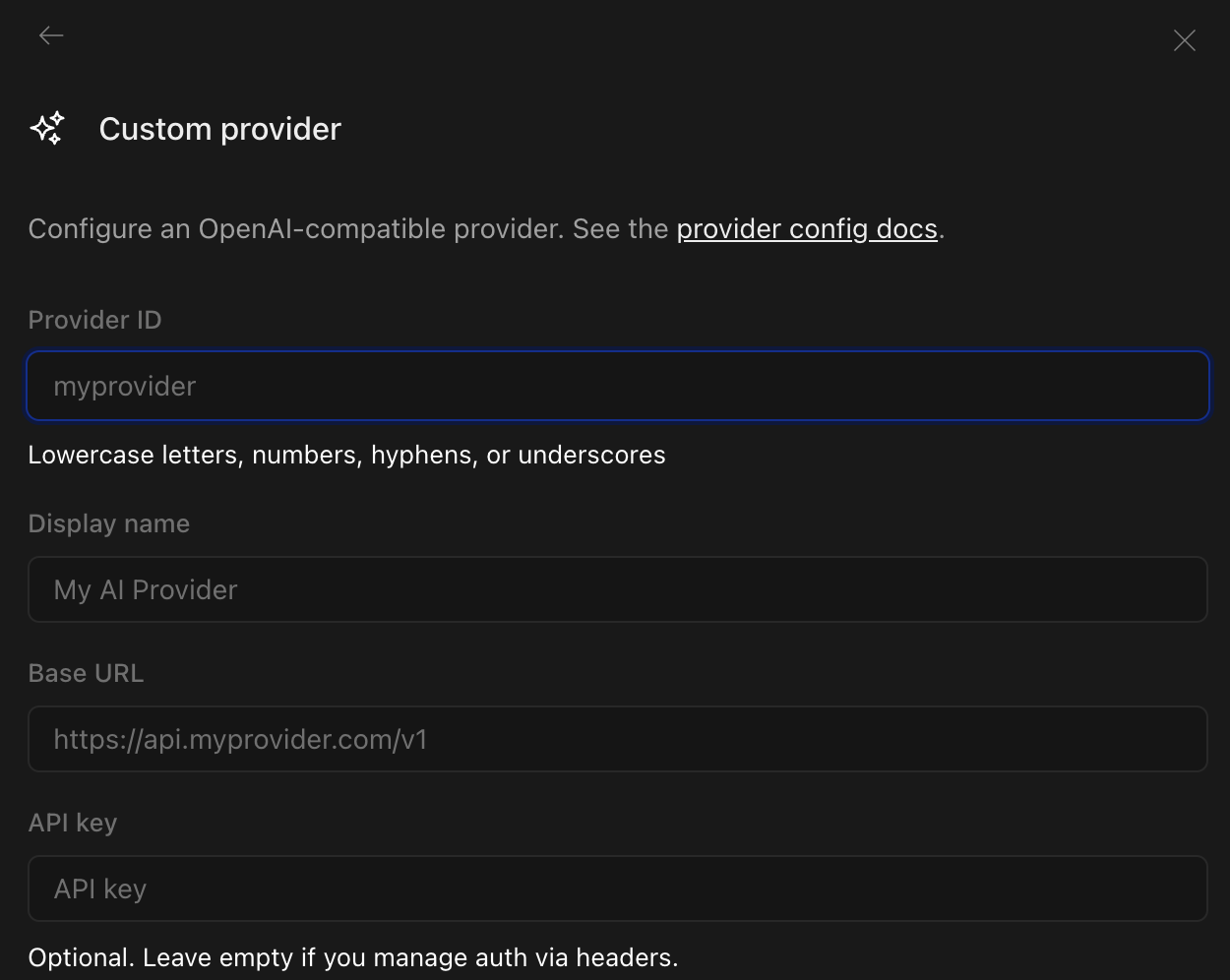
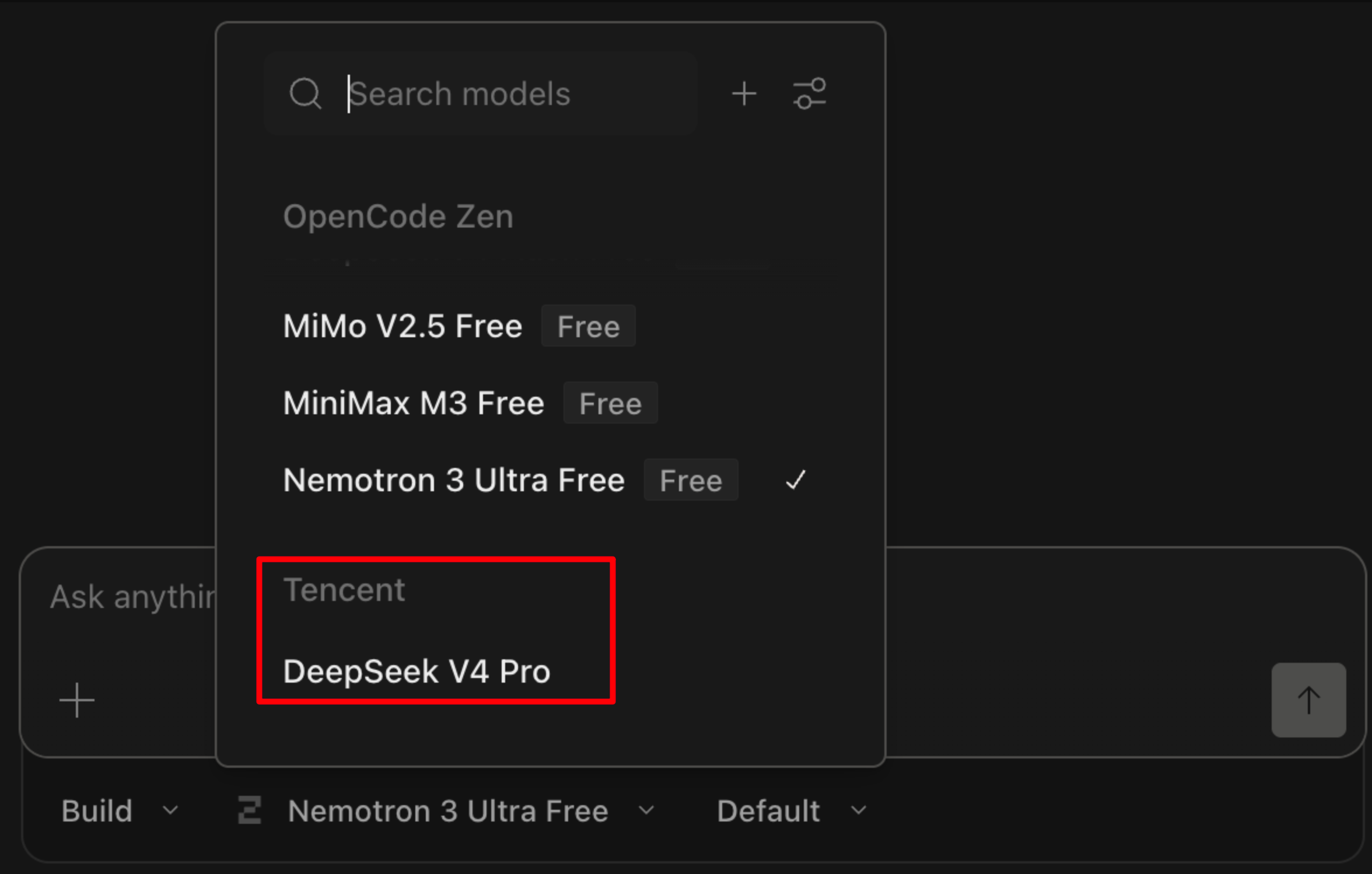
Restart the OpenCode client. In the model list within the conversation window, locate and select the newly configured model to start using it for conversation.
Help and Support
Was this page helpful?
You can also Contact sales or Submit a Ticket for help.
Help us improve! Rate your documentation experience in 5 mins.
Feedback