Cursor
Download
Focus Mode
Font Size
Cursor is an AI-centric code editor built on VS Code. It enables you to converse directly with your codebase using natural language, thereby achieving automated code generation, intelligent refactoring, and rapid comprehension. This document demonstrates how to integrate a model, using DeepSeek V4 Pro as an example, into Cursor for use.
Installing Cursor
Download the installation package from the official website: Download and install Cursor via the Cursor official website.
Note:
Due to Cursor's restrictions, only users subscribed to Cursor Pro or higher plans support custom model configuration.
Obtaining an API Key
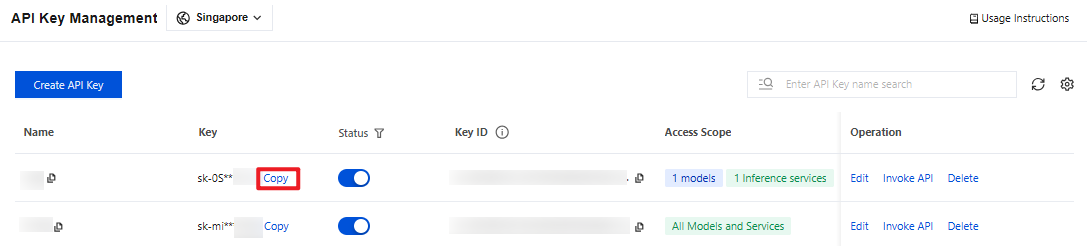
1. Go to the API Key Management page and click Create API Key. For operational details, see Create API Key.
Note:
When setting the Access Scope, if you select "Range", ensure that DeepSeek V4 Pro is selected.
2. After creation, be sure to copy and securely store the API Key. This information will be used in the subsequent process of configuring the tool.
Configuring Cursor
1. Using macOS as an example, after Cursor installation is complete, click Settings in the lower-left corner within Cursor. Alternatively, press the shortcut
Cmd/Ctrl + Shift + P, type Cursor Settings, and press Enter.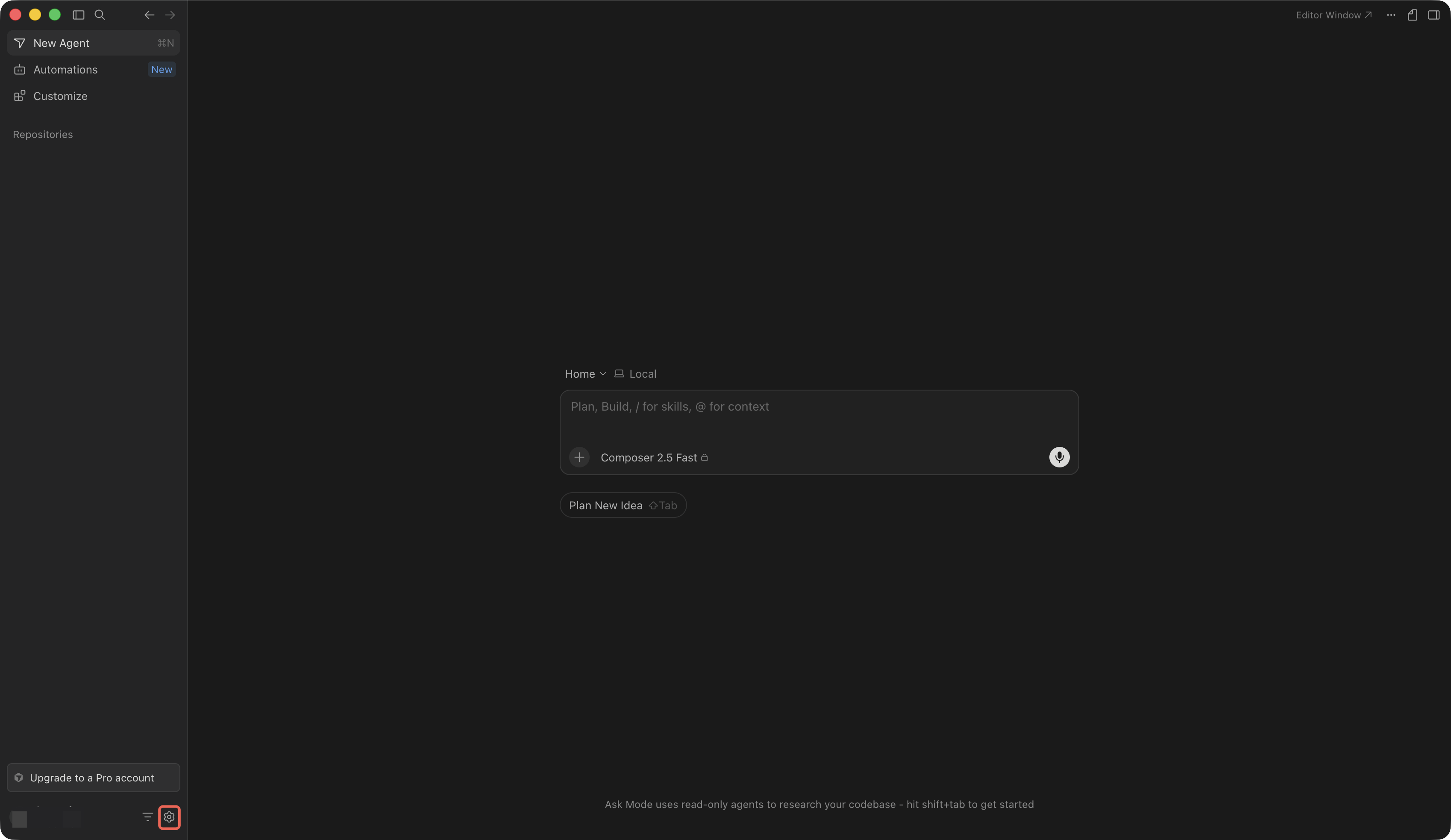
2. In the left menu bar, select and configure the Models module.
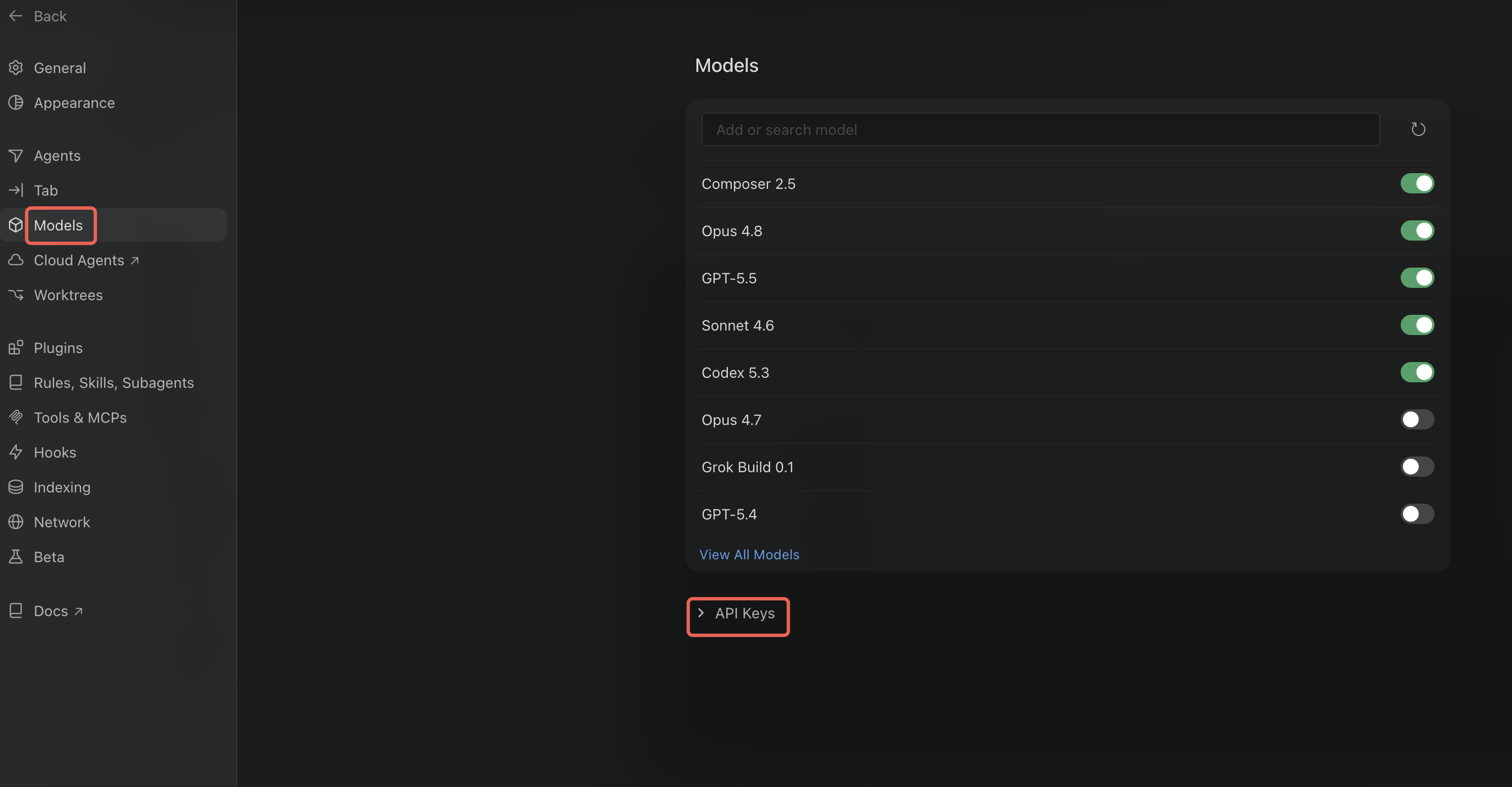
The specific configuration for the Models module is as follows:
OpenAI API Key: Enter your API Key.
Override OpenAI Base URL:
https://tokenhub-intl.tencentcloudmaas.com/v1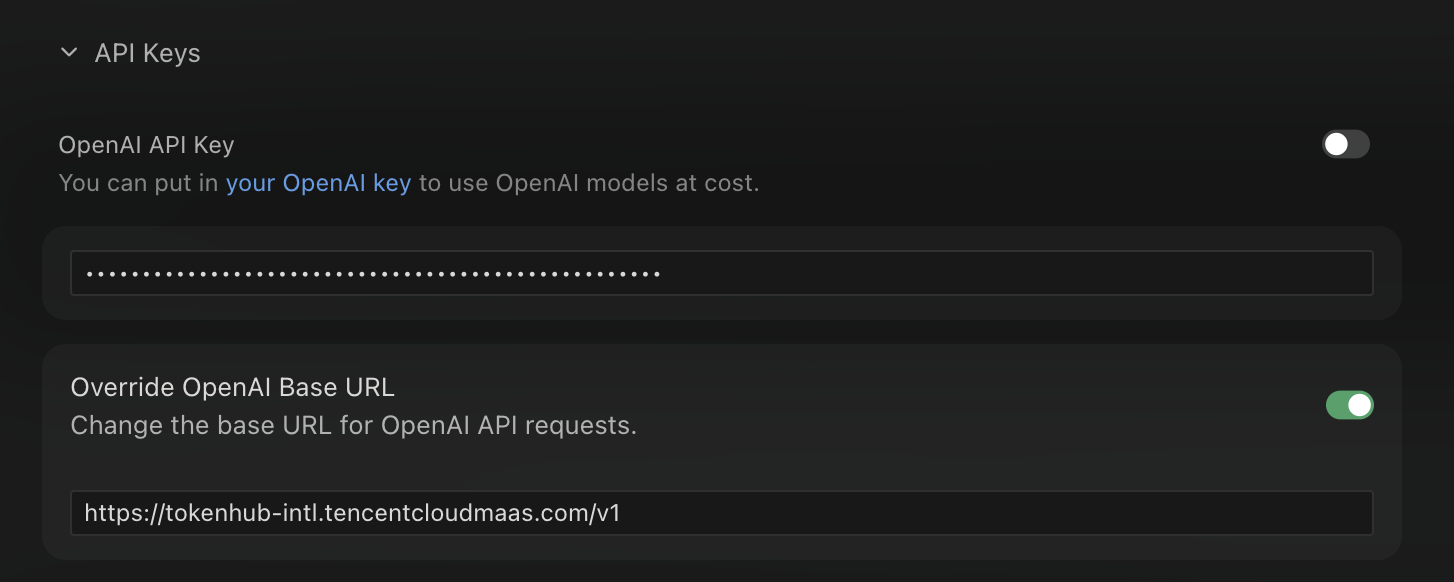
Add Custom model: Manually enter the model ID
deepseek-v4-pro.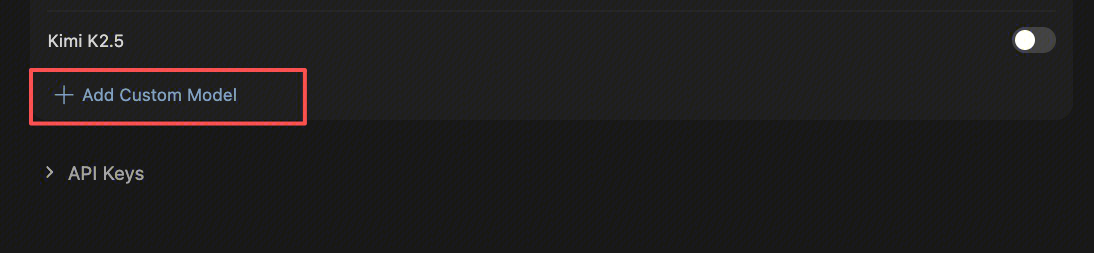
Note:
You must first click View All Models to see the Add Custom model option.
3. After completing the configuration, locate the deepseek-v4-pro model in Cursor's chat window to start a conversation.
Help and Support
Was this page helpful?
You can also Contact sales or Submit a Ticket for help.
Help us improve! Rate your documentation experience in 5 mins.
Feedback