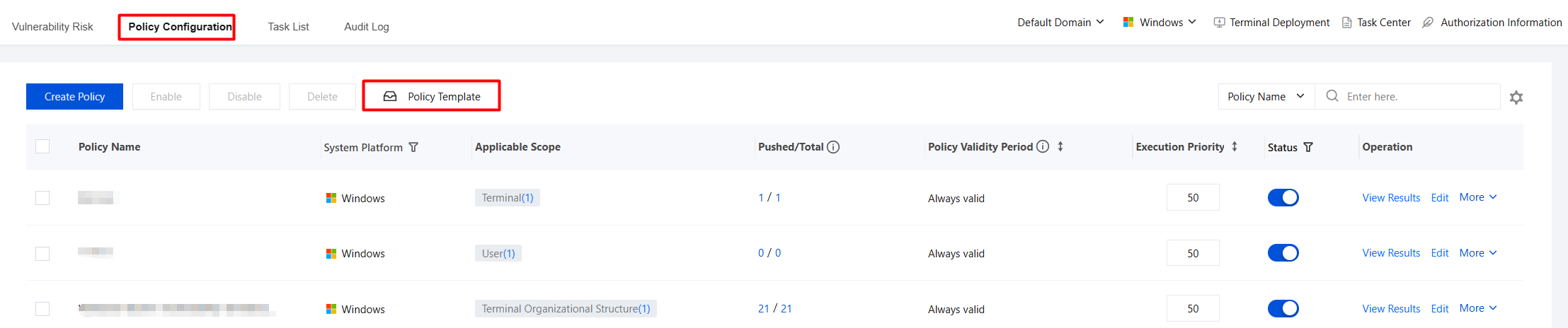
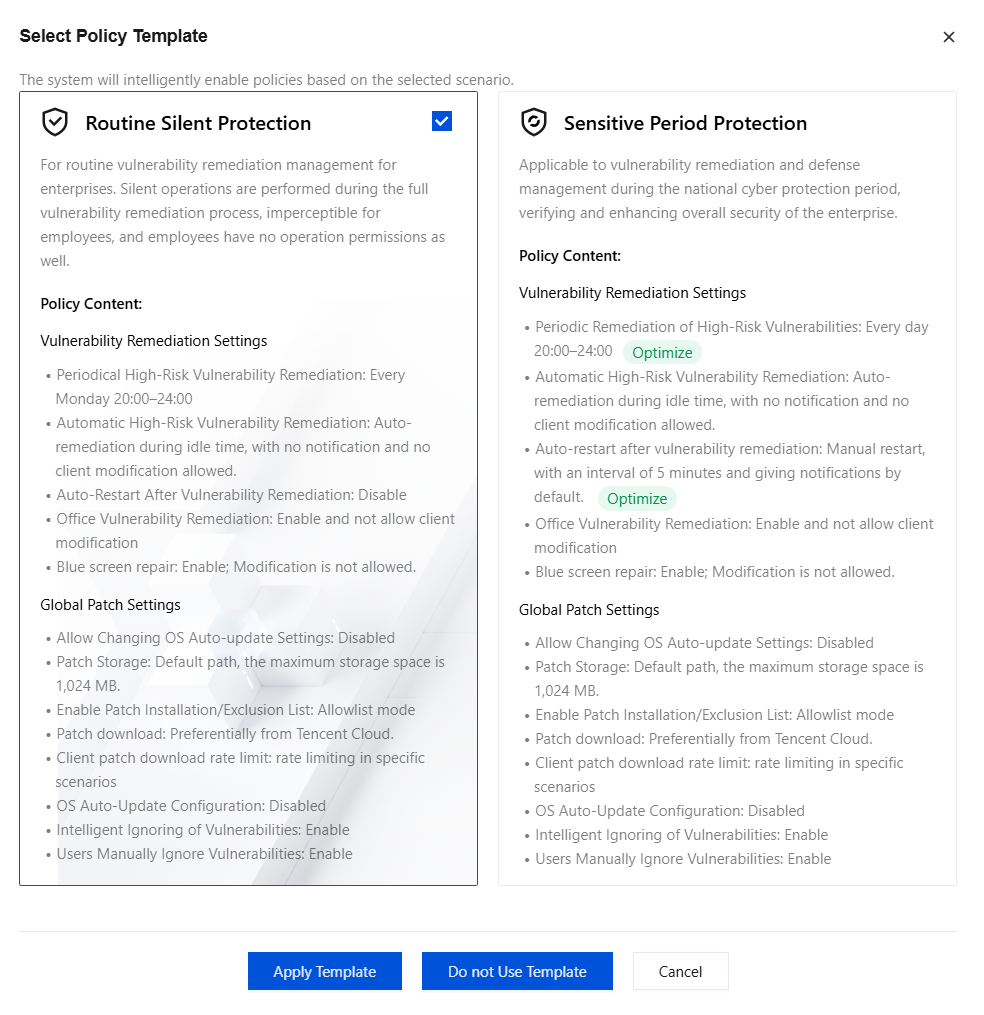
2. Based on your needs, select Routine Silent Protection or Sensitive Period Protection, and then click Apply Template.
Daily Silent Protection: For routine enterprise vulnerability remediation management. Silent operations are performed during the full vulnerability remediation process, imperceptible for employees, and employees have no operation permissions as well.
Protection for Sensitive Periods: Suitable for vulnerability remediation and defense management during national cyber defense drills, validating and improving the overall enterprise security posture.
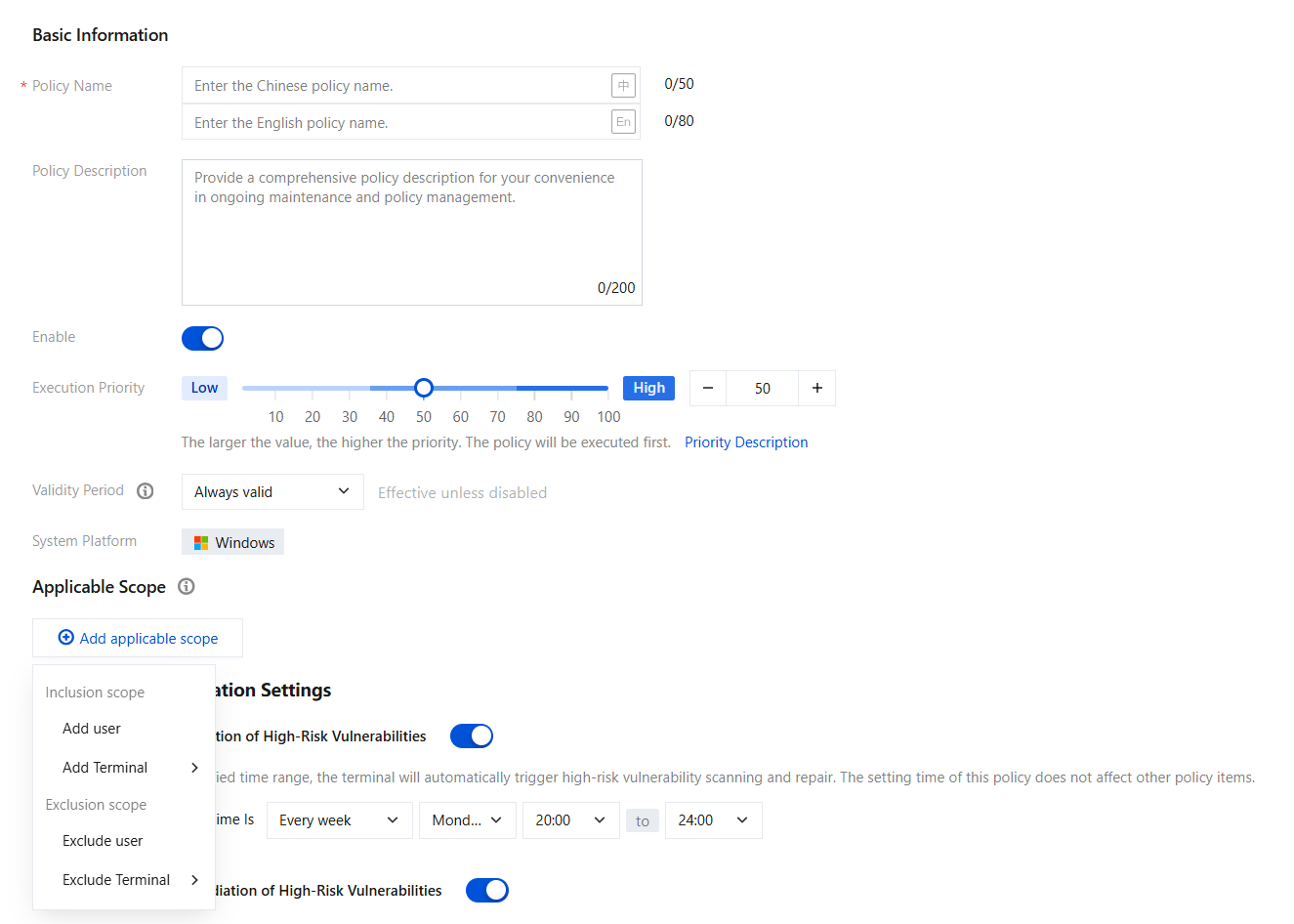
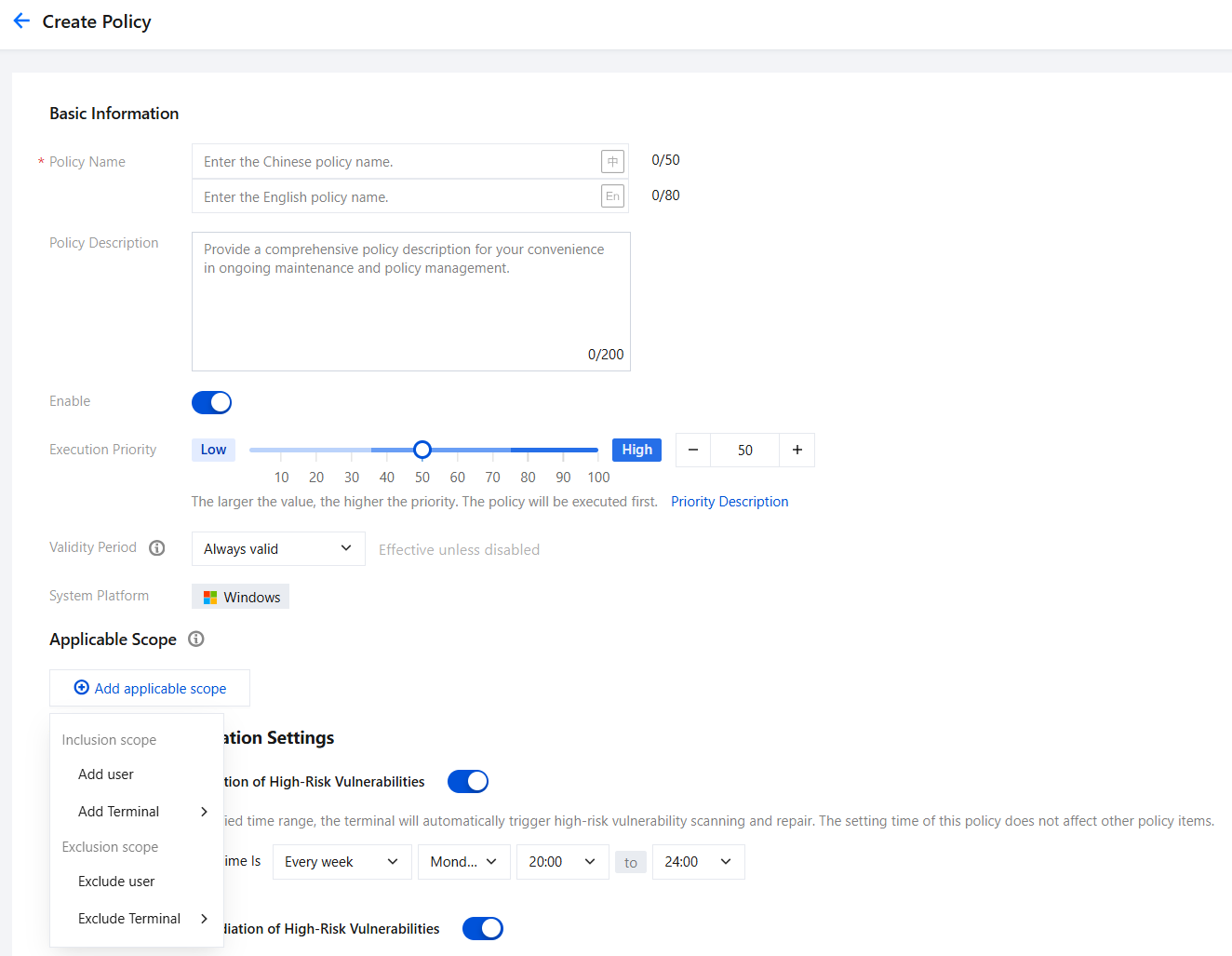
3. On the policy editing page, enter the policy name, policy description, priority, and other parameters. Click Add Applicable Scope, select the users/terminals to be controlled or excluded, and click OK.
4. After configuring the above parameters, click Save. Other related settings can follow the system default recommended configuration.
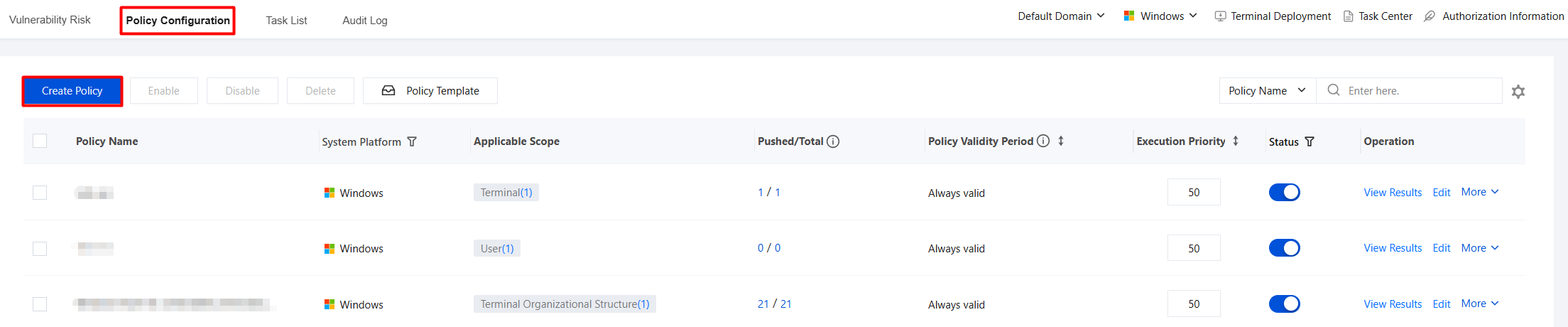
2. On the policy editing page, enter the policy name, policy description, priority, and other parameters. Click Add Applicable Scope, select the users/terminals to be controlled or excluded, and click OK.
3. Configure the following vulnerability remediation settings as needed, and then click Save.
Vulnerability Remediation Settings
Remediate high-risk vulnerabilities on a regular basis.
Feature: Configures scheduled tasks for vulnerability remediation.
Suggestion: Enable the daily scheduled vulnerability remediation task.
Automatically remediate high-risk vulnerabilities: Controls the remediation notification method for high-risk vulnerabilities.
Option Name
Description
Automatic remediation upon detection of high-risk vulnerabilities without user notification.
Indicates that if the terminal system has critical vulnerabilities, the system automatically fixes them without notifying the user. The iOA client periodically checks for critical vulnerabilities every day, and the backend Control Center also delivers detection policies. Once a critical vulnerability is detected, the system fixes it immediately without waiting for the computer to be idle.
Automatic remediation when the computer is idle without user notification.
Same as the setting for automatic remediation of critical vulnerabilities without notifying the user, the system automatically performs silent repair of vulnerabilities, but the repair is performed only when the computer is idle (for example, when the user is not performing any operations).
Notify users of high-risk vulnerabilities without automatic remediation.
This means that if the terminal system has vulnerabilities defined by Microsoft as critical (that is, vulnerabilities that may cause serious harm once exploited), the system will pop up a window in the lower-right corner of the desktop to remind the user, allowing the user to decide whether to perform remediation.
Allow client modification
After selected, the client settings support modifying the configurations of other settings on the local client. Other settings still follow the console settings.
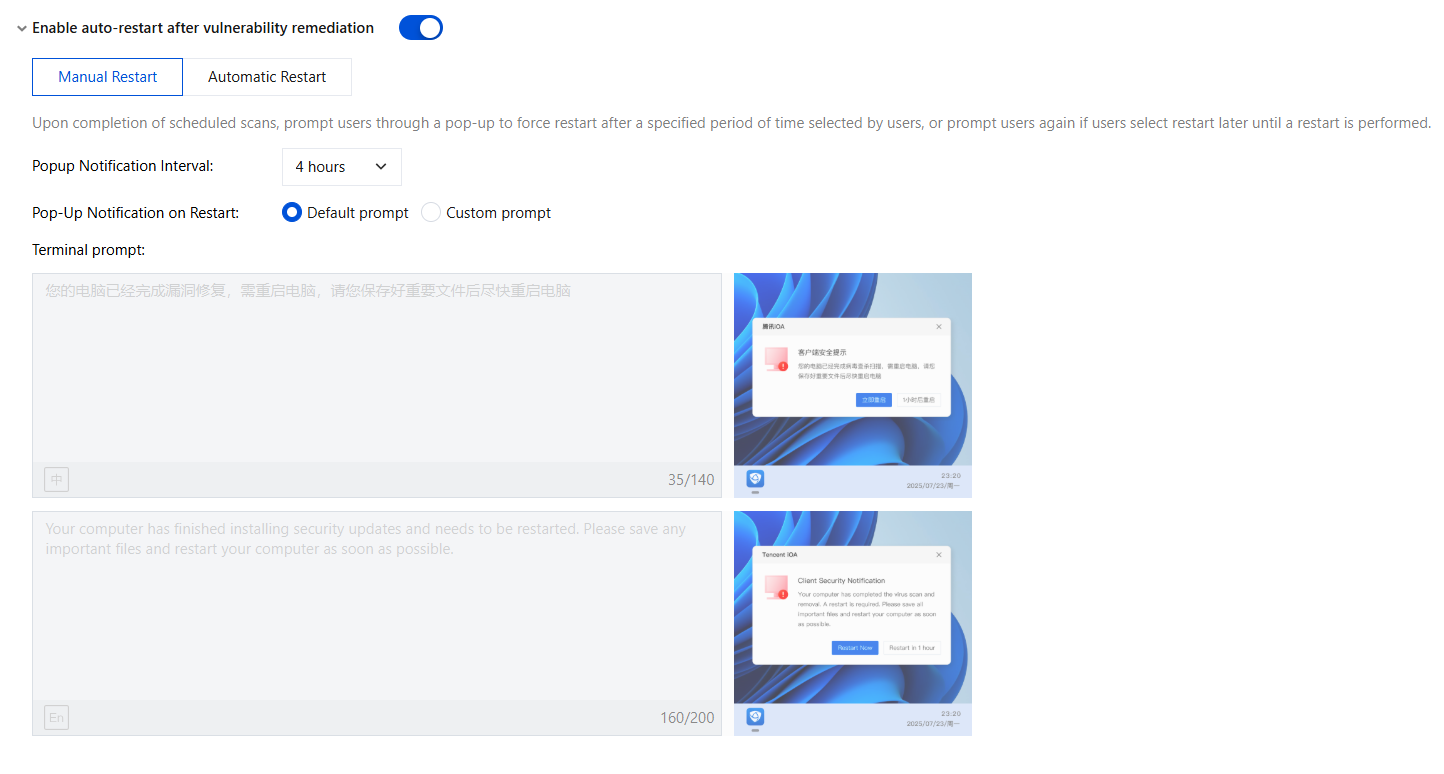
Restart settings after vulnerability remediation.
Administrators can configure restart settings for target terminals through policies.
Some system patches require a terminal restart to take effect after installation. If you enable the restart settings policy after vulnerability remediation, iOA prompts users to restart their computers after installing patches.
Advanced Settings
Click Expand and configure the following advanced settings as needed.
After you select this option, the system will deliver Office patch tasks. If the system detects that the client is running Office software, it will display a reminder notification, prompting employees to save their Office data.
If you do not select this option, no such notification will be displayed, and data loss may occur due to Office patch updates.
Note:
When this reminder conflicts with the high-risk vulnerability remediation reminder, the logic of this reminder takes precedence.
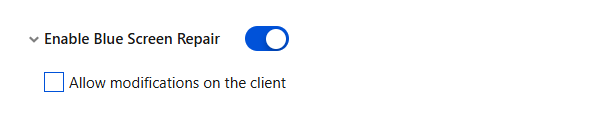
Enable Blue Screen Repair
Enable the blue screen repair feature (Recommended): The main use case is system patching. When an incompatibility may cause a blue screen and prevent the system from starting, restart the system and enter from the blue screen repair startup entry to fix the issue.
Allow OS Auto-Update Configuration Change
Allow changing the OS automatic update configuration: Selecting this option may lead to user OS configuration changes. Enable with caution.
Other Settings
Enable Smart Vulnerability Ignore: Tencent automatically manages patches that are incompatible with the system. Enabling this feature minimizes issues caused by incompatibilities.
Allow users to manually ignore vulnerabilities: After you select this option, users can ignore vulnerabilities.
Global Patch Settings
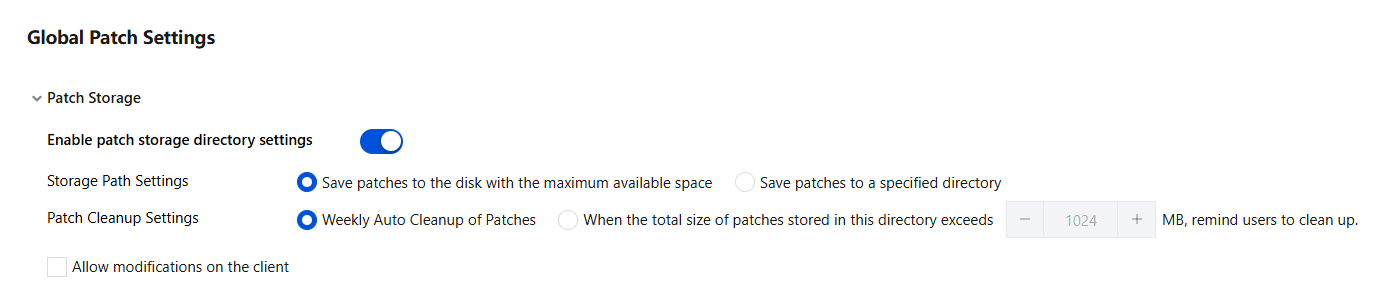
Patch Storage
Configure the patch saving and cleanup policy, and click
to enable the patch storage directory setting.
Option Name
Description
Storage path setting
The patch package is saved to the disk with the largest available space.
Save patch packages to a specified directory: Because users on different terminals have different habits for save paths, customizing/saving to the disk with the largest available space effectively resolves the issue of insufficient disk space that may occur with a fixed path.
Patch cleanup setting
Weekly automatic patch package cleanup: Because patch packages occupy a large amount of disk space, the system automatically cleans up completed or ignored patches after patch remediation is complete. However, many low-risk patches that users have not remediated and patches that have not been fully remediated still remain. Users can choose not to remediate these patches, but using the one-click download feature may occupy a large amount of disk space and lead to insufficient disk space. We recommend that you regularly clean up such patches. Users can download and install them again when needed.
When the total size of patch packages saved in this directory exceeds X MB, remind the user to clean up: After the configured patch package size is exceeded, a pop-up window reminds the user to clean up.
Allow clients to modify settings.
After selected, the client settings support modifying the real-time protection configuration on the local client. The real-time protection settings still follow the console settings.
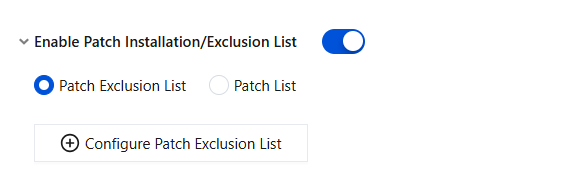
Enable Patch Installation/Exclusion List
When you need to customize and exclude patches that should not be installed (patches incompatible with the system or useless low-risk patches), you can use this feature to add an exclusion list. When you need to customize remediation of only certain patches, add a remediation list.
Cient Patch Download Speed Limit
Limit the speed for clients in the selected group. The speed limit value here is the limit value for a single terminal.
Throttle only in specific scenarios: Throttles only non-silent downloads. During silent downloads, the system's default throttling scheme is used.
Global throttling: All methods, including silent downloads, are throttled uniformly.