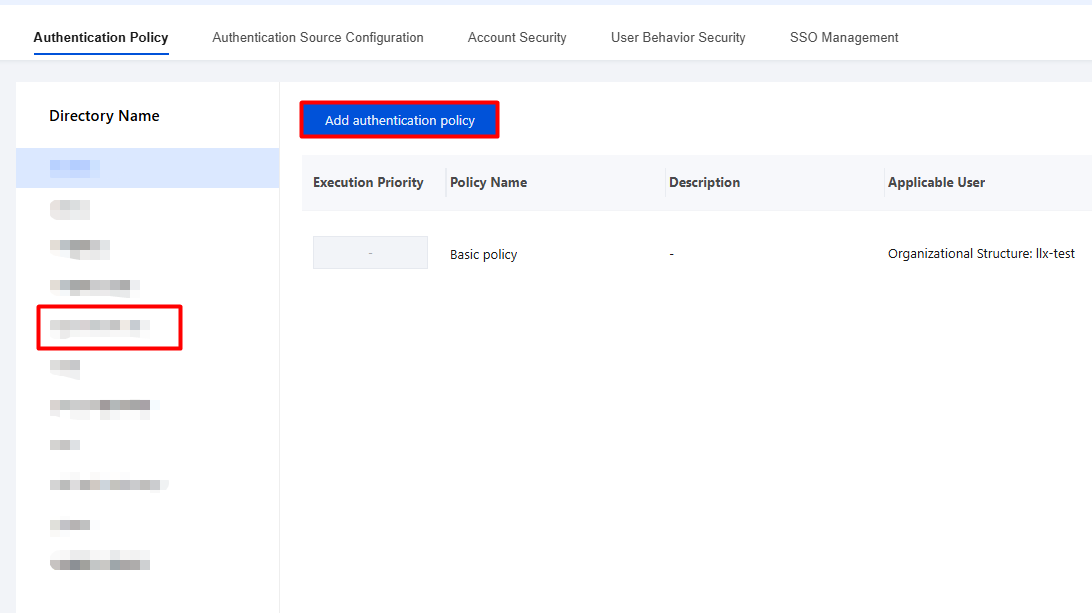
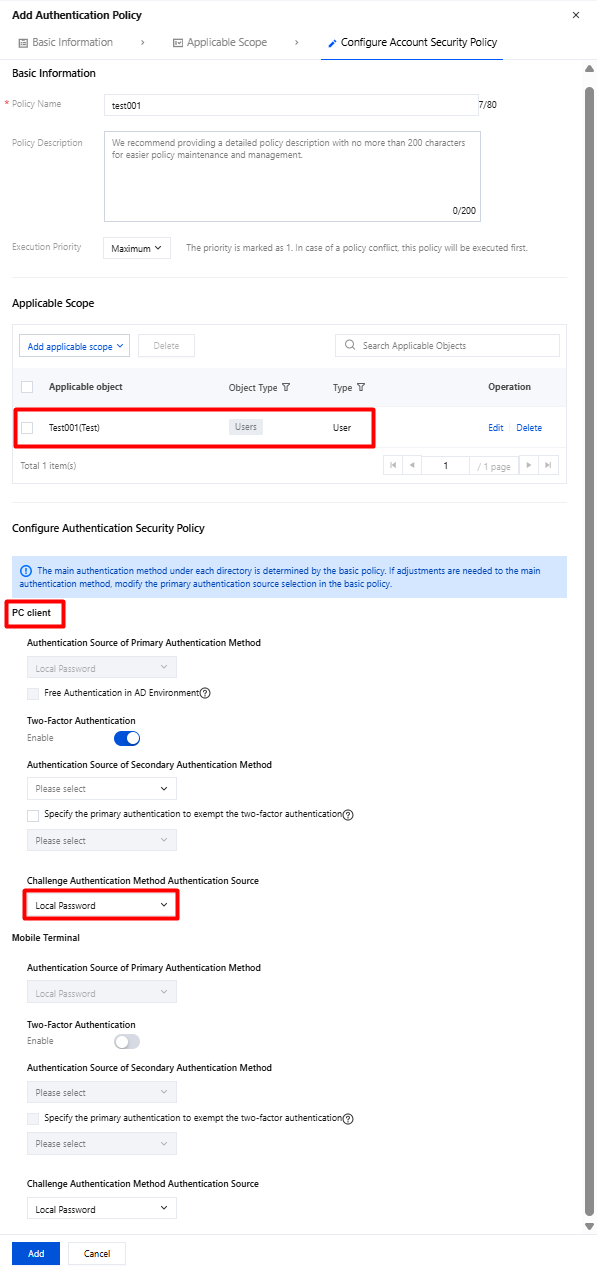
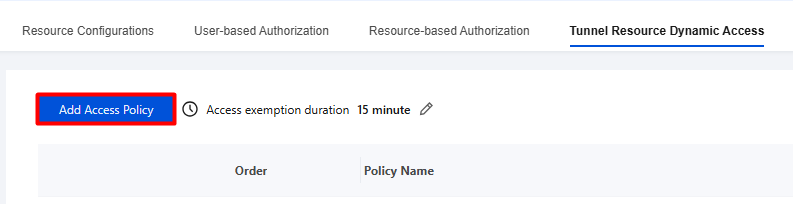
Within the specified access period, accessing business resources triggers challenge authentication. Access succeeds after the authentication is passed.
Prerequisites
1. The iOA client is successfully deployed.
2. Complete account creation and authentication source configuration.
3. Complete adding the business resource.
4. Complete authorization for the corresponding users and resources.
Test Examples
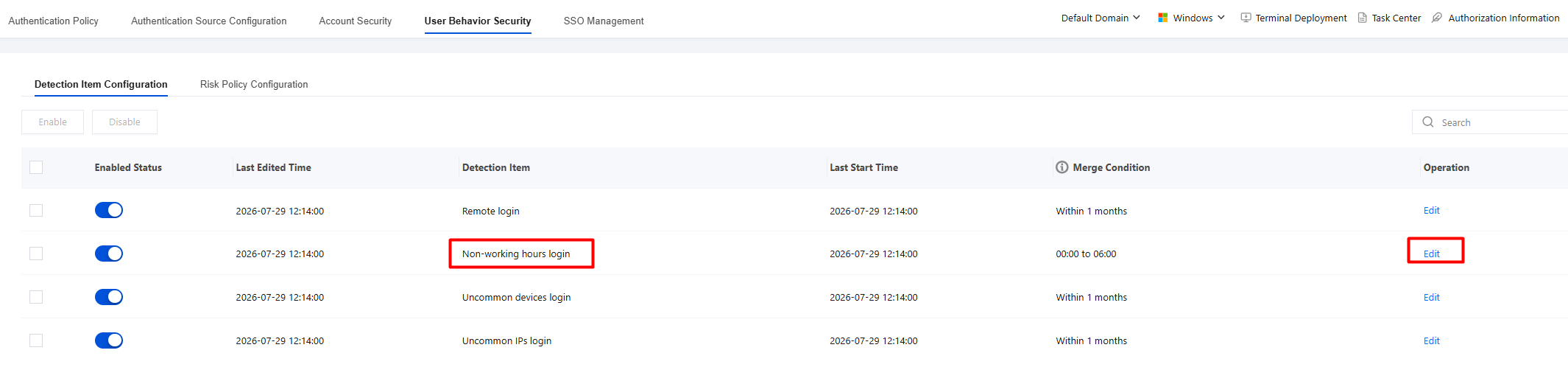
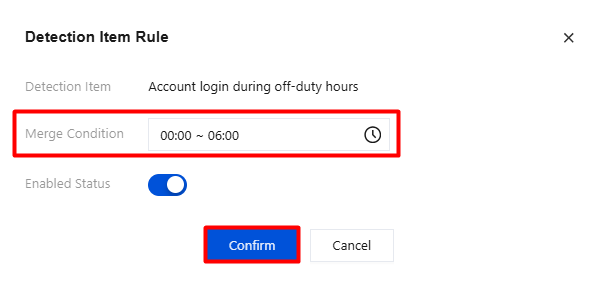
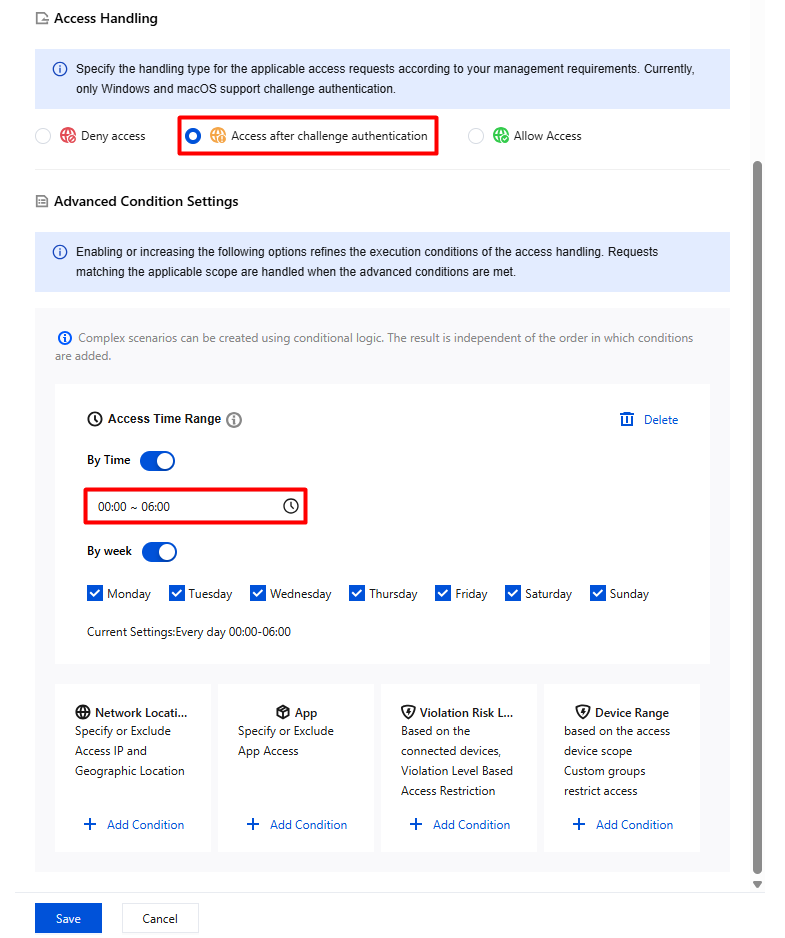
Example scenario: During off-work hours from 00:00 to 6:00, accessing specified business resources triggers challenge authentication.
2. On the Create Policy page, configure the relevant parameters. For Access Action, select Access After Challenge Authentication. Set Access Period to 00:00–6:00 and click Save.
Step 4: Terminal Verification
When an account logs in during off-work hours (0:00–6:00), accessing specified business resources triggers challenge authentication. Access at other times does not trigger challenge authentication.