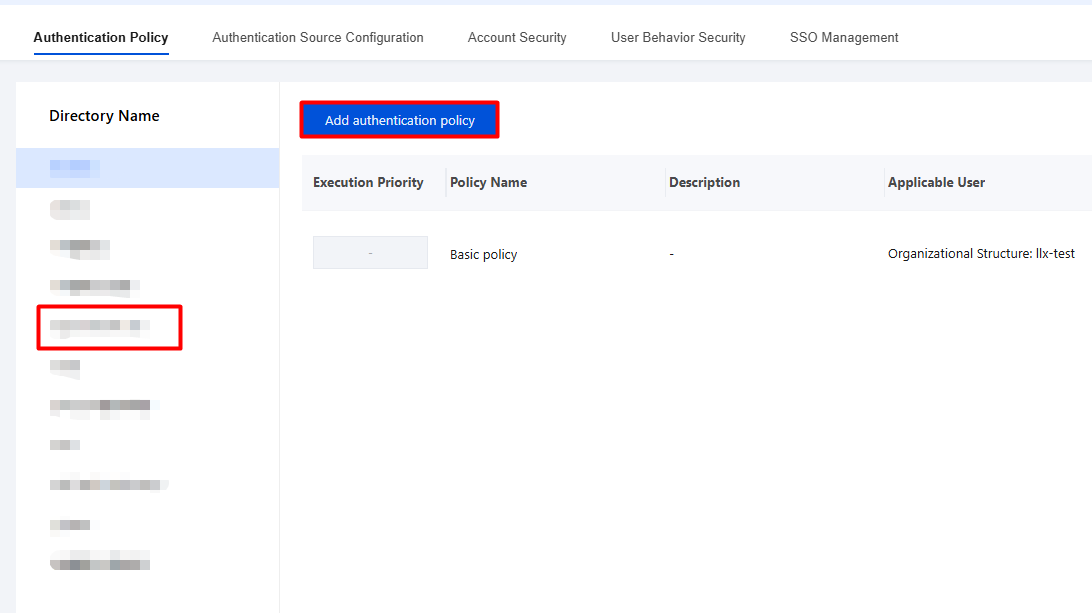
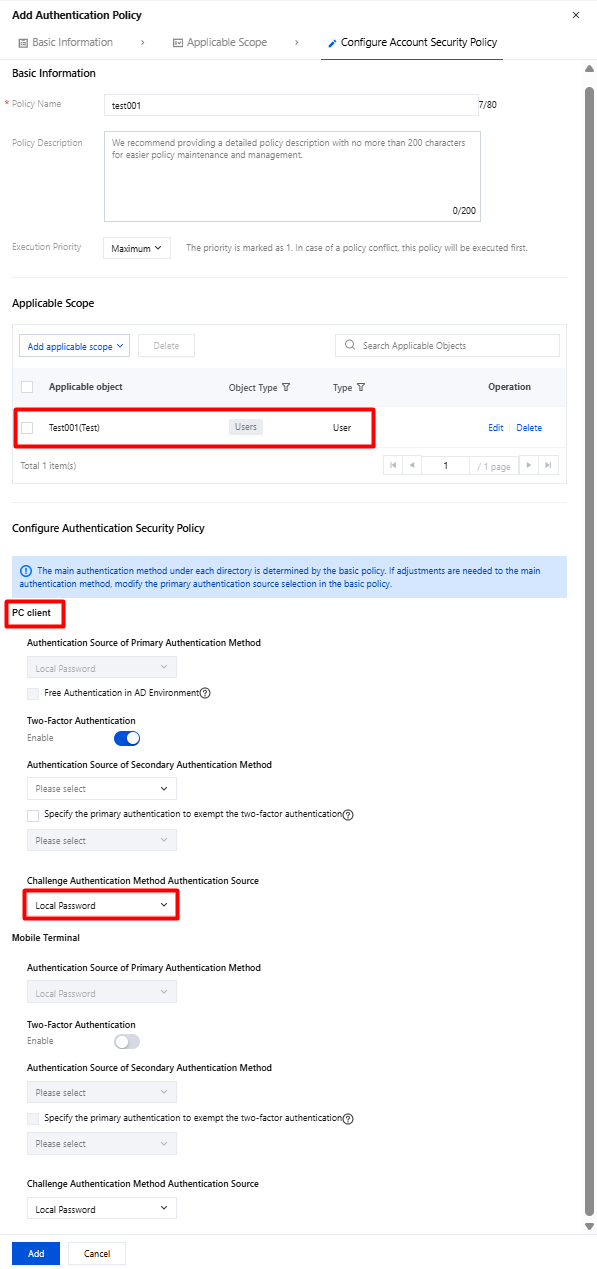
When an application in the specified application group accesses business resources, the system triggers challenge authentication. After the authentication succeeds, the application successfully accesses the business resources.
Prerequisites
1. The iOA client is deployed successfully.
2. Complete account creation and authentication source configuration.
3. Complete the addition of business resources.
4. Complete authorization for the corresponding users and resources.
Test Examples
Scenario description: For example, for Ops tool security, PuTTY must pass challenge authentication before it can access the Ops system.
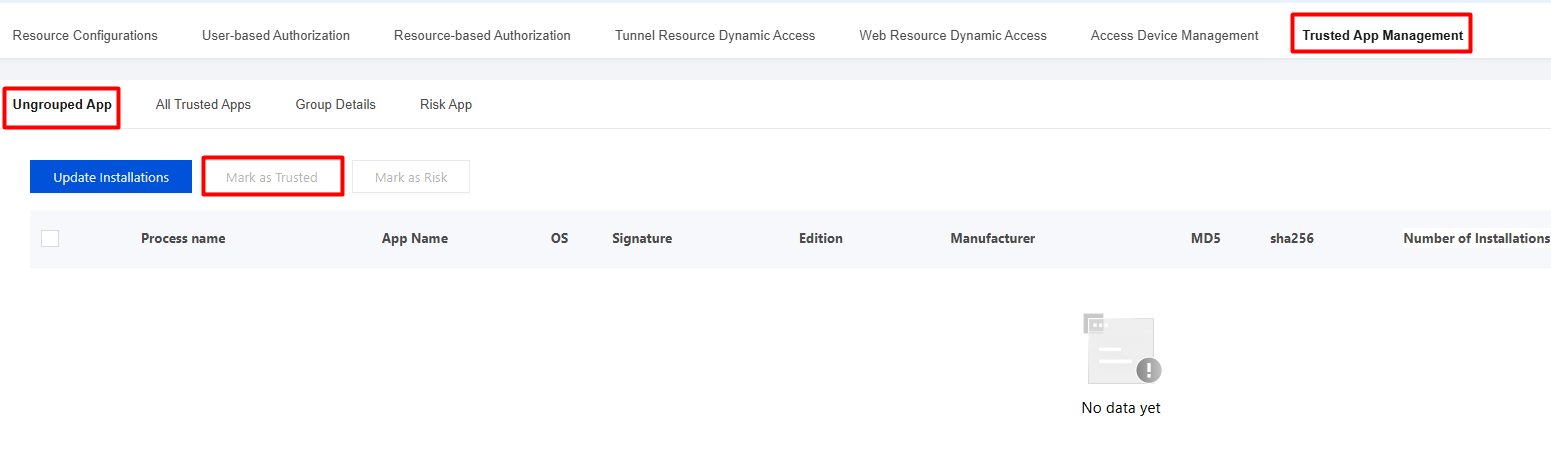
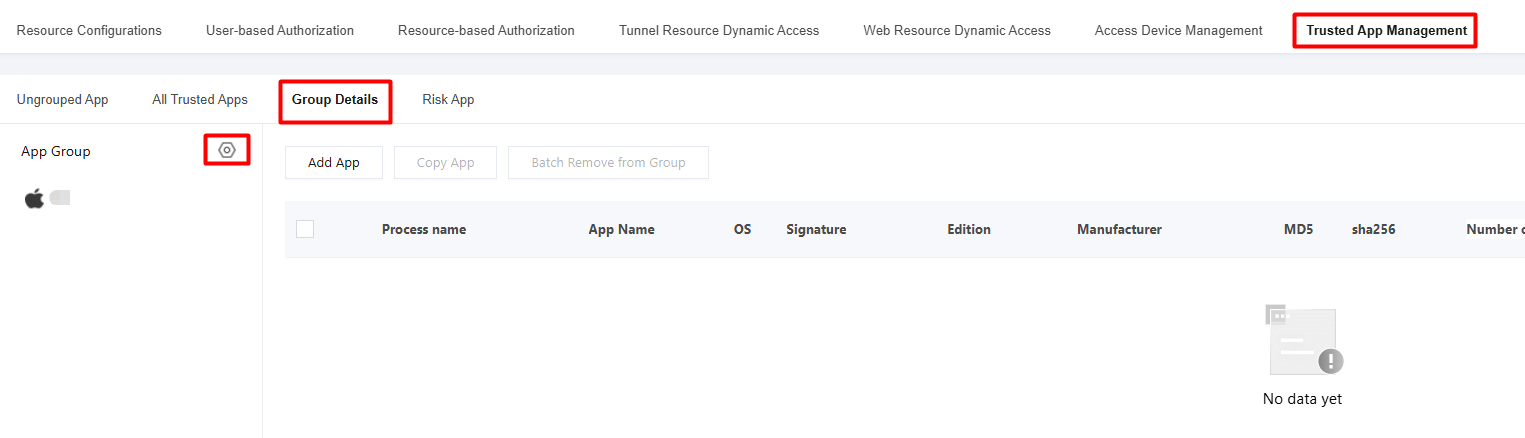
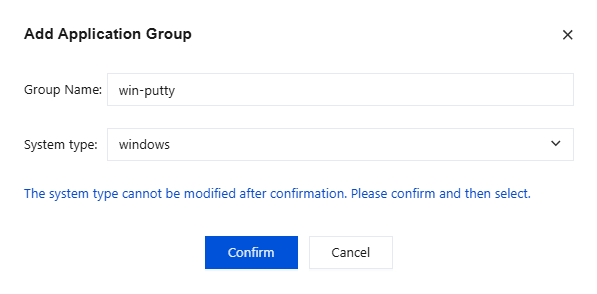
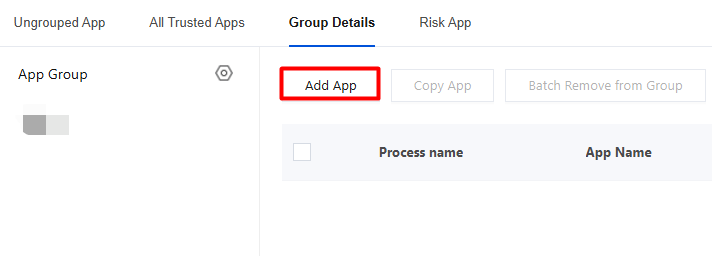
Step 1: Install PuTTY and Set It as a Trusted Application
1. Install PuTTY on any terminal that has the iOA client installed.
2. Wait for the iOA console to automatically collect the process.
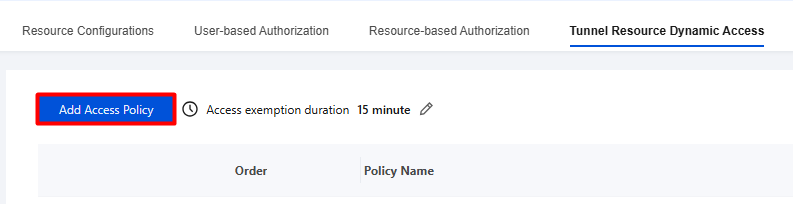
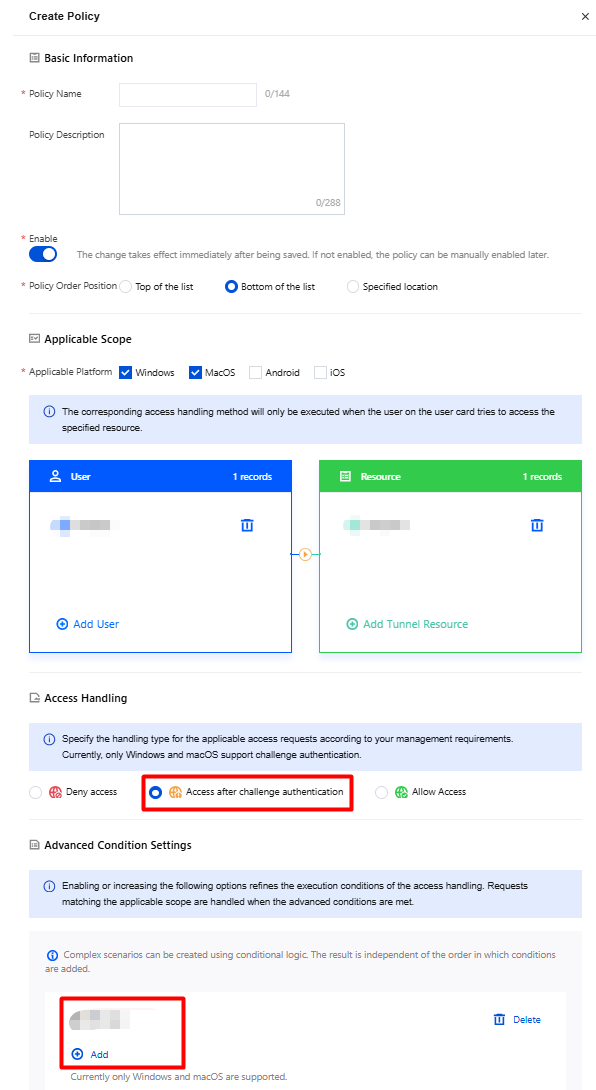
2. On the Create Policy page, configure the relevant parameters. For Access Action, select Access After Challenge Authentication, add the PuTTY application, and click Save.
Step 5: Terminal Verification
Open PuTTY, access the corresponding business resource, and complete challenge authentication to access it successfully.