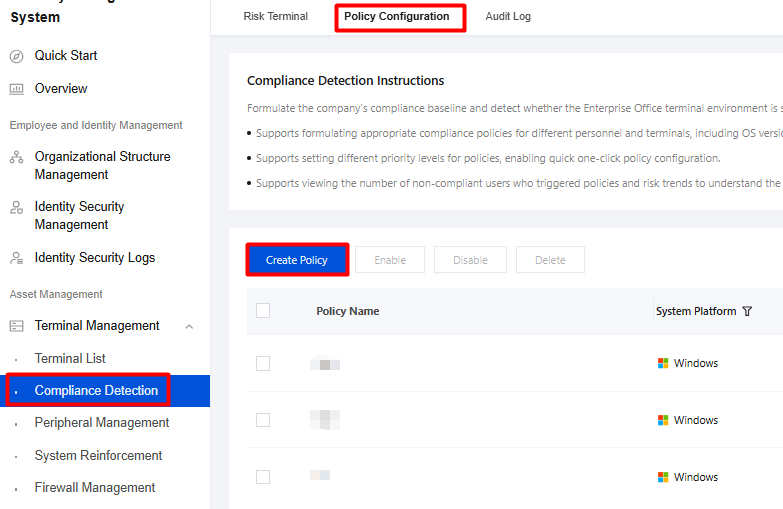
2. On the Compliance Detection page, select Policy Configuration and click Create Policy.
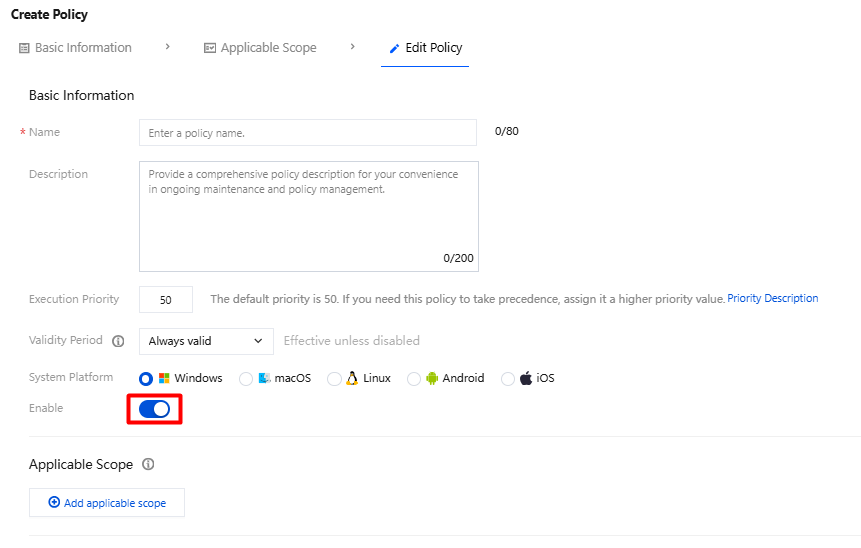
3. On the Create Compliance Detection Policy page, configure the relevant parameters and click Save.
3.1 Basic Information: Enter the basic information and enable this feature.
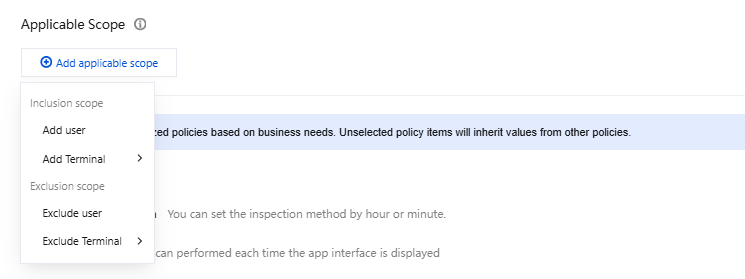
3.2 Applicable Scope.
3.1.1 Click Add Applicable Scope > Add User.
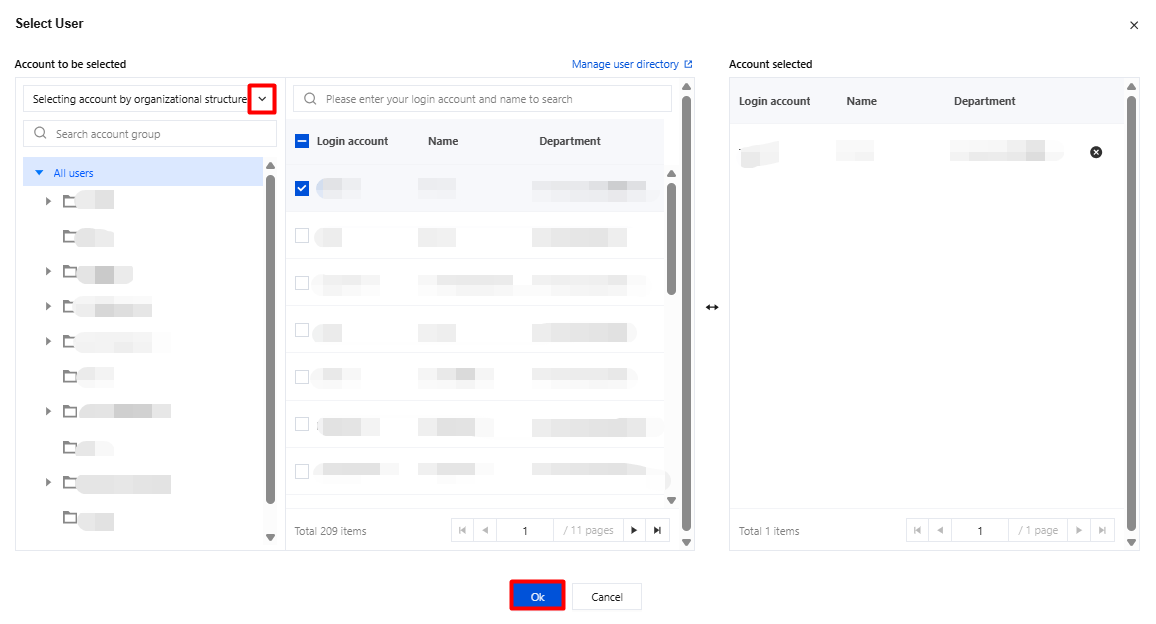
3.1.2 In the Add User dialog box, select the account name to be managed and click OK.
3.2 Compliance detection policies.
3.2.1 Select non-compliant processes, click
to enable this feature, and click Add Detection Point.
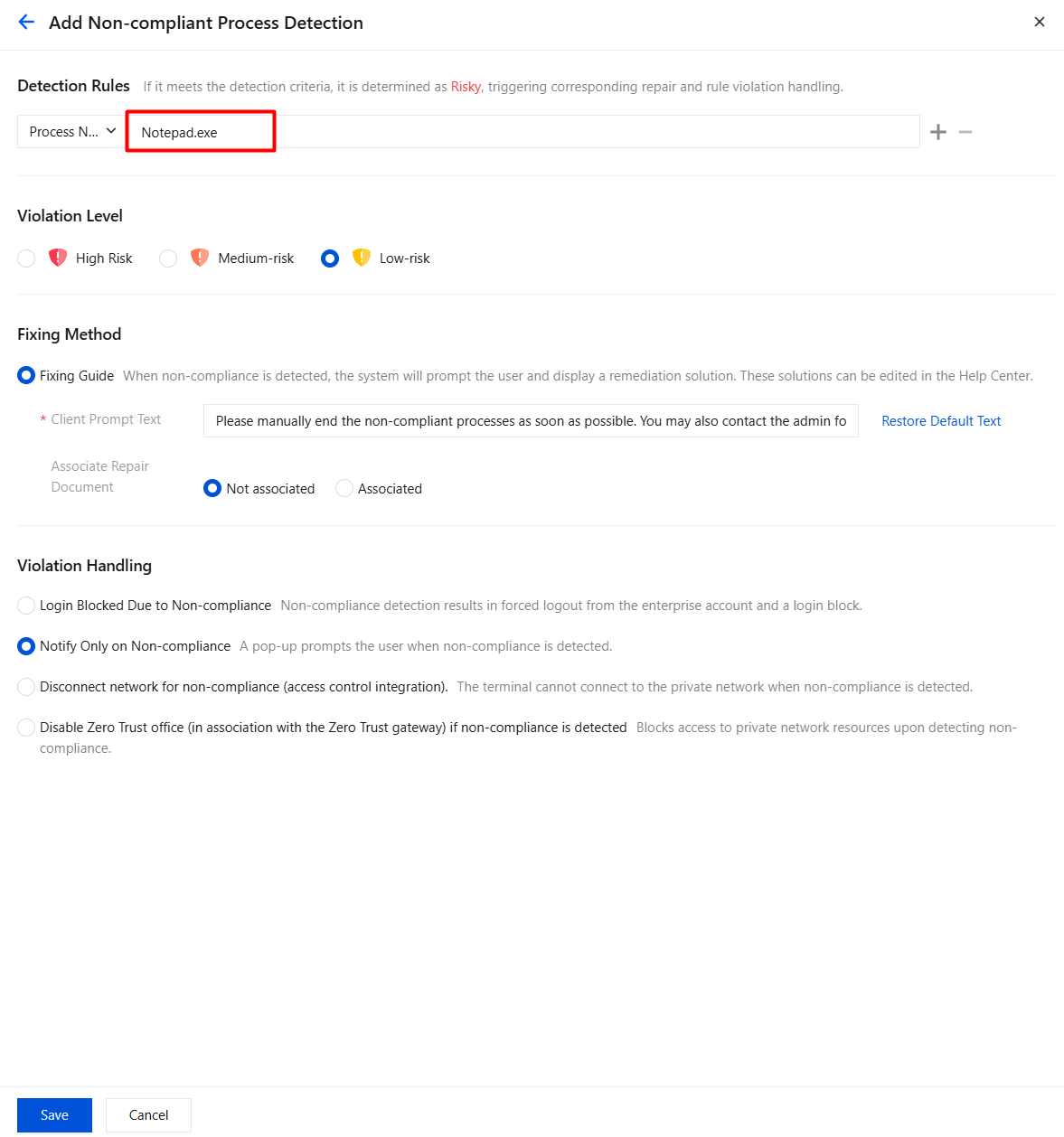
3.2.2 When adding a non-compliant process detection item, configure the relevant parameters. In this example, the Notepad.exe process is used. After configuration, click Save.
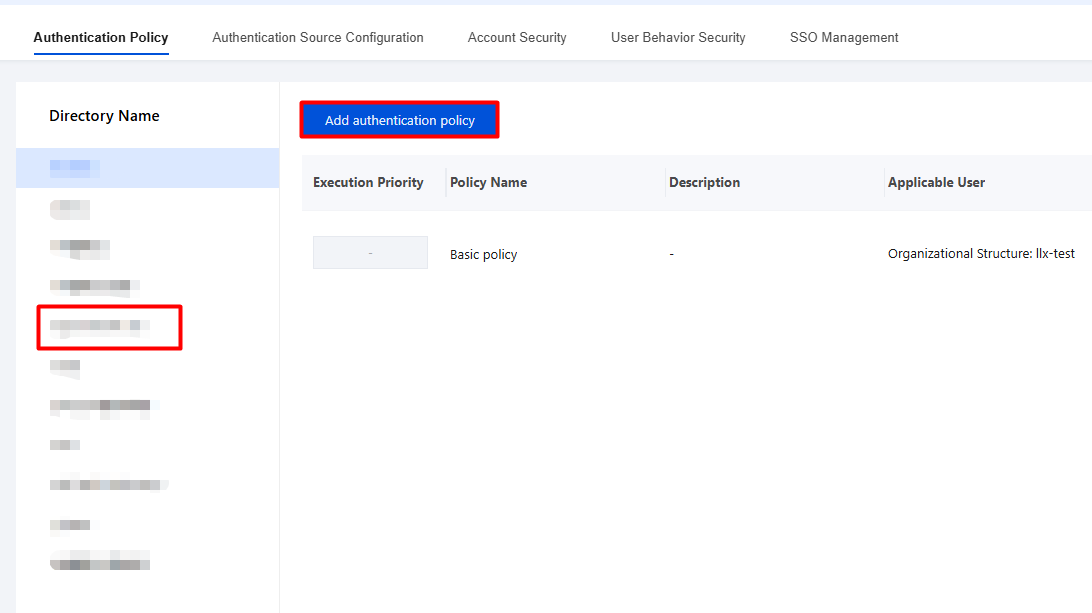
2. Select the directory name and click Add Authentication Policy.
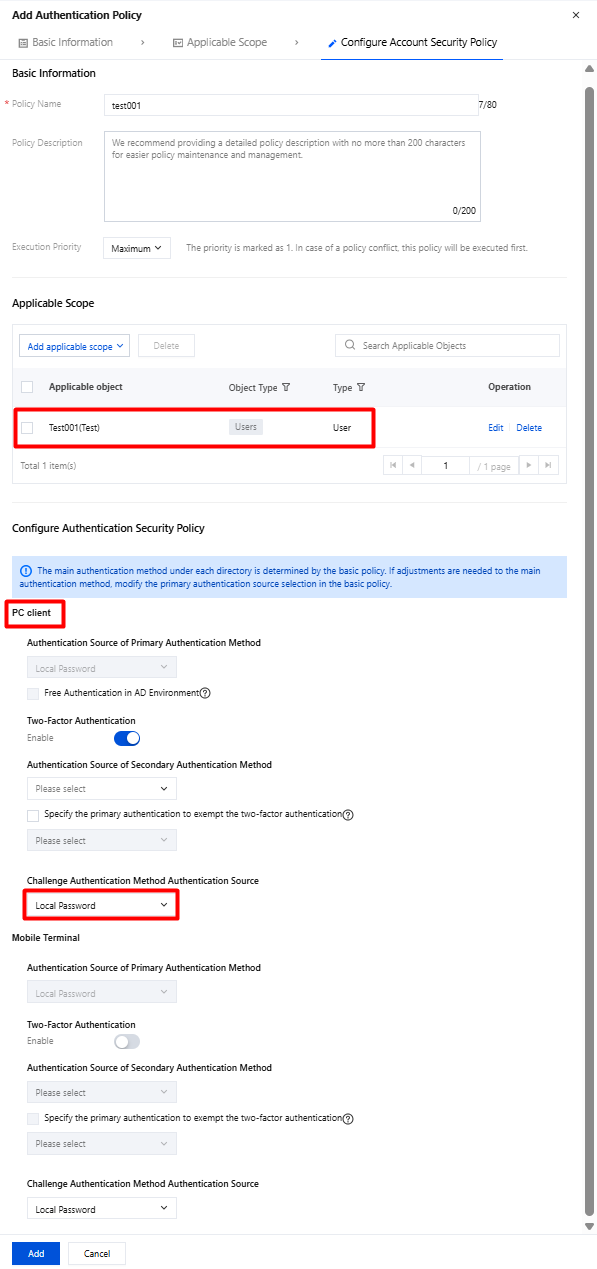
3. Configuration example: Set the authentication source of the PC-side challenge authentication method to iOA local device account and password, and click Add.
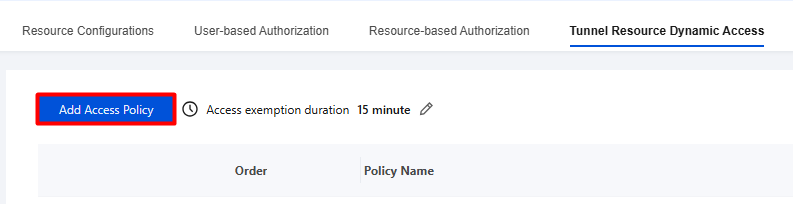
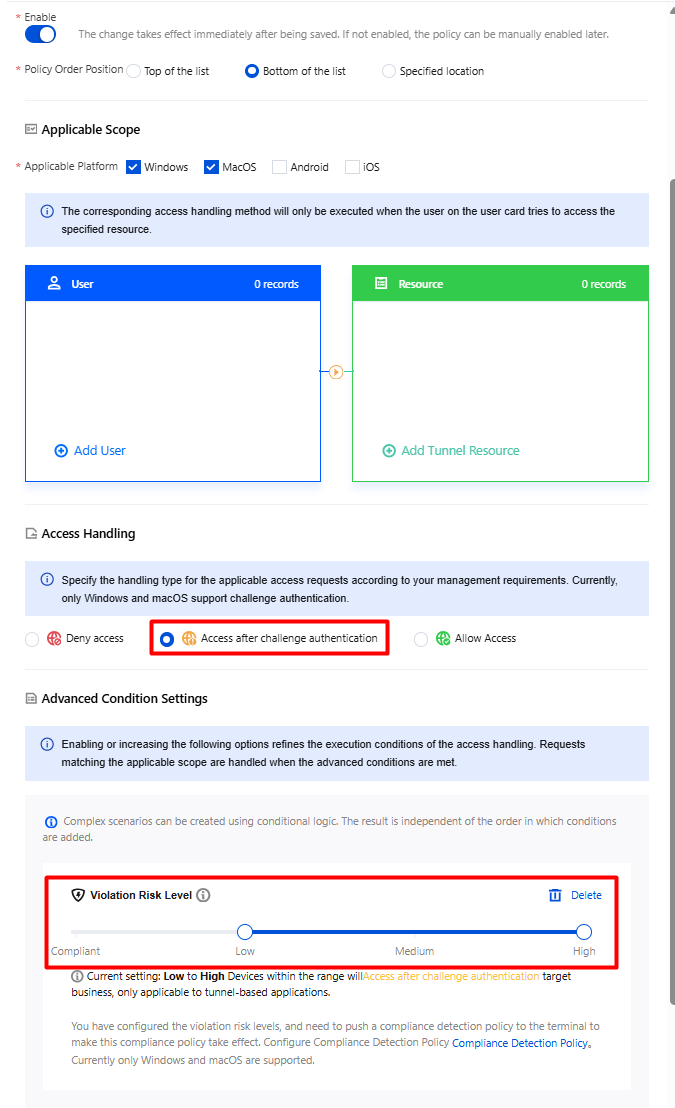
2. On the Create Policy page, configure the relevant parameters. For Access Action, select Access After Challenge Authentication, set Violation Risk Level, and click Save.
Step 4: Terminal Verification
1. Run Notepad on the terminal, and double-click the text document with the left mouse button to open it in Notepad.
2. The client compliance detection prompts that the device is non-compliant.
3. If the terminal is non-compliant, secondary authentication is required to access the specified business resources.
4. Enter your account and password. If secondary authentication is passed, the access succeeds. If the account or password is incorrect, the access fails.