Recording Playback
Download
Focus Mode
Font Size
Scenarios
You can use the recording playback feature to play back historical recordings from video channels, download cloud recording clips, and initiate local recording download tasks.
Prerequisites
The ISS service has been activated, and device access has been completed.
Play back cloud recordings: Cloud recordings have been generated for the corresponding channel according to the recording plan. The playable time range of cloud recordings depends on the lifecycle rules configured in the recording plan.
Play back local recordings: Recording data already exists on the device (NVR disk or IPC memory card). The playable time range depends on the storage period configured on the device.
Operation Steps
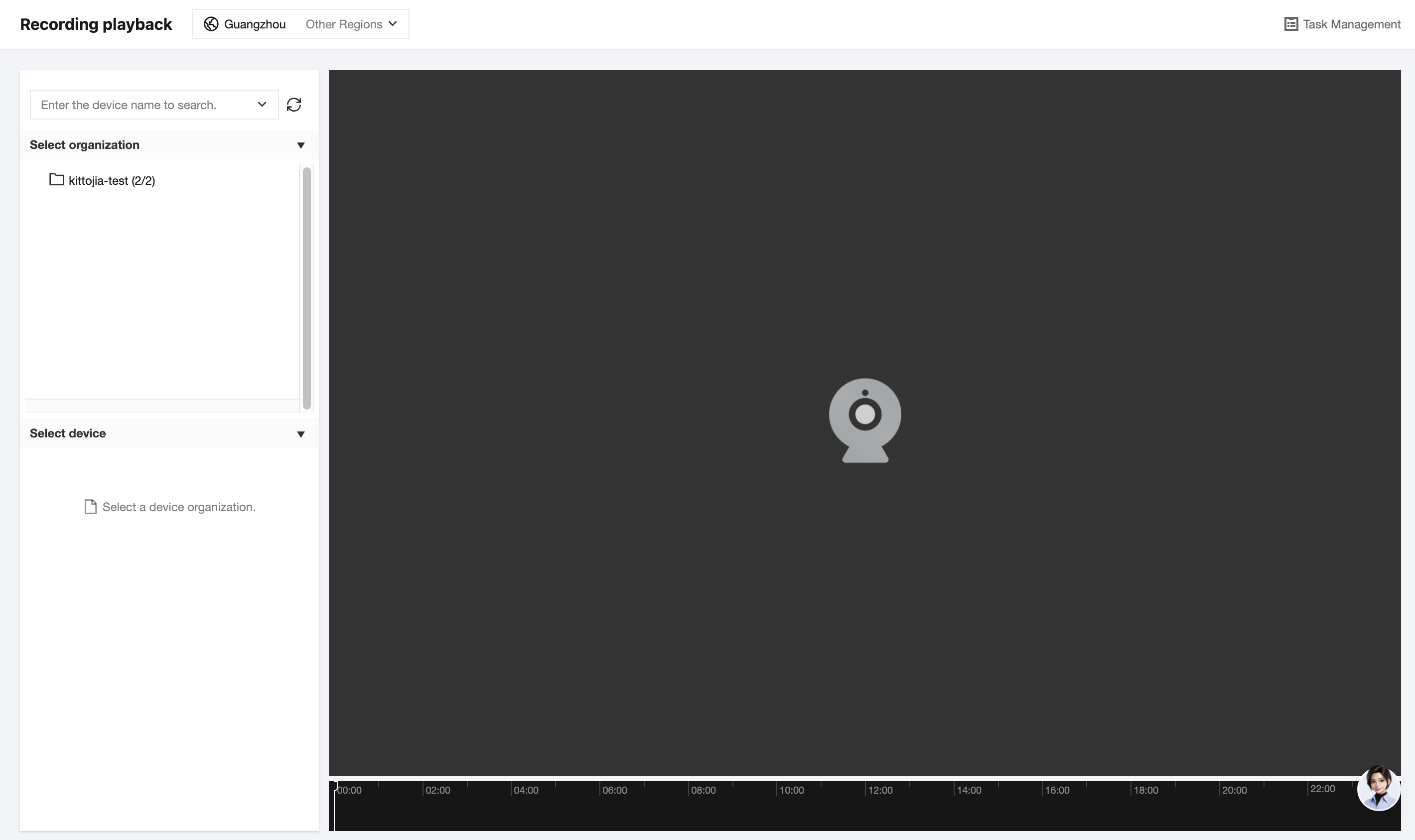
Playing Back Recordings
1. In Select Organization, click the target organization. The device list under this organization will be displayed in the Select Device area below. The number in parentheses after the organization name indicates the number of online channels/total channels under the organization. For example, (2/8) indicates that 2 of the 8 channels are online.
2. In the Select Device area, click a device with an expand arrow (such as NVR) to expand and view the channel list under the device. Standalone camera channels can be operated directly. Online devices/channels are marked with blue icons.
3. Click the video channel you want to play back. In the Select Date dialog box that appears, select the recording mode and recording date, and click OK to search for recordings of that day.
Note:
Recording modes are divided into cloud recording and local recording. Cloud recording refers to data pulled and stored in the cloud. Local recording refers to recordings stored on the local disk of an NVR device or in an IPC memory card.
In the timeline at the bottom of the page, green intervals indicate that recording data is available for playback during that period, while colorless intervals indicate that no data is available for playback.
4. After the search is completed, the player automatically starts playing from the start time of the day. Drag the playback pointer to the target time to play the recording at that time.
5. Hover over the playback window to use the following playback control features:
Function | Description |
variable-speed playback | Adjust the playback speed using the slow/fast playback buttons. Supported speeds include x1/4, x1/2, x1, x2, and x4 (available for both cloud and local recordings). |
Pause/Play | Pause or resume playback of the current recording. |
Single Screenshot | Capture a single screenshot of the current frame. |
Multiple Screenshots | Capture multiple screenshots of the current frame consecutively. |
Regional Digital Zoom | Select a local area of the frame to apply digital zoom, creating a picture-in-picture effect for easier detail viewing. |
Audio Playback | Play the audio in the current recording. |
Full Screen | Play the current window in full screen. Perform the operation again to exit full screen. |
Downloading Recording Clips
1. Hover over the playback window and click Recording Download in the upper-right corner. Alternatively, in the Select Device area, hover over the target channel and click the download icon that appears to open the Recording Download window. The window contains two tabs: Cloud Recording Download and Local Recording Download.
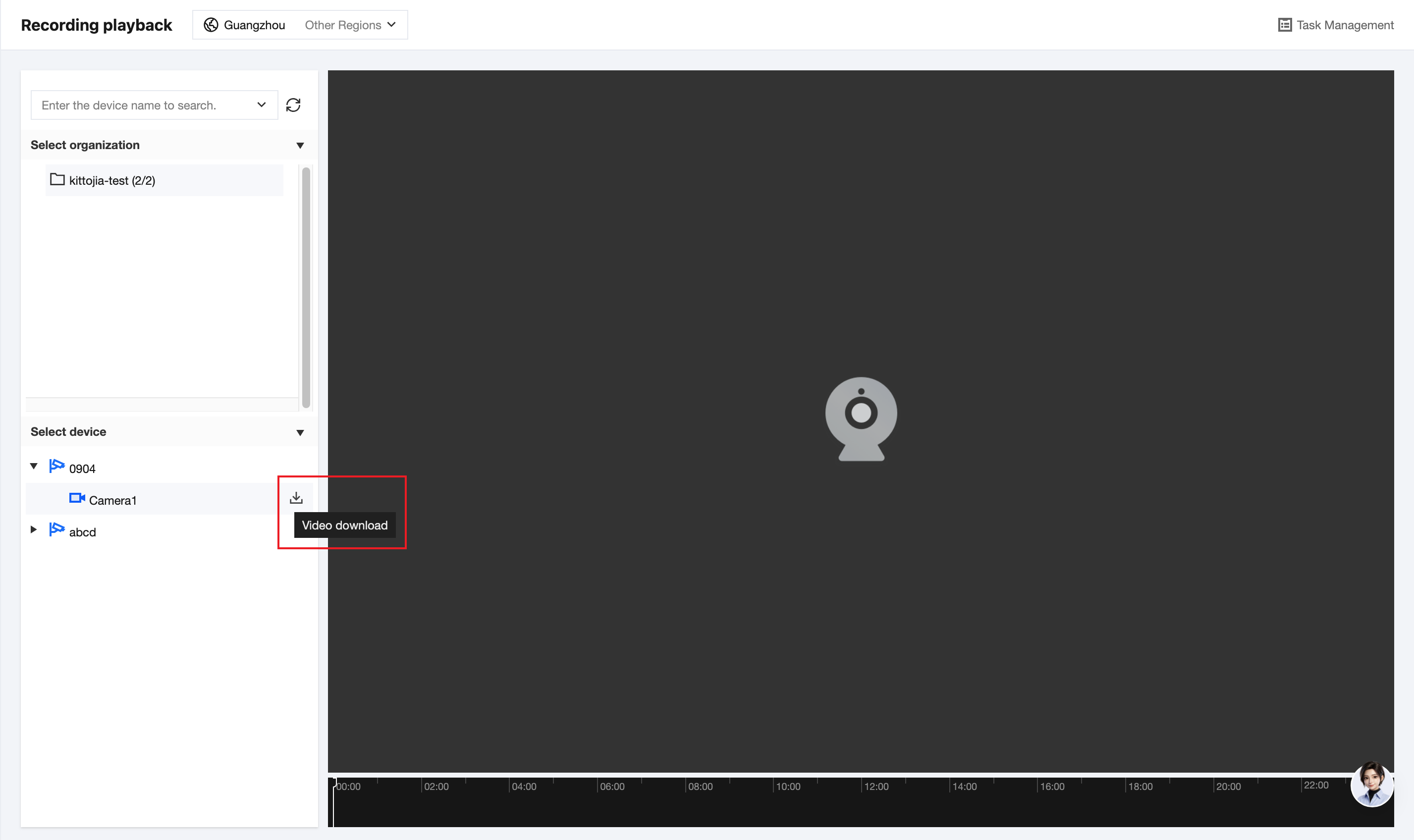
2. On the Cloud Recording Download tab, select the download date, download time range, and file format, and click OK to start the download.
Note:
Downloads are supported in MP4 and TS formats, with a maximum duration of 60 minutes per recording segment.
You can view the execution status and results of download tasks in the Task Management drawer in the upper-right corner of the page.
3. On the Local Recording Download tab, set the relevant parameters and click OK to create a local recording download task.
Parameter | Description |
Device Channel | Selected Video Channel |
Recording Time Range | Time range of the device local recording to retrieve. A single retrieval can cover a range from 30 seconds to 2 hours. |
Recording Upload to Cloud Speed | Speed at which the platform retrieves data. Options: 1x, 2x, 4x, and 8x. |
Lifecycle Rule | Time period for cloud storage using the view hot storage type after local recording upload to cloud. Options: 7, 15, 30, 60, 90, 180, and 365 days. |
File Formats | Format for storing local recordings uploaded to the cloud. Default: MP4. |
Note:
During multi-speed pulling, ensure that the device uplink network bandwidth is greater than the average bitrate of the video channel multiplied by the upload speed multiplier. Otherwise, the pulling task is very likely to fail.
After a lifecycle rule is selected, the rule cannot be modified and data cannot be directly deleted. Proceed with caution.
4. After a local recording download task is created, you can view its execution status and results on the Recording Management > Recording Tasks > Local Recording Download tab. For details, see the Recording Tasks documentation.
Help and Support
Was this page helpful?
You can also Contact sales or Submit a Ticket for help.
Help us improve! Rate your documentation experience in 5 mins.
Feedback