Recording Plan
Download
Focus Mode
Font Size
Scenarios
This document describes recording plans in the ISS console, including plan type descriptions and the creation and editing of real-time upload plans and recording upload to cloud plans.
Prerequisites
Recording templates have been created: real-time upload plans require real-time upload templates, and recording upload to cloud plans require recording upload to cloud templates. For details, see Recording Management > Recording Templates.
A recording upload to cloud plan depends on device local recording. Before creating the plan, ensure that the device local recording is complete. We recommend that you log in to the device configuration end to check.
Plan Type Description
Recording plans are used to determine which devices pull streams to the cloud during which time periods and how long the recordings are stored. They are divided into two types: real-time upload plans and recording upload to cloud plans.
Comparison Item | Real-Time Cloud Upload Plan | Recording Upload to Cloud Plan |
Content to upload to cloud | Uploading and storing real-time device data to cloud | Uploading device local recordings to the cloud (that is, recordings stored on the memory card of an IPC or the hard disk of an NVR) for long-term backup storage |
Scenario | Data is stored in the cloud, and the device-side uplink network is sufficient. | Data is stored in the cloud, but the device-side uplink network is insufficient. The essence is to use the sufficient network during idle periods such as nighttime and early morning on the device side (to be defined by the customer) to upload the device local recordings of the previous day to the cloud. |
Real-Time Cloud Upload Plan
A real-time upload plan pulls real-time device data to the cloud during the time periods specified in the template and stores the data according to lifecycle rules. Each video channel can be applied to only one plan.
Best Practices: Real-Time Cloud Upload for Stores
Background: You want to upload data from store IPC cameras captured daily from 8:00 AM to 8:00 PM to the cloud and store it for 7 days, ensuring that it can be accessed and viewed at any time during this period.
Operation steps:
1. Create a real-time upload template and set the template time to Monday through Sunday, from 8:00 AM to 8:00 PM.
2. Create a real-time upload plan: select devices, apply the template mentioned above, and select hot storage for 7 days.
Operation Steps
1. Log in to the ISS console and choose Recording Management > Recording Plans. The Real-time Upload Plans tab is displayed by default.
2. Click Create Plan.
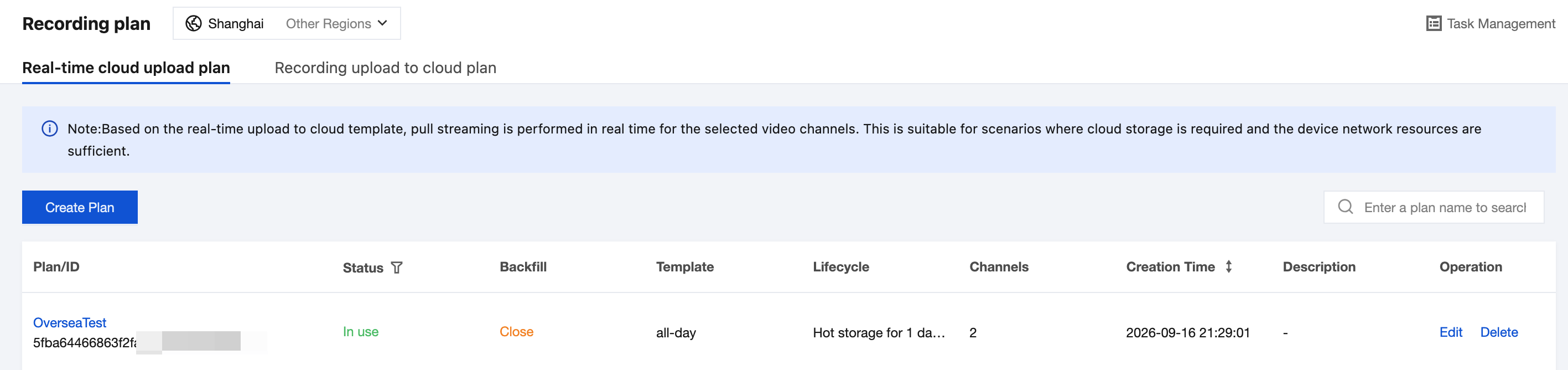
3. Fill in the basic information:
Configuration Item | Description |
Plan Name | Only Chinese characters, English letters, digits, underscores (_), and hyphens (-) are supported. The length cannot exceed 32 characters. |
Real-time Cloud Migration Template | Select a created real-time cloud migration template. If no suitable template is available, click Create Template. |
Cloud Migration Stream Type | The default is the type pushed by the device. You can also select the main stream or sub-stream. |
Description | Optional. Maximum length: 128 characters. |
4. Add video channels: You can select the organization checkbox to select all channels under the organization (excluding channels of sub-organizations), or click the organization name to customize channel selection.
Note:
Devices and channels can be added to a plan regardless of whether they are online, but each video channel can be applied to only one plan.
5. Set lifecycle rules, which determine how long data is stored in the cloud: enter the number of days for hot storage after data upload. If you select Automatically transition to cold storage after hot storage expires, you must also set the number of cold storage days.
Note:
The hot data storage type is suitable for scenarios requiring access at any time, with a duration of 1-3650 days.
The cold data storage type is suitable for scenarios involving long-term backup and infrequent retrieval, with a minimum storage period of 60 days and a maximum of 3650 days.
6. (Optional) Enable cloud recording backfill: During plan execution, if the upload data of a channel is missing, the platform will promptly pull the device local recording and upload it to the cloud for backfill within 48 hours after the missing time.
Note:
Cloud recording backfill is only applicable to devices using the GB/T 28181 protocol. It is currently free to use, but the platform reserves the right to charge in the future. Please pay attention to this during use.
To use this feature, the hot storage period must be set to at least 3 days, the device must have local recordings for the corresponding time, and the device-side uplink bandwidth must be sufficient. Otherwise, the recording backfill performance will be affected.
7. Click OK to complete the plan creation. The platform will then upload data to the cloud and store it as configured.
Recording Upload to Cloud Plan
The recording upload to cloud plan pulls the device local recording from the previous day at an accelerated speed during the selected upload period. It is suitable for scenarios where cloud storage is desired but device-side network bandwidth is limited, as it can leverage the network during nighttime or early morning hours for off-peak pull streaming.
Best Practices: Hotel Recording Upload to Cloud
Background: You want to upload the 24-hour recordings from the hotel NVR device hard disk every Sunday to the cloud for storage, ensuring that they can be accessed and viewed at any time within 7 days, while also meeting the need for lower-cost long-term backup storage for 180 days.
Operation steps:
1. Create a recording upload to cloud template. The template has the following two recommended settings:
Assume the (off-peak) upload period is Monday 00:00–6:00 with a 4x upload speed multiplier.
Assume the (off-peak) upload period is Monday 00:00–8:00 and 20:00–24:00, with a 2x upload speed multiplier.
Note:
The platform will upload the recording data of the previous day for the device to the cloud at an accelerated speed during the upload period. To ensure data integrity, the template settings must satisfy at least the following condition: upload period ≥ recording period of the previous day ÷ upload speed multiplier.
2. Create a recording upload to cloud plan: select devices, apply the template mentioned above, and select hot storage for 7 days and cold storage for 180 days.
Operation Steps
1. Log in to the ISS console and choose Recording Management > Recording Plans. Then switch to the Recording Upload to Cloud Plans tab.
2. Click Create Plan.
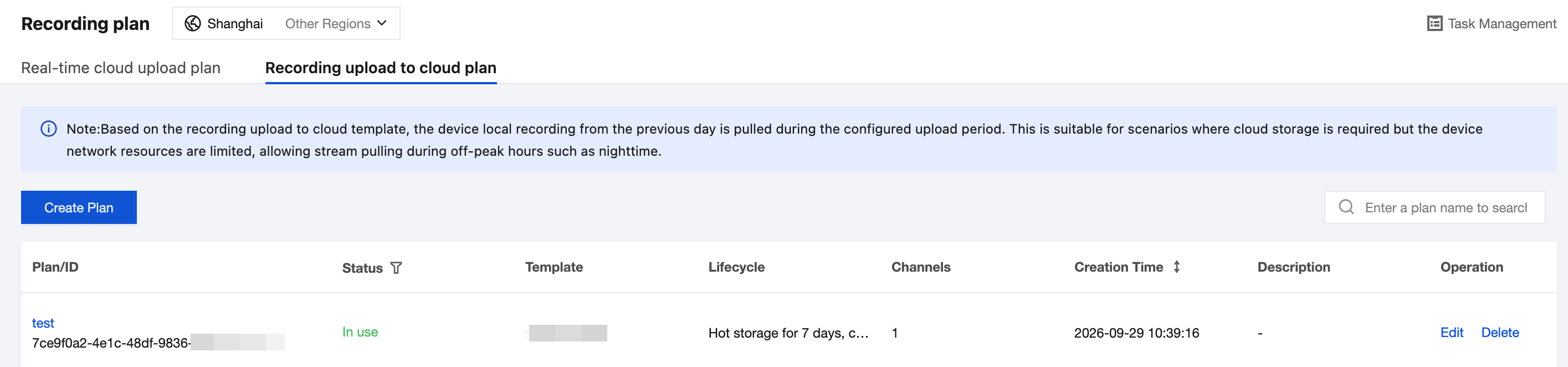
3. Fill in the basic information:
Configuration Item | Description |
Plan Name | Only Chinese characters, English letters, digits, underscores (_), and hyphens (-) are supported. The length cannot exceed 32 characters. |
Recording Upload to Cloud Template | Select a created recording upload to cloud template. If no template is available, click Create Template. |
Description | Optional. Maximum length: 128 characters. |
4. Add video channels: You can select the organization checkbox to select all channels under the organization (excluding channels of sub-organizations), or click the organization name to customize channel selection.
Note:
Devices and channels can be added to a plan regardless of whether they are online, but each video channel can be applied to only one plan.
5. Set lifecycle rules: enter the number of days for hot storage after data upload. If you select Automatically transition to cold storage after hot storage expires, you must also set the number of cold storage days.
6. Click OK to complete the plan creation. The platform will then upload data to the cloud and store it as configured.
Help and Support
Was this page helpful?
You can also Contact sales or Submit a Ticket for help.
Help us improve! Rate your documentation experience in 5 mins.
Feedback