On an application’s details page, you can view and modify application information. On the Basic Configuration page, you can configure the message sending threshold, global SMS message sending limit, event callback, and sending frequency limit as needed, and manage alarm recipients.
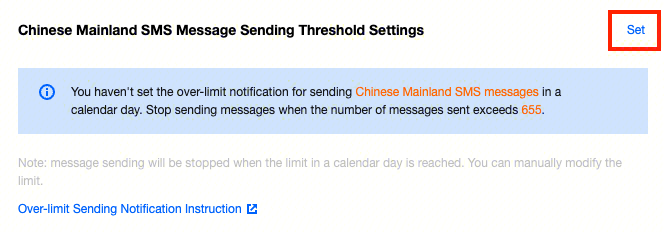
Chinese Mainland SMS Message Sending Threshold Settings
2. You can enter the Basic Configuration tab in the following ways:
Select Application Management > Application List on the left sidebar and click the block of the target application to enter its details page. Then, click Basic Configuration.
Select Application Management > Basic Configuration on the left sidebar.
3. Select the current application as the target application to be manipulated.
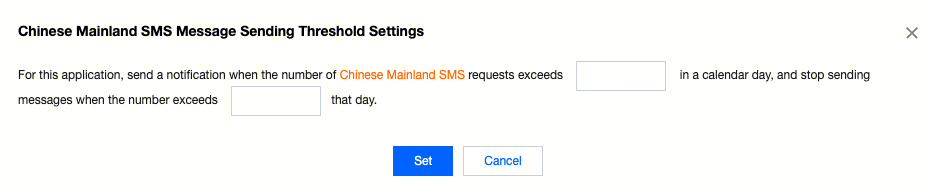
4. Click Set in Chinese Mainland SMS Message Sending Threshold Settings to set the message sending alarm threshold. Alarm recipients can receive the alarm notification when the threshold is reached. You can also set the message sending limit so that the application stops sending messages when the limit is reached that day.
5. Click Set to save.
After that, please configure alarm recipients in Notifications & Alarms so that they can receive the notification when the threshold is reached.
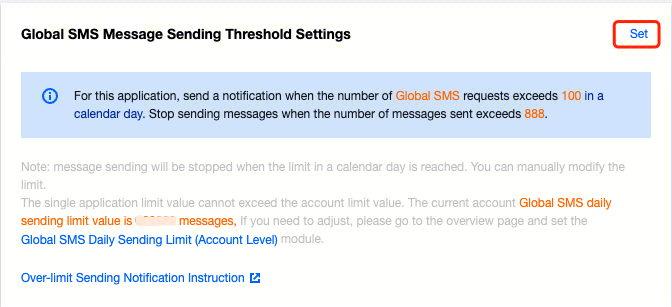
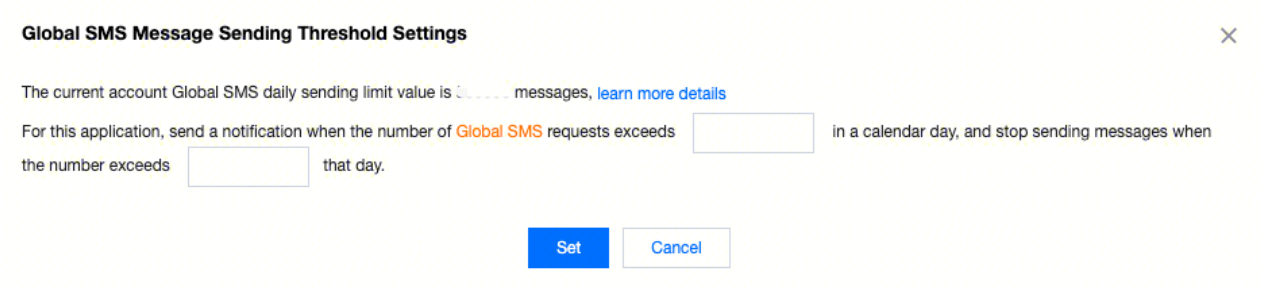
Global SMS Message Sending Threshold Settings
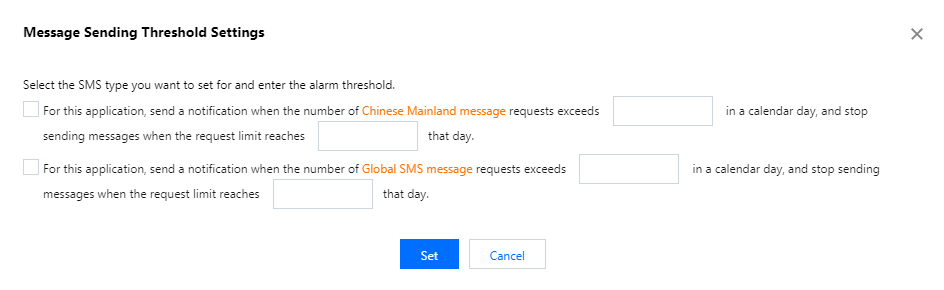
1. Click Set in Global SMS Message Sending Threshold Settings to set the message sending alarm threshold. Alarm recipients can receive the alarm notification when the threshold is reached. You can also set the message sending limit so that the application stops sending messages when the limit is reached that day.
Note:
The total limit for a single application cannot exceed the total account limit value. If adjustments are needed, please contact your Tencent Cloud Business Manager or submit a ticket.
2. Click Set to save.
After that, please configure alarm recipients in Notifications & Alarms so that they can receive the notification when the threshold is reached.
Global SMS Recipient Country/Region Settings
Note:
This feature is supported only for organization users.
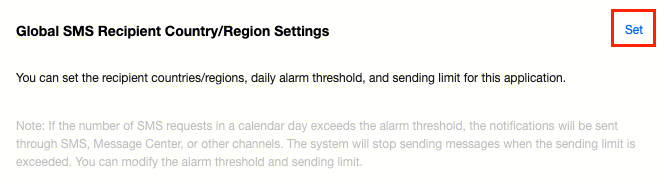
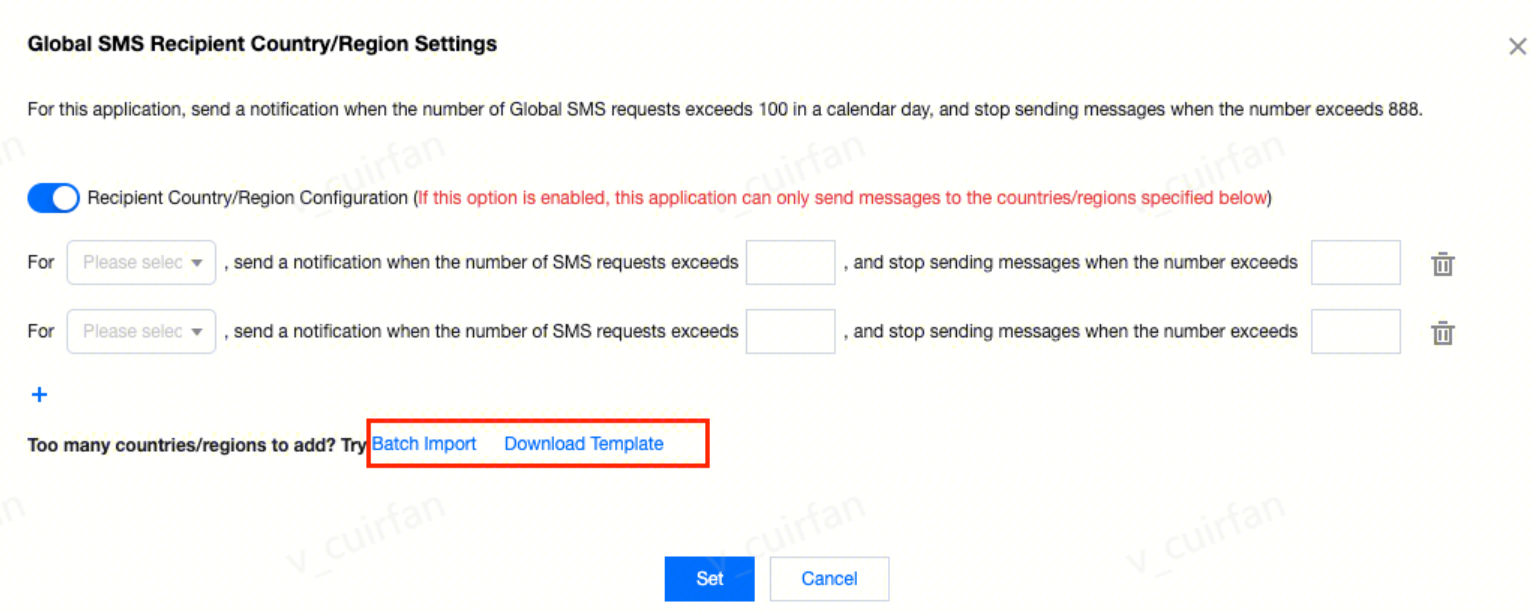
1. Click Set in Global SMS Recipient Country/Region Settings on the Application Management > Basic Configuration page to set the recipient countries/regions, daily alarm threshold, and sending limit for this application.
2. You can either select a country/region one by one from the drop-down list or import multiple countries/regions by clicking Batch Import. Click Download Template to get the batch import template.
Note:
The message sending limit for a single country/region in a calendar day cannot exceed the total limit for all countries/regions.
If left empty, it will be the same as the total limit by default.
With these settings, the application can send messages only to the specified countries/regions.
3. Click Set to save.
If you want to modify the message sending limit for a single country/region in a calendar day later, click Edit in the Operation column. You can also delete or export the configured countries/regions.
Event Callback Configuration
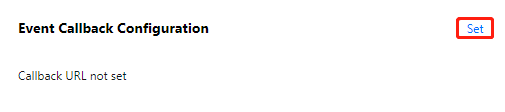
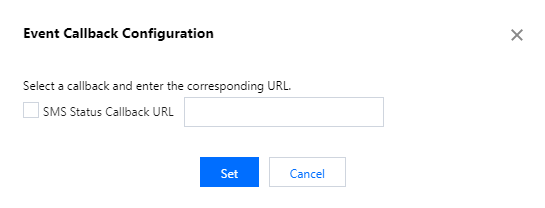
1. Click Set in Event Callback Configuration, select message status callback as needed, and enter the corresponding callback URL (callback information receipt API).
Note:
The body carried by the callback information is in JSON format.
2. Click Set to save.
After successful configuration, you will get a better grasp on the SMS delivery details. For example, after you configure the message receiving status callback address, Tencent Cloud will push the callback information received from the carrier to your specified callback address timely. Then, you can write appropriate code to receive, parse, and further use the callback information pushed by Tencent Cloud SMS.
Setting a Sending Frequency Limit
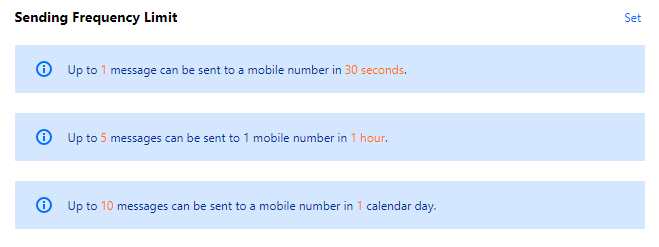
To ensure business and channel security and minimize financial loss caused by malicious call of SMS APIs, the default frequency limit for sending SMS messages is set as follows:
SMS messages with the same content can be sent to a single mobile number only once within 30 seconds.
Up to 2 messages can be sent to the same mobile number in a calender day.
Note:
Up to 10 messages can be sent to the same mobile number in a calender day if the application was created before May 22, 2024.
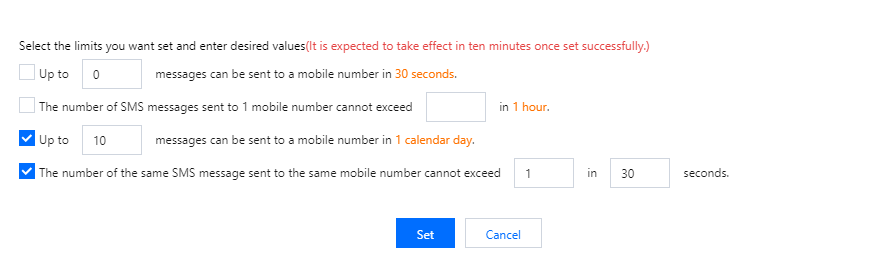
1. Click Set in Sending Frequency Limit, select the limits as needed, and set the corresponding threshold for each limit.
Note:
There is a maximum limit on the frequency setting of Individual. For the same mobile phone number, the maximum settings that can be set are 1 message/day, 5 messages/day, and 10 messages/day in 30 seconds, 1 hour, and 1 natural day respectively.
2. Click Set to save.
Setting a Frequency Limit Allowlist
Note:
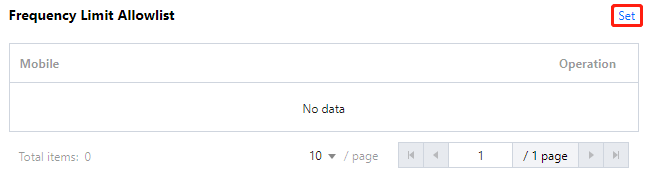
Mobile numbers in the allowlist are not subject to the frequency limit policy. An allowlist can contain up to 300 mobile numbers.
Adding mobile number to allowlist
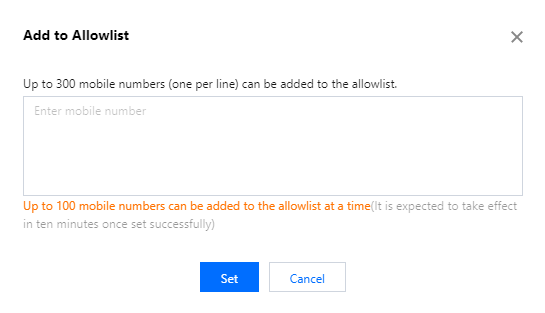
1. Click Set in Frequency Limit Allowlist and enter a mobile number per row. Up to 300 mobile numbers can be added to the allowlist.
2. Click Set to save the settings.
Deleting mobile number from allowlist
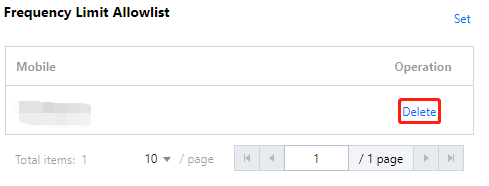
1. Click Delete in the row of the target mobile number in Frequency Limit Allowlist.