Log in to the SMS Console and select Marketing Management > Customer Management on the left sidebar. Then, you can import a number package online for storage and group the numbers so as to better manage customers.
Customer Pool
You can import or enter numbers on this page for management.
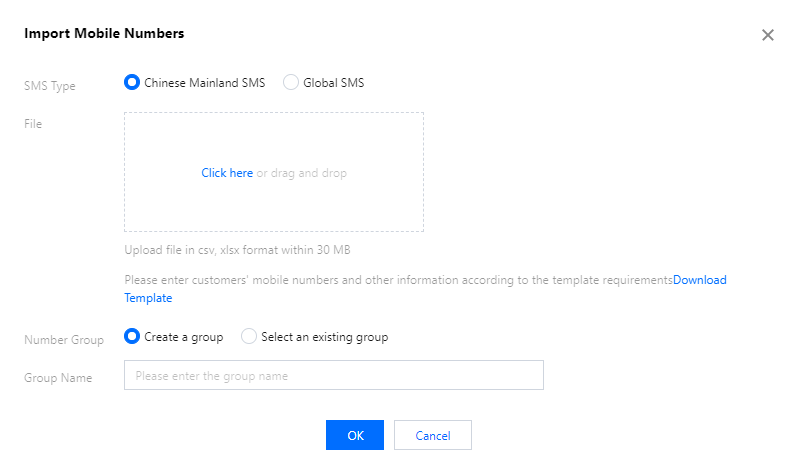
2. Select Marketing Management > Customer Management on the left sidebar and click Import.
3. Configure the following parameters as needed:
SMS Type: select the type of the SMS messages to be sent to the recipients in the number package.
File: click Download Template, enter the customer mobile numbers in the downloaded form, and click Click here or drag and drop the form file to upload it. The maximum form size supported is 30 MB.
Number Group: select Create a group or Select an existing group. If you select Create a group, please enter the group name.
2. Select Marketing Management > Customer Management on the left sidebar and click Enter.
3. Configure the following parameters as needed:
SMS Type: select the type of the SMS messages to be sent to the recipients in the number package.
Mobile: up to 100 mobile numbers can be entered, and each line is considered as a number.
For Chinese Mainland mobile numbers, please enter the mobile numbers directly, e.g., 1371481xxxx.
For mobile numbers outside the Chinese Mainland, please enter the country/region code + mobile number. For example, when the country/region code is 852 and the mobile number is 6666XXXX, enter 8526666XXXX.
Number Group: select Create a group or Select an existing group. If you select Create a group, please enter the group name.
4. Click OK.
Customer Group
You can create different customer groups on this page to manage customers by group and send targeted SMS messages to specified customer groups.
2. Select Marketing Management > Customer Management > Customer Group on the left sidebar, and you can click Send SMS in the "Operation" column of the target group to send bulk messages to recipients in this group.