Roo Code
Unduh
Mode fokus
Ukuran font
Roo Code is a VS Code extension for AI-powered programming. This article demonstrates how to integrate a model, using DeepSeek V4 Pro as an example, for use with Roo Code.
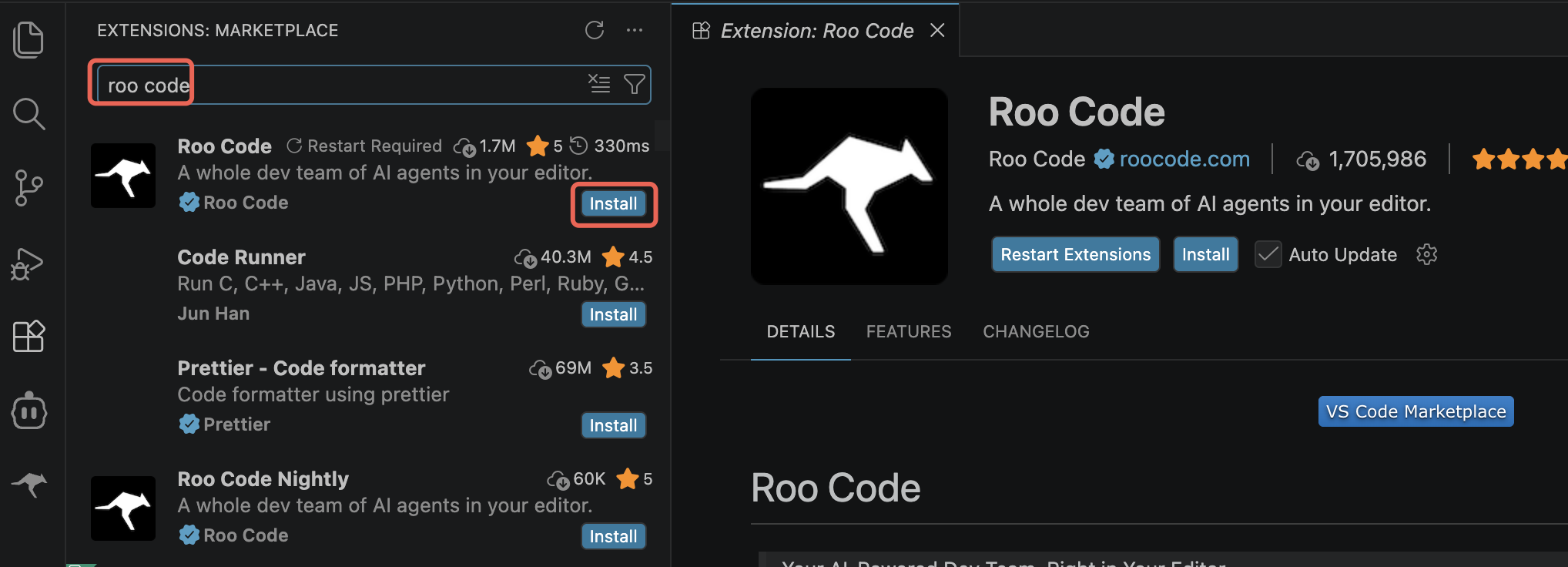
Installing Roo Code
If you have already installed Roo Code, you can skip this step.
Search for and install the Roo Code extension in your IDE. The following sections use VS Code as an example to demonstrate the installation and configuration process. After installation, it is recommended to restart the VS Code client.
Obtaining an API Key
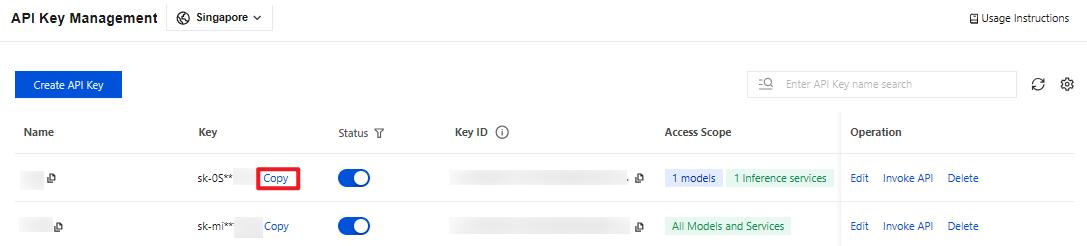
1. Go to the API Key Management page and click Create API Key. For operational details, see Create API Key.
Note:
When setting the Access Scope, if you select "Range", ensure that DeepSeek V4 Pro is selected.
2. After creation, be sure to copy and securely store the API Key. This information will be used in the subsequent process of configuring the tool.
Configuring Roo Code
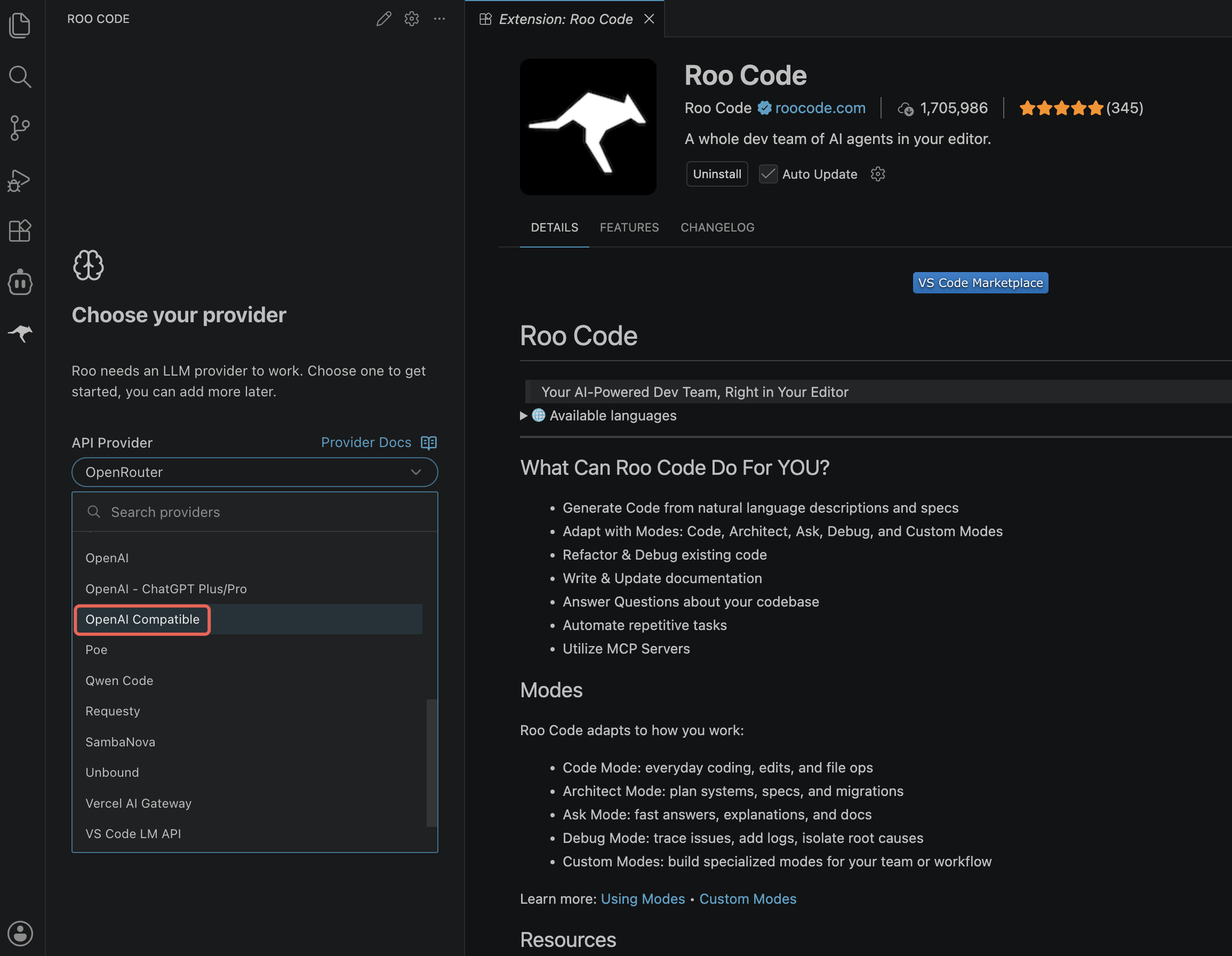
1. Open VS Code and select the Roo Code icon in the left sidebar.
Note:
If you are launching Roo Code for the first time, a mode selection page (such as Code, Architect, and Ask) will appear first. Select a mode as needed and complete the initial setup before proceeding with the subsequent steps.
2. API Provider: OpenAI Compatible.
3. Begin configuring the following information. Note that if you have used Roo Code before, you can directly click the Settings button in the upper-right corner of the main page to add or modify configurations.
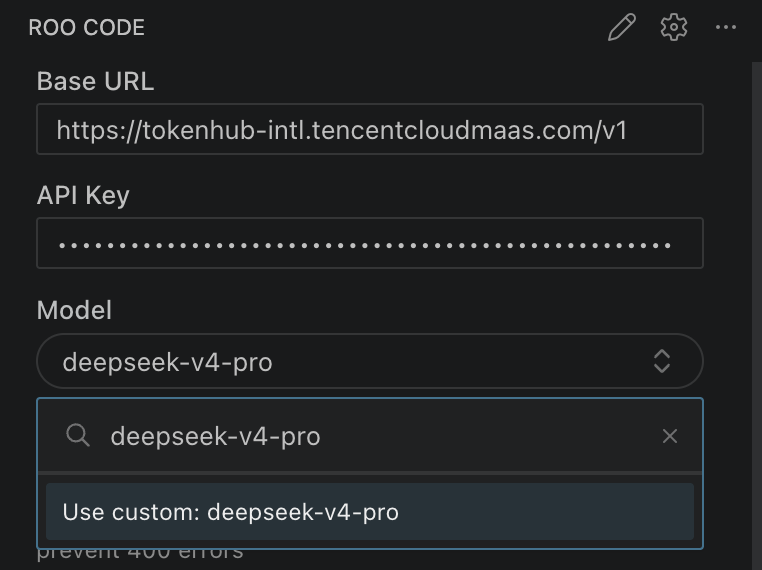
OpenAI Base URL:
https://tokenhub-intl.tencentcloudmaas.com/v1API Key: Enter your API Key.
Model: Enter
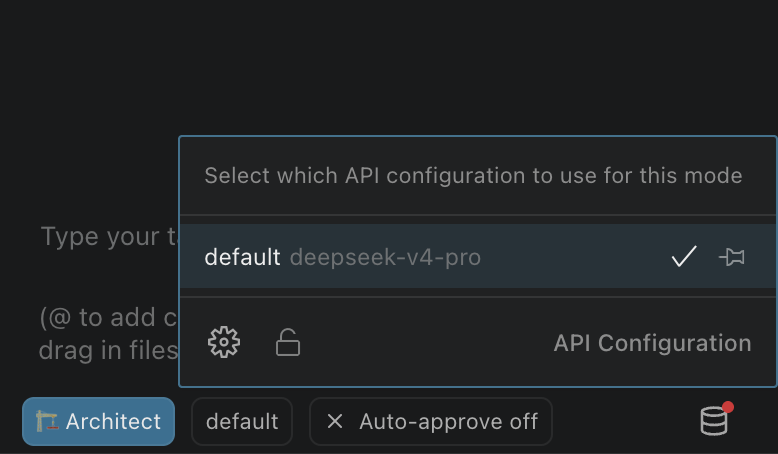
deepseek-v4-pro (using custom).4. After completing the configuration, you can interact with DeepSeek V4 Pro in Roo Code.
Bantuan dan Dukungan
Apakah halaman ini membantu?
Anda juga dapat Menghubungi Penjualan atau Mengirimkan Tiket untuk meminta bantuan.
masukan