Codex
Unduh
Mode fokus
Ukuran font
Codex is an AI coding tool launched by OpenAI that can autonomously complete entire programming tasks through natural language, helping developers understand codebases and edit files. Support for Codex has been added to meet the needs of developers. This document uses the Hy3 model as an example to demonstrate how to integrate a model into Codex.
Installing Codex
Install Codex according to your actual environment type. For details, see Codex Installation. If Codex is already installed, you can skip this step.
Obtaining an API Key
1. Go to the API Key Management page and click Create API Key. For operation details, see Create API Key.
Attention:
When setting Access Scope, if you select "Restricted Scope", make sure that Hy3 is selected.
2. After creation, be sure to copy and securely store the API Key. This information will be used in the subsequent process of configuring the tool.

Configuring Codex
Configuring Model Settings
1. Open Codex, click Settings in the lower-left corner, go to the Configuration page, and click Open config.toml on the right to open the configuration file in the system default editor.
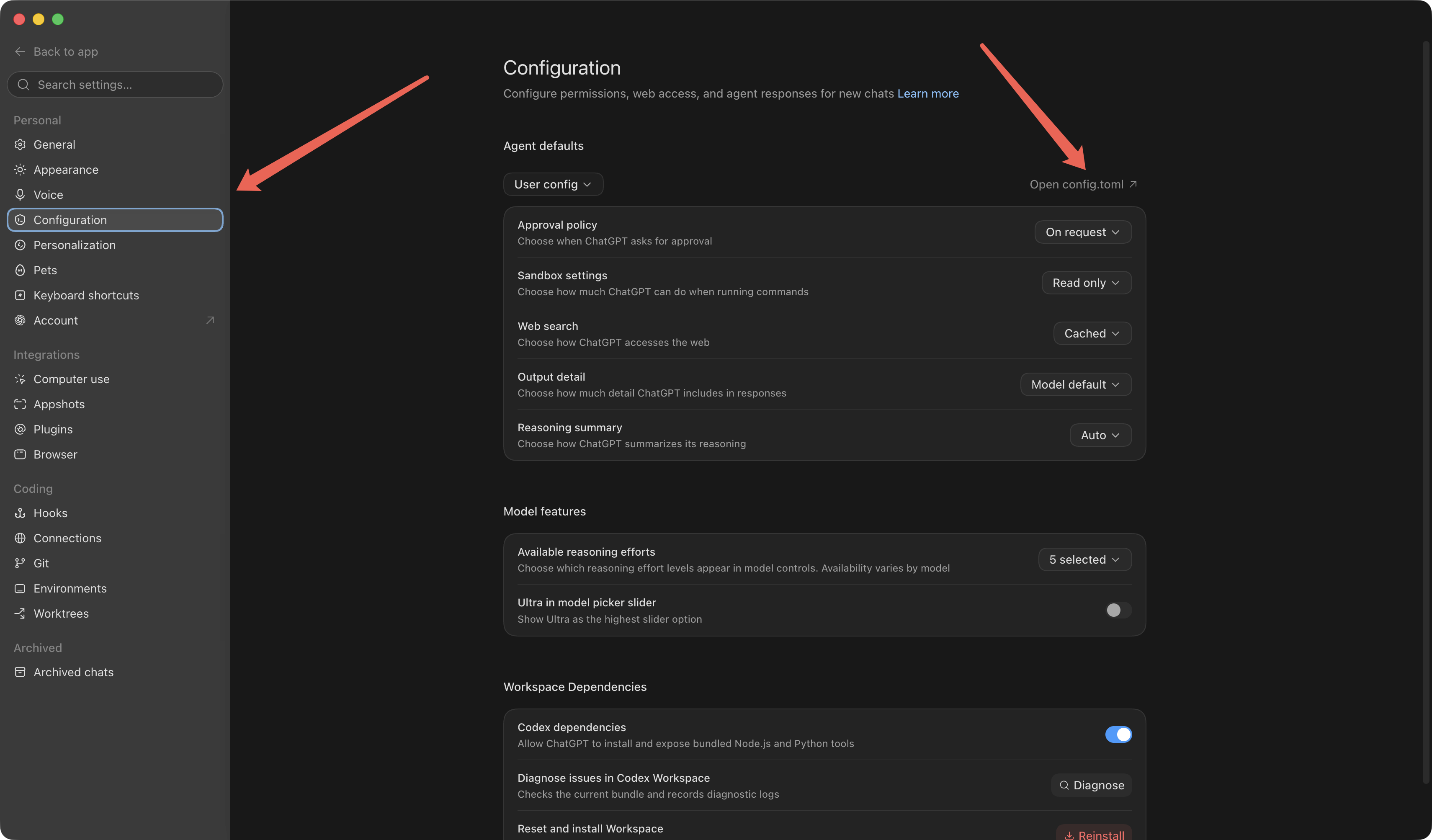
2. Write the following content at the top of the opened config.toml file. If other content already exists, add the following configuration section to the beginning of the file.
model_provider = "hy3-tokenhub"model = "hy3"disable_response_storage = true[model_providers.hy3-tokenhub]name = "Hy3 via tokenhub"base_url = "https://tokenhub-intl.tencentcloudmaas.com"env_key = "HY3_API_KEY"wire_api = "responses"
3. Open a terminal and run the following command to inject the API Key.
# macOSlaunchctl setenv HY3_API_KEY "Your API Key"# Windowssetx HY3_API_KEY "Your API Key"
Verifying Whether the Model Takes Effect
Completely exit Codex (closing the window only is not effective), and then restart it. After restarting, the previously injected Key and config.toml configuration will be automatically loaded.
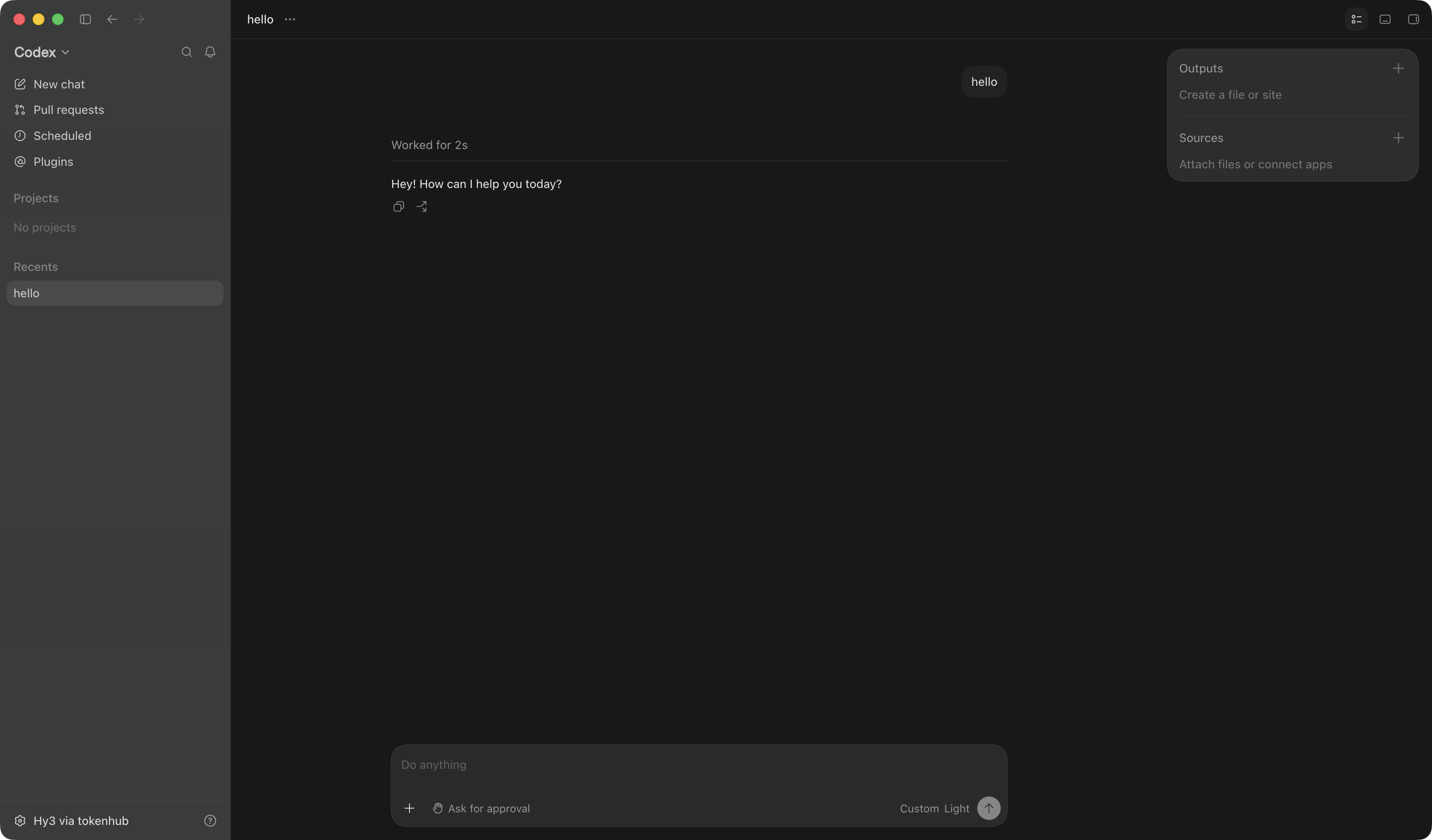
Enter a test message in the input box on the main interface. If the model returns a normal response (such as "Hello! How can I help you today?"), the integration is successful.
Bantuan dan Dukungan
Apakah halaman ini membantu?
Anda juga dapat Menghubungi Penjualan atau Mengirimkan Tiket untuk meminta bantuan.
masukan