OpenClaw is an open-source local AI agent framework that enables AI to evolve from "answering questions" to "performing tasks." It supports autonomous operation on Windows, macOS, and Linux, and can automatically perform operations such as file organization, email handling, and coding through built-in tools and an extensible plugin system.
Tencent Cloud Token Plan supports usage in OpenClaw. Refer to this document for configuration and usage.
Prerequisites
Before starting the configuration, make sure you have completed the following preparatory work:
You need to execute the corresponding command to install OpenClaw based on your actual environment type.
macOS/Linux
Windows
curl -fsSL https://openclaw.ai/install.sh |bash
Run the following command in PowerShell.
iwr -useb https://openclaw.ai/install.ps1 | iex
Complete the OpenClaw configuration by following the prompts. Refer to the configuration below.
Wizard configuration item
Configuration Content
I understand this is powerful and inherently risky. Continue?
Select Yes
Onboarding mode
Select QuickStart
Model/auth provider
Select Skip for now, which can be configured later.
Filter models by provider
Select All providers
Default model
Use the default configuration.
Select channel (QuickStart)
Select Skip for now, which can be configured later.
Configure skills now? (recommended)
Select No, which can be configured later.
Enable hooks?
Press the Spacebar to select the option, and press the Enter key to go to the next step.
How do you want to hatch your bot?
Select Hatch in TUI
Configure Token Plan
Note:
If you encounter issues such as 404 or 401 errors despite correct configurations, this is due to OpenClaw's caching issues. You can modify the local configuration file and restart the OpenClaw gateway. The configuration file path is as follows:
1. Run the following command to open OpenClaw's WebUI, then in the left-side menu bar of the WebUI, choose Config > Raw.
openclaw dashboard
2. Add the configuration for models.providers in the openclaw.json configuration item.
baseUrl: Refer to the example and configure it using the Base URL (https://tokenhub-intl.tencentcloudmaas.com/plan/v3) that is compatible with the OpenAI API protocol for the Token Plan.
3. Modify agents.default in the openclaw.json configuration item to add model list information. The model specified by the primary field can be configured according to your preference.
"agents":{
"defaults":{
"model":{
"primary":"tencent-token-plan/glm-5.2"
},
"models":{
"tencent-token-plan/auto":{},
"tencent-token-plan/glm-5.2":{},
"tencent-token-plan/kimi-k2.6":{},
"tencent-token-plan/minimax-m3":{},
"tencent-token-plan/deepseek-v4-flash-202605":{},
"tencent-token-plan/deepseek-v4-pro-202606":{}
}
}
}
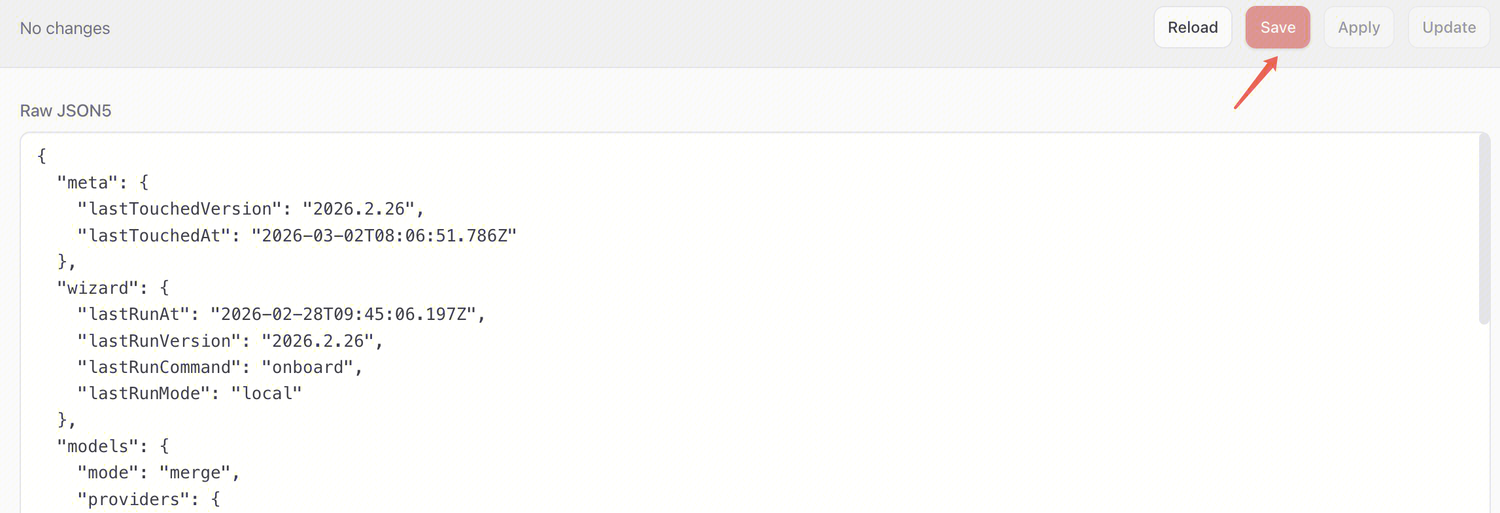
4. Click Save on the page to save the configuration; after saving, click Update to apply the configuration.
Use OpenClaw
OpenClaw supports interactive usage through WebUI and TUI.
WebUI
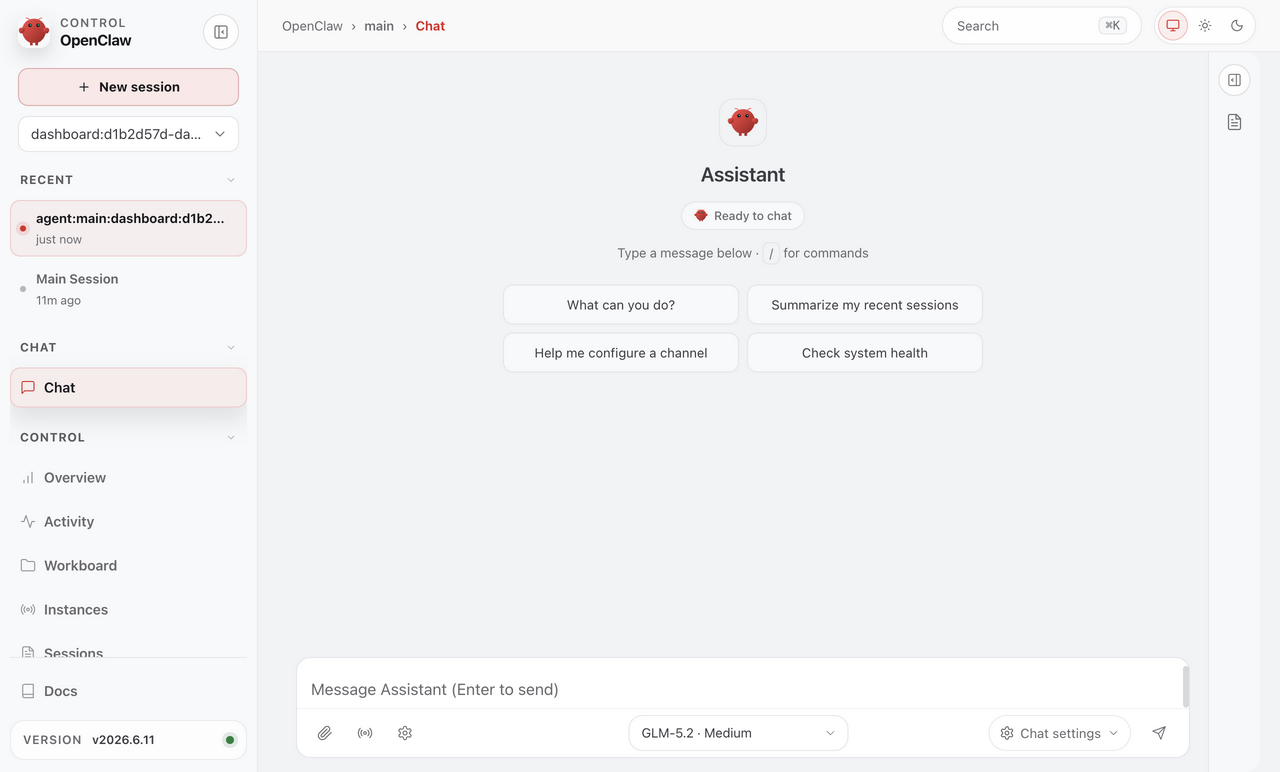
You can open the WebUI via the openclaw dashboard command, then click Chat on the left side of the WebUI to interact.
TUI
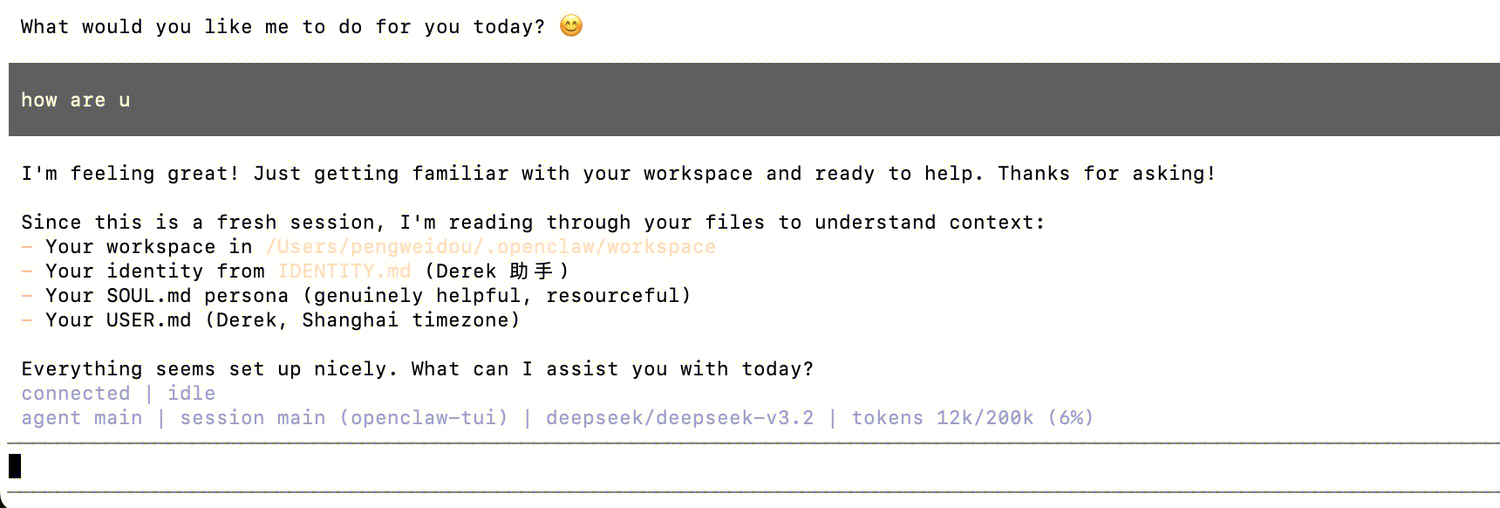
You can open the TUI to interact via the openclaw tui command.