Peripheral Management Policy Configuration
Unduh
Mode fokus
Ukuran font
1. Log in to the Tencent iOA Zero Trust Security Management System console. In the left sidebar, choose Terminal Management > Peripheral Management.
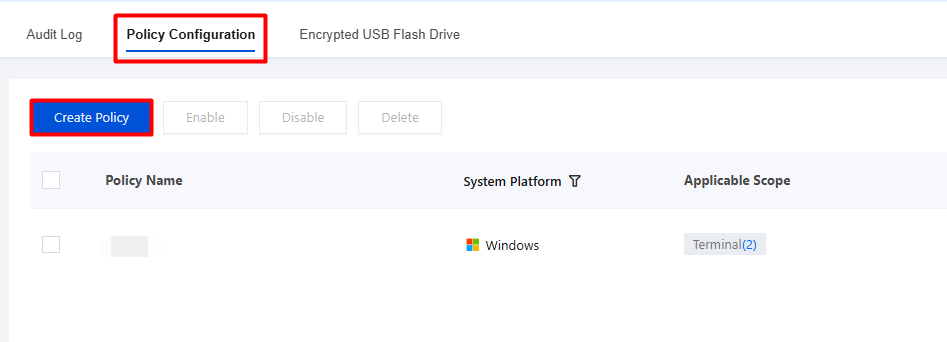
2. On the Peripheral Control page, select Policy Configuration.
3. On the Policy Settings page, click Create Policy and configure the relevant parameters.
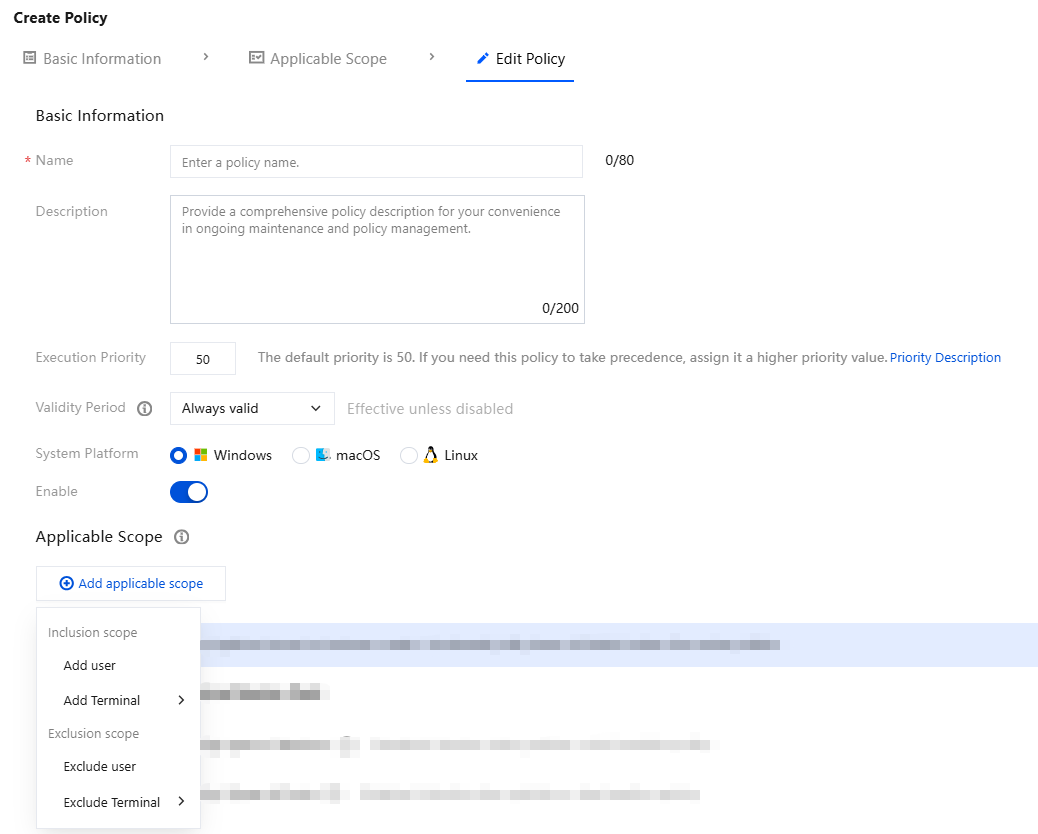
3.1 Enter the policy name and parameters such as the policy description.
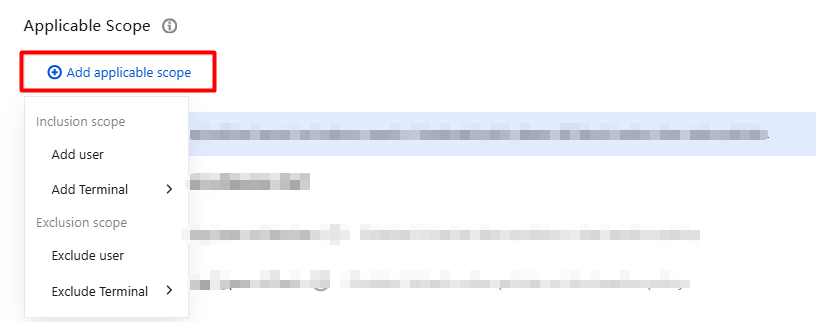
3.2 Click Add Applicable Scope. You can add or exclude users, organizational structures, custom user groups, and terminals to configure fine-grained control scope settings.
4. Based on your actual needs, select Manage the following types of devices, Manage the following types of ports, Prohibit other peripherals and hardware ports, Peripheral and Hardware Port Allowlist, or Manually install the peripheral and hardware device port policy description file on the client, configure the relevant parameters, and click Save.
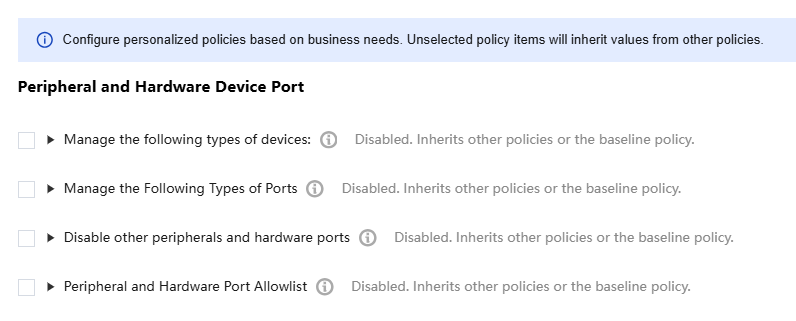
Managing the Following Types of Devices
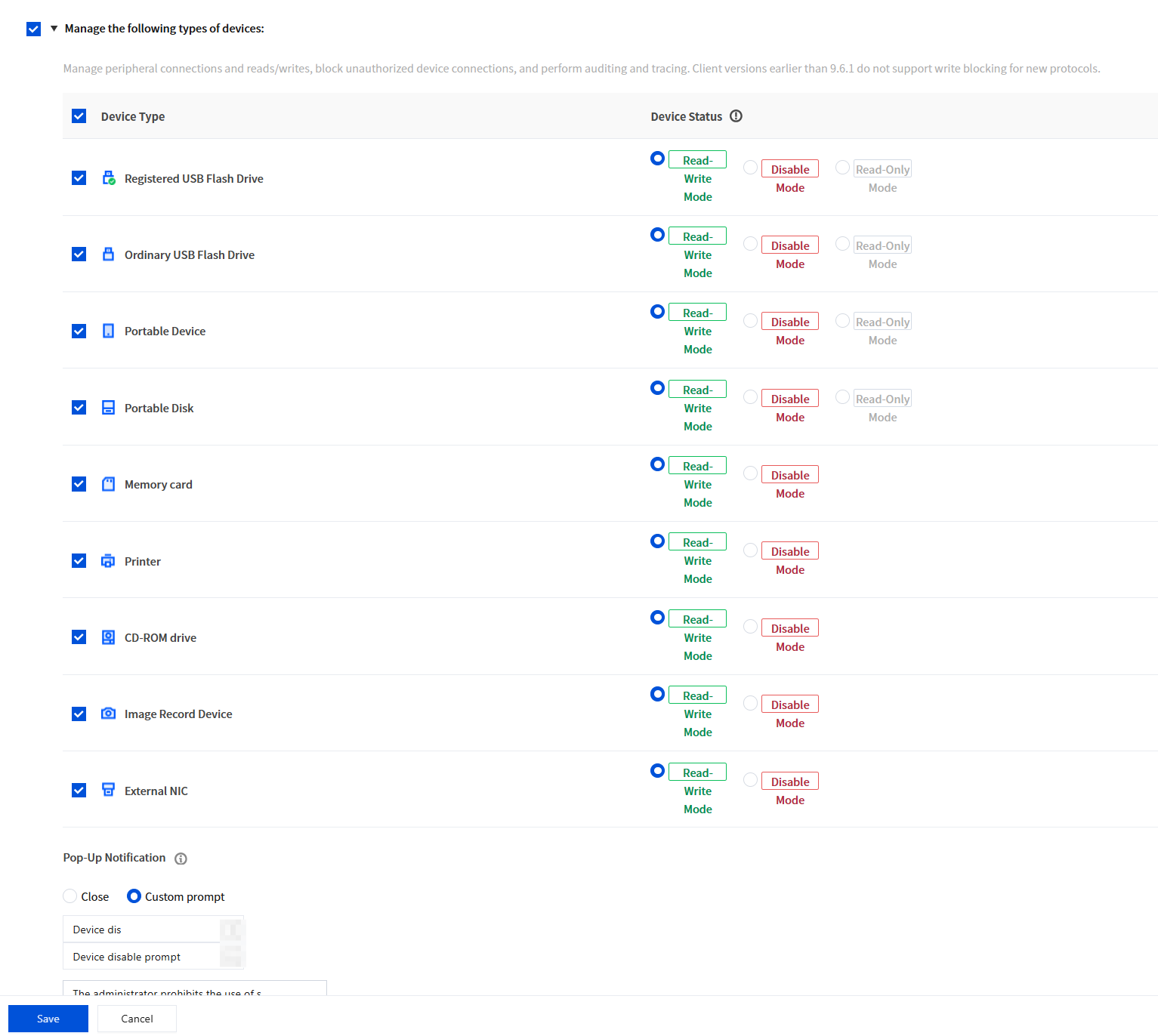
You can configure the read/write mode, disabled mode, or read-only mode.
Read/write mode: allows the use of this device without imposing read/write restrictions.
Disabled mode: completely prohibits use, does not allow peripherals to be connected to the computer, and prevents read/write access to the hardware device.
Read-only mode: allows data to be read from peripheral devices, making the peripherals read-only and thus preventing data from being copied to such peripherals.
1. Select Manage the following types of devices, choose the desired device, and select a mode.
Note:
"Registered USB drives" and "regular USB drives" do not interfere with each other. For example, if only registered USB drives are allowed in an enterprise, you can disable regular USB drives and enable registered USB drives.
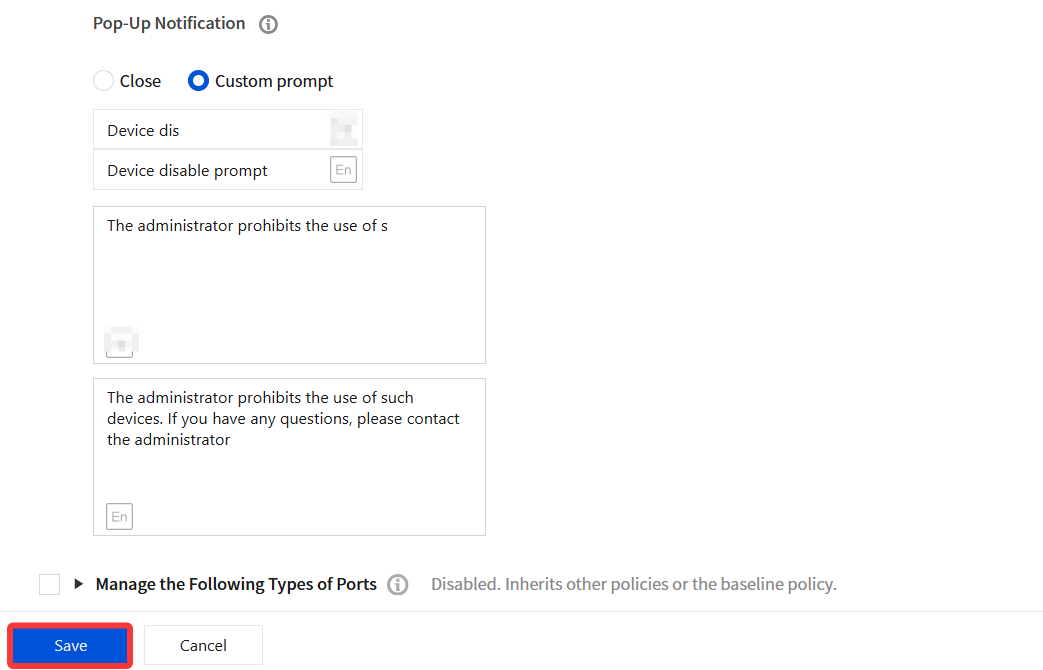
2. You can configure pop-up notifications and customize pop-ups. After completing the policy settings, click Save.
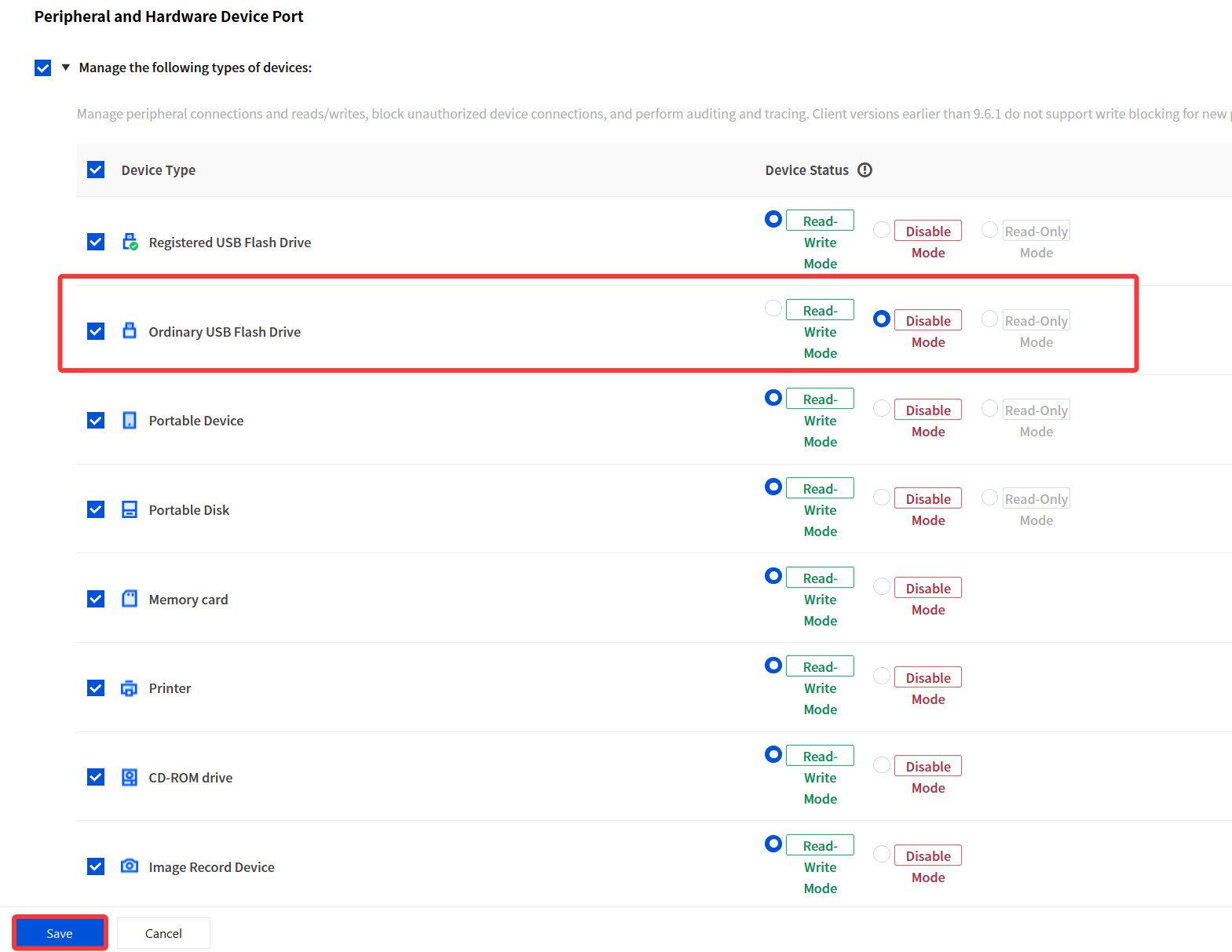
3. Example: Configure the system to disable regular USB drives and save the settings.
4. After the policy is delivered, when a terminal within the applicable scope inserts a USB drive, a device disabled notification pops up in the lower-right corner.
Managing the Following Types of Ports
Used to disable or enable external hardware ports.
Note:
Read/write mode: allows the use of this device without imposing read/write restrictions.
Disabled mode: completely prohibits use, does not allow peripherals to be connected to the computer, and prevents read/write access to the hardware device.
USB does not restrict common mouse and keyboard devices. If you use a special mouse or keyboard USB interface, or a Bluetooth USB interface, you can allow its use through the peripheral and hardware port allowlist policy.
1. Select Manage the following types of ports, choose the desired ports, and configure them to read/write or disabled mode.
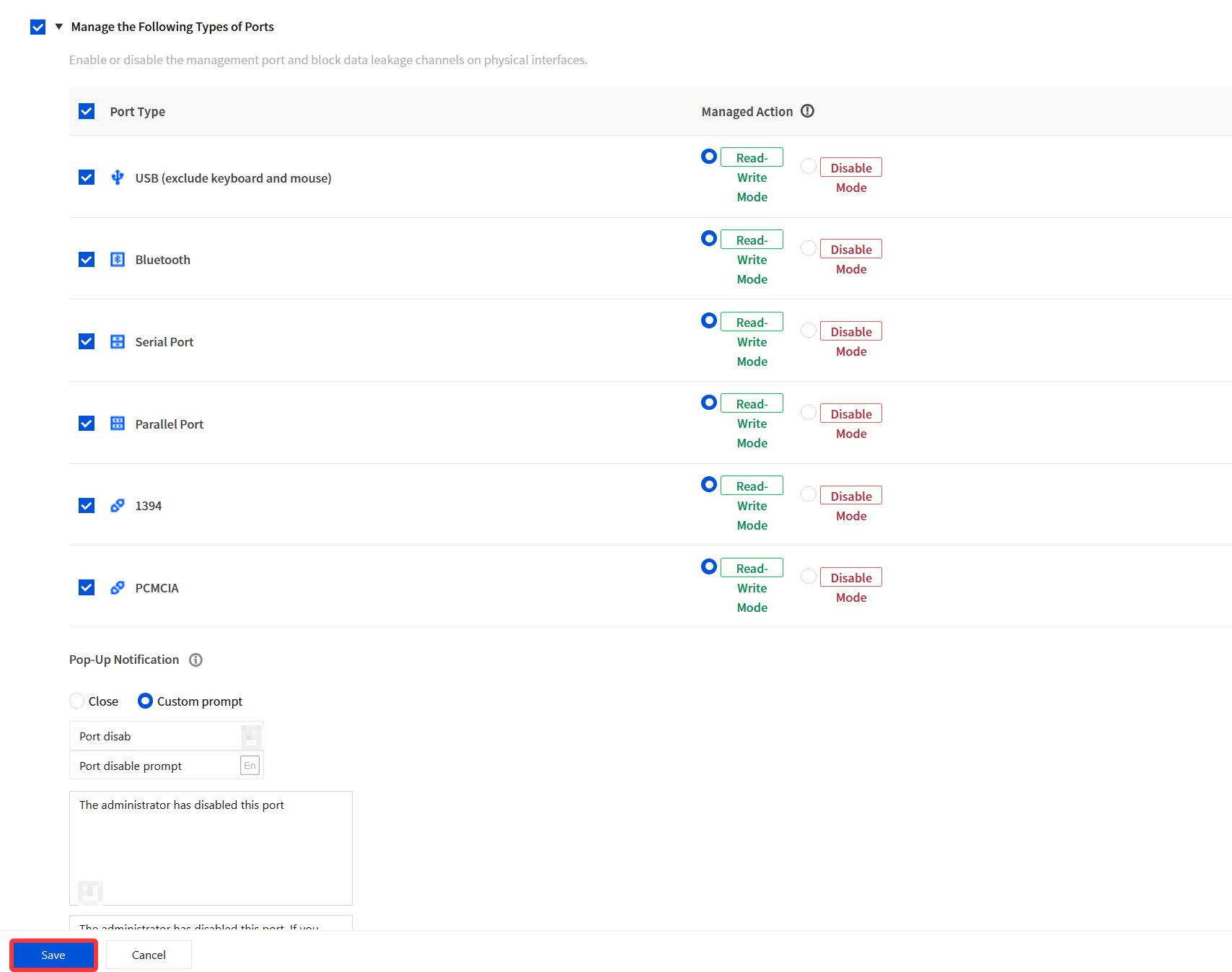
2. You can configure pop-up notifications and customize pop-ups. After completing the policy settings, click Save.
Prohibiting Other Peripherals and Hardware Ports
Reporting Additions
Disable ports of other devices. Device types are identified by enumerating device drivers. If disabling of peripherals and ports has been configured, this feature is unavailable, and you can customize the types of hardware devices to disable here.
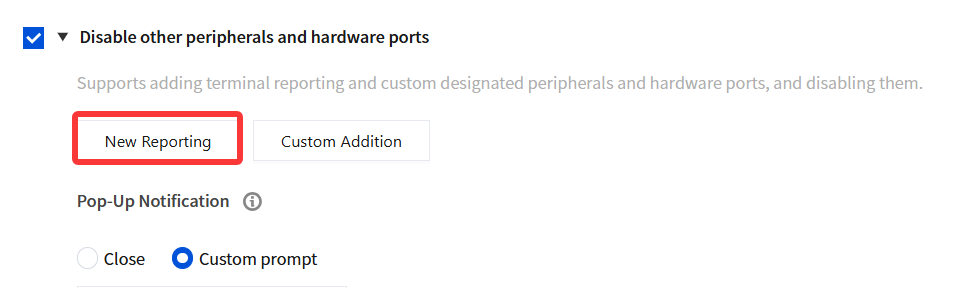
1. Click New Reporting and configure the peripherals and hardware ports to be prohibited.
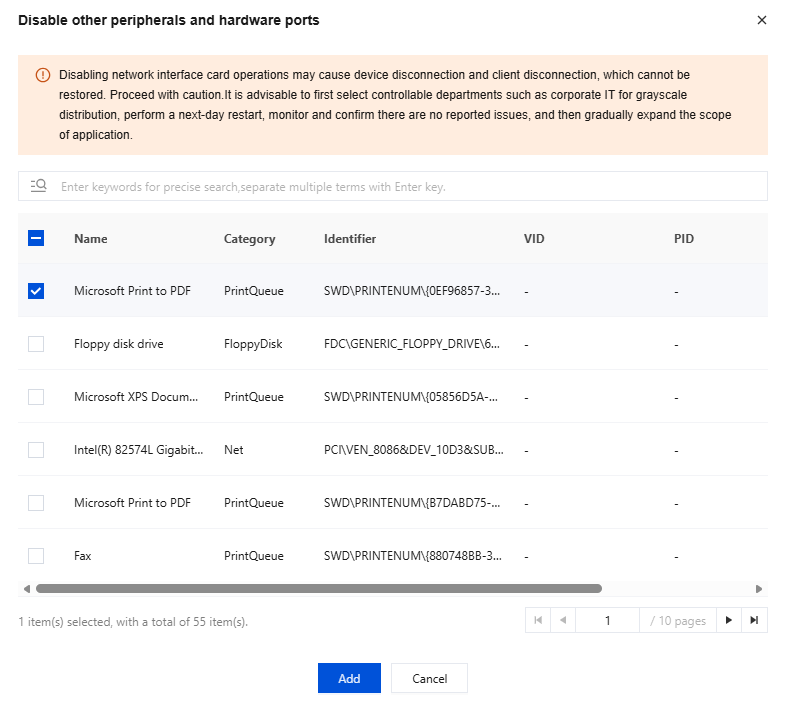
2. In the window for disabling other peripherals and hardware ports, select the desired devices and click Add.
Custom Additions
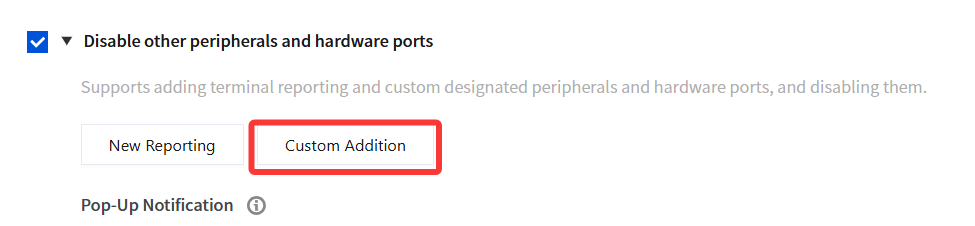
1. To customize a blocklist for peripherals and hardware ports, click Custom Addition.
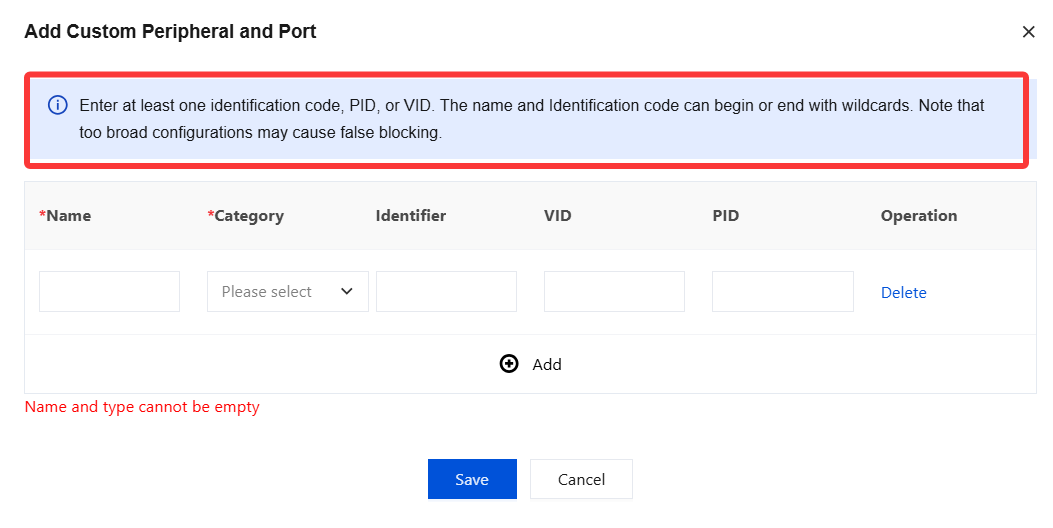
2. It supports identifying unique devices by name or identifier, adding wildcards, and adding devices in batches. After configuration, click Save.
Peripheral and Hardware Port Allowlist
An allowlist policy allows certain special devices to be used. Examples include USB interface devices and Bluetooth interface devices.
After external storage devices such as USB drives and portable hard drives are disabled by the "Peripheral and Hardware Device Ports" policy, they become unusable. If some peripherals need to remain usable, they can be added to the "Peripheral and Hardware Port Allowlist".
Reporting Additions
1. Click New Reporting and configure the peripheral and hardware port allowlist.

2. In the peripheral and hardware port allowlist window, select the desired devices and click Add.
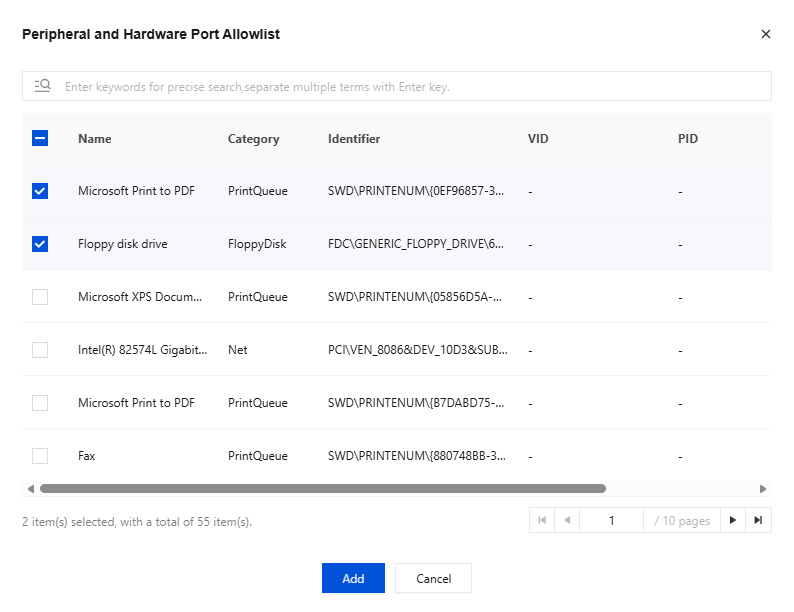
Custom Addition
To customize the peripheral and hardware port allowlist, click Custom Add.

Note:
Only devices that have been plugged into or unplugged from terminals with the iOA client installed can be added to the peripheral and hardware port allowlist.
To add a peripheral to the allowlist, you need to obtain its identifier. You can add it to the allowlist by using the identifier path in audit logs, or add it to the allowlist by VID and PID in Computer Management.
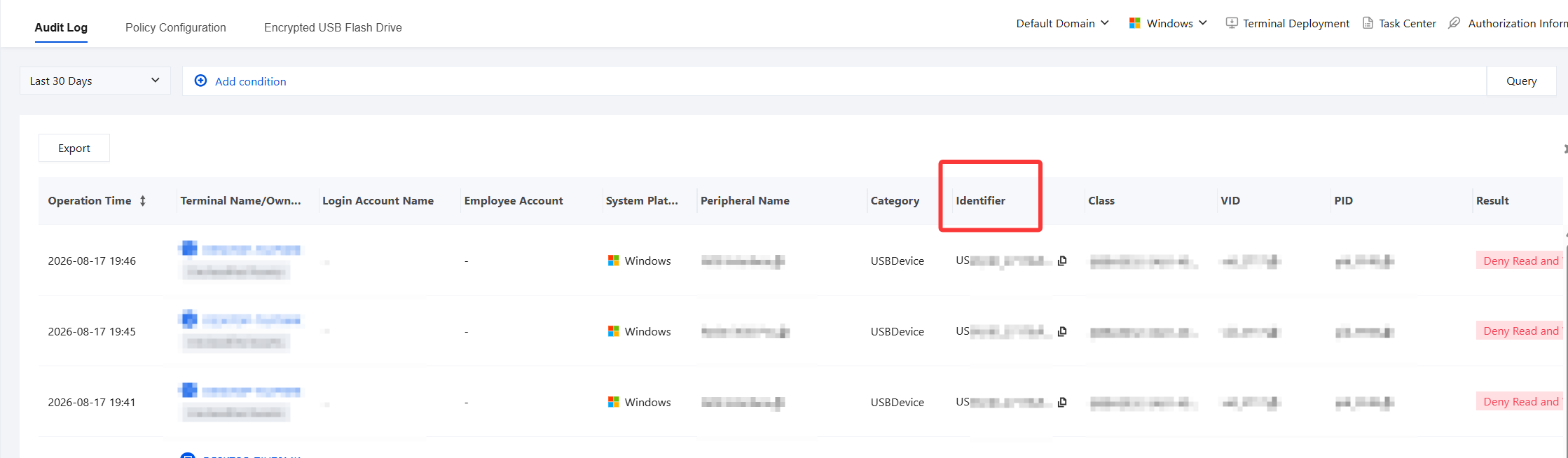
Method 1: Adding to the Allowlist via the Identification Path in Audit Logs
1. Log in to the Tencent iOA Zero Trust Security Management System console. In the left sidebar, choose Terminal Management > Peripheral Management > Audit Log.
2. In the audit logs, copy the identifier path to obtain the vendor ID (VID) and product ID (PID).
Note:
The copied identifier path, vendor ID (VID), and product ID (PID) will be used in Policy Configuration > Peripheral and Hardware Port Allowlist.
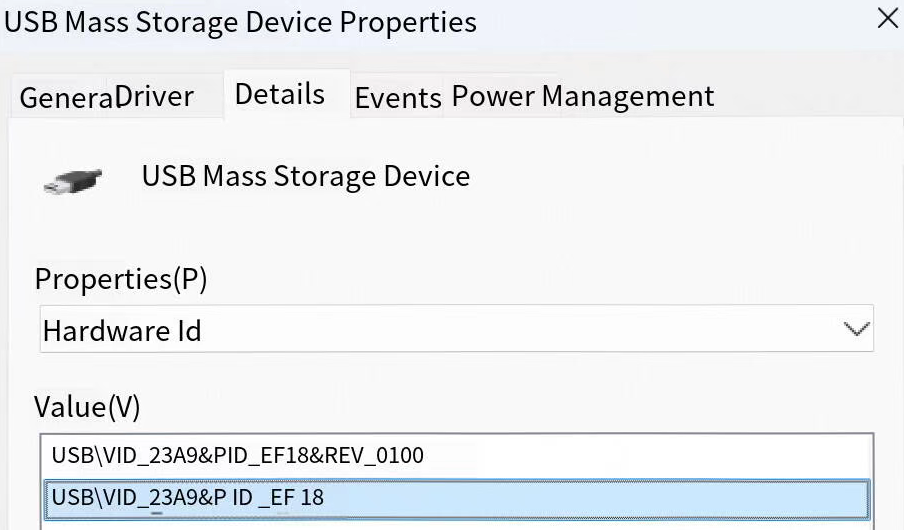
Method 2: Obtaining VID and PID on the Computer
1. Open Computer Management > Device Manager.
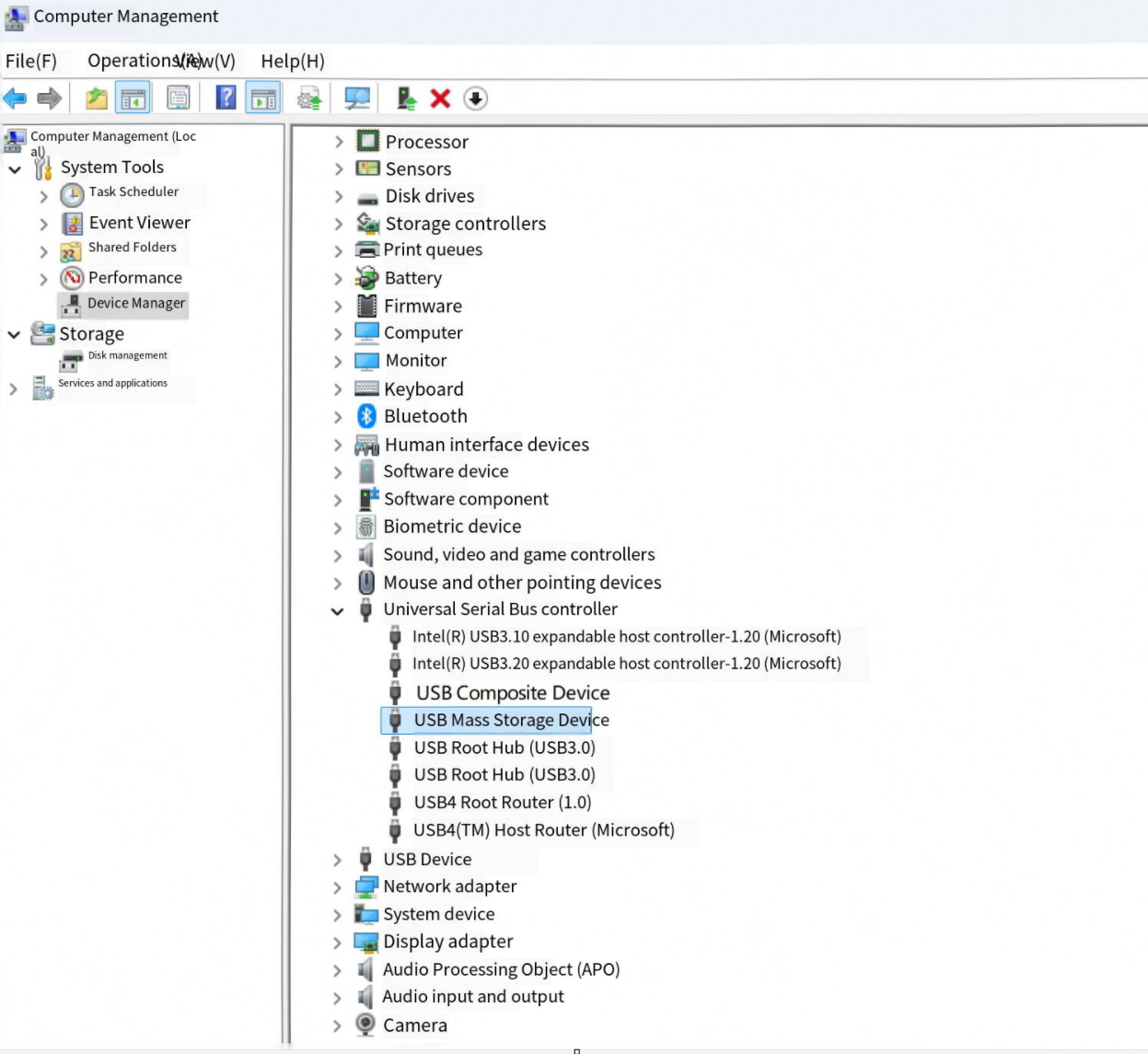
2. Plug or unplug the USB drive to identify the USB device, then right-click Properties.
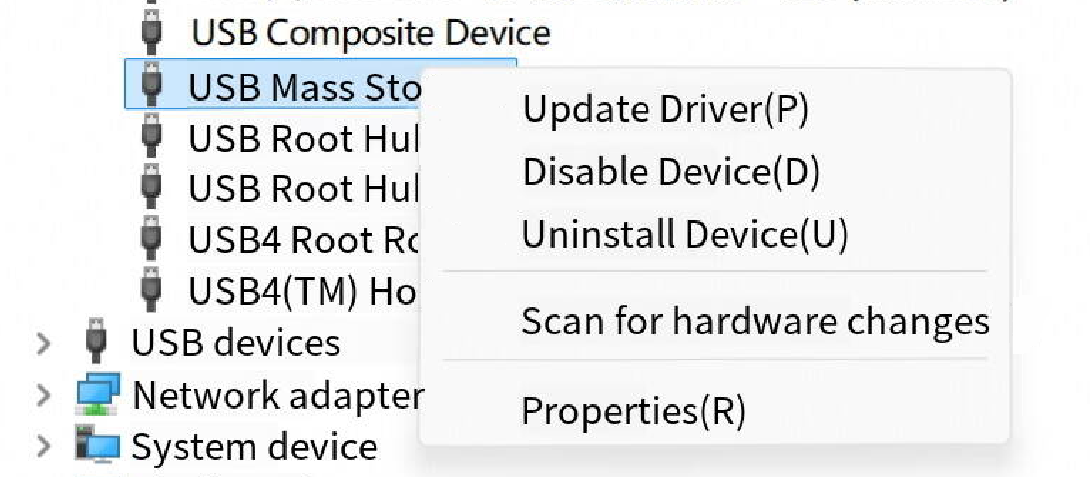
3. In Details > Hardware Ids, obtain the VID and PID.
Configuring the Peripheral and Hardware Port Allowlist
1. Log in to the Tencent iOA Zero Trust Security Management System console. In the left sidebar, choose Terminal Management > Peripheral Management > Policy Configuration.
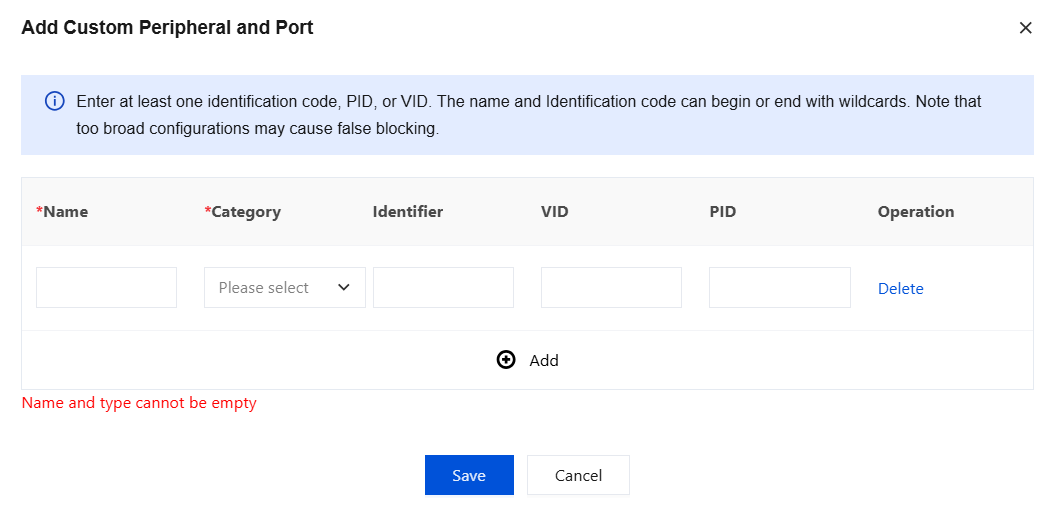
2. Click Create Policy, select Peripheral and Hardware Port Allowlist, and then click Custom Addition.

3. Paste the obtained identifier path, VID, PID, and other information. After configuration, click Save.
Manually Installing the Peripheral and Hardware Device Port Policy Description File on the Client
Note:
This is a macOS feature and is not available on Windows.
This feature allows administrators or terminal users to manually install policy description files for peripheral and hardware device ports on the client. Policy description files define usage rules for peripherals and hardware ports, such as limiting the use of certain devices or configuring port access permissions. Administrators can upload and install the appropriate description files based on actual needs to implement specific peripheral management policies.
1. If you have configured the MDM push certificate, no selection is required. If not, select Manually install the peripheral and hardware device port policy description file on the client.

2. After you select this policy, the system delivers a policy description file to the iOA client. Click Install Now to install this description file.
3. After a user installs a new policy description file, the terminal needs to be restarted for the new policy to take effect. This is because the policy file may affect the underlying hardware configuration and permission management of the system, and these changes typically need to be loaded during system startup. Restart the terminal promptly after installing the description file to ensure correct policy implementation.
4. If no policy description file is installed, the terminal will run with default configurations and may be unable to restrict specific peripherals or hardware ports.
Bantuan dan Dukungan
Apakah halaman ini membantu?
Anda juga dapat Menghubungi Penjualan atau Mengirimkan Tiket untuk meminta bantuan.
masukan