Audience Viewing(iOS)
Download
フォーカスモード
フォントサイズ
TUILiveKit's audience viewing page provides users with various and convenient live streaming and interaction features, enabling quick integration into your application to meet diverse audience needs.
Feature Overview
Live streaming: Clear and smooth viewing of the host's real-time live stream.
Interactive co-guest: Apply for mic connection to interact with the host via audio and video.
Live information: View the live streaming room title, description, and audience list, etc.
Live interactive: Send a gift (with animation effects and host notification), like (with animation and real-time statistics), and interact via bullet screen.
Live Streaming | Interactive co-guest | Live Information | Live Interactive |
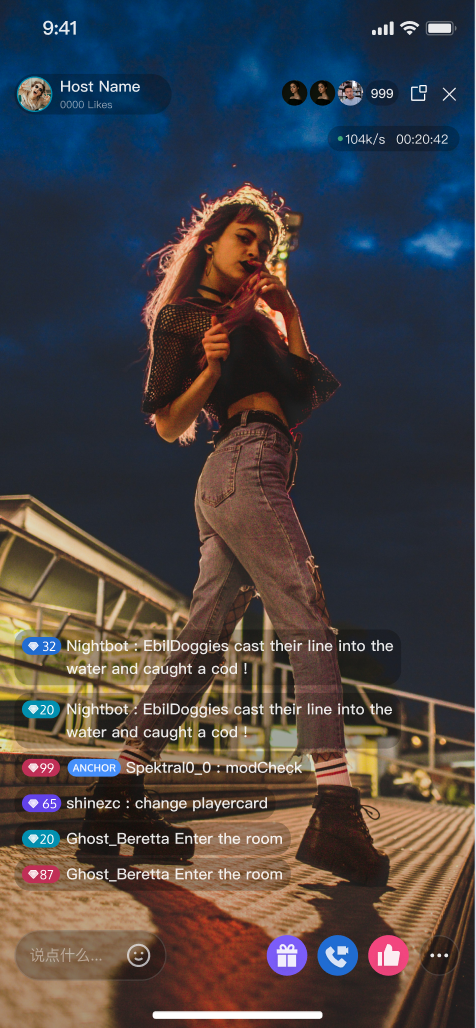 |
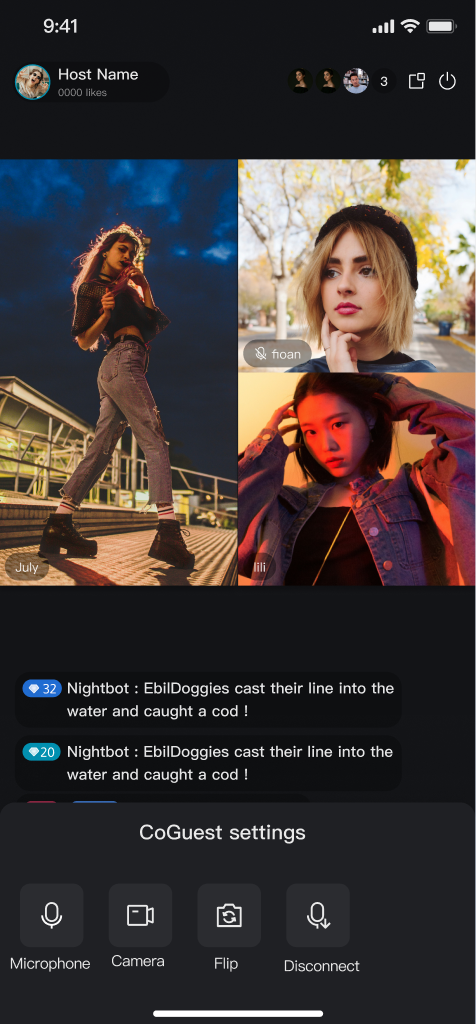 | 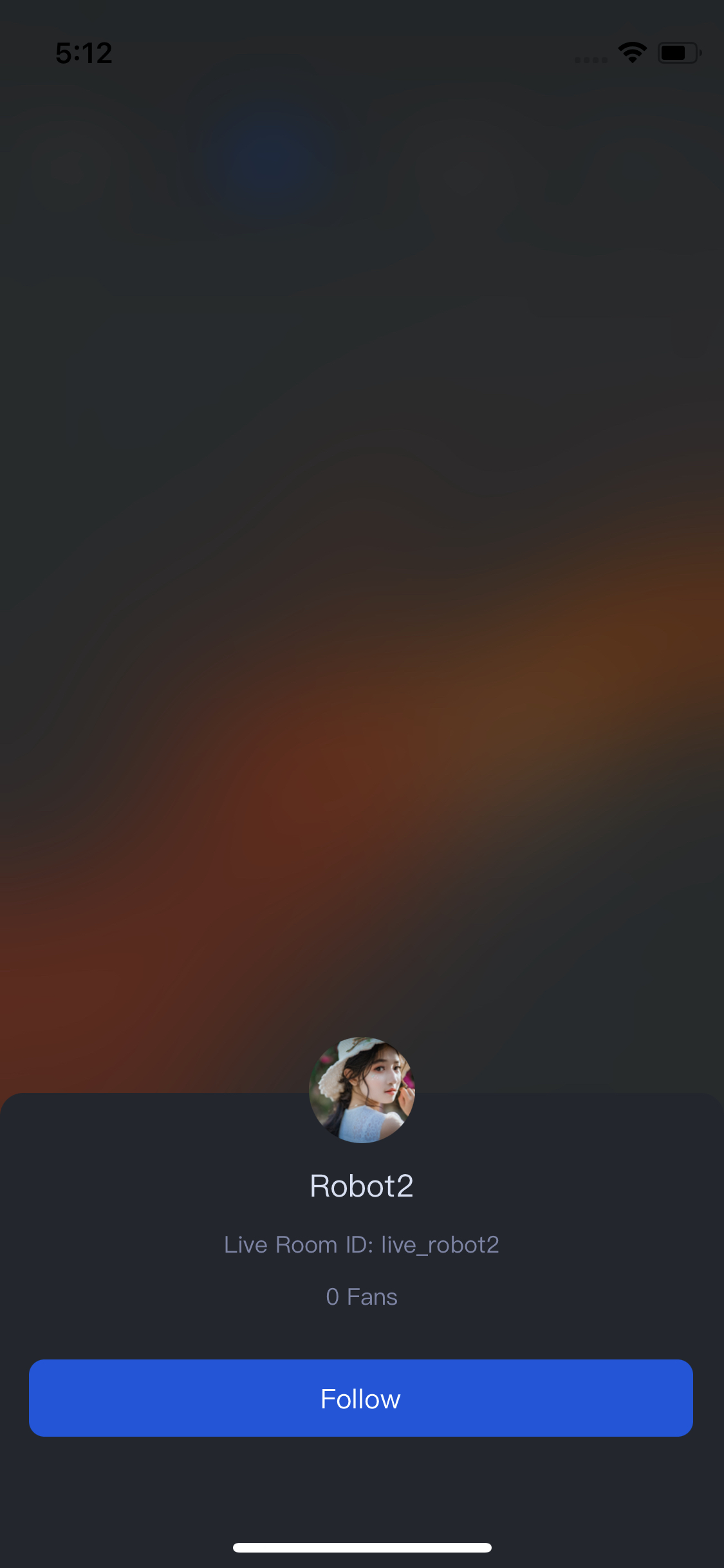 | 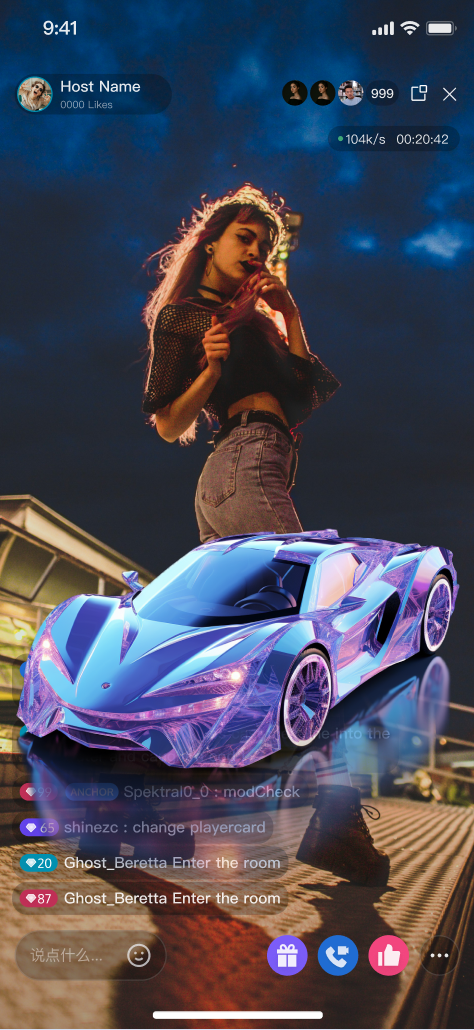 |
Quick Start
Step 1. Activate the Service
Refer to the Activate Service document to get the
TUILiveKit trial version or activate the paid version.Step 2. Code Integration
Step 3. Add an Audience Viewing view
In your audience view controller
YourAudienceViewController, initialize and add AudienceView for audience streaming:import UIKitimport SnapKitimport TUILiveKit// YourAudienceViewController represents the audience viewing page controllerclass YourAudienceViewController: UIViewController {// 1. Declare audienceView as a member variableprivate let audienceView: AudienceView// 2. Add a convenience initializer:// - roomId: Live room IDpublic init(roomId: String) {// 3. Initialize the AudienceView componentself.audienceView = AudienceView(roomId: roomId)super.init(nibName: nil, bundle: nil)}@available(*, unavailable)required init?(coder: NSCoder) {fatalError("init(coder:) has not been implemented")}public override func viewDidLoad() {super.viewDidLoad()// 4. Add audienceView to the view hierarchyview.addSubview(audienceView)audienceView.snp.makeConstraints { make inmake.edges.equalToSuperview()}}}
Step 4. Event Callbacks and Data Source Customization
Beyond UI style customization, AudienceView offers three optional extension points for integrating a custom live stream list data source, handling audience page lifecycle events, and managing screen orientation changes:
Extension Point | Type | Description |
delegate | AudienceViewDelegate | Listen for audience page events, such as live view creation/display/hide, floating window actions, live end, and more. |
dataSource | AudienceViewDataSource | Customize live stream list retrieval logic. By default, AudienceView uses TUILiveKit’s built-in list; set this to use your own APIs. |
rotateScreenDelegate | RotateScreenDelegate | Monitor audience page orientation changes to synchronize your UI layout with device rotation. |
import UIKitimport SnapKitimport TUILiveKitimport AtomicXCoreclass YourAudienceViewController: UIViewController {private let audienceView: AudienceViewpublic init(roomId: String) {self.audienceView = AudienceView(roomId: roomId)super.init(nibName: nil, bundle: nil)// Set callbacks and data sourceaudienceView.delegate = selfaudienceView.dataSource = selfaudienceView.rotateScreenDelegate = self}@available(*, unavailable)required init?(coder: NSCoder) {fatalError("init(coder:) has not been implemented")}public override func viewDidLoad() {super.viewDidLoad()view.addSubview(audienceView)audienceView.snp.makeConstraints { make inmake.edges.equalToSuperview()}}}// MARK: - AudienceViewDelegateextension YourAudienceViewController: AudienceViewDelegate {// Called when the live room playback view is created; overlay custom UI here if neededfunc audienceView(_ audienceView: AudienceView, onCreateLiveView liveView: AudienceLiveView, for liveInfo: LiveInfo) {}// Called when the audience swipes to a live room and its playback view appears on screenfunc audienceView(_ audienceView: AudienceView, liveViewDidAppear liveView: AudienceLiveView, for liveInfo: LiveInfo) {}// Called when the audience leaves a live room and its playback view is removed from the screenfunc audienceView(_ audienceView: AudienceView, liveViewDidDisappear liveView: AudienceLiveView, for liveInfo: LiveInfo) {}// Called when the user clicks the floating windowfunc onClickFloatWindow() {FloatWindow.shared.showFloatWindow(controller: self, provider: audienceView)}// Called when the live stream ends (host stops streaming, room is closed, etc.)func onLiveEnded(roomId: String, ownerName: String, ownerAvatarUrl: String) {// Display the live end summary page (includes host avatar/nickname, "Live Ended" prompt, etc.)let endView = AudienceEndStatisticsView(roomId: roomId, avatarUrl: ownerAvatarUrl, userName: ownerName)endView.delegate = selfview.addSubview(endView)endView.snp.makeConstraints { make inmake.edges.equalToSuperview()}}}// MARK: - RotateScreenDelegateextension YourAudienceViewController: RotateScreenDelegate {// isPortrait: true if portrait mode, false if landscape modefunc rotateScreen(isPortrait: Bool) {}}
Step 5. Navigate to the Audience Viewing view
Usually in the live stream list, use the following code example when you need to jump to the viewer watching page:
// 1. Instantiate your audience viewing view controllerlet audienceVC =YourAudienceViewController(roomId: "Your live streaming room id")audienceVC.modalPresentationStyle = .fullScreen// 2. Navigate to your audience viewing view controllerpresent(audienceVC, animated: false)
step 6. Customize Your UI Layout
Customize the AudienceView Feature Area
Customize the audience interface by referring to the Core Audience Page modify the UI styles and add your business components in AudienceView.
Customize video-slot widgets by referring to Adjust Live Streaming Widgets. Modify the UI of nameplates, avatar decorations, and other elements on the video slot in AudienceView.
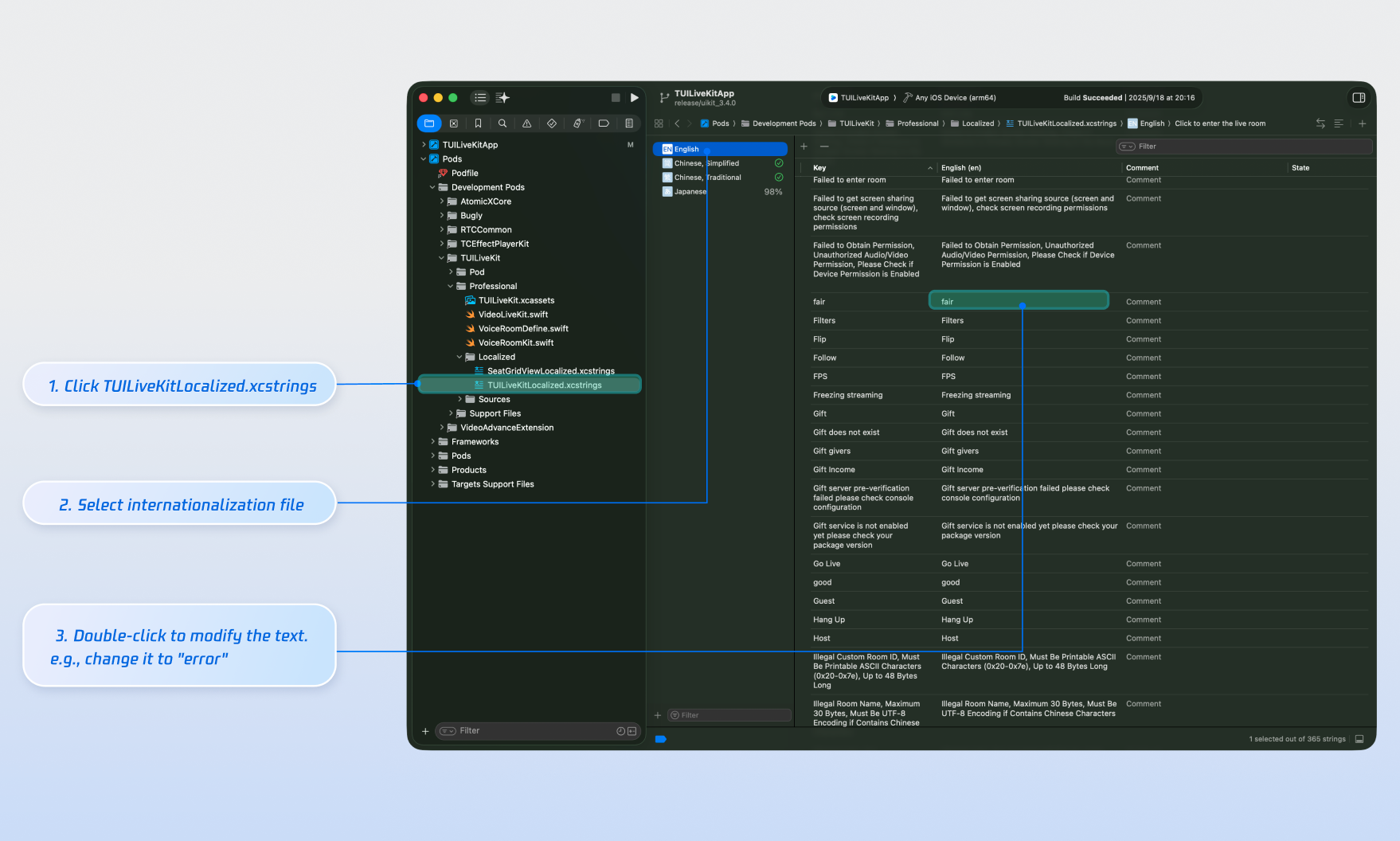
Text Customization (Localization)
TUILiveKit uses the Apple Strings Catalog(
.xcstrings) format, introduced in Xcode 15, to manage the text displayed in the UI. You can modify the string resources using Xcode's graphical interface:Note:
Apple Strings Catalog (.xcstrings) is a localization format introduced in Xcode 15. It enhances how developers manage localized strings, supporting a structured format to handle plurals, device-specific variants, etc. This format is becoming the recommended way to manage localization for iOS and macOS applications.
Icon Customization (Image Assets)
TUILiveKit uses
TUILiveKit.xcassets to manage the image resources for the UI. You can quickly modify the custom icons using Xcode's graphical tools.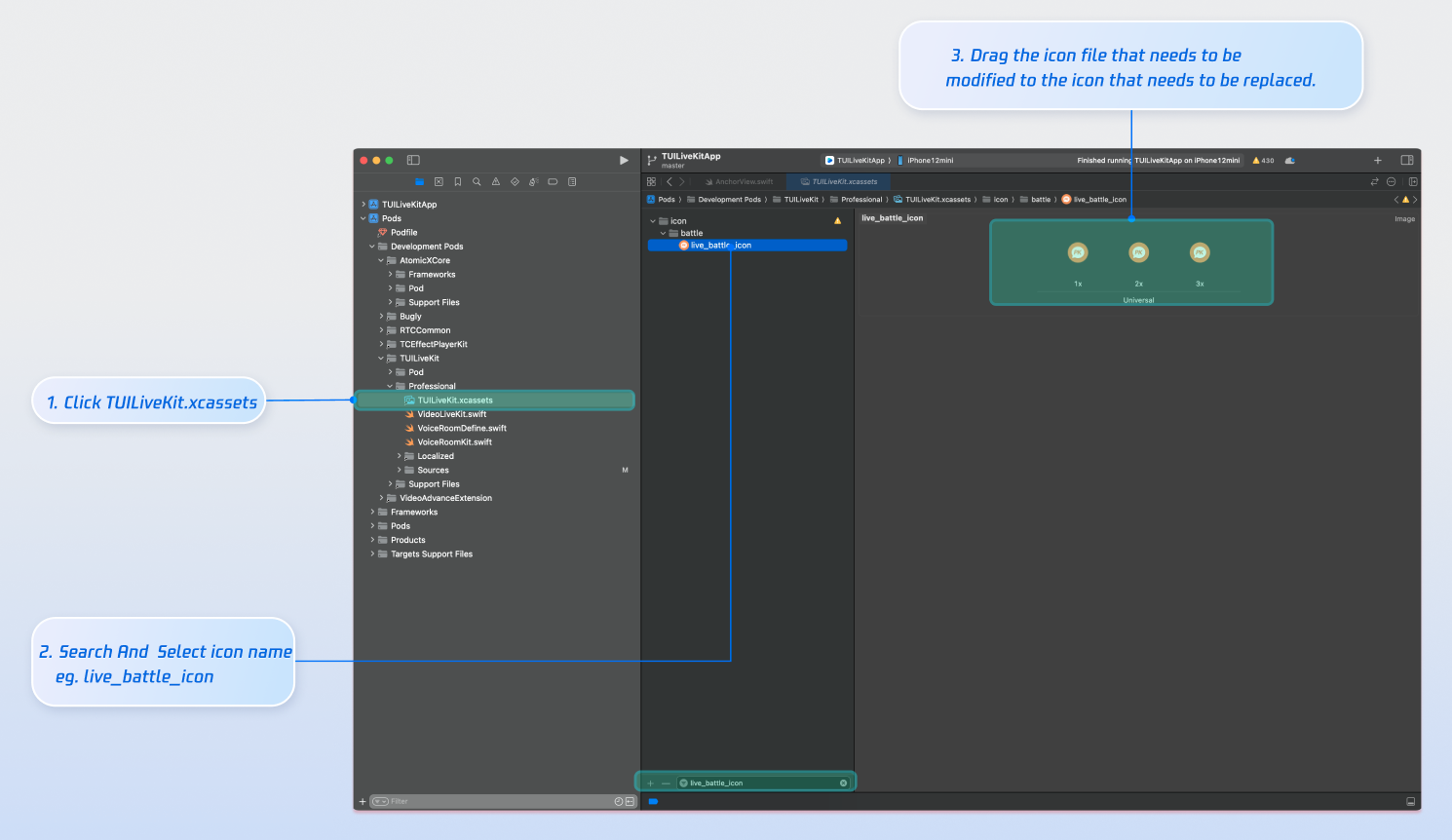
Next Steps
Congratulations! You have successfully integrated Audience Viewing. Next, you can implement features such as host streaming, live stream list and gift system. Please refer to the table below:
Feature | Description | Integration Guide |
Host Streaming | The complete workflow for a host to start a stream, including pre-stream setup and various in-stream interactions. | |
Live Stream List | Display the live stream list interface and features, including the live stream list and room information display. | |
Gift System | Support custom gift asset configuration, billing system integration, and gift-sending in PK scenarios. |
FAQs
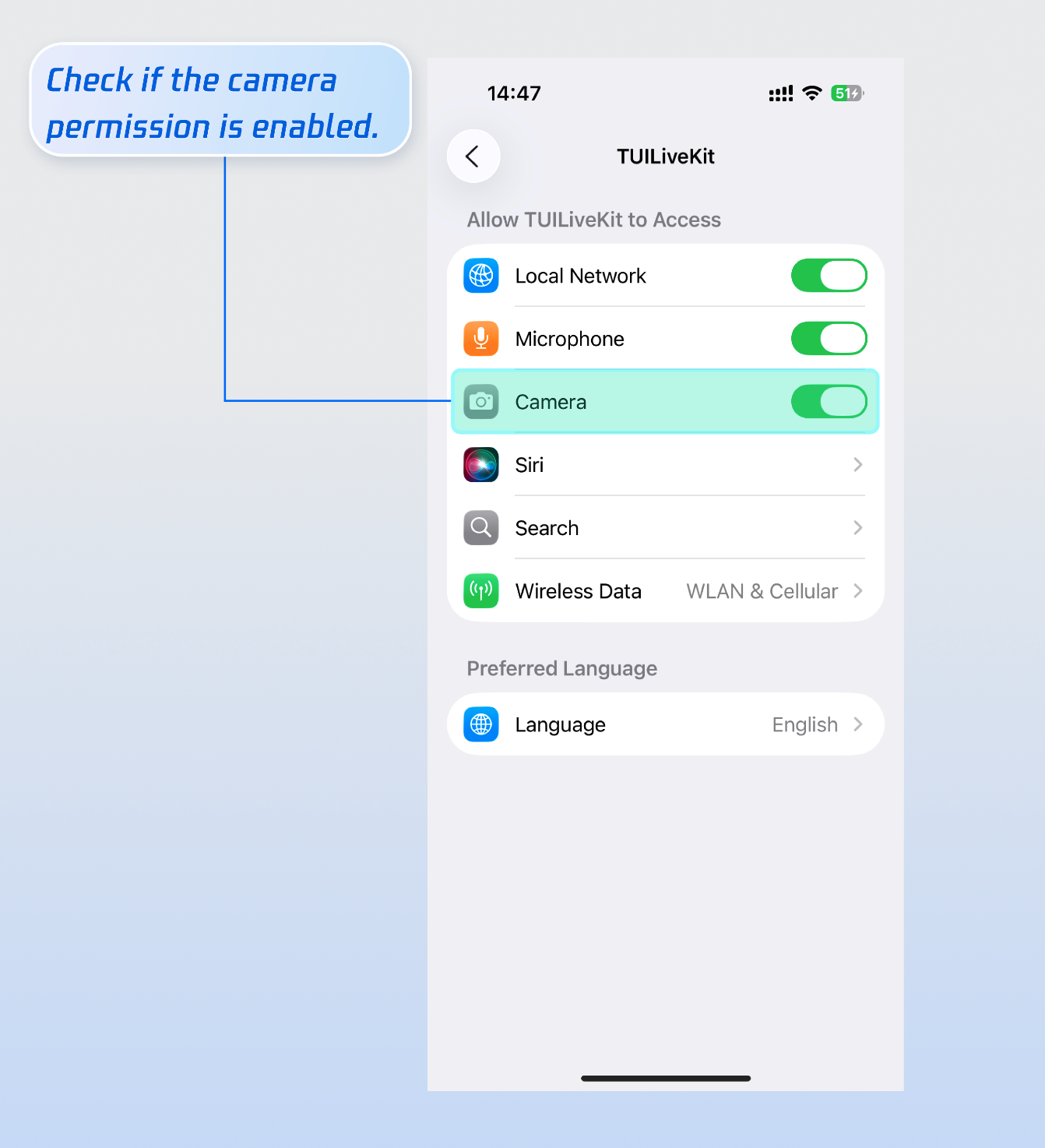
Why is the video screen black when a viewer selects video co-hosting?
Please go to Phone Settings > App > Camera, check whether camera permission is enabled, refer to the image below:
Why can't other viewers in the live room see the barrage content sent by a viewer?
Reason 1: First check the network connection to ensure the viewer's device network is normal.
Reason 2: The viewer has been muted (banned) by the host and cannot send barrage.
Reason 3: The viewer's barrage content involves keyword blocking. Please confirm whether the content sent by the viewer complies with the live room rules.
フィードバック